
Three tools for the people who run the site, not the people who code it
Odoo 20 changes the website builder in two places. Inside the editor, the module ai_website adds an AI Website Assistant: a chat panel that writes page text in a chosen tone, proposes SEO metadata and, per the guide, edits blocks, menus and forms on request. Outside the editor, the Website Generator, which rebuilds an existing site inside Odoo, learns to import WordPress and Ghost blogs and to pull products from a PrestaShop store. Data Cleaning, the Enterprise app that merges duplicate contacts, extends the same engine to products, which is what you need right after an import.
This post is for the marketing manager or owner who edits the site weekly, and for anyone moving a blog or a PrestaShop shop into Odoo. We show the configuration screens and the one-shot AI features that ran live on the pre-release build. The assistant's chat replies did not: they go through an asynchronous endpoint that calls the database back over a public URL, so on our private demo the request stayed on "Thinking". Where we say what the assistant can edit, we quote the guide, not a screen we saw.
Observed on the Odoo 20.0 Enterprise pre-release build of September 23, 2026. Names, menus and availability can change before general availability; we will update this page when they do.
Create a page and let Odoo write the first draft
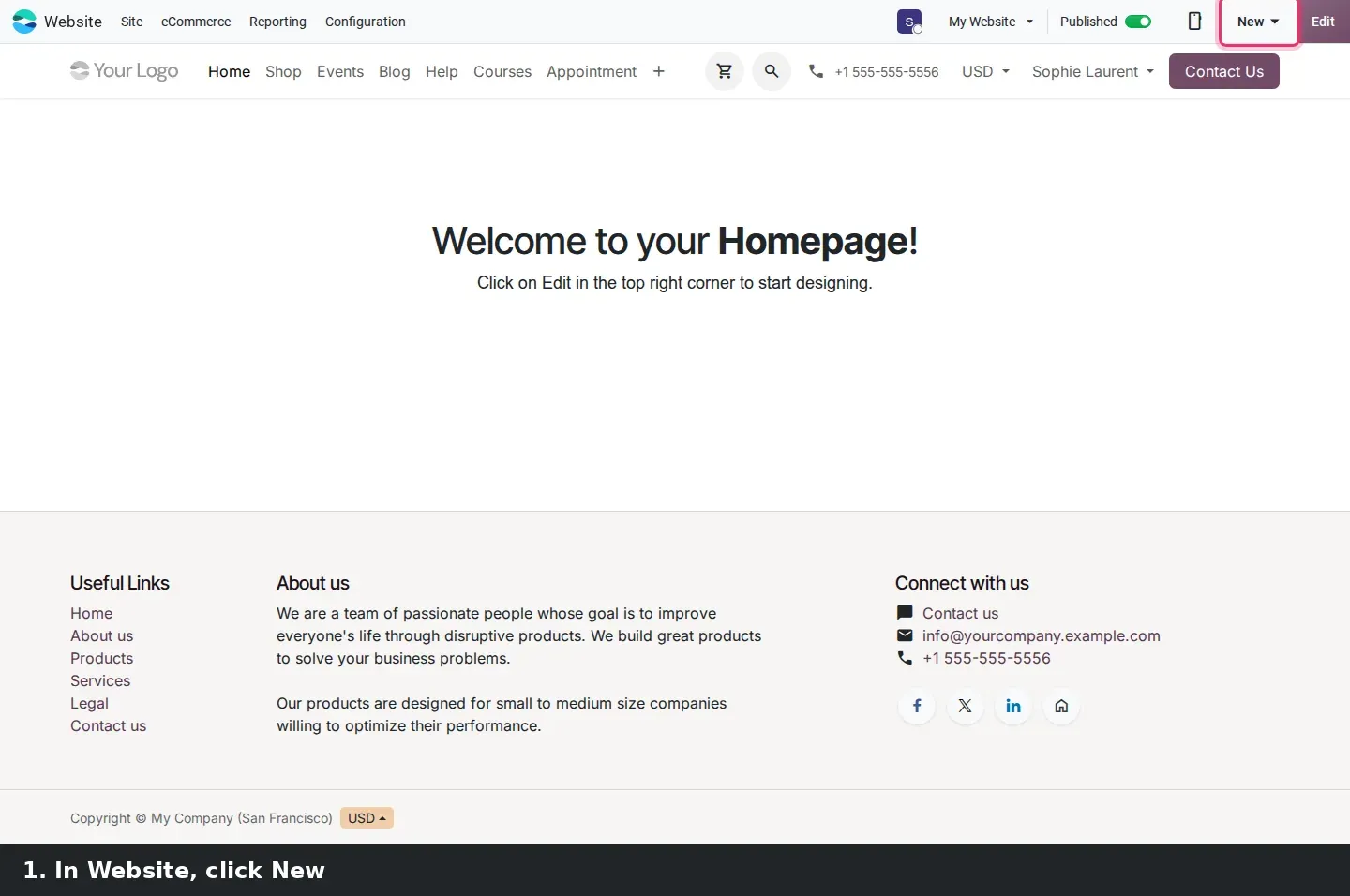
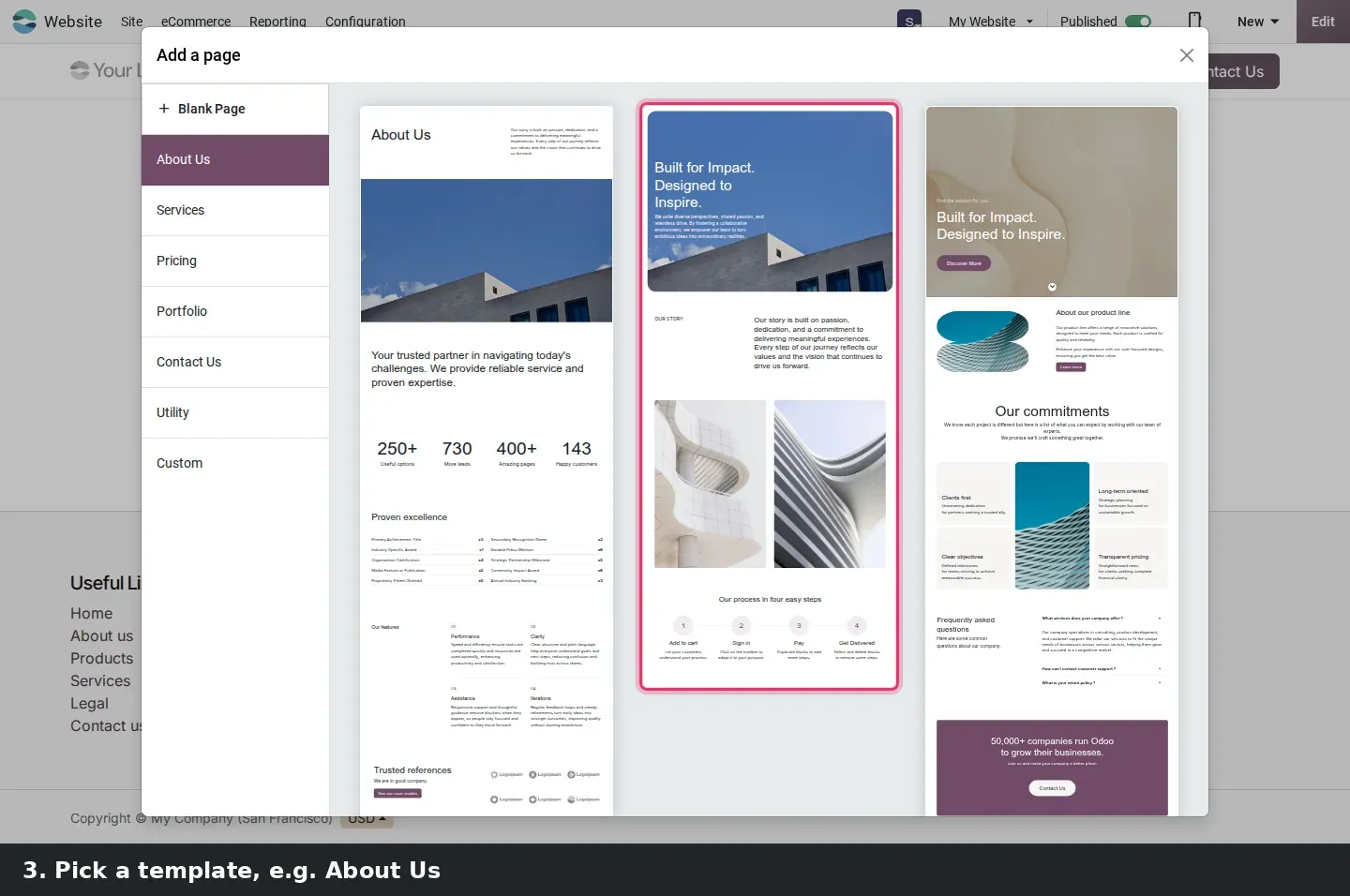
The simplest AI feature is in the New Page dialog. Open Website, click New, choose Page and pick a template such as About Us. A new Generate text toggle reveals an Instructions box and five tone buttons: Concise, Professional, Friendly, Persuasive and Informative. Describe the business in a sentence or two, pick a tone and click Create with AI.
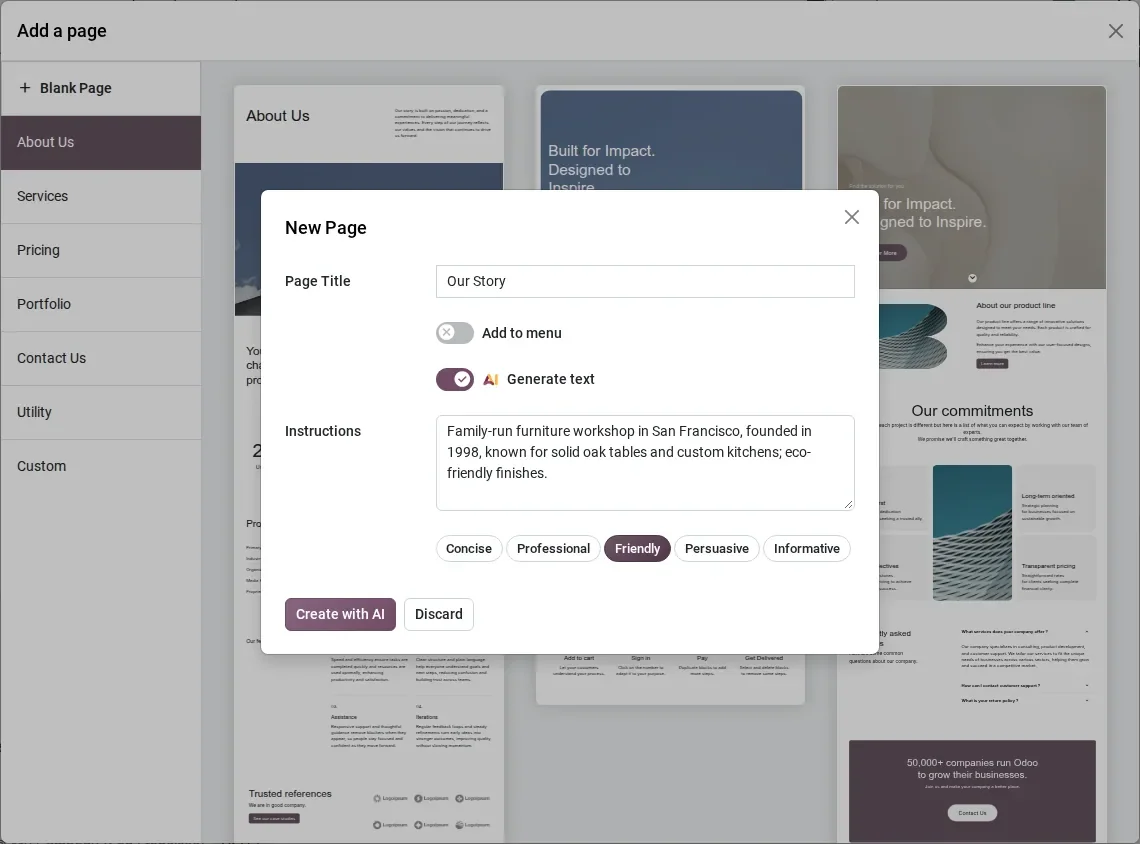
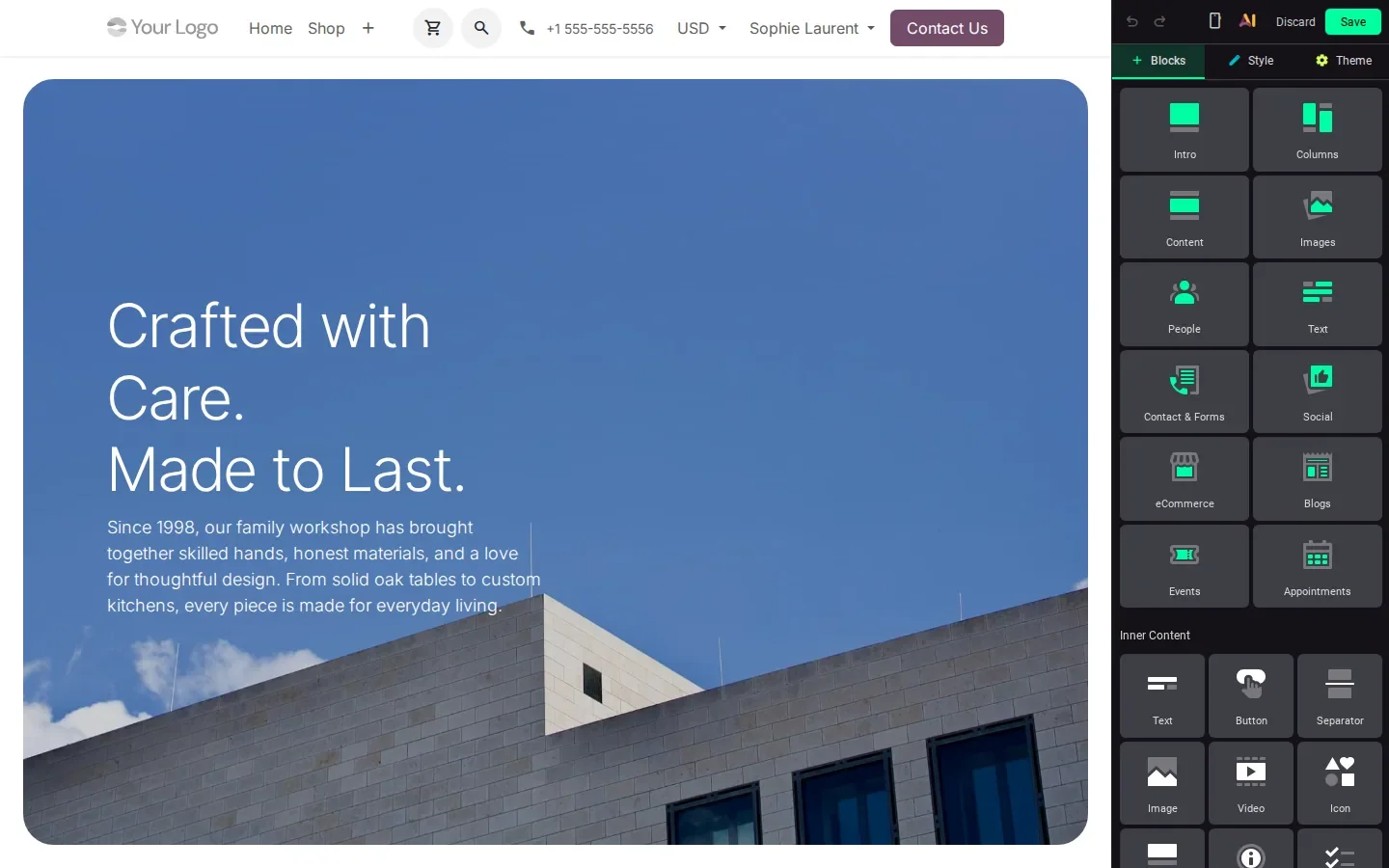
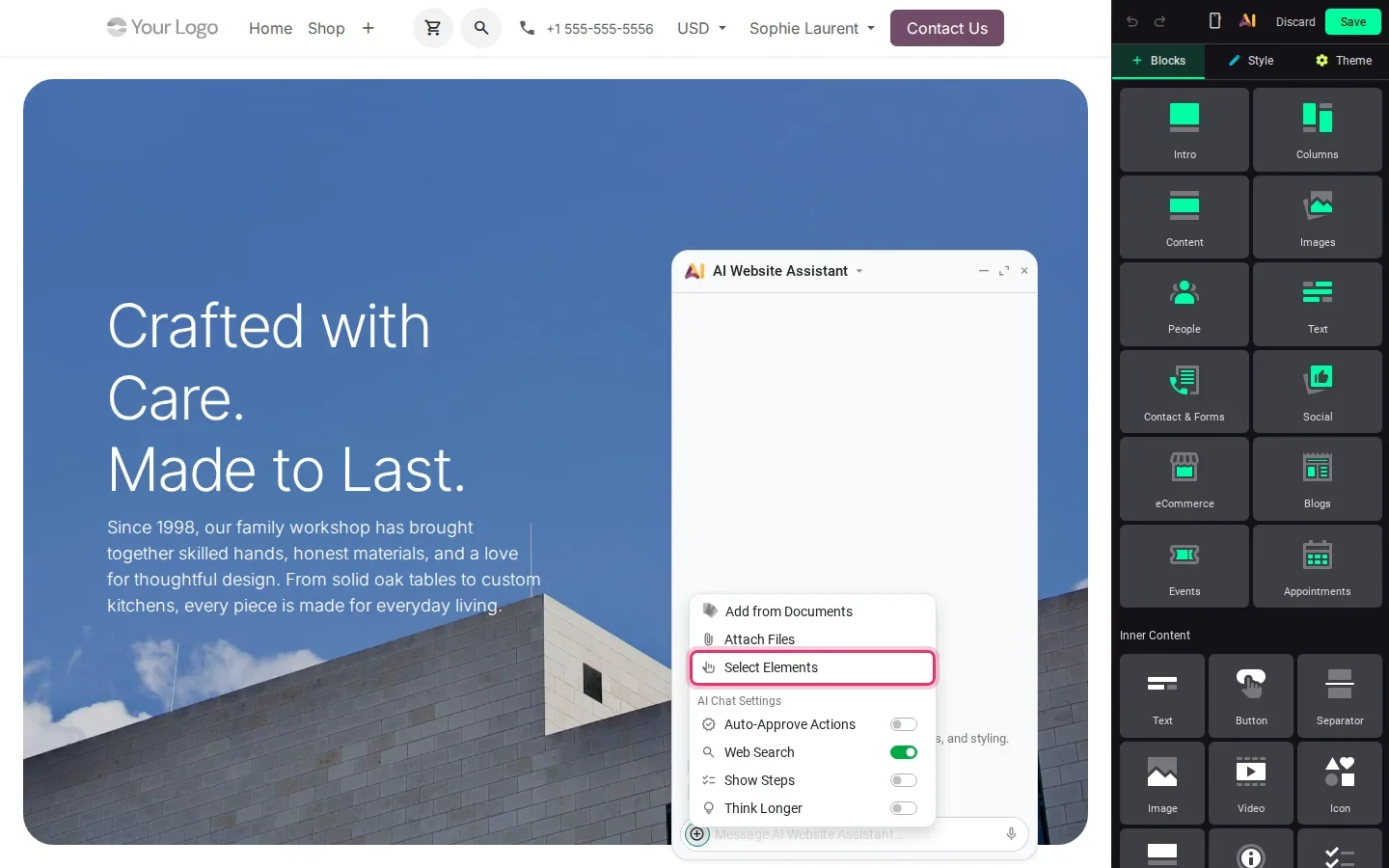
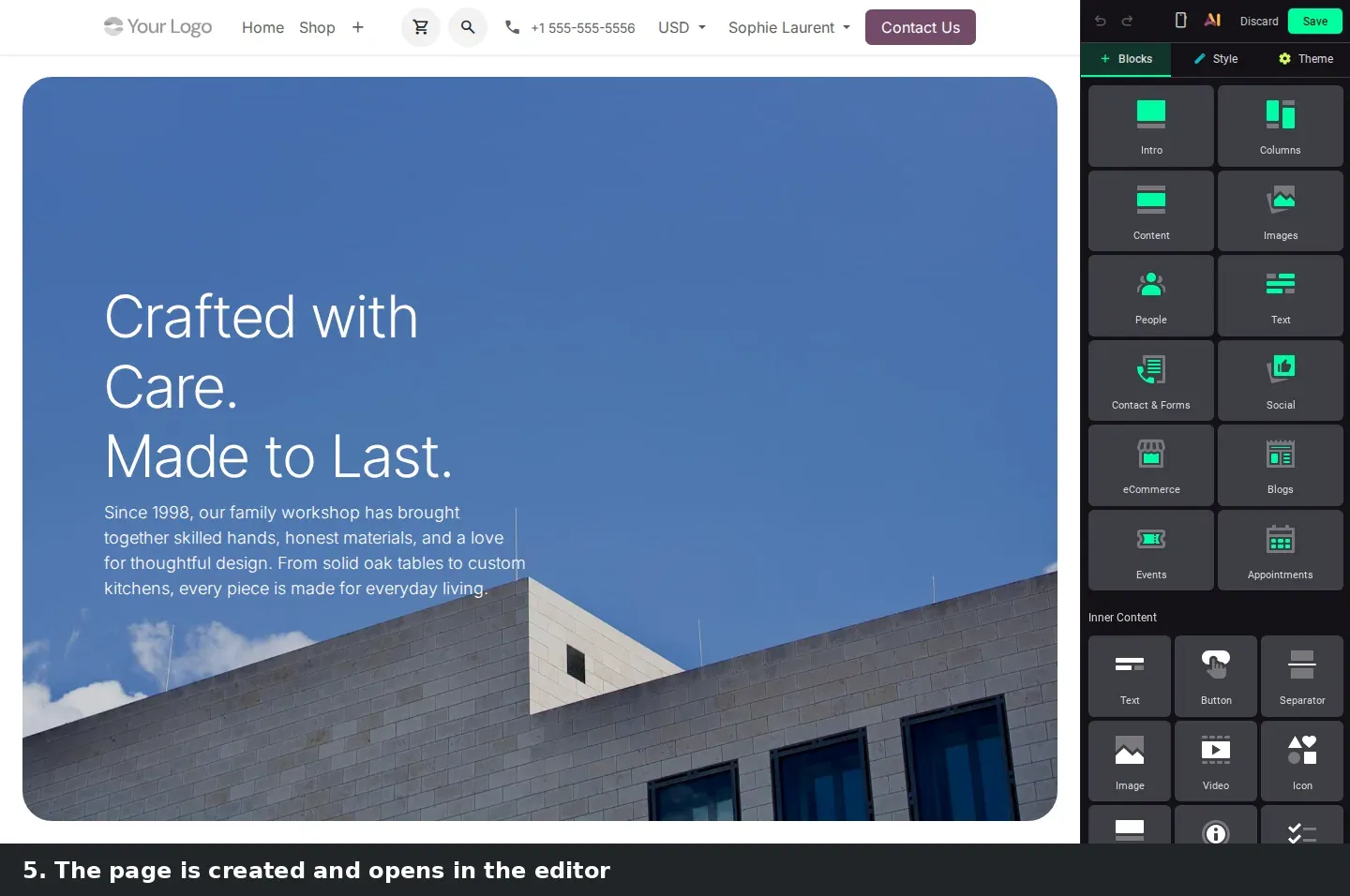
This one ran live on the demo. We described a family-run furniture workshop in San Francisco, founded in 1998, known for oak tables and custom kitchens. The page opened in the editor with the template filled in from those instructions: the hero read "Crafted with Care. Made to Last." above a paragraph that reused the founding year, the oak tables and the kitchens. The placeholder text was gone and nothing we had not typed was invented. For an owner who dreads a blank page, that means an About page published this afternoon. The text is a draft: read it, correct it, then save.
The AI Website Assistant lives in the editor and targets one block at a time
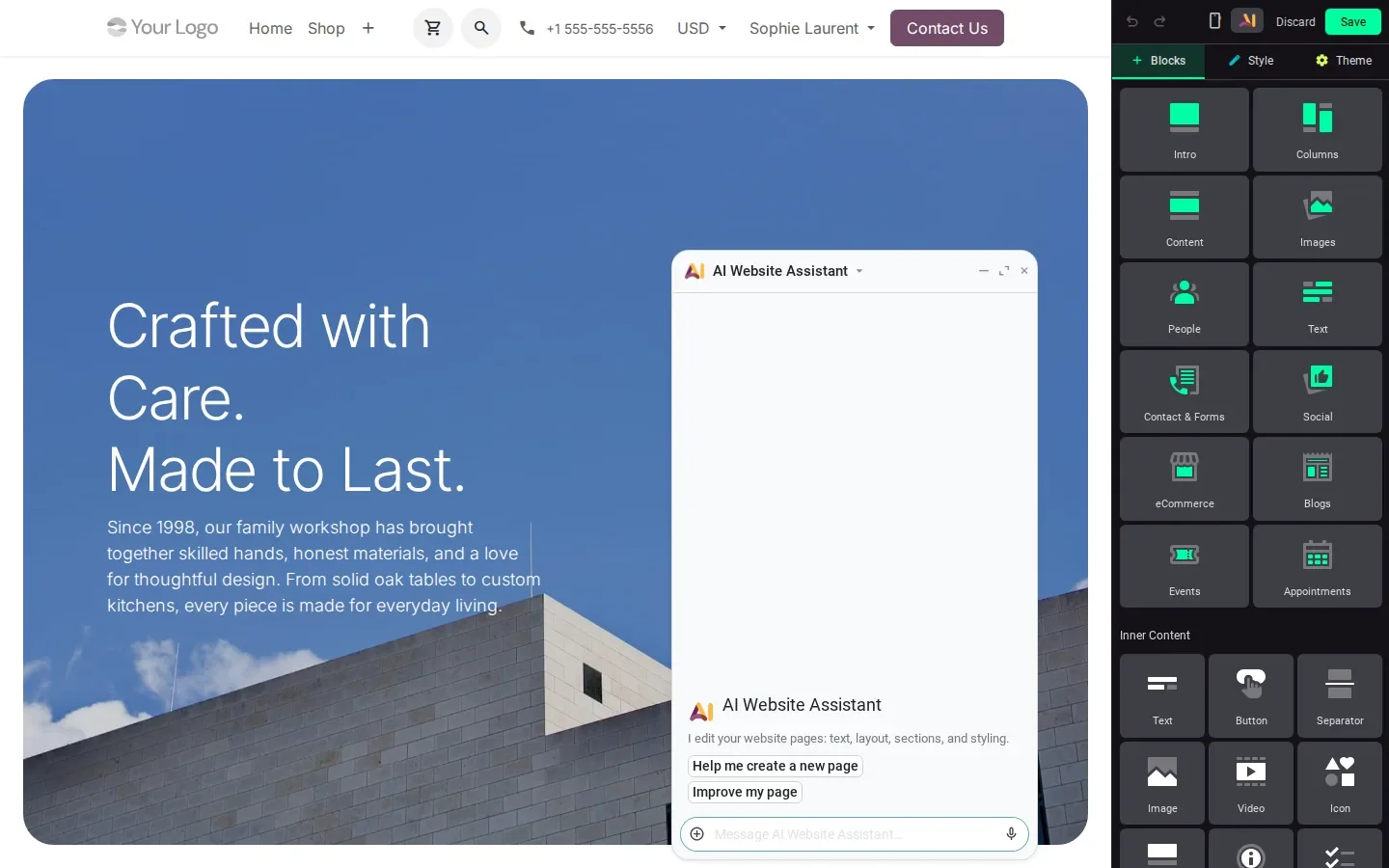
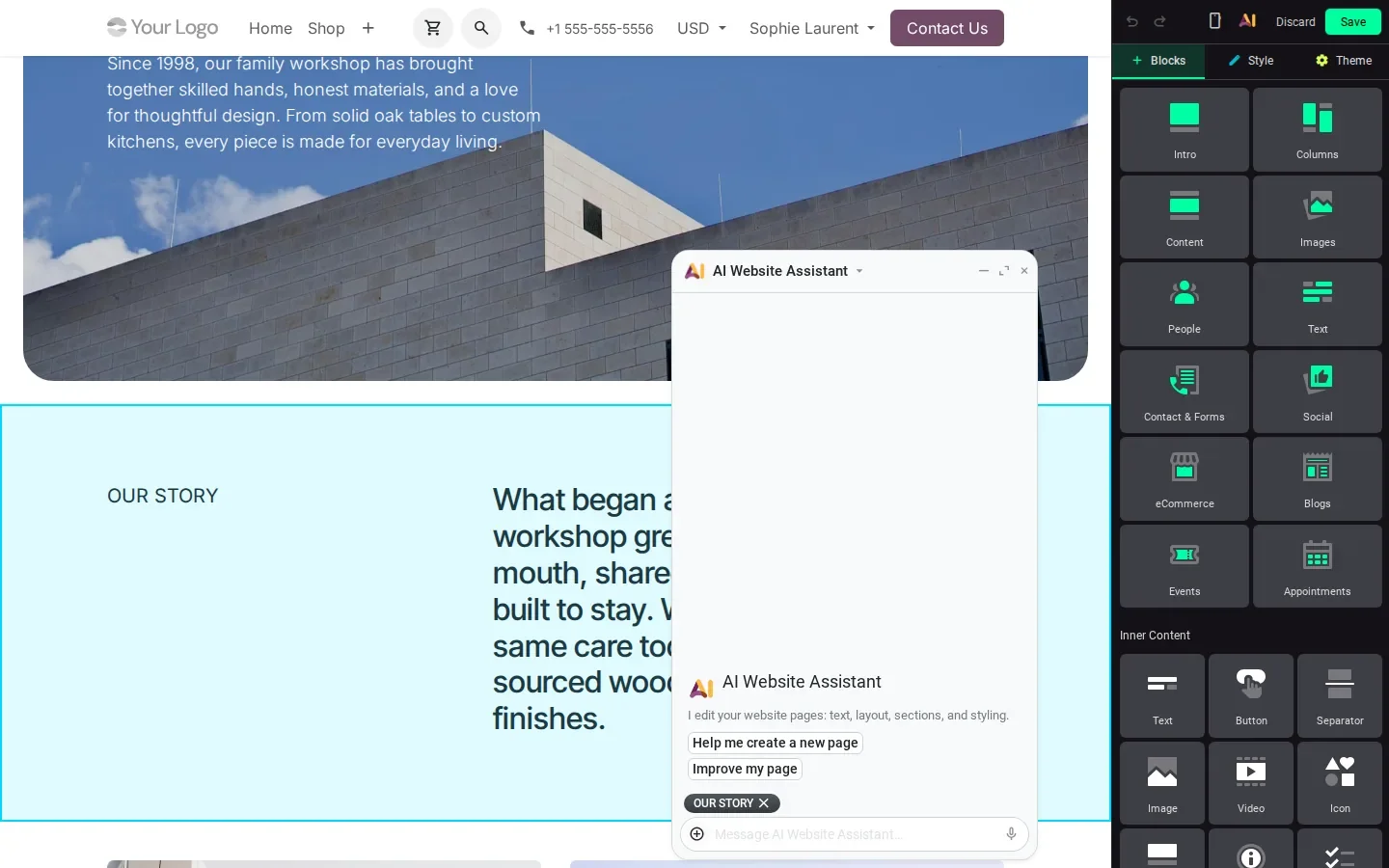
In edit mode, an AI button sits in the builder's top bar next to Discard and Save. It opens the AI Website Assistant over the page. The empty panel says "I edit your website pages: text, layout, sections, and styling" and offers two shortcuts, Help me create a new page and Improve my page. According to the guide, the assistant can rewrite a section, switch the tone, add or remove building blocks, generate images, edit the website menus and build web forms that store submissions. It works only on website pages, for users with Editor and Designer access.
The + button in the composer hides the useful settings. It lists Add from Documents, Attach Files and Select Elements, then AI Chat Settings: Auto-Approve Actions, Web Search, Show Steps and Think Longer. On the demo only Web Search was on, so every proposed change waits for approval unless you switch Auto-Approve Actions on. Select Elements is the targeting mode: click it, click a block on the page, and the block is outlined and appears as a chip in the composer. Your next request applies to that block only. The guide adds that the assistant only targets building blocks, flags every block it edits for review, sanitizes its HTML and CSS, and retries failed edits instead of reporting success.
AI SEO suggestions, and a setting that decides whether the AI may add JavaScript
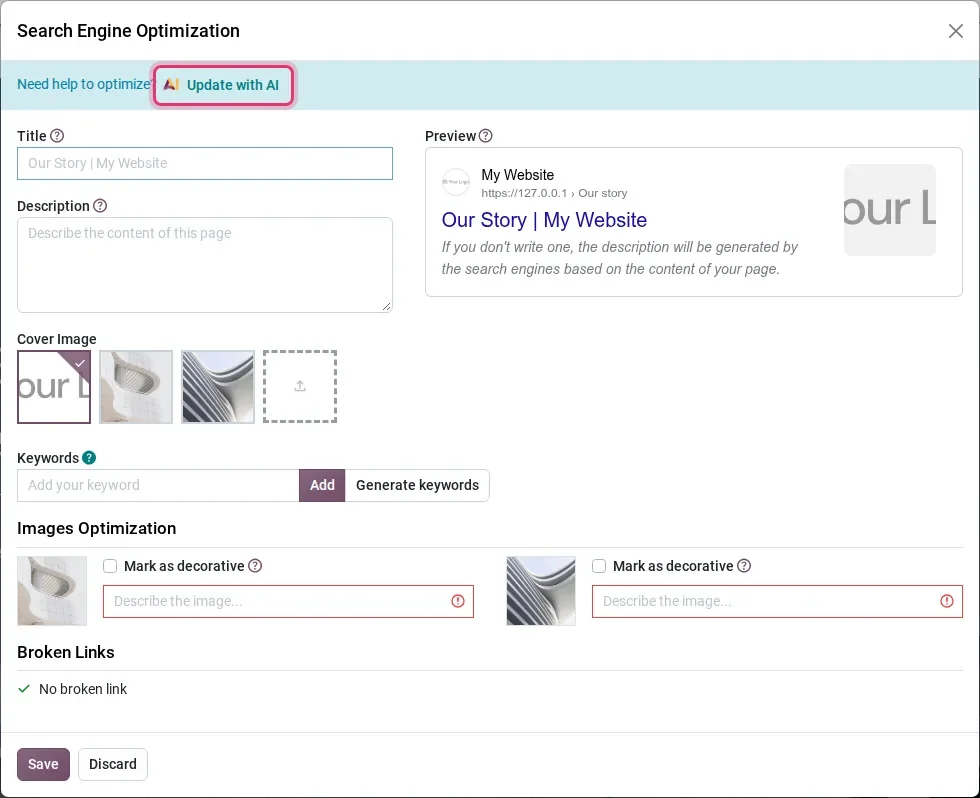
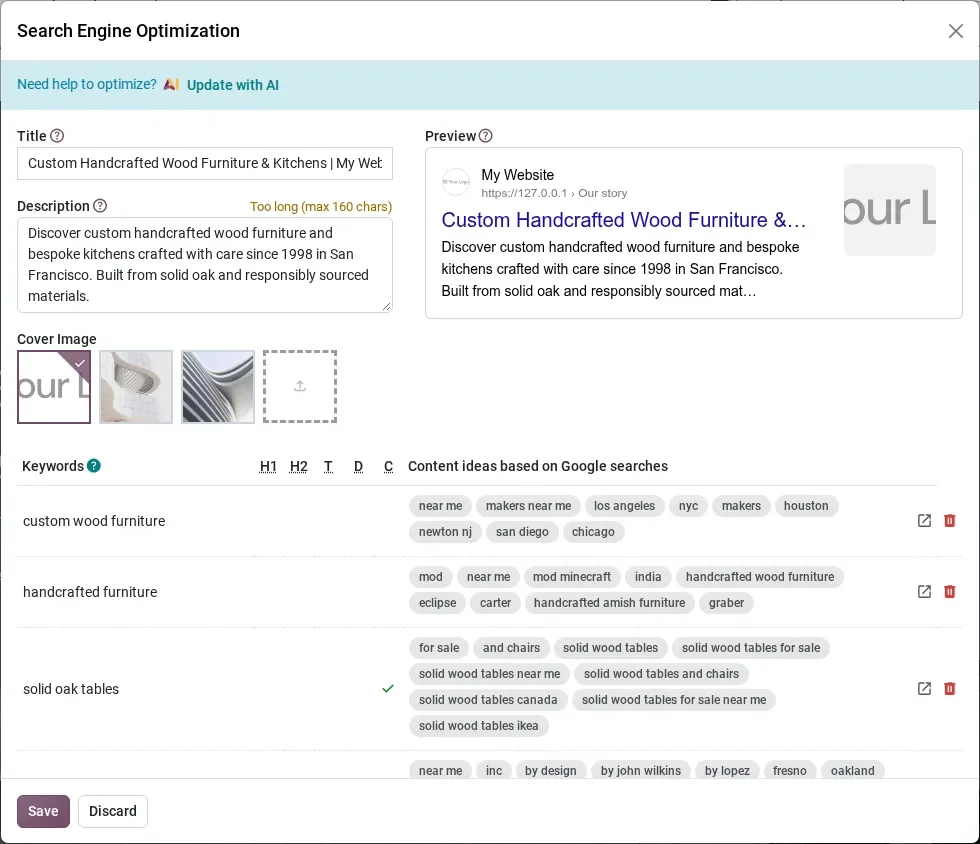
Two smaller features follow. The first is in the page's SEO dialog: open Site, choose Optimize SEO, and a banner reads "Need help to optimize? Update with AI". This worked live. On our furniture page it filled the Title with "Custom Handcrafted Wood Furniture & Kitchens | My Website", wrote a Description from the founding year and the materials, and added keywords such as custom wood furniture and solid oak tables, each with Google-based content ideas. It also flagged the description as too long: the suggestion is a starting point you trim before saving.
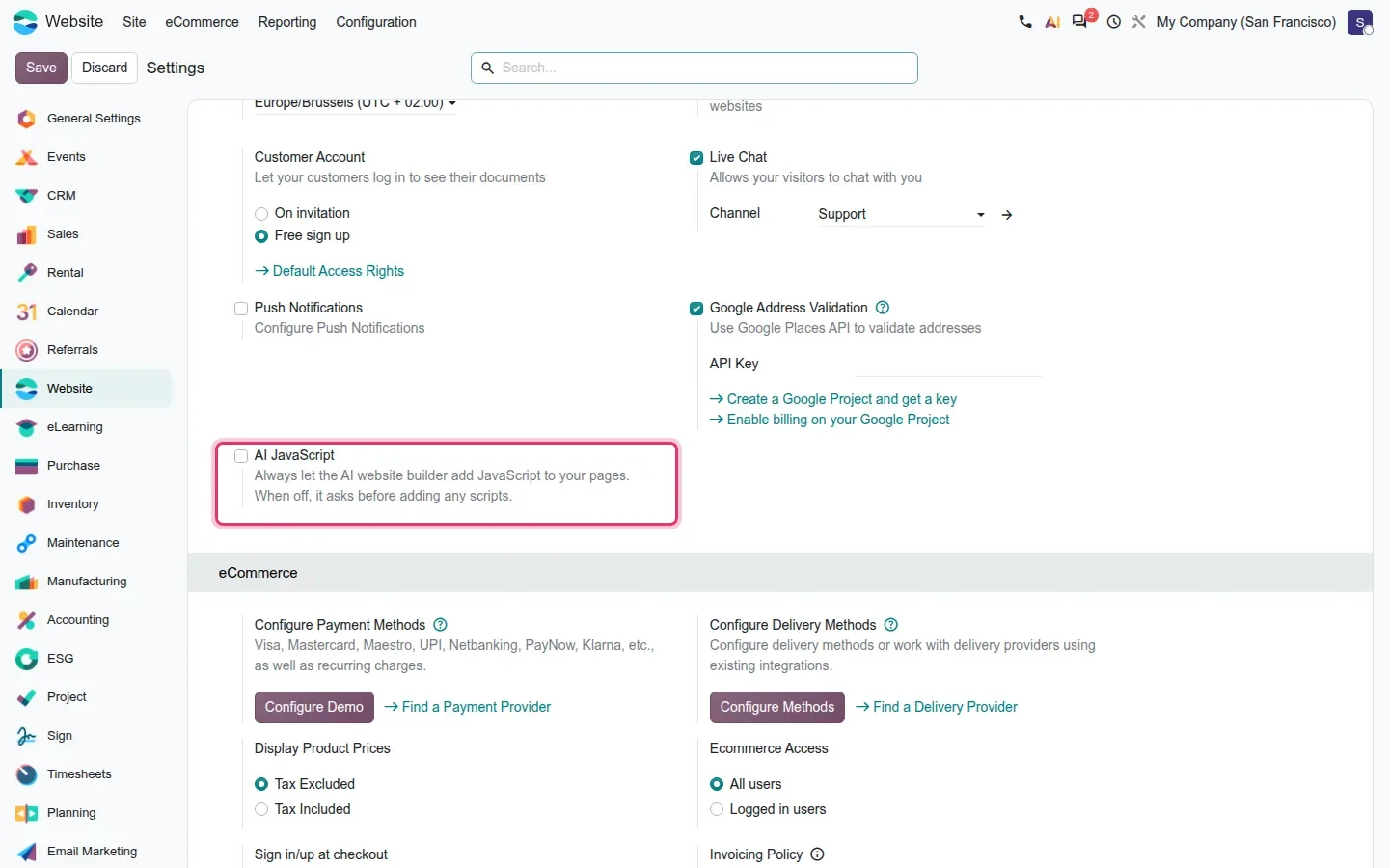
The second is a guardrail. Under Website, Configuration, Settings, a new AI JavaScript checkbox reads "Always let the AI website builder add JavaScript to your pages. When off, it asks before adding any scripts." It is off by default, and the guide adds that a user can allow scripts for the current session only. Where a script can break tracking, forms or consent banners, we would leave the box unchecked.
Before you hand the assistant to the team
Give Editor and Designer rights only to the people who should publish, and agree on a review step for AI-flagged blocks. Every request, including SEO suggestions and generated text, is billed in Odoo AI credits, so decide who may spend them.
Import Website now takes blogs and PrestaShop catalogues
Give the Website Generator a URL and it rebuilds the pages with Odoo building blocks. On the pre-release build the entry point is Website, Configuration, Settings, where an Import Website button sits next to + New Website at the top of the Website section. The dialog, Import Your Pages and Products, holds a Website URL field and three toggles: Import Website, Import Products and Import Blogs. The submit button reads Import my website. One banner says the page count is limited, another that you confirm you own the site.
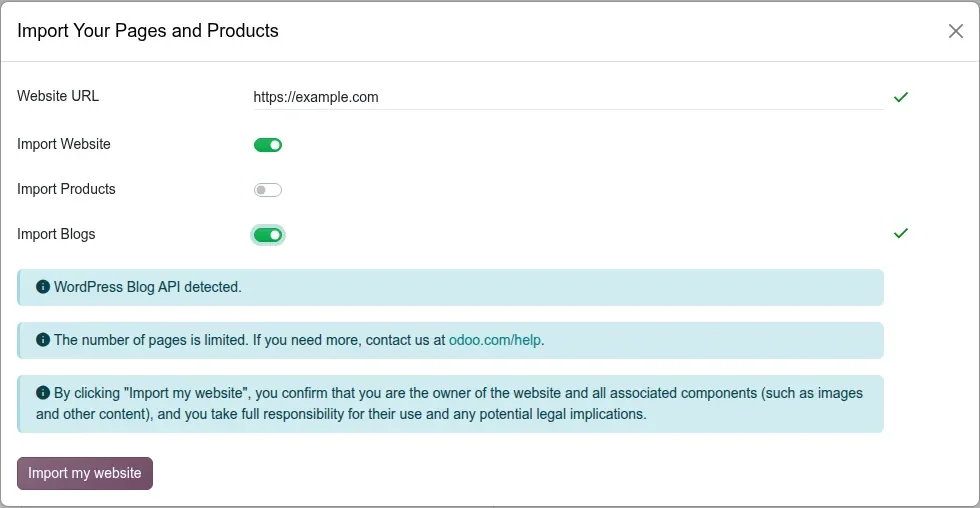
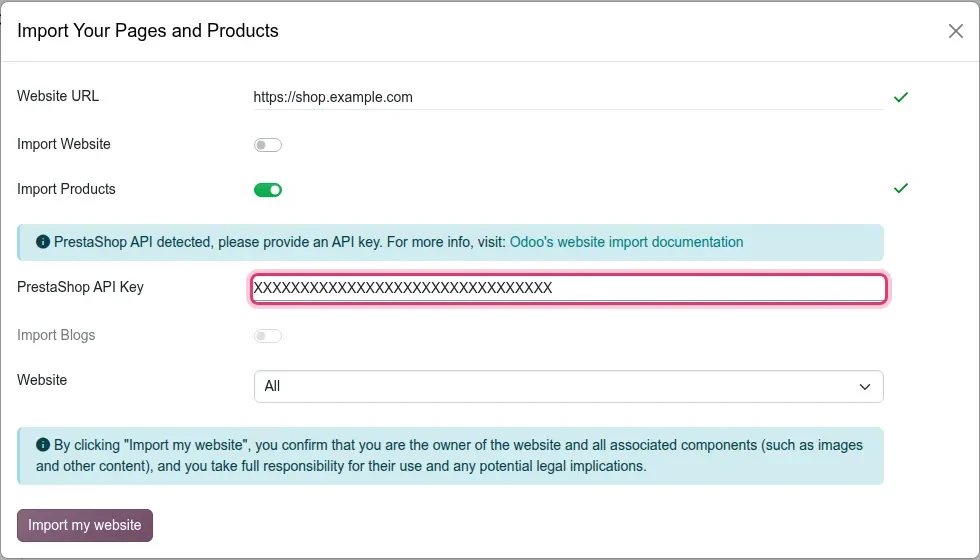
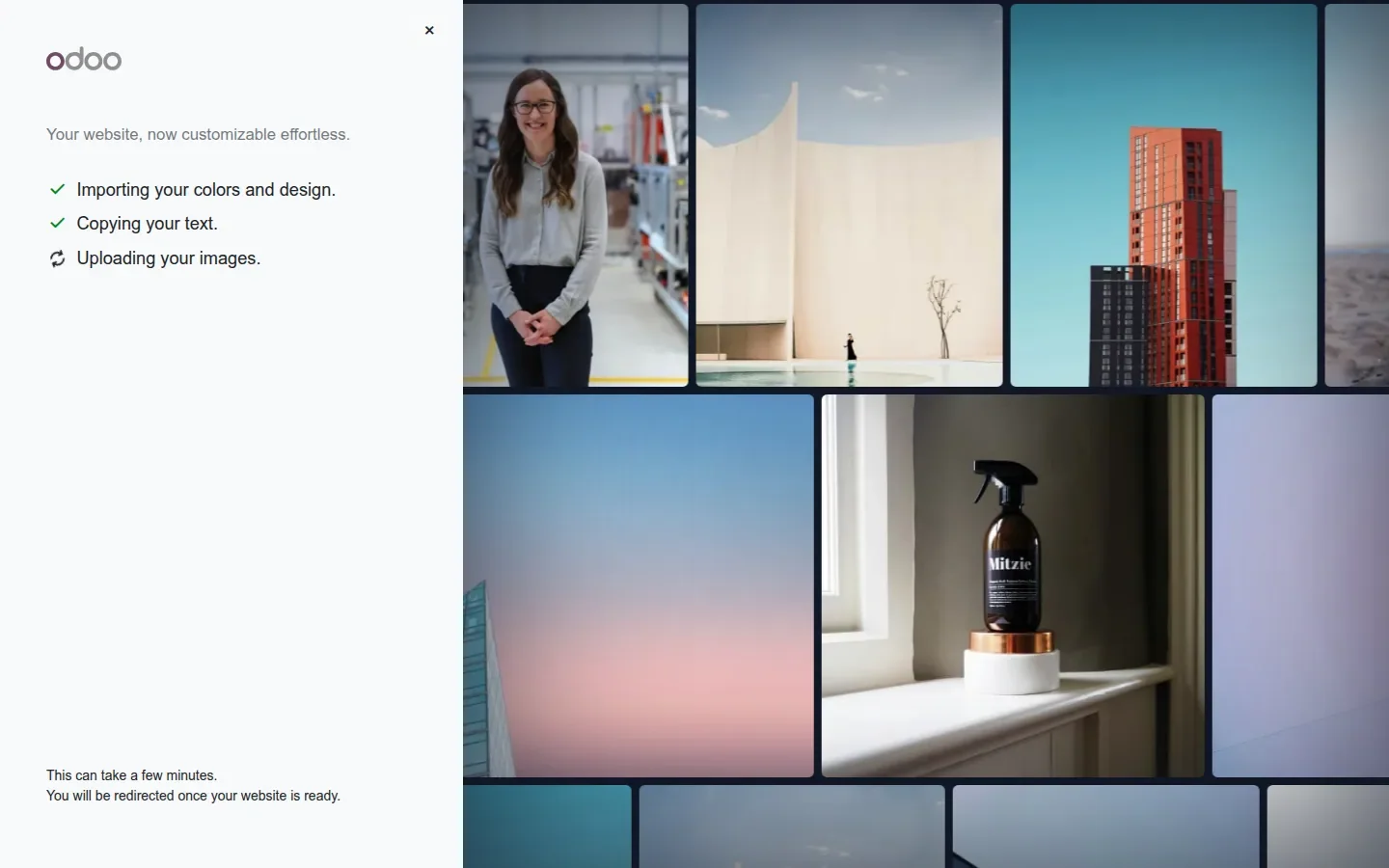
Import Blogs is new, through website_generator_blog. On a WordPress site the dialog shows "WordPress Blog API detected." According to the guide, the import then recreates blogs, tags and posts in batches and rewrites the internal links between posts so the archive keeps working. Ghost blogs ask for a Ghost API Key. There is no platform selector: the dialog detects the platform from the URL. Tick Import Products on a PrestaShop shop and the message becomes "PrestaShop API detected, please provide an API key", with a PrestaShop API Key field of exactly 32 characters. Products come through the API rather than scraped pages, which the guide says gives cleaner variants, prices and images. A WooCommerce store gets a Connect via WooCommerce button. A full-screen loader then lists the steps: Importing your colors and design, Copying your text, Uploading your images, Adapting building blocks.
Deduplicate products after the import
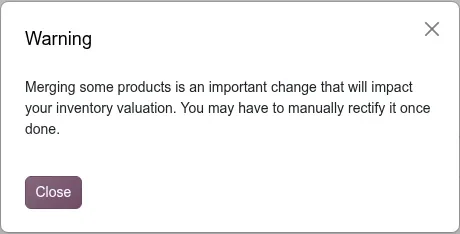
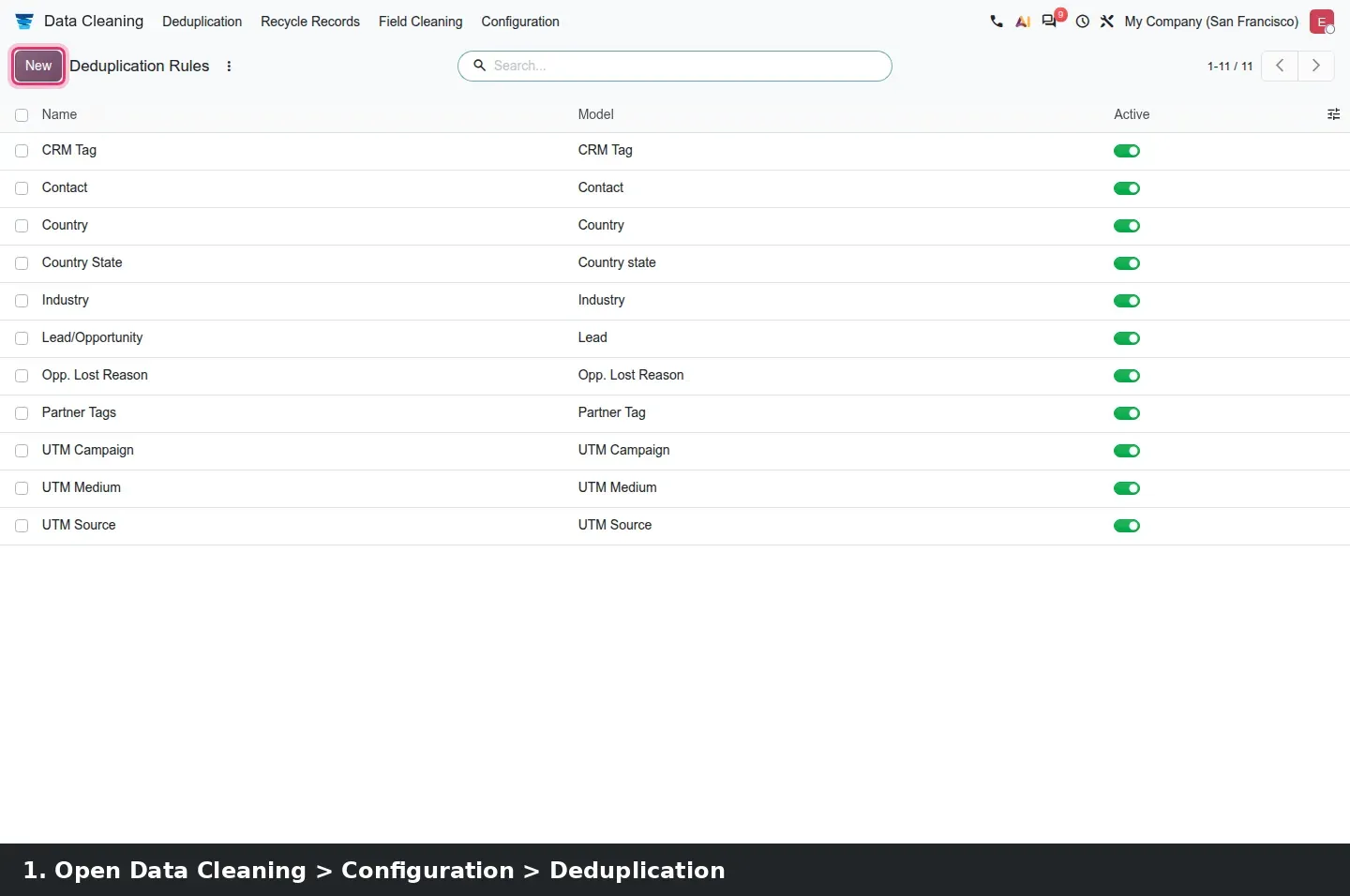
Imports create duplicates: the same chair from PrestaShop and from a spreadsheet, same internal reference, different capitalisation. Data Cleaning, the Enterprise app that already merges contacts and leads, now handles products through data_merge_product. Open Data Cleaning, Configuration, Deduplication and click New. Choose Product as the Model and a warning appears first: "Merging some products is an important change that will impact your inventory valuation."
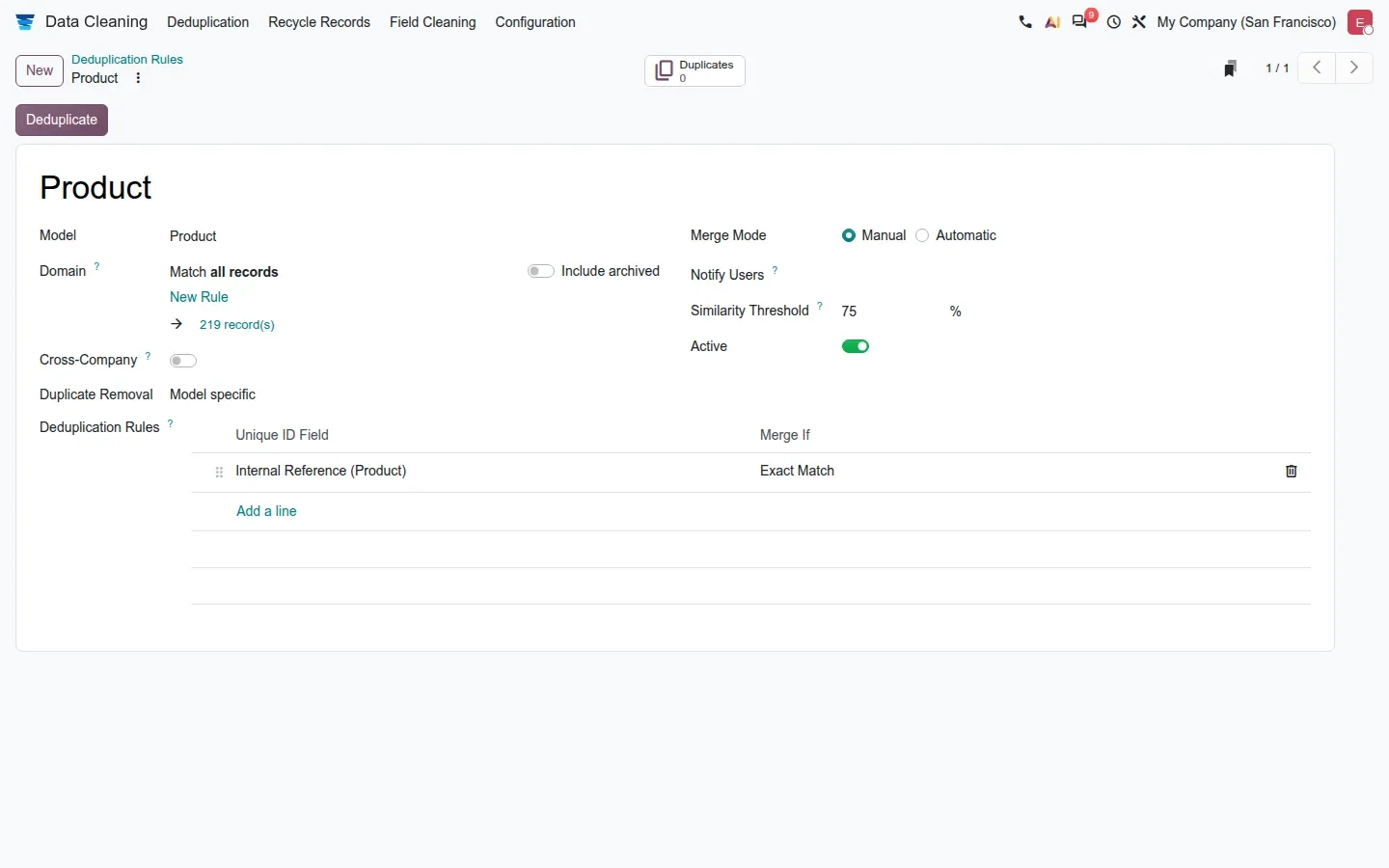
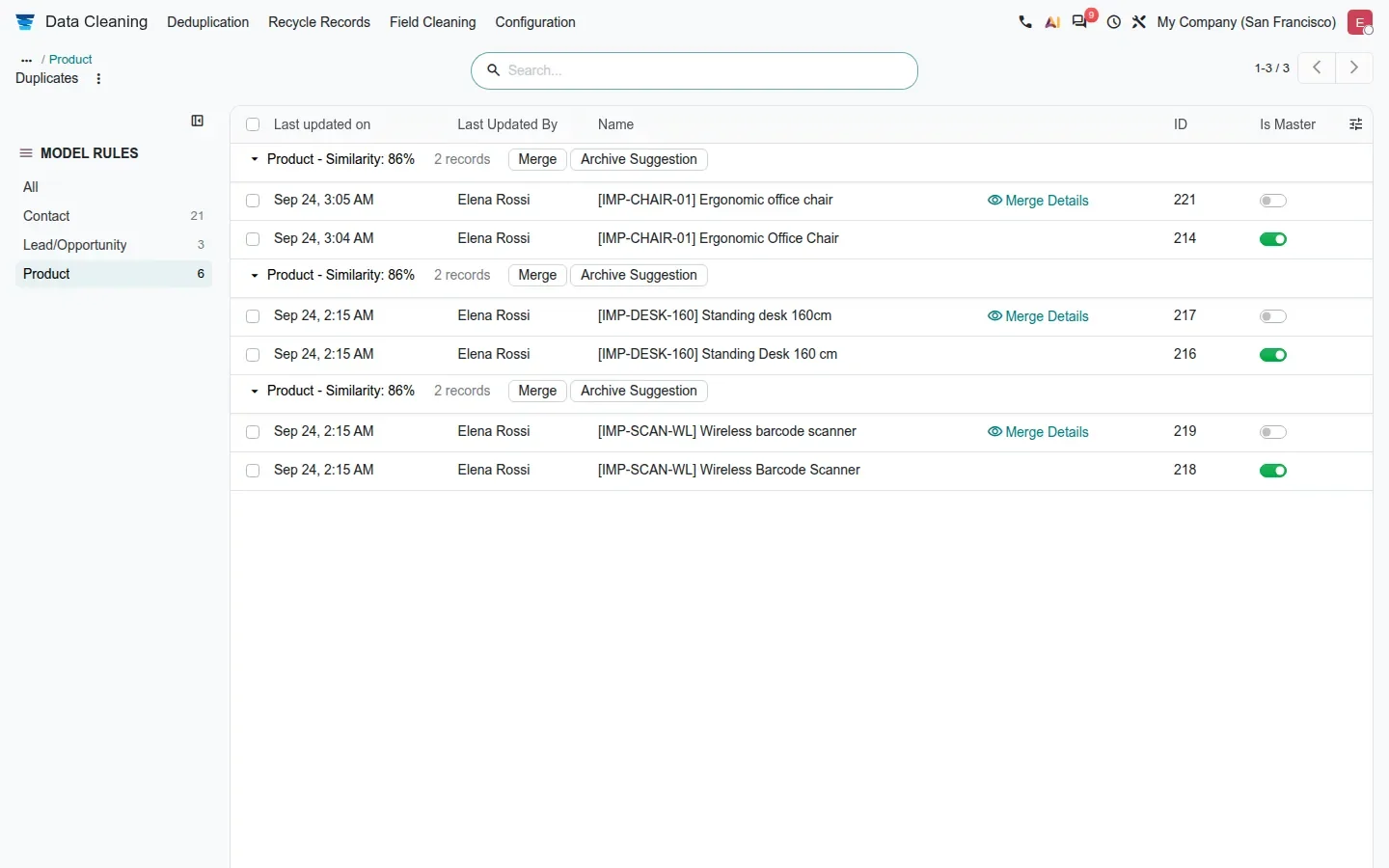
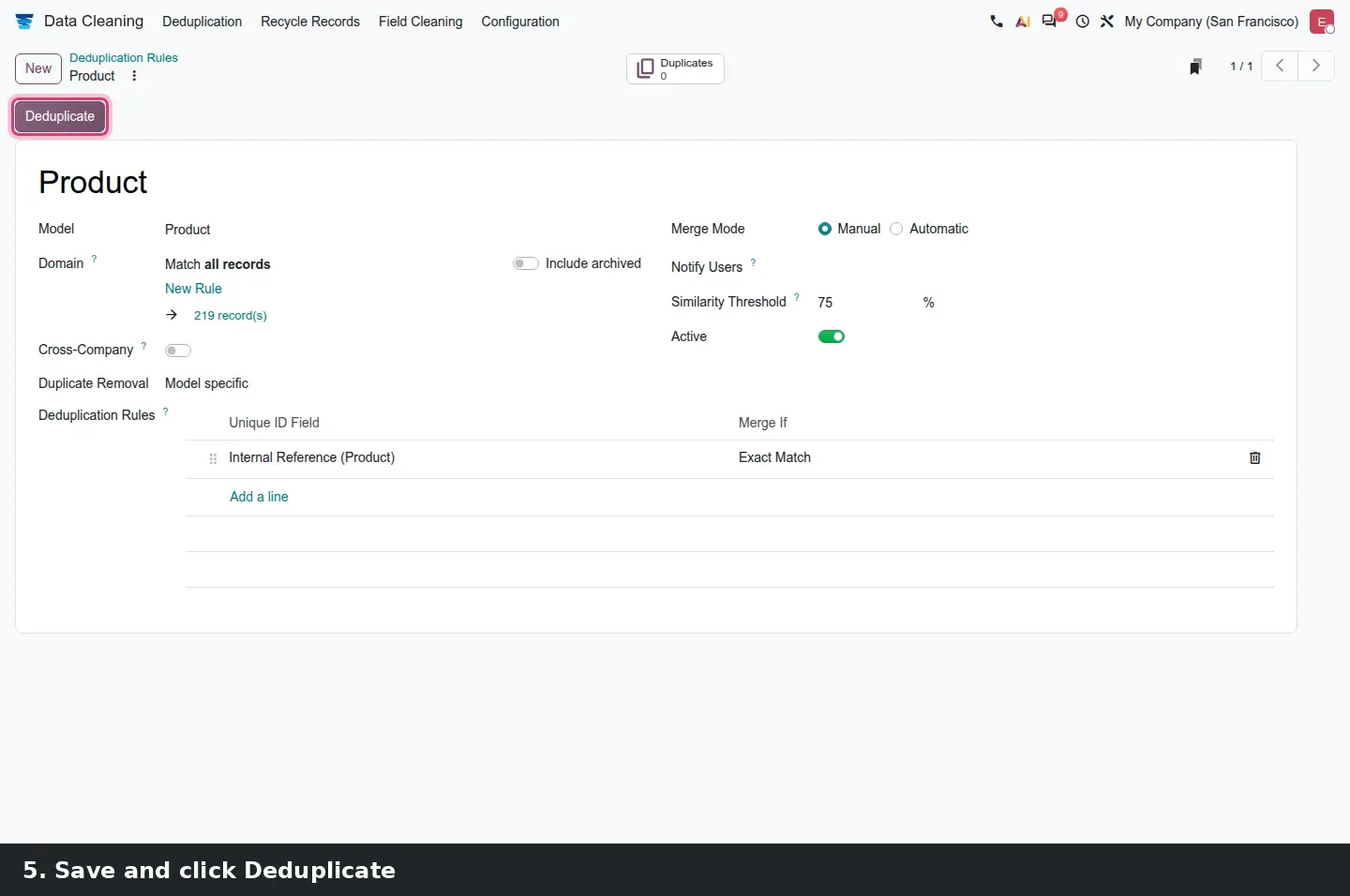
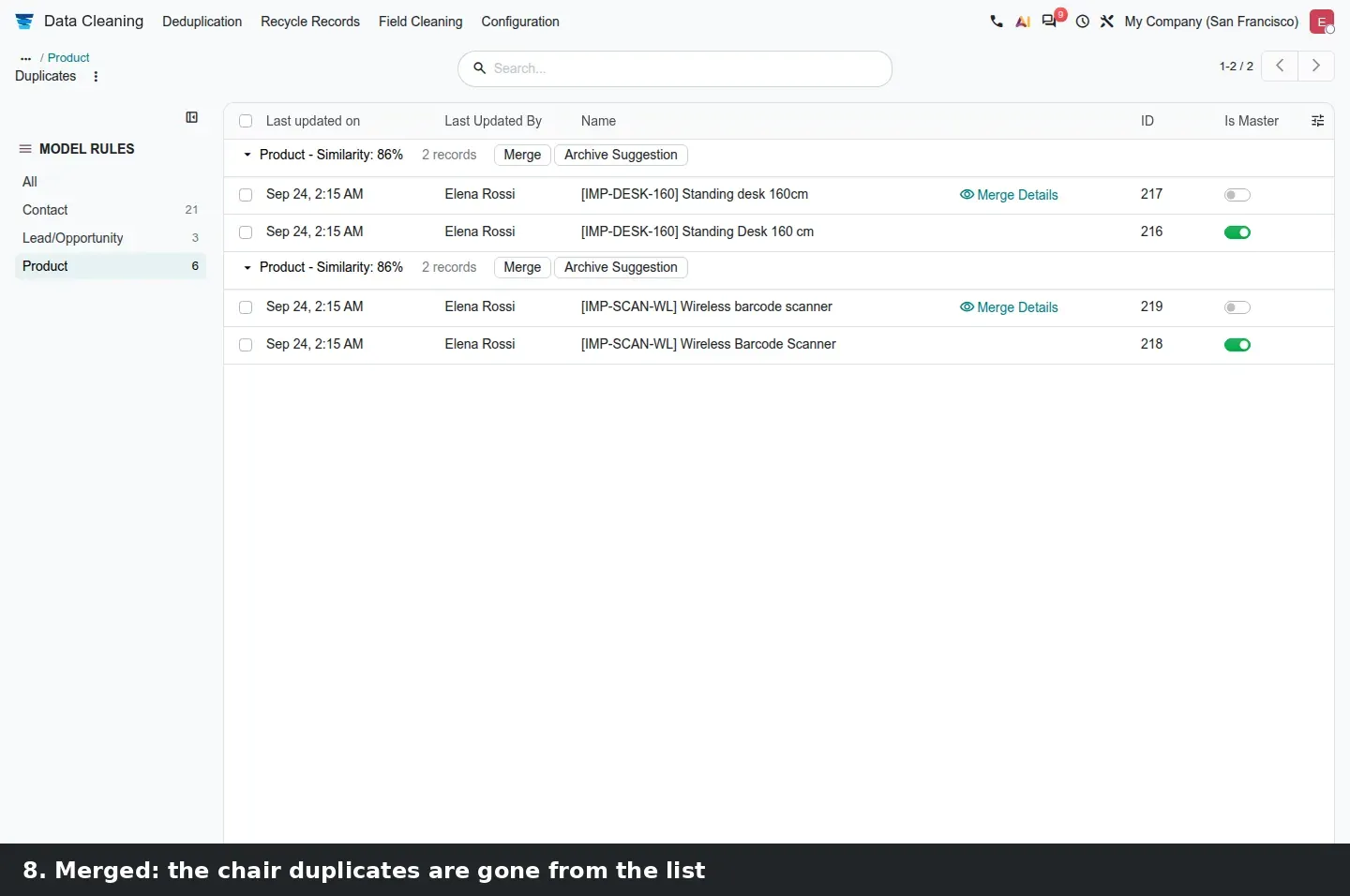
Duplicate Removal is fixed to Model specific for products. Under Deduplication Rules you add a Unique ID Field and a Merge If condition, Exact Match or Case/Accent Insensitive Match; we used Internal Reference (Product) with Exact Match. Merge Mode is Manual or Automatic, the Similarity Threshold defaults to 75%, and a Domain restricts the rule to part of the catalogue. Click Deduplicate and the Duplicates list groups the candidates, "Product - Similarity: 86%" on our three pairs, each group with Merge and Archive Suggestion buttons and an Is Master toggle for the record to keep. One limit: products with several variants cannot be merged directly. The build answers "Direct merging is unavailable for products with variants. Please merge the individual variants instead."
How to try it on a demo database
- As a user with Editor and Designer rights, open Website > New > Page, pick a template, switch on Generate text, describe the business, choose a tone and click Create with AI.
- Click Edit, then the AI button next to Discard / Save. Open the + menu, click Select Elements and pick one block; it appears as a chip in the composer.
- Open Site > Optimize SEO and click Update with AI, trim the description, then Save.
- Open Website > Configuration > Settings and check that AI JavaScript is off.
- On the same page, click Import Website. Type the URL of a WordPress site you own and tick Import Blogs; for a PrestaShop shop, tick Import Products and paste the 32-character API key.
- Open Data Cleaning > Configuration > Deduplication > New, choose Product, accept the warning, add the rule Internal Reference / Exact Match, save and click Deduplicate. In the Duplicates list, set Is Master on the record to keep and click Merge.
What we could not verify on the pre-release build
We did not see the AI Website Assistant edit a page, flag an edited block or ask for consent before adding JavaScript: the assistant is an agent chat whose asynchronous endpoint cannot call back a private demo, so our requests stayed on "Thinking". Page text generation and Update with AI did run live. No website was imported and no request left the machine: the detection messages in our dialog screenshots come from simulated responses, the form was never submitted, and the waiting screen is the real client action fed a stubbed request. So we could not check a real WordPress, Ghost or PrestaShop import, or the imported posts under Website > Blog. Everything else on this page was clicked through on the 20.0 Enterprise build of 23 September 2026.
What this means for an upgrade
If your site already runs on Odoo 17, 18 or 19, none of this changes your pages: the AI assistant, Import Website and product deduplication are tools you switch on, not a new theme. Three decisions belong in the upgrade plan. Decide who gets Editor and Designer rights, because that is who can spend AI credits from the builder. If a WordPress blog or a PrestaShop shop joins the same upgrade, run the import on the staging database first, then a deduplication pass before go-live; variant products merge one variant at a time. And agree on the review step for AI-flagged blocks before anyone publishes. We do this sequencing in our migration service, and the series hub lists the other Odoo 20 changes that touch the same website.
Frequently asked questions
Does the Odoo 20 AI website builder cost extra?
It is billed in Odoo AI credits, like every AI feature in the 20.0 code. Requests go to Odoo's own AI proxy, and there is no setting to plug in your own OpenAI, Gemini or Anthropic key. Page text generation, SEO suggestions and assistant requests all consume credits.
Who can use the AI Website Assistant?
Only users with Editor and Designer access to the website, and only on website pages. It does not appear on records rendered from other apps, such as a product or event page generated by eCommerce or Events, according to the guide.
Can Odoo 20 import my WordPress blog?
Yes, according to the guide. Tick Import Blogs in the Import Website dialog; the generator detects WordPress, recreates blogs, tags and posts in batches and rewrites internal links between posts. Ghost blogs are supported too with an API key. We could not run a real import on the demo.
How does the PrestaShop import work in Odoo 20?
Enter the shop URL, tick Import Products, and the dialog detects PrestaShop and asks for a 32-character PrestaShop API Key from the store's webservice. Products are pulled through the API rather than scraped, which gives cleaner variants, prices and images than a page scrape.
Can Data Cleaning merge products that have variants?
Not directly. The build refuses with "Direct merging is unavailable for products with variants. Please merge the individual variants instead." Single-variant products merge normally, after a warning that merging affects inventory valuation. Data Cleaning is an Enterprise app.
Will the AI assistant add JavaScript to my site without asking?
Not by default. The assistant asks before adding any script, and the guide says a user can allow scripts for the current session only. An administrator can change that permanently with the AI JavaScript checkbox under Website > Configuration > Settings; we recommend leaving it off.