
One endpoint, your own access rights, and the assistant your team already uses
Odoo 20 ships an MCP server as a standard module named ai_mcp. Model Context Protocol, or MCP, is the open standard that AI assistants use to call external tools. Once the module is installed, your database answers at its own URL followed by /mcp, and any client that speaks MCP, Claude, ChatGPT, an IDE or a script, can call Odoo tools under the access rights of the user who authorised it. This matters to the owner who wants to ask a desktop assistant for last quarter's margin, and to the IT lead asked to "connect ChatGPT to Odoo" who wants to know what that opens.
This post covers the endpoint, the two ways a client authenticates (an MCP-scoped API key, or an OAuth 2.1 login), the two flags that decide which tools are exposed, the security model, and a checklist to run before you switch it on. The tools are the same server actions Odoo's own agents use, covered in the previous post of this series; here we look only at how they are opened to the outside, on the pre-release build.
Observed on the Odoo 20.0 Enterprise pre-release build of September 23, 2026. Names, menus and availability can change before general availability; we will update this page when they do.
One URL, one bearer token, the user's own rights
The server lives at the database URL with the suffix /mcp, for example https://example.odoo.com/mcp. Authentication is a bearer token, and Odoo is strict about which token it accepts: an API key generated by a user with the scope set to MCP. A plain RPC key is refused on this route, which keeps integration keys and assistant keys apart. Whatever the client does, it does as that user: record rules, company access and field rights apply as if the person had clicked in Odoo.
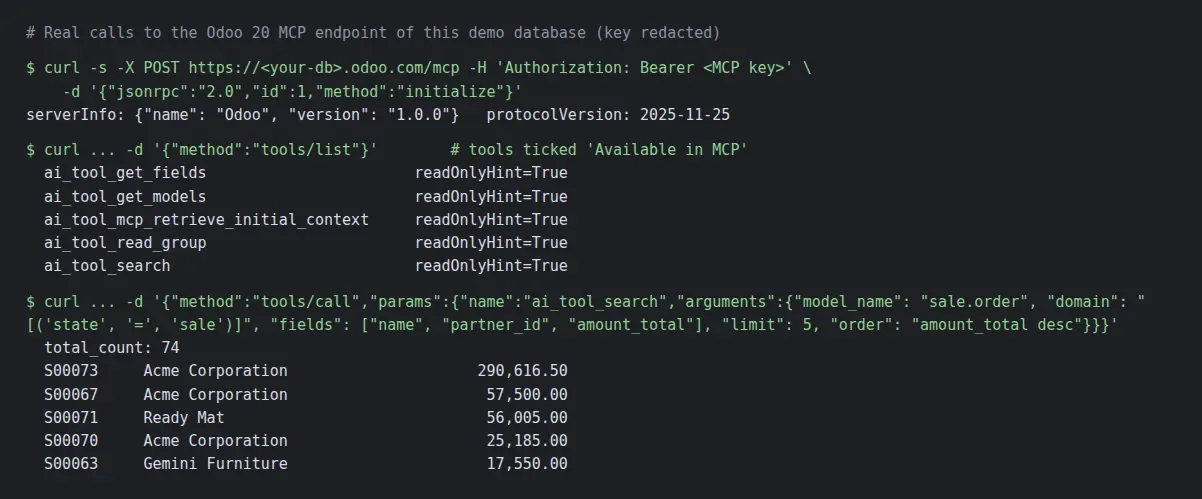
The transcript above shows our calls to the demo endpoint from a terminal. initialize answered with the server name Odoo and protocol version 2025-11-25. tools/list returned five tools, every one flagged read-only: get models, get fields, search, read group and the assistant's initial context. A tools/call on the search tool, for confirmed sale.order records, returned a count of 74 and the five largest orders. That is the whole mechanism: the client discovers the tools, then calls them. Nobody writes a schema by hand.
Until now, connecting an LLM to Odoo meant a custom bridge over XML-RPC or JSON-RPC, a hand-written schema and a security review. With ai_mcp, the schema comes from the tool definitions, the security from the key scope and ordinary record rules, and the protocol is the one the AI vendors maintain. Odoo has scheduled the removal, in the same release, of the XML-RPC and JSON-RPC endpoints most Odoo integrations were written against. The guide presents MCP as the way assistants reach Odoo and says nothing about it replacing RPC elsewhere, so we treat the two as separate upgrade items.
An MCP-scoped API key, created by the user in Preferences
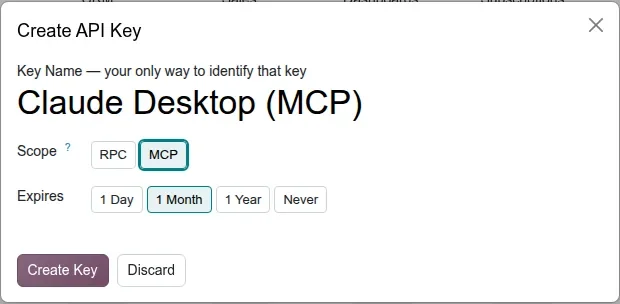
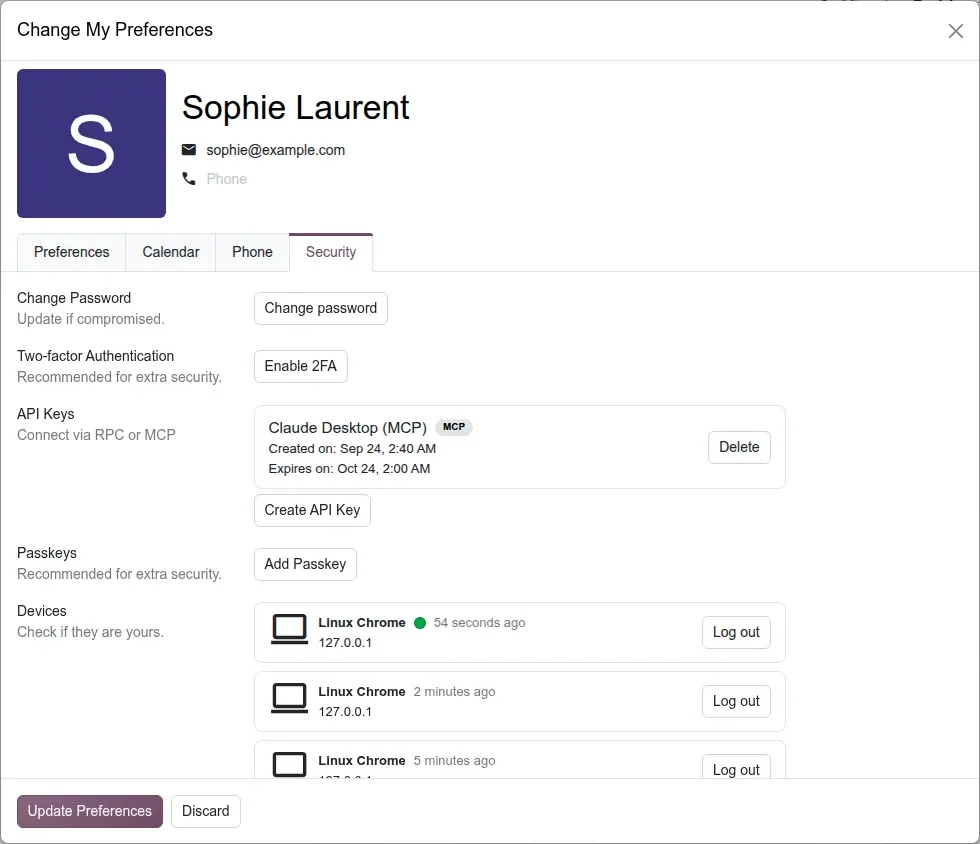
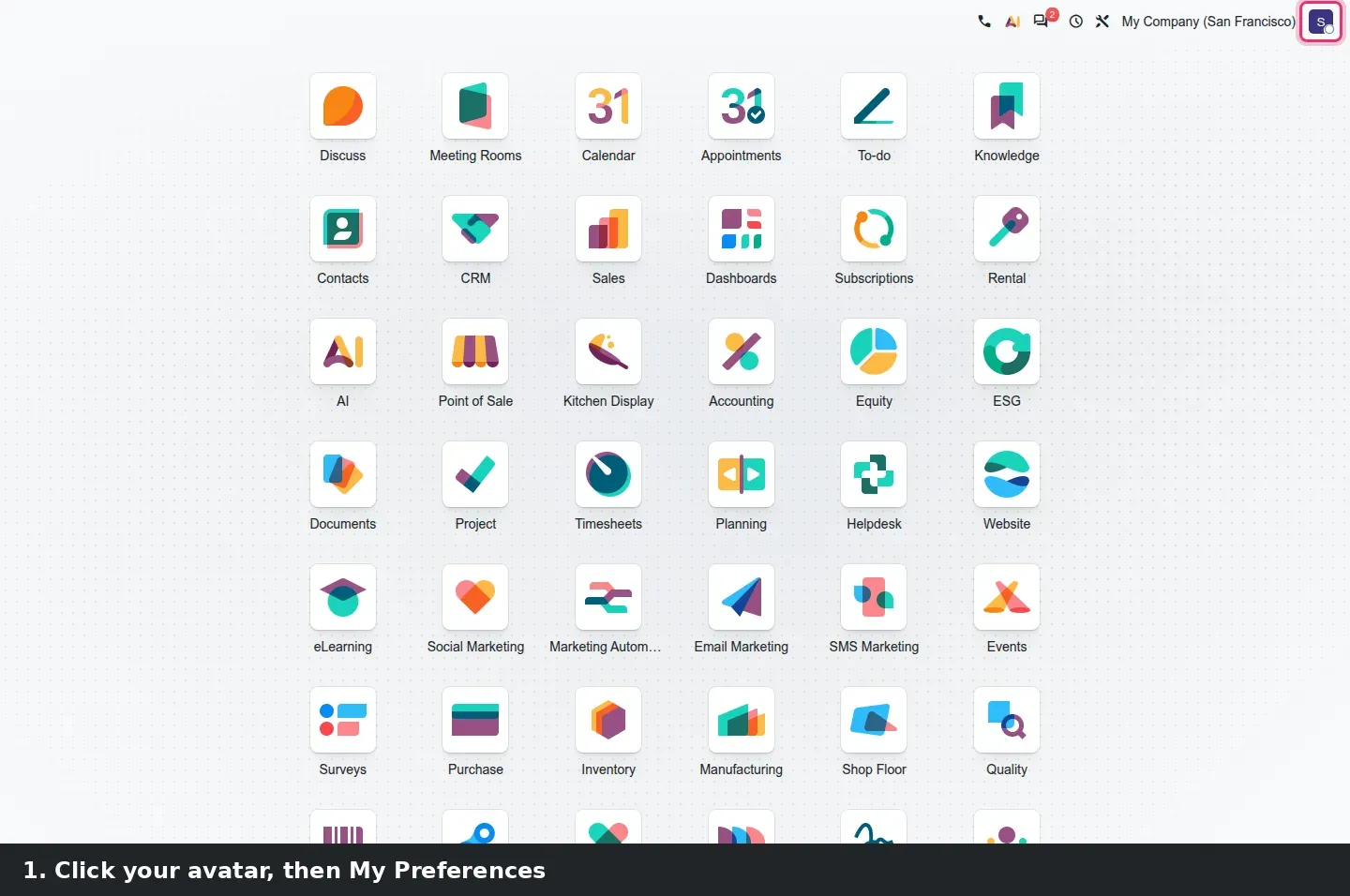
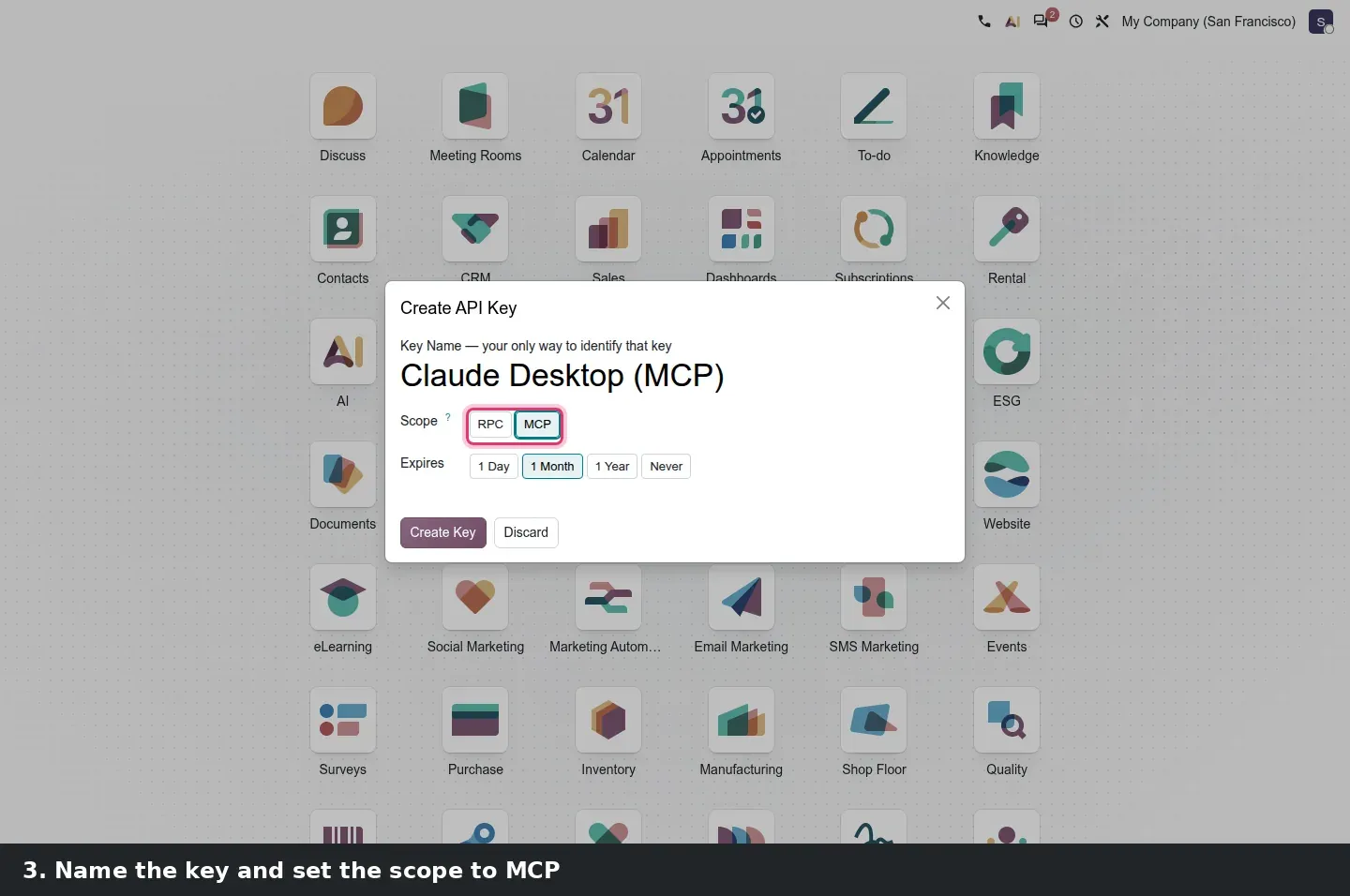
Click your avatar, then My Preferences, then the Security tab. The API Keys block, labelled Connect via RPC or MCP, lists the existing keys with a badge for their scope and a Create API Key button. The dialog asks for a key name, a scope, RPC or MCP, and an expiry: 1 Day, 1 Month, 1 Year or Never. Pick MCP. The key belongs to the user who creates it, so the assistant sees what that person sees, and nothing else.
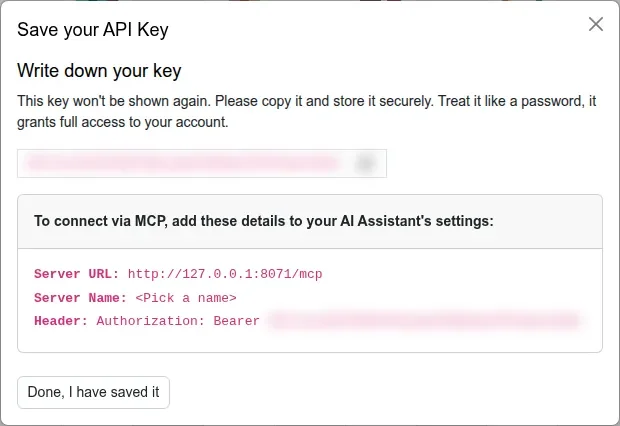
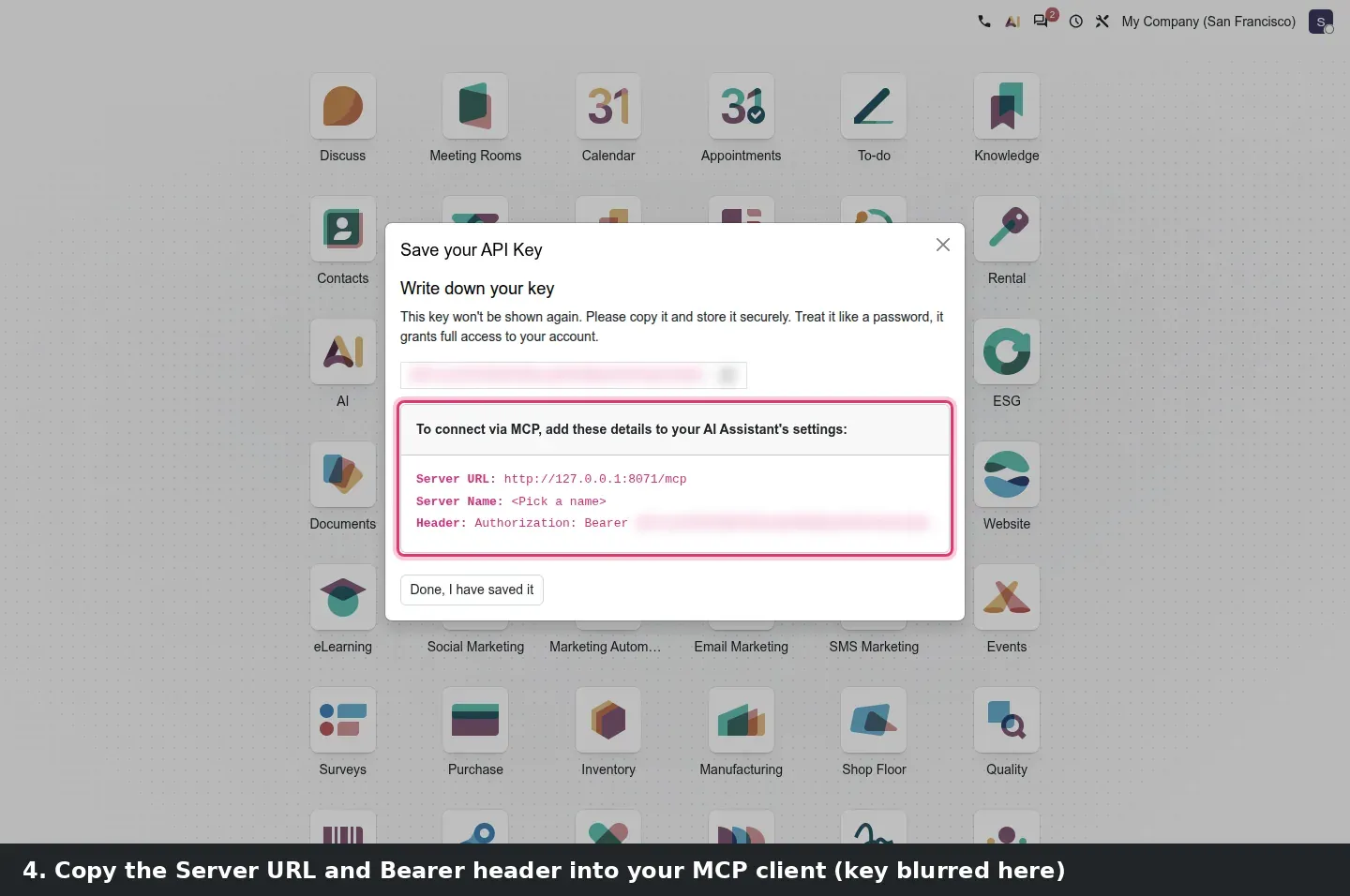
After Create Key, Odoo shows the value once, with a card titled "To connect via MCP, add these details to your AI Assistant's settings": the Server URL ending in /mcp, a Server Name you pick, and the Header line, Authorization: Bearer followed by the key. Copy them into the client; the value is never shown again. Back in the Security tab, the key appears with an MCP badge, its creation and expiry dates and a Delete button. Deleting it revokes the assistant's access.
Expiry is your friend
Choose 1 Month for a first trial, not Never. An expiring key forces a deliberate renewal, and the Security tab lists every key with its dates, so you can see which assistant connections are still live.
OAuth 2.1 for clients that prefer a login flow
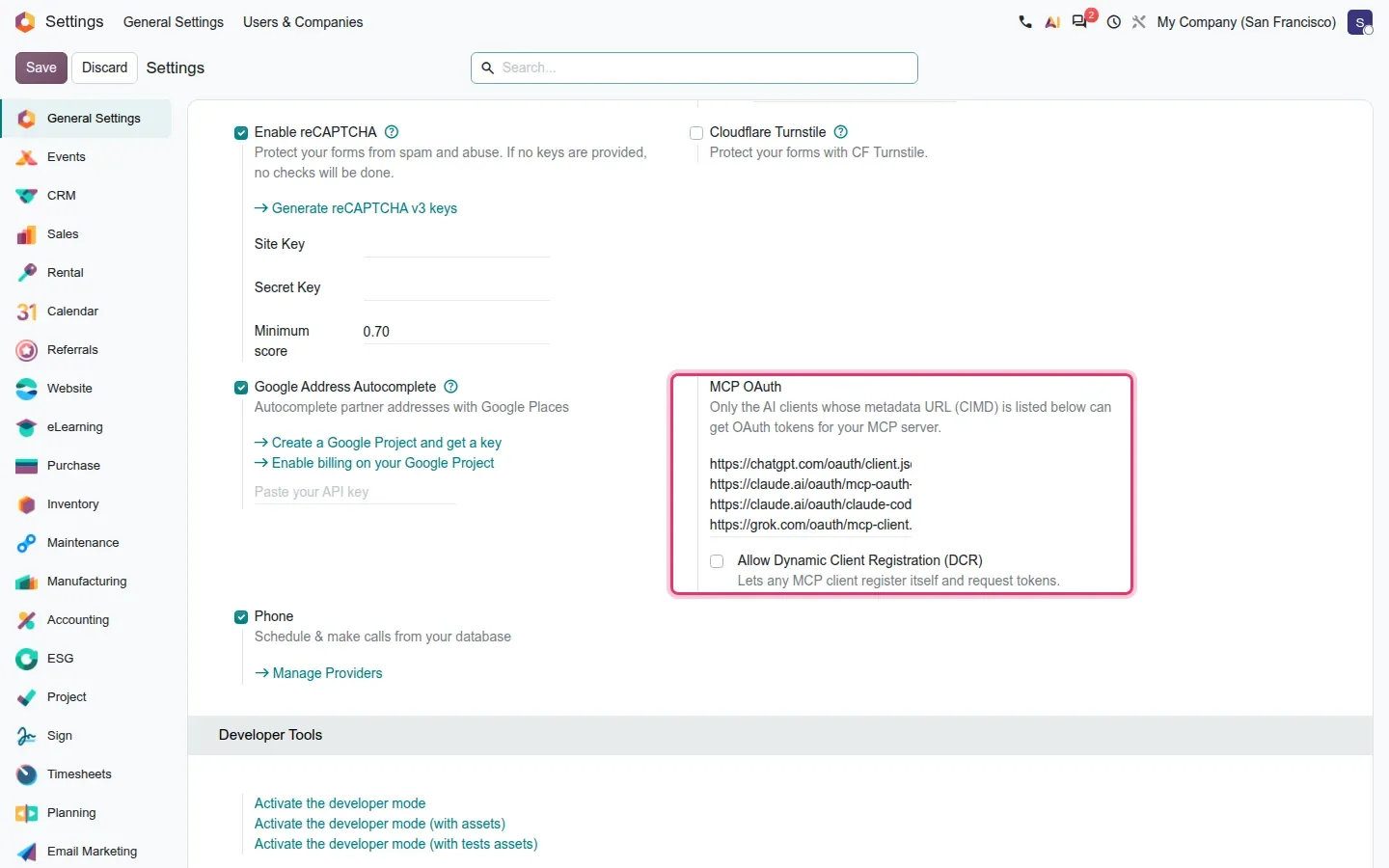
For clients that would rather sign in than paste a key, ai_mcp includes an OAuth 2.1 authorization server. It publishes the standard discovery documents under /.well-known and shows a consent page where the user approves the client. Administrators control it from Settings > Integrations, under the MCP OAuth heading. The block states its rule plainly: only the AI clients whose metadata URL (CIMD) is listed can get OAuth tokens for your MCP server; on the pre-release build the list is pre-filled with entries for chatgpt.com, claude.ai and grok.com. Below it, the Allow Dynamic Client Registration (DCR) checkbox "lets any MCP client register itself and request tokens"; it was off on our demo.
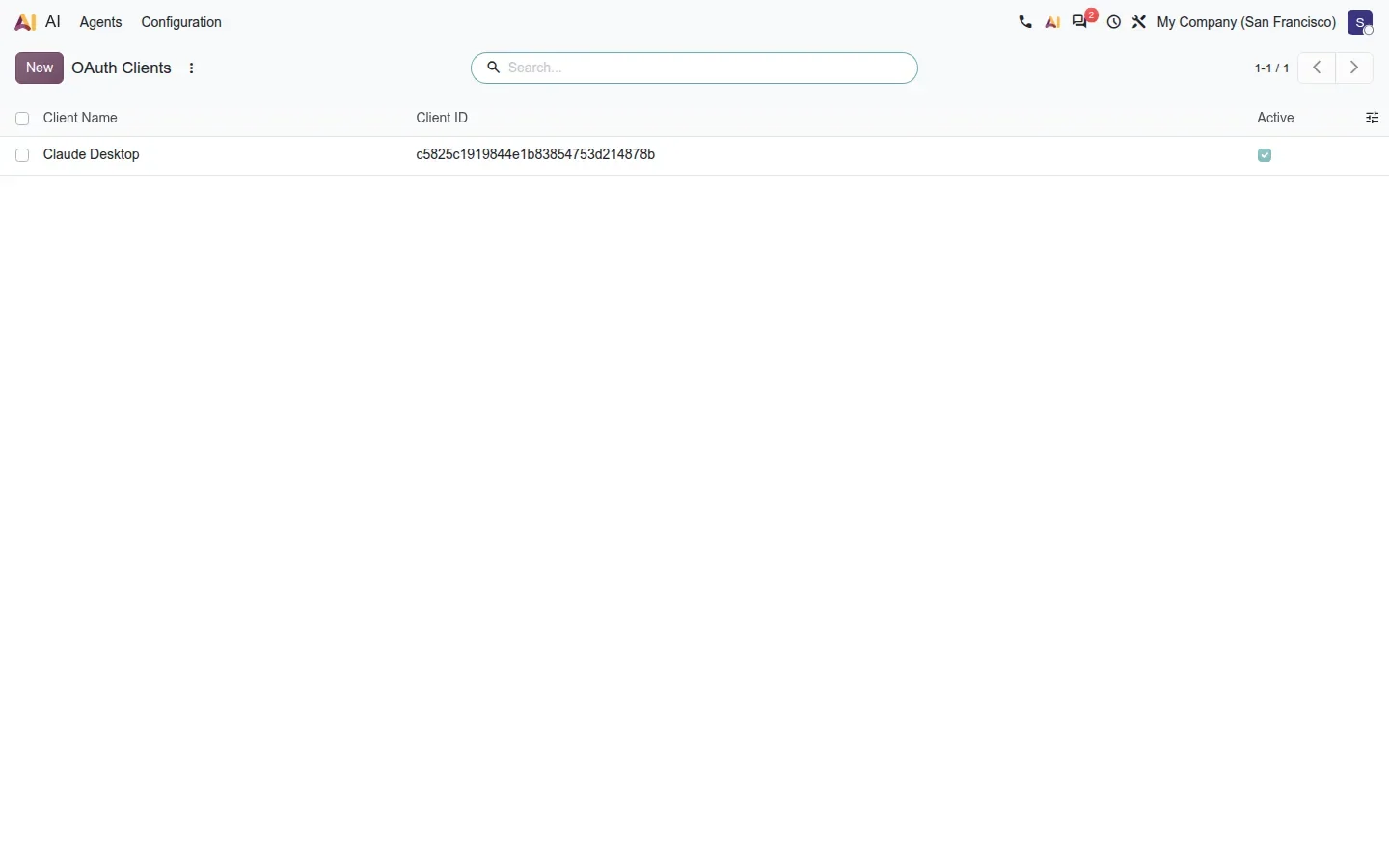
Registered clients are ordinary records. Settings > Technical > Security > OAuth Clients lists each one with its Client Name, Client ID and an Active flag; archiving a client shuts it out.
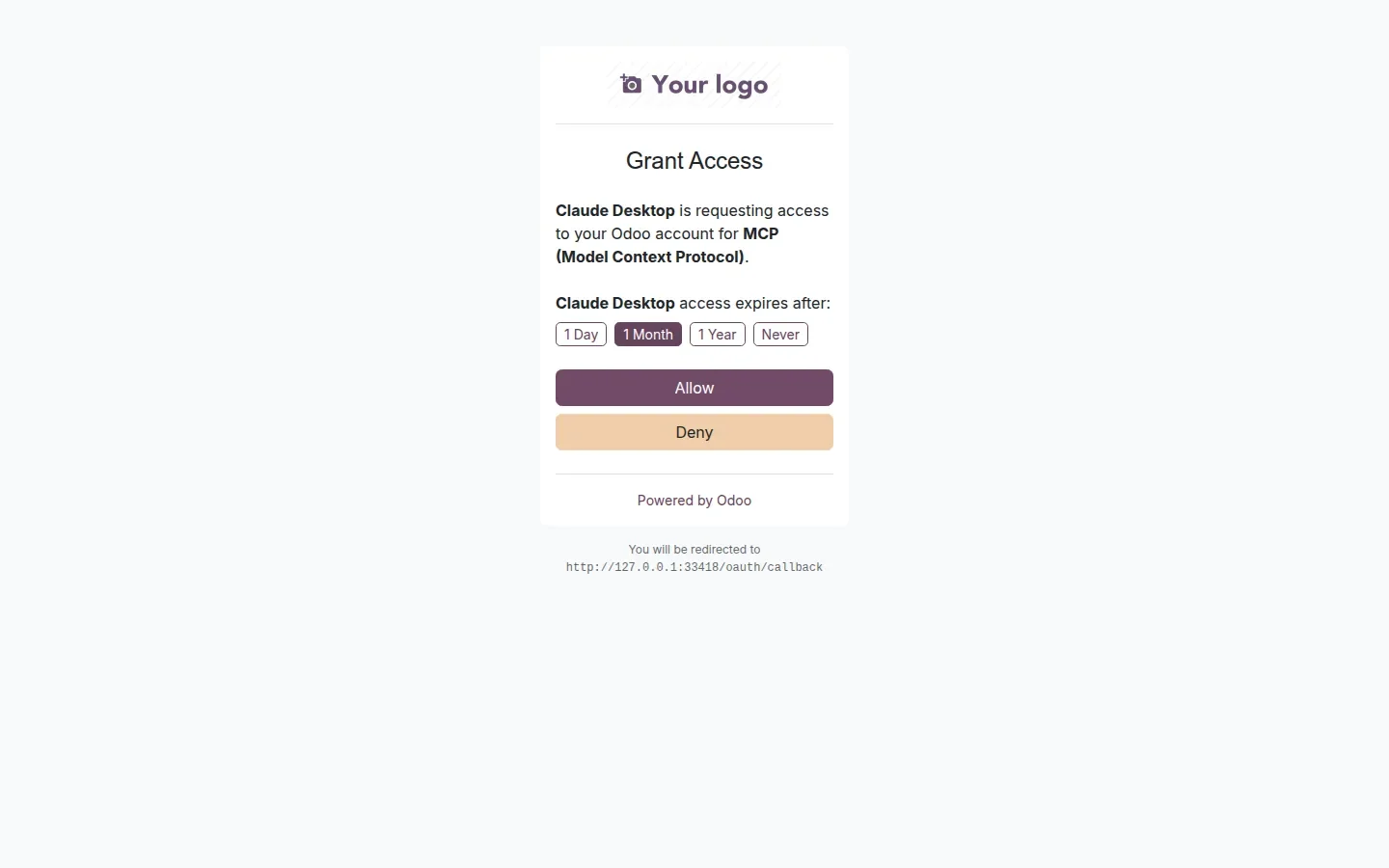
The consent page is titled Grant Access. It names the client and the purpose, "Claude Desktop is requesting access to your Odoo account for MCP (Model Context Protocol)", offers the same expiry choice as the key dialog, and ends with Allow and Deny. The user, not the administrator, decides here.
What the assistant can call: tools with two flags
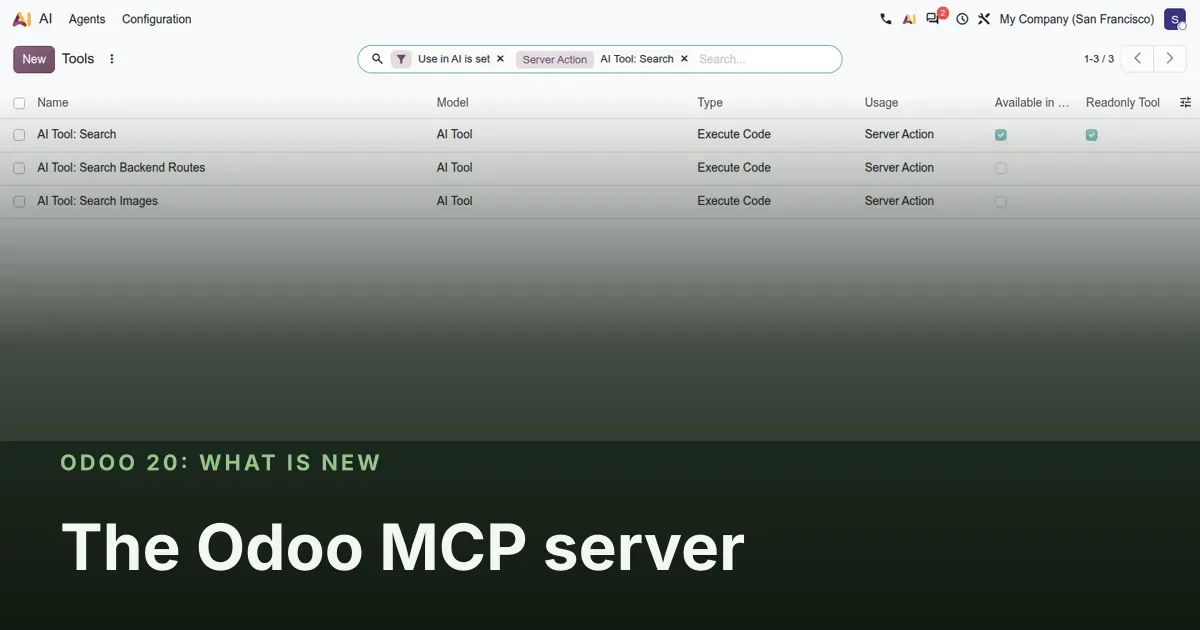
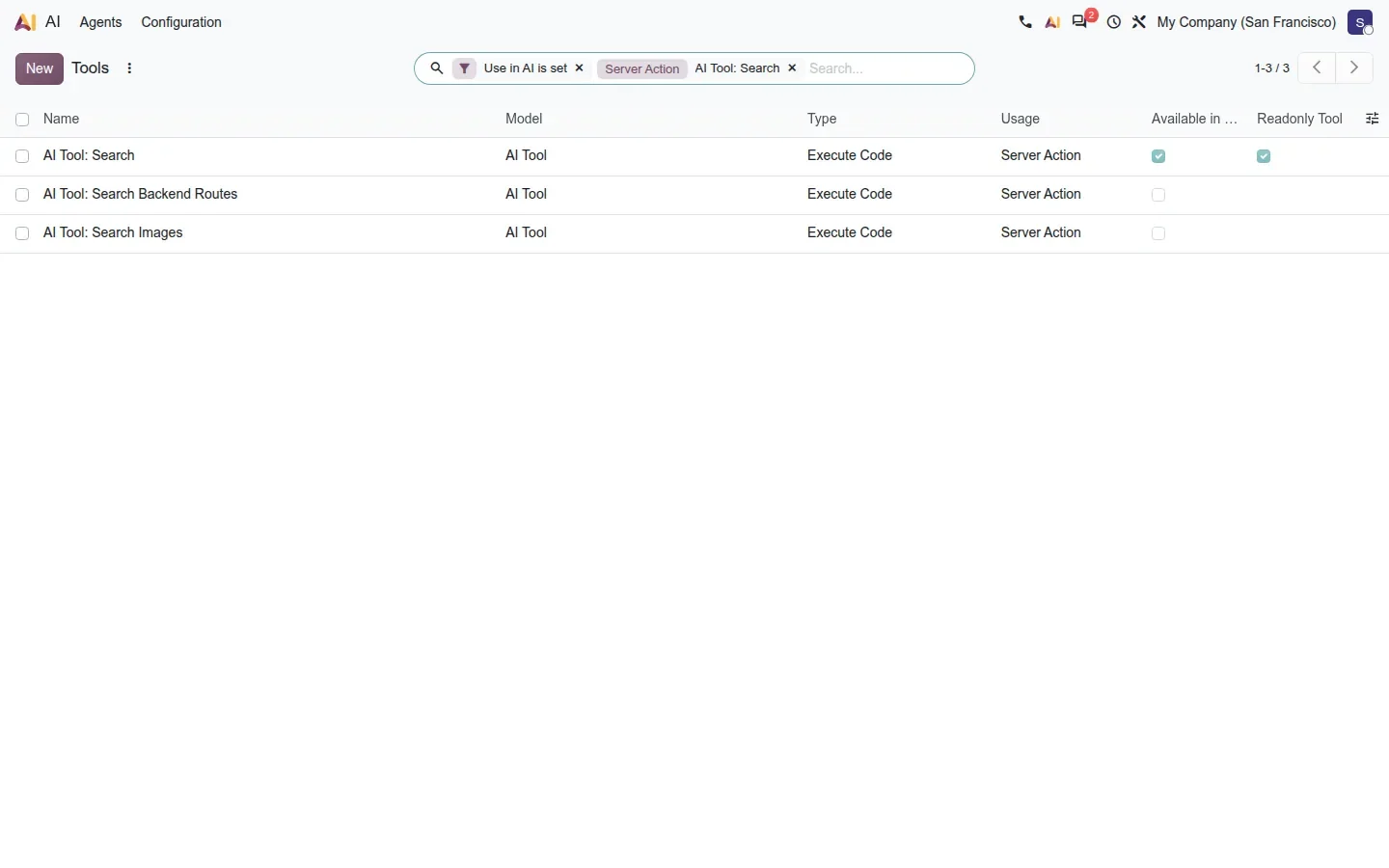
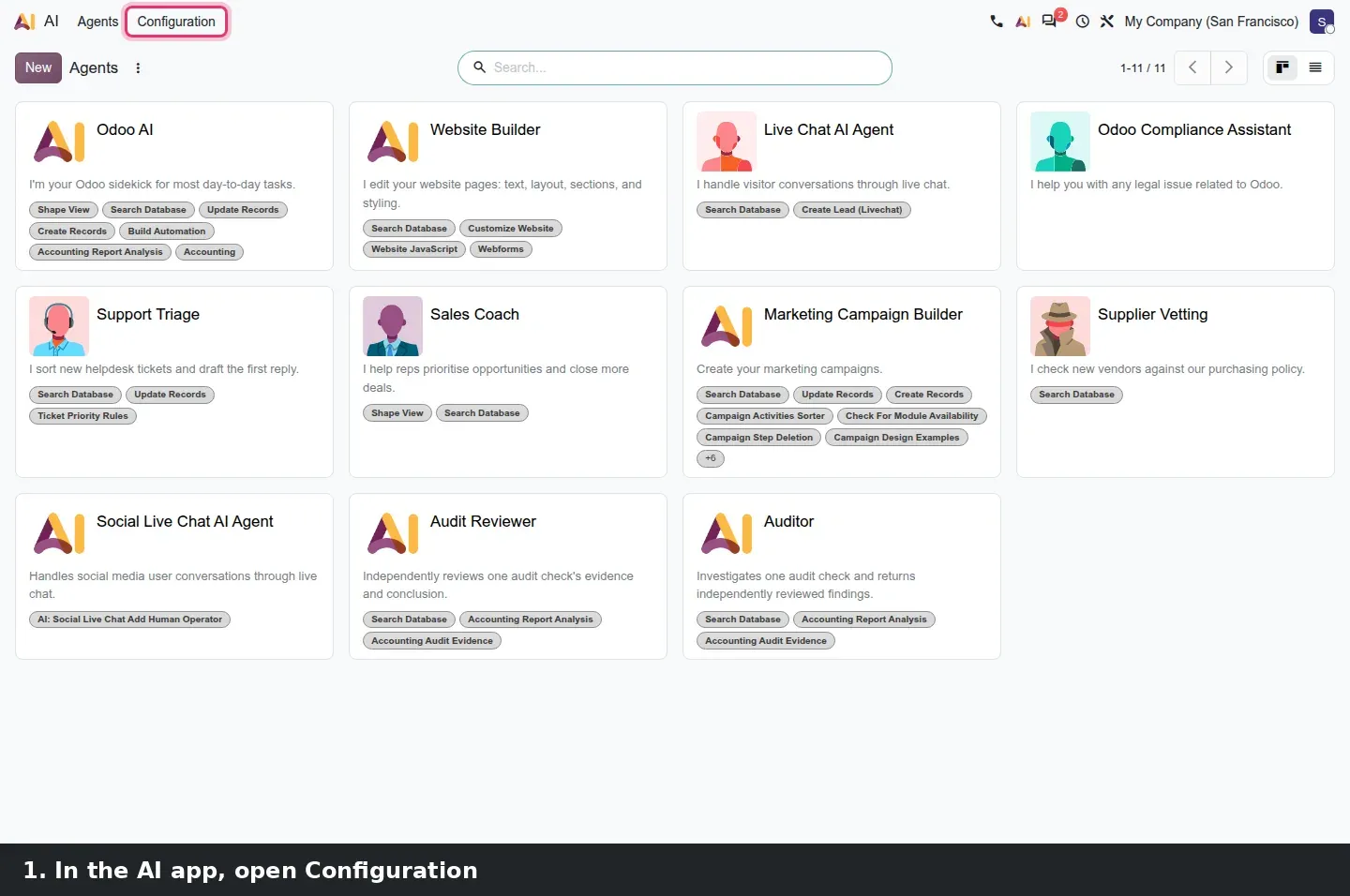
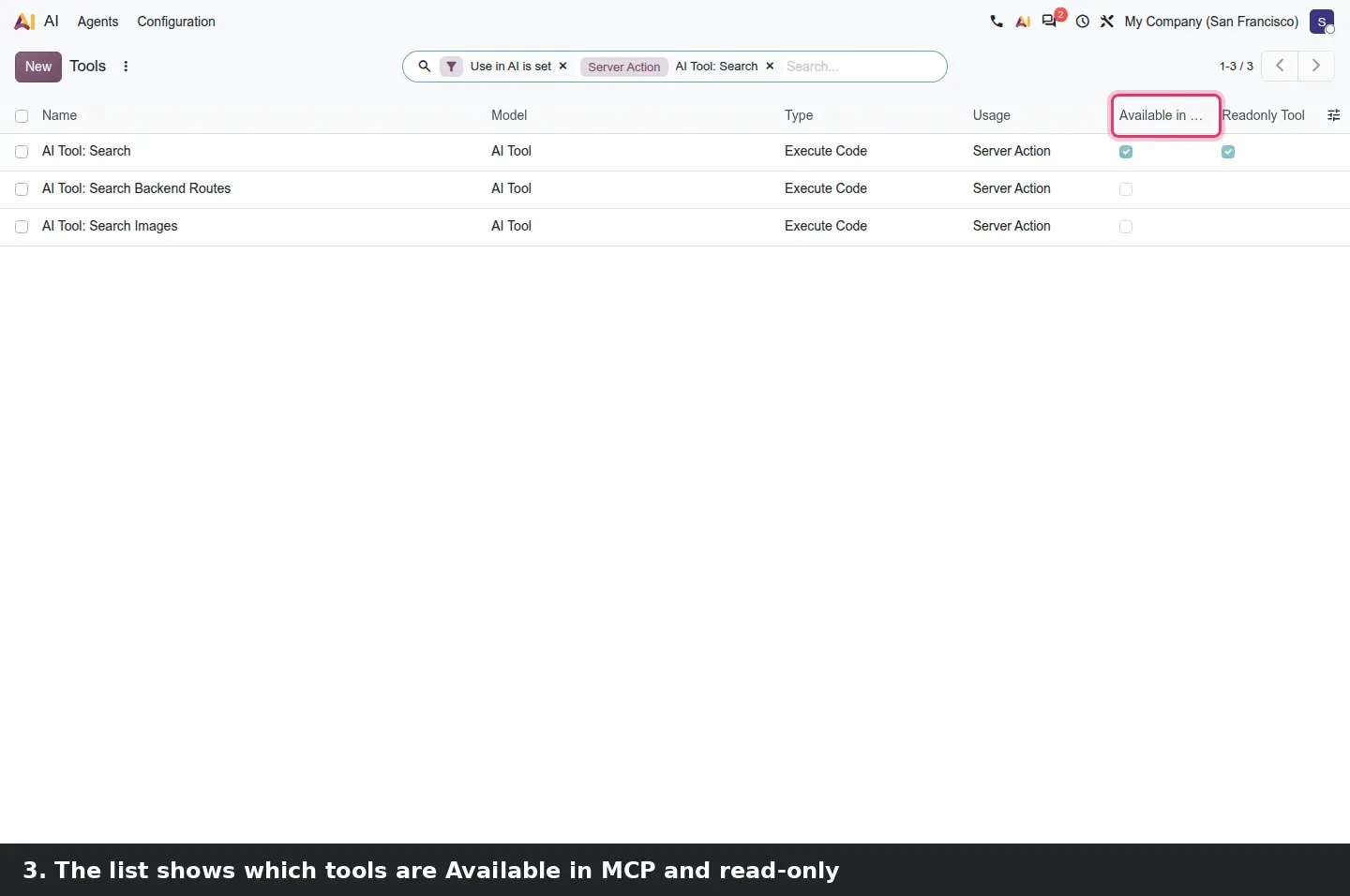
The tools exposed over MCP are Odoo AI tools: server actions with Use in AI ticked. On this build they live under AI > Configuration > Tools, and the list has two columns that matter here, Available in MCP and Readonly Tool. Odoo ships the native tools its own agents use, and the demo exposed five of them, all read-only; neighbours such as Search Images stay internal. That is the whole control: an assistant only sees what carries the flag.
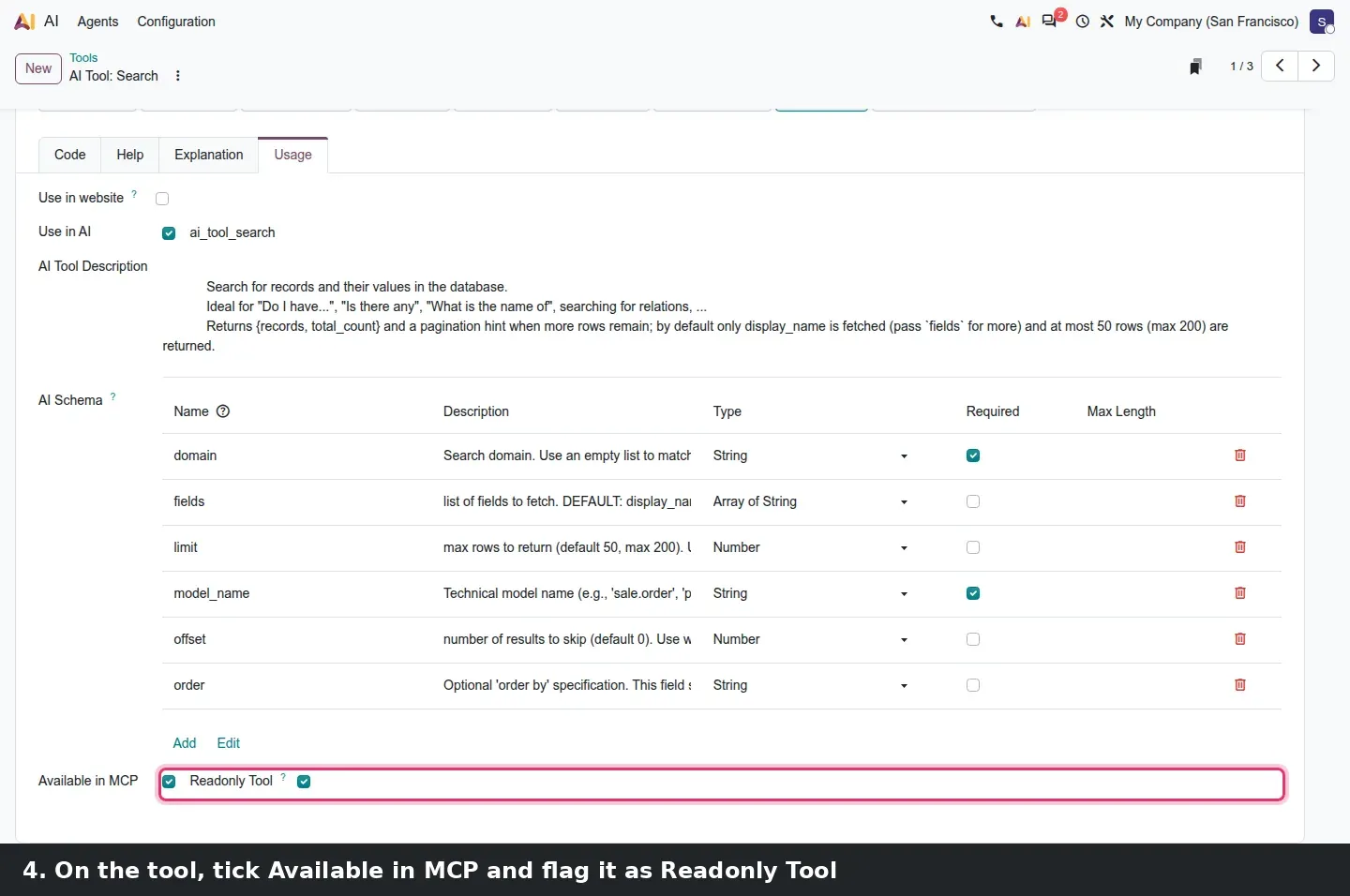
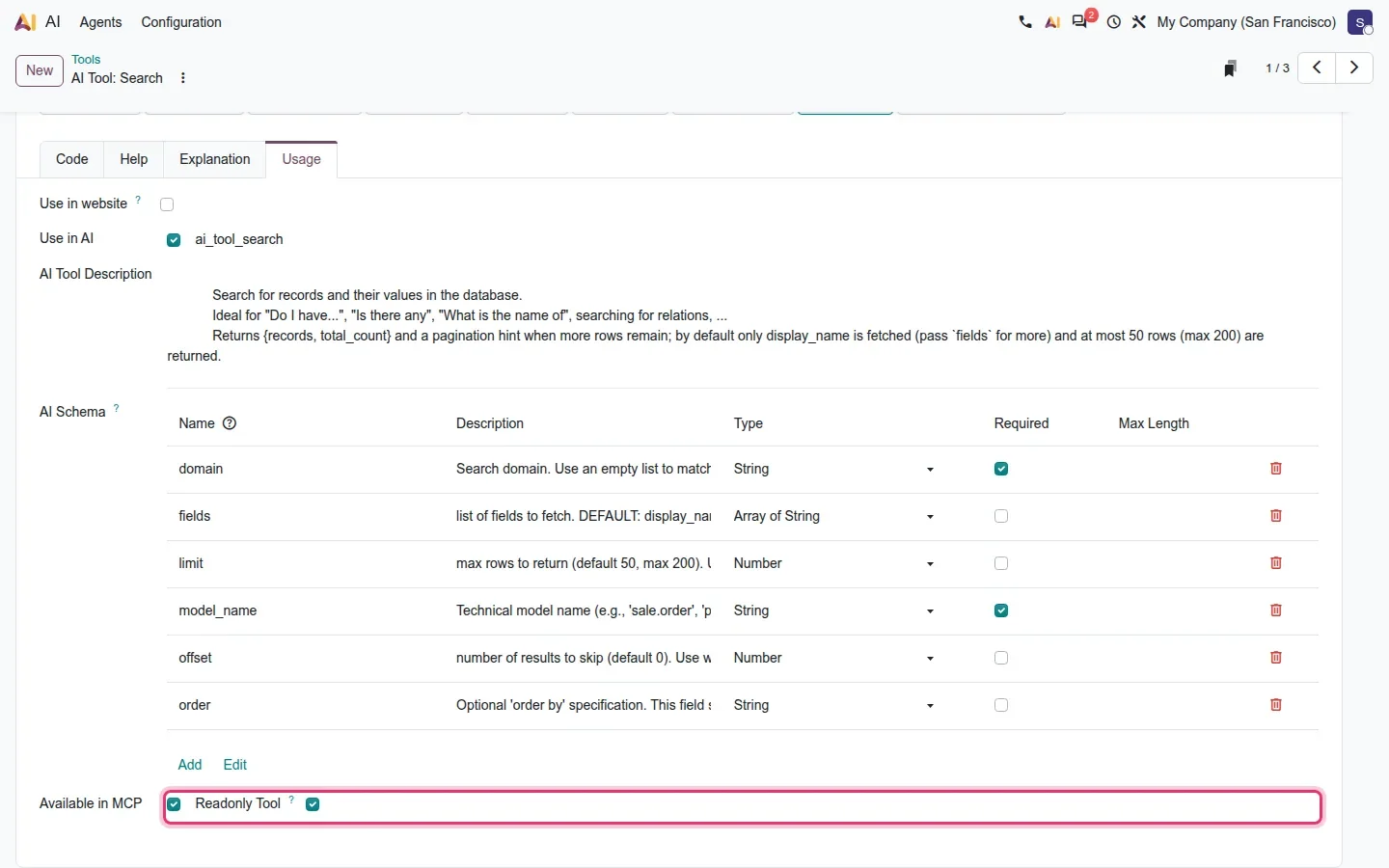
Open a tool and go to the Usage tab. You see Use in AI with the tool's technical name, the AI Tool Description, which is the text the assistant reads to decide when to call it, and the AI Schema, the arguments with their type and whether they are required. At the bottom sit the two checkboxes, Available in MCP and Readonly Tool. An administrator can build a custom server action, tick Available in MCP, and it becomes a tool the outside assistant can call. Readonly Tool is carried to the client as a read-only hint, so keep it truthful: tick it only on actions that do not write.
The security model, and what to check before you turn it on
Three layers decide what an external assistant can do. Who: the key or the OAuth grant belongs to one user, and the client acts as that user, no more and no less. What: only server actions flagged Available in MCP are offered, and each declares whether it is read-only. Where from: the CIMD list and the DCR checkbox decide which clients may even ask for an OAuth token. The module description adds a warning: never share the token. Anyone who holds it acts as that user until it expires or is deleted.
- Pick the user first. Create the key from the account whose rights the assistant should have, not from an administrator login.
- Review the tool list. In AI > Configuration > Tools, check which actions are Available in MCP and which are Readonly Tool. Start read-only; add a writing tool later, on purpose.
- Leave DCR off unless you know which client needs it, and keep the CIMD list to the clients your team uses.
- Set an expiry on every key and consent, note who owns each one, and know the off switch: Delete on the key, or archive the OAuth client.
- Remember where the answers go. Whatever a tool returns is read by the model on the client side, under that vendor's terms.
How to try it on a demo database
- On a demo database with the AI app installed, open Apps and confirm that AI MCP Server is installed.
- Click your avatar, then My Preferences, then the Security tab. Click Create API Key, name the key after the client, set Scope to MCP and Expires to 1 Month, then click Create Key.
- Copy the Server URL and the Header line from the card, then click Done, I have saved it.
- Open AI > Configuration > Tools and look at the Available in MCP and Readonly Tool columns. Open AI Tool: Search and read the Usage tab.
- Add the URL and the header to Claude Desktop or another MCP client, then ask it to list your open sales orders.
- Open Settings > Integrations > MCP OAuth to review the CIMD list and the DCR checkbox, then Settings > Technical > Security > OAuth Clients.
What we could not verify on the pre-release build
Our capture environment had no desktop MCP client, so the Claude Desktop or ChatGPT window showing the Odoo tool call and its answer was not captured; the terminal transcript above shows real calls to the same endpoint instead. The OAuth consent was displayed but not submitted, since no real client redirect address could receive the code, so we did not see a token issued through OAuth. Everything else on this page was clicked through on the 20.0 Enterprise build of 23 September 2026.
What this means for an upgrade
If you run Odoo 17, 18 or 19, nothing here exists in your database yet, so there is nothing to migrate but a few decisions to take before go-live: which users get an MCP key, which tools carry the Available in MCP flag, and whether OAuth is opened at all. If you run a homemade LLM bridge over XML-RPC or JSON-RPC, put it on the list now: Odoo has scheduled the removal of those endpoints for the same release, and every integration that uses them needs an inventory before the upgrade, which is what our RPC migration audit produces. We run our own MCP server for Odoo calculators, so we know this protocol from the client side. Our migration service covers the Odoo side, and the series hub lists the other changes that touch the same upgrade.
Frequently asked questions
What is the Odoo 20 MCP server URL?
Your database URL followed by /mcp, for example https://example.odoo.com/mcp. The client sends an Authorization: Bearer header with an API key whose scope is MCP. Odoo prints the exact Server URL and header line on the card shown once when the key is created.
Can I reuse an existing RPC API key for MCP?
No. The /mcp route only accepts keys created with the scope set to MCP; a plain RPC key is refused. That separation is deliberate, so that integration keys and assistant keys can be listed, expired and deleted independently in the user's Security tab.
Does the assistant see everything in my database?
No. It acts as the user who created the key or approved the OAuth consent, with that user's record rules, company access and field rights. It can only call server actions flagged Available in MCP, and each one declares whether it is read-only.
Do I need OAuth, or is an API key enough?
An API key is enough for a client that lets you paste a URL and a header, such as a desktop assistant. OAuth 2.1 serves clients that prefer a login and consent page; the administrator restricts it to listed client metadata URLs and can leave dynamic registration off.
Can Claude or ChatGPT change data in Odoo through MCP?
Only through a tool that is flagged Available in MCP and not marked Readonly Tool. The five native tools exposed on the pre-release demo were all read-only. A writing tool has to be flagged on purpose by an administrator, and it still runs with the user's own rights.
How do I revoke an assistant's access?
For a key, open My Preferences, then the Security tab, and click Delete on that key. For an OAuth client, archive it under Settings > Technical > Security > OAuth Clients. Setting an expiry when you create the key or approve the consent limits the damage if you forget.