
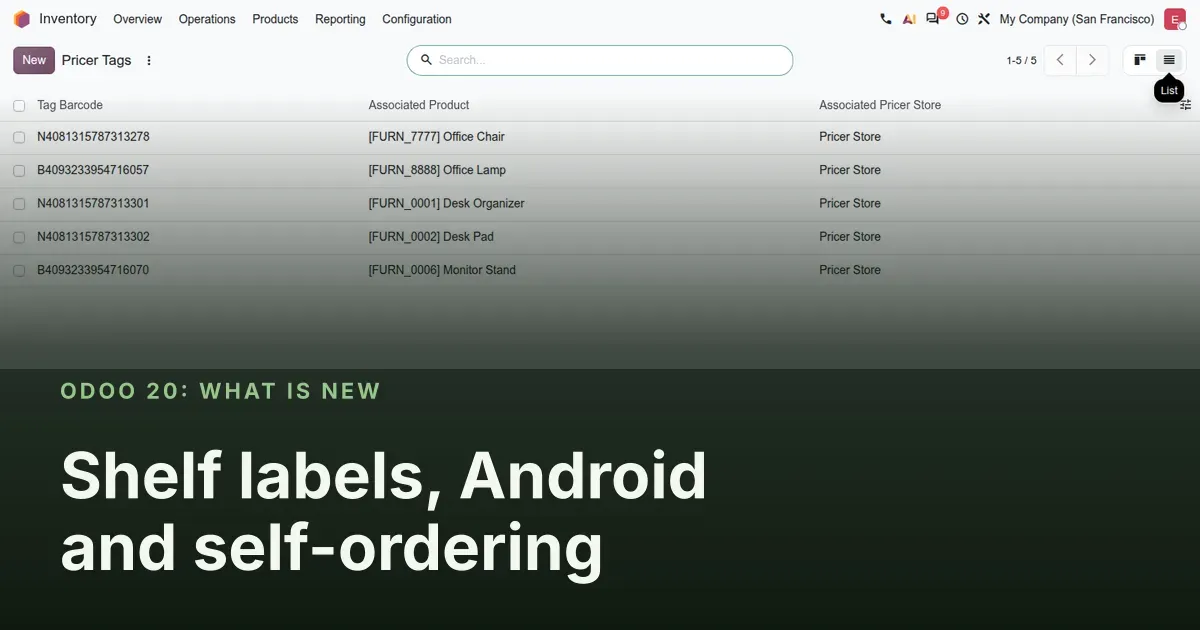
The register leaves the counter: the shelf, the tablet and the guest's phone
Odoo 20 extends the Point of Sale in three directions. On the shelf, the Pricer connector for electronic labels becomes a standalone module, so a retailer running Inventory without a register can still update tag prices. In the pocket, a native Android layer lets a tablet open the register from the launcher and reach printers on the local network. On the guest's phone, self-ordering gets a QR code bound to one table order, a country prefix on the phone field, a WhatsApp receipt, and more delivery platforms behind UrbanPiper. This post is for retail chains, restaurants with tablets on the floor, and kitchens fed by several delivery apps.
We clicked through the Pricer configuration, the self-order flow on a phone viewport, the WhatsApp preset and the UrbanPiper screens on the pre-release build. We could not test real Pricer hardware, the Android app on a tablet, or a live delivery order, and we say so where it matters. Obox hardware is covered in post 5 of this series and the redesigned preparation display in post 15.
Observed on the Odoo 20.0 Enterprise pre-release build of September 23, 2026. Names, menus and availability can change before general availability; we will update this page when they do.
Pricer electronic shelf labels no longer need the Point of Sale app
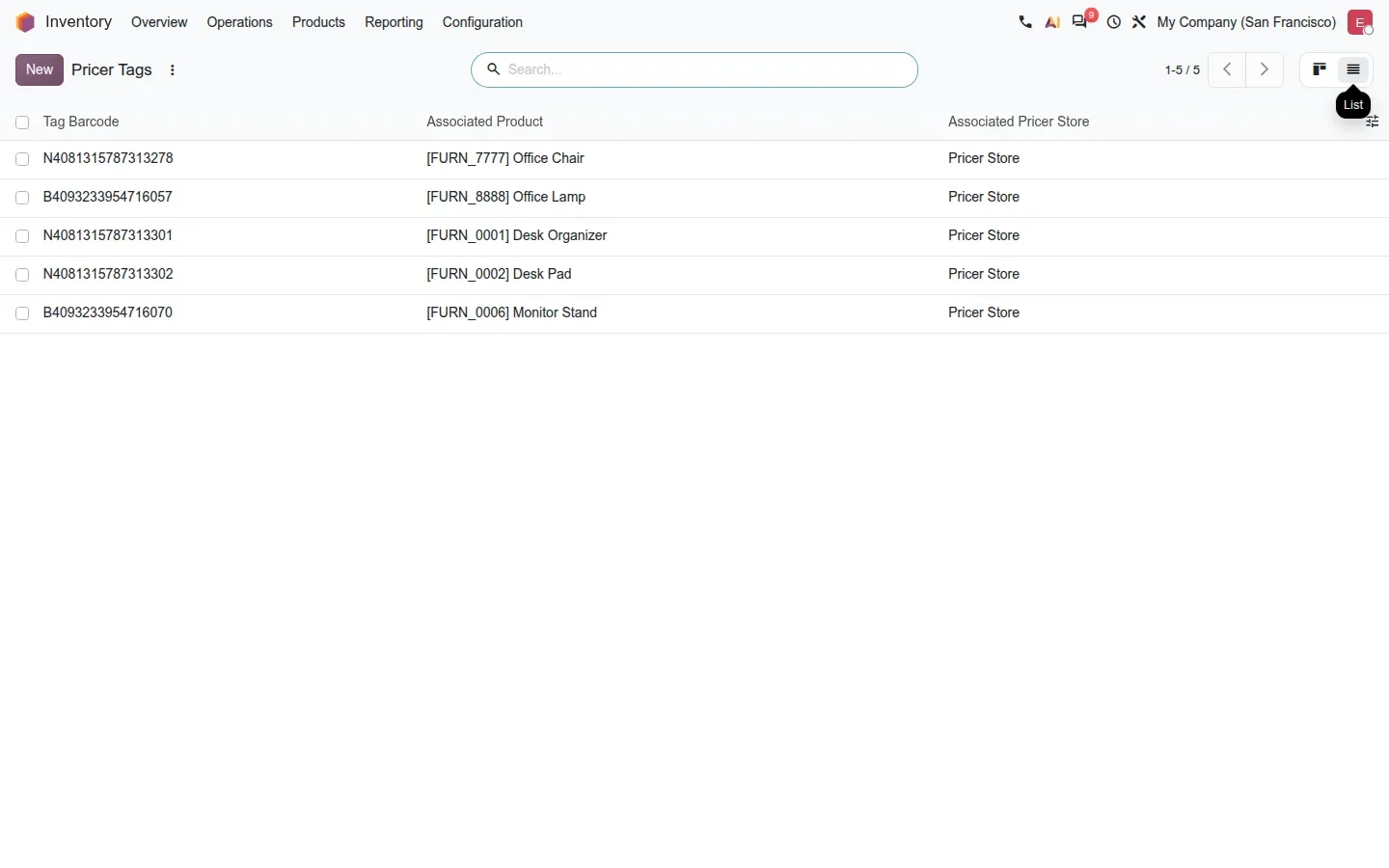
Electronic shelf labels are the e-paper price tags on a store shelf that update from a central system. Until Odoo 19 the Pricer connector lived inside the Point of Sale app. In Odoo 20 it is a standalone pricer module with a companion stock_pricer, so a retailer that runs Inventory without a register can still push product names, prices and barcodes to Pricer tags. The configuration sits under Inventory > Configuration > Pricer; the same menu appears under Point of Sale > Configuration > Pricer when that app is installed.
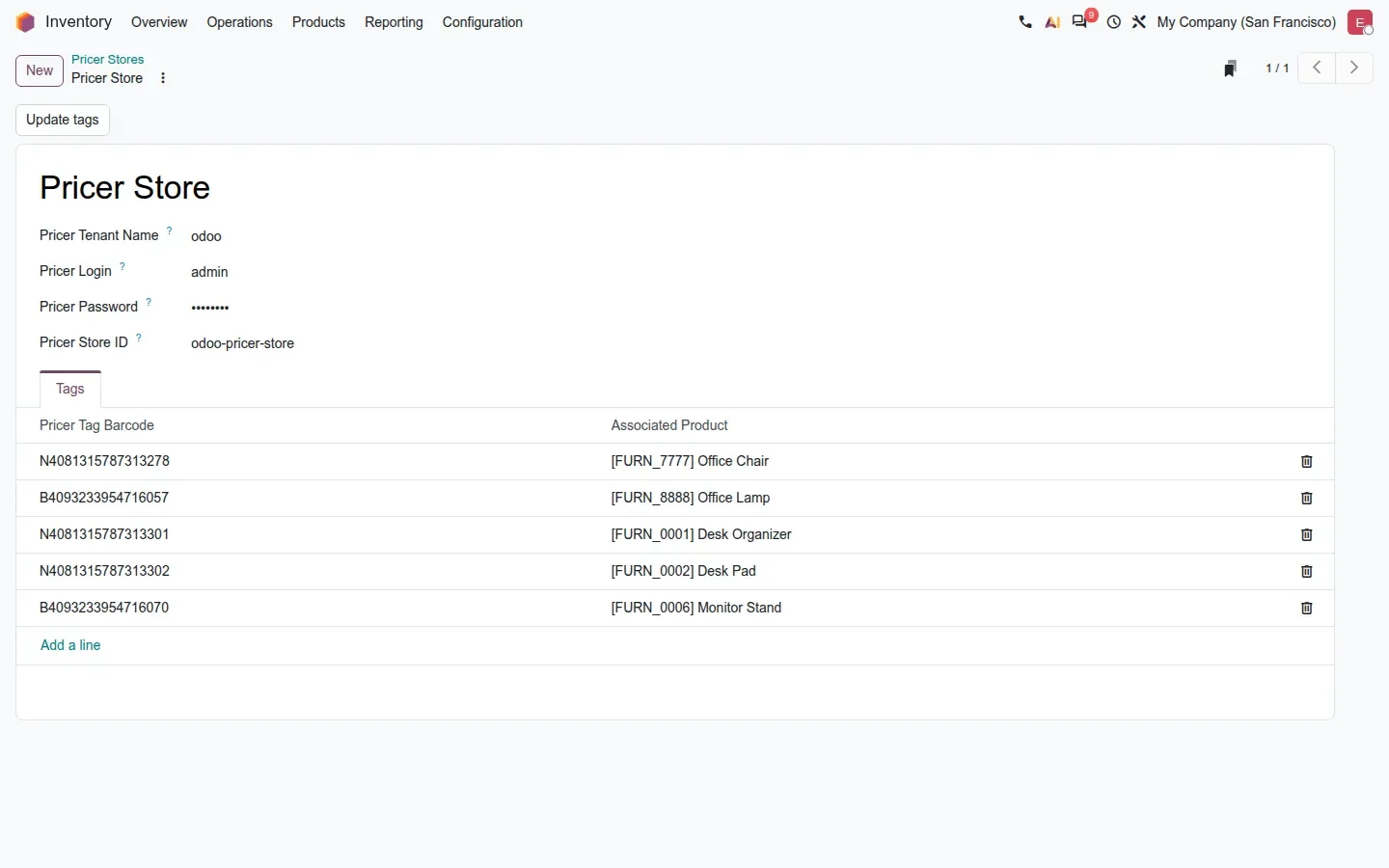
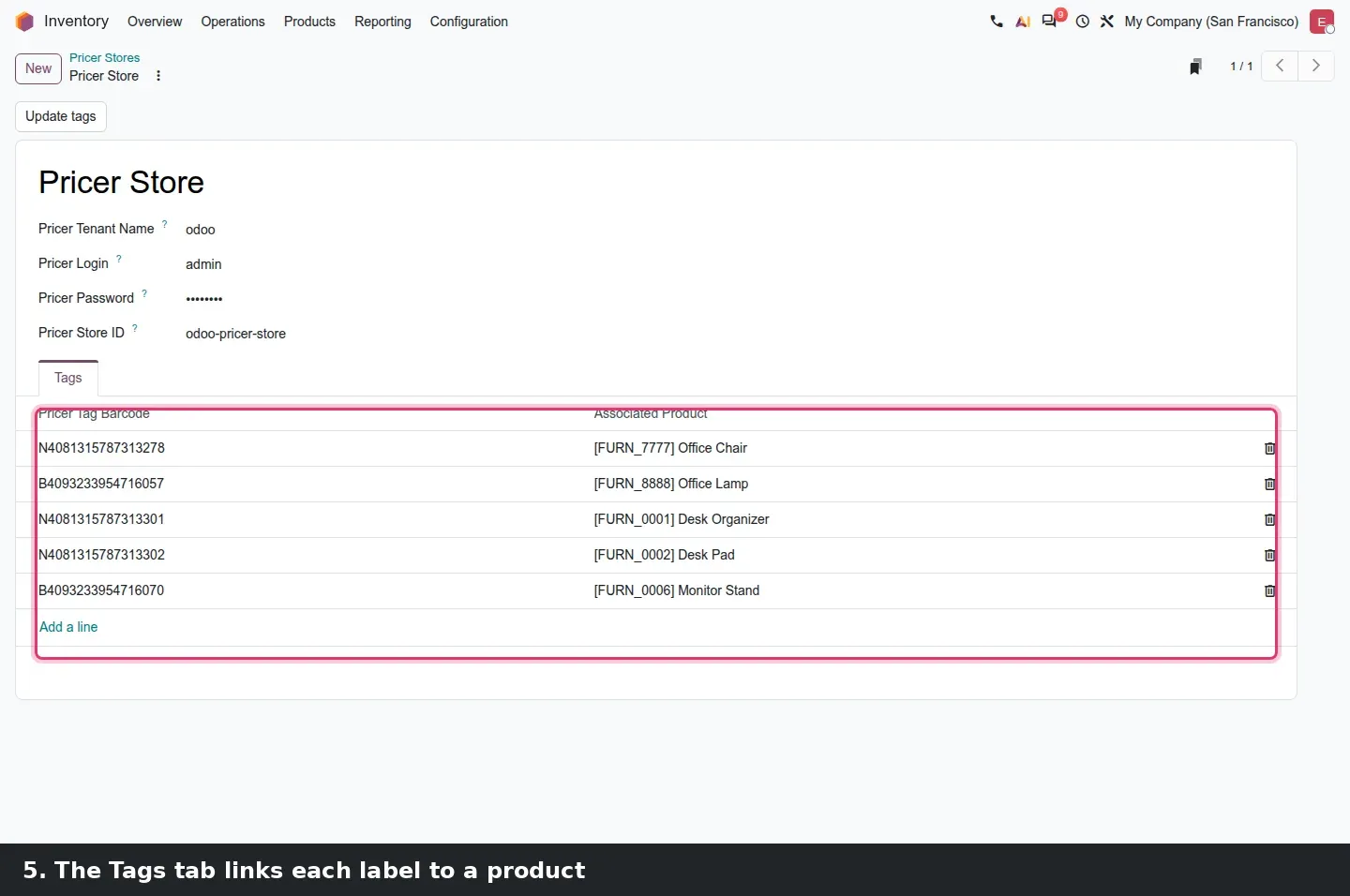
A Pricer Store holds four fields: Pricer Tenant Name, Pricer Login, Pricer Password and Pricer Store ID. Odoo talks to Pricer's service with these credentials, not to the tags directly. Below them, a Tags tab lists every label by Pricer Tag Barcode with its Associated Product. There is no smart button for the tags, contrary to the guide: the list is a tab on the form. Update Tags pushes the current data; a scheduled action does the same whenever a product is flagged for a refresh. Our demo store has placeholder credentials, so its status reads Error: check Pricer credentials; a failed push is visible, not silent.
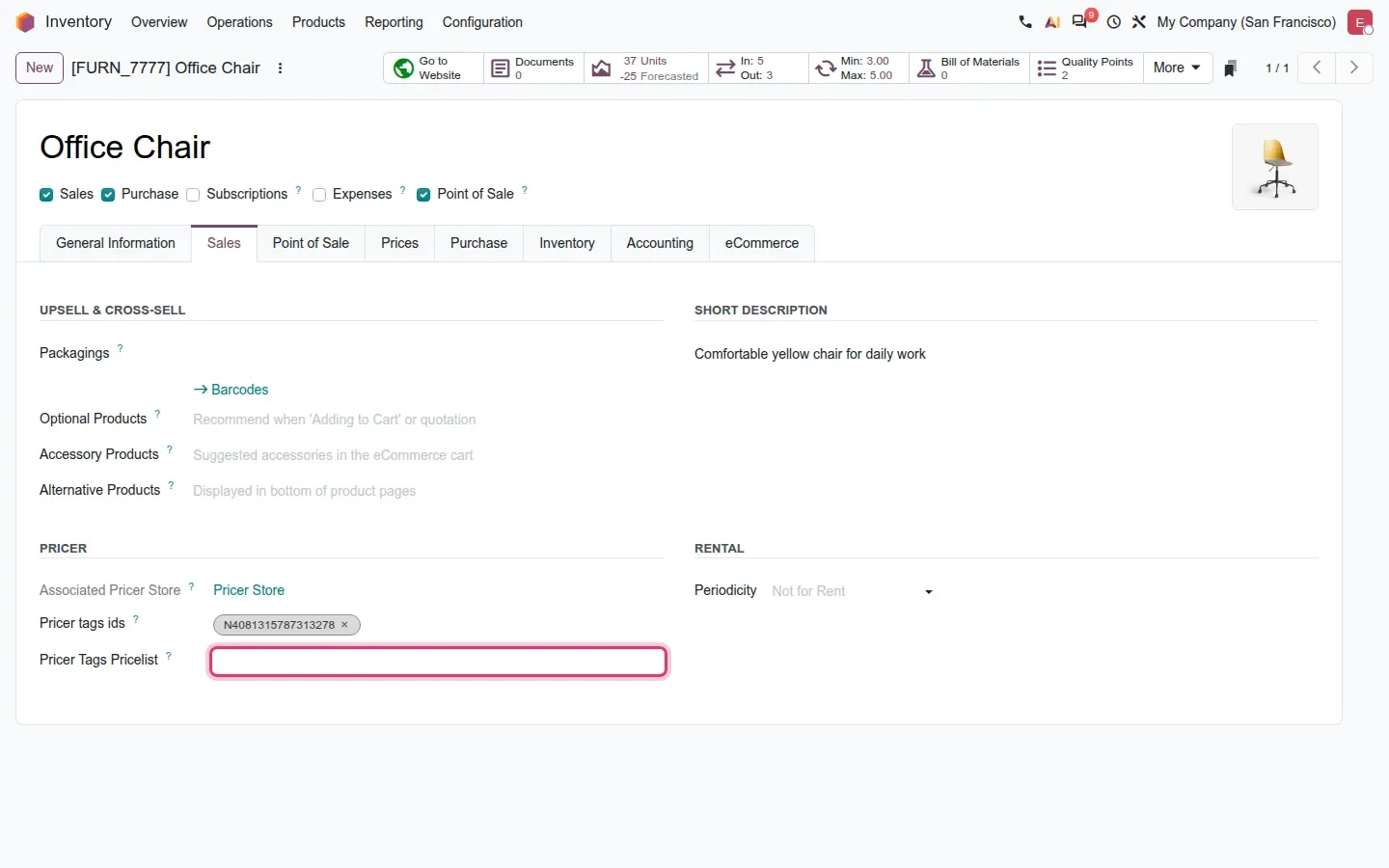
The in-store price is where the README corrected the guide. The guide says a pricelist is chosen per store. On the build, the field is on the product: Sales tab, Pricer block, with Associated Pricer Store, Pricer tags ids and Pricer Tags Pricelist. Leave it empty and the tag shows the base list price; pick one and the tag shows that pricelist's price. For a chain with different prices per city, the pricelist is set product by product, or in bulk through an import.
A native Android layer for the register and the kiosk
Odoo 20 also ships a native Android layer for the Point of Sale. According to the 20.0 source diff, pos_mobile_android adds a native bridge, local network requests and home-screen shortcuts, pos_self_order_mobile does the same for the self-order kiosk, and obox_pos_mobile wires the Obox into that mobile flow. For a shop, the promise is a tablet that opens the register in one tap and talks to the receipt printer, the scale or the payment terminal on the shop's own network. The Obox itself, and the option to let an Android tablet act as the box, is the subject of our Obox post.
We could not capture any of this: the native app needs a physical Android tablet running the Odoo app. Read this as what the modules declare, not as something we clicked through.
Pay after the meal with a QR code bound to one order
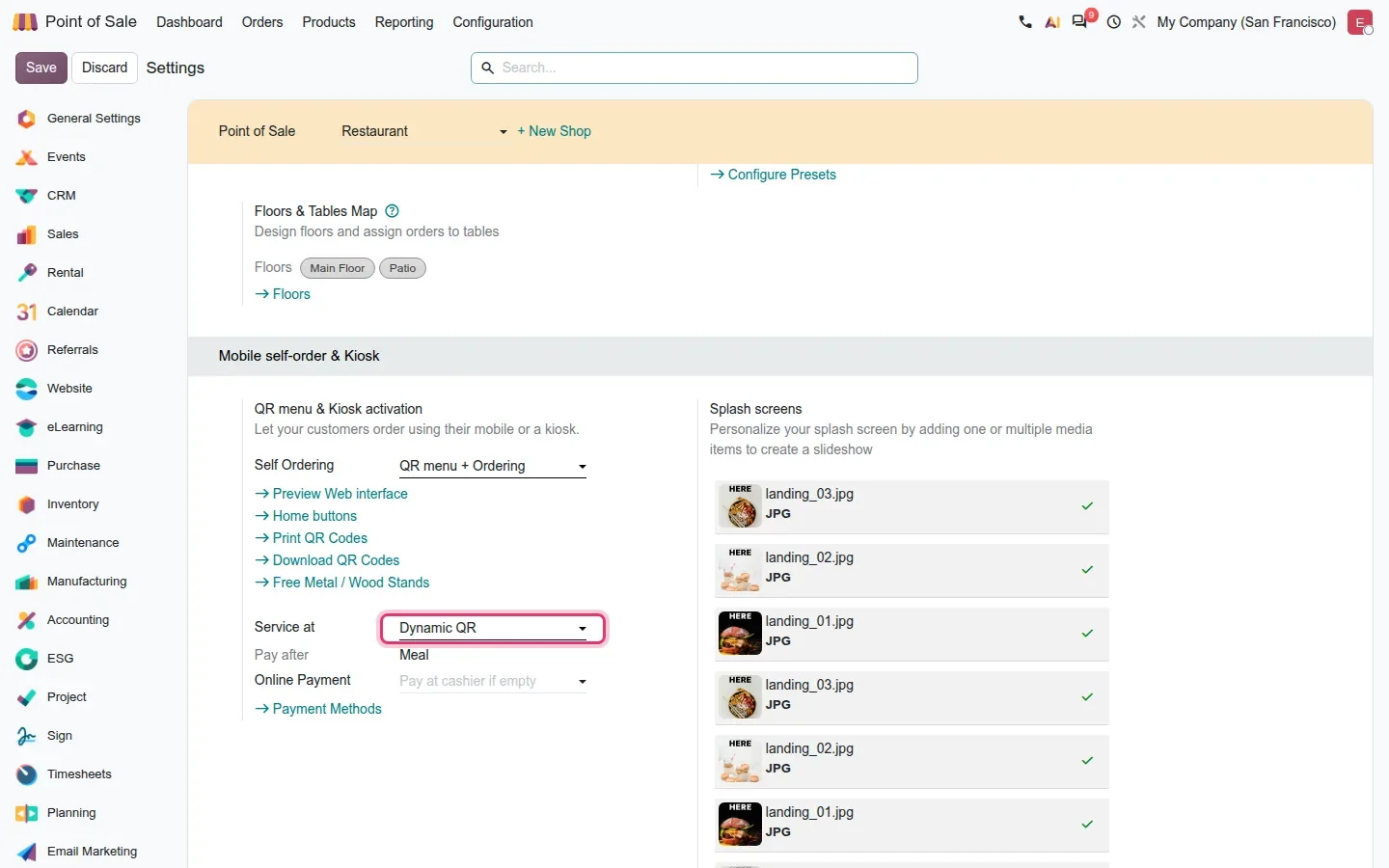
In a restaurant where guests pay after the meal, the self-order QR code used to be static: one code per table, printed on a stand. Odoo 20 adds a Dynamic QR option. In the PoS settings, block Mobile self-order & Kiosk, set Self Ordering to QR menu + Ordering and Service at to Dynamic QR. The build then forces Pay after to Meal, because a code bound to an order only makes sense while that order stays open.
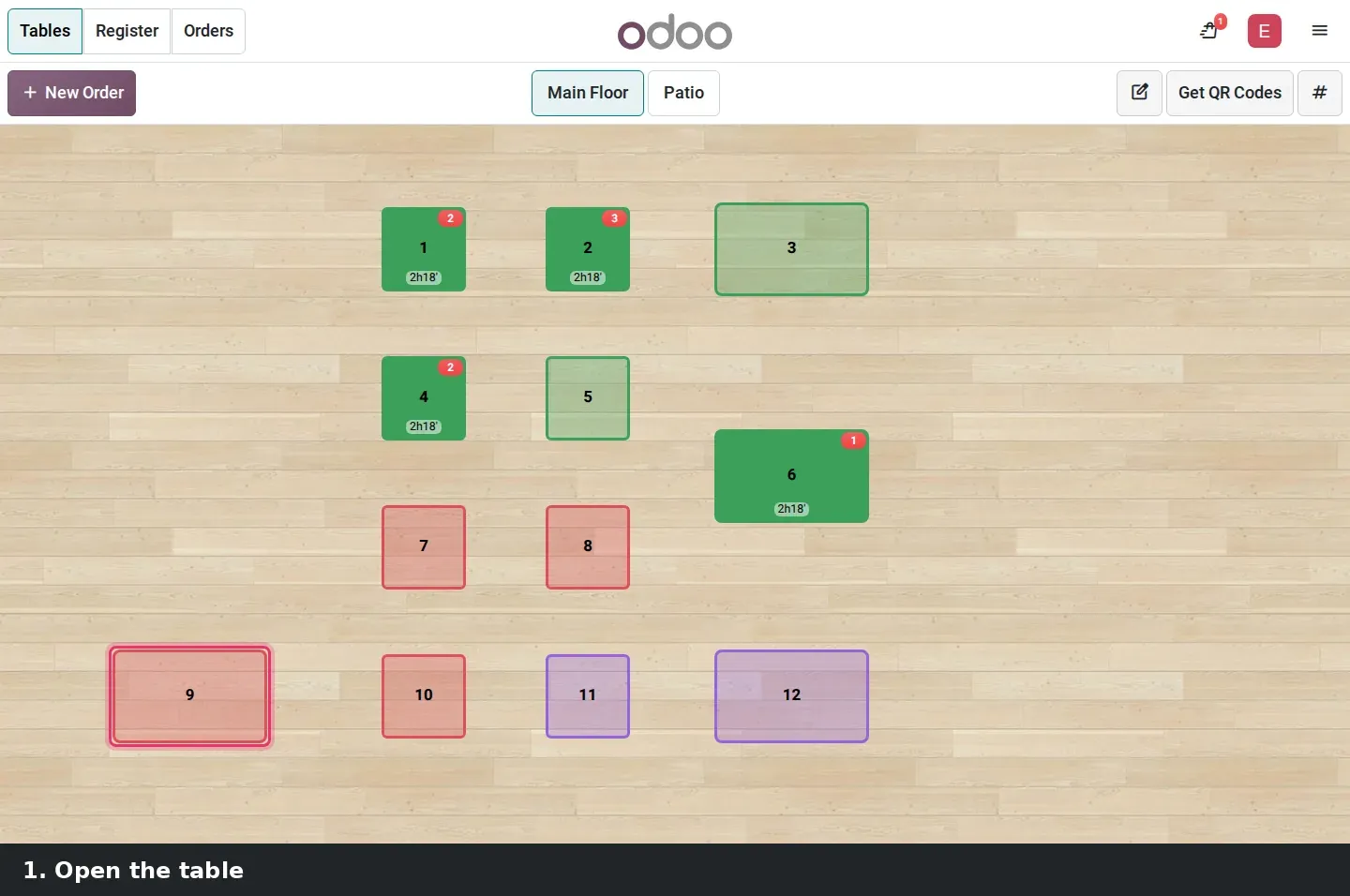
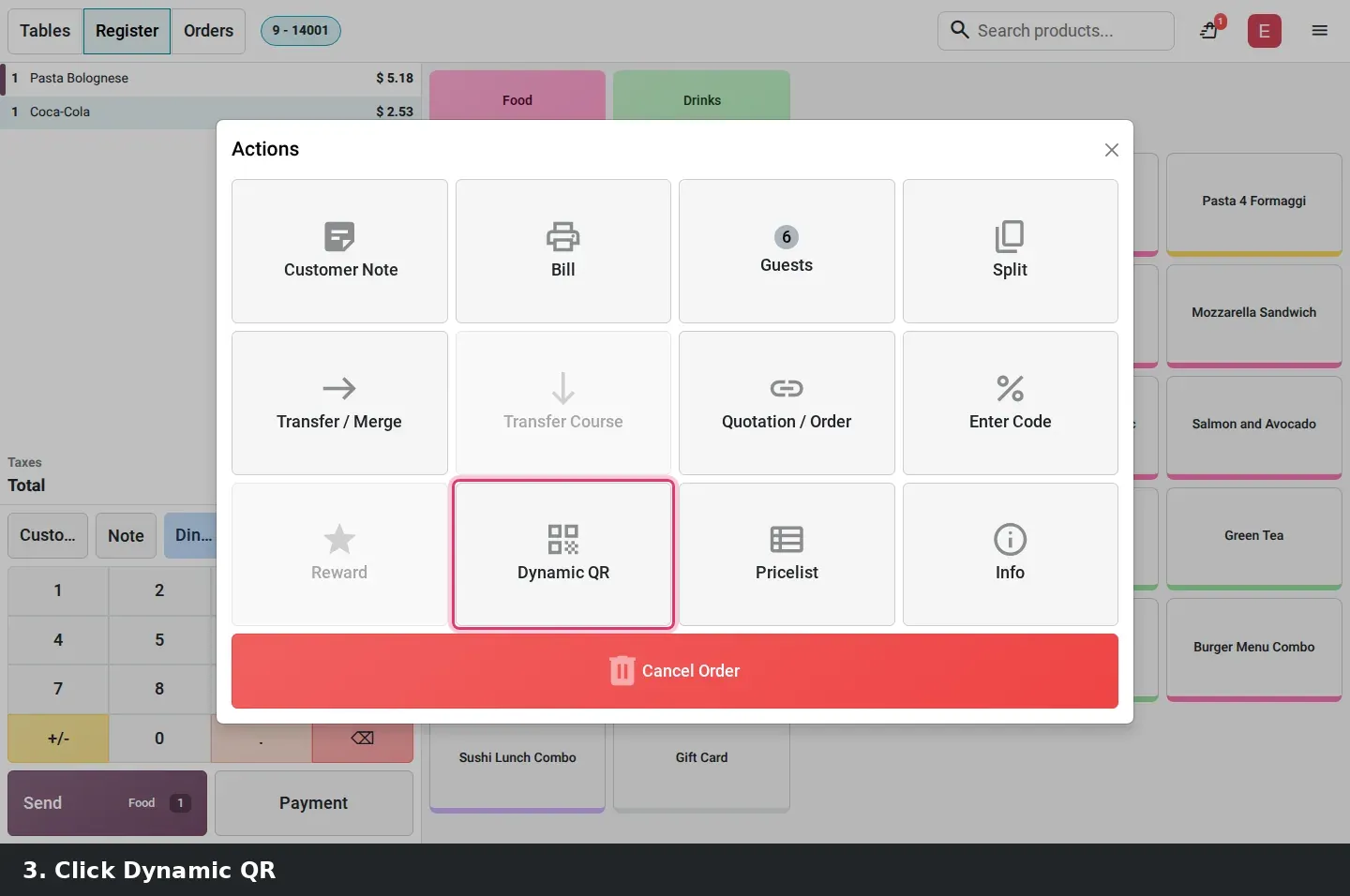
In the register, the waiter opens the table's order, opens the extra actions menu (the three-dot button next to Course) and clicks Dynamic QR. A popup titled Scan to join the order shows a code generated for this exact order, with Print and Close buttons and an Open self-order on this device link. Print sends a small Dynamic QR ticket to the receipt printer. The code is not added to the regular Bill.
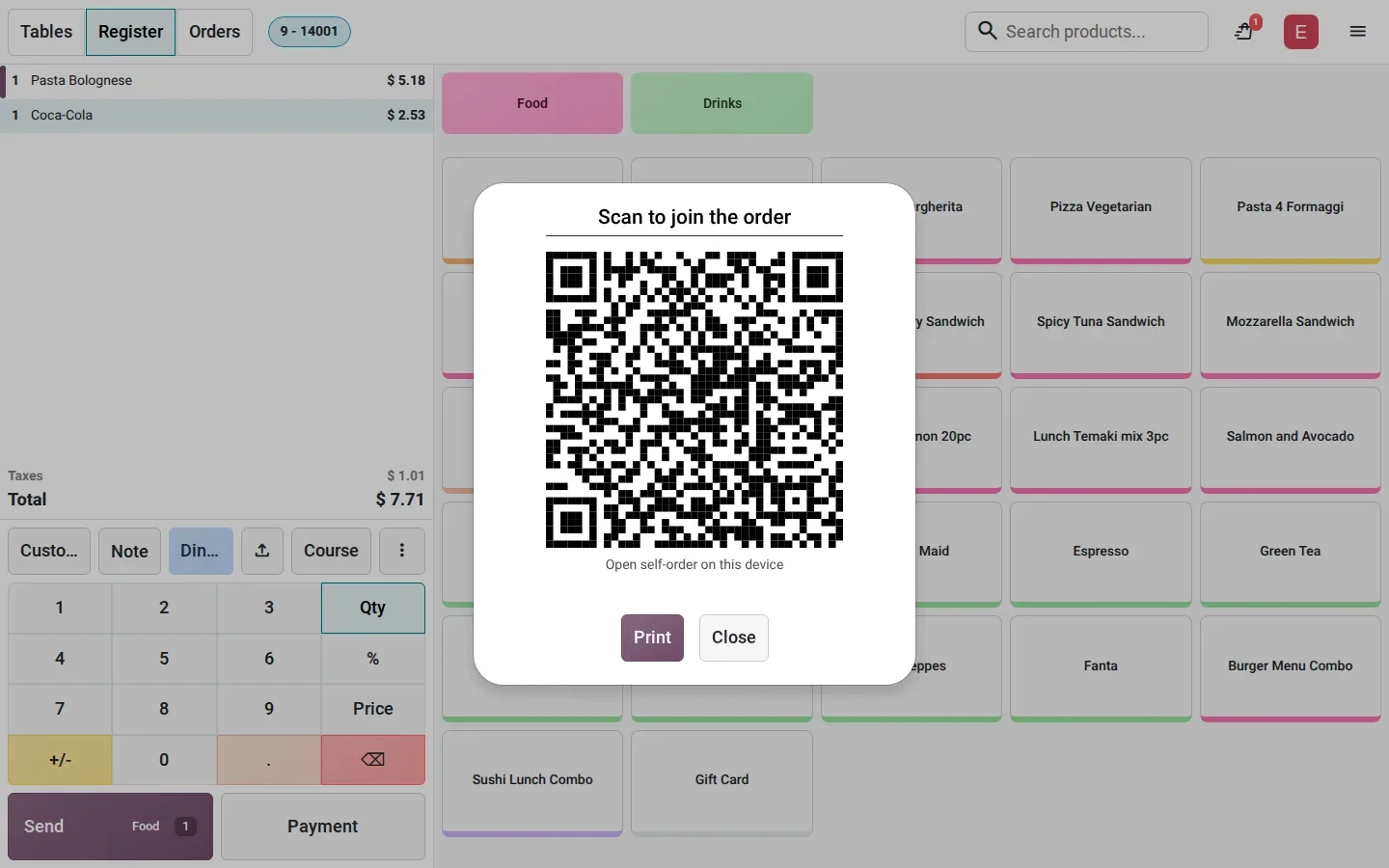
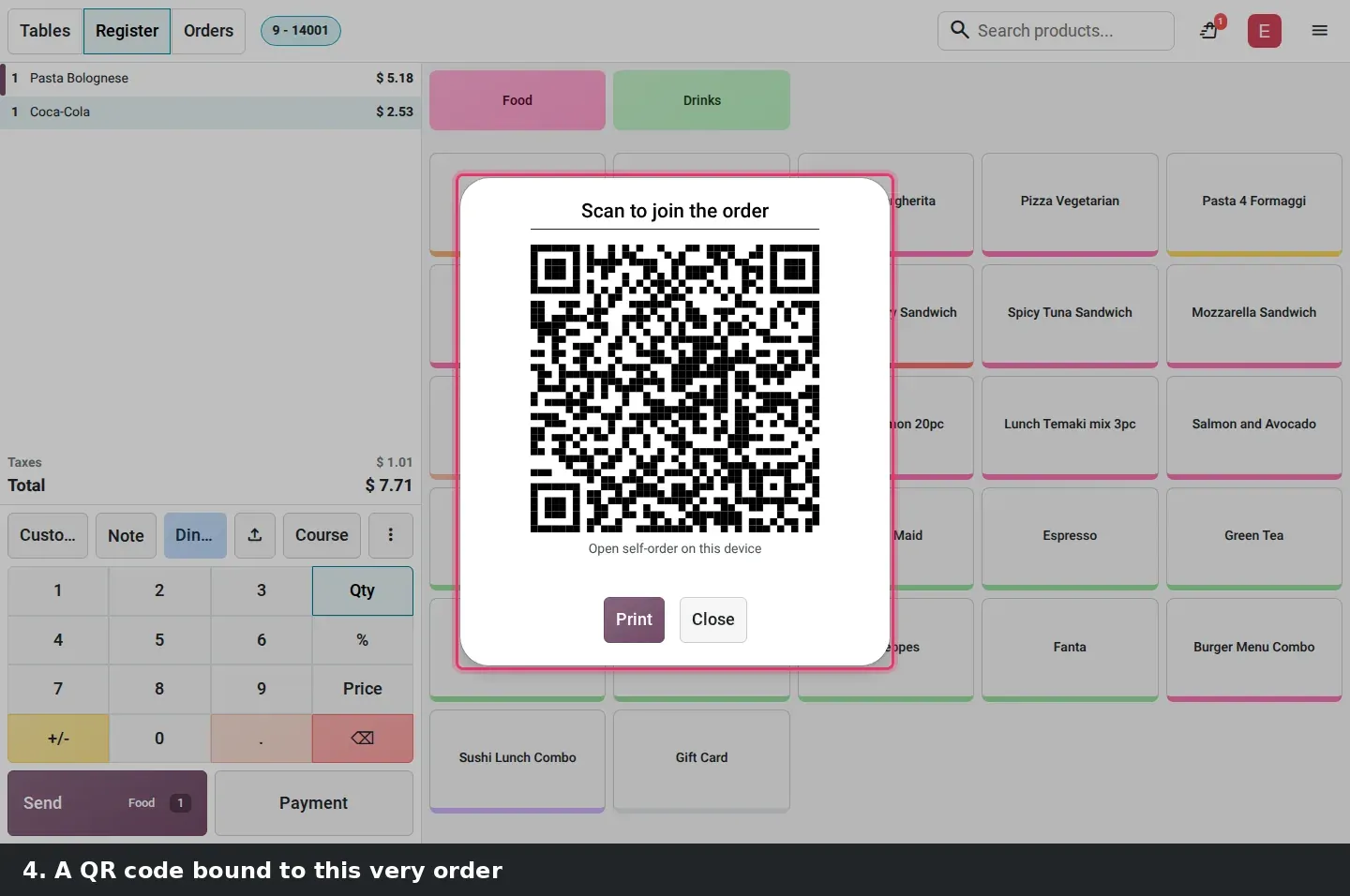
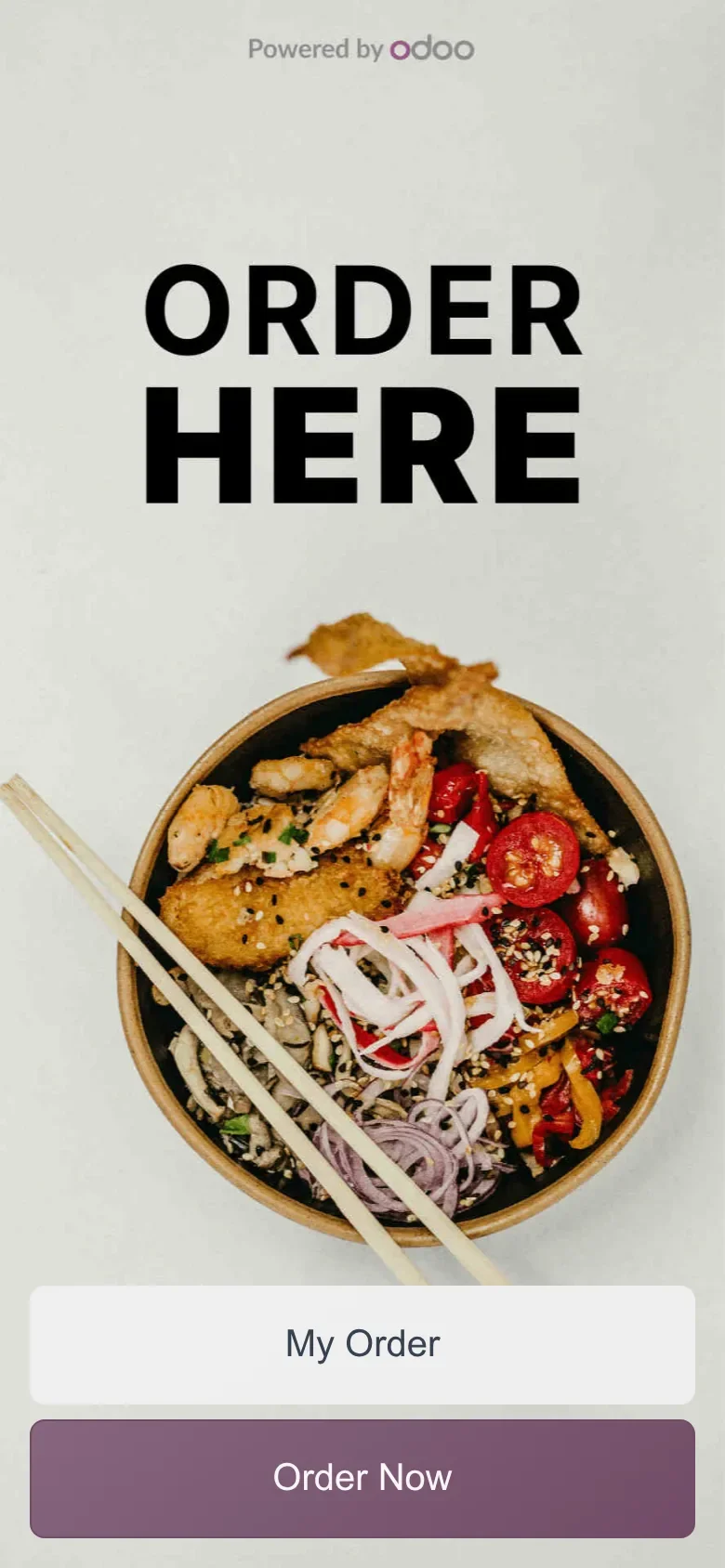
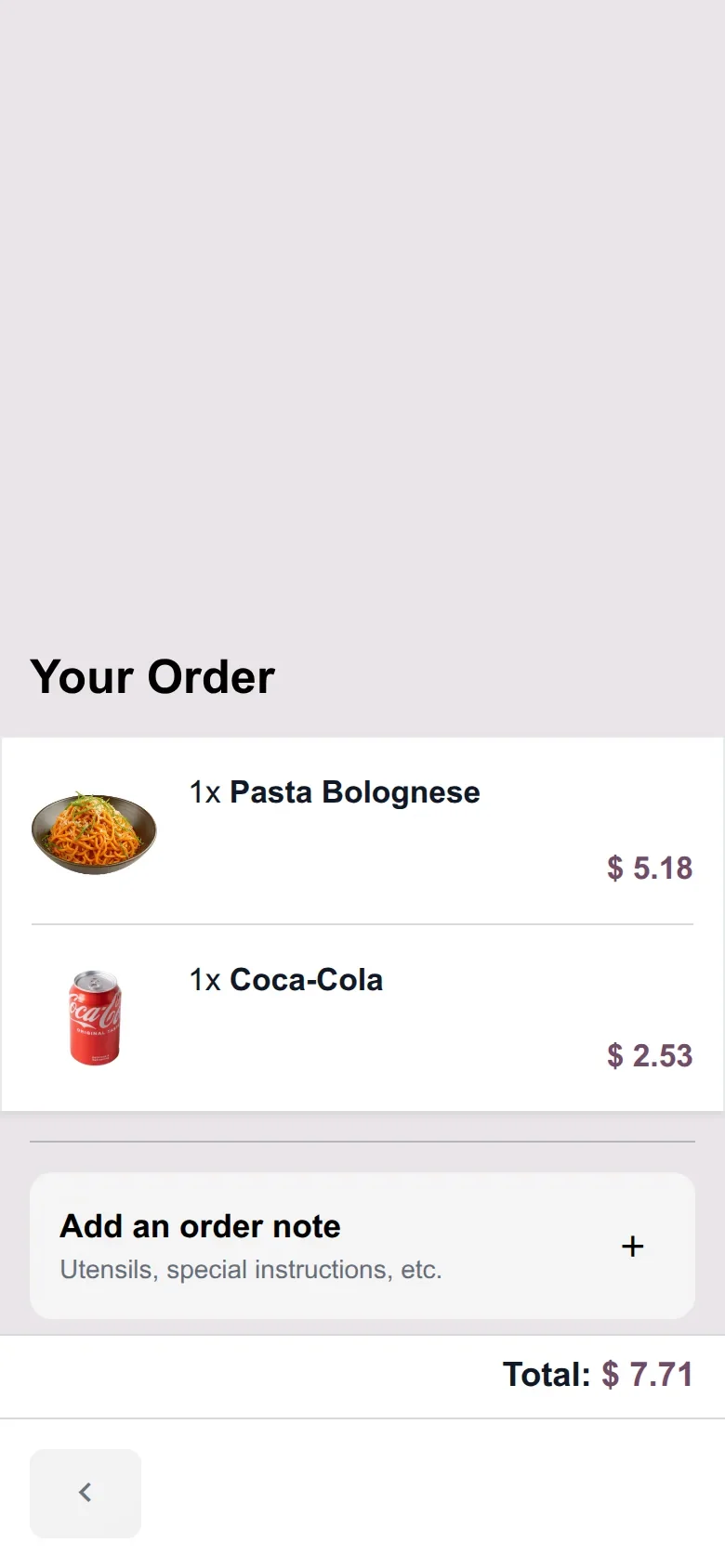
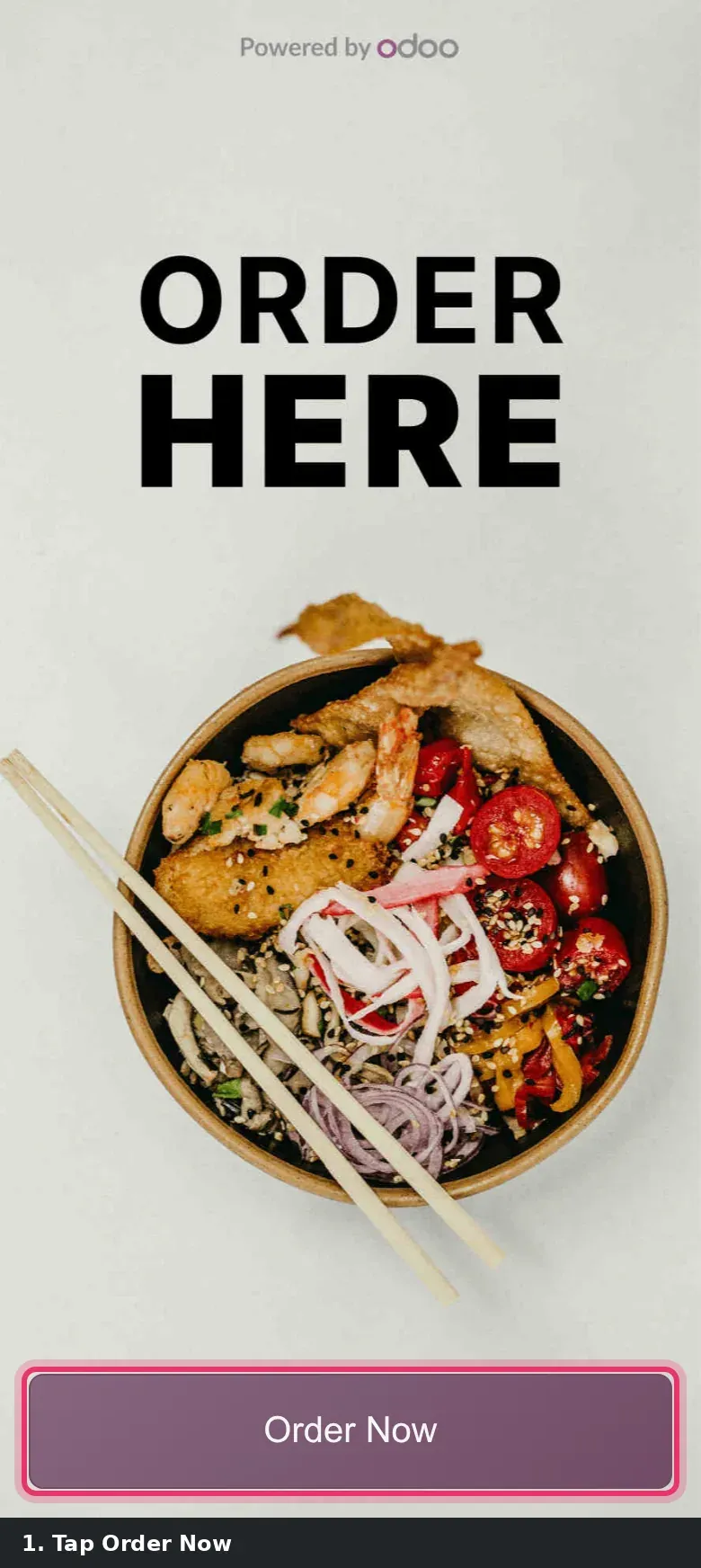
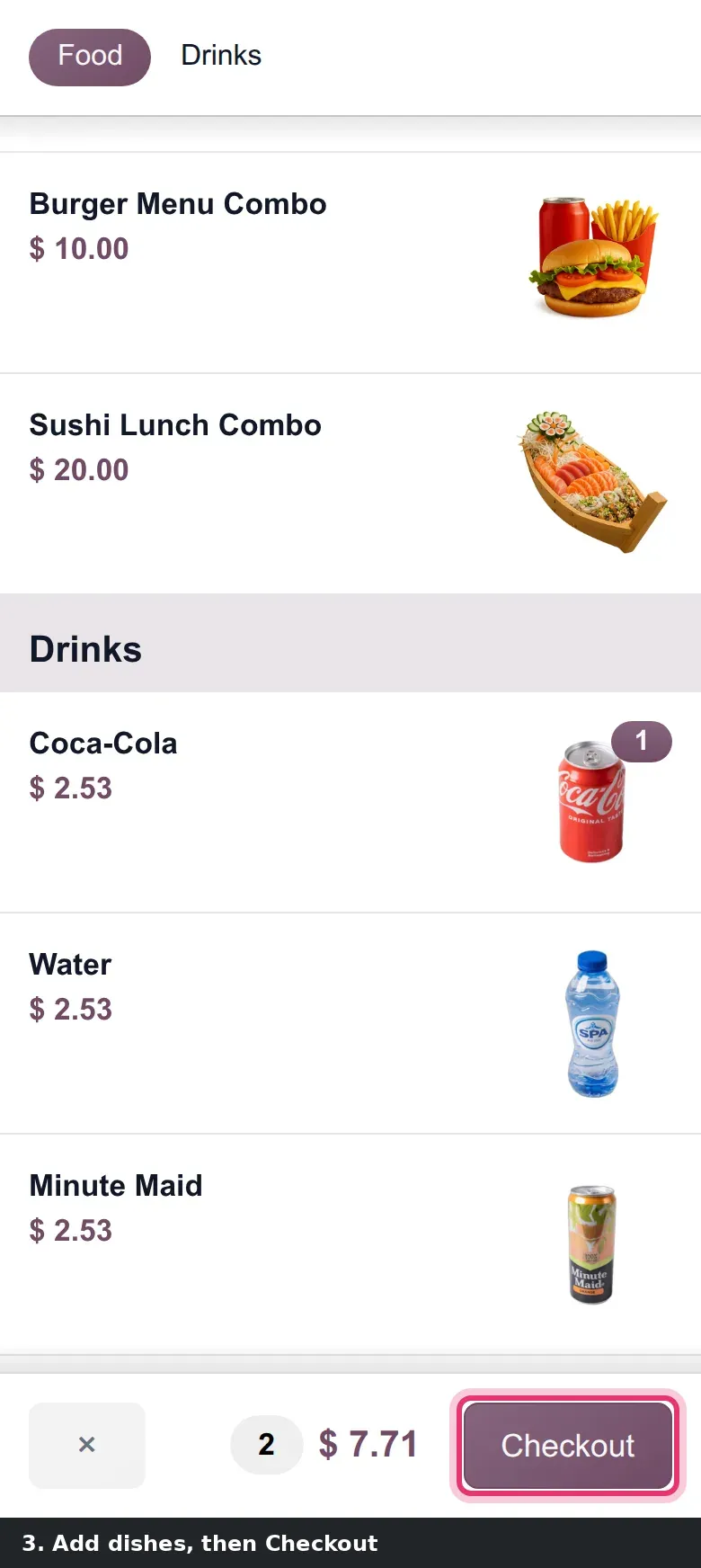
The guest scans the code and lands on the self-order home page: a food photo, the words ORDER HERE and two buttons, My Order and Order Now. My Order lists what the waiter already rang up, on our demo a Pasta Bolognese and a Coca-Cola for $7.71. Order Now opens the menu so the guest adds a dessert to the same order. Because the code belongs to one order and not to the table, it does not carry over to the next party.
A country prefix on the phone number and a receipt in WhatsApp
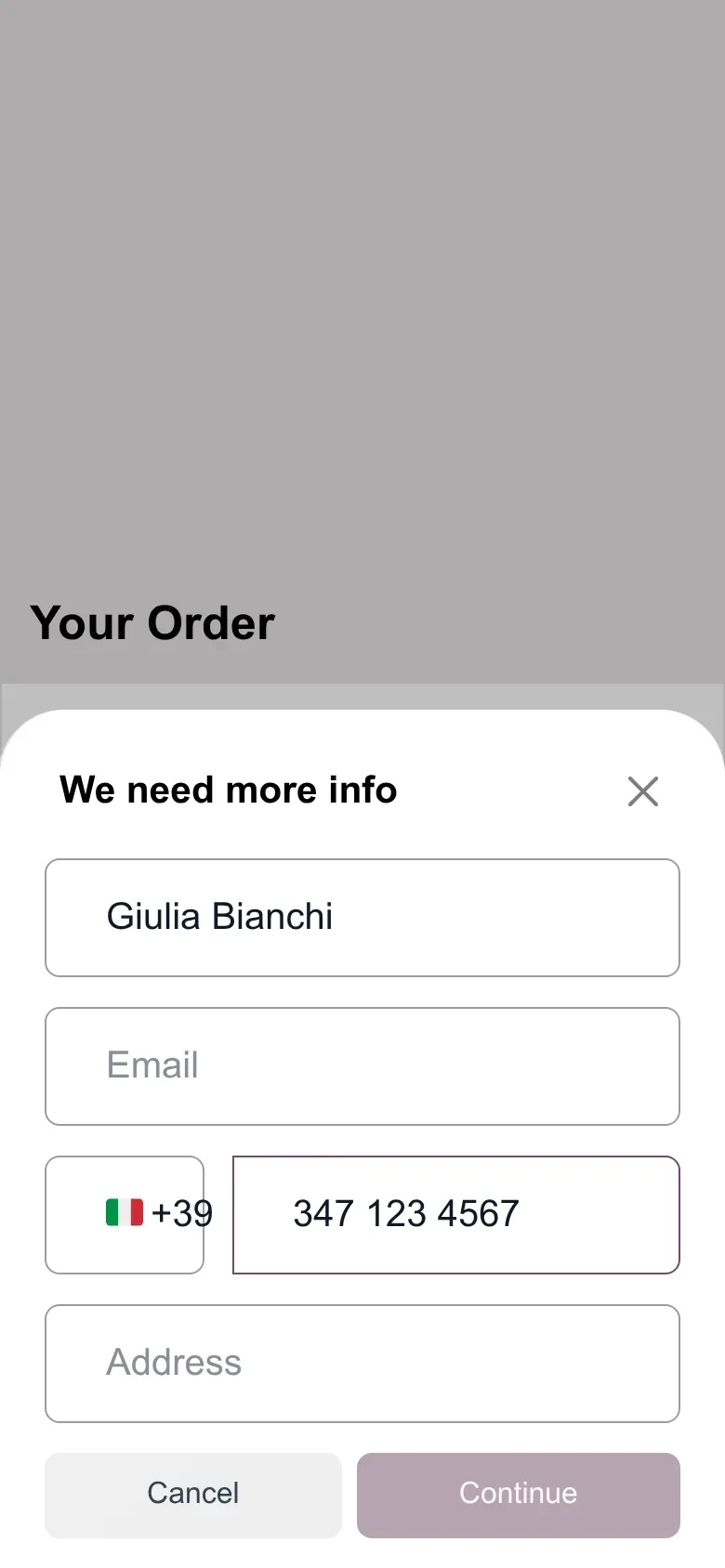
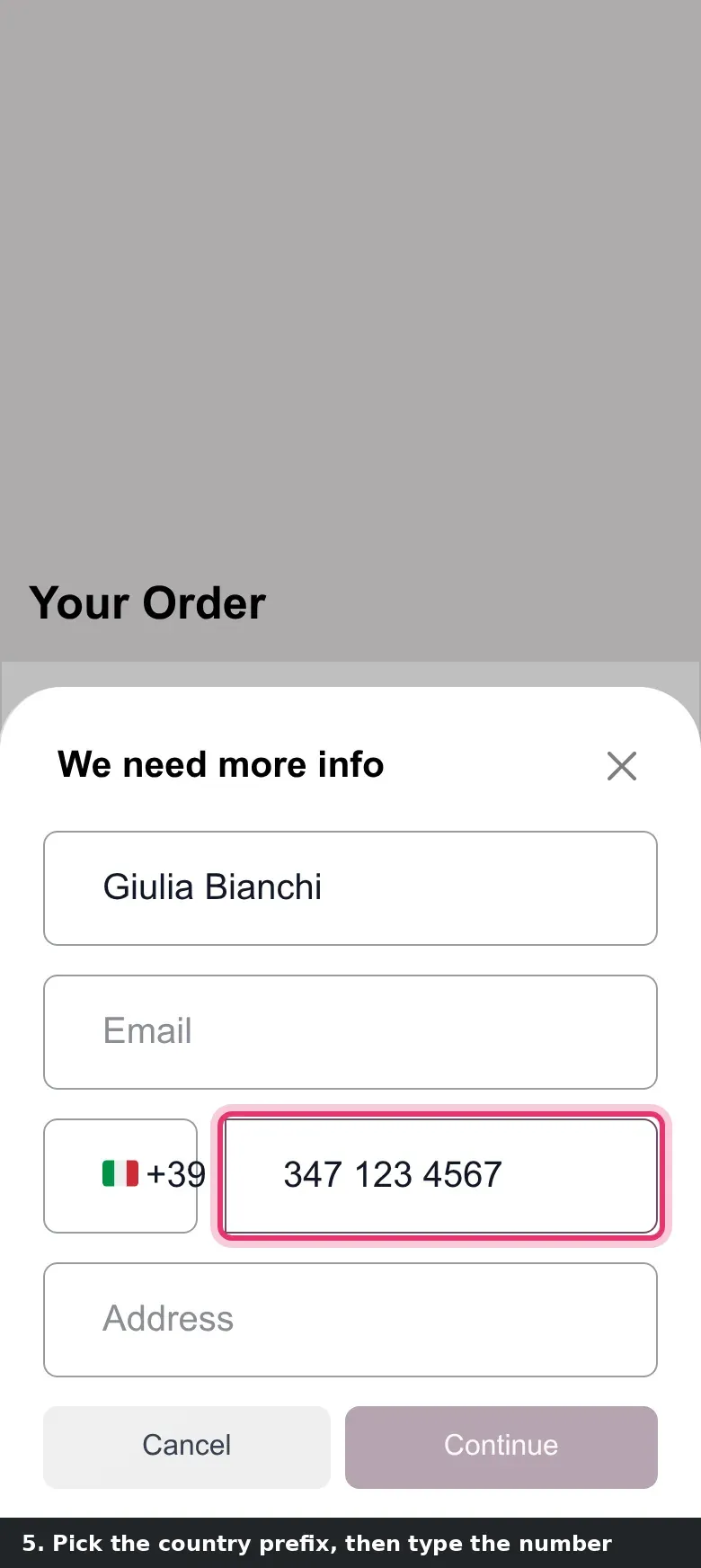
Two smaller changes make the checkout less error-prone. The first is the phone number. When a preset asks the guest to identify themselves, for example Delivery, the phone field now has a country prefix selector. The guest taps the flag, picks the country and types the local number. On our demo, an Italian tourist ordering a delivery shows an Italian flag and +39 in front of the digits. The number lands in Odoo with the right prefix, which matters when the restaurant calls back or sends a WhatsApp message.
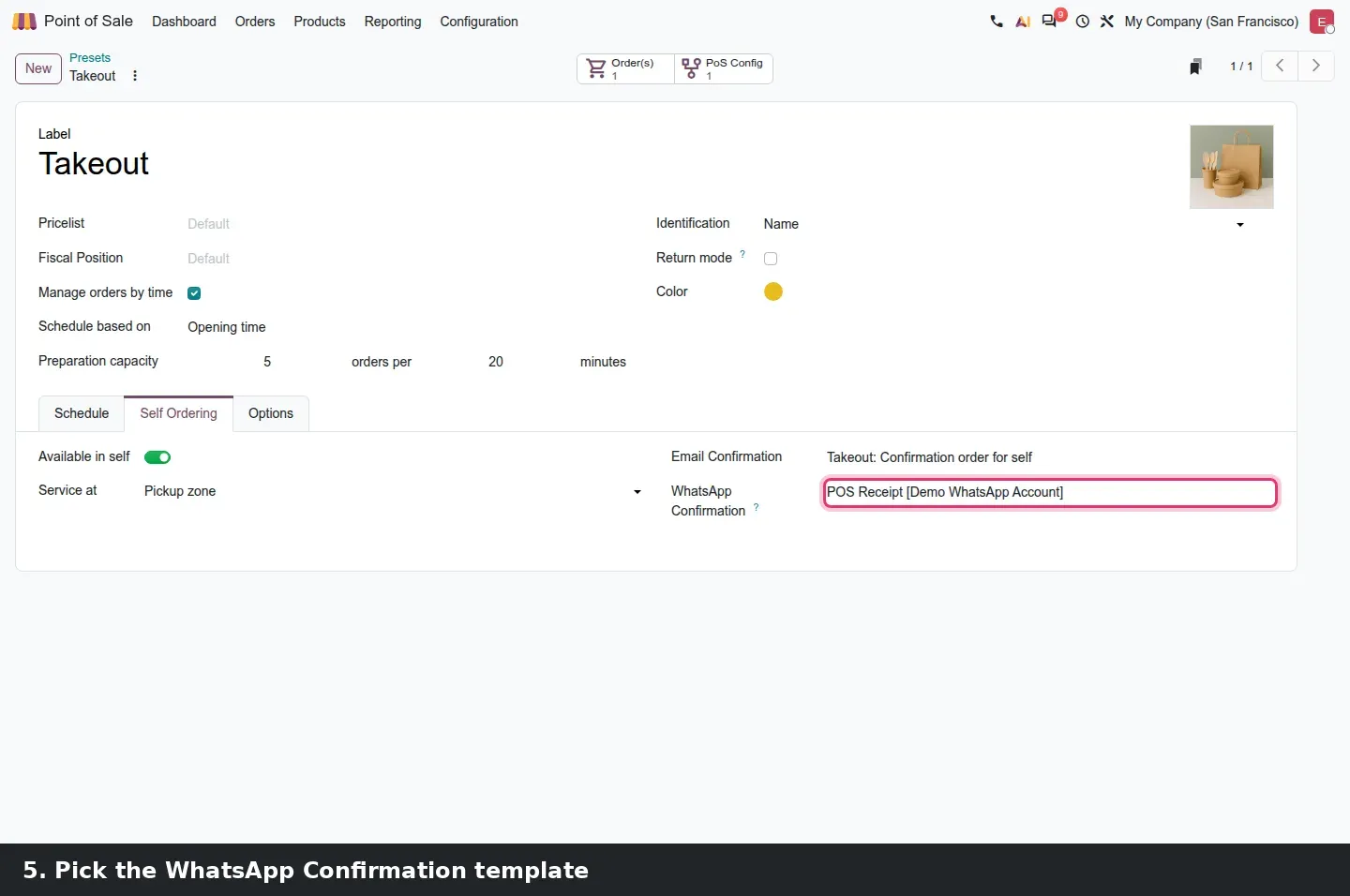
The second is the WhatsApp receipt. When the WhatsApp app is installed, a preset gains a WhatsApp Confirmation field next to Email Confirmation, in its Self Ordering tab under Point of Sale > Configuration > Presets. Pick a template, on the demo POS Receipt from the Demo WhatsApp Account, and the guest receives the confirmation and receipt in WhatsApp rather than by email or on paper. The field only shows when Available in self is on and Identification is not Not required, which is why the demo Dine In preset does not have it.
![Takeout preset form with Available in self on, Email Confirmation, and WhatsApp Confirmation set to "POS Receipt [Demo WhatsApp Account]".](/_ipx/f_webp&q_85&s_1440x900/images/blog/odoo-20-pos-shelf-labels-self-order-preset-whatsapp-confirmation.webp)
Presets, not order types
The guide talks about a preset "of type Eat In". Presets have no type on this build. What decides the flow is Service at (Table, Pickup zone or Delivery) plus Identification. Set those two fields first; the confirmation templates then appear or disappear on their own.
UrbanPiper: more platforms, one store form, one report
UrbanPiper is the hub Odoo uses to receive orders from food delivery apps. On this build the configuration is under Point of Sale > Configuration > UrbanPiper > Stores, not Food Delivery Store as the guide calls it. A store links one Point of Sale, a Preset and a Preparation Time. The Aggregators tab holds the platforms: each line is a Delivery Aggregator with an optional Pricelist, a Create Customer checkbox and an Is Online toggle. Our demo store, Downtown Shop, is connected to Uber Eats, DoorDash and Just Eat.
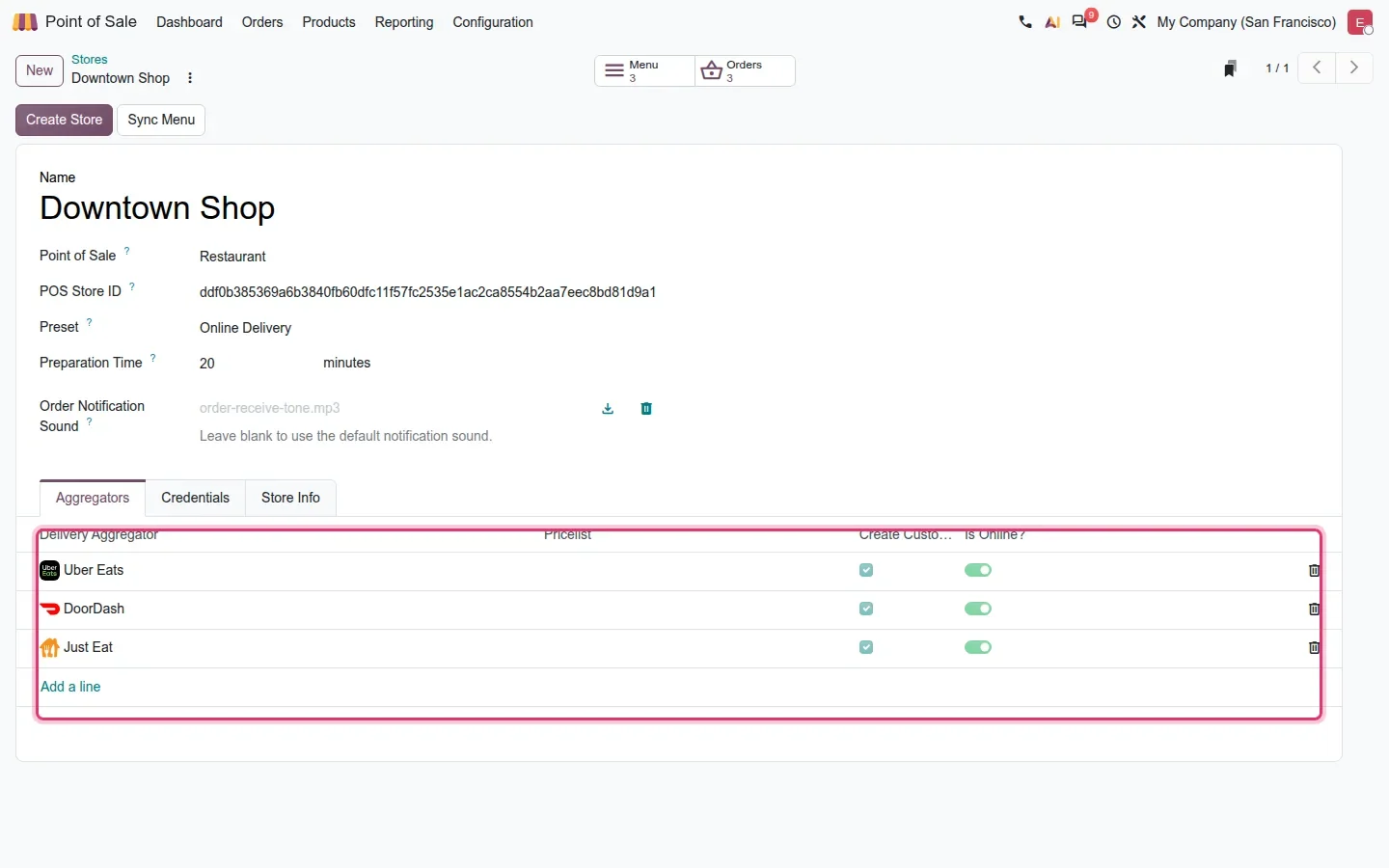
The provider list grew. The data on the build holds 37 providers, and the new names the guide lists, Keeta, ToYou, The Chefz, Smiles, InstaShop, Radyes and FoodZapp, are all there, spelled Radyes and FoodZapp in the records. The picker is filtered on the company's country, so our US demo company does not see them; a company in the UAE or Saudi Arabia would. We did not exercise what needs a live UrbanPiper account: the delivery one-time password printed on the receipt so the rider can be checked at hand-over, platform discounts and quick orders.
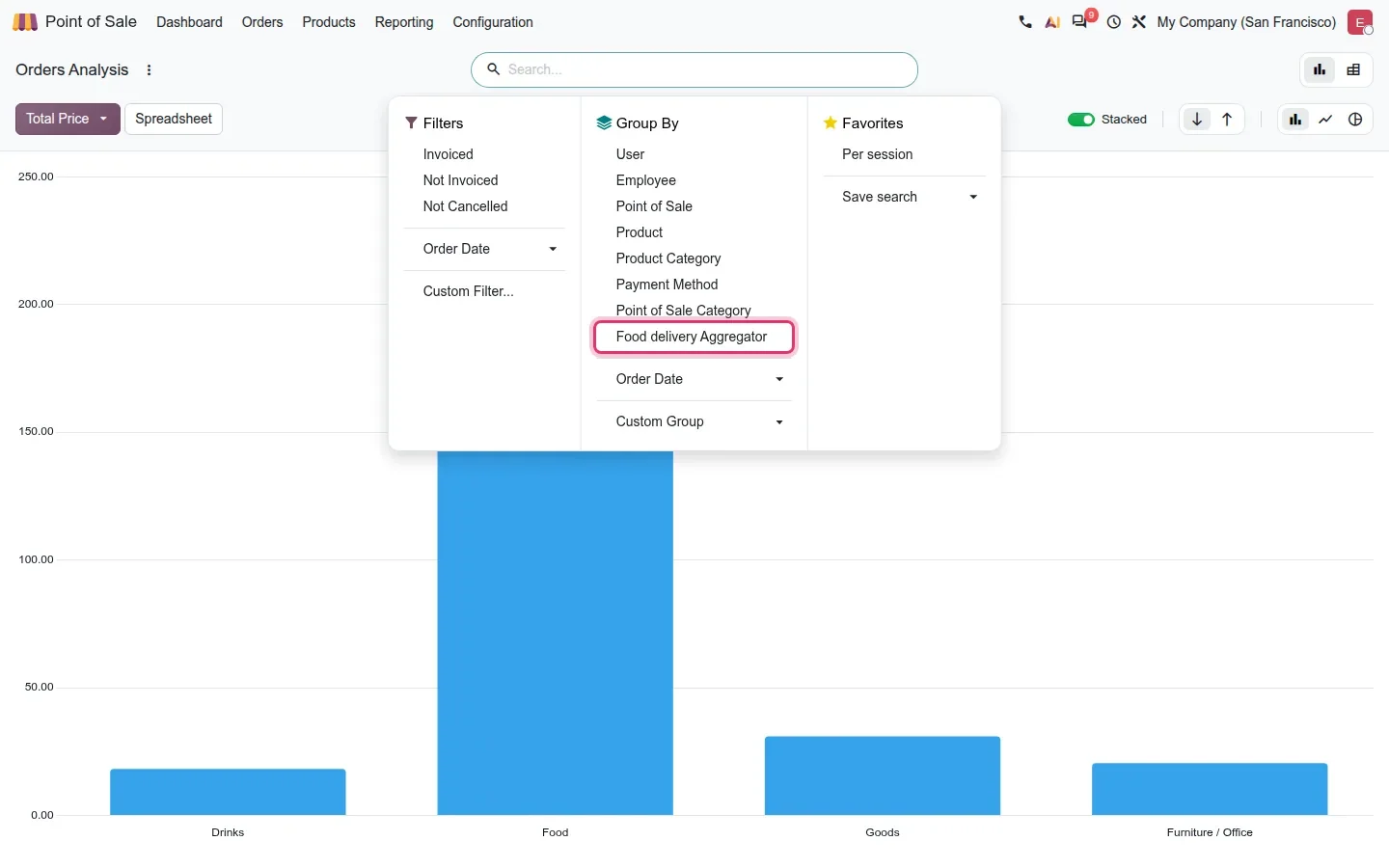
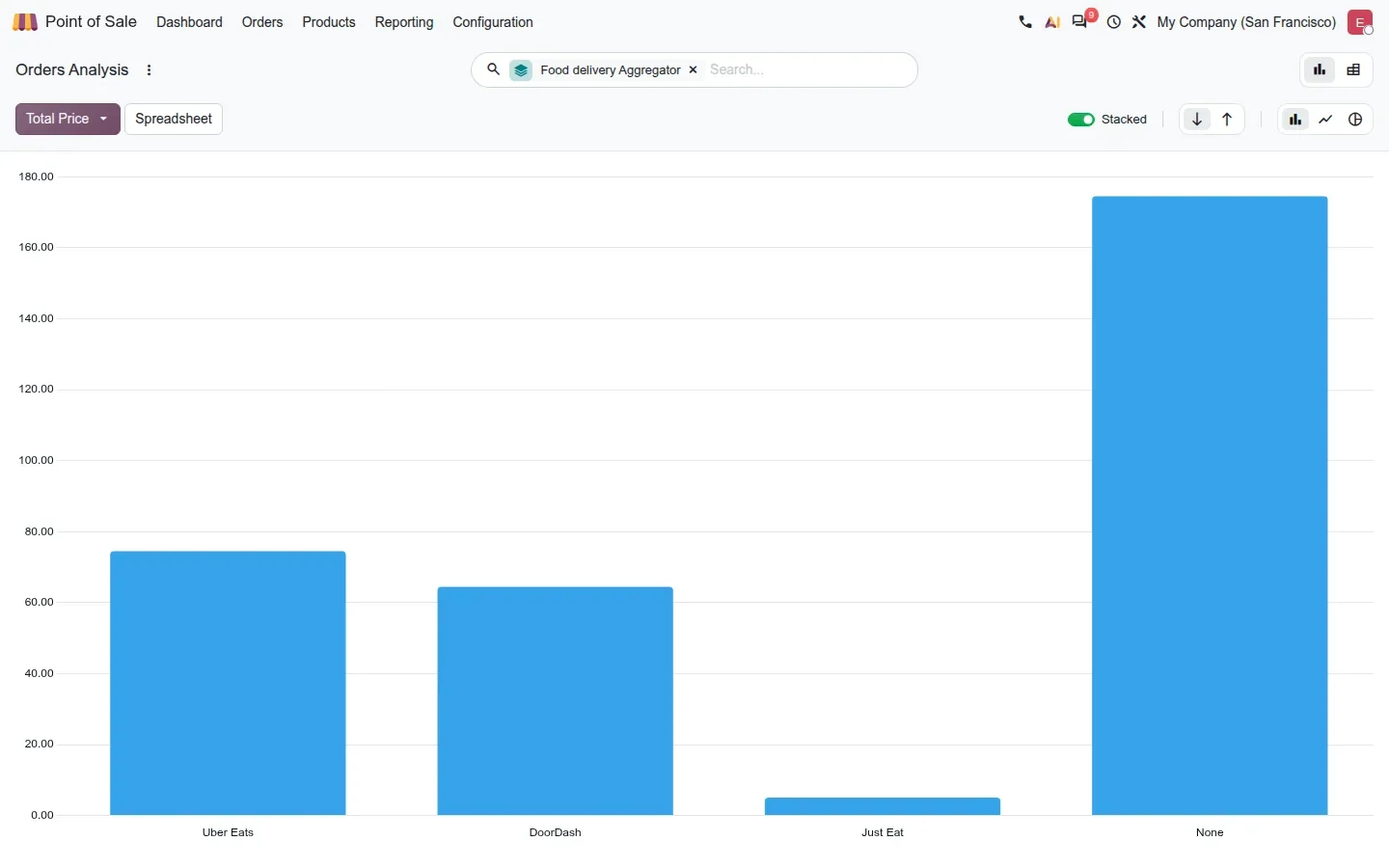
Reporting is simpler than the guide suggests: there is no separate Delivery Order report. Open Point of Sale > Reporting > Orders and group by Food delivery Aggregator. The bar chart splits totals between Uber Eats, DoorDash, Just Eat and None, the in-house orders, so an owner can see which app is worth its commission.
How to try it on a demo database
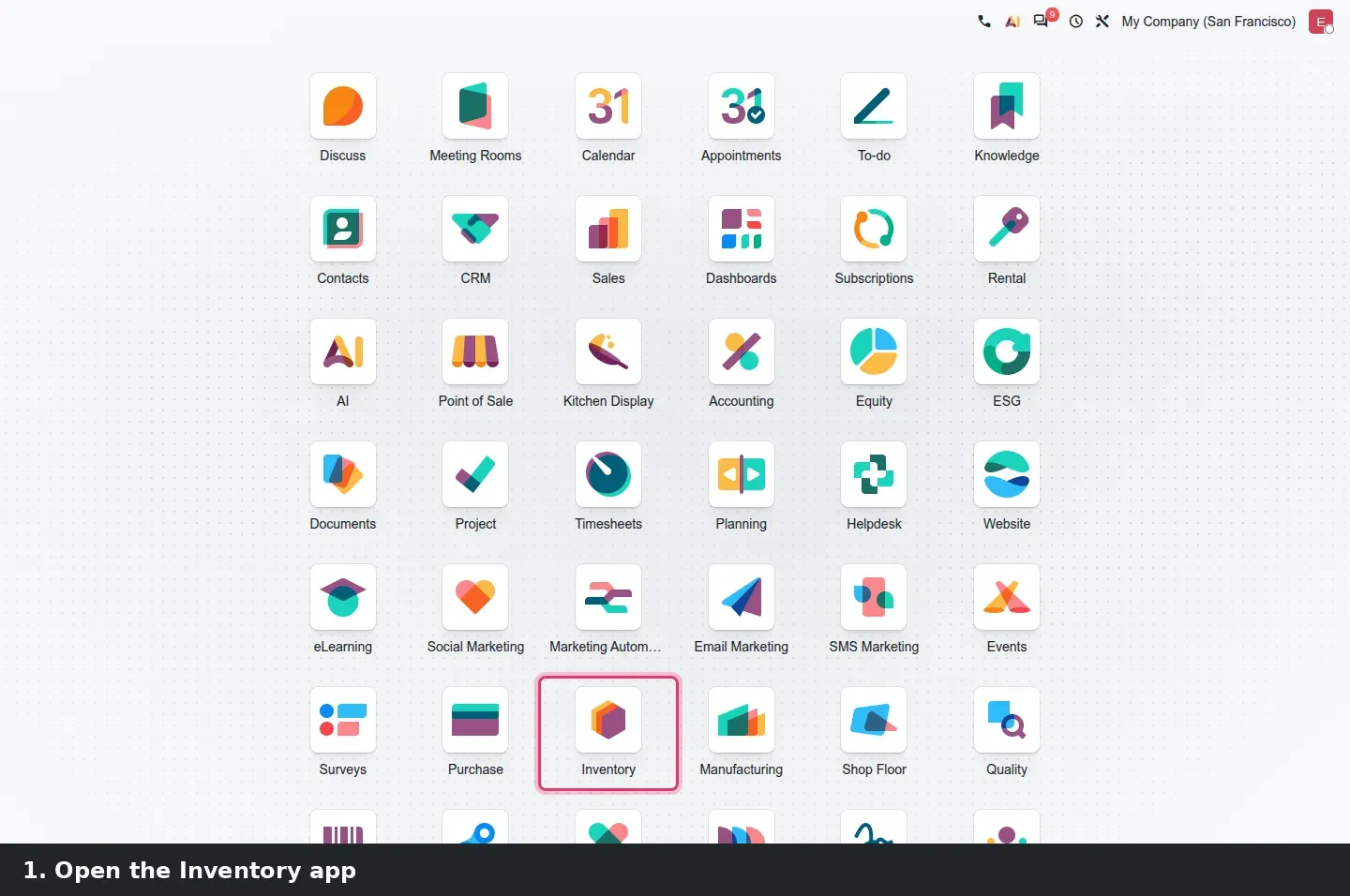
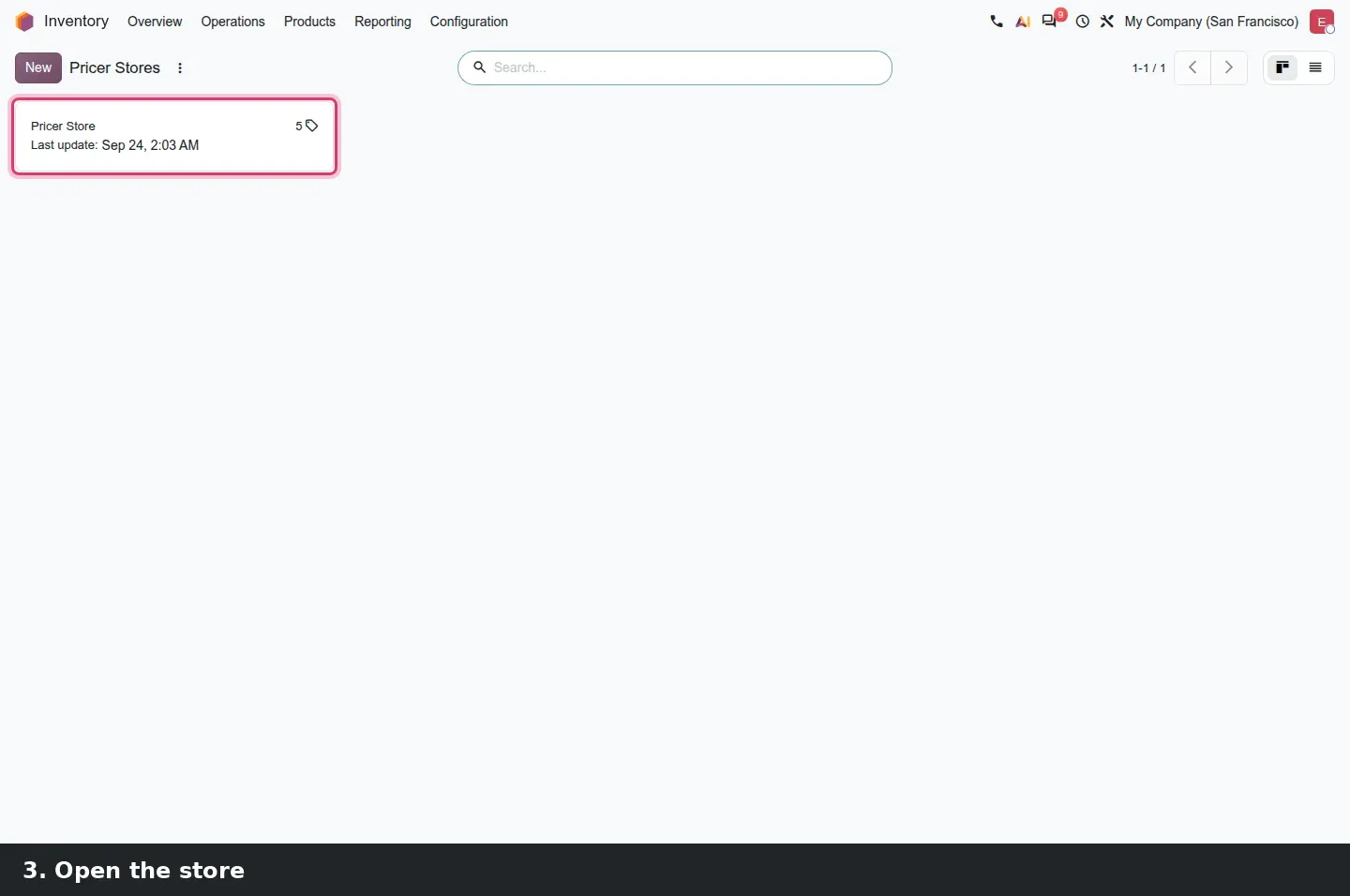
- On a demo database with Point of Sale and Inventory, open Inventory > Configuration > Pricer > Pricer Stores and open the demo store. The Tags tab lists the tag barcodes and their products.
- Open a product such as Office Chair, Sales tab, Pricer block, and set Pricer Tags Pricelist.
- Open Point of Sale > Configuration > Settings, pick the Restaurant, scroll to Mobile self-order & Kiosk, set Self Ordering to QR menu + Ordering and Service at to Dynamic QR. Save.
- Open the Restaurant register, pick a table, add two products, open the three-dot menu and click Dynamic QR. Scan the code with your phone, or click Open self-order on this device, then tap My Order.
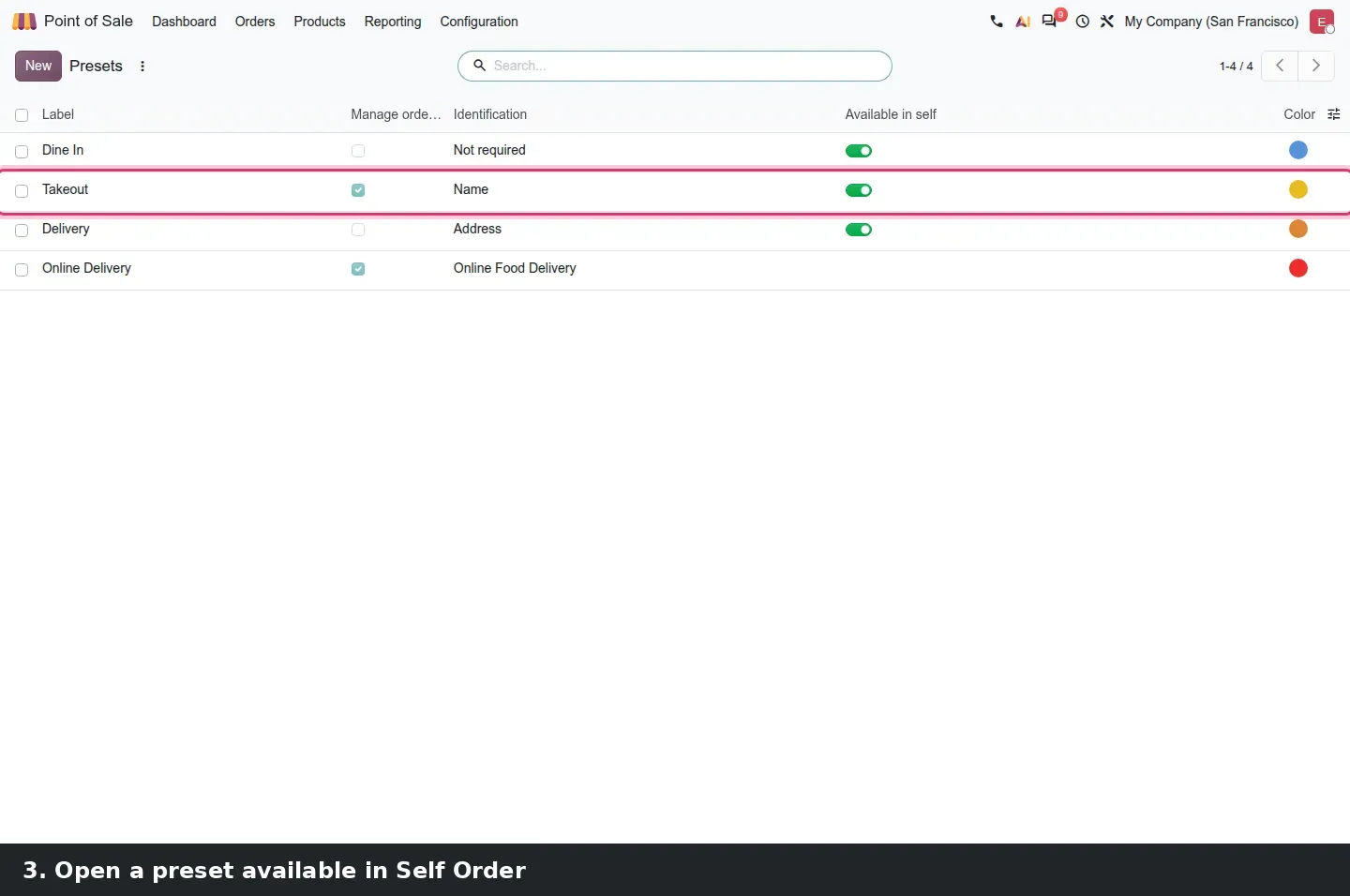
- Open Point of Sale > Configuration > Presets > Takeout, Self Ordering tab. With Available in self on and Identification set to Name, pick a WhatsApp Confirmation template (the WhatsApp app must be installed).
- Open Point of Sale > Configuration > UrbanPiper > Stores, open Downtown Shop, then Point of Sale > Reporting > Orders with Group By > Food delivery Aggregator. Set Service at back to its previous value when you are done.
What we could not verify on the pre-release build
The native Android app needs a physical Android device running the Odoo app. Tags on real Pricer hardware and a successful push need a Pricer tenant, and the label layout wizard needs a scanner and real tags. Live UrbanPiper orders and the one-time password on the receipt need an UrbanPiper account and webhooks; the report here is fed by demo orders. The Gulf providers exist in the data but do not show in the picker of a US company. The printed QR ticket and the WhatsApp message received by the guest were not captured either: no receipt printer was attached and the demo WhatsApp account is in draft. Everything else on this page was clicked through on the 20.0 Enterprise build of 23 September 2026.
What this means for an upgrade
If you run Pricer labels on Odoo 17, 18 or 19, expect the connector to move out of the Point of Sale app into pricer and stock_pricer, and check that each product keeps its store, tags and pricelist, since the pricelist now lives on the product. If you use UrbanPiper, the separate UberEats add-ons are merged into pos_urban_piper, according to the 20.0 source diff. Pricer, UrbanPiper and any custom bridge to a delivery platform or label printer are integrations, and Odoo has scheduled the removal of the XML-RPC and JSON-RPC endpoints for Odoo 20 they may rely on: our RPC migration audit lists what has to change in each connector. The rest of the sequencing is part of our migration service, and the series hub lists every other post that touches the same upgrade.
Frequently asked questions
Do I need the Point of Sale app to use Pricer shelf labels in Odoo 20?
No. On the pre-release build the connector is a standalone pricer module with a stock_pricer companion, configured under Inventory > Configuration > Pricer. A warehouse or a retailer running Inventory alone can push product names, prices and barcodes to the tags. The same menu also appears under Point of Sale when that app is installed.
Which electronic shelf label brands does Odoo 20 support?
The only connector we found on the build is Pricer, and it talks to a Pricer tenant through the store's tenant name, login, password and store ID. We did not see a connector for any other label vendor, so another brand would need a custom integration or the vendor's own bridge.
What is a dynamic QR code in the Odoo 20 restaurant PoS?
It is a QR code generated for one table order, shown from the Dynamic QR action in the register and printable as a small ticket. The guest scans it, sees what was already ordered under My Order, can add items under Order Now, and pays after the meal. The setting is Service at = Dynamic QR, which forces Pay after = Meal.
Can a guest receive the receipt on WhatsApp?
Yes, when the WhatsApp app is installed and the preset is available in self-ordering with an identification other than Not required. The preset's Self Ordering tab then shows a WhatsApp Confirmation field where you pick the template. We could not see the message itself because the demo WhatsApp account is in draft.
Which food delivery platforms work with Odoo 20 through UrbanPiper?
The build's data holds 37 providers, including Uber Eats, DoorDash, Just Eat and the new Keeta, ToYou, The Chefz, Smiles, InstaShop, Radyes and FoodZapp. The picker in a store's Aggregators tab is filtered on your company's country, so a US company will not see the Gulf platforms and a UAE company will.
Is there a native Android app for the Odoo 20 Point of Sale?
The 20.0 source diff contains pos_mobile_android, pos_self_order_mobile and obox_pos_mobile, which add a native bridge, local network requests and home-screen shortcuts for the register and the kiosk. We could not test it because it needs a physical Android tablet running the Odoo app, so treat it as declared rather than verified.