
A release built around the planner's Monday morning
Odoo 20 does not add a new manufacturing engine. It works on the job a production planner does every day: put the right work order on the right machine, then move things around when a supplier is late or a machine stops. Work orders get a Kanban board where dragging a card re-plans the work center. The Manufacturing Order Gantt is grouped by product, and the employee Gantt shows a load bar per operator. On the floor, an operator scans a work center barcode and the Shop Floor screen follows. In Quality, every vendor gets a Quality Rate computed from the checks on their deliveries, a failed check asks where the rejected quantity goes, and Maintenance gains a Gantt per machine.
This post covers Manufacturing, Quality and Maintenance. We clicked through every screen shown here on the 20.0 Enterprise pre-release build with the furniture demo data, and where the guide differs from the build, we say so. Cameras on the shop floor get one paragraph, because they depend on the Obox hardware covered in another post of the series.
Observed on the Odoo 20.0 Enterprise pre-release build of September 23, 2026. Names, menus and availability can change before general availability; we will update this page when they do.
Work order planning: a Kanban you can drag, and Gantts by work center, employee and product
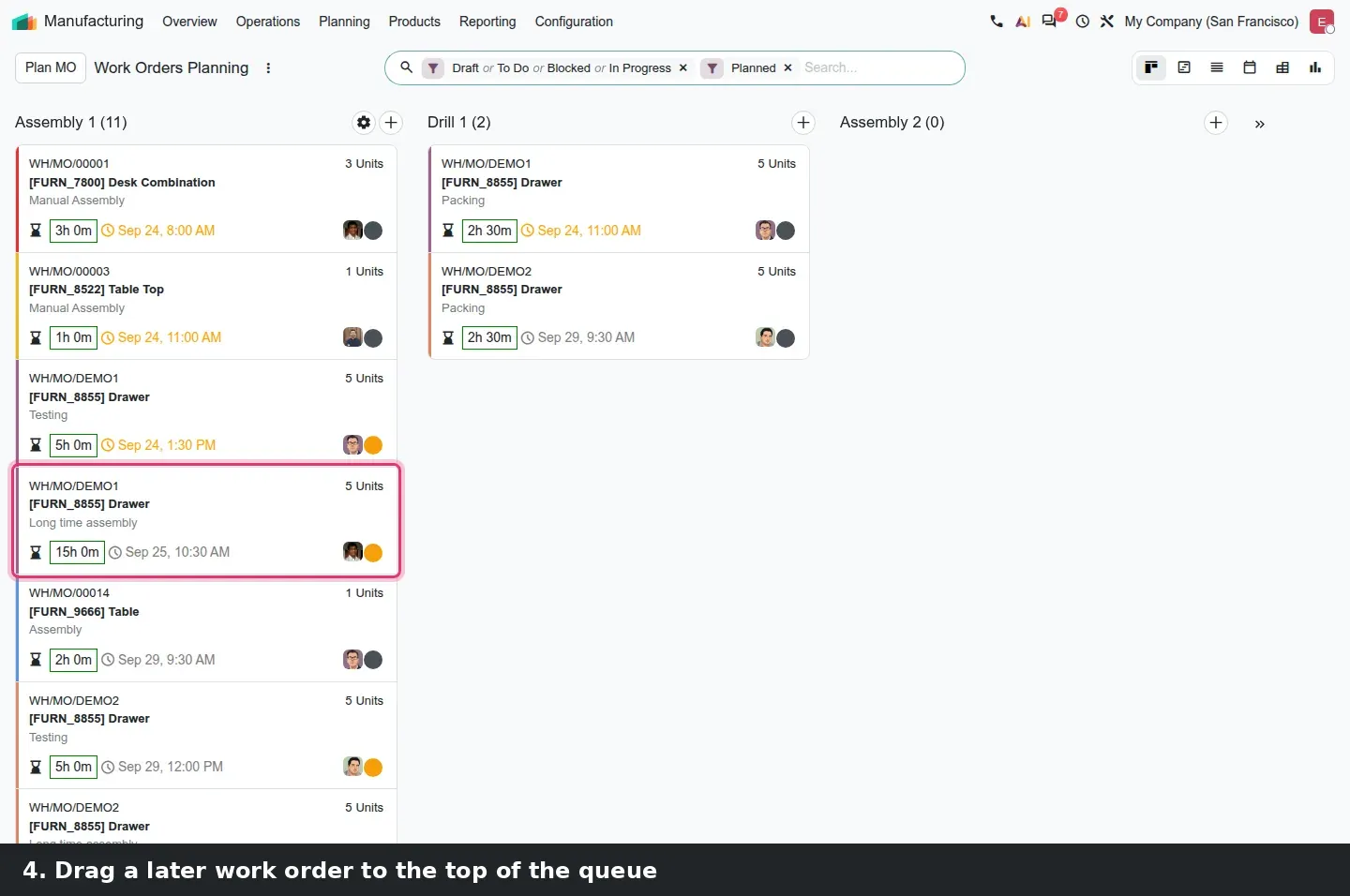
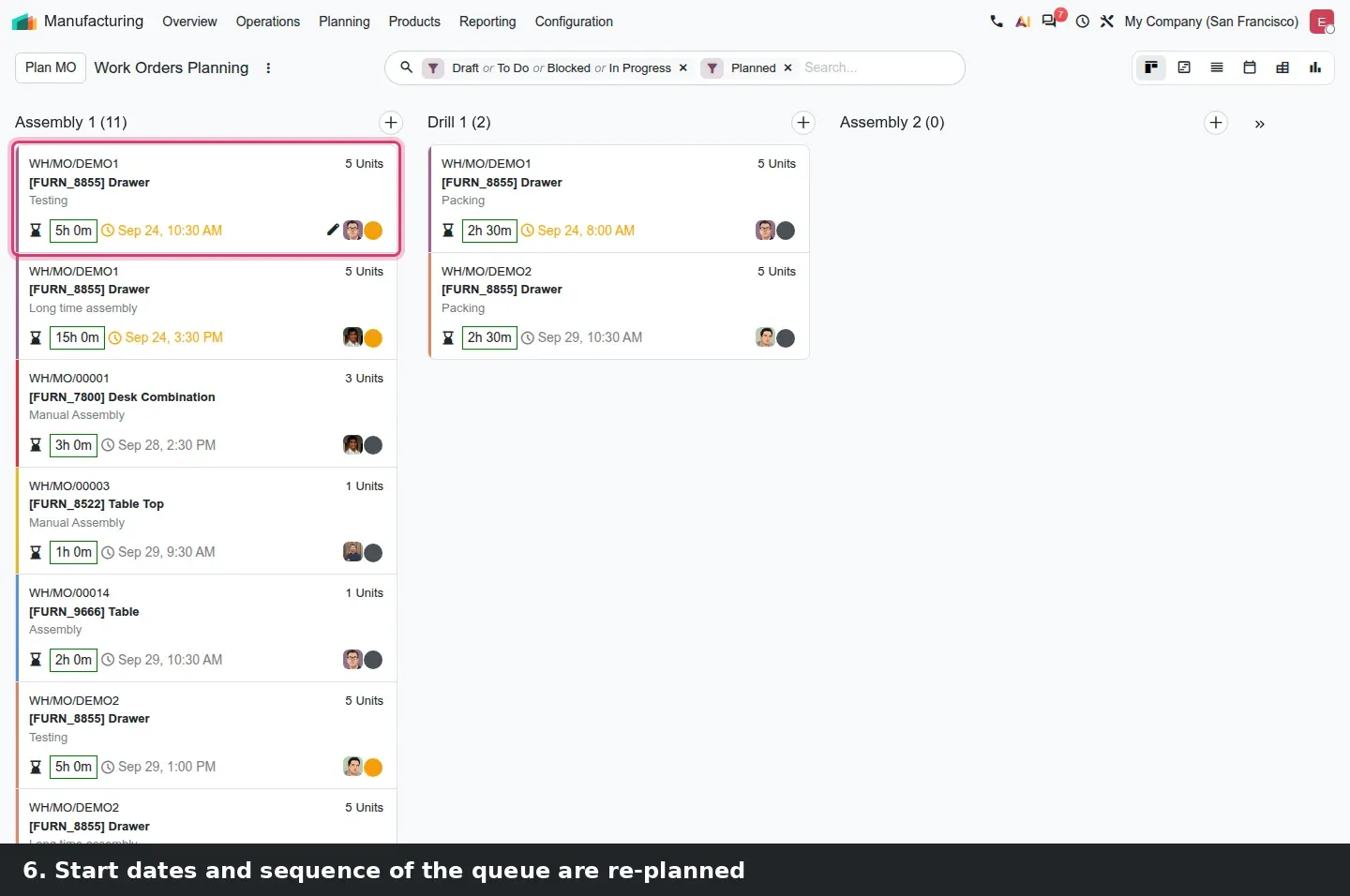
Manufacturing > Planning > Work Orders now opens as a Kanban board titled Work Orders Planning, with one column per work center: Assembly 1, Drill 1, Assembly 2 in the demo. Each card shows the manufacturing order, the product, the operation, the expected duration and the planned start, sorted by planned start, so the column reads like the queue in front of the machine. Drag a card above another and Odoo rewrites its start date and sequence, then shifts every card below it. On the demo, moving a Drawer operation to the top of Assembly 1 pushed the whole column back by that operation's duration. That is the batch re-plan the guide describes.
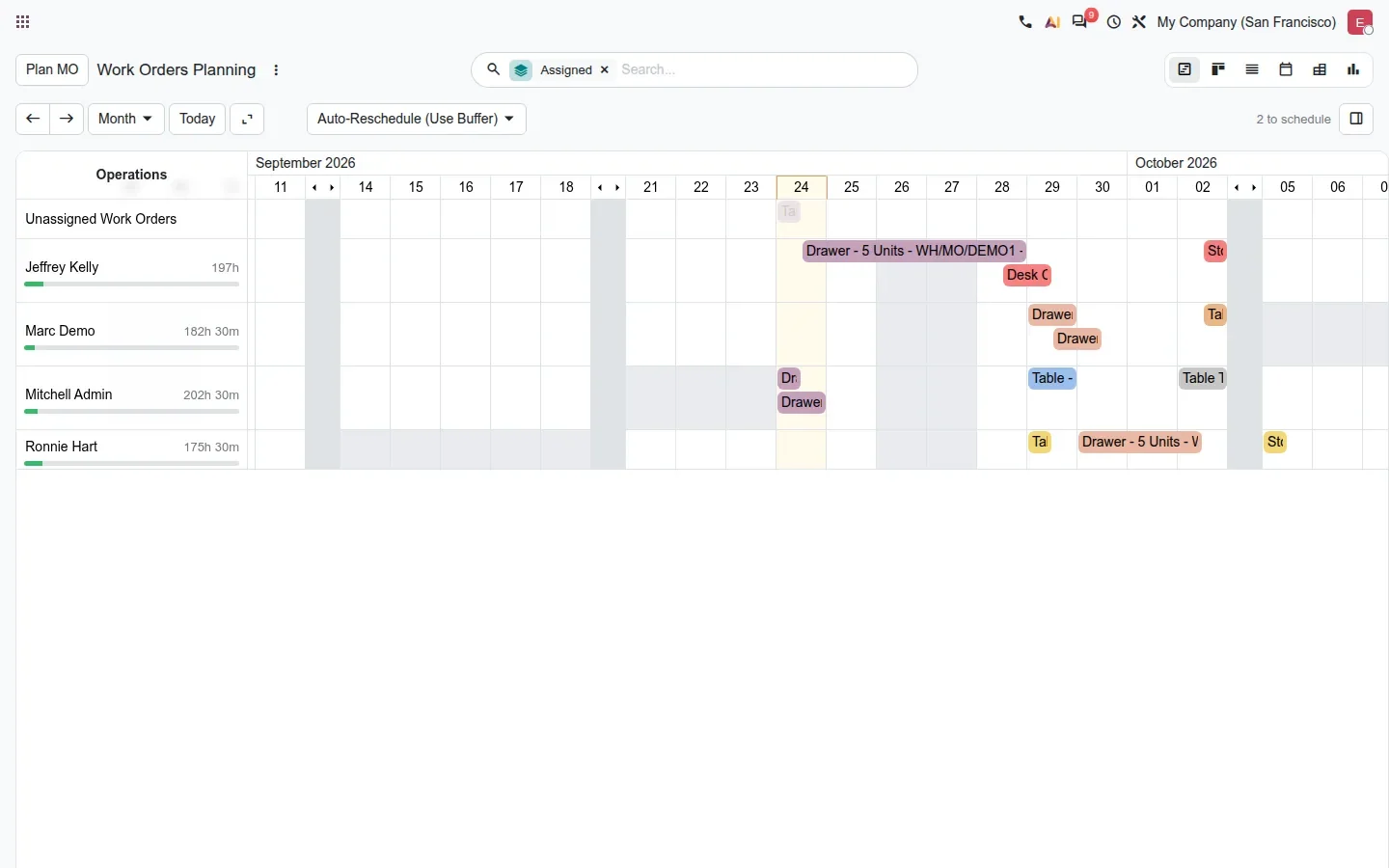
The same menu keeps a Gantt view, Planning > Work Orders > Planning, grouped by work center. Planning > Employees > Planning shows one row per operator with a green load bar and the assigned hours under each name, an Unassigned Work Orders row at the top, an Auto-Reschedule button and a counter of work orders still to schedule. A supervisor sees who is overloaded before the week starts.
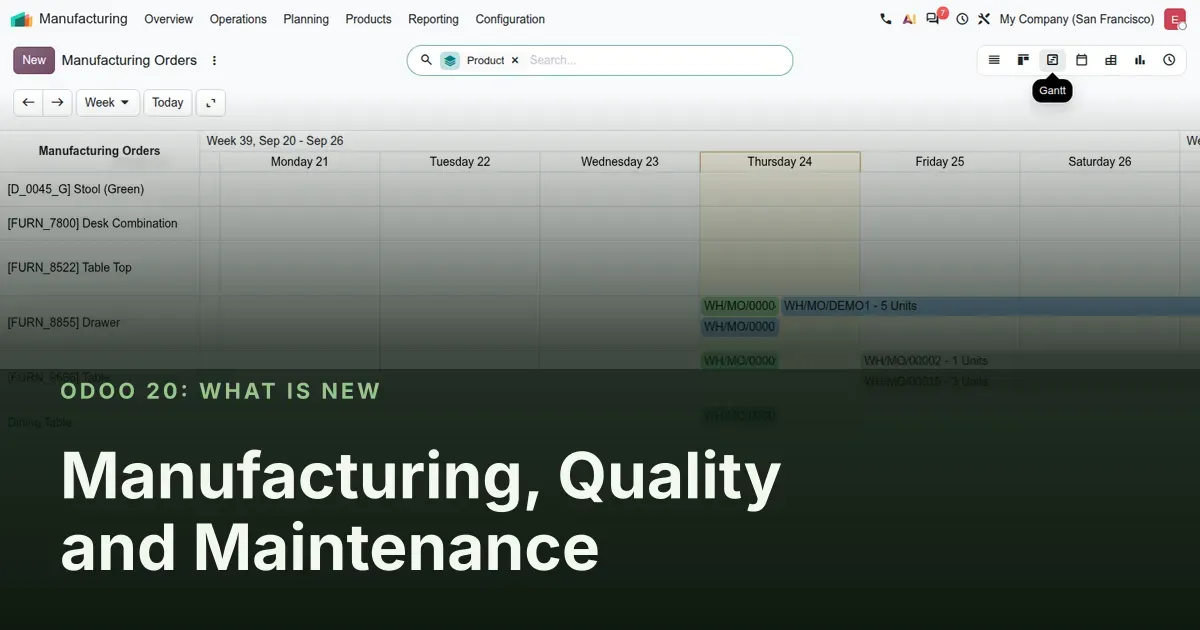
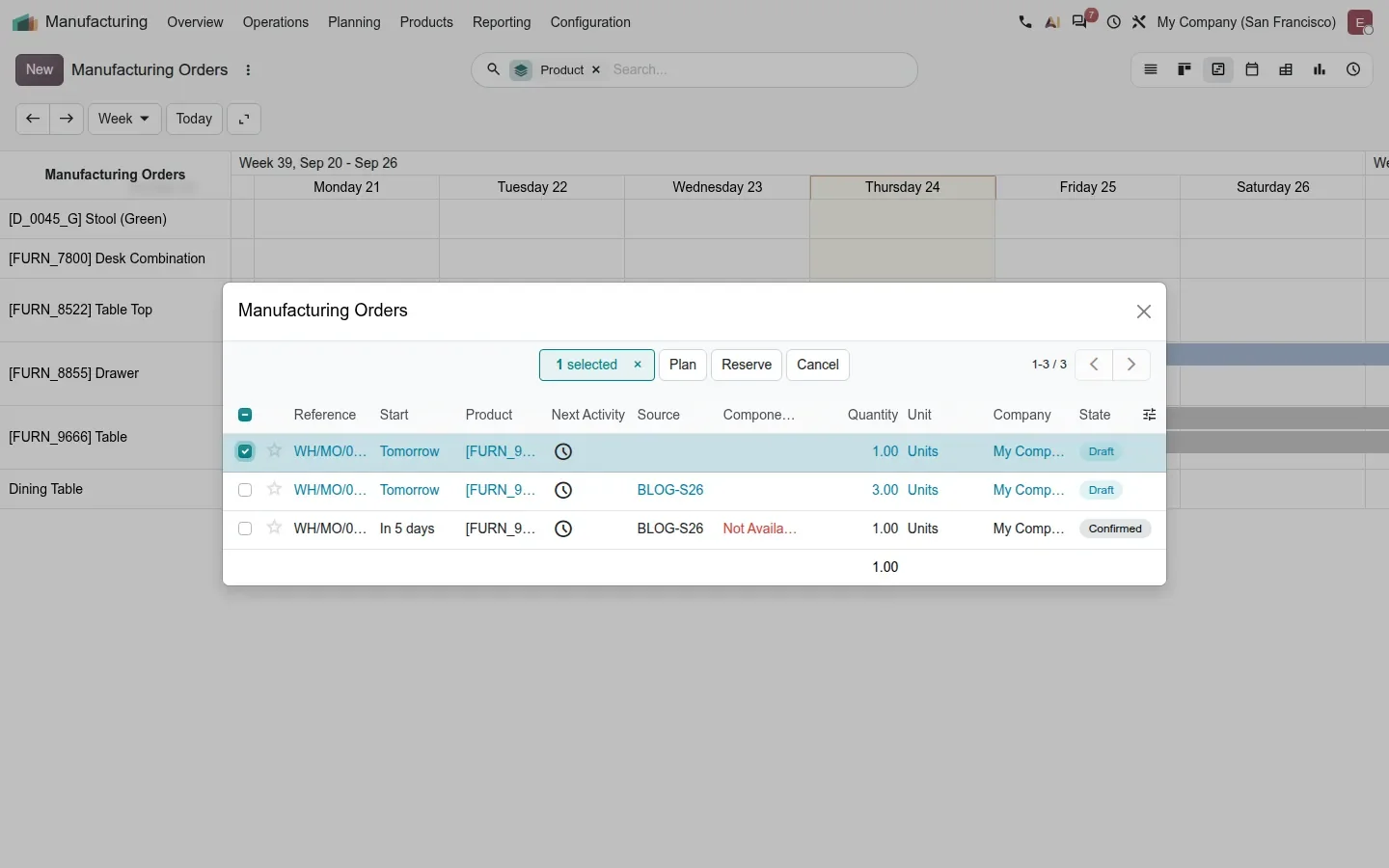
Under Operations > Manufacturing Orders, the Gantt view opens grouped by product, with draft orders drawn in grey. Clicking a product row header lists that product's orders, drafts included, with three buttons: Plan, Reserve and Cancel. One correction to the guide: it says draft orders can be confirmed directly from the Gantt. On this build there is no Confirm button in the pill popover or in the row dialog; Confirm remains a list-view action. Plan and reserve from the Gantt, confirm from the list.
Shop Floor: scan a work center to switch screens, and cameras as connected devices
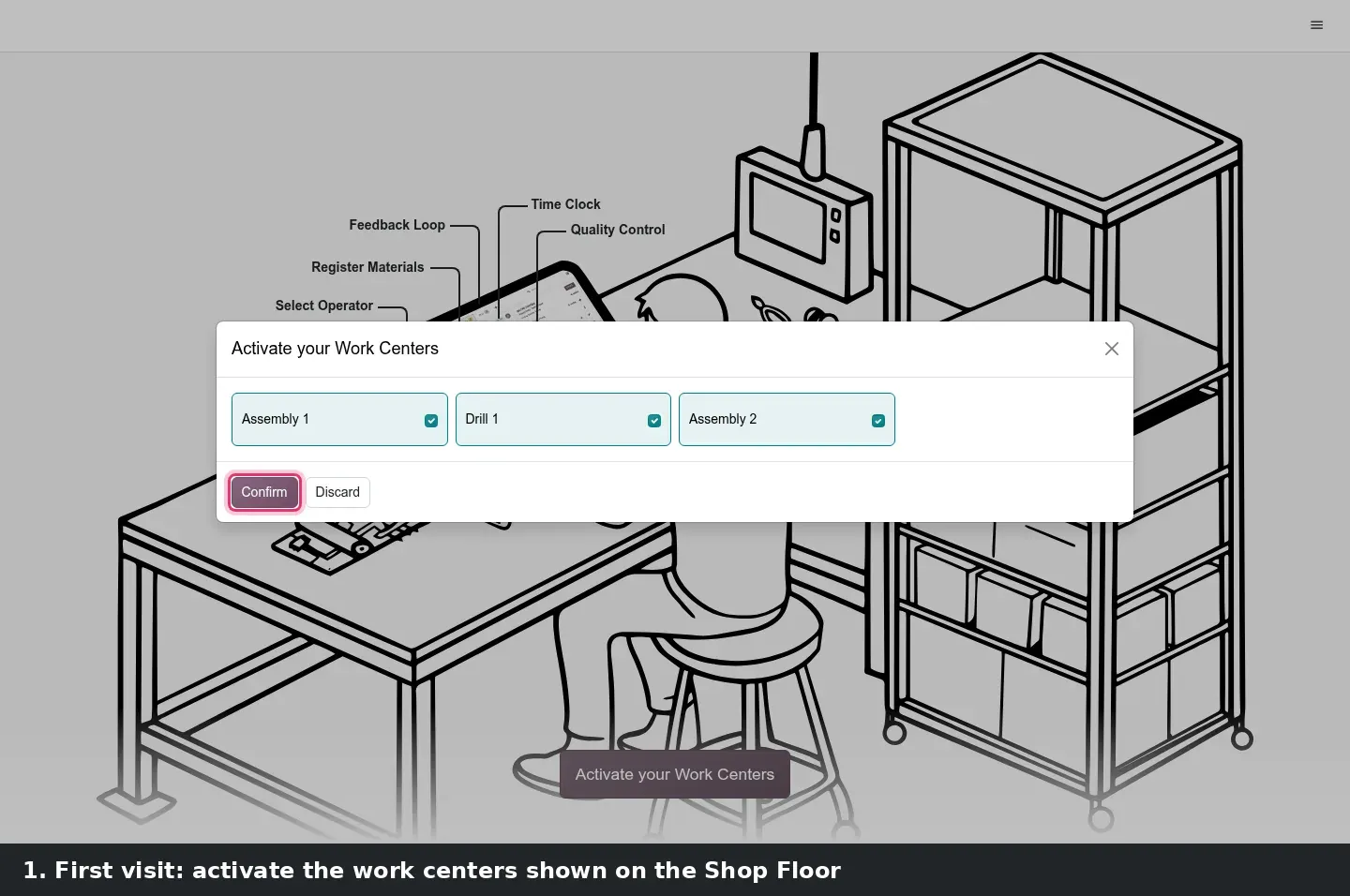
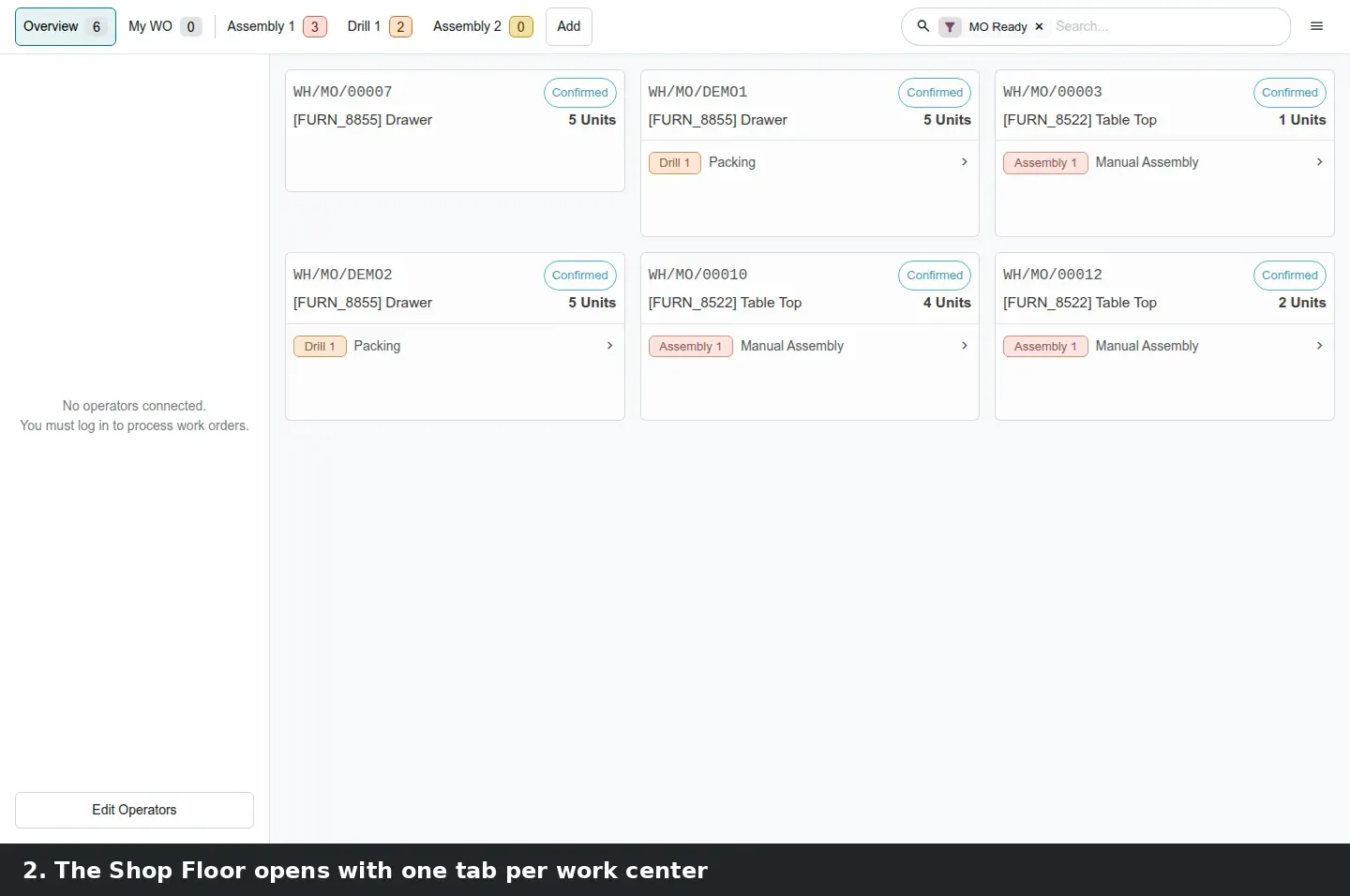
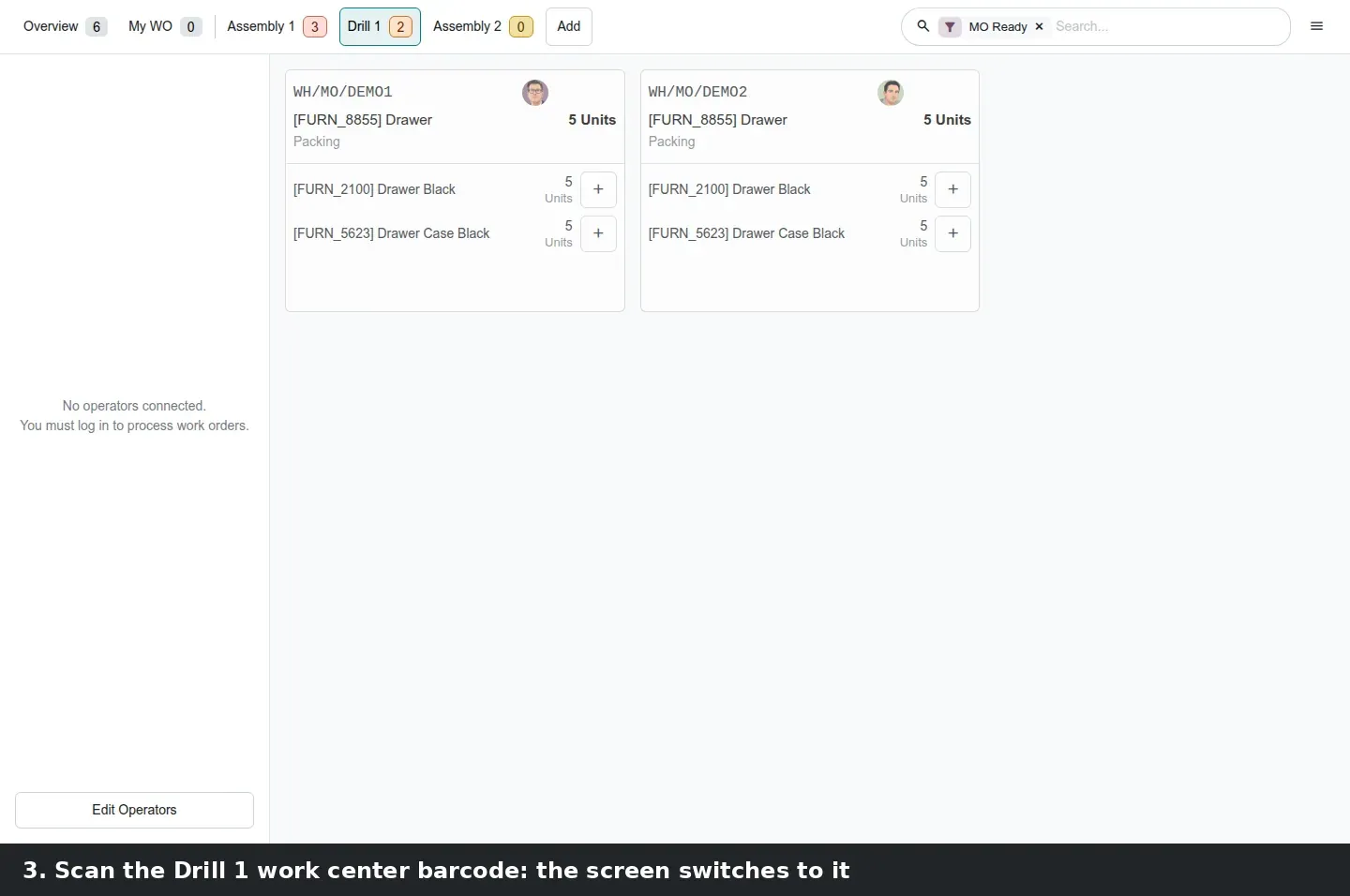
The Shop Floor app shows an Overview tab, a My WO tab and one tab per work center you activate with the Add button. New in Odoo 20: scanning a work center barcode switches the screen to that work center's tab. In the demo we scanned drill1 and the Overview gave way to Drill 1 with its two Packing work orders. Where operators rotate between machines, this replaces the tap-and-search on a shared tablet with one scan of the label on the machine. The guide mentions a demo barcode sheet shipped with the module; we simulated the scan instead.
Cameras join the list of connected devices. With the obox_mrp and obox_quality modules, a quality point of type Take a Picture, or a work order step, can be linked to an Obox camera so the photo is taken and attached to the check at the exact step where it is required, without an operator handling a phone. This is the Obox counterpart of the classic IoT box integration, which remains available through mrp_iot, where keyboard-type devices trigger work order actions. We could not pair an Obox with a camera on the demo, so there is no screenshot; the Obox post in this series covers the device.
Before you print work center labels
Give every work center a barcode a scanner cannot confuse with a lot number or a product code, for example a fixed prefix such as WC-. The Shop Floor screen reacts to whatever is scanned, and a component label scanned on the Overview should not land an operator on the wrong machine.
A Quality Rate per vendor, visible from the contact and the purchase order
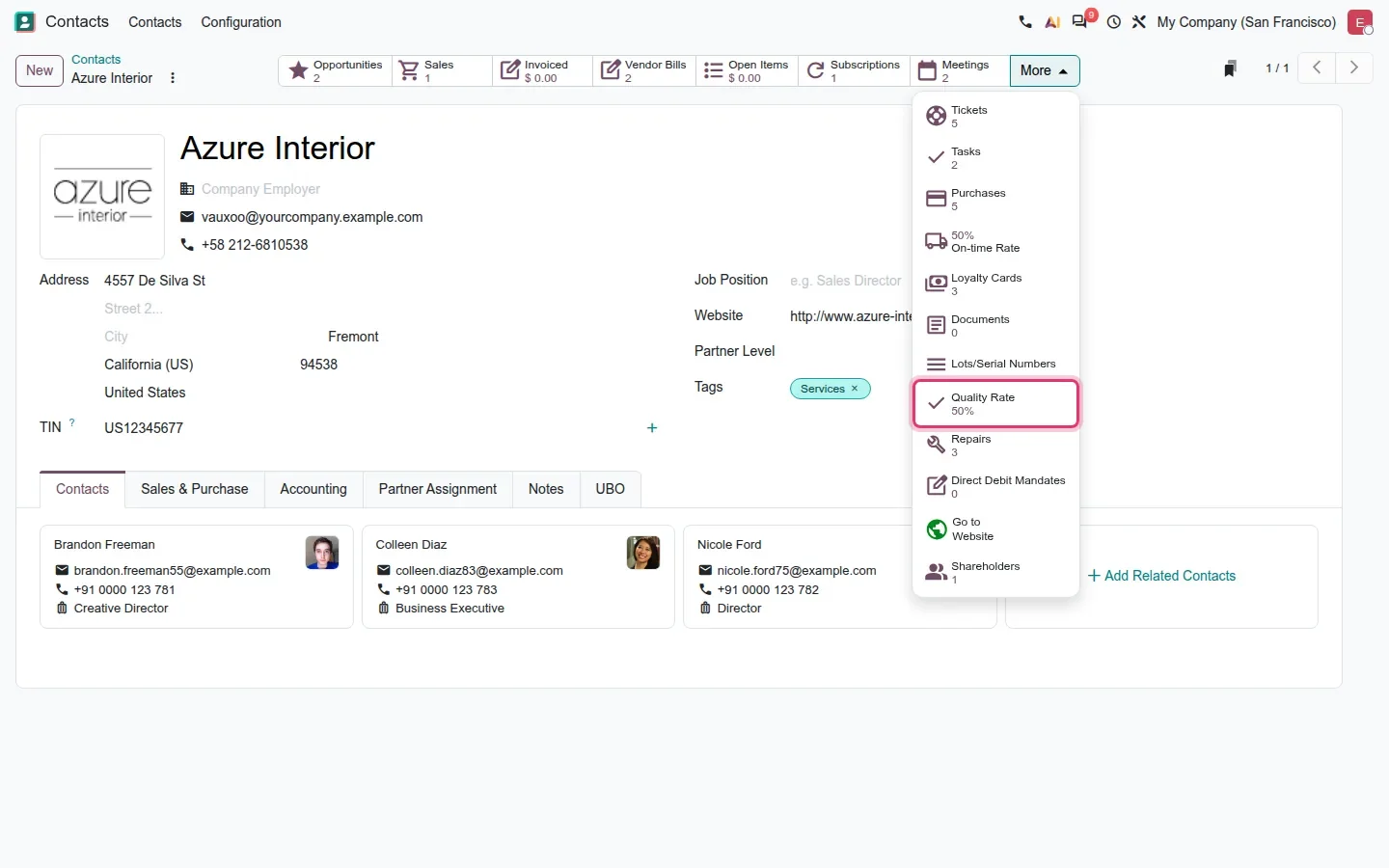
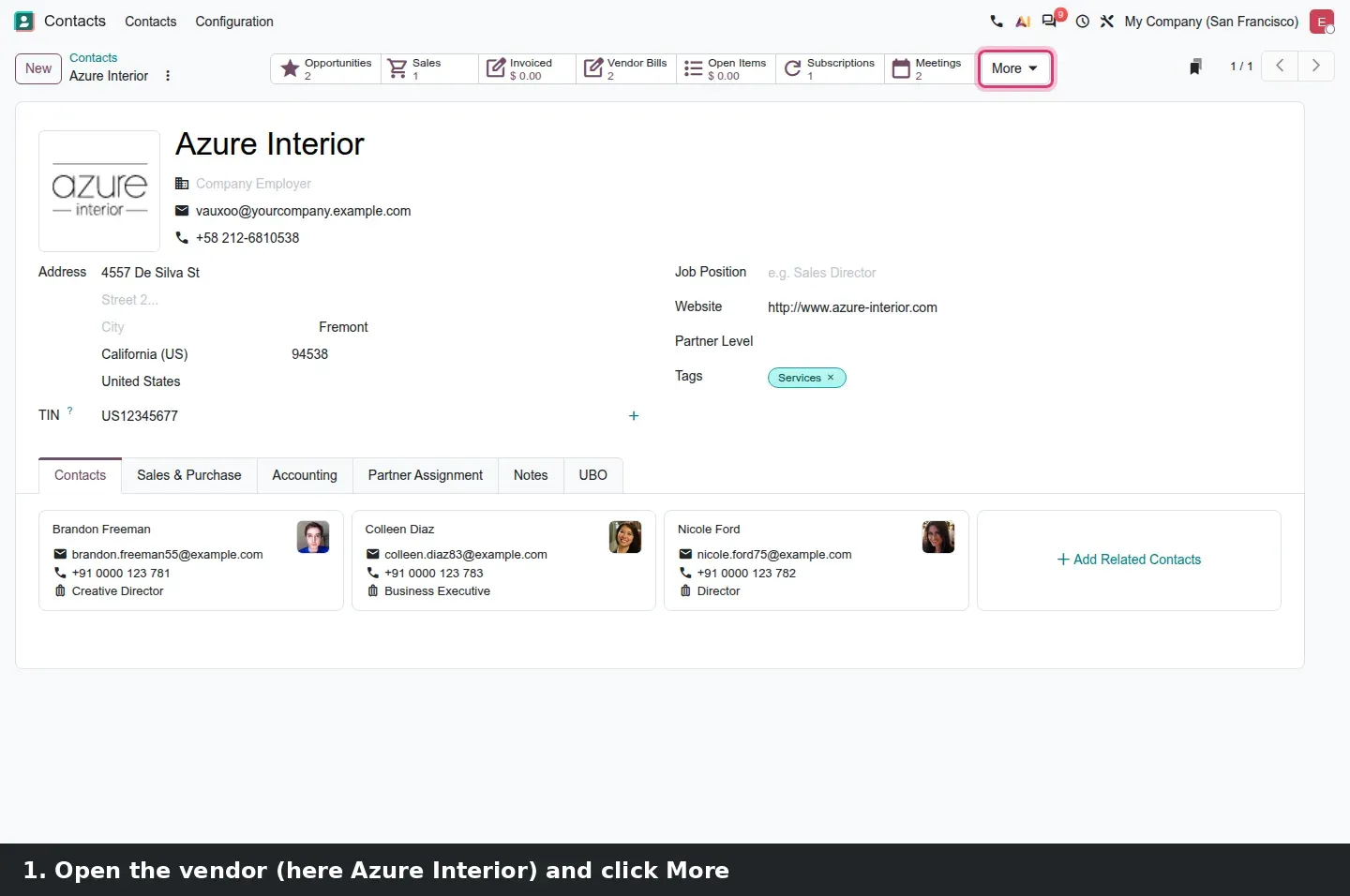
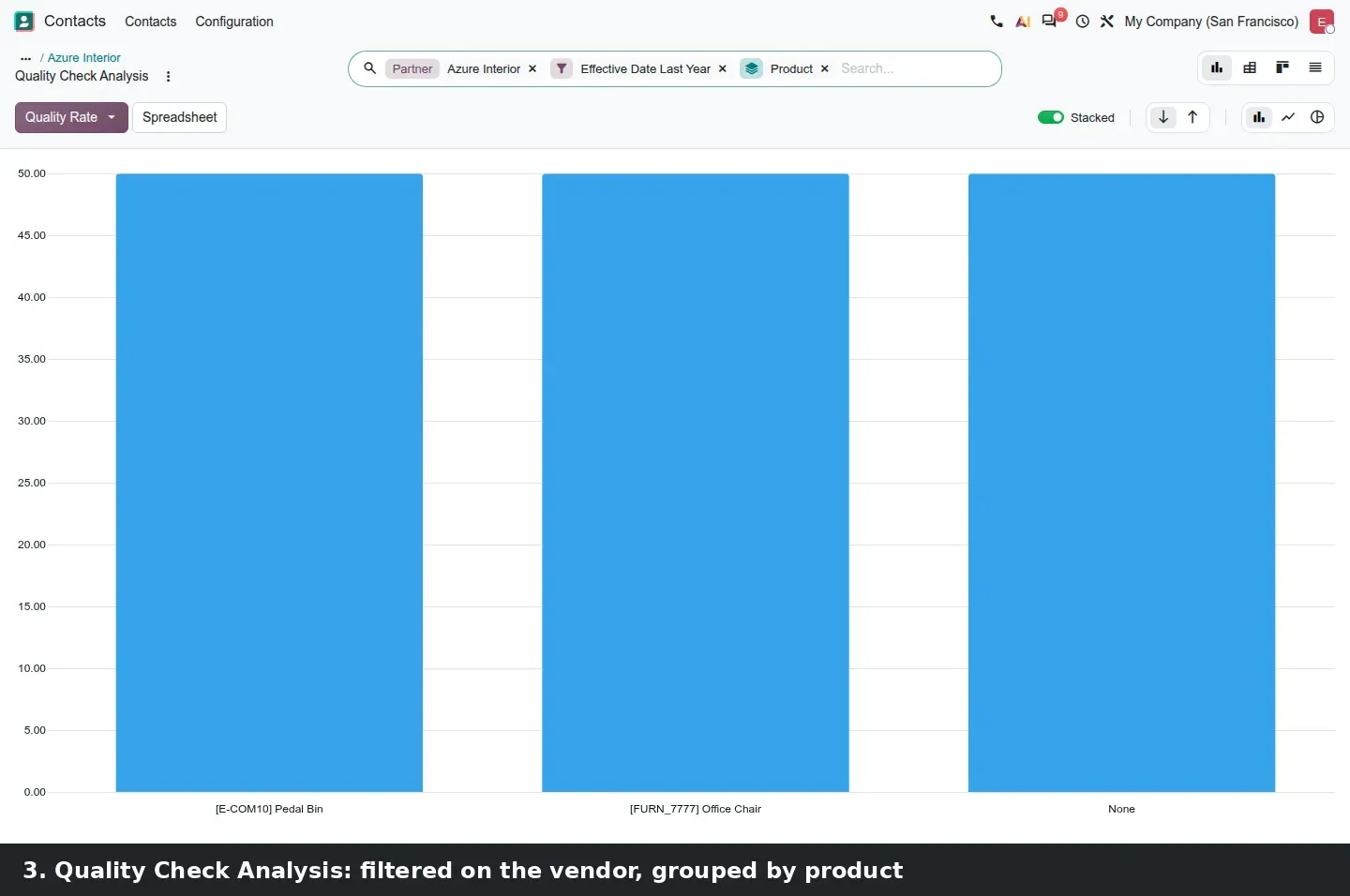
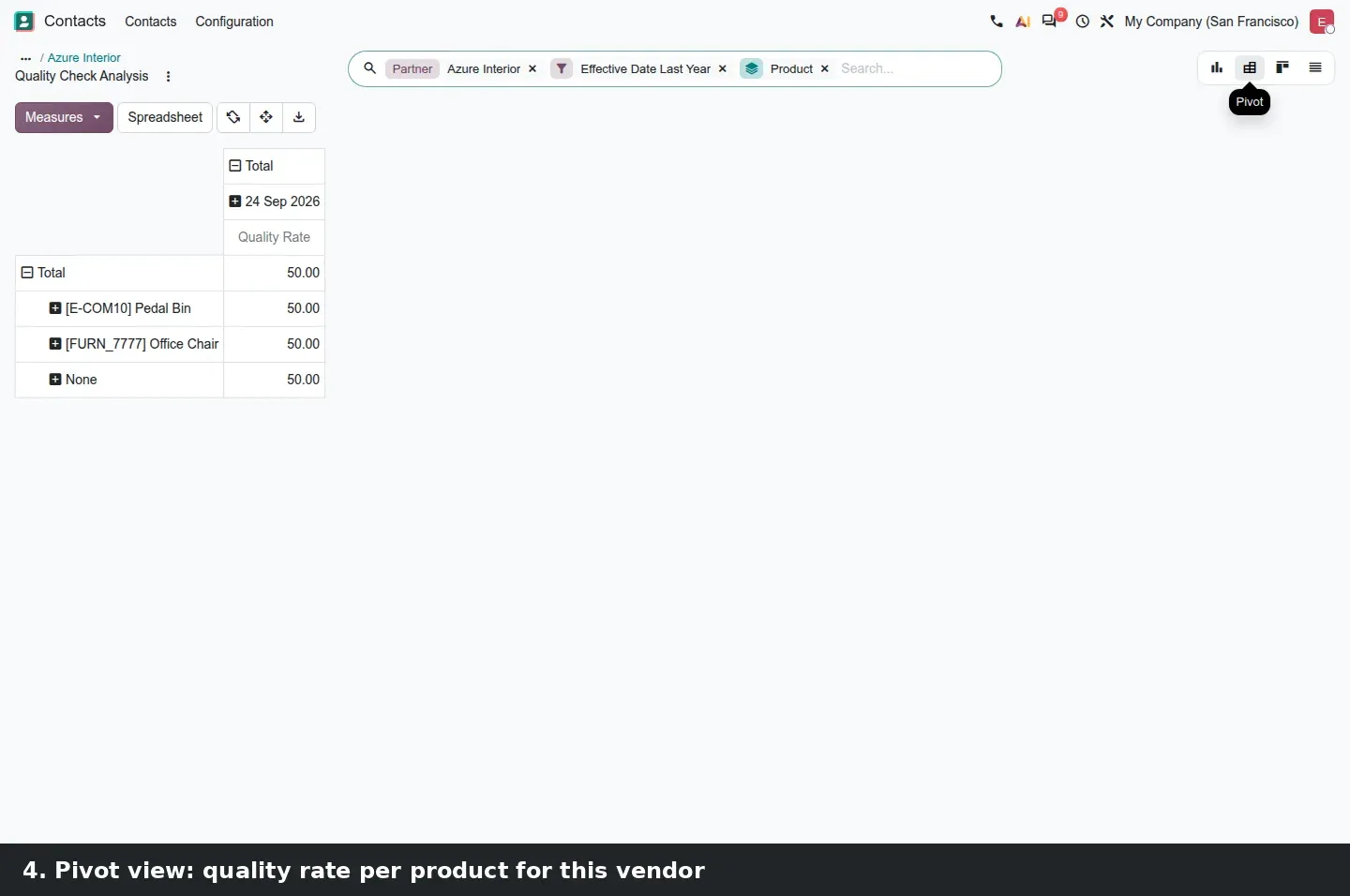
Quality now computes the pass percentage of quality checks per partner. On the vendor's contact form it appears as a Quality Rate smart button, but on a busy contact it does not sit in the visible button box: you find it under the More menu, next to the On-time Rate. On the demo, Azure Interior shows Quality Rate 50%. The guide calls it a yearly rate; the button just says Quality Rate, and the report it opens is filtered on Effective Date Last Year, which is where the yearly window comes from.
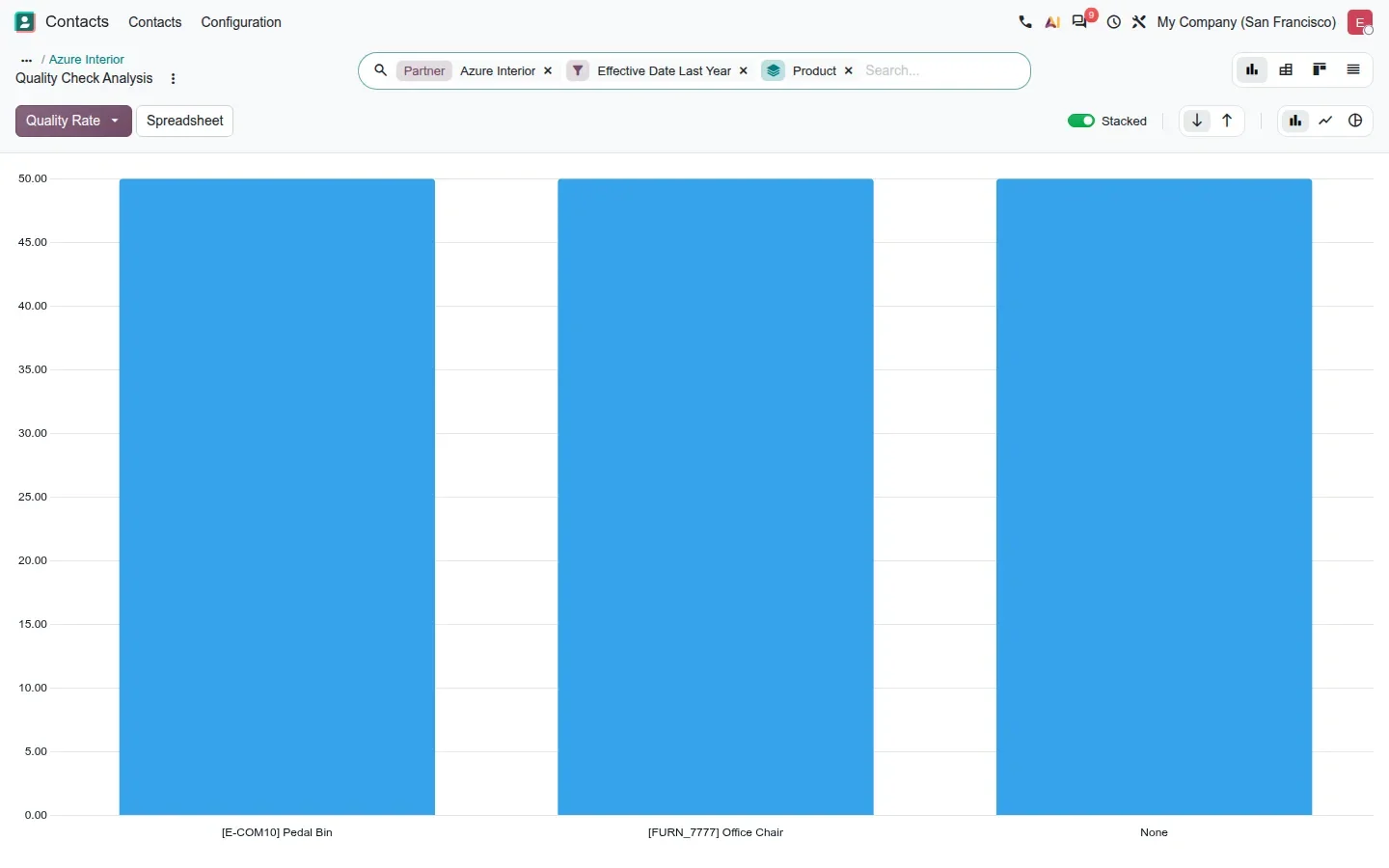
Clicking the button opens Quality Check Analysis with three things preset: a Partner filter on the vendor, the Effective Date Last Year filter, and a grouping by Product, with Quality Rate as the measure. That is the report a quality lead uses to answer "which of this supplier's parts keep failing at receipt": one bar per product, switchable to a pivot or a spreadsheet. A small correction to the guide: the menu and action are labelled Quality Check Analysis, not Quality Checks Analysis.
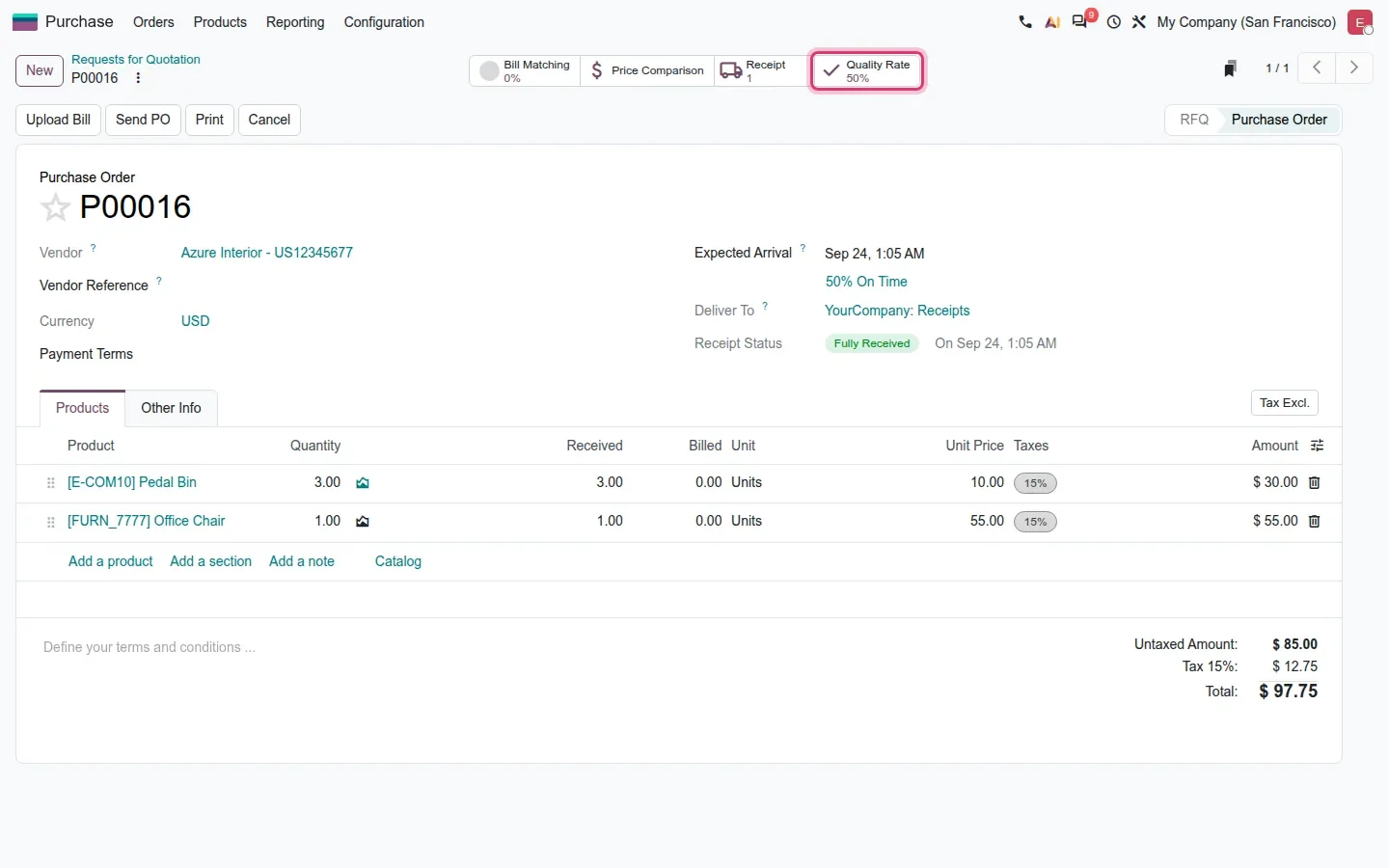
A bridge module puts the same smart button on the purchase order, so a buyer confirming P00016 sees Quality Rate 50% before sending it. Supplier performance stops living in a quarterly spreadsheet and shows up where the next order is decided.
A failed check asks where the rejected quantity goes
A Pass - Fail check on a receipt looks the same as before: the form for QC00003 on receipt WH/IN/00008 shows the product, the control point, the team, and two buttons, Pass and Fail. What changes is the Fail button. On this build it opens a dialog, Quality Check Failed for Flipover, with a Failure Location choice. The candidates are the locations configured on the control point; we set up WH/Quarantine and WH/Second Inspection on QCP00017. Pick one, click Confirm, and the failed quantity moves to that location instead of staying with the accepted goods.
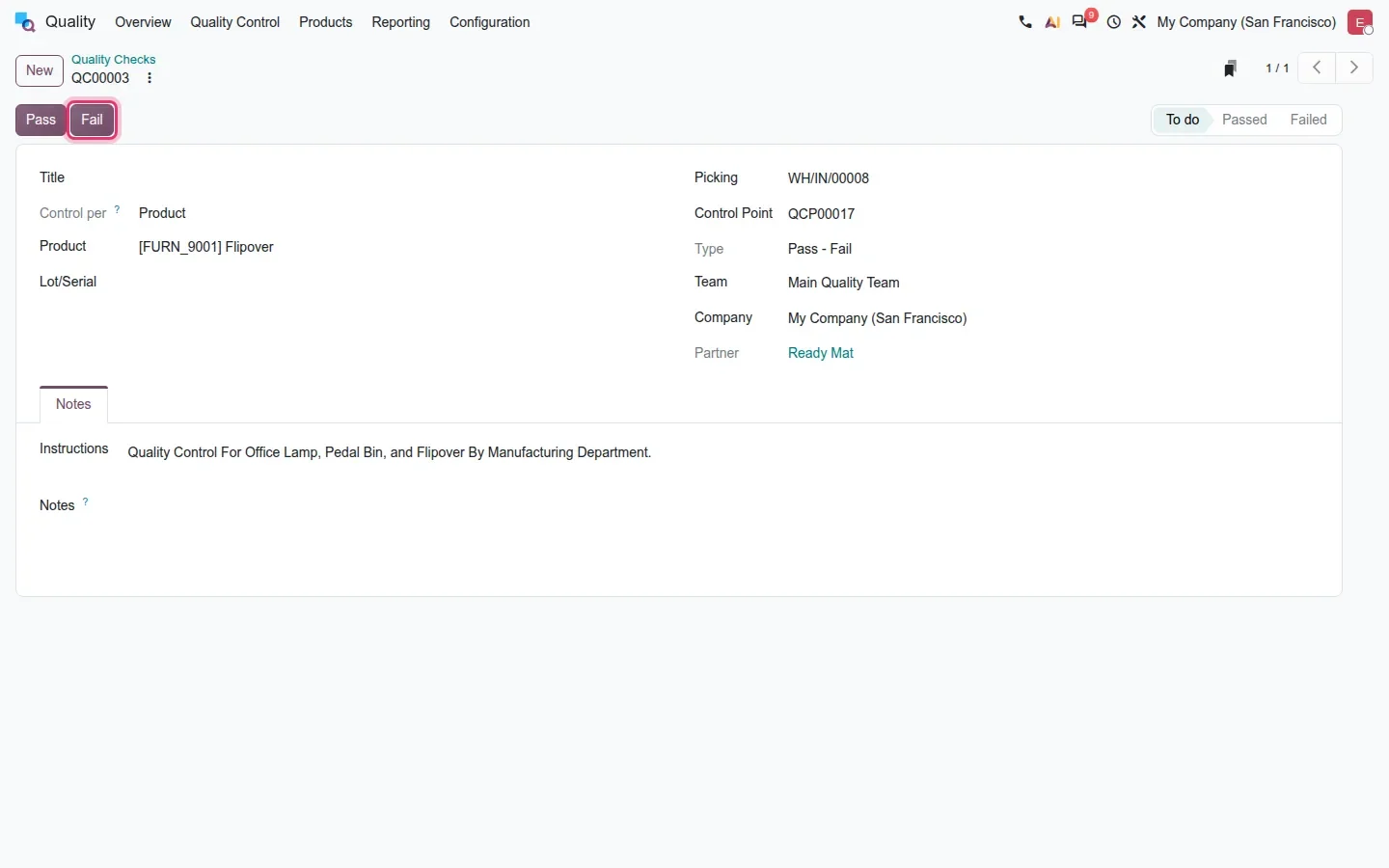
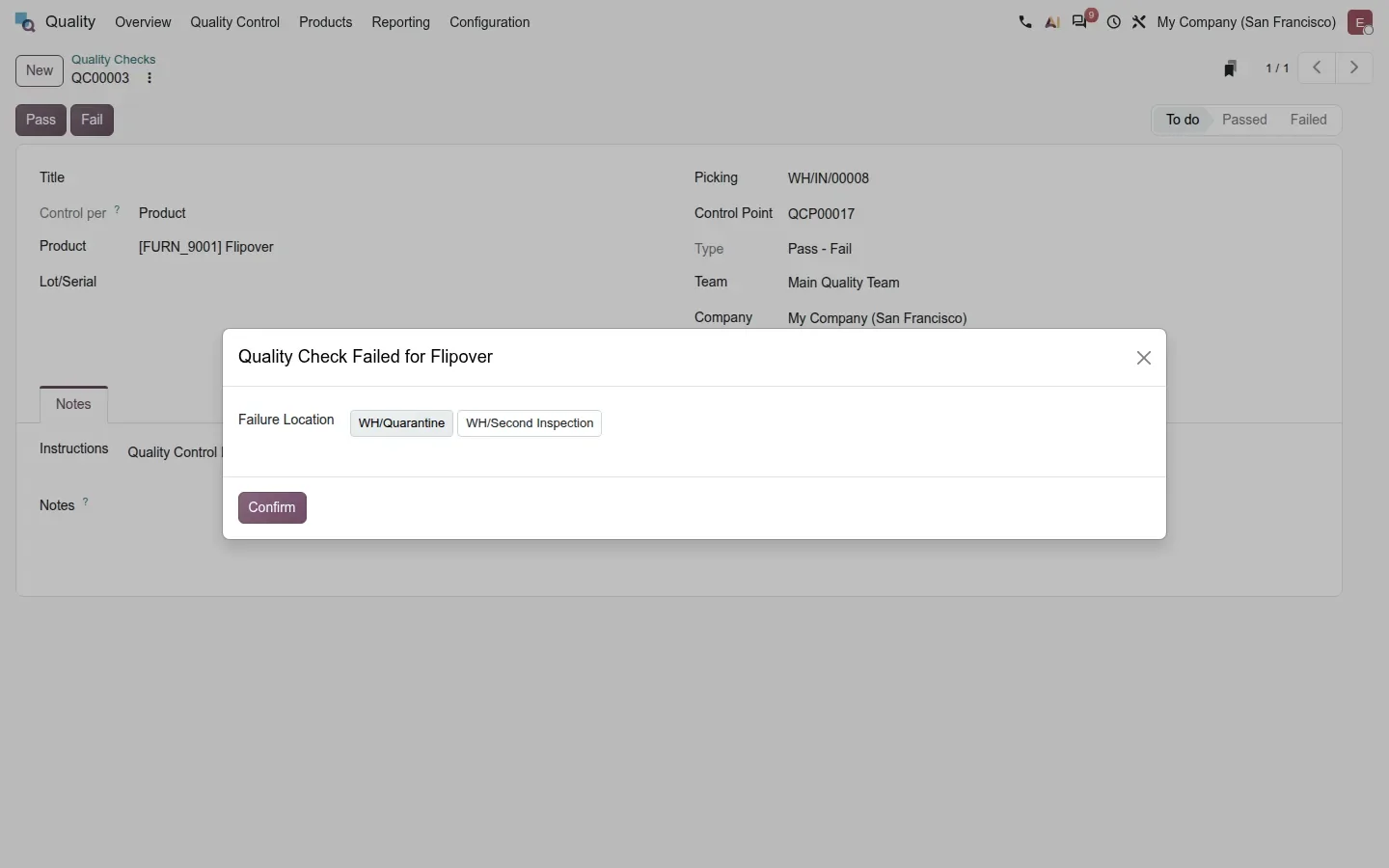
For a receiving team this removes the internal transfer to quarantine that was easy to forget, and it gives the warehouse a location whose stock is, by definition, waiting for a decision. The guide lists two more Quality changes we did not exercise: quality managers may bypass blocking checks, so an urgent shipment can leave while regular users still cannot skip a control, and quality_control_iot_webserial lets a scale connected to the browser through Web Serial feed a measurement into a check without an IoT box.
Maintenance requests on a Gantt, one row per machine
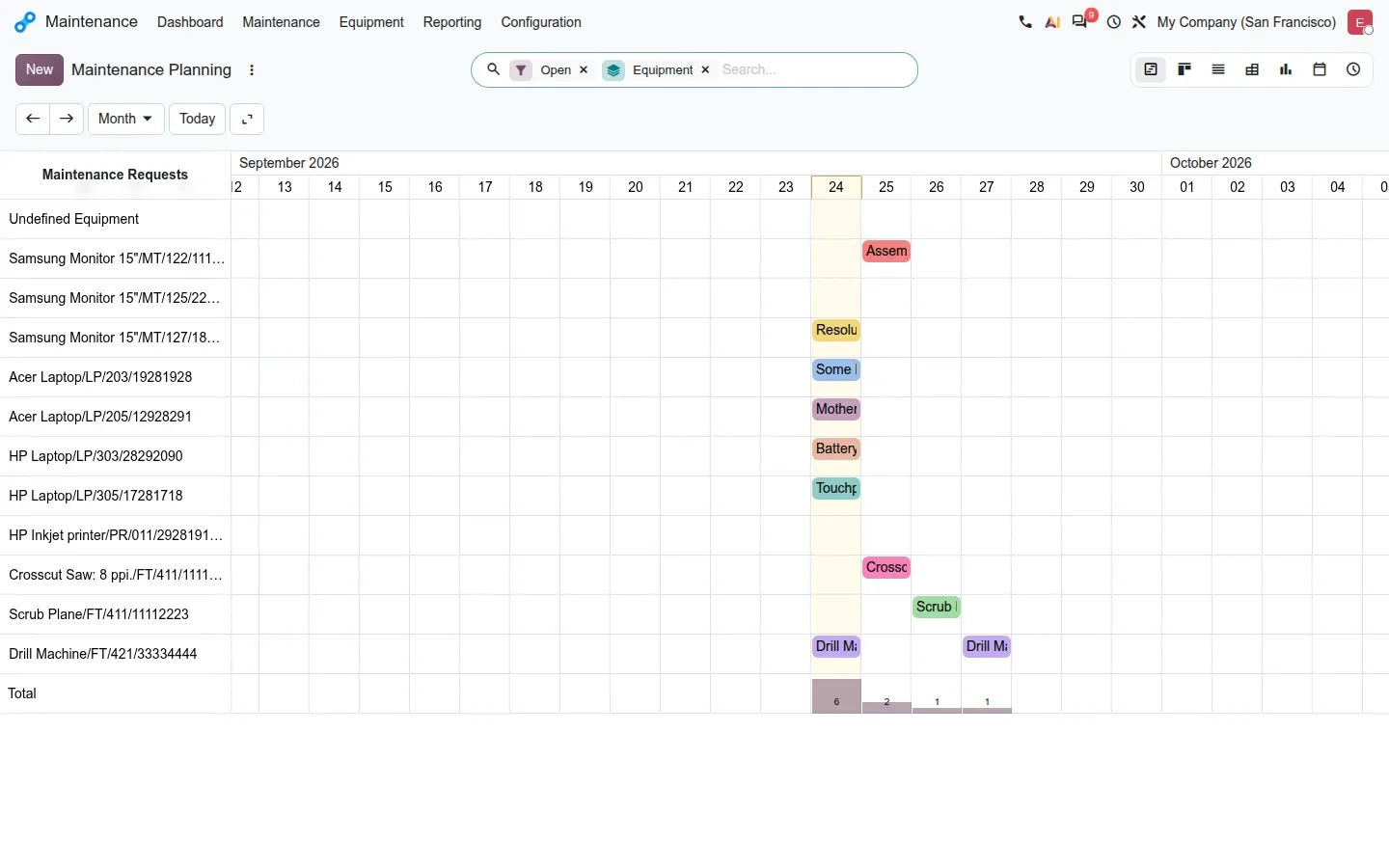
Maintenance gets a Planning by Equipment menu under Maintenance > Maintenance. It opens a Gantt with one row per piece of equipment and a pill per maintenance request, on a Month range. The guide places this in the Enterprise edition. The point is the overlay with production: a maintenance manager sees that a preventive intervention on Drill 1 lands in the same week as the drawer batch planned on it, and moves one or the other before the operators find out on the floor. On the demo we created five preventive requests to populate it.
How to try it on a demo database
- Install Manufacturing, Quality, Purchase and Maintenance with demo data, then enable Work Orders in Manufacturing > Configuration > Settings.
- Open Manufacturing > Planning > Work Orders; drag a card above another and watch the planned start of the cards below move.
- Switch to Planning > Work Orders > Planning for the Gantt by work center, then Planning > Employees > Planning for the operator Gantt.
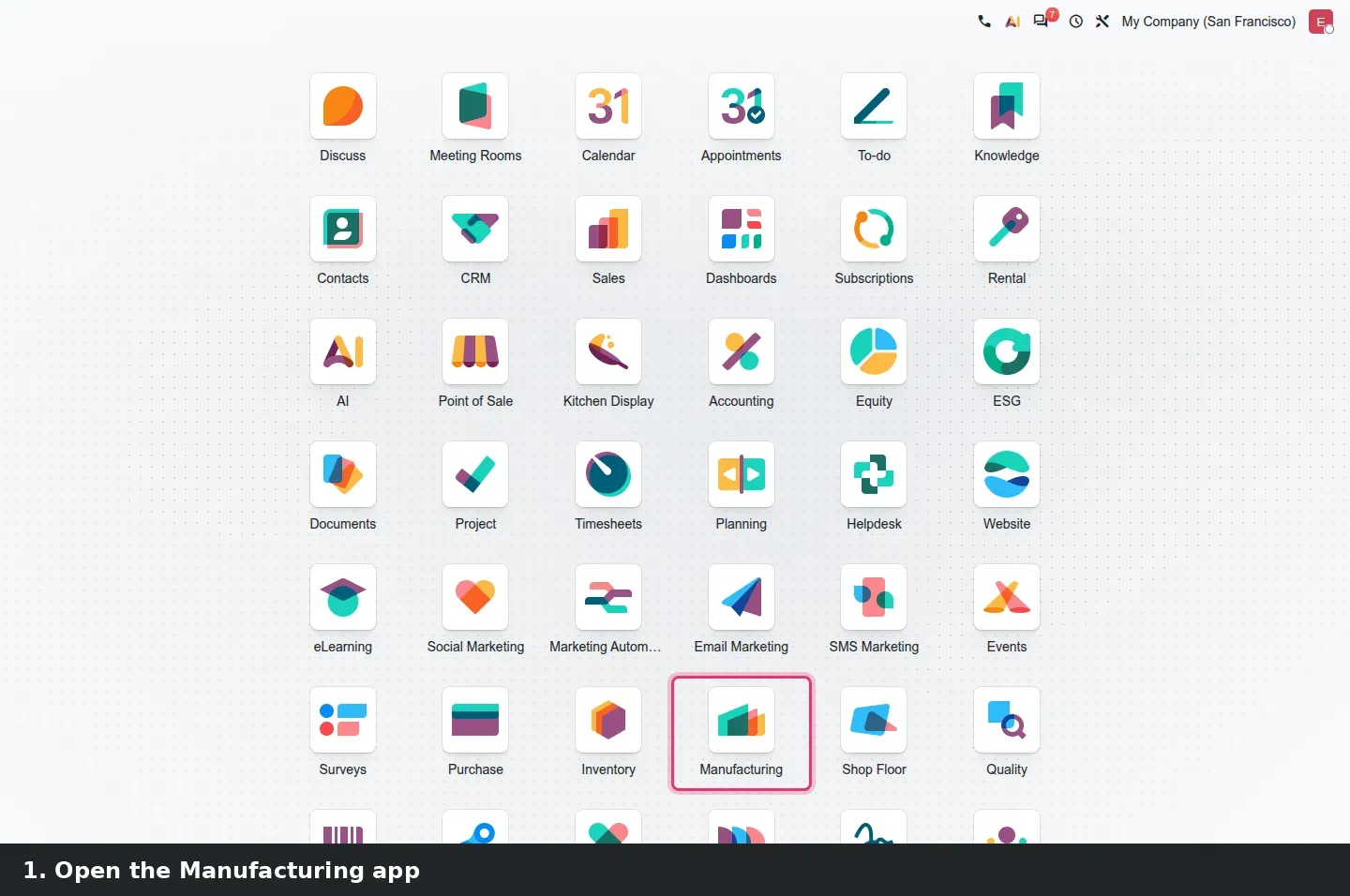
- Open Operations > Manufacturing Orders in Gantt view and click a product row header for the Plan, Reserve and Cancel buttons.
- Open Manufacturing > Shop Floor, click Add to activate the work centers, then scan a work center barcode (Drill 1 answers to
drill1). - Open Contacts, pick a vendor with checked receipts, click More and then Quality Rate to open the Quality Check Analysis.
- On a Pass - Fail control point, set one or more Failure Locations, then open a to-do check on a receipt and click Fail.
- Open Maintenance > Maintenance > Planning by Equipment.
What we could not verify on the pre-release build
The Obox camera on a quality point or work order step needs a paired Obox with a camera device, which we did not have. The Web Serial scale needs a physical scale on a serial port and a browser permission prompt. We did not open the employee quick-create dialog in the employee Gantt, did not print the demo barcode sheet, and did not test the quality manager bypass of blocking checks or the automatic planning of backorders. We also found no way to confirm a draft manufacturing order from the Gantt, contrary to the guide. Everything else on this page was clicked through on the 20.0 Enterprise build of 23 September 2026.
What this means for an upgrade
For a company on Odoo 17, 18 or 19, the planning changes are views on data you already have: work orders, work centers and employees carry over, and the new views appear once Work Orders are enabled. Two things need attention. First, according to the 20.0 source diff, mrp_workorder_iot, quality_mrp_workorder_iot and mrp_workorder_expiry are gone, so a plant that triggers work order actions from IoT box devices should map those flows to mrp_iot or to the Obox before go-live. Second, shop-floor hardware and MES bridges talk to Odoo from outside, and Odoo has scheduled the removal of the XML-RPC and JSON-RPC endpoints for Odoo 20 they were written against; our RPC migration audit inventories those calls before they break. Both fit inside our migration service, and the series hub lists the Inventory and Barcode changes that land in the same upgrade.
Frequently asked questions
Can I re-plan work orders by drag and drop in Odoo 20?
Yes. Manufacturing > Planning > Work Orders opens as a Kanban board with one column per work center. Dragging a card above another rewrites its planned start and sequence, and every card below it shifts, so the whole queue of that work center is re-planned in one move.
Where is the vendor Quality Rate in Odoo 20?
On the vendor's contact form, in the More menu of the smart buttons, next to the On-time Rate. The same button appears on purchase orders. It opens the Quality Check Analysis filtered on that partner and on the last year, grouped by product.
Can a draft manufacturing order be confirmed from the Gantt in Odoo 20?
Not on the pre-release build we tested. The product row dialog offers Plan, Reserve and Cancel, and the pill popover only opens the orders. Confirm is still an action in the list view, so plan from the Gantt and confirm from the list.
What happens when a quality check fails in Odoo 20?
The Fail button opens a dialog asking for a Failure Location, chosen among the locations configured on the control point, for example a quarantine or a second-inspection location. After Confirm, the failed quantity is moved there instead of staying with the accepted stock.
Does Odoo 20 Manufacturing still work with the IoT box?
Yes, through mrp_iot, where keyboard-type devices trigger work order actions. The camera integration on quality points and work order steps is built for the Obox instead, and the older mrp_workorder_iot and quality_mrp_workorder_iot modules are absent from the 20.0 source, so check which one your plant relies on.
Is the maintenance Gantt available in Odoo Community?
The Odoo 20 guide places the Planning by Equipment Gantt in the Enterprise edition. It shows one row per piece of equipment and a pill per maintenance request, so planned interventions can be compared with the production load on the same machine.