
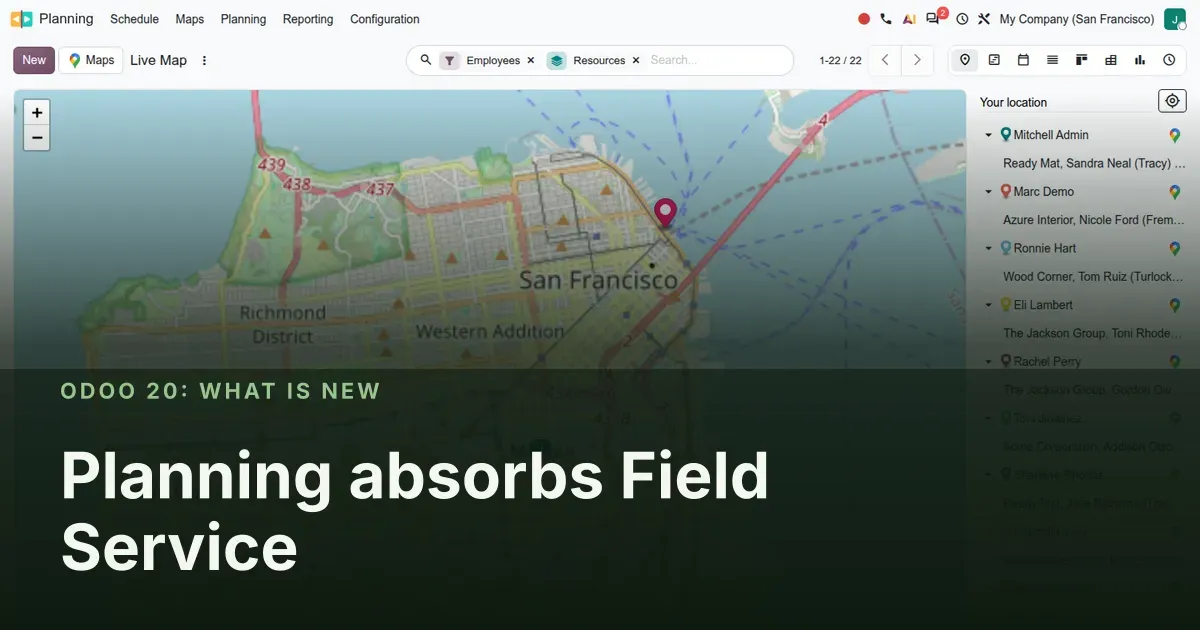
Field Service stops being an app and becomes a kind of shift
In Odoo 20 the standalone Field Service app disappears. The industry_fsm family, plus the Helpdesk and Documents bridges built on it, is replaced by planning_field_service and bridges with the same naming pattern. An intervention is now a planning shift with a customer on it: address, phone, priority, a worksheet and two extra states, In Progress and Completed. One Gantt, one calendar and one map now show every resource, in-house or on the road.
This post covers three chapters of the Odoo 20 guide: the Field Service merge, the Planning improvements that came with it (side panel, materials, subscription and Point of Sale bridges), and the Gantt and Map upgrades that every app built on those views inherits. We clicked through it all on the pre-release build.
Observed on the Odoo 20.0 Enterprise pre-release build of September 23, 2026. Names, menus and availability can change before general availability; we will update this page when they do.
What the merge looks like from the manager's chair
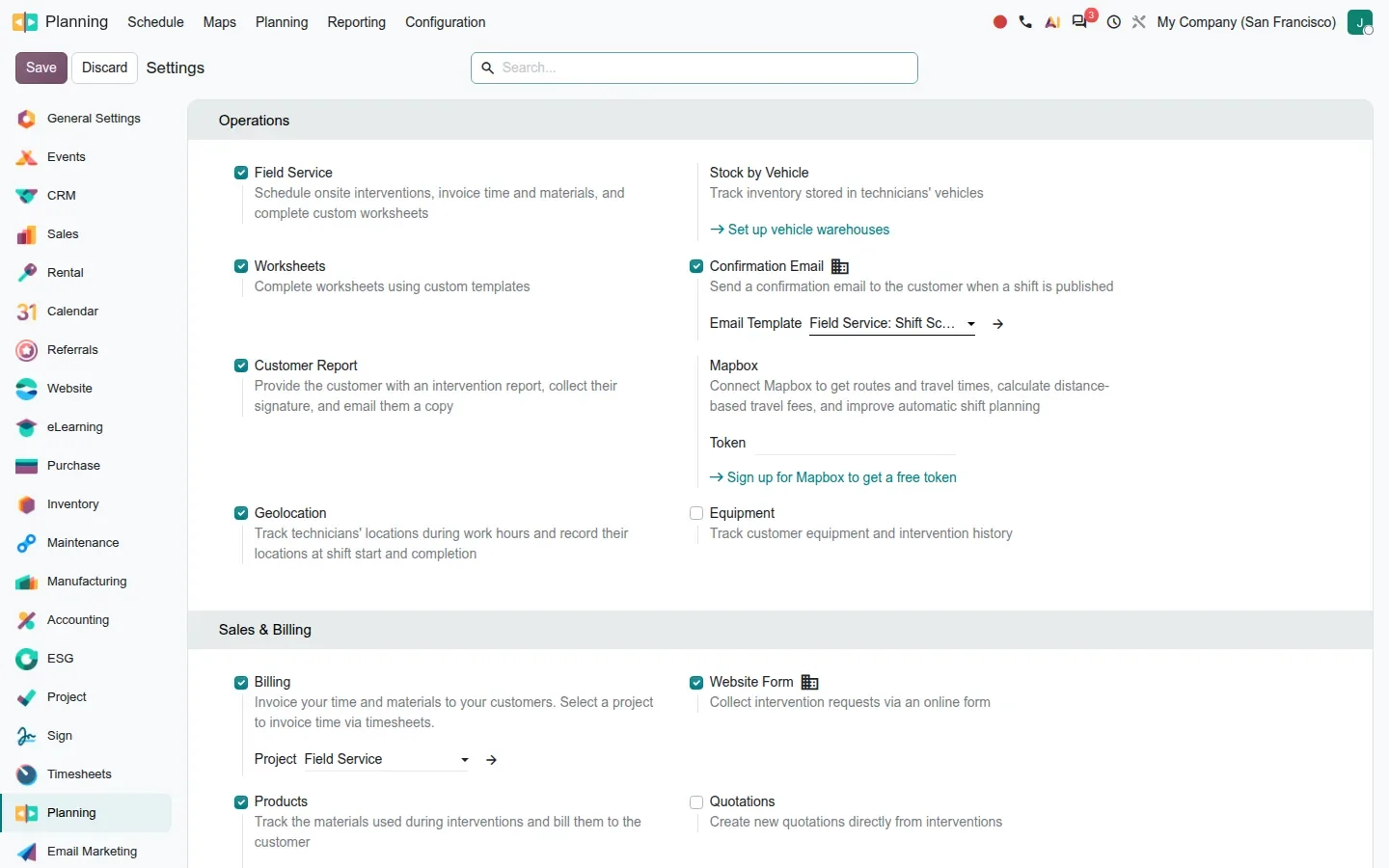
Field Service settings now sit under Planning > Configuration > Settings, in the Operations block. Ticking Field Service unlocks the rest: Worksheets, Customer Report, Geolocation, Equipment, Stock by Vehicle, Confirmation Email and a Mapbox token. A Sales & Billing block holds Billing, Products, Quotations and the Website Form for public service requests.
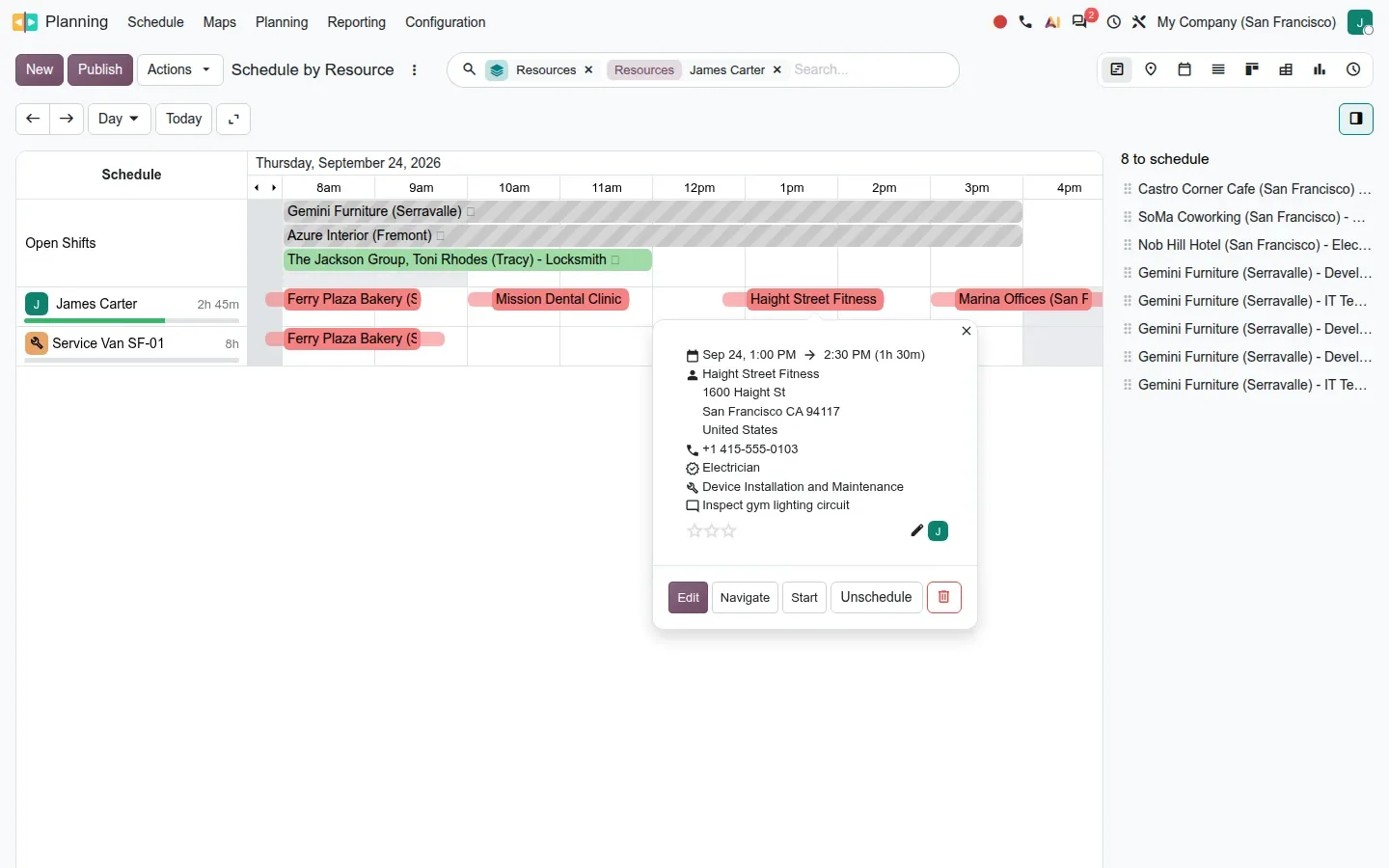
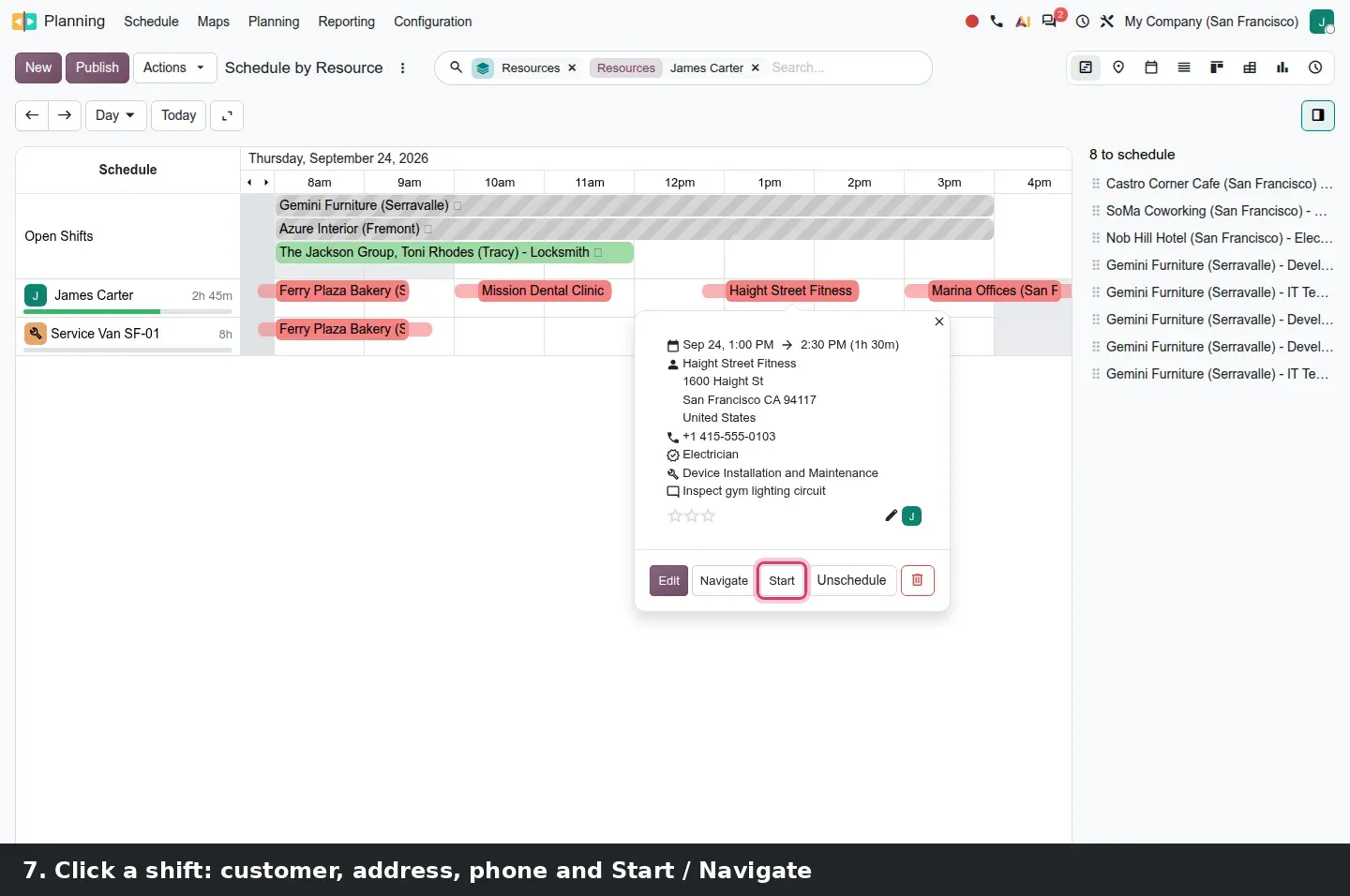
An intervention is then planned like any other shift: drag it onto a technician in Schedule > By Resource. Clicking the pill opens a dispatch card: dates, customer, full address, phone, role, worksheet template and note, with Edit, Navigate, Start and Unschedule buttons. Start moves the shift to In Progress.
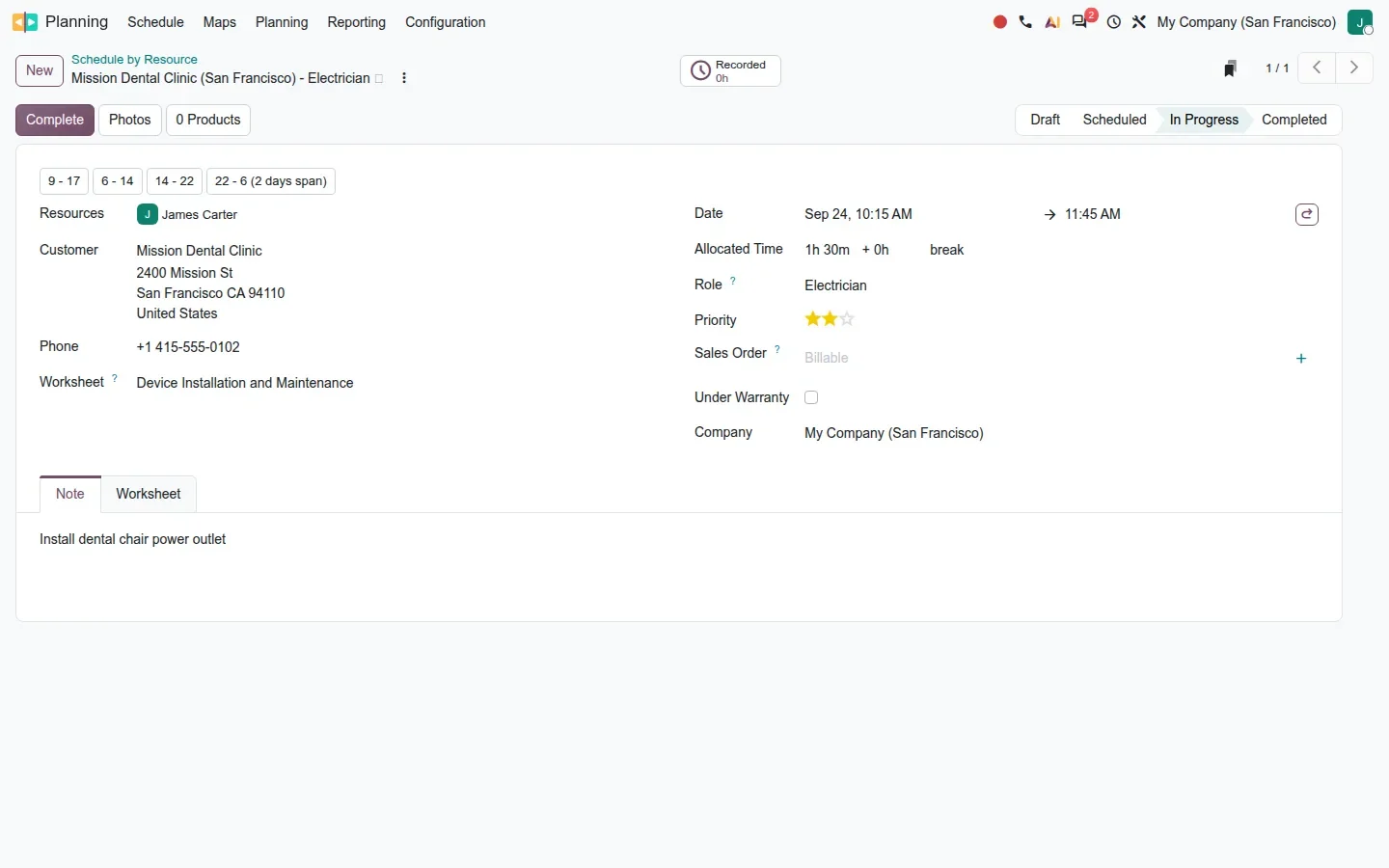
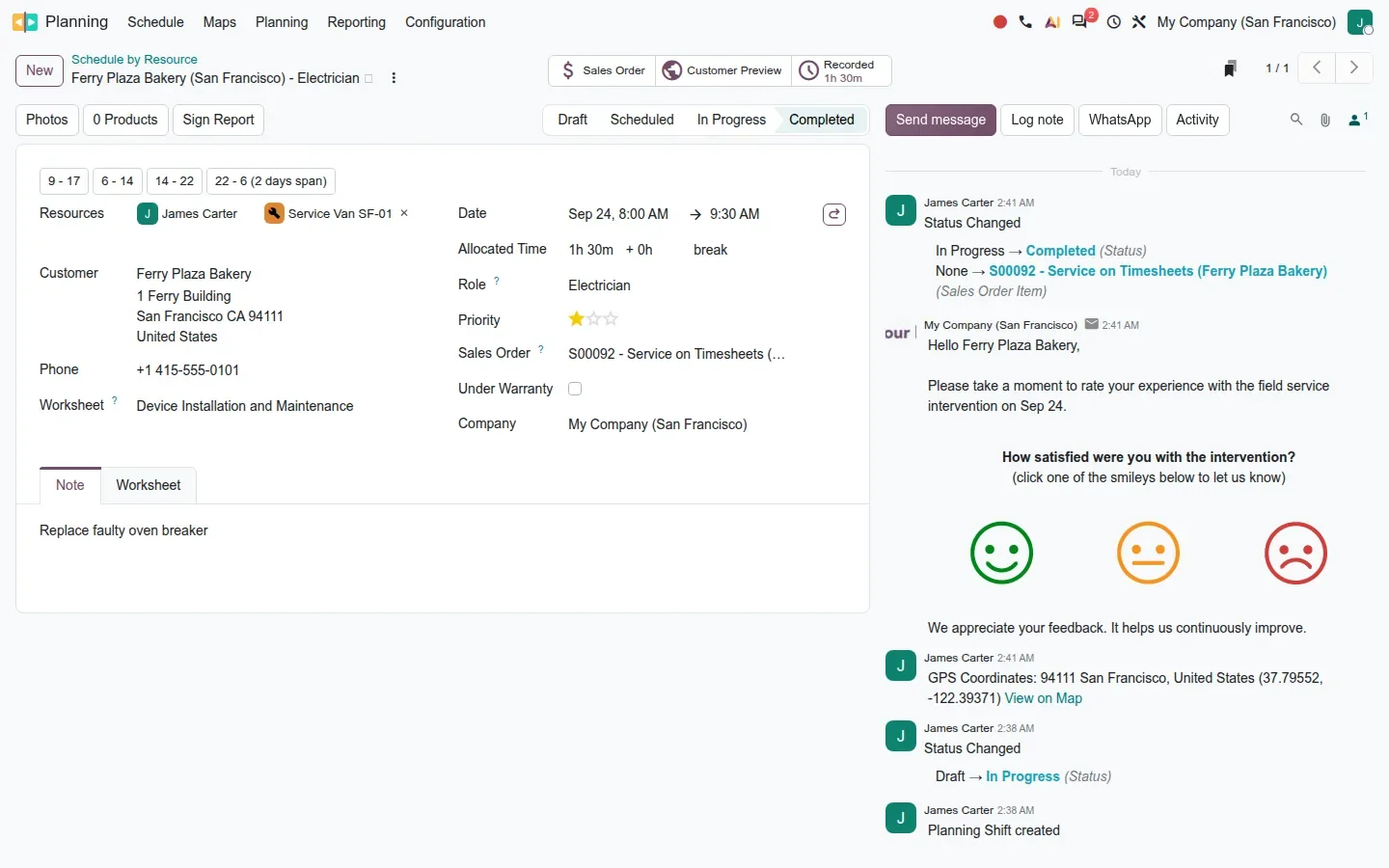
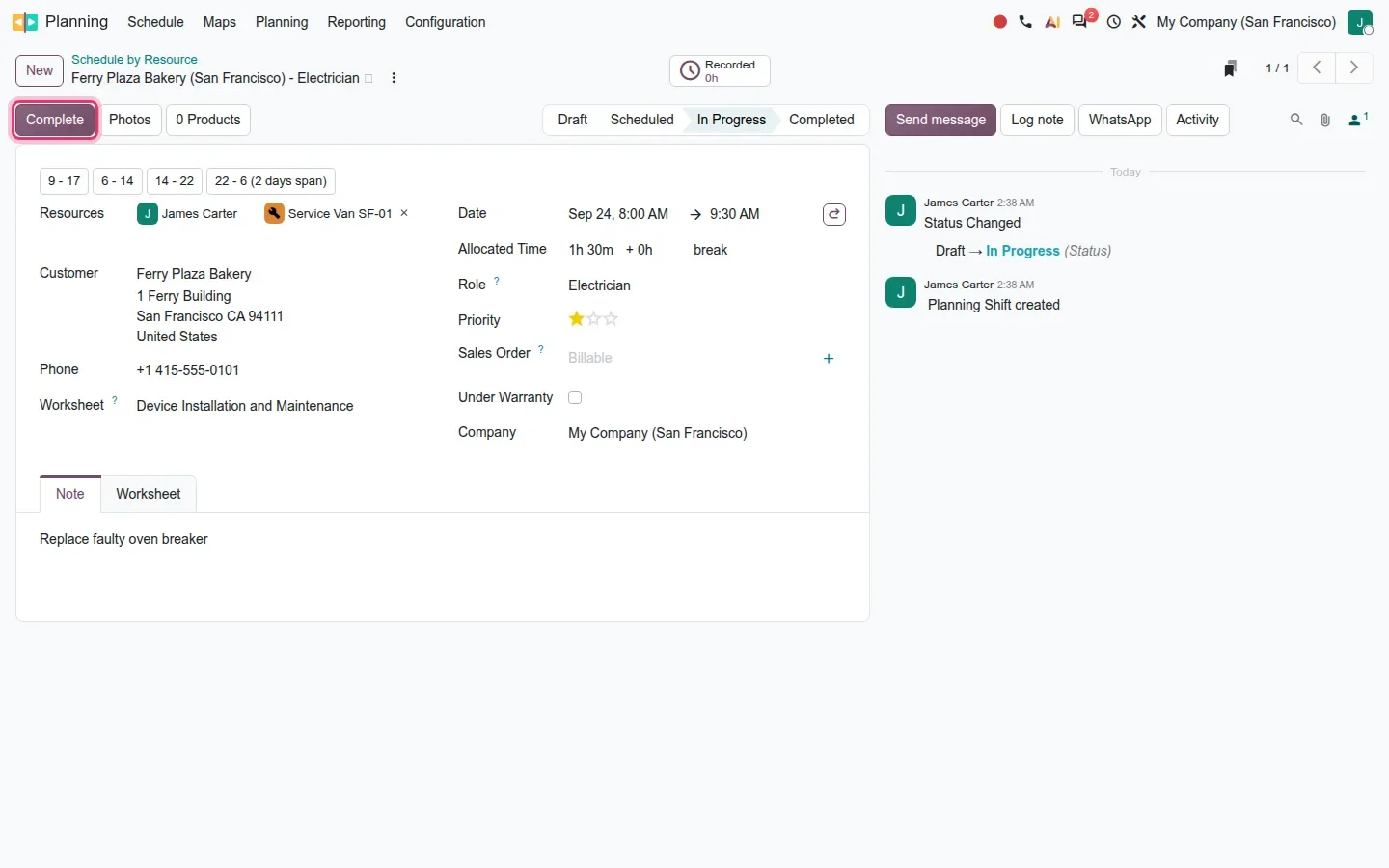
The shift form gains the same fields plus priority stars, the linked sales order and a warranty flag; its status bar reads Draft, Scheduled, In Progress, Completed, one sequence for planning and intervention states.
Travel time on the Gantt and a Maps menu for the day
The most useful additions concern the road between two jobs. Each shift stores travel time and distance, computed against the technician's previous stop or the work location. The Day scale now works at quarter-hour precision and draws a lighter buffer before each intervention; hovering it shows departure time, duration and distance. A dispatcher sees at a glance whether a 1:00 PM job is reachable after a 12:30 PM finish.
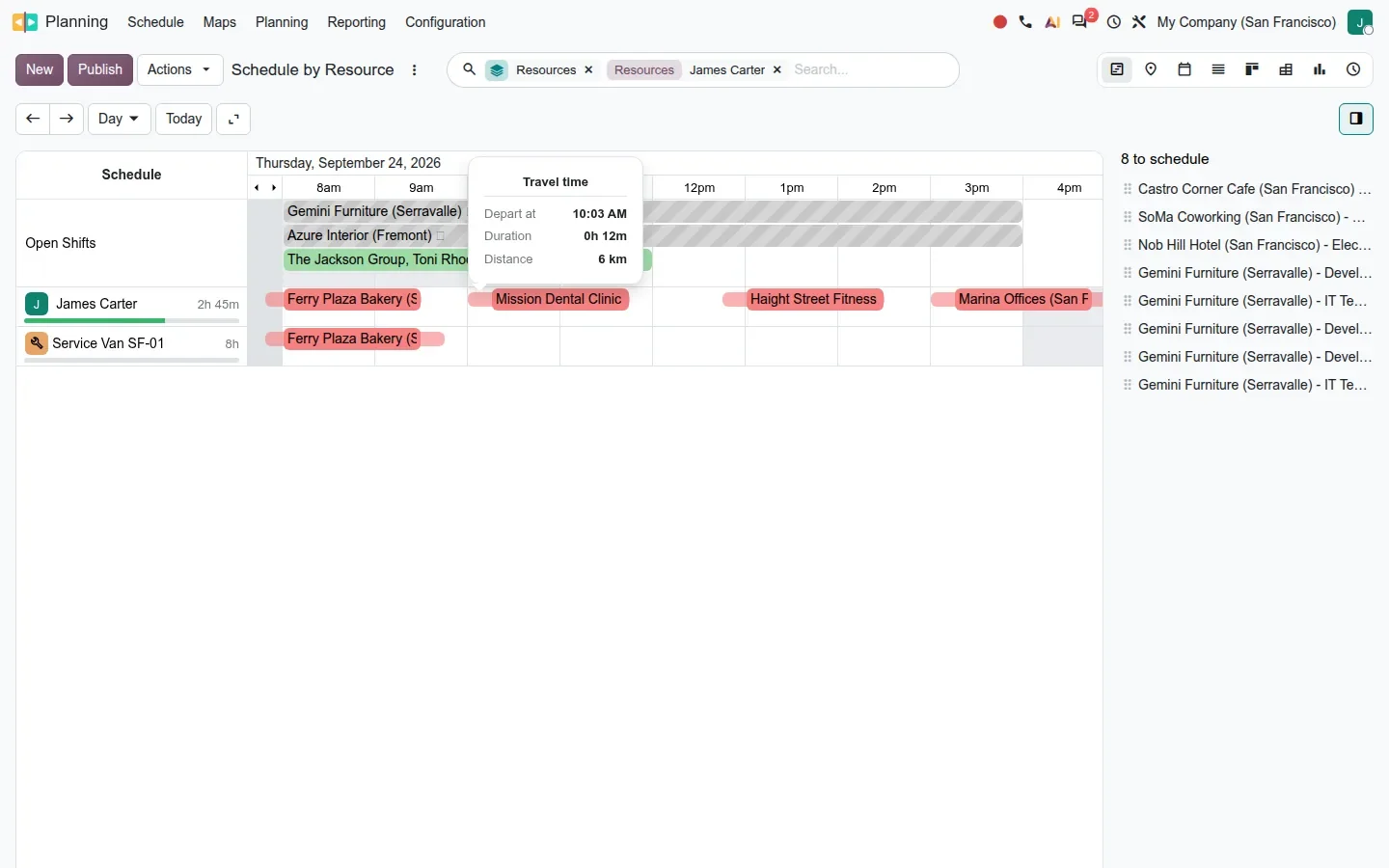
A new Maps menu has three entries. By Resource plots each technician's stops with a pin list grouped by resource. Timeline stacks the map above a day Gantt; hovering a technician's group numbers his stops in the order of the day. Live Map, enabled by the Geolocation setting, shows technicians' positions during work hours and records their coordinates at Start and Complete in the shift's chatter.
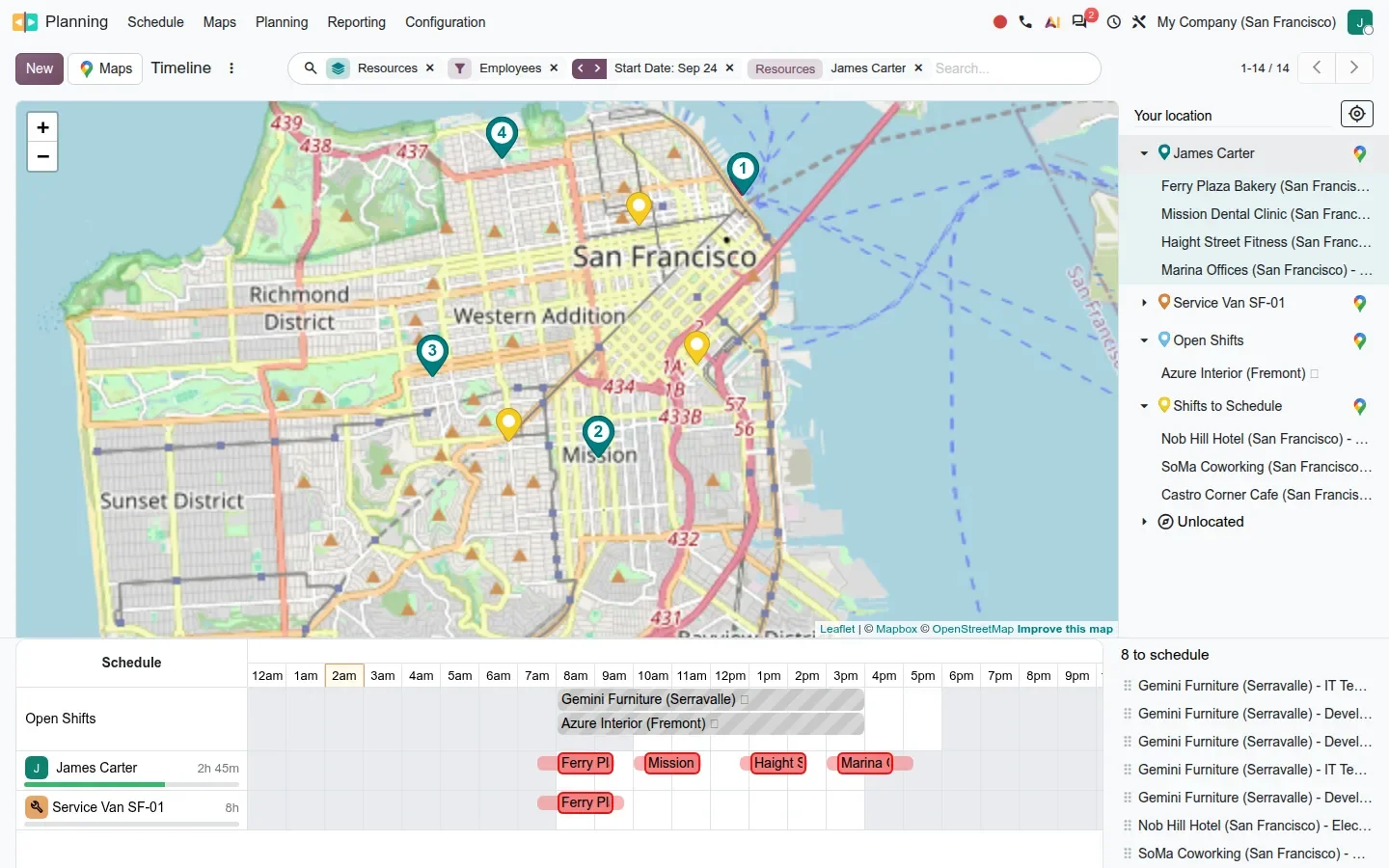
The guide also describes an auto-plan that places open shifts on the technician with the least travel, and a travel fees setting to invoice that time. Both rely on Mapbox routing, and our demo had no token.
The technician's day, from the phone
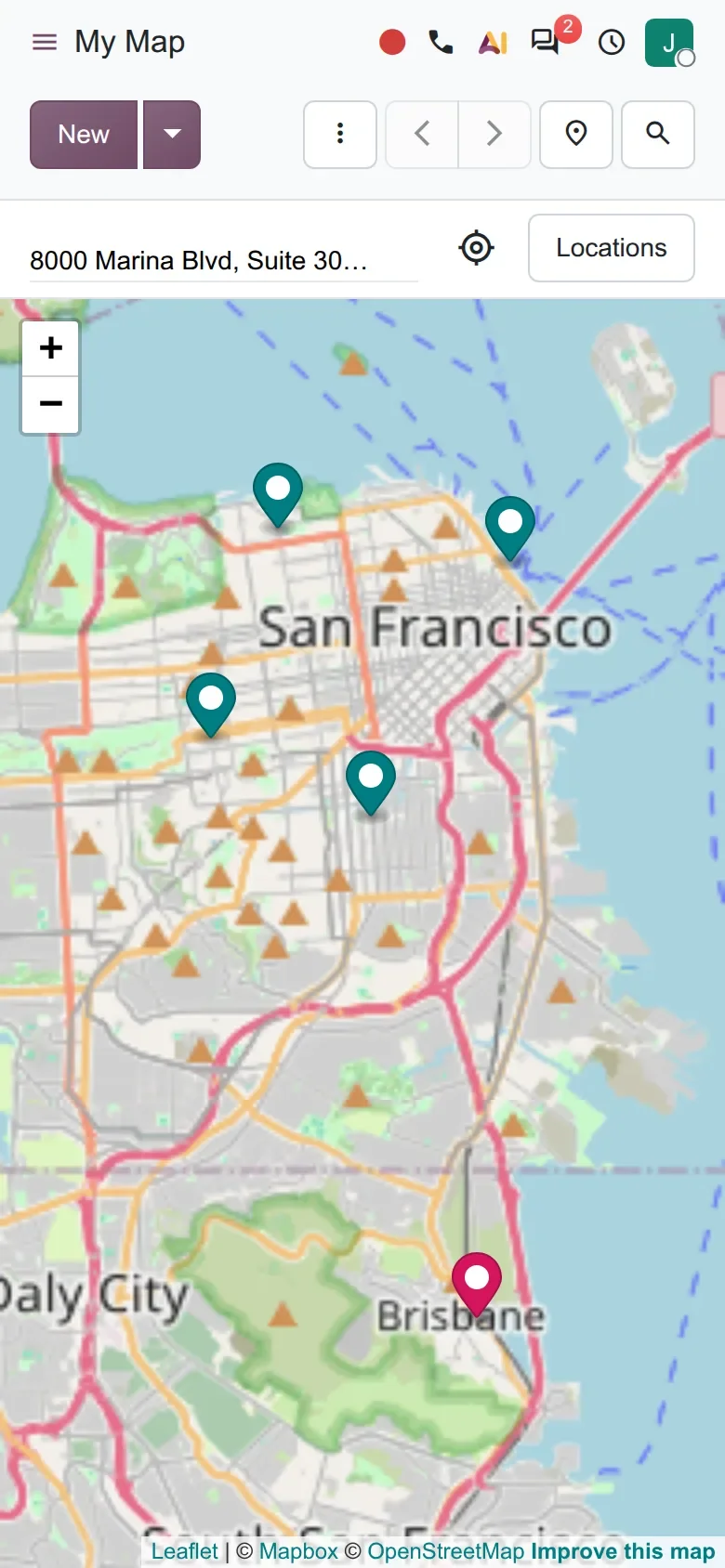
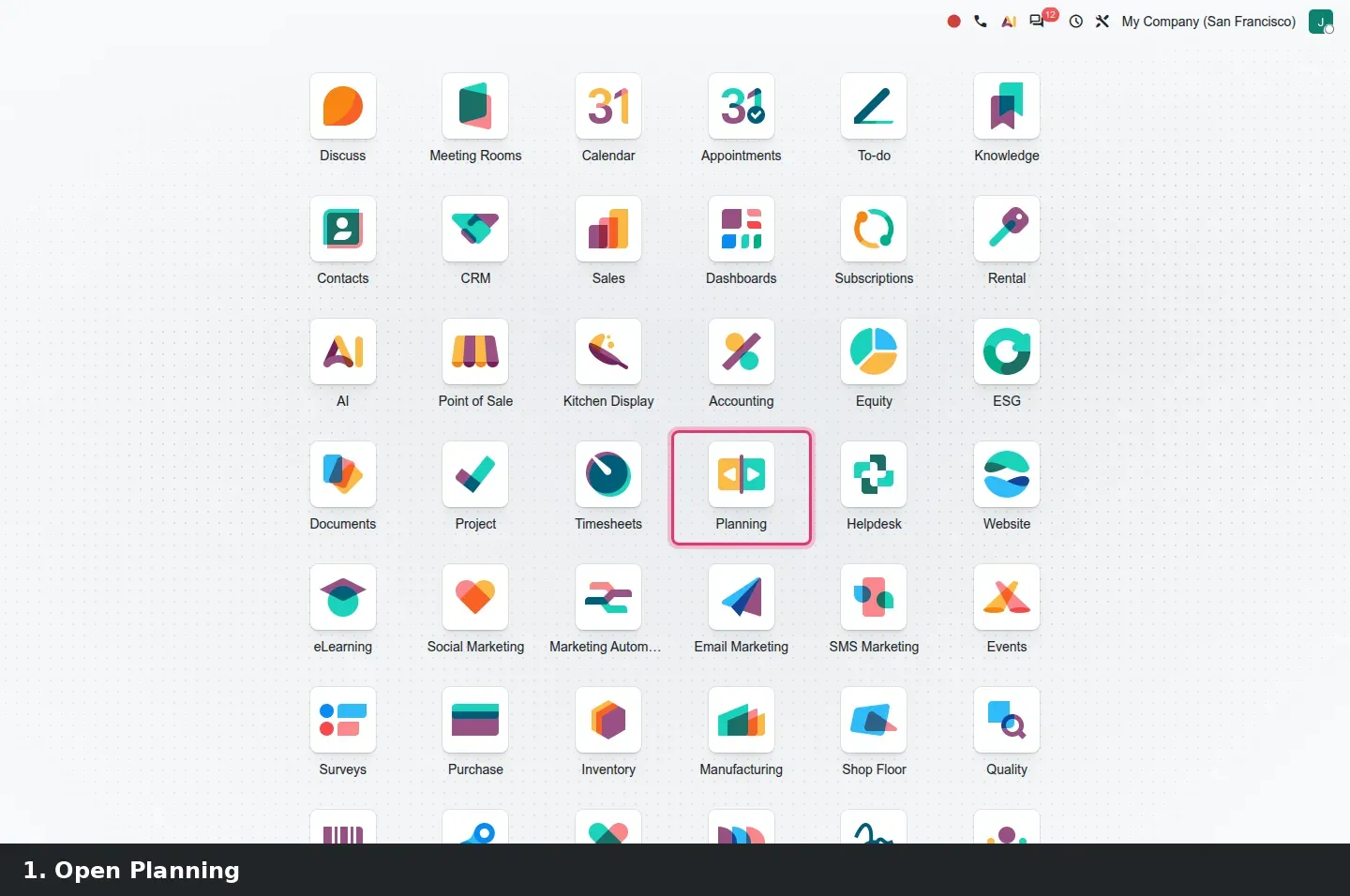
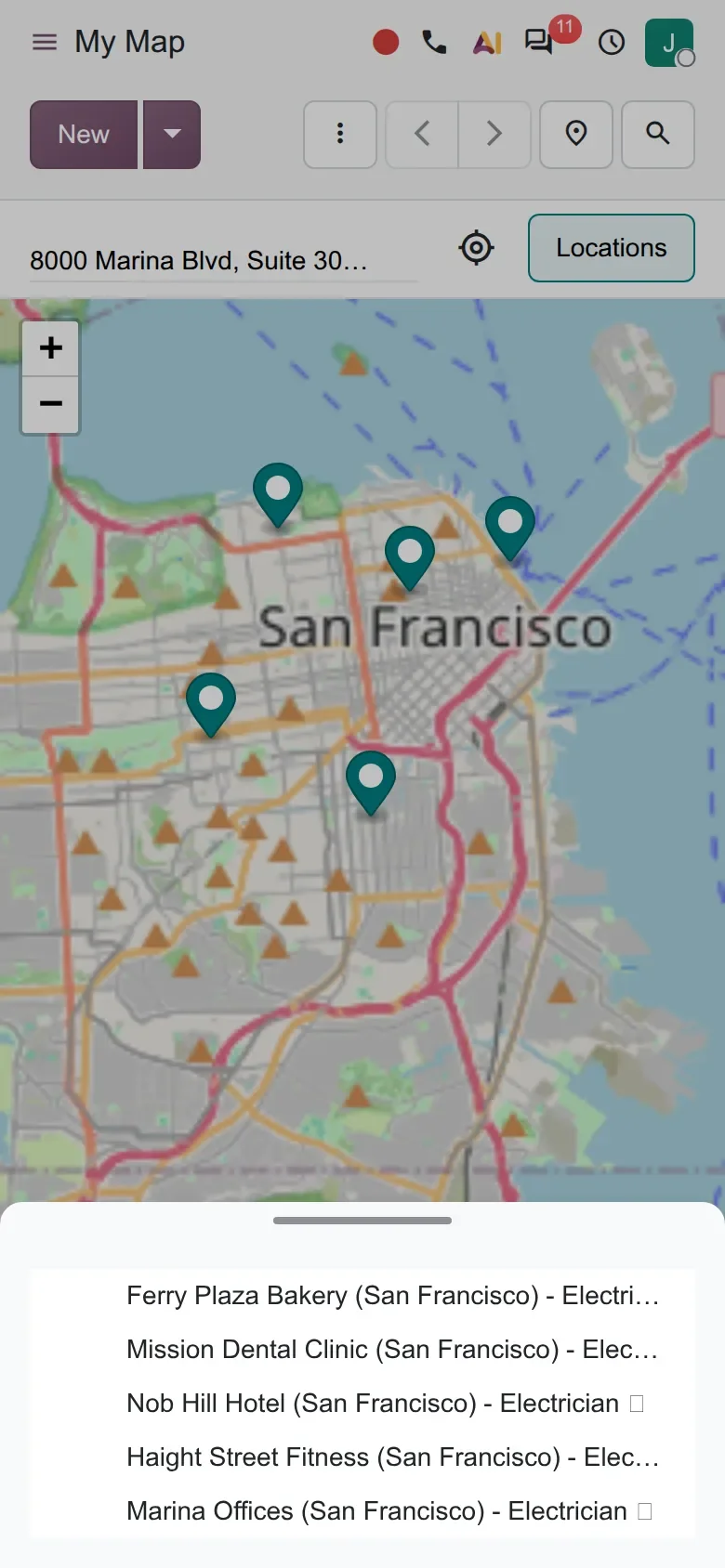
Technicians no longer open a Field Service app. They open Planning on their phone, go to Planning > My > Map and see today's interventions as pins. On the shift they tap Start on arrival, fill the worksheet, add Photos and Products from the form's buttons, and tap Complete when done.
Completing a shift does several things at once on our build: the chatter logs the GPS coordinates, the customer receives a satisfaction survey email (reported under Planning > Reporting > Customer Ratings), and a sales order line is created for the time spent when Billing is on. The old extras survive as bridges: worksheet templates, products and equipment, serial numbers, quotations, SMS notifications, and a Plan Intervention button on Helpdesk tickets.
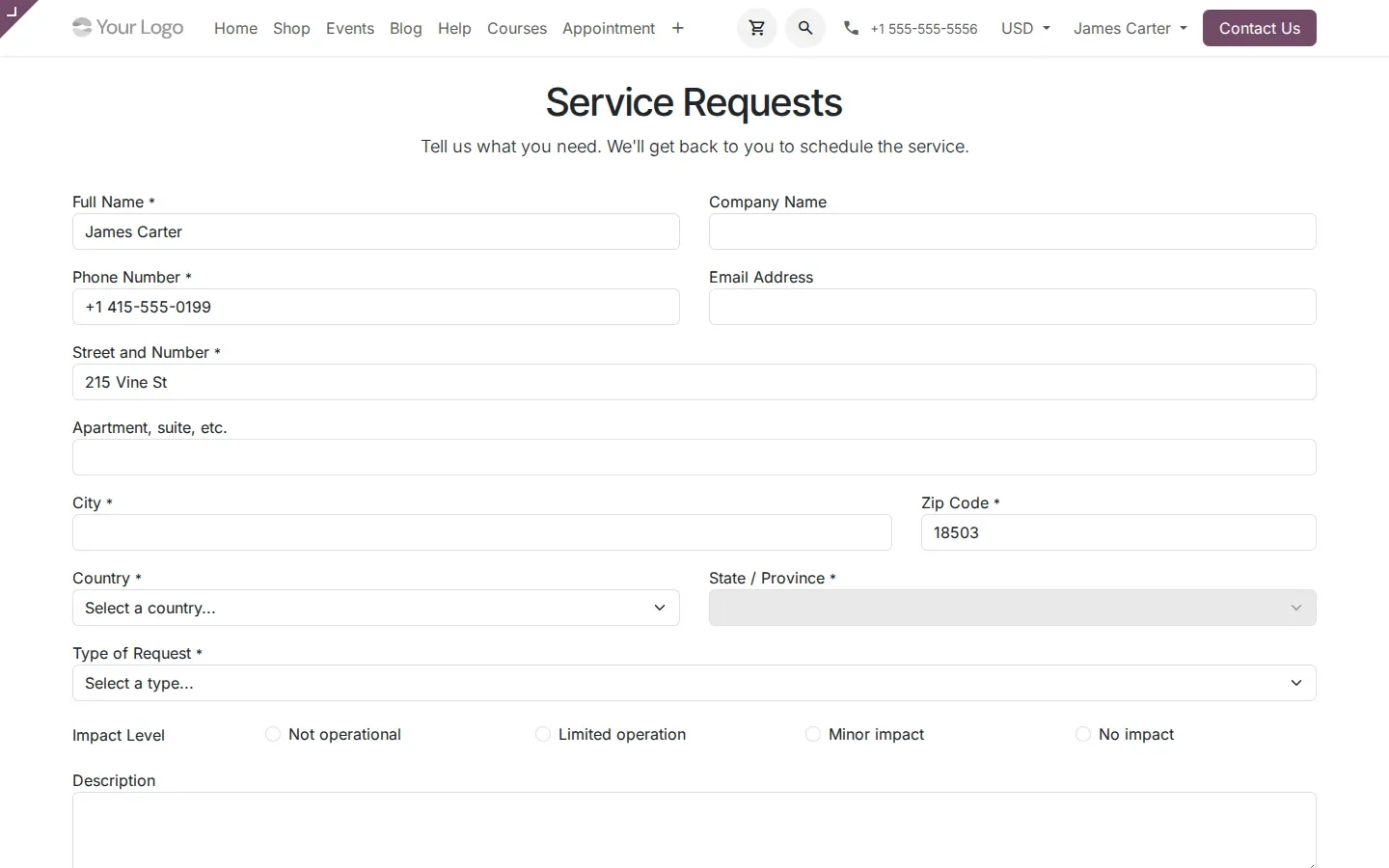
On the customer side, a website module publishes a public form at /service-requests: name, phone, address, type of request and impact level, landing in Planning as a shift to schedule.
A side panel for unscheduled work, and vans that follow their driver
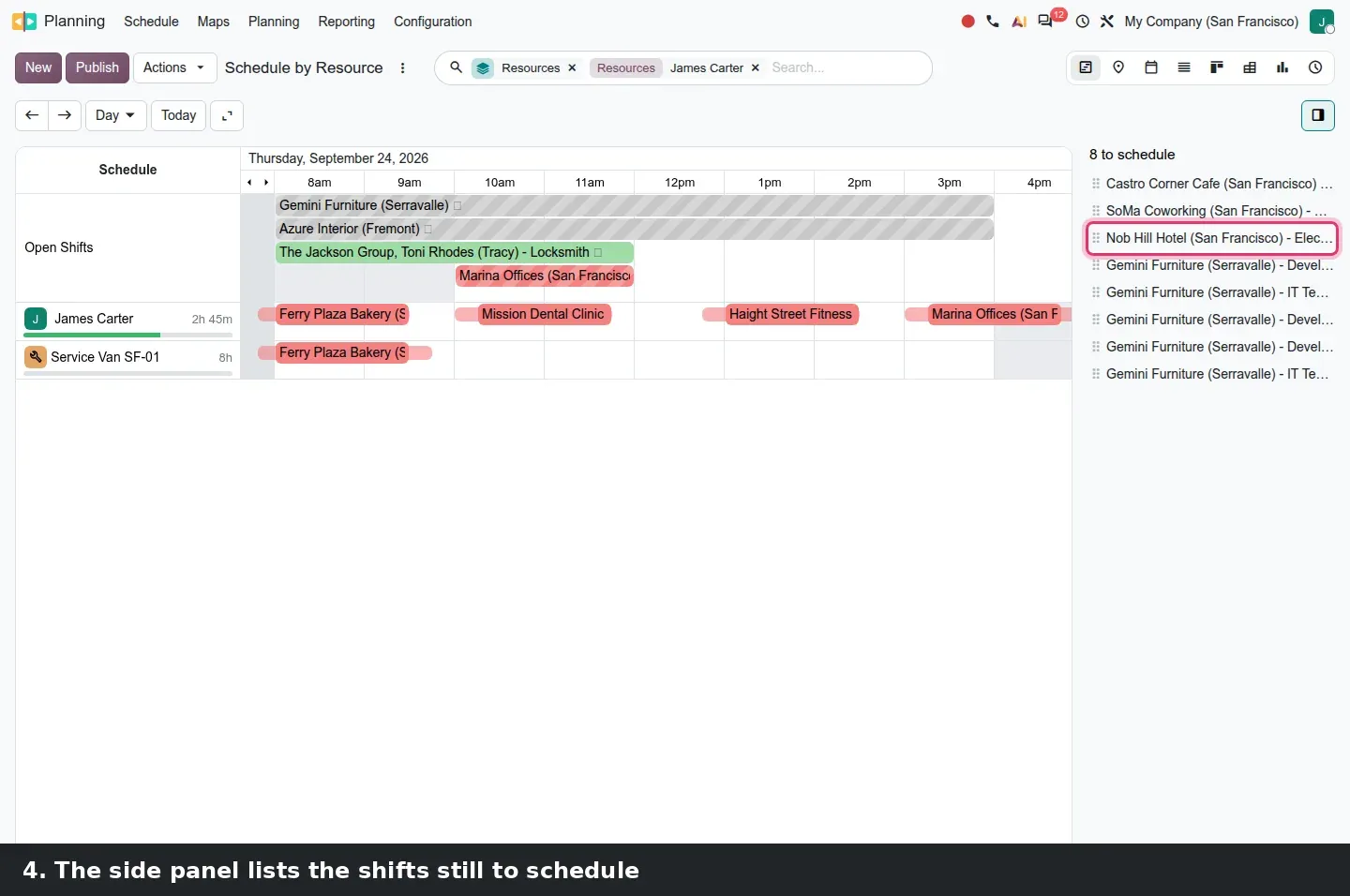
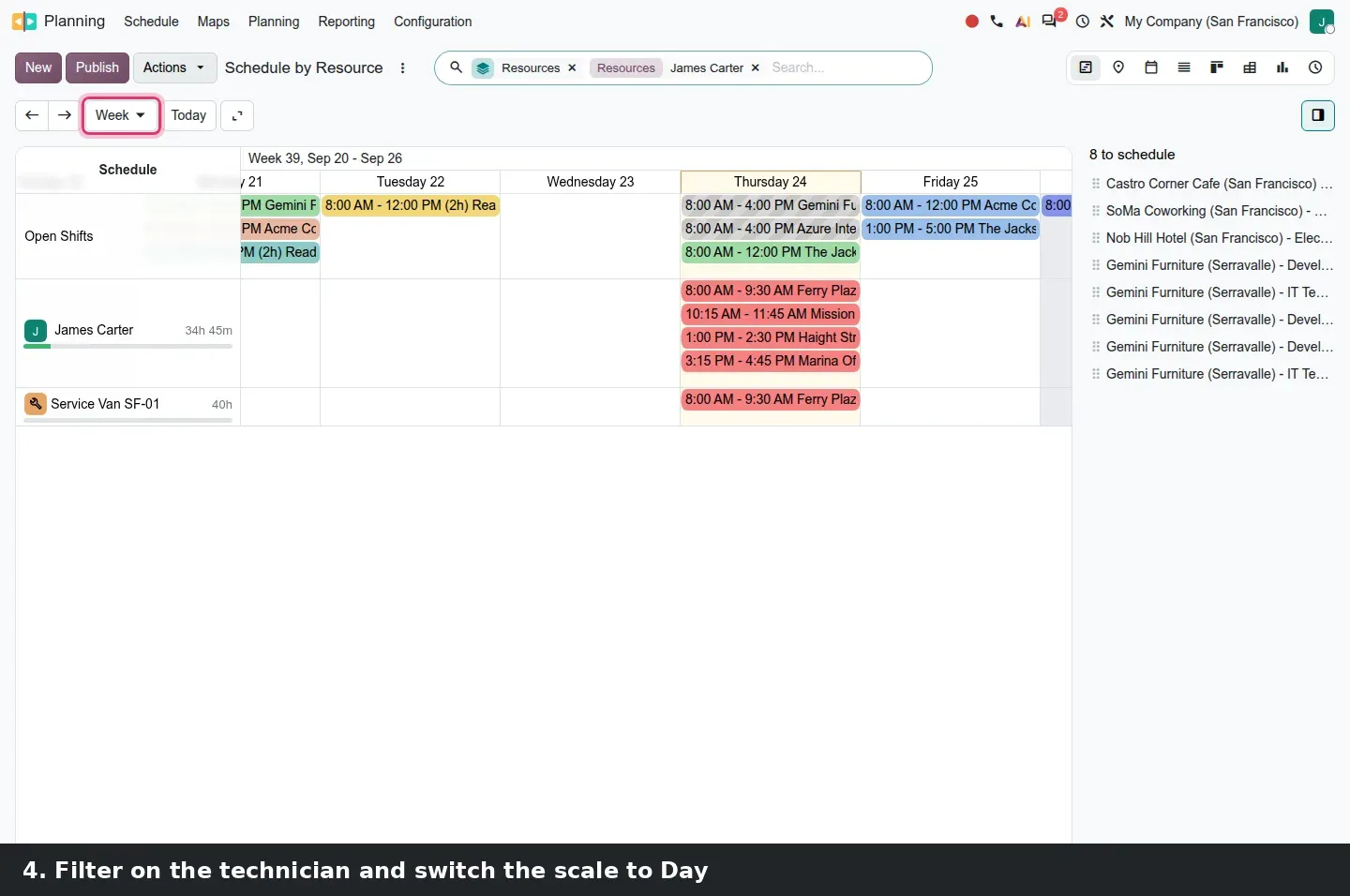
The most visible Planning change, not limited to field service, is a side panel on the right of the Gantt and calendar views. It lists shifts that have no dates yet, with a count in its header (8 to schedule on our demo). Drag a line from the panel onto a technician's row, drop it at the right hour, and the count drops by one. Open shifts that already have dates stay in the Open Shifts row.
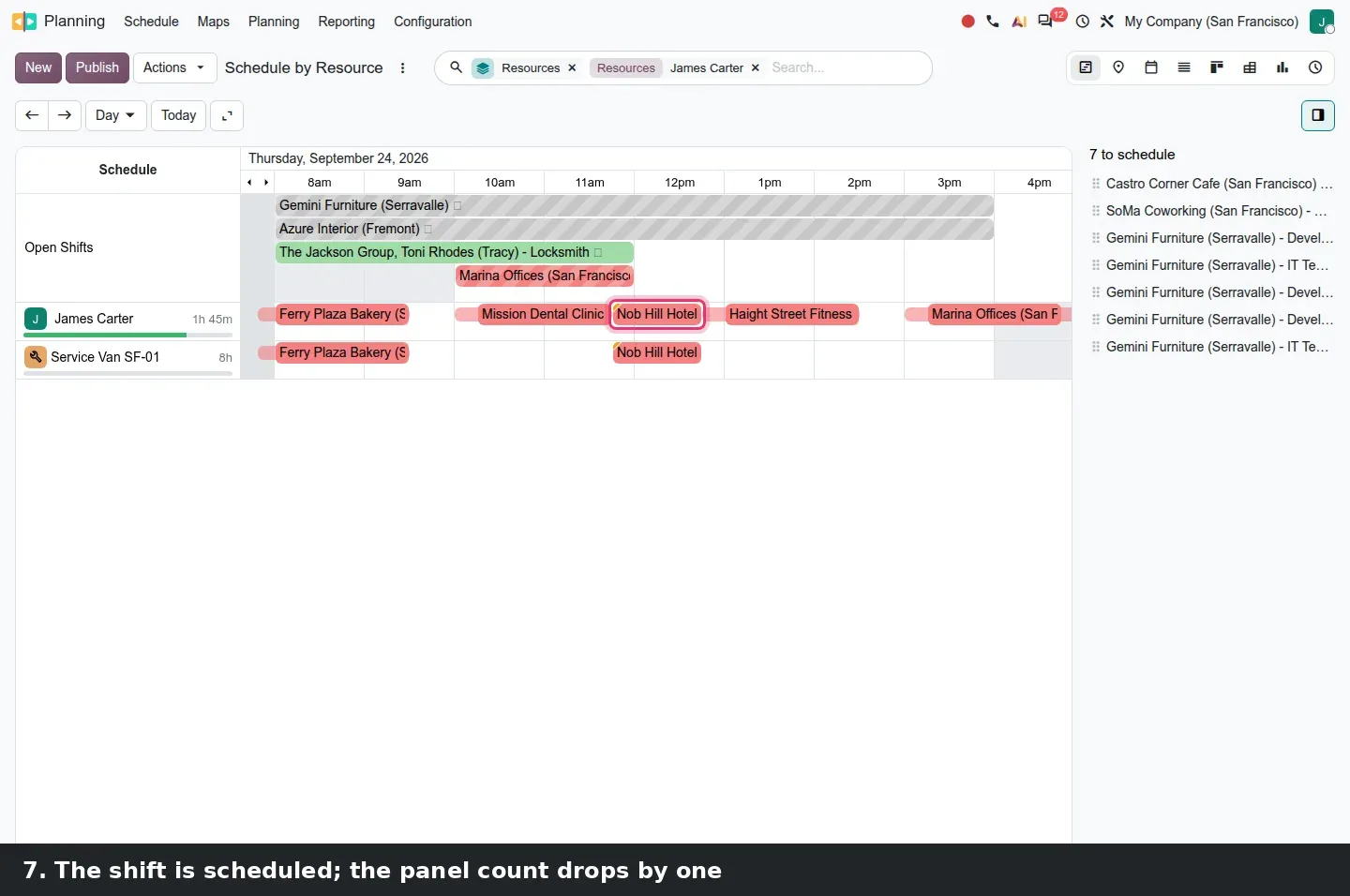
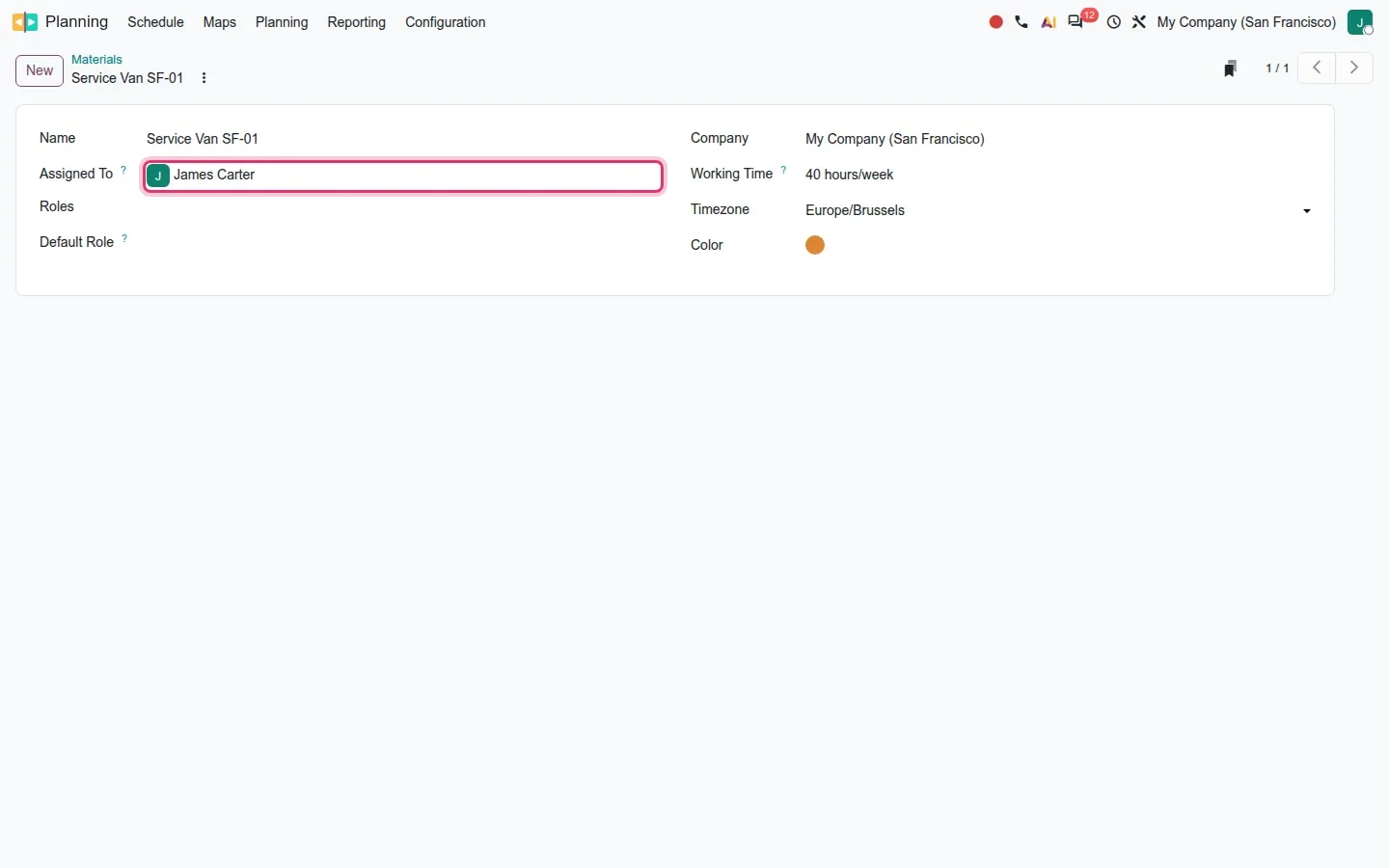
Materials become first-class resources. Vans, machines and rooms live under Planning > Configuration > Materials; new in 20, a material has an Assigned To field linking it to an employee. Put that employee on a shift and the material joins the Resources field automatically, on both rows of the Gantt.
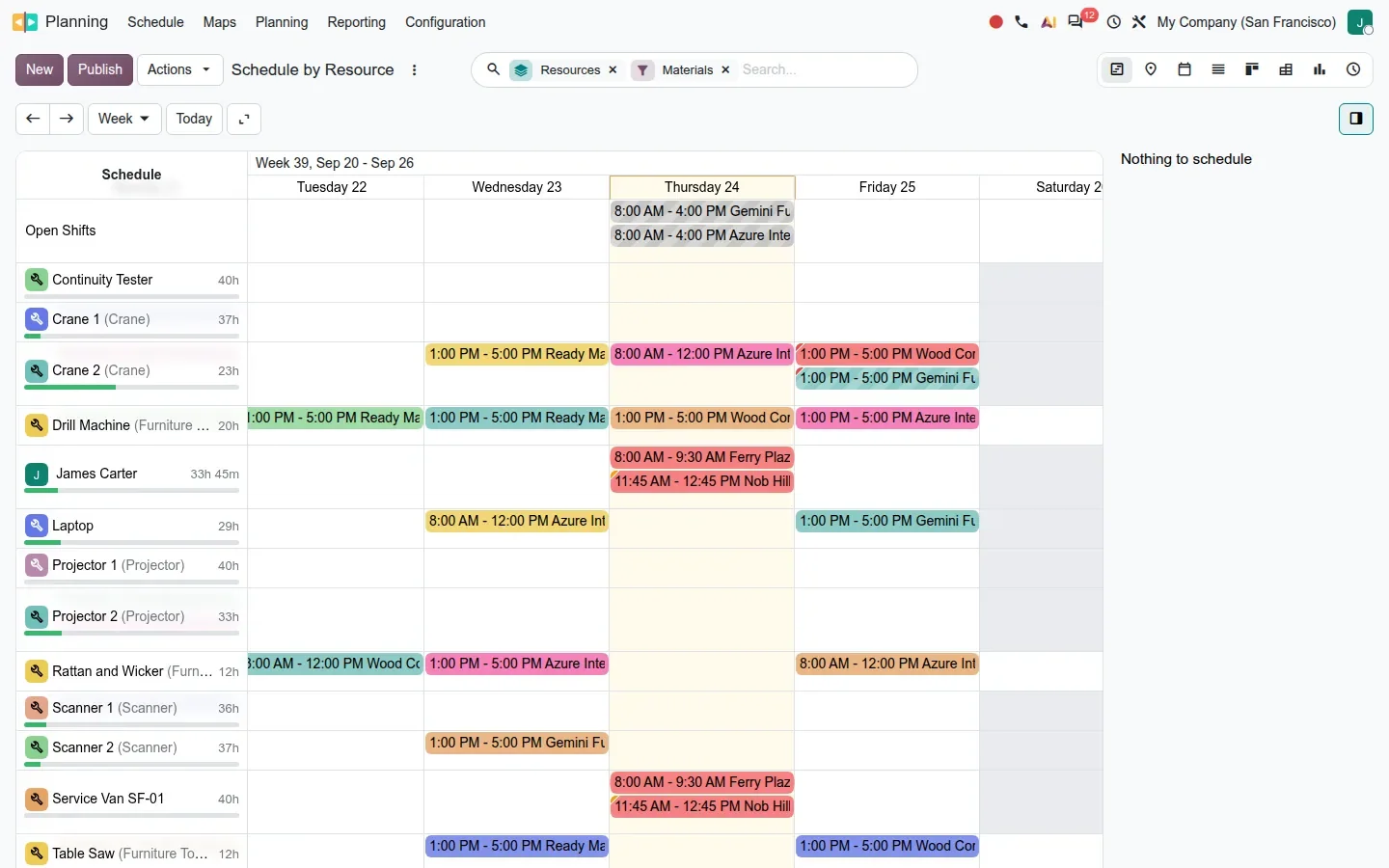
The search panel gains Employees and Materials filters, so the Gantt shows one row per person or one per machine; material rows are folded by default in field service views. Flexible resources are handled in the background: employees on a flexible schedule get hours computed per day and per week, so part-time staff get correct progress bars and capacity.
What to try first
Create one material per vehicle, set Assigned To on each, then plan a normal week from the side panel. If the van rows fill up without anyone touching them, you have removed a daily chore for the dispatcher. If two technicians share a vehicle, leave Assigned To empty.
Recurring visits from Subscriptions and shift-aware Point of Sale
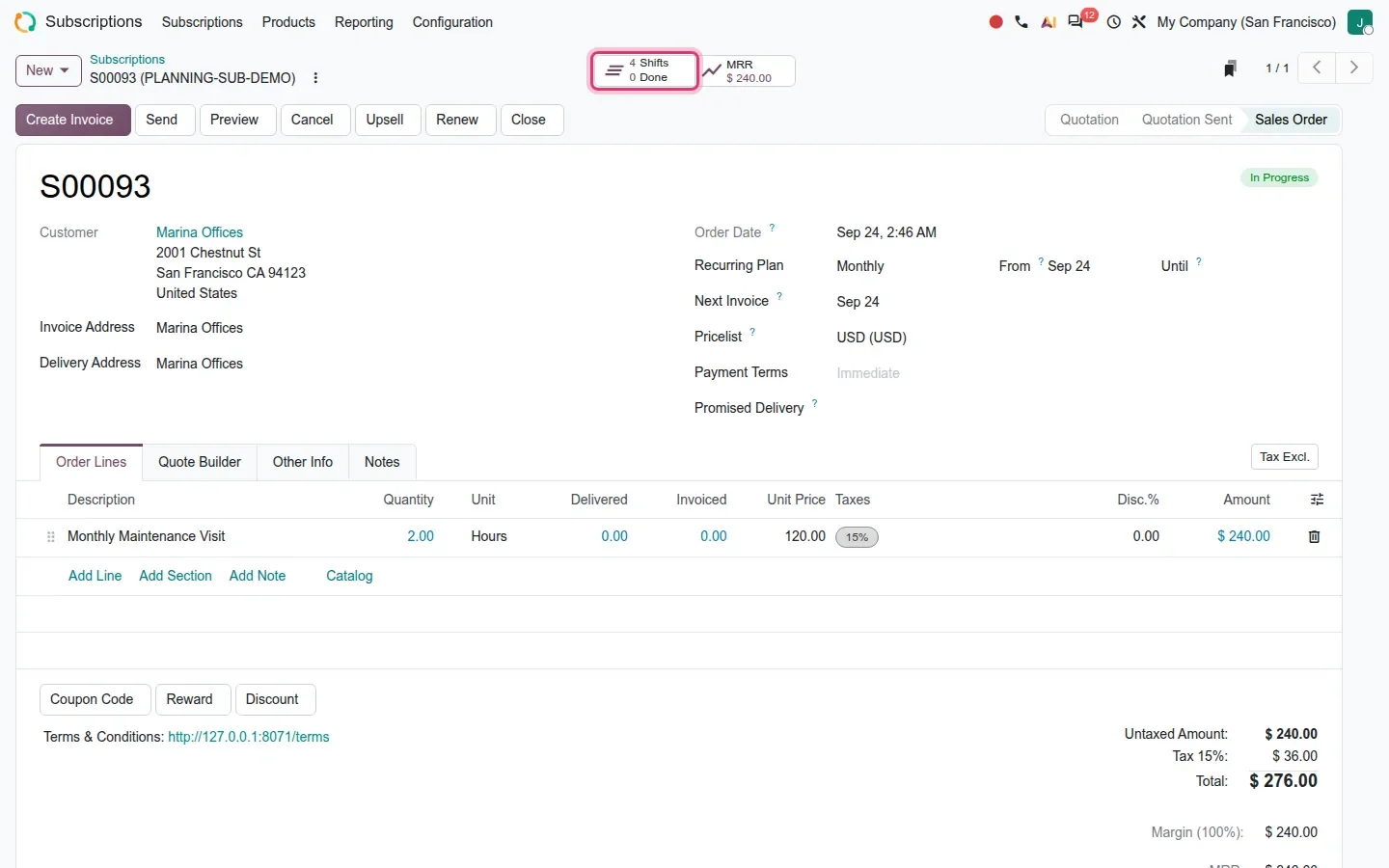
With planning_sale_subscription, a subscription that contains a planning-enabled service product generates recurring shifts, and closing or changing the plan cancels or updates the recurrence. On our demo, a monthly subscription with a two-hour Monthly Maintenance Visit produced one open shift per month, shown on the subscription as a Shifts smart button (4 Shifts, 0 Done).
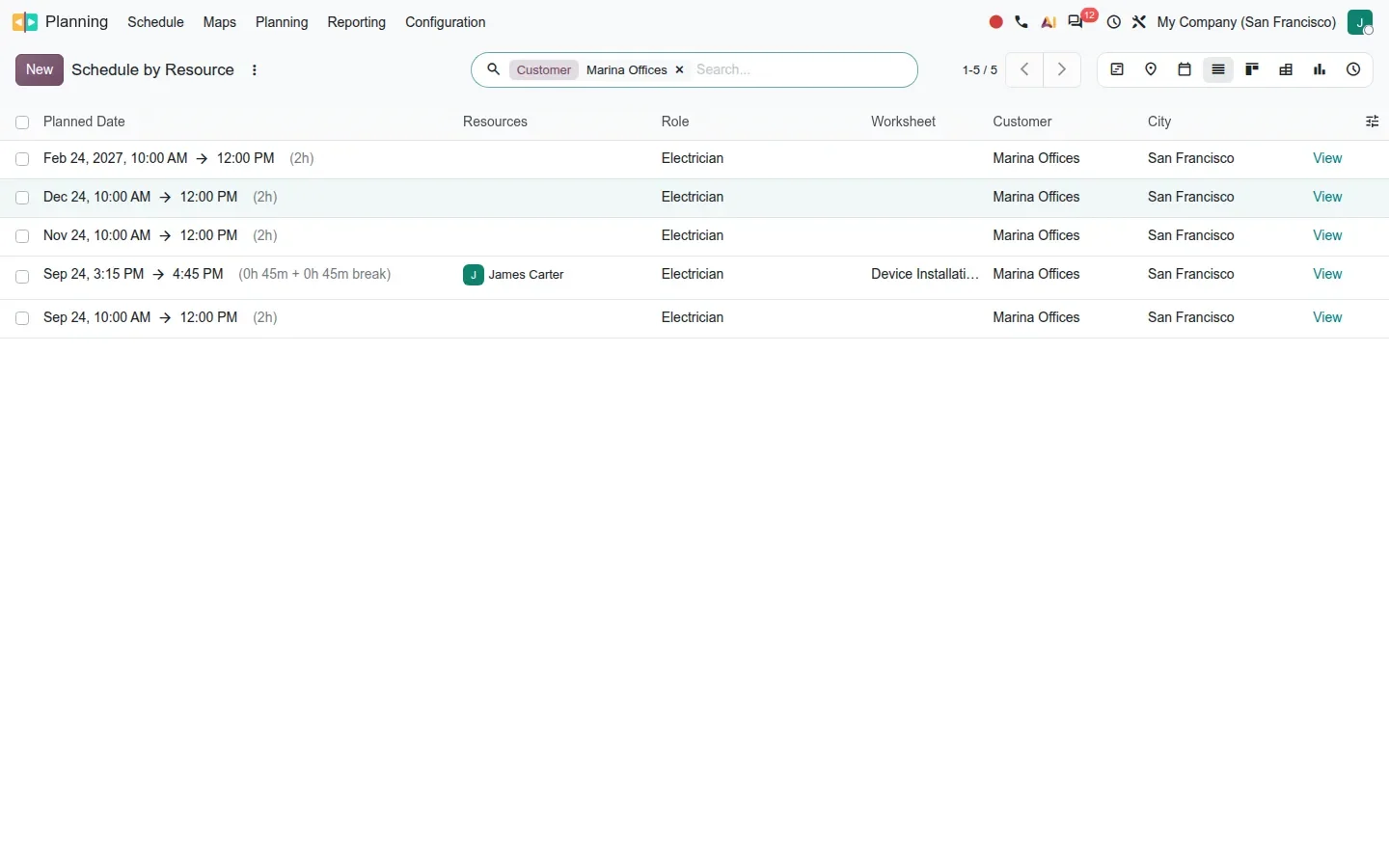
With pos_planning, a planning role gets a Point of Sales field under Planning > Configuration > Roles. The guide presents this as a login control: only employees scheduled at that moment can open the register. Reading the 20.0 code of the bridge, we found something softer: the cashier list shows a Planning subtitle with the shift hours for employees who have a shift today and sorts them first; nothing refuses the others. Treat it as a hint, not a lock, until you have tested it on your own register.
Gantt and Map views: what every app inherits
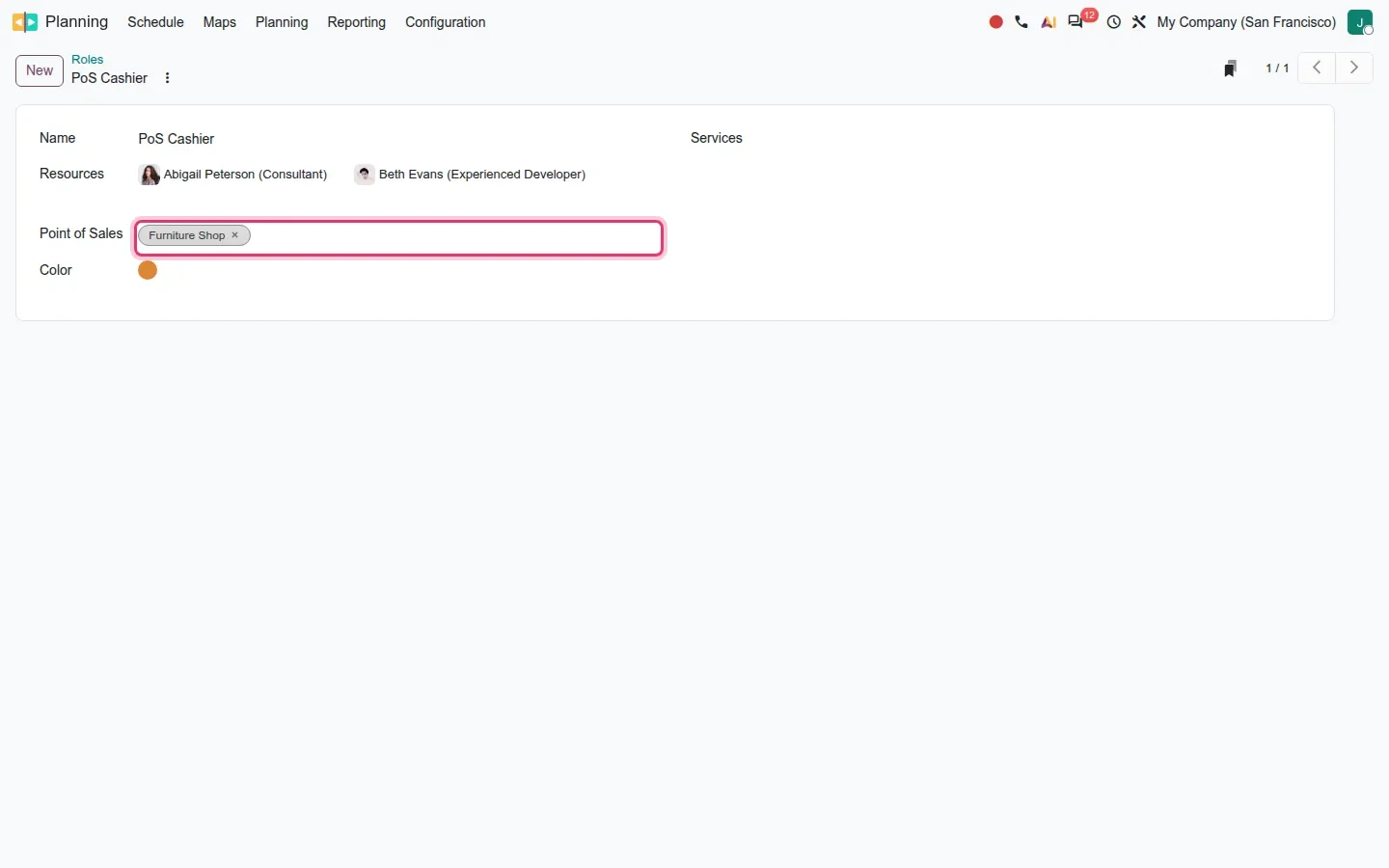
Project, Planning, Manufacturing work orders, Time Off and field service share the Gantt view, so its upgrades reach beyond scheduling. Dependency connectors are now orthogonal paths with rounded corners instead of curves. While a task is dragged, the connectors follow the pill live; releasing reschedules the dependent tasks, with an Undo. Dependencies are switched on per project, in the project form's Settings tab.
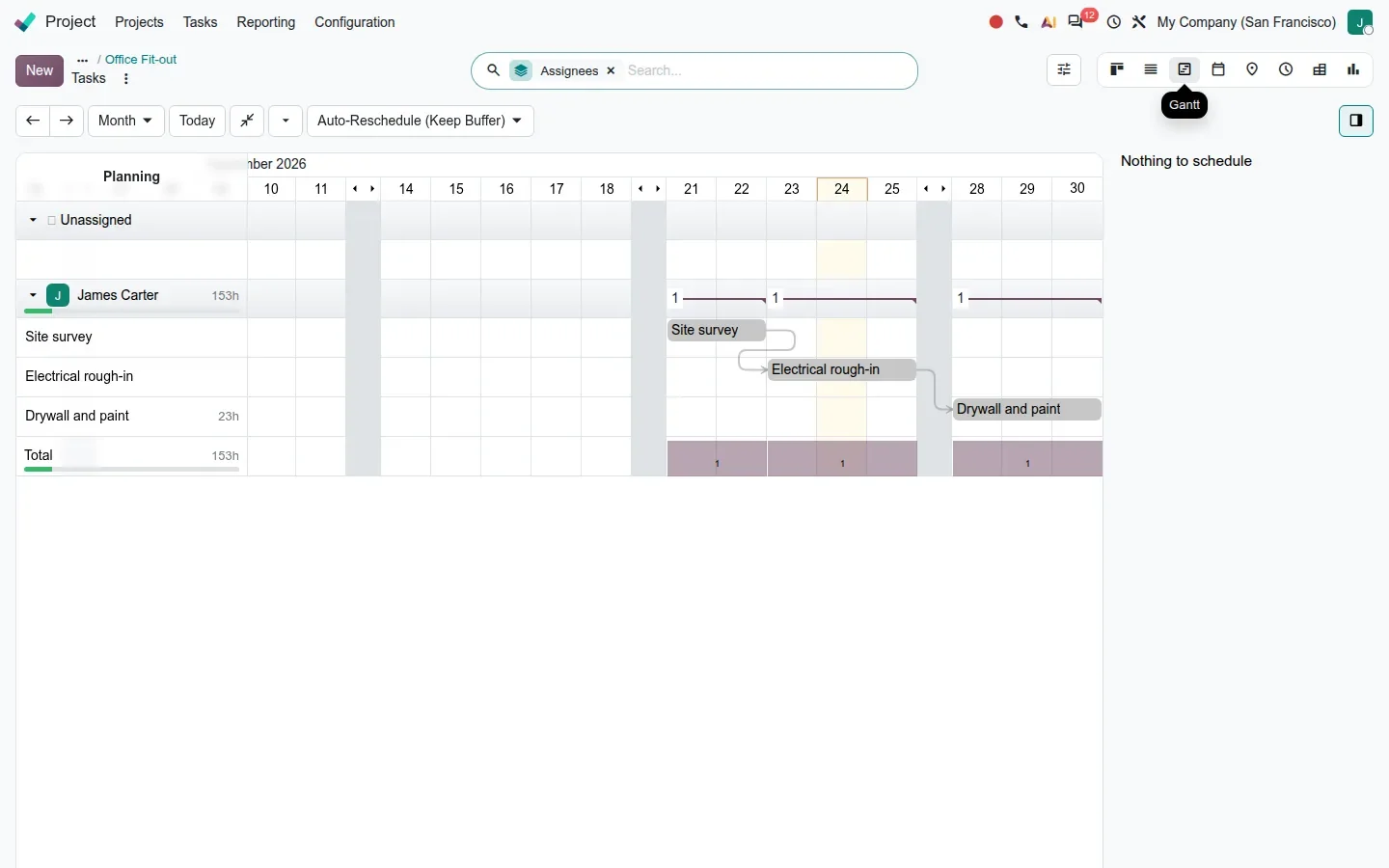
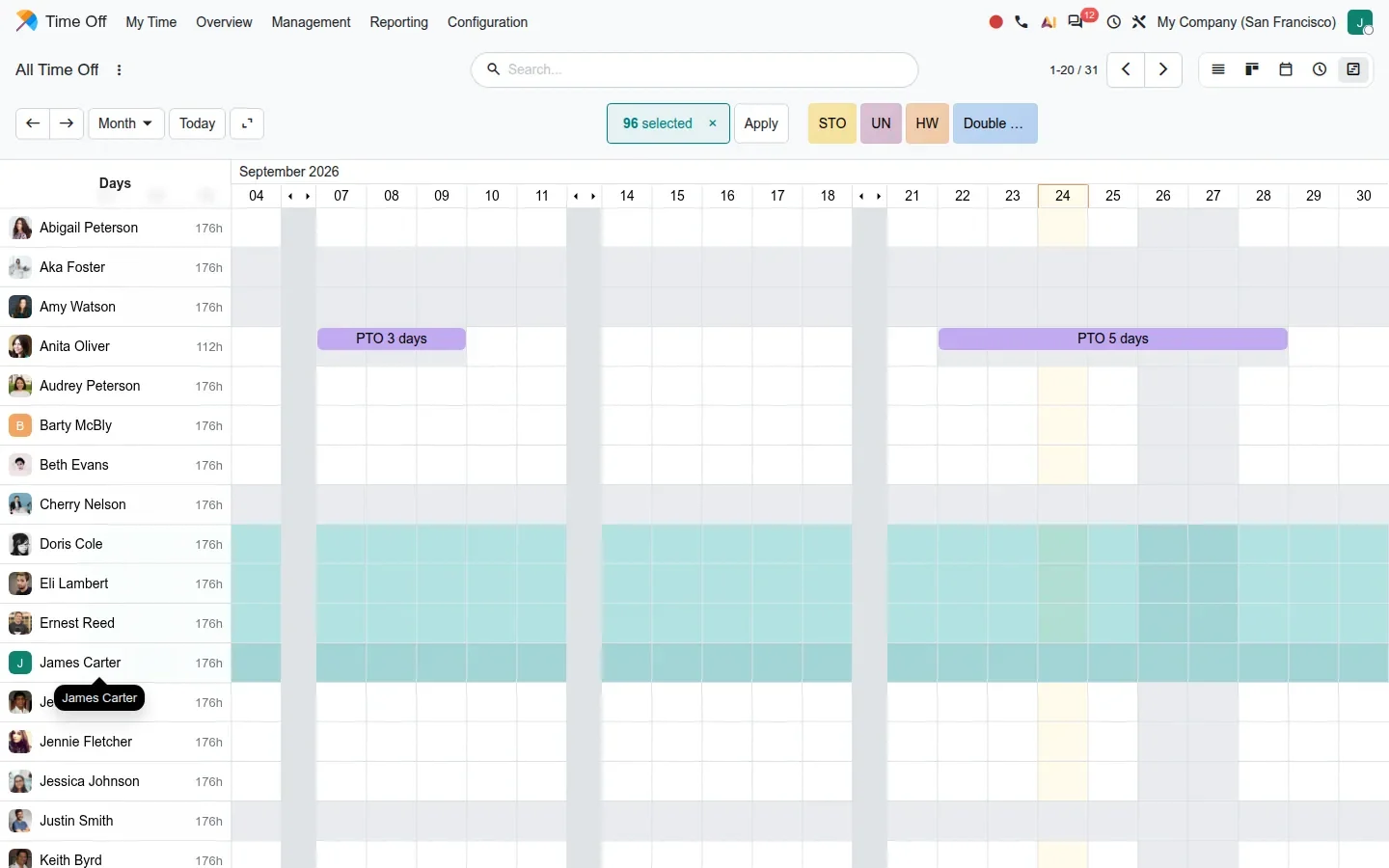
Buffers are the concept behind the travel zones shown earlier: a Gantt can declare buffer fields and draw a lighter zone around the real task. Multi-create is the other big change: click a row header, Shift+click another, or click a day header, and create one record per selected cell in one step. Time Off uses it to enter leaves for several employees at once, with quick-add buttons filtered by available allocation; Planning uses it in its week and month Gantt.
The Map view was refreshed too: redrawn markers that highlight on hover, a pin list grouped by resource, a reworked location search. On a phone, the pin list moves into a bottom sheet behind a Locations button. Group routing and Google Maps routing from the user's own position both need a Mapbox token, which our demo did not have.
How to try it on a demo database
- Install Planning on a demo database. In Planning > Configuration > Settings, tick Field Service, then Worksheets, Customer Report and Geolocation. Add a Mapbox token for real routes.
- Create three or four shifts on the same day for one technician, each with a geocoded customer in the same city.
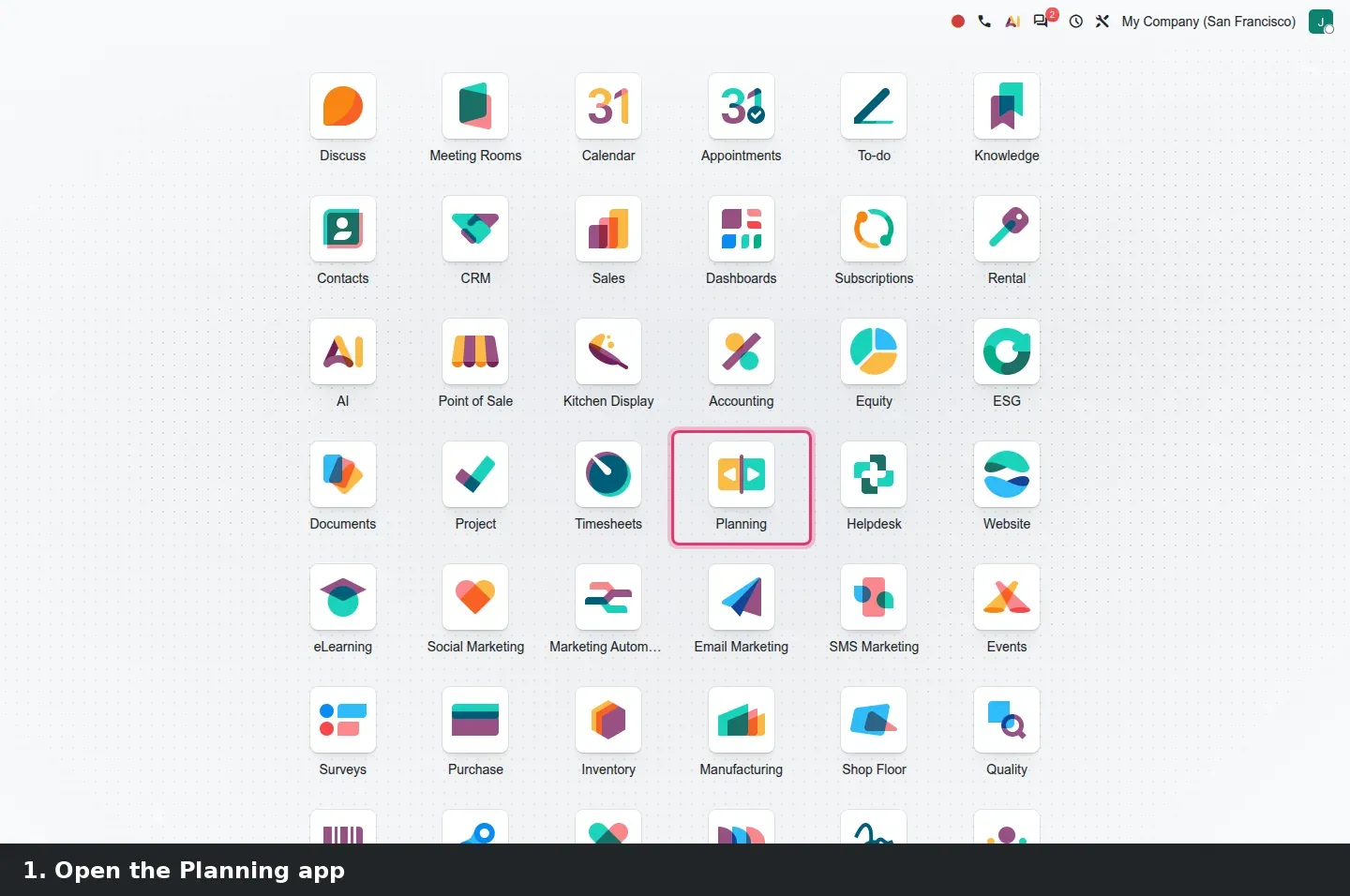
- Open Planning > Schedule > By Resource, filter on the technician, switch to the Day scale. Hover the pale zone before a pill, then click the pill.
- Open Planning > Maps > Timeline and hover the technician's group to number the stops, then Maps > Live Map.
- Create a material under Planning > Configuration > Materials, set Assigned To, then drag a shift from the side panel onto that employee.
- At phone width, open Planning > Planning > My > Map as the technician, then Start and Complete one shift.
What we could not verify on the pre-release build
Our demo had no Mapbox token, so real routes, the route highlight on hover, Google Maps routing from the user's position and the Mapbox auto-plan were not tested; the travel times behind our buffers are straight-line estimates. The Live Map position and the GPS chatter line came from a simulated browser location, not a technician's phone. The Customer Ratings report was empty because no customer had answered. The Shifts smart button on the subscription opened a list with no results although the four shifts carry the sales order, so check it before relying on it. The Point of Sale login behaviour was read in the code, not exercised on a register. Everything else on this page was clicked through on the 20.0 Enterprise build of 23 September 2026.
What this means for an upgrade
If you run Field Service on Odoo 17, 18 or 19, this is the change to plan around. The industry_fsm modules, the helpdesk_fsm bridges and documents_fsm no longer exist in the 20.0 enterprise branch, and anything that names them (install scripts, custom modules, training material) fails quietly: Odoo only logs "invalid module names, ignored" and carries on. Technicians will open Planning instead of Field Service, settings move to Planning > Configuration > Settings, and reports or automations that point at field service tasks must point at planning shifts. The guide does not document how existing interventions are converted, so insist on a test upgrade of a copy of your database and check a month of past jobs, worksheets and sales orders. If a portal or dispatch tool talks to Odoo over XML-RPC or JSON-RPC, the RPC migration audit matters too, since Odoo has scheduled the removal of those endpoints for Odoo 20. That test upgrade is part of our migration service, and the series hub lists the other changes in the same upgrade.
Frequently asked questions
Is Field Service gone in Odoo 20?
As a separate app, yes. Its features moved into Planning behind a Field Service setting, delivered by the planning_field_service modules. Interventions are planning shifts with a customer, an address, a worksheet and In Progress and Completed states. The industry_fsm modules are absent from the 20.0 enterprise branch.
Do technicians need a different app on their phone?
They open Planning instead of Field Service. On the pre-release build the day's interventions are under Planning > My > Map, and each shift has Start and Complete buttons, a worksheet, and Photos and Products buttons. The web interface works at phone width; we did not test a native store app.
Does travel time on the Gantt require Mapbox?
For real routes and durations, yes: a Mapbox token goes in Planning > Configuration > Settings. Without it, the Gantt still draws travel buffers and the maps still show pins, but travel figures are estimates and the route highlight, the routing tooltip and the Mapbox auto-plan do not appear.
Can a subscription generate recurring maintenance visits?
Yes. With the planning_sale_subscription bridge, a confirmed subscription that contains a planning-enabled service product creates one open shift per period, and closing or changing the plan updates the recurrence. On our demo the shifts skipped weekend dates, and the Shifts smart button opened an empty list, which we flag above.
Does Planning block a cashier who has no shift from opening the Point of Sale?
Not on the build we read. The pos_planning bridge links a role to a Point of Sale, then shows a Planning subtitle with the shift hours next to scheduled employees and sorts them first in the cashier list. We found nothing that refuses the others, so test it before presenting it as a control.
Where are the Field Service settings now?
Under Planning > Configuration > Settings, in the Operations block: Field Service, Worksheets, Customer Report, Geolocation, Equipment, Stock by Vehicle, Confirmation Email and the Mapbox token. A Sales & Billing block holds Billing, Products, Quotations and the Website Form for public service requests.