
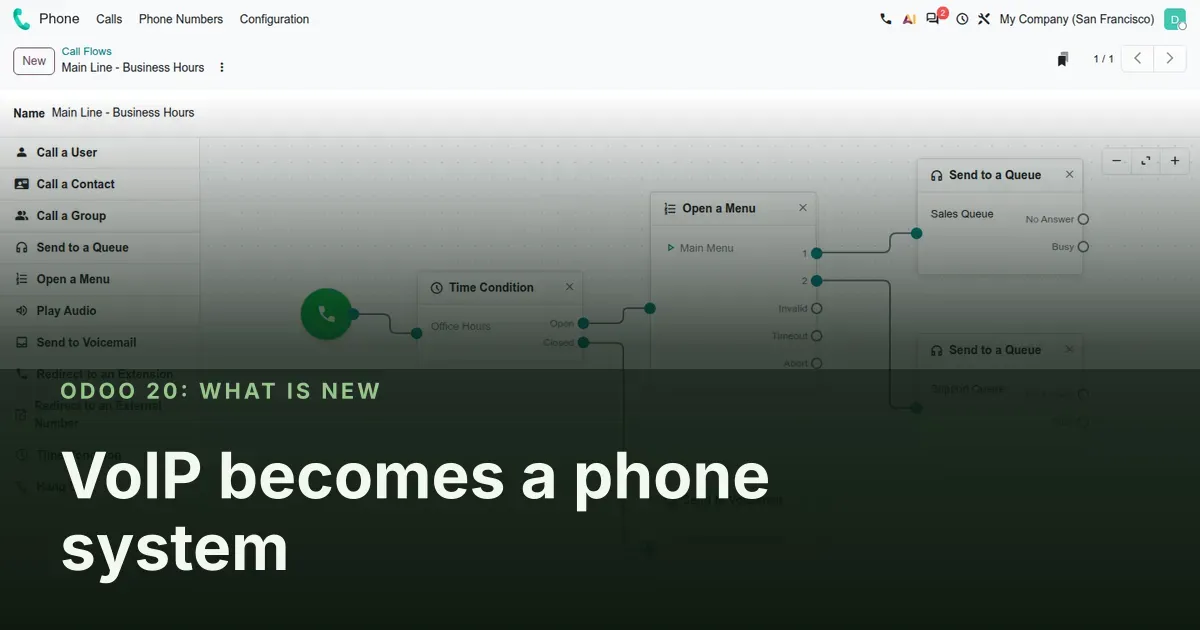
From a click-to-call widget to a PBX you configure inside Odoo
Until Odoo 19 the Phone app was a softphone: click a number, talk, log the call on an activity. Odoo 20 adds a PBX layer to the same voip module. The Configuration menu gains a PBX section with Extensions, Call Flows, Time Conditions, Groups, Menus, Queues, Voice Mailboxes, Sounds and Music on Hold, plus a visual Call Flow editor. For a sales or support manager the question is simple: can this replace the separate cloud phone system we pay for today? This post shows what is on screen in the pre-release build and where the limits are.
One limit comes first. Our demo database has no Odoo Phone Service subscription, and creating a queue, a menu or a voice mailbox from the interface is refused with "Your Odoo subscription does not allow this operation." In this build the PBX features are tied to Odoo's own phone service, not to any SIP provider you already use. We created those records over RPC with a bypass flag to show the screens. The softphone, the Demo environment and the call log need no subscription.
Observed on the Odoo 20.0 Enterprise pre-release build of September 23, 2026. Names, menus and availability can change before general availability; we will update this page when they do.
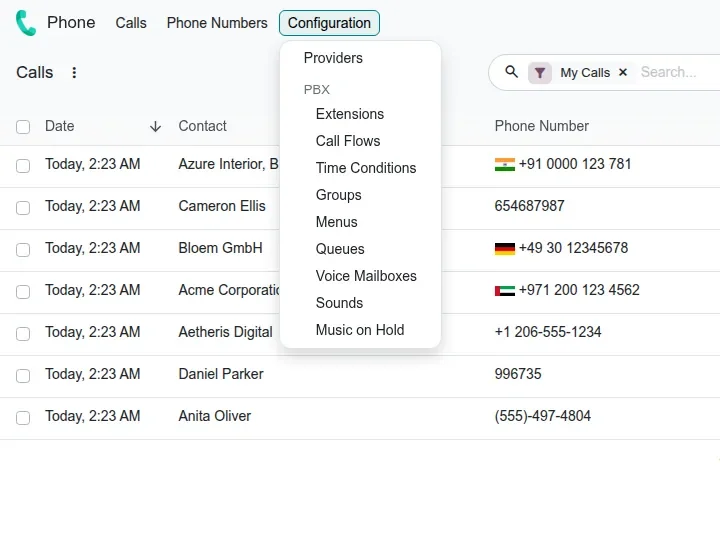
A PBX section appears in the Phone app's configuration
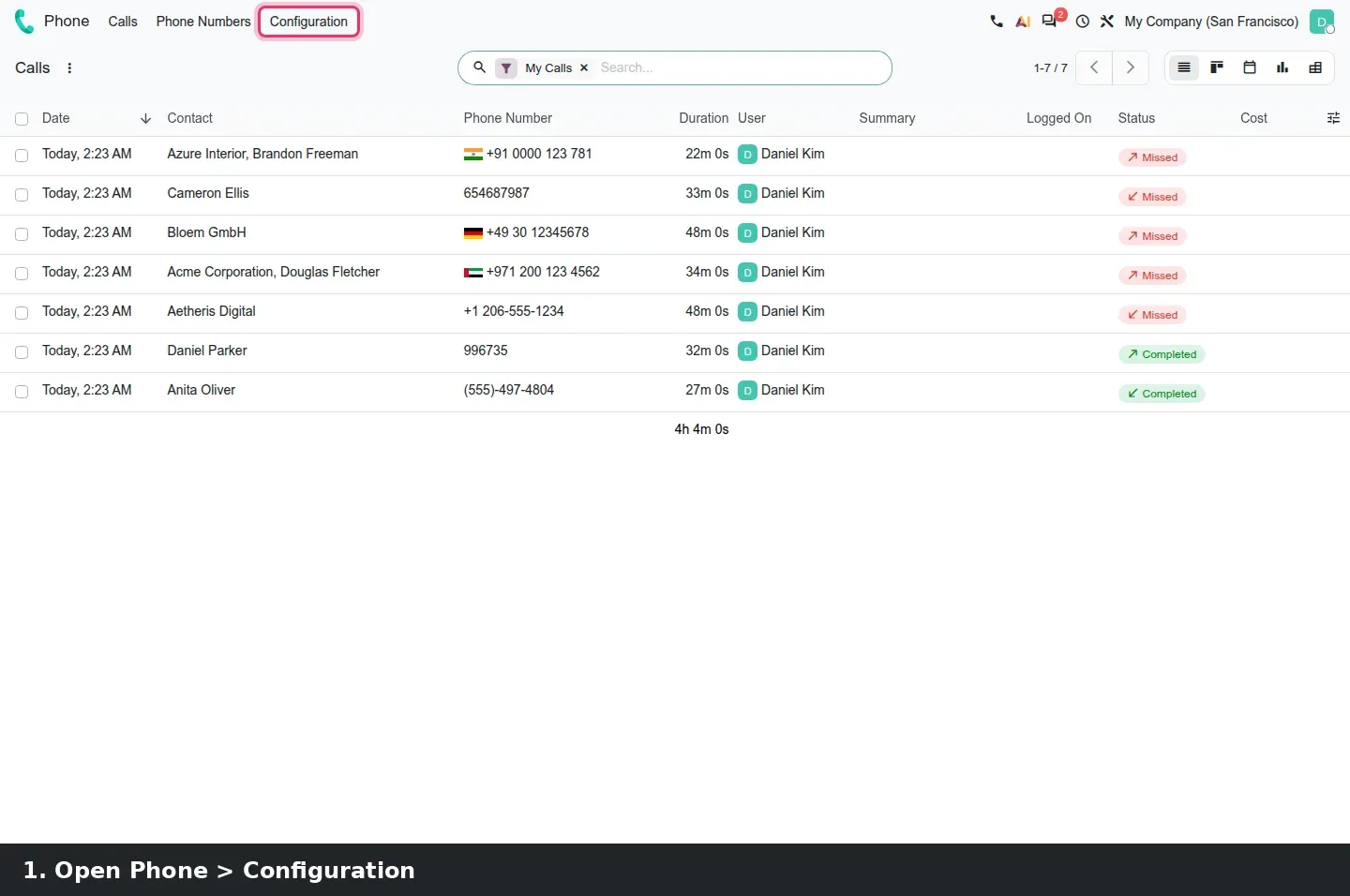
Open Phone > Configuration. Above the line is Providers, as before. Below it a PBX heading groups nine menus: Extensions, Call Flows, Time Conditions, Groups, Menus, Queues, Voice Mailboxes, Sounds and Music on Hold. That is the parts list of a small hosted phone system, except that it now sits next to your contacts, tickets and opportunities instead of in a separate portal.
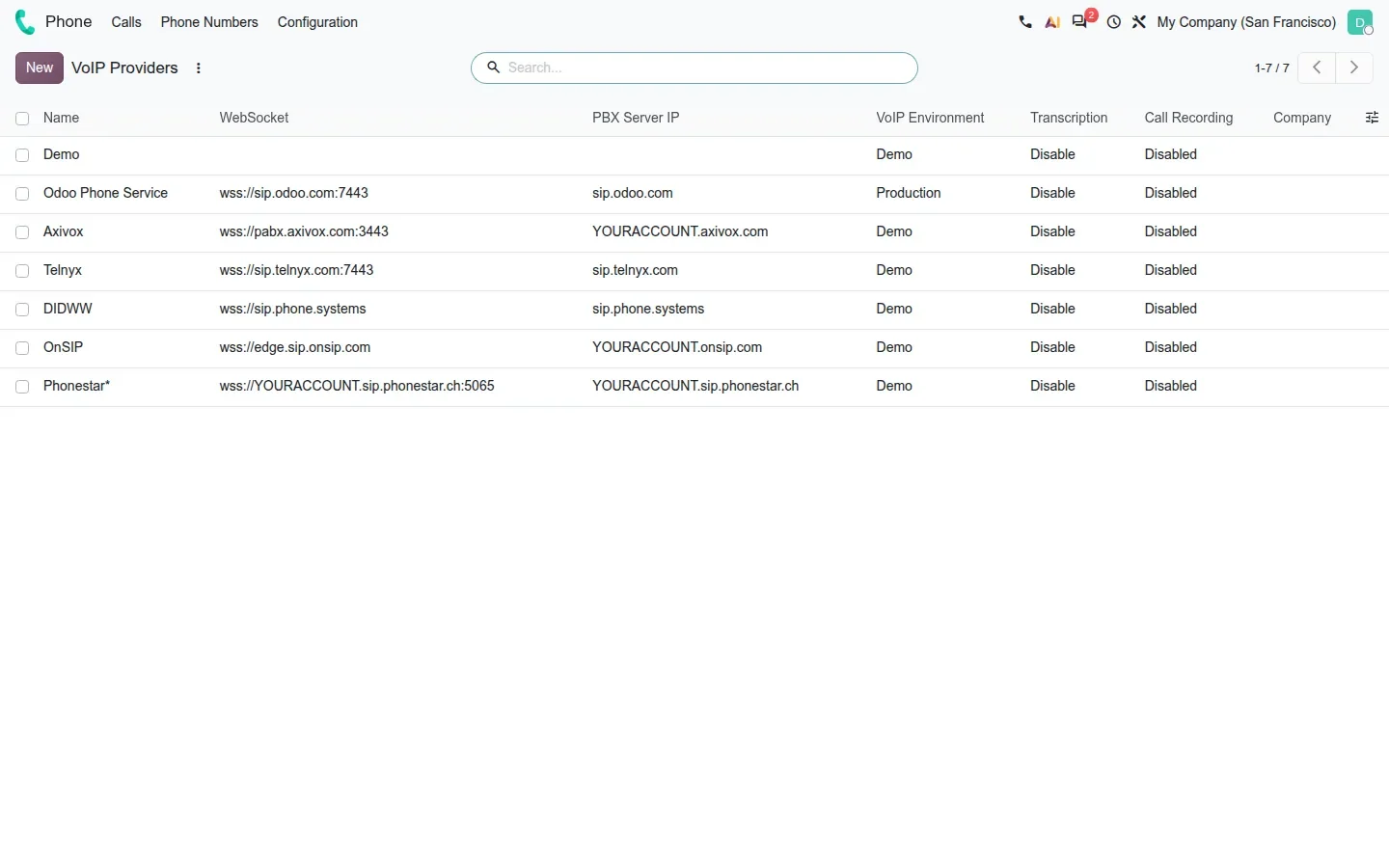
Providers come with seven presets: Demo, Odoo Phone Service, Axivox, Telnyx, DIDWW, OnSIP and Phonestar. Telnyx and Phonestar are new. Each row shows the WebSocket address, the PBX server, a VoIP Environment column set to Demo or Production, and two columns we had not seen before, Transcription and Call Recording, both off on the presets. Only Odoo Phone Service ships in Production; the others start in Demo, so nobody rings a customer by mistake while you configure.
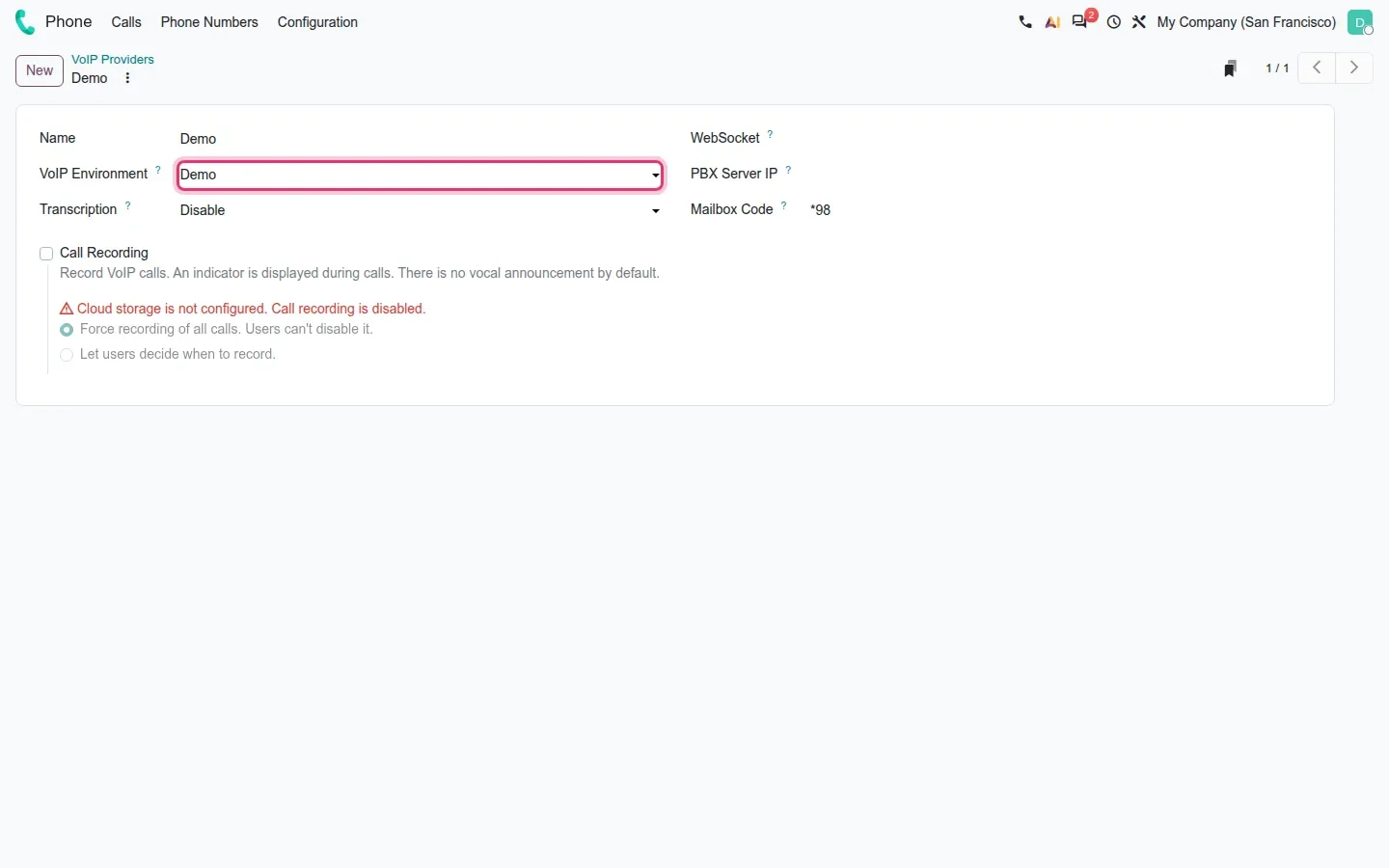
The Demo environment is what makes this post possible. A provider in Demo mode simulates calls: the softphone opens, a timer runs, the call is logged, and no SIP account is needed. It lets a partner demo the flow and an administrator rehearse before switching to Production. One caution: the 20.0 source diff lists the standalone OnSIP module as removed, yet OnSIP still appears as a preset here. We did not test it.
The Call Flow editor draws the routing on a canvas
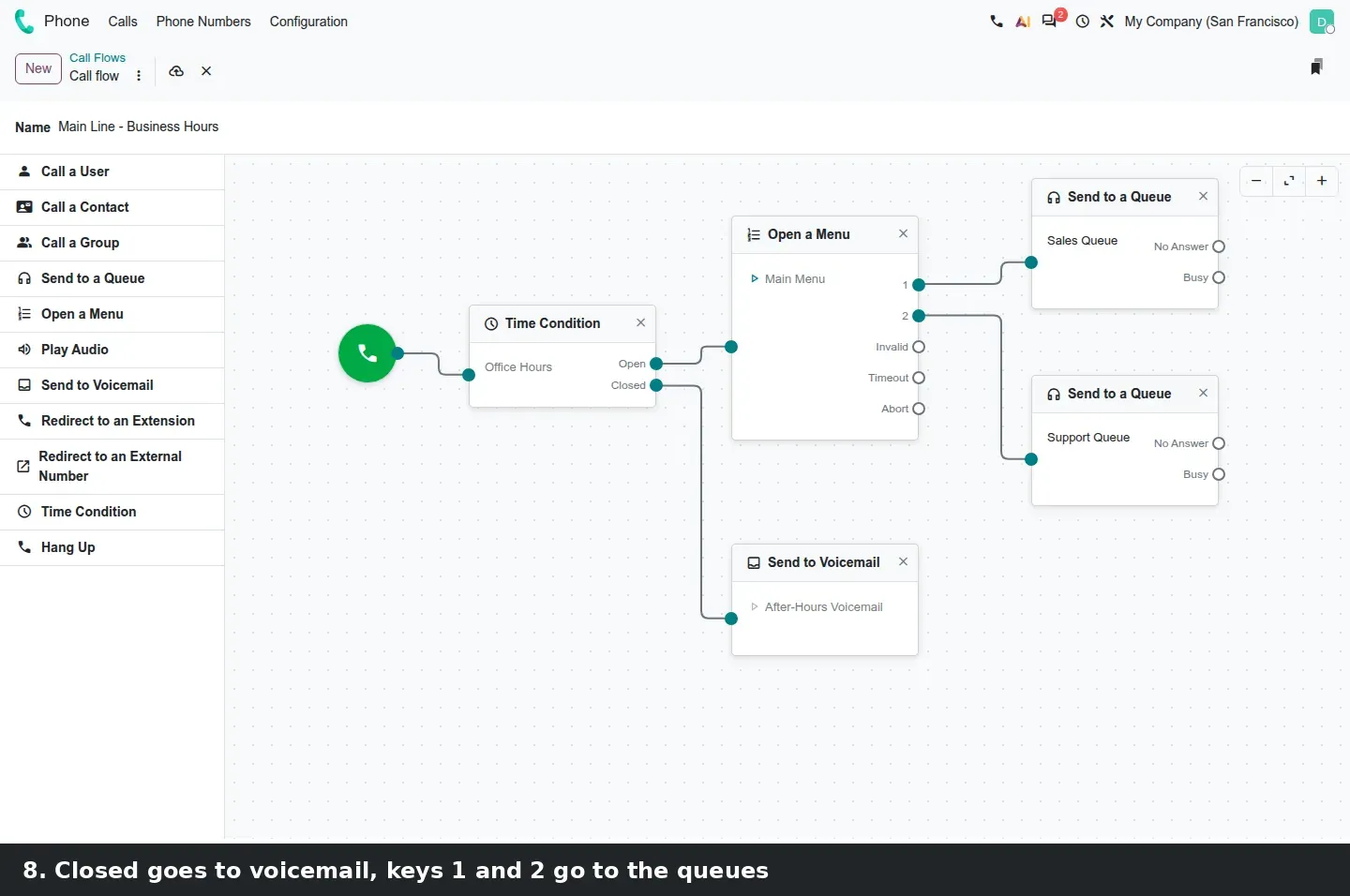
Phone > Configuration > Call Flows opens a canvas with a node palette on the left: Call a User, Call a Contact, Call a Group, Send to a Queue, Open a Menu, Play Audio, Send to Voicemail, Redirect to an Extension, Redirect to an External Number, Time Condition and Hang Up. You drag a node onto the canvas, pick the record it points to and connect the output ports. Each node exposes the outcomes that matter: a Time Condition has Open and Closed, a Menu has one port per key plus Invalid, Timeout and Abort, and a Queue has No Answer and Busy.
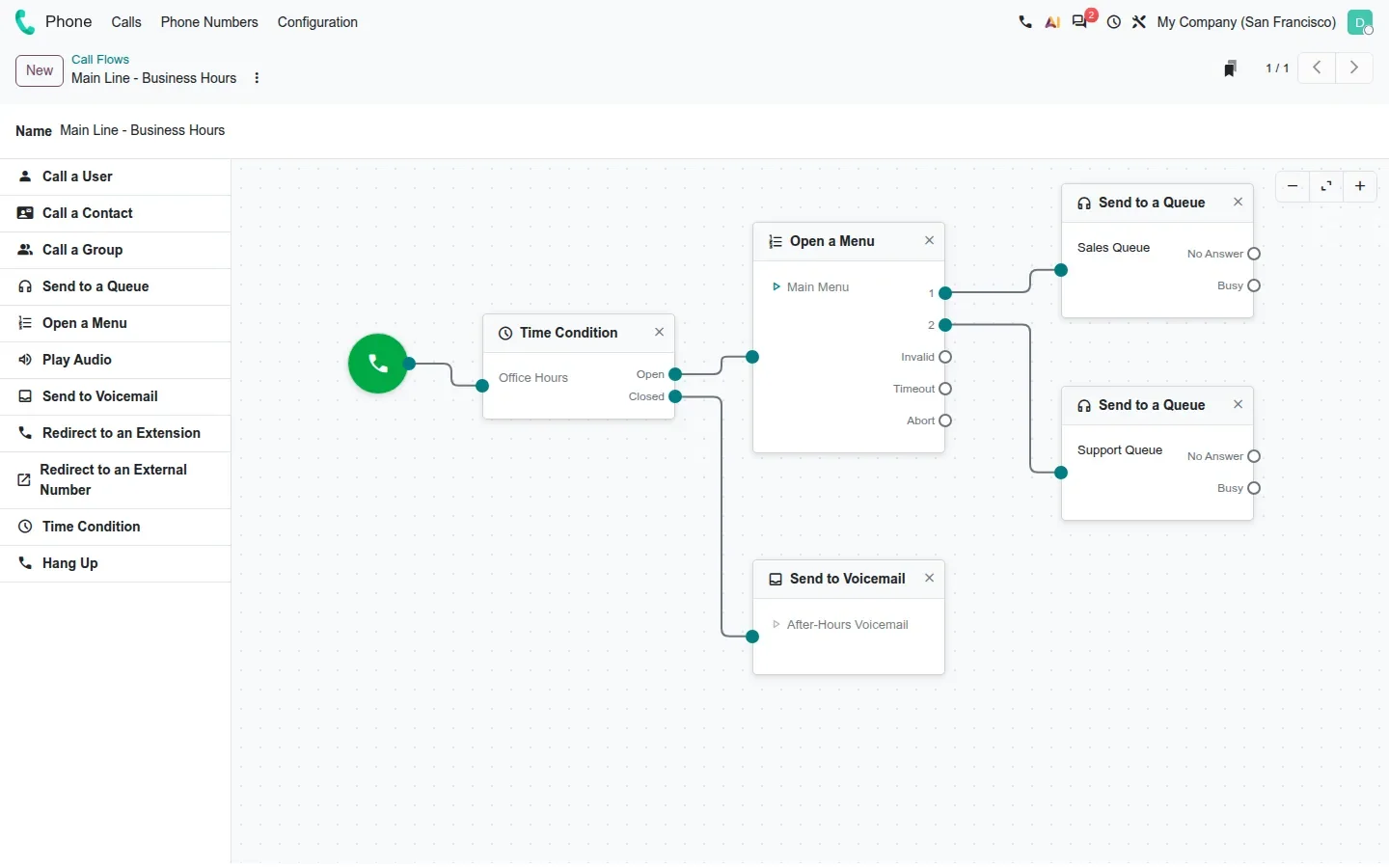
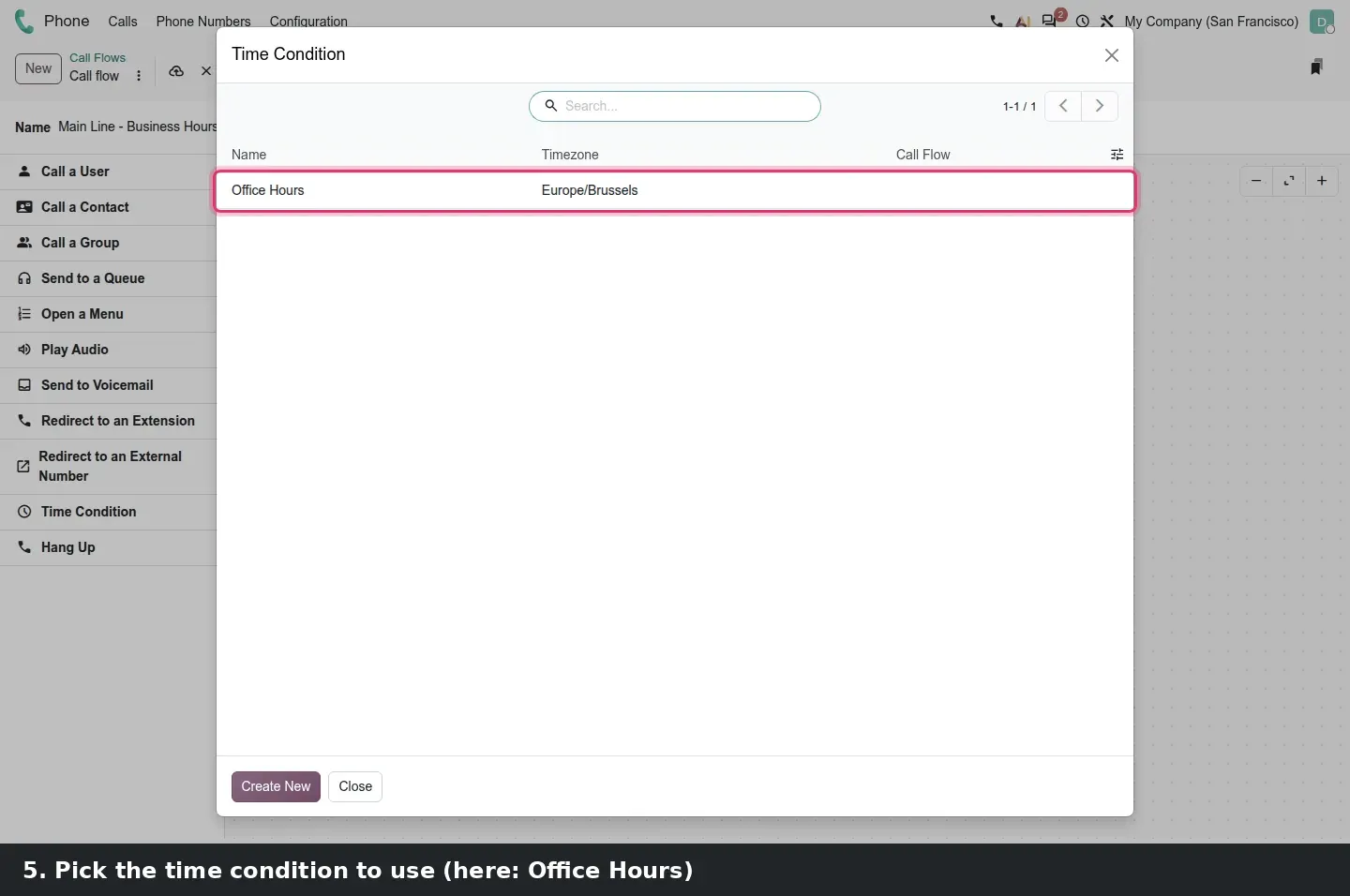
Our flow, "Main Line - Business Hours", is simple. The call reaches the Office Hours time condition. Open goes to the Main Menu, where key 1 sends the caller to the Sales Queue and key 2 to the Support Queue. Closed goes straight to the After-Hours Voicemail. According to the guide, saving validates the graph and pushes it to the PBX, so a dangling branch is caught in Odoo rather than by a caller. We could not test that step: saving from the browser needs an Odoo Phone Service subscription, so our graph was saved over RPC.
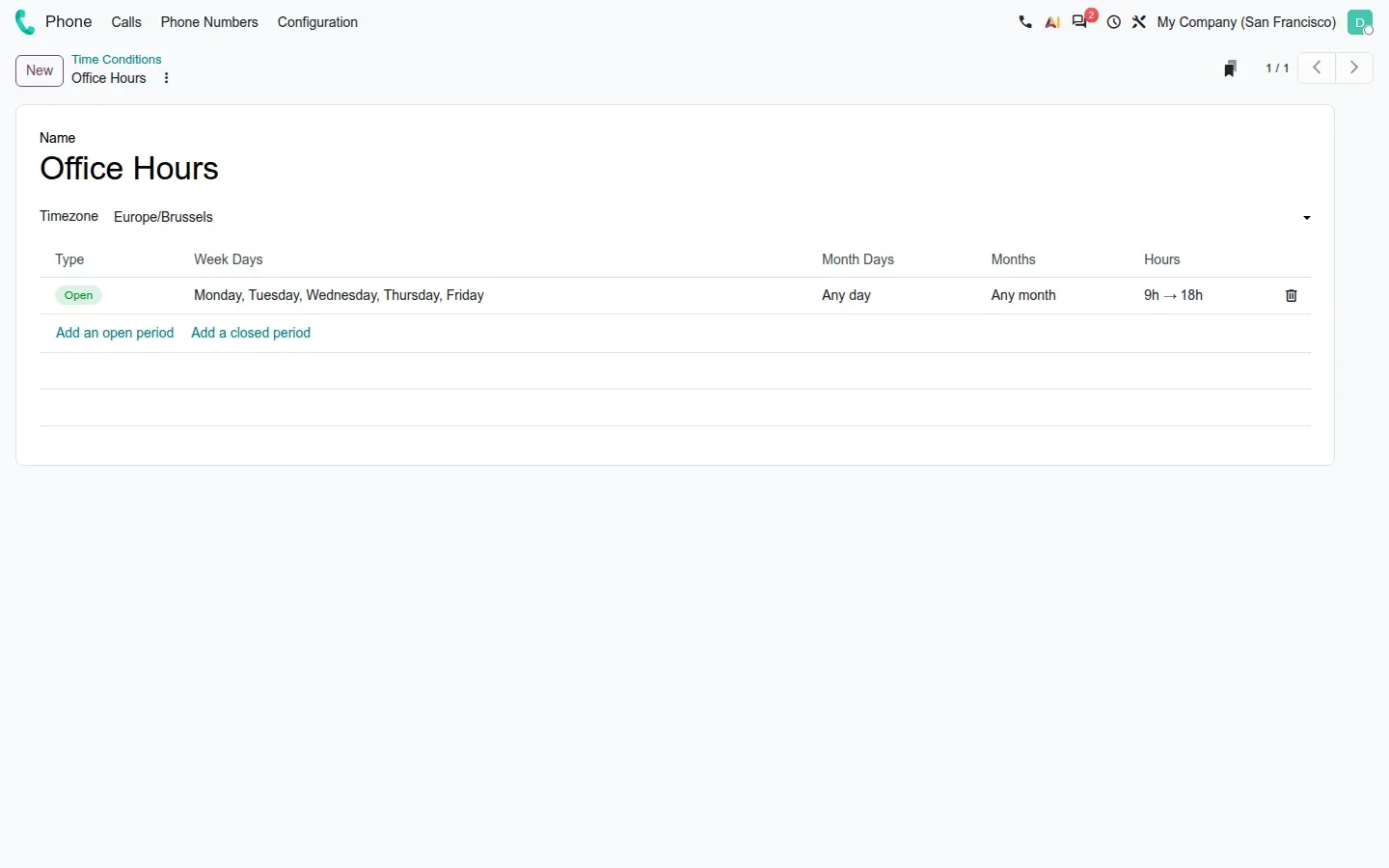
The Time Condition is a plain form: a name, a timezone and one or more open periods. Ours is Monday to Friday, 9:00 to 18:00, Europe/Brussels. A holiday closure means a second condition or period; the form does not read a calendar.
Name records before you draw
Create and name the queues, menu and mailbox before you open the editor. The canvas prints record names on the nodes, so "Sales Queue" and "After-Hours Voicemail" read as a diagram your team can approve; "Queue 1" does not.
The softphone gets picture-in-picture, transfer and hold
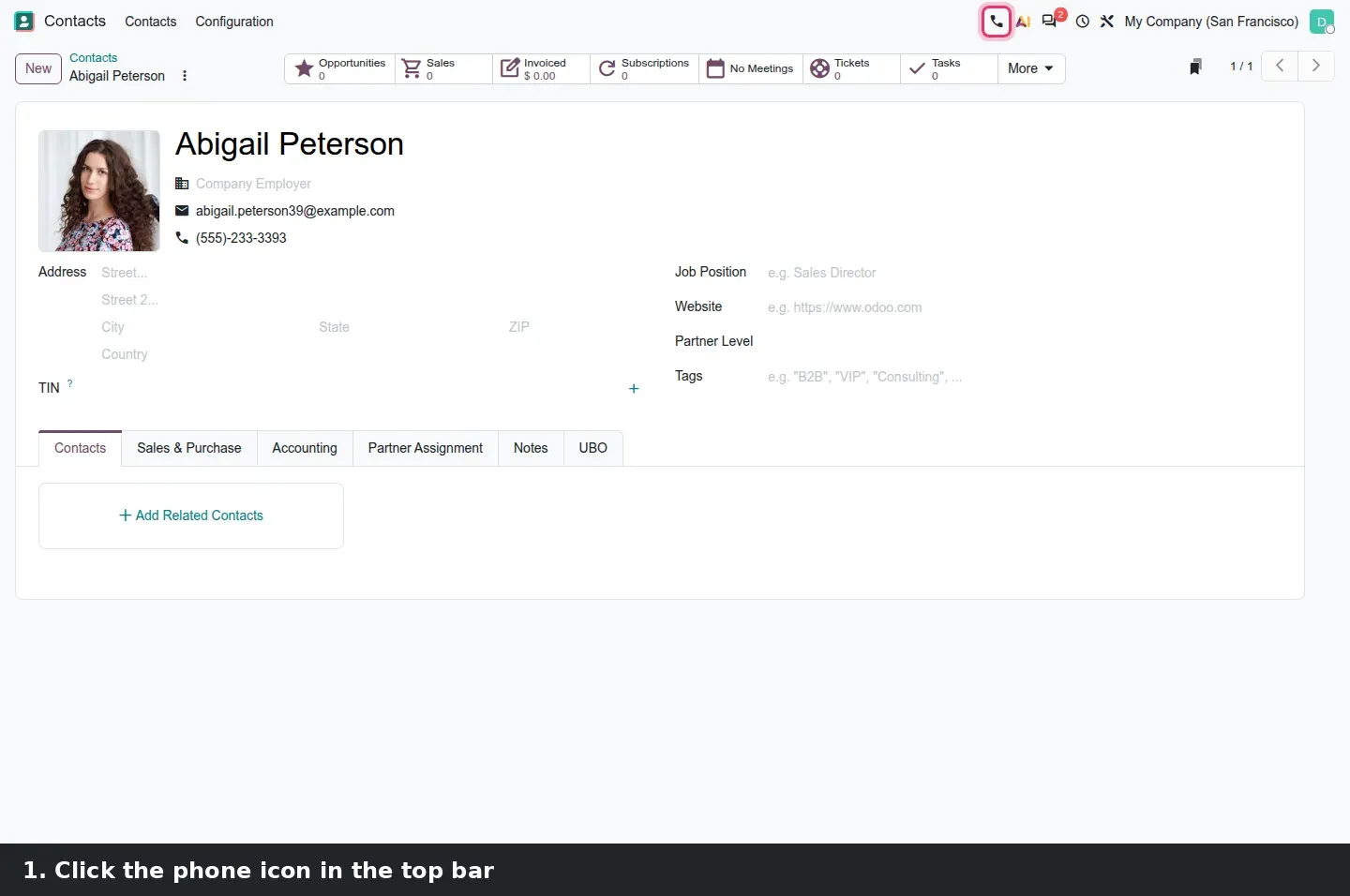
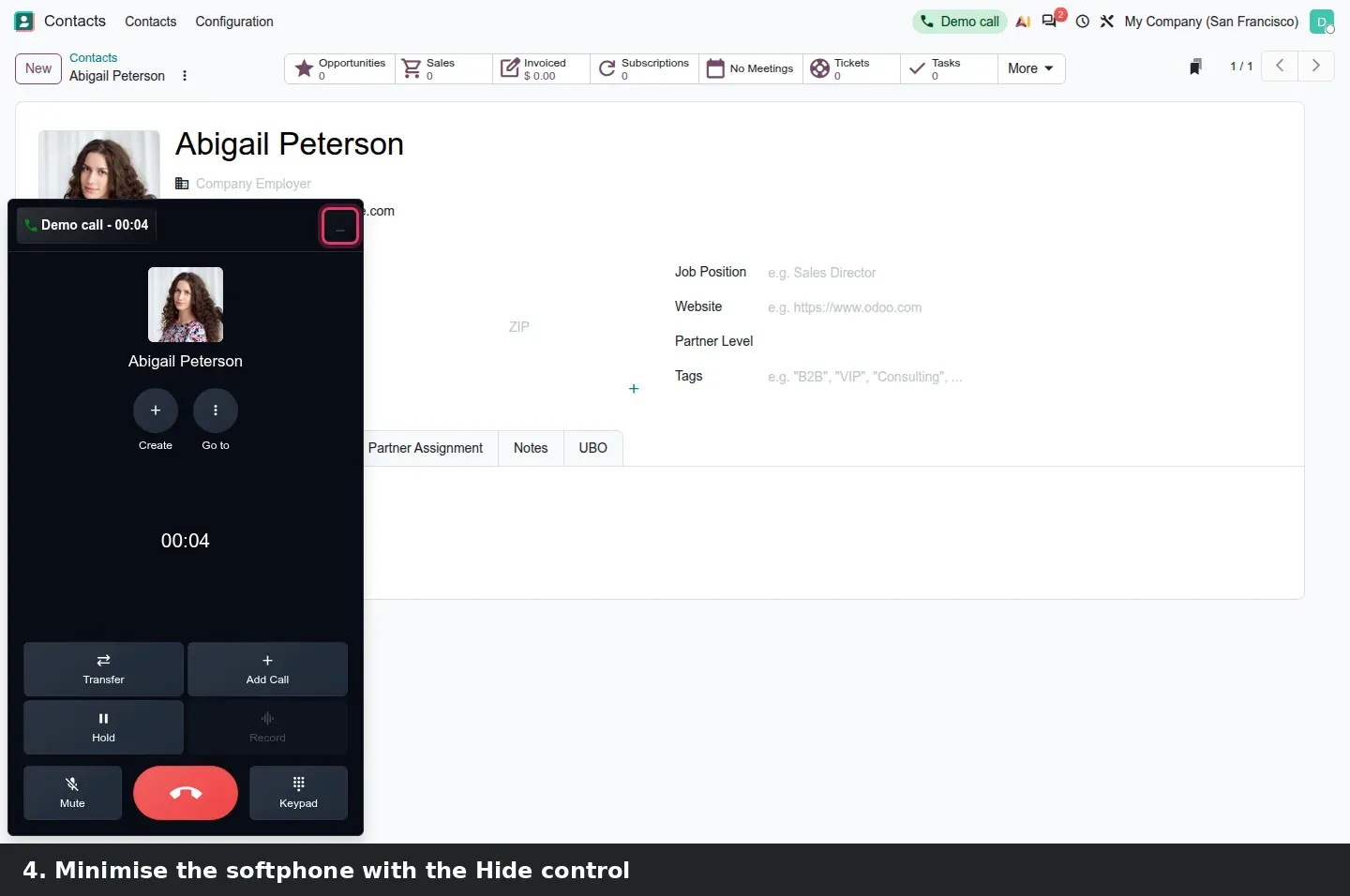
The calling side is where daily users notice the change. Click the phone icon in the top bar, or a number on a contact, and the softphone opens as a dark panel: the contact's photo and name, a timer, Create and Go to shortcuts for the linked record, and a control grid with Transfer, Add Call, Hold, Record, Mute, Keypad and hang up. On the Demo provider the call is simulated, but every control is on screen and the call is logged when it ends.
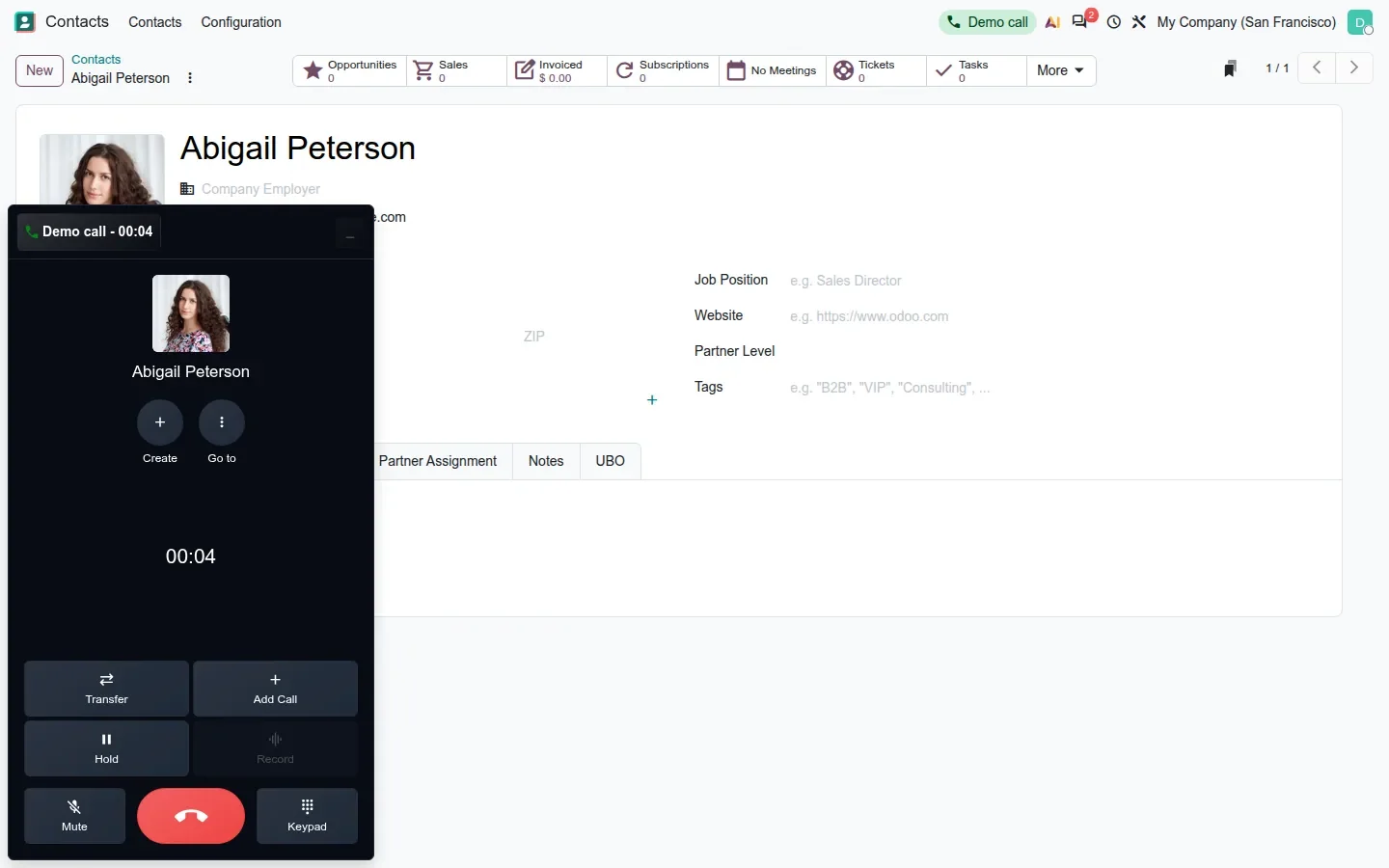
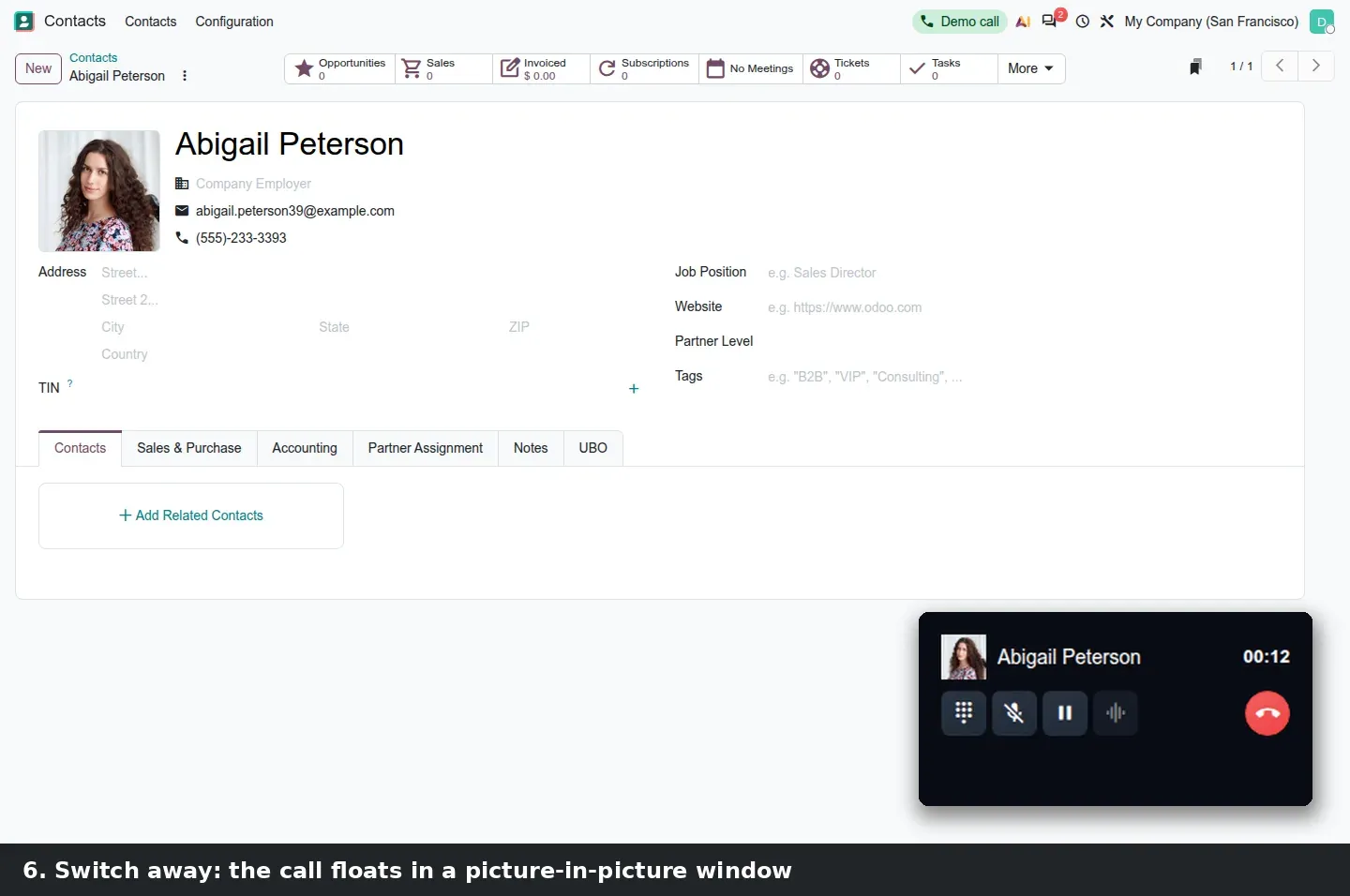
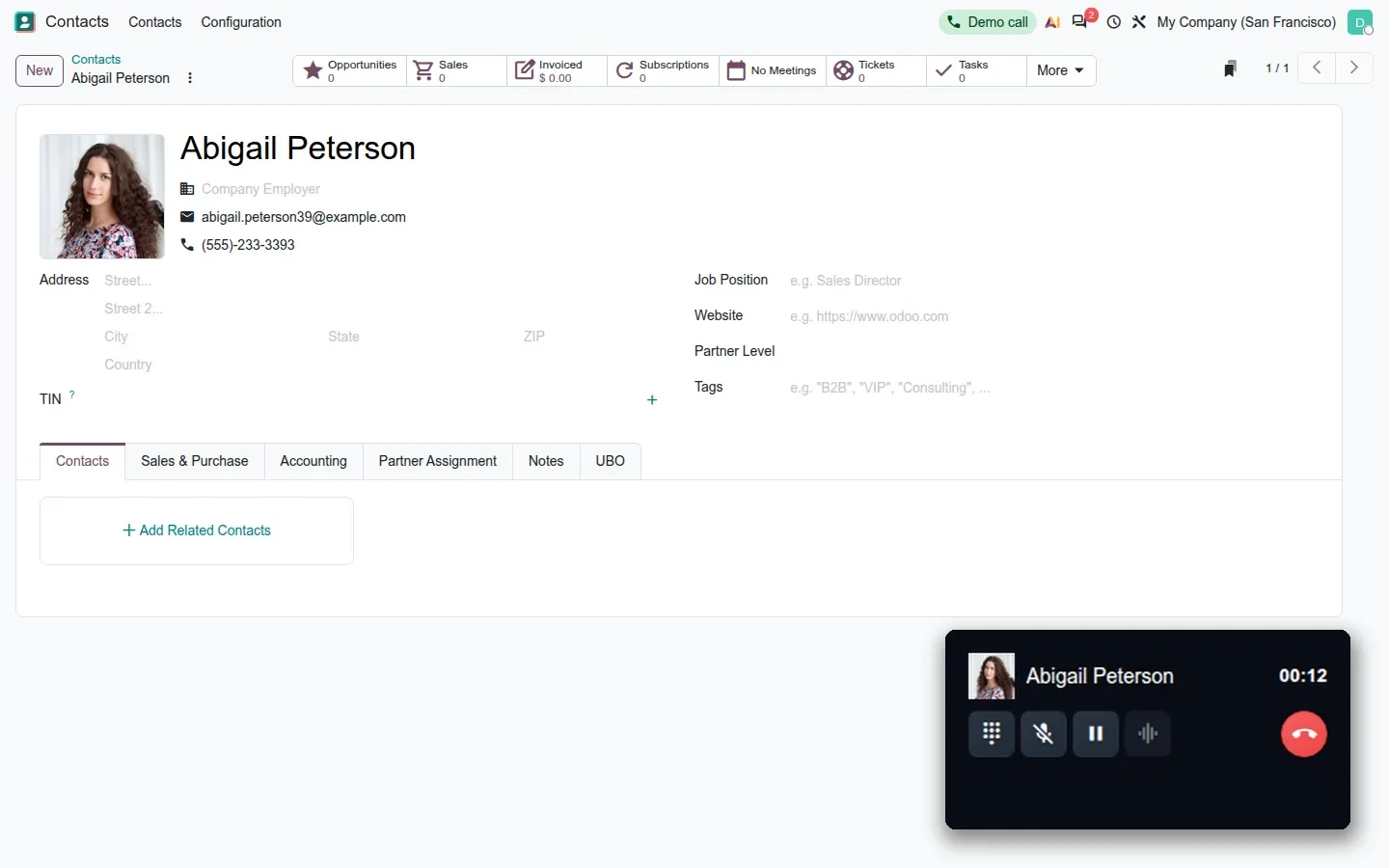
The new part is the Hide control at the top of the panel. Click it, or switch to another tab, and the call continues in a small floating window with the caller's name, the timer, and keypad, mute, hold, record and hang-up buttons. A salesperson can update the opportunity or read the Helpdesk ticket while the customer talks. Chrome opens it as a system-level picture-in-picture window that stays on top of other applications.
The guide also lists Switch here, which moves an ongoing call to Odoo open on another device, desk-phone calling where Odoo rings your desk phone so the browser needs no microphone, and a Do Not Disturb toggle. All three need a real SIP account and a second device, so we could not test them.
Each user carries a provider, credentials and ring preferences
Open Settings > Users, pick a user and open the Phone tab. Credentials sit on the left: Provider, Username and Secret, with a hint that Odoo Phone Service is required for internal calls. Preferences sit on the right: Call via desk/mobile, a number that Odoo rings instead of the browser; On Mobile, with three choices, Call with Odoo Phone, Call with phone's default app or Always ask before calling; and Ring Concurrent Calls, a checkbox that decides whether a second call may ring while the agent is on the first.
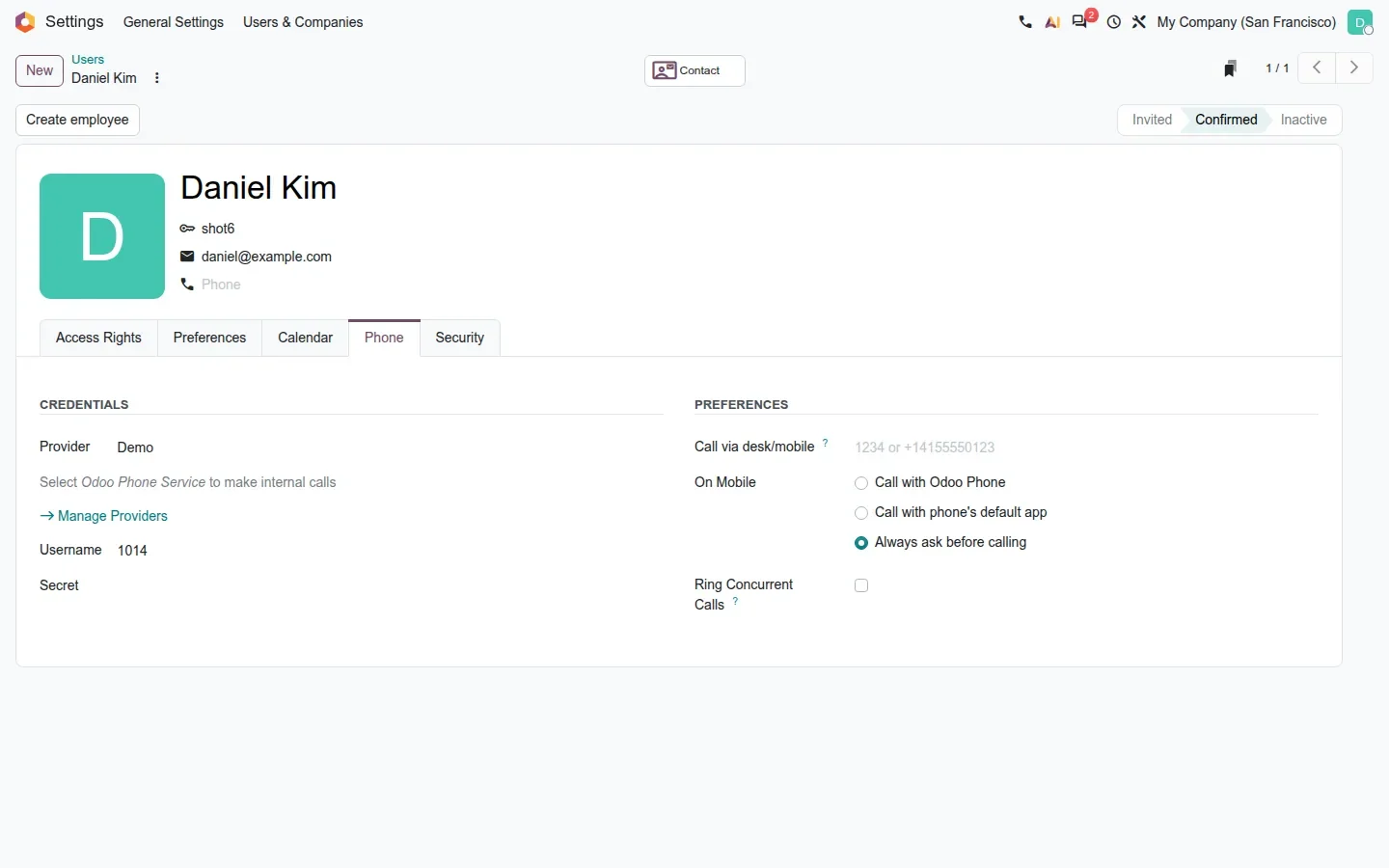
For a support manager, Ring Concurrent Calls is the setting to think about. Off, an agent on a call is skipped by the queue and callers wait or overflow. On, the agent hears the second call and chooses. The guide also describes a QR code under the extension that provisions the Linphone mobile app through a single-use token; it is only generated for users on the Odoo Phone Service provider, and we could not render it on this build.
Every call is logged, and the log has real views
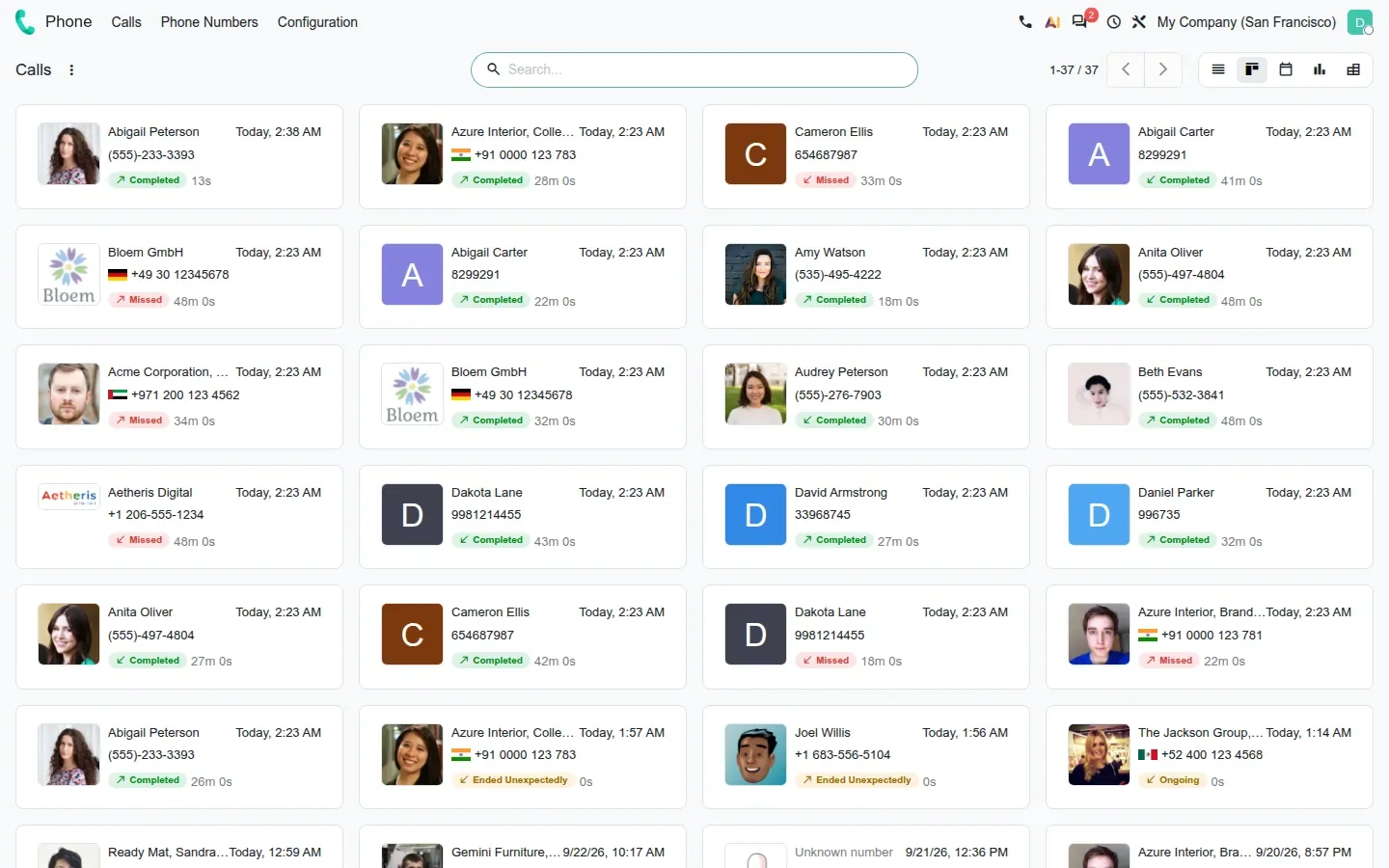
Phone > Calls lists every call with its date, contact, number, duration, user, summary, the record it was logged on, its status and a cost column. Calls are logged whether or not they started from an activity. The view switcher offers list, kanban, calendar, graph and pivot.
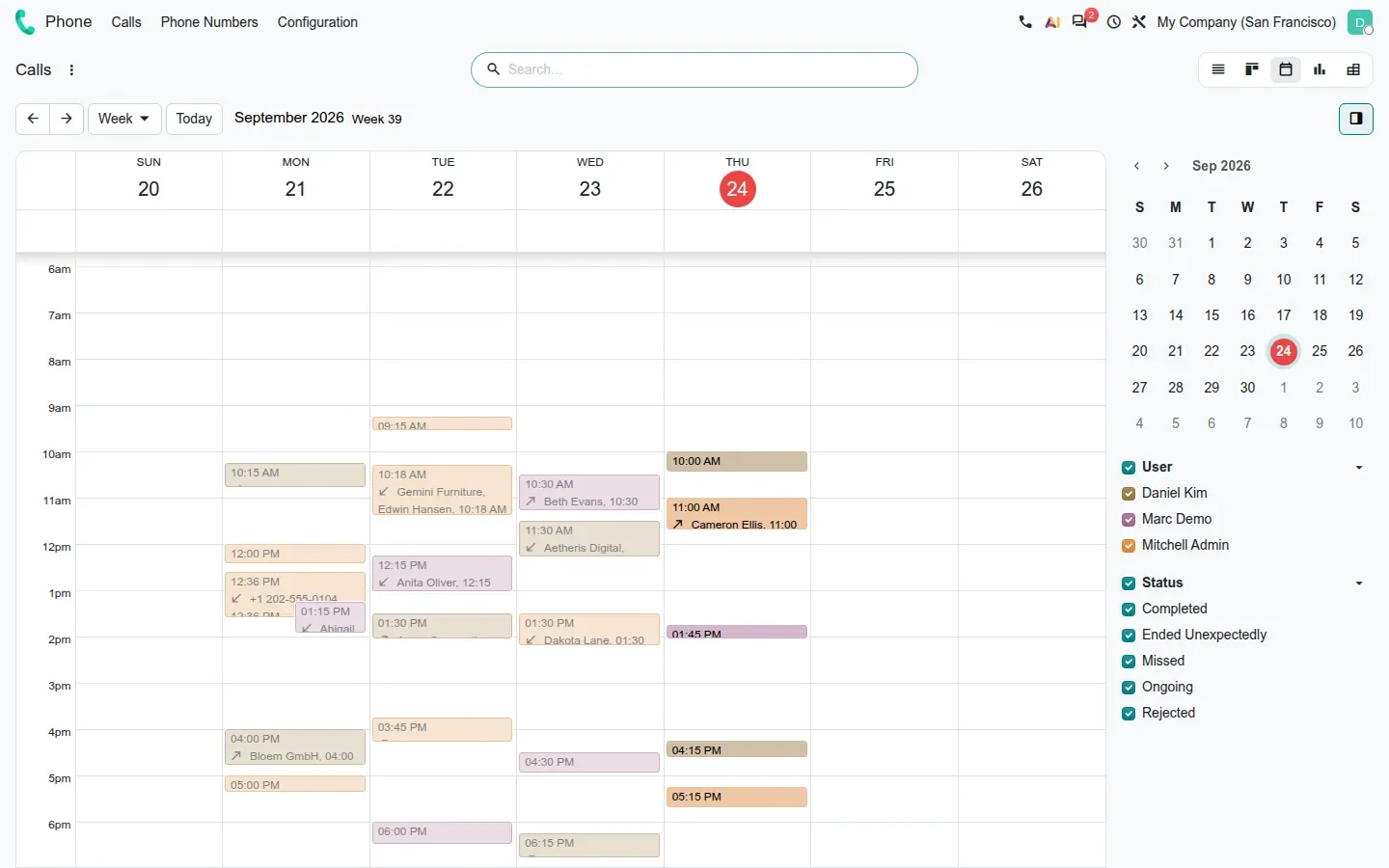
The calendar coloured by user is the view a manager opens on Friday: who was on the phone, when, for how long and with whom. The kanban shows the same calls as cards with the contact's photo, number, status badge and duration; the statuses we saw were Completed, Missed, Ongoing and Ended Unexpectedly. Two small bridge modules, voip_project and voip_sale, add call history and click-to-call to project tasks and sales orders.
How to try it on a demo database
- Install the Phone app with demo data. Open Phone > Configuration > Providers and check that your provider has VoIP Environment set to Demo.
- Open Settings > Users, pick your user, open the Phone tab and set Provider to Demo with a username such as 1014.
- Open a contact, click the phone icon in the top bar and start a call. Click Hide on the softphone, then switch tabs: the call floats in a picture-in-picture window.
- Open Phone > Calls and switch to the calendar view to find the logged call.
- With an Odoo Phone Service subscription, open Phone > Configuration > Time Conditions and create Office Hours, then your Queues and Voice Mailboxes.
- Open Phone > Configuration > Call Flows > New, drag a Time Condition, pick Office Hours, add a Menu, two Queues and a Voicemail node, then connect the ports as below.
What we could not verify on the pre-release build
The Linphone provisioning QR code is only computed for users on the Odoo Phone Service provider, and rendering it failed on our server. Saving a call flow from the browser and routing a phone number (DID) into it both need an Odoo Phone Service subscription, so our flow was saved over RPC. The real picture-in-picture window is a separate always-on-top Chrome window that headless screenshots cannot capture; our composite shows the popup fallback over the page. Switch here, desk-phone calling and Do Not Disturb need a real SIP account and a second device. We did not open the Phone spreadsheet dashboard or the voip_project and voip_sale bridges. Everything else on this page was clicked through on the 20.0 Enterprise build of 23 September 2026.
What this means for an upgrade
If you use the Odoo VoIP widget today with Axivox, OnSIP or another SIP provider, the softphone, click-to-call and the call log carry over, and your provider record gains a VoIP Environment field: check that it reads Production on the upgraded database. If you are on OnSIP, test the provider on the upgrade trial, since the 20.0 source diff lists its standalone module as removed. If you want to drop a separate cloud PBX, treat it as its own project: the queues, menus and call flows shown here require an Odoo Phone Service subscription. Telephony providers are external systems, so if a call-centre dashboard or a CTI connector talks to Odoo over XML-RPC or JSON-RPC today, book an RPC migration audit first, because Odoo has scheduled the removal of those endpoints for Odoo 20. We map the routing and the provider change in our migration service, and the series hub lists the other changes that touch the same upgrade.
Frequently asked questions
Can Odoo 20 replace our separate phone system?
For a small sales or support desk, the pieces are there: extensions, groups, queues, menus, time conditions, voice mailboxes, a call flow editor and a softphone with picture-in-picture. In the pre-release build those PBX features are tied to an Odoo Phone Service subscription; with another SIP provider you get the softphone, click-to-call and the call log, not the routing.
Do call queues and menus work with any VoIP provider?
Not in this build. On a database without an Odoo Phone Service subscription, creating a queue, a menu or a voice mailbox is refused with "Your Odoo subscription does not allow this operation", and saving a call flow from the browser fails for the same reason. Softphone calls through Axivox, Telnyx and the other providers still work.
Which VoIP providers does Odoo 20 list?
Seven presets: Demo, Odoo Phone Service, Axivox, Telnyx, DIDWW, OnSIP and Phonestar. Telnyx and Phonestar are new. The provider form takes a WebSocket address and a PBX server, so another SIP provider can be entered by hand. The 20.0 source diff lists the standalone OnSIP module as removed, even though the preset remains.
Can I keep working in Odoo during a call?
Yes. The Hide control on the softphone, or switching tabs, moves the call into a small floating picture-in-picture window with the caller's name, a timer and keypad, mute, hold, record and hang-up buttons. You can open the opportunity, the quotation or the ticket while the call runs.
Does Odoo 20 log phone calls automatically?
Yes. Every call appears under Phone > Calls with date, contact, number, duration, user, status and cost, whether or not it was started from an activity. The log has list, kanban, calendar, graph and pivot views, and the voip_sale and voip_project bridges attach call history to sales orders and tasks.
Can I use my mobile phone with Odoo 20 VoIP?
Partly. The user's Phone tab has an On Mobile preference (Call with Odoo Phone, Call with phone's default app or Always ask before calling) and a Call via desk/mobile number that Odoo rings and bridges. The Linphone QR code that provisions a SIP account is only generated for users on the Odoo Phone Service provider.