
A new box, a queue you can read, and one less device on the counter
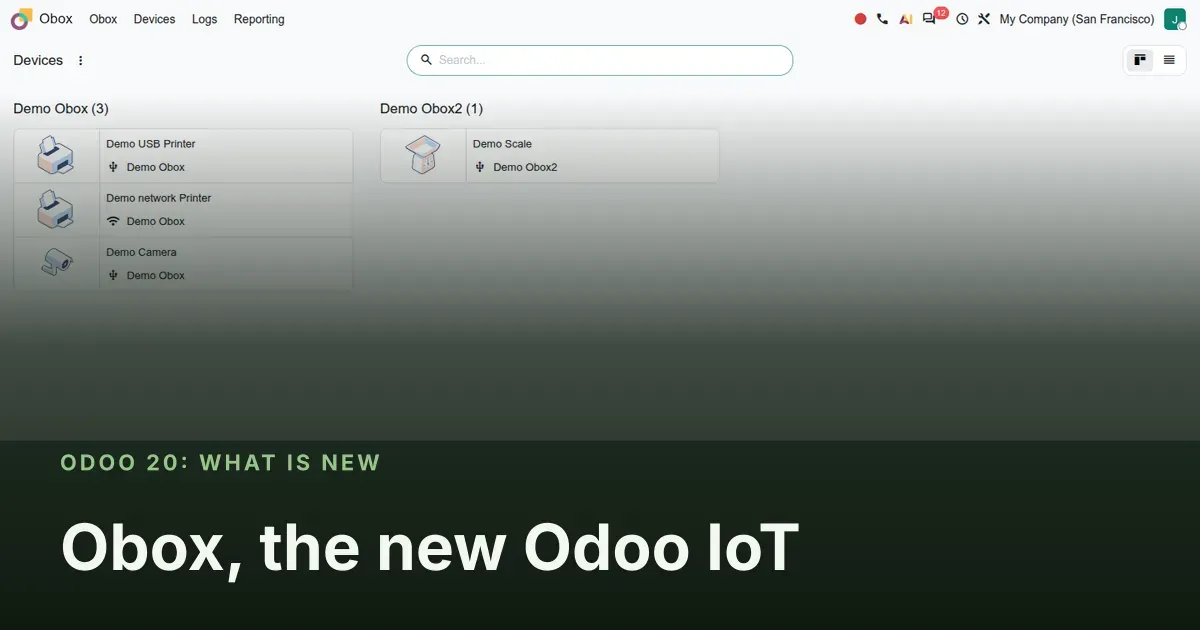
Odoo 20 adds an app called Obox. Its base module, obox, describes itself as the management of Odoo IoT Boxes, the hardware that connects printers, scales, payment terminals and similar equipment to a database. It ships next to the existing iot module, which is still present in 20.0, so this is an addition rather than a hard replacement for the boxes you run today. This post covers pairing, the Obox form and its action queue, the devices it types, the Point of Sale and Quality bridges, and the Android modules that let a tablet act as the box.
One caveat before the screens. There was no Obox hardware on our network, so every record below is the module's demo data: Demo Obox with a USB printer, a network printer and a camera, and Demo Obox2 with a scale. We could open every form but could not print a receipt, weigh an item or take a photo. Read this as a tour of what the app is built to do, checked screen by screen, not as a field test.
Observed on the Odoo 20.0 Enterprise pre-release build of September 23, 2026. Names, menus and availability can change before general availability; we will update this page when they do.
Obox sits next to the IoT Box, it does not remove it
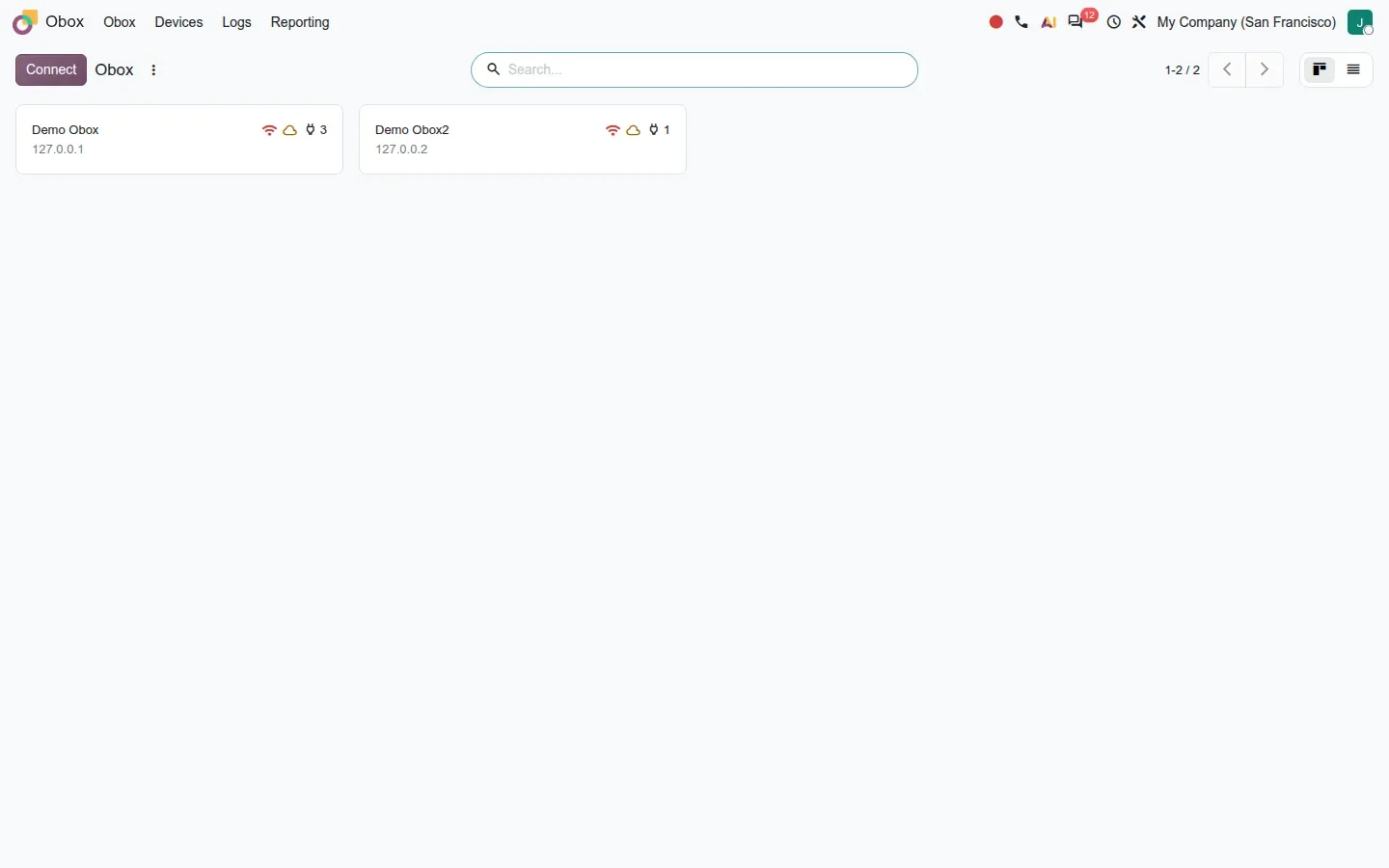
Open the Obox app and you get one card per paired box: the box name, its local IP, a Wi-Fi icon and a cloud icon for its connection status, and a count of connected devices. A Connect button sits top left and is the only way to add a box; there is no New button, because a box has to be paired, not typed in. Behind the cards the design is pairing plus a message queue. Each Obox carries a serial number, a token and two websocket channels, one for the device and one inside Odoo, and every command Odoo sends goes through that queue and leaves a record.
For an owner with existing IoT Boxes, the important fact is that the old iot module has not gone away in this build. What has gone away, according to the 20.0 source diff, is narrower: the Ingenico PoS IoT driver, and the mrp_workorder_iot and quality_mrp_workorder_iot bridges that connected work orders and quality checks to IoT Box devices. If your shop floor relies on those bridges, Obox is the path Odoo is pointing at.
Connect, discovery, and the manual fallback
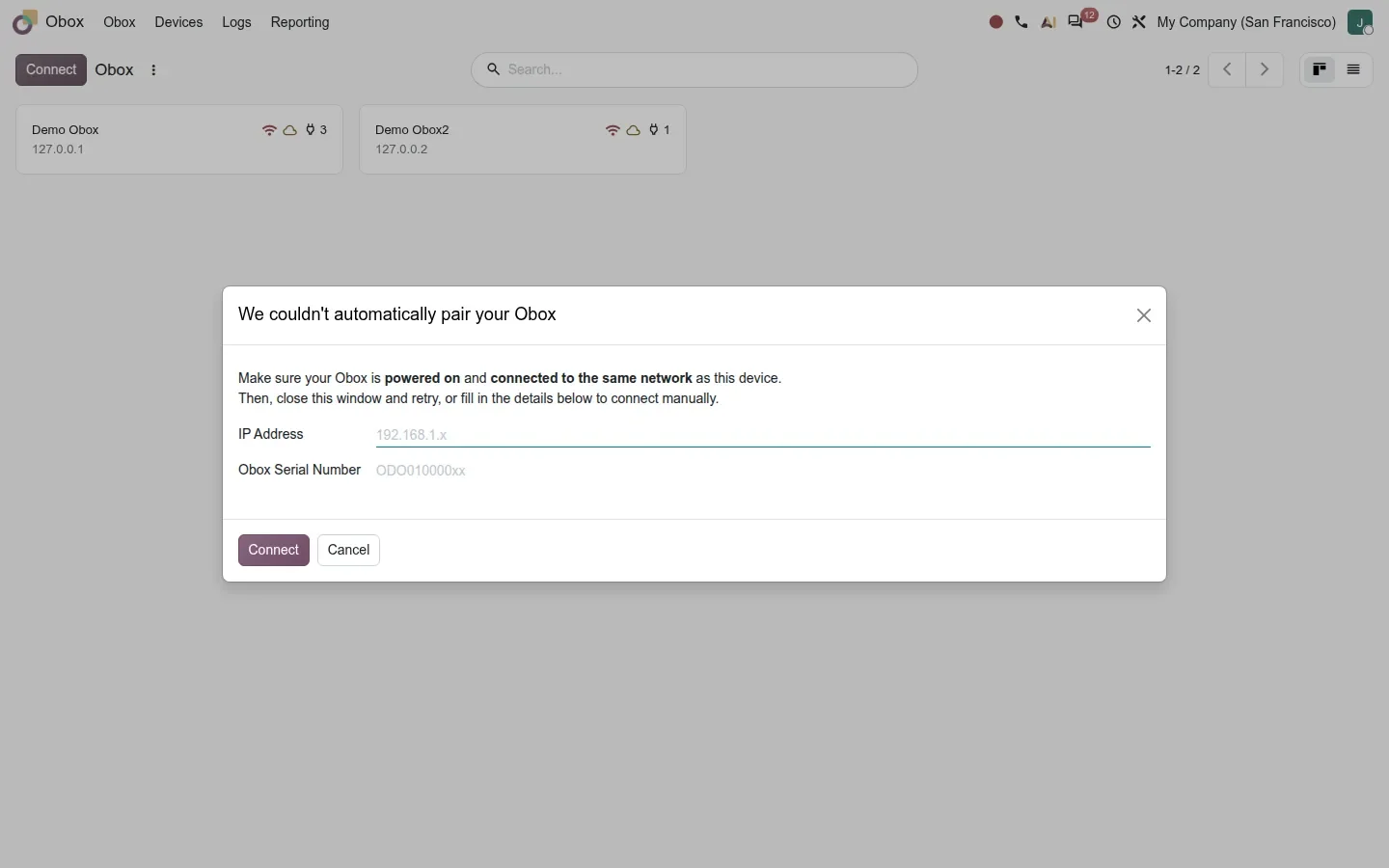
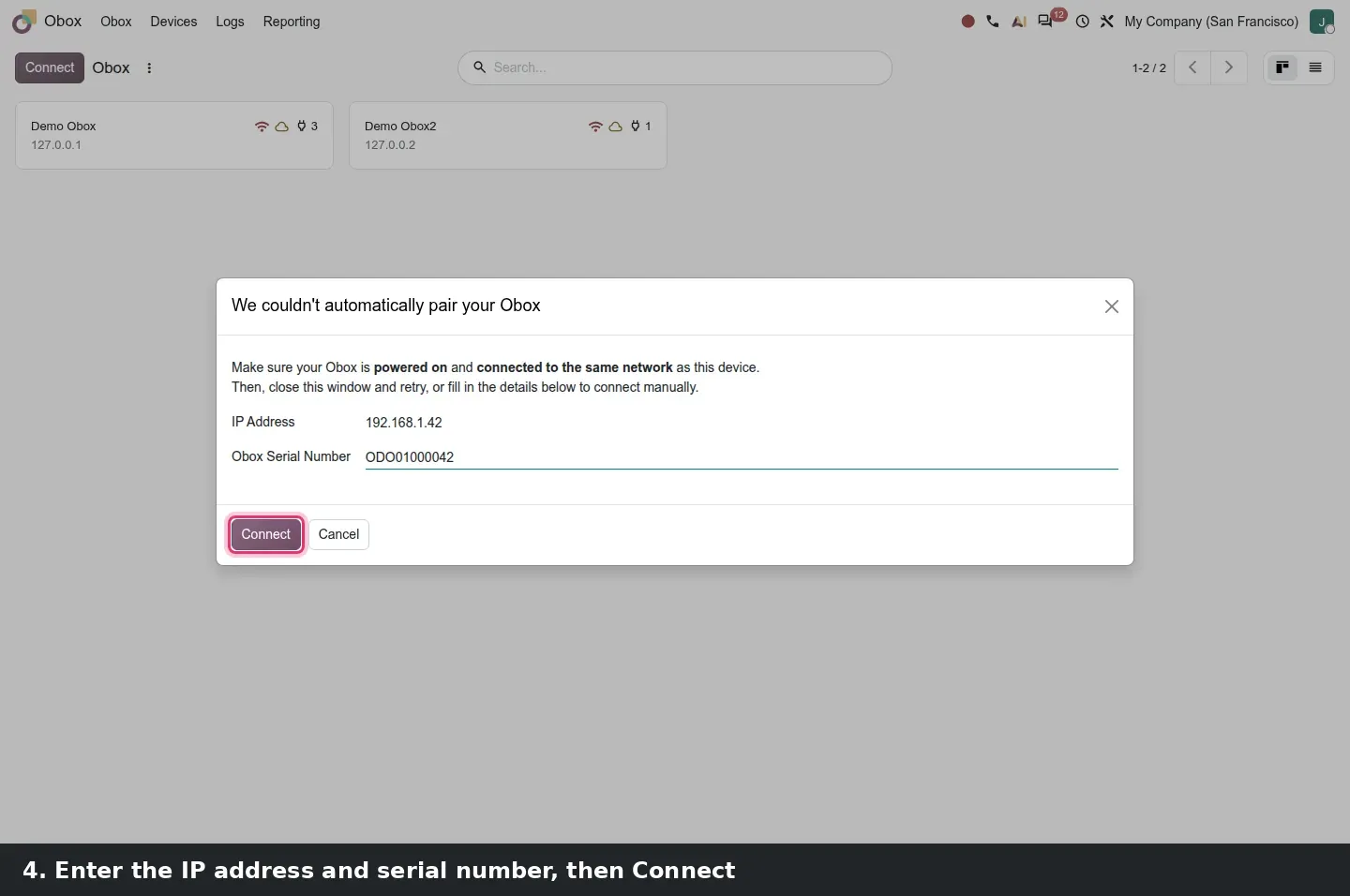
Click Connect and Odoo asks a discovery service for boxes on your local network, then pairs the first one it finds with a pairing code. When discovery finds no box, a dialog titled "We couldn't automatically pair your Obox" opens. It asks you to make sure the box is powered on and on the same network as the browser, then offers two fields, IP Address and Obox Serial Number, with a Connect button.
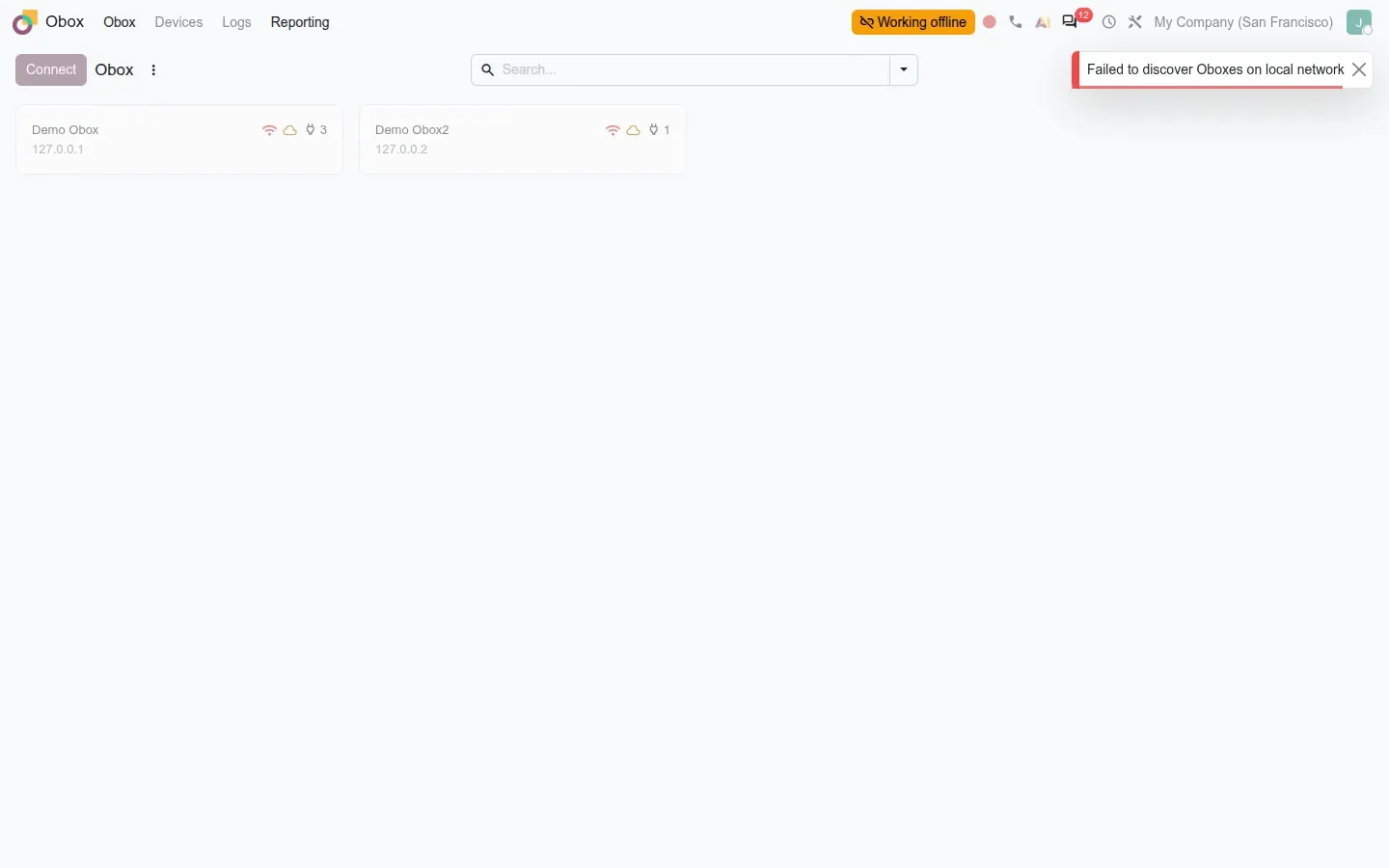
The guide describes a failed discovery leading straight to that wizard. On our demo it did not. The browser blocked the discovery call to Odoo's proxy at iot-proxy.odoo.com, so instead of the wizard we got a red notification, "Failed to discover Oboxes on local network", and the client briefly went offline. To capture the wizard we replaced the proxy's answer in the browser with an empty list, which is the case where Odoo opens it. The lesson for a store or a plant: pairing depends on the browser reaching Odoo's discovery service on the internet, not only on the box being on the same LAN. A network that filters outbound traffic from the till will show this red banner.
The Obox form and the action queue
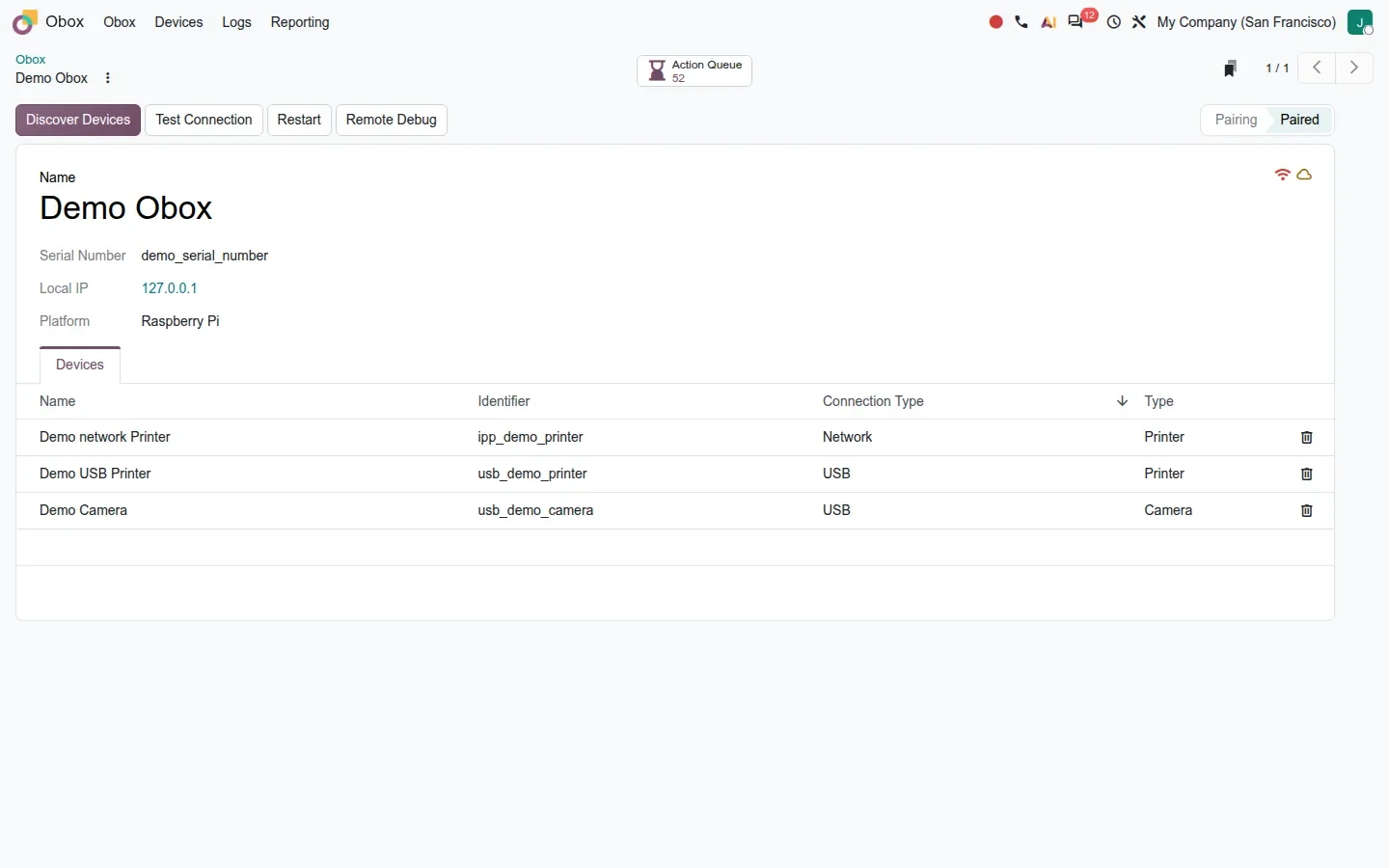
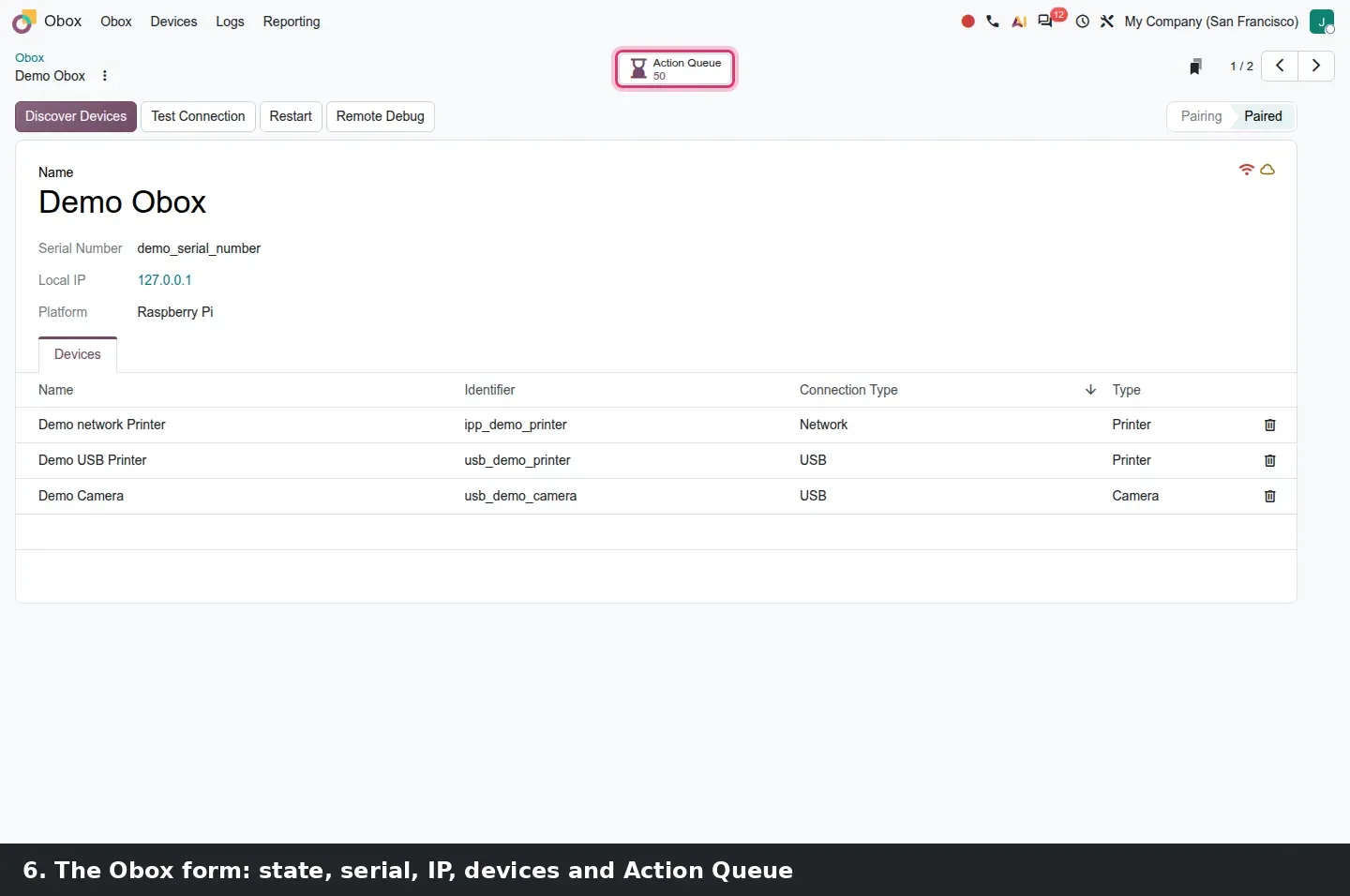
Open a card and the Obox form is short. A status bar on the right reads Pairing or Paired. Four buttons sit on the left: Discover Devices, Test Connection, Restart and Remote Debug. An Action Queue smart button shows how many requests are queued. Below the name you get Serial Number, Local IP and Platform; the demo record says Raspberry Pi. The Devices tab lists each device with its Name, Identifier, Connection Type and Type, and a trash icon to unlink it.
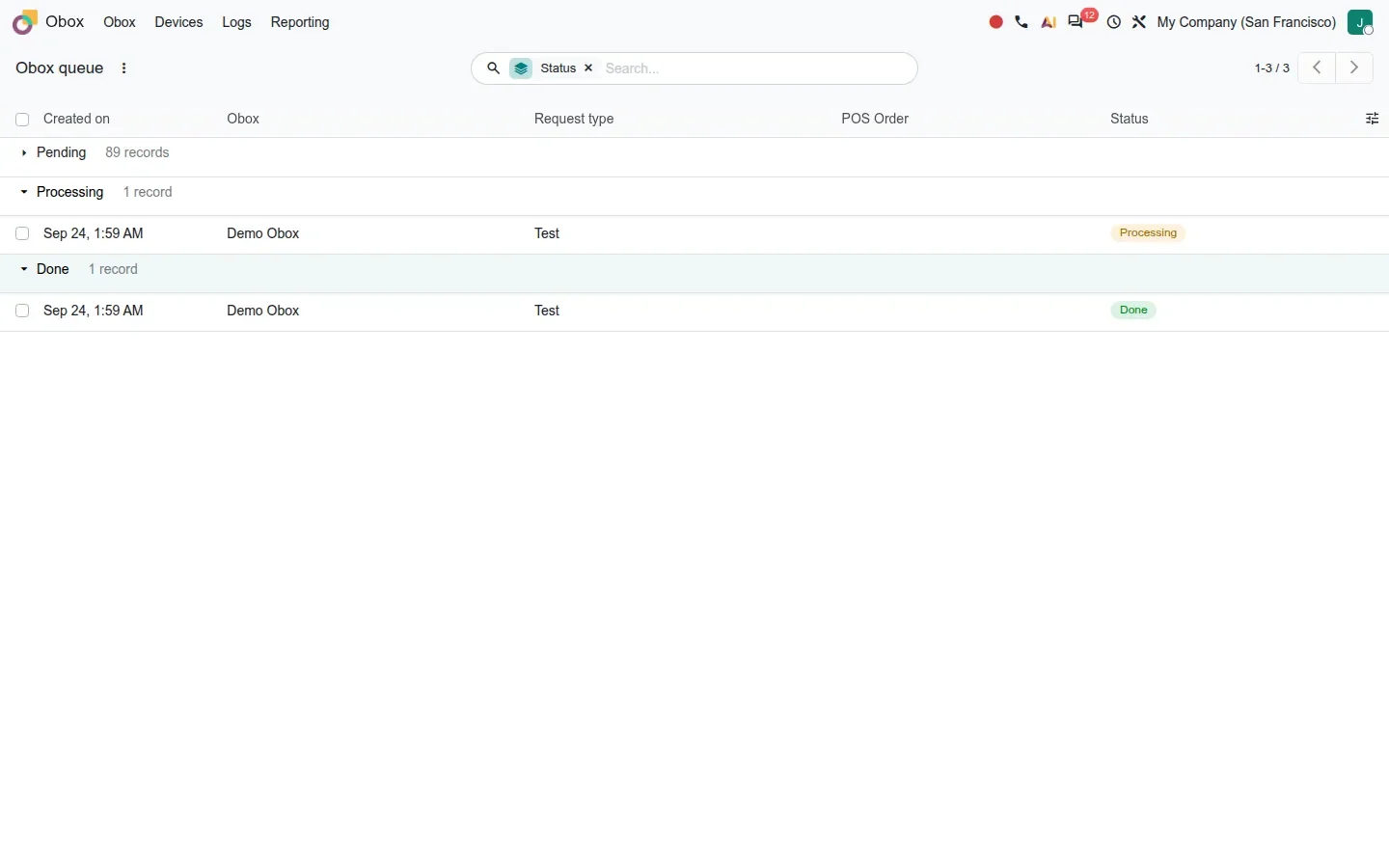
The part we like most is Obox > Logs, which opens a list called Obox queue. Every print job or device command is a record with Created on, Obox, Request type, POS Order and Status, and grouping by Status gives three buckets: Pending, Processing and Done. This answers the oldest question at a till, "why did the receipt not come out". One demo quirk: opening the Obox app queues a status test for each demo box, and since nothing answers, Pending Test requests pile up; our screenshot shows 89 of them.
Before you call support
When a receipt does not print, open Obox > Logs and group by Status. A request that stays in Pending never reached the box, so check power, network and pairing first. A request in Done means the box reported it finished, so the problem is at the printer: paper, cable or the device itself. Two minutes in this list often replaces a ticket.
Printers, cameras and scales, plus a tablet that can be the box
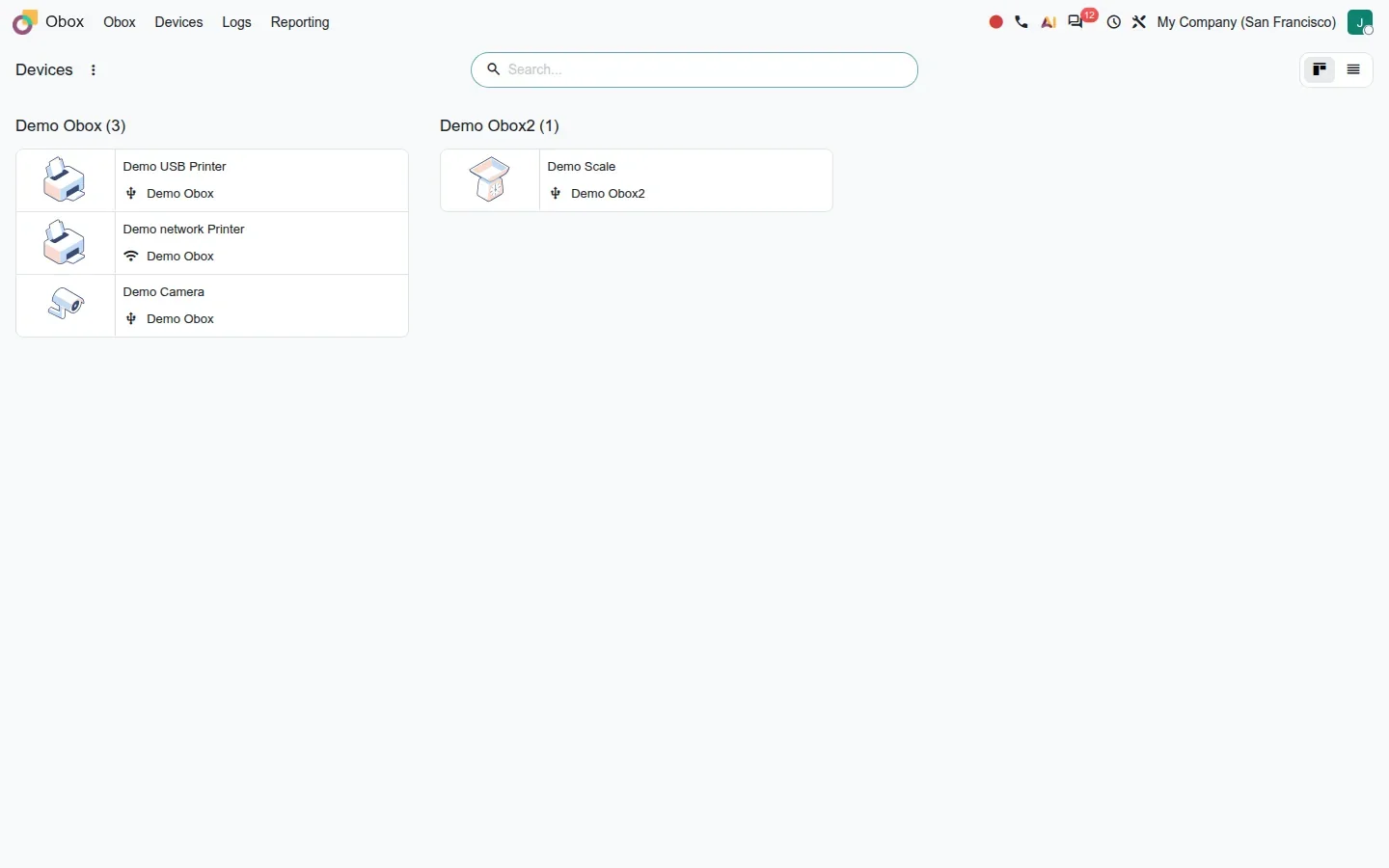
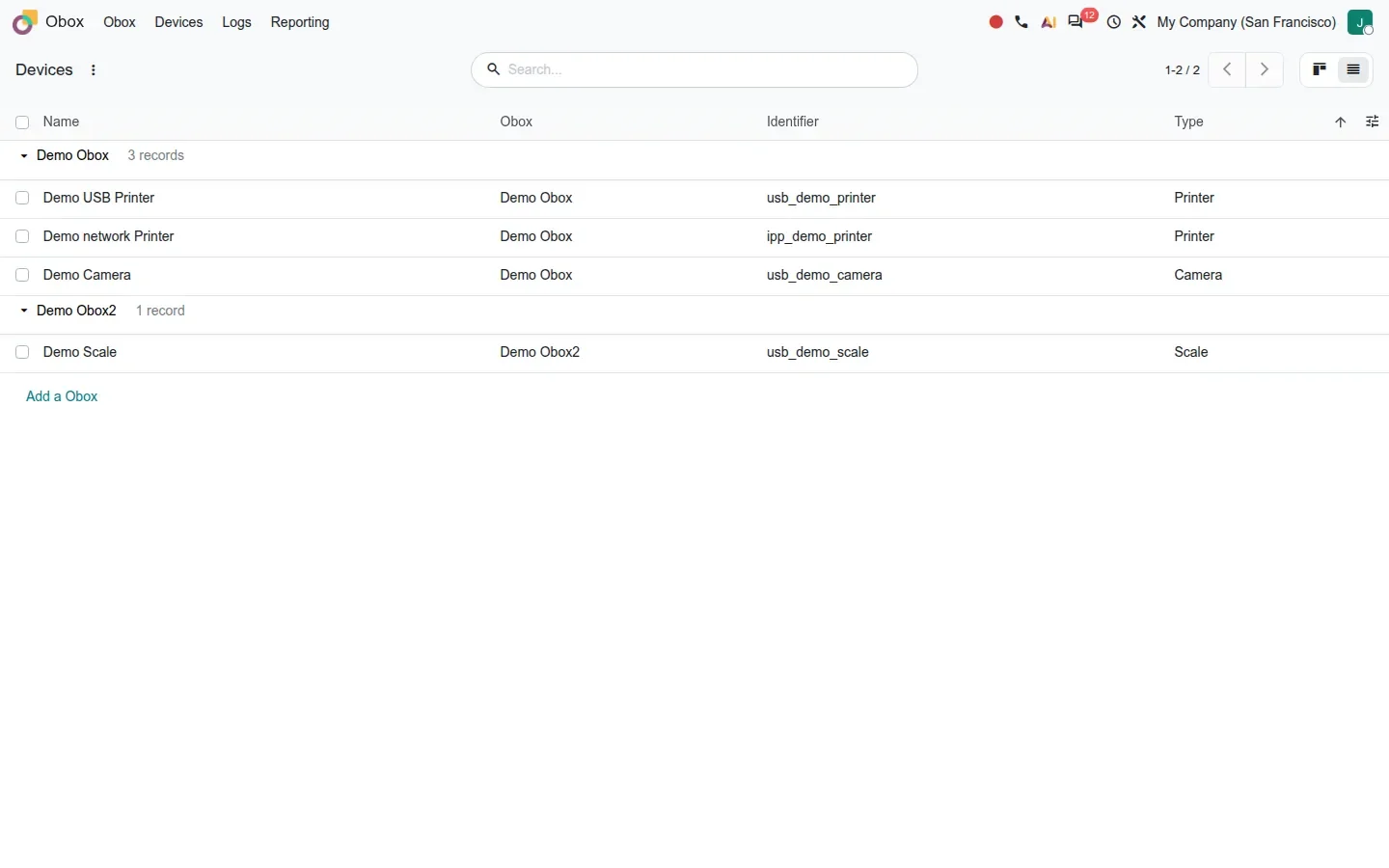
Devices connected to an Obox are typed as printer, camera or scale, with a Connection Type of USB or network. Obox > Devices shows them as a kanban grouped by box, with a picture per type and a USB or Wi-Fi icon, or as a list with Name, Obox, Identifier and Type. The Identifier, such as usb_demo_printer, is what the bridges point at. Cameras are new territory for Odoo hardware.
The most talked-about part of Obox is Android. The obox_android module and its siblings for Point of Sale, self-order and Quality let the Odoo Android app act as the Obox itself. A tablet at the counter hosts the receipt printer connection or the scale without a separate box on the network. For a small shop that is one less device to buy, power, update and explain to a new employee. We could not see it work, since there was no tablet on the demo, and the guide does not list which printers or scales the Android app supports, so ask for that list before buying hardware.
Where the devices plug in: Point of Sale and Quality
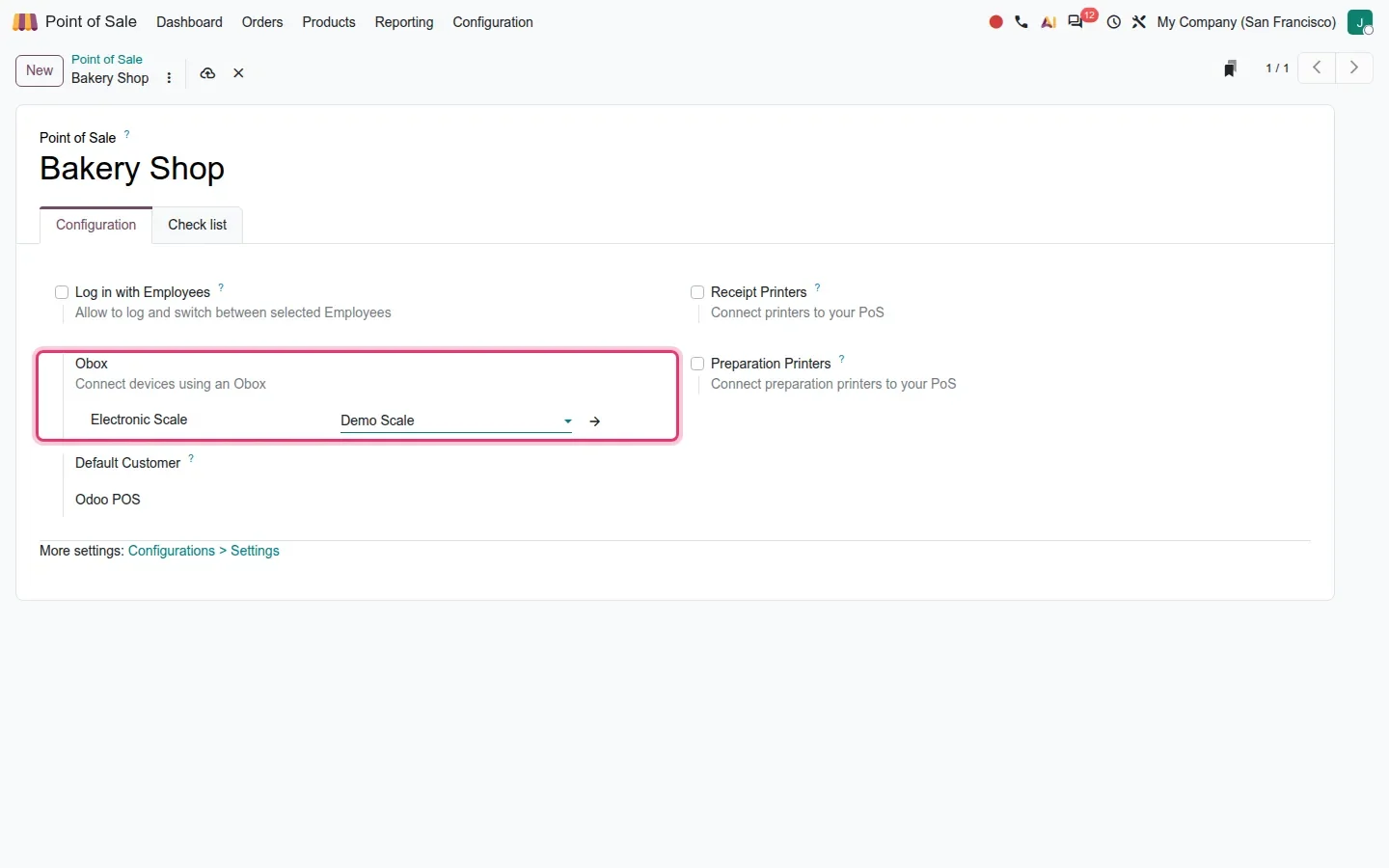
A device is only useful once an app claims it. In Point of Sale, open a shop's configuration form, Bakery Shop on the demo, and the Configuration tab gains an Obox section labelled "Connect devices using an Obox" with an Electronic Scale field; we picked Demo Scale for the screenshot and discarded the change. The Point of Sale bridge maps a PoS printer to an Obox printer, and a companion module extends this to the self-order kiosk, so a kiosk can print through the same box as the till.
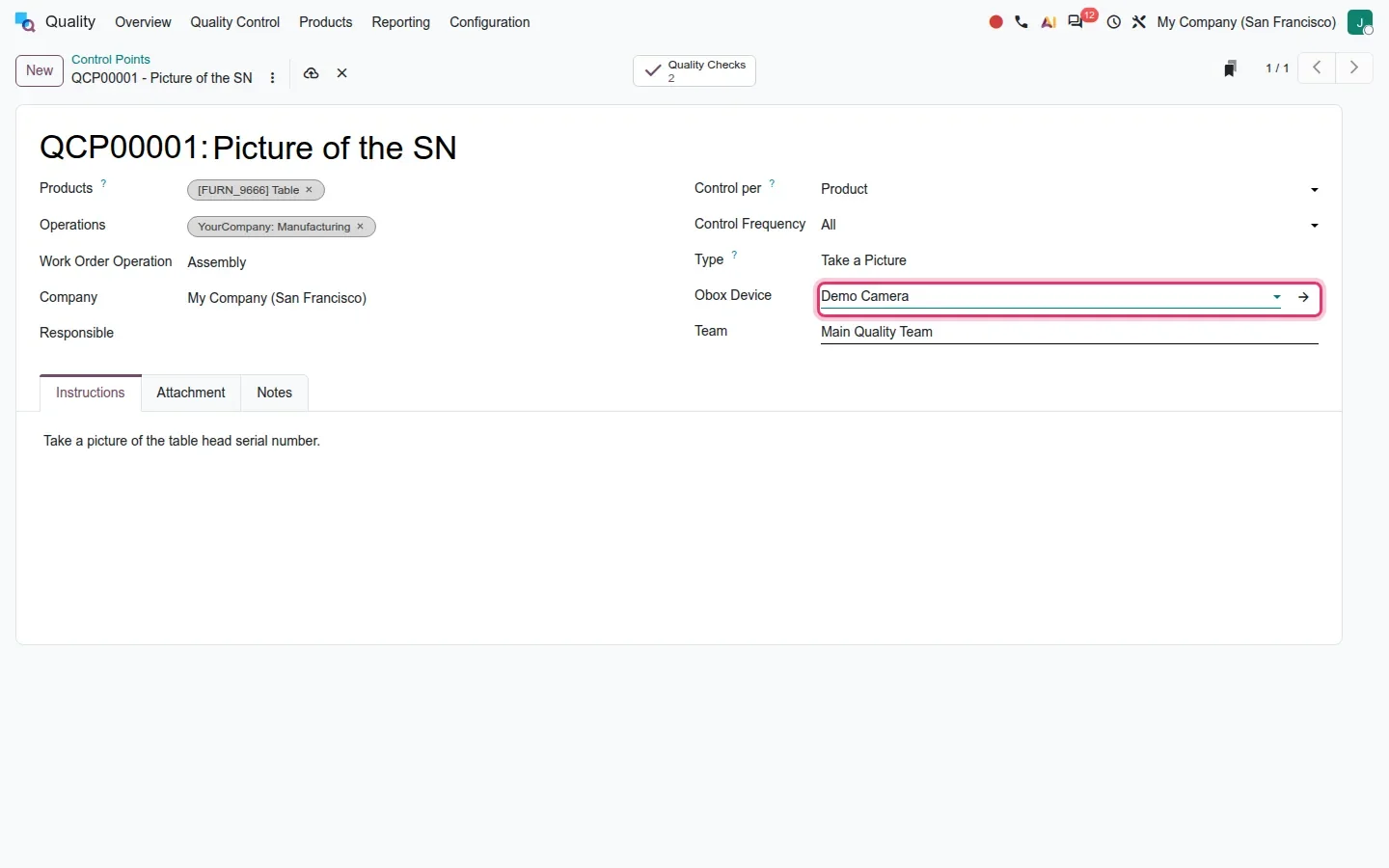
In Quality, a control point of Type Take a Picture gets a new Obox Device field. The demo point QCP00001, Picture of the SN, applies to the Assembly work order operation and points at Demo Camera. In practice the operator's step on the shop floor captures a photo from a fixed camera at the workstation, rather than from whoever's phone is nearest. This is the replacement for the removed work order IoT bridges: the camera belongs to the box, the quality point names the device, and Manufacturing calls it at the right step.
How to try it on a demo database
- Install the Obox app, and for the bridges install Point of Sale and Quality. Demo data creates Demo Obox and Demo Obox2.
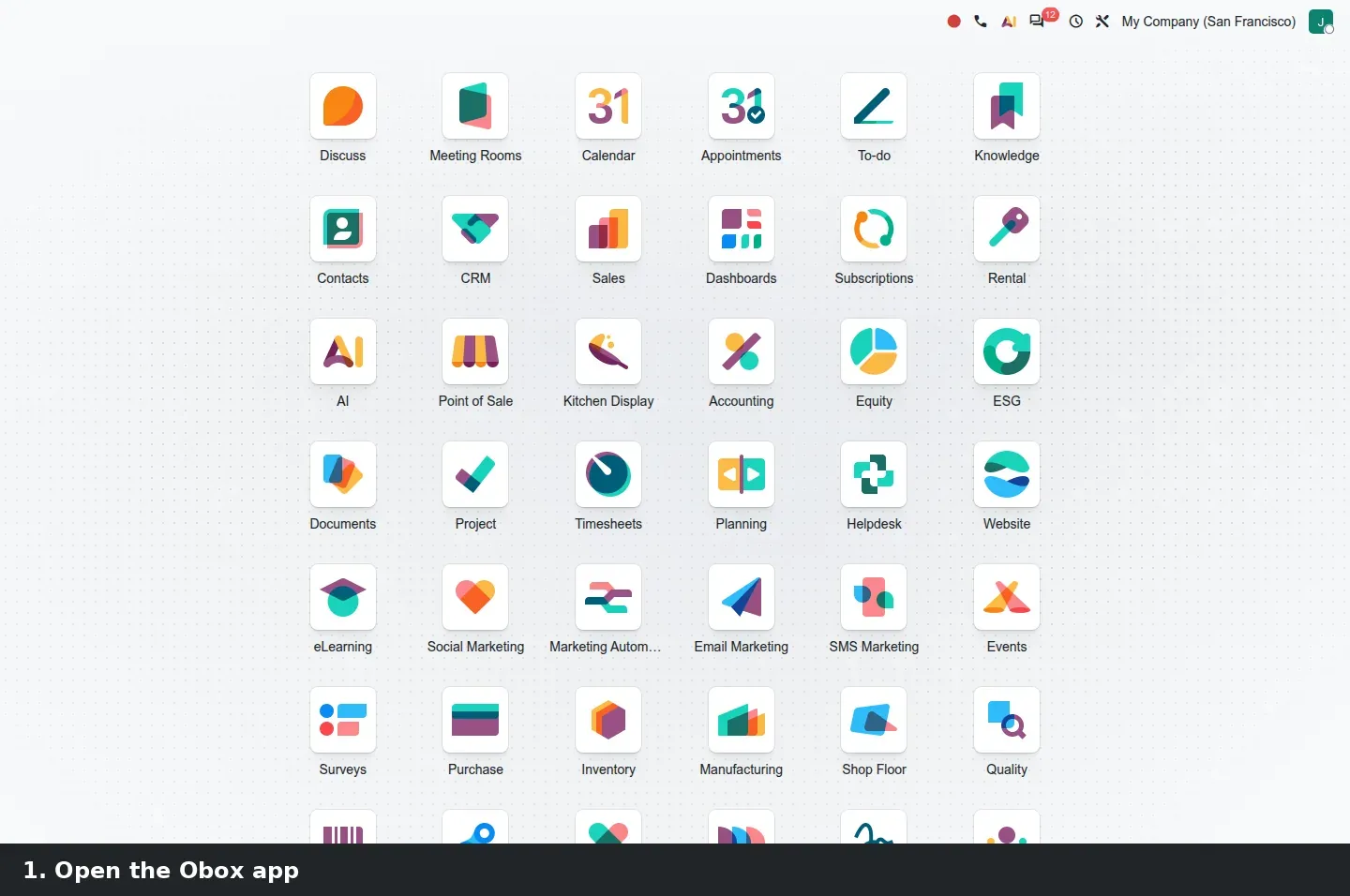
- Open Obox from the home menu and click Connect. With no box on the network you get the dialog "We couldn't automatically pair your Obox"; if the browser cannot reach Odoo's discovery service you get the red notification instead.
- Open the Demo Obox card to see the Pairing / Paired status bar, the four buttons, the Action Queue smart button and the Devices tab.
- Go to Obox > Devices and compare the kanban with the list.
- Go to Obox > Logs, then group by Status to see Pending, Processing and Done requests.
- In Point of Sale, open the Bakery Shop configuration form. On the Configuration tab, find the Obox section and its Electronic Scale field.
- In Quality > Quality Control > Control Points, open QCP00001 Picture of the SN and look at the Obox Device field next to Type Take a Picture.
What we could not verify on the pre-release build
We did not pair a real Obox, and we did not see the Odoo Android app act as one; both need a device on the same network as the browser. The manual pairing dialog was not reached through a genuinely failed discovery: the browser blocked the call to iot-proxy.odoo.com, so we substituted an empty answer to open it, and its Connect button was never pressed. The queue holds only the demo Test requests, not finished print jobs. A camera photo in a quality check and an item weighed on the Obox scale both need the hardware. Everything else on this page was clicked through on the 20.0 Enterprise build of 23 September 2026.
What this means for an upgrade
If you run Odoo 17, 18 or 19 with IoT Boxes, nothing in this build forces you to replace them: the iot module is still there. Plan around the removals instead. According to the 20.0 source diff, the Ingenico PoS IoT driver and the mrp_workorder_iot and quality_mrp_workorder_iot bridges are gone, so a plant that captures photos on work orders through an IoT Box needs an Obox and a camera on the quality point, tested on a staging database with the real hardware before go-live. If you wrote your own IoT drivers, our note on the Odoo 19 IoT driver framework explains what they depend on today. Anything that talks to Odoo from outside, a label printing script, a scale integration or a kiosk, also needs a look, because Odoo has scheduled the removal of the XML-RPC and JSON-RPC endpoints for Odoo 20; that is what our RPC migration audit inventories. Hardware and connector testing is part of the scoping of our migration service, and the series hub lists the other changes that land in the same upgrade.
Frequently asked questions
Does Odoo 20 Obox replace the IoT Box?
Not in this build. The existing iot module is still present in 20.0 and Obox ships next to it, so current boxes keep working. What the 20.0 source diff removes is the Ingenico PoS IoT driver and the two work order IoT bridges for Manufacturing and Quality, which is where Obox becomes the path forward.
What devices can an Obox connect in Odoo 20?
Devices are typed as printer, camera or scale, connected over USB or the network. On the pre-release build the Point of Sale bridge exposes an Electronic Scale field and maps PoS printers to Obox printers, and the Quality bridge lets a Take a Picture control point name an Obox camera. Payment terminals appear in the module description but we saw no terminal screen.
Can an Android tablet replace the IoT Box in Odoo 20?
That is what the obox_android module and its Point of Sale, self-order and Quality siblings are for: the Odoo Android app acts as the Obox, hosting the receipt printer connection or the scale without a separate box. We could not test it without a tablet, and the guide does not list the supported printer and scale models, so confirm that list before buying.
How do I pair an Obox when discovery fails?
When discovery finds no box, Odoo opens the dialog "We couldn't automatically pair your Obox" with IP Address and Obox Serial Number fields; fill them in and click Connect. If you see the red notification "Failed to discover Oboxes on local network" instead, the browser could not reach Odoo's discovery service, so check outbound network access before blaming the box.
How can I see why a receipt did not print?
Open Obox > Logs. Every print job or device command is a record in the Obox queue with a Status of Pending, Processing or Done. Group by Status: a request stuck in Pending never reached the box, so check power, network and pairing; a request in Done was acknowledged by the box, so look at the printer itself.
What should a shop budget for Obox?
Nothing in the pre-release build or the guide states a price for an Obox, so we do not quote one. Budget for three lines: the box, or an Android tablet if the Android modules cover your devices, the printers and scales themselves, and a test session on a staging database with the real hardware before the first shift uses it.