
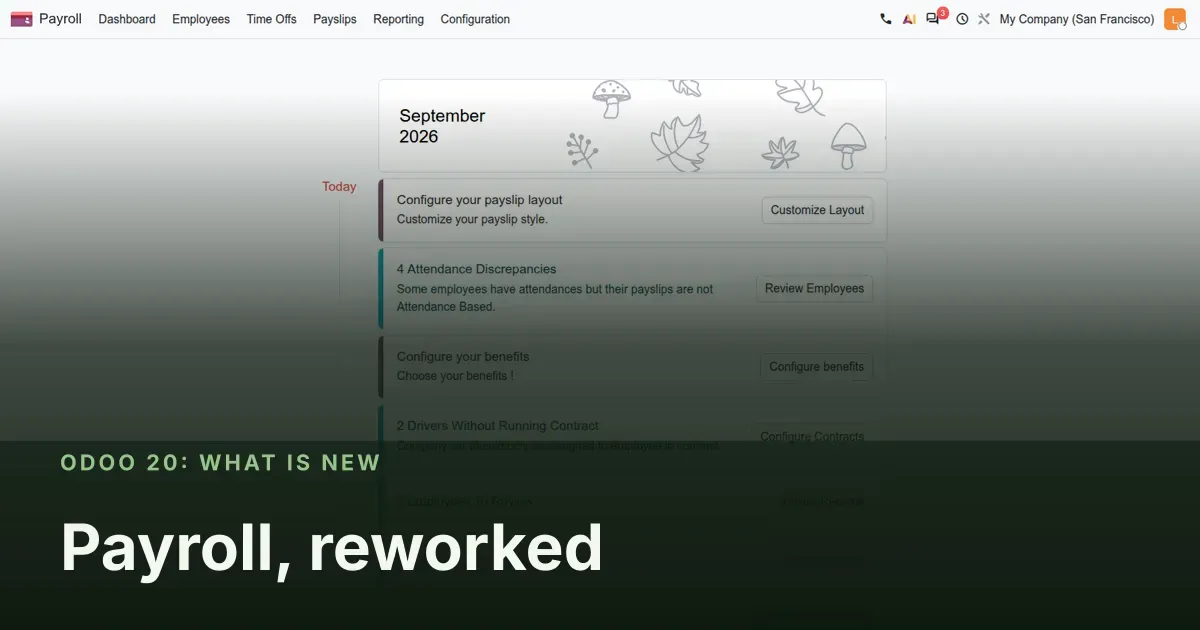
Fewer places to configure the same thing, fewer surprises on payday
Payroll is one of the most reworked apps in Odoo 20, and most of the change is in the foundations. The separate list of payslip input types is gone: a salary rule can now be an input itself. The contract is called the Employee Record and carries a review state that can block a payslip until someone looks at it. Dashboard warnings are configurable records. If you run payroll, this changes how you set up allowances and how you check a pay run before validating it.
This post covers two sections of our Odoo 20 series: the payroll rework and the new country packages. We clicked through the rework on a United States company and the Belgian declarations on a Belgian company, on the pre-release build. The Gulf packages and the Saudi GOSI connector are described from the guide and the 20.0 source.
Observed on the Odoo 20.0 Enterprise pre-release build of September 23, 2026. Names, menus and availability can change before general availability; we will update this page when they do.
One list of rules, and a rule can be its own input
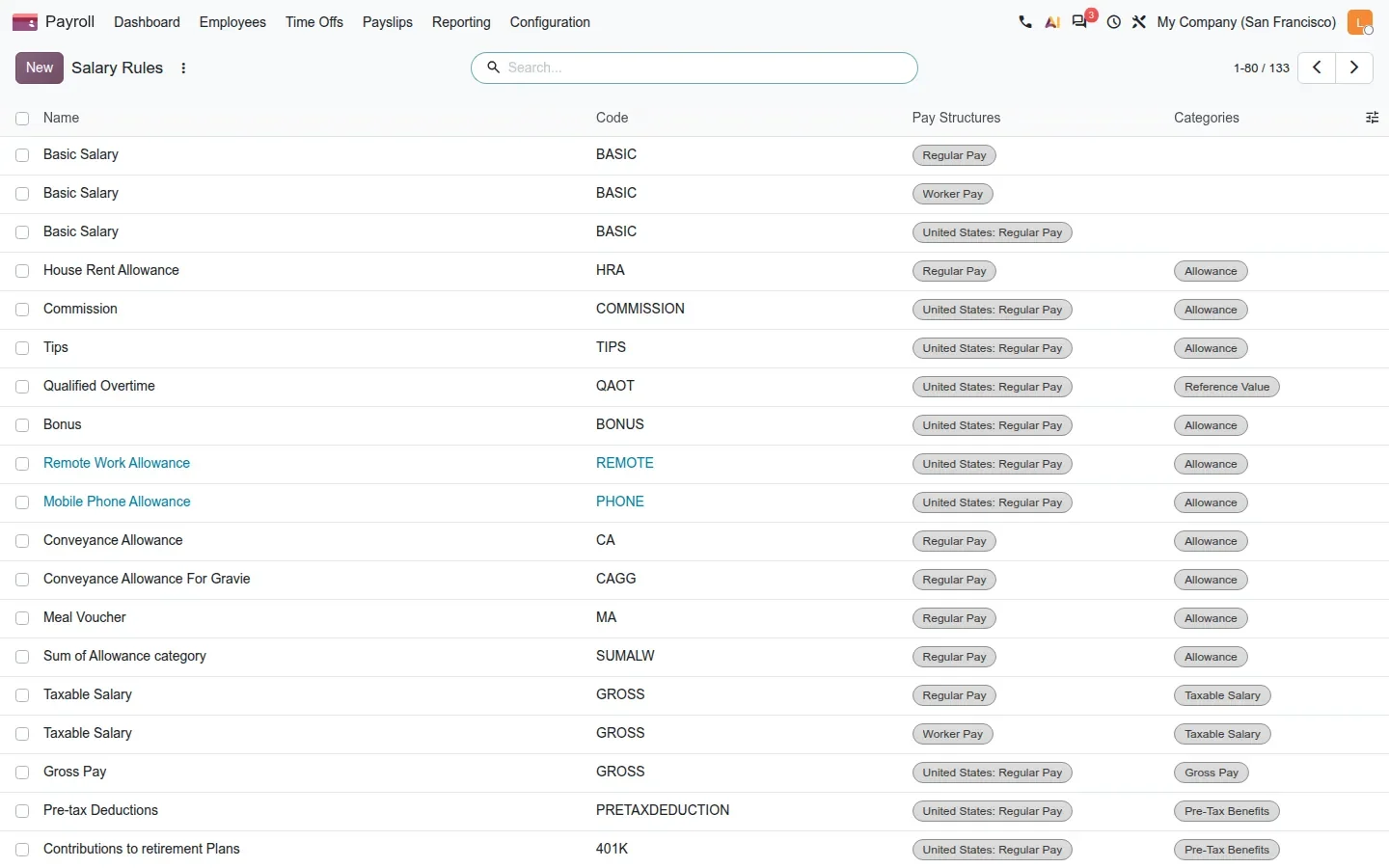
In Odoo 19 a payroll manager maintained two lists: input types, and the salary rules that read them. An input could exist with no rule consuming it, and nobody noticed until a payslip came out short. Odoo 20 folds the two together under Payroll > Configuration > Salary > Rules, a page titled Salary Rules that holds every rule of every pay structure.
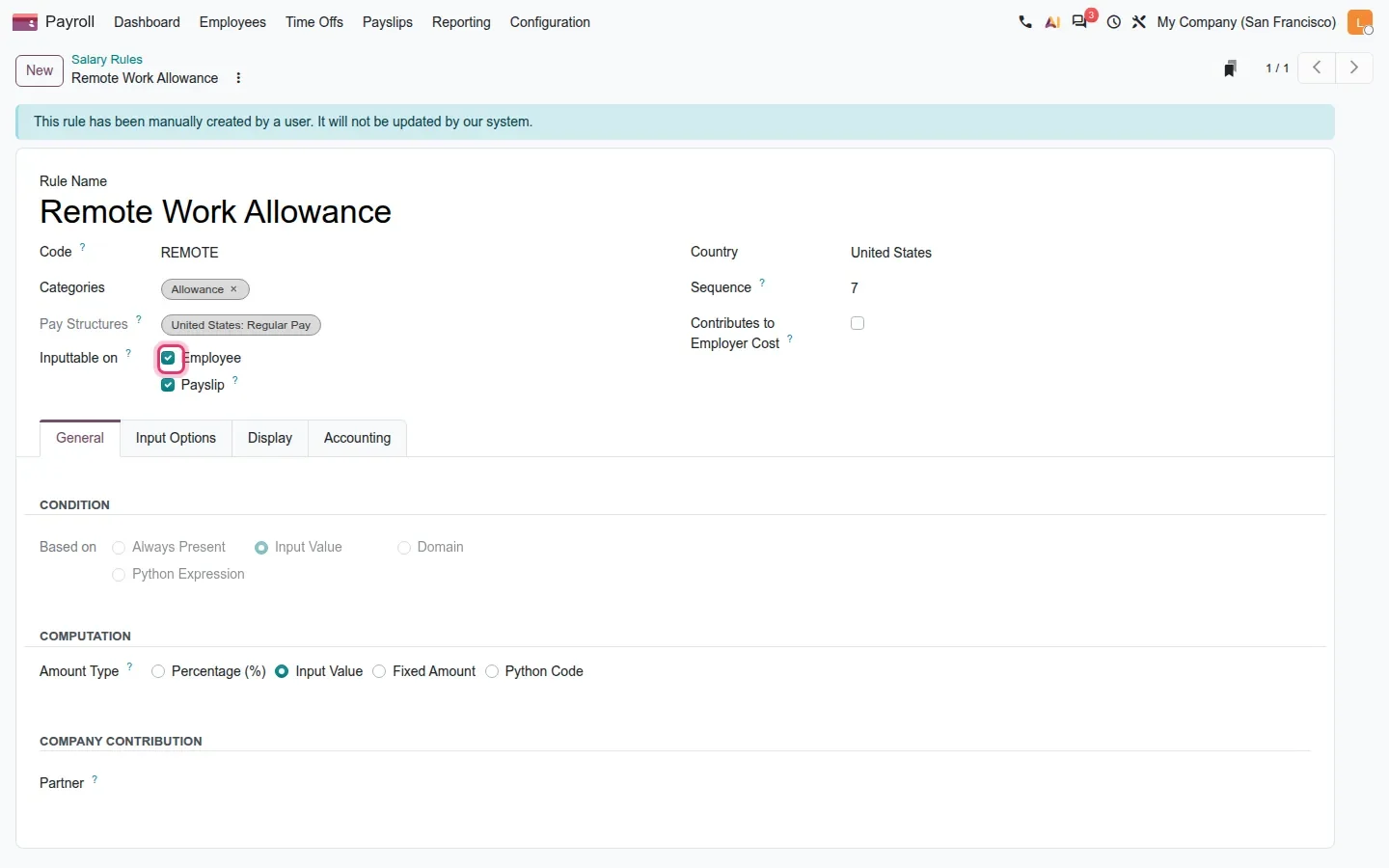
To make a rule an input, set Amount Type to Input Value (with Based on: Input Value in the condition block) and tick Inputtable on Employee, Payslip or both. Employee stores the value once on the employee record, for a recurring allowance. Payslip means you type it on each payslip, for a one-off bonus or deduction. On screen, "flagging a rule as an input" is these two checkboxes.
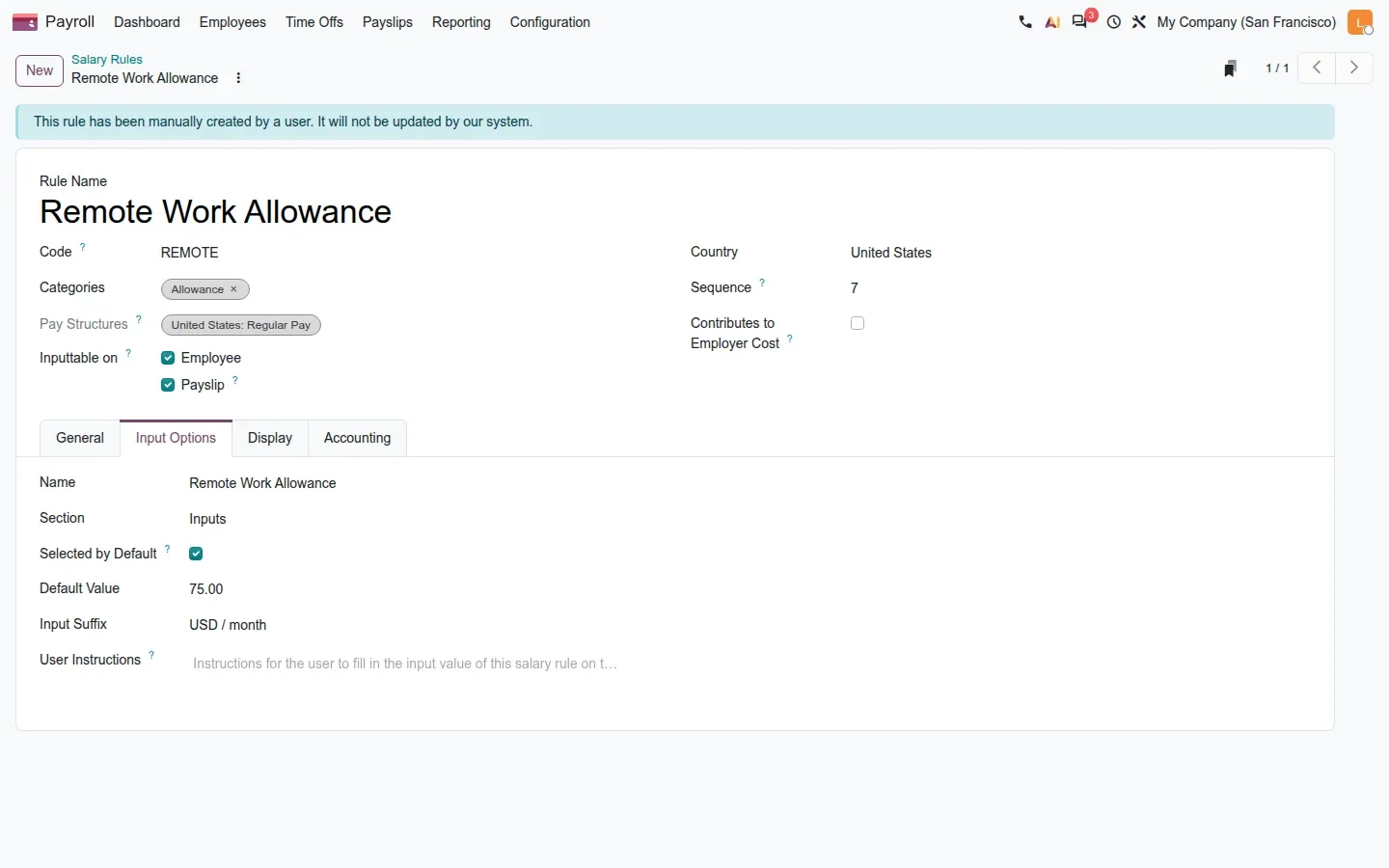
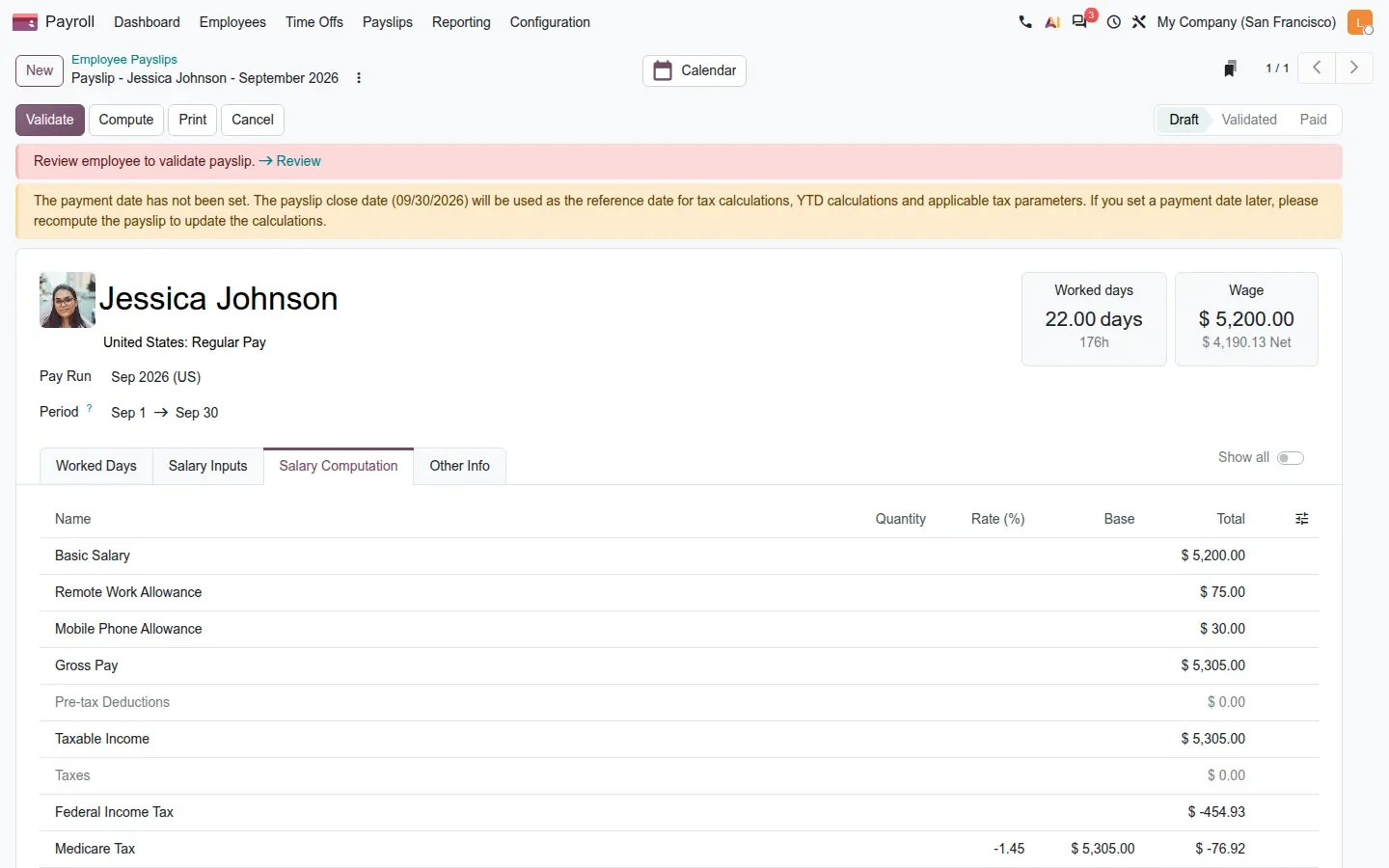
An Input Options tab holds the payslip section, a Selected by Default toggle, a default value and a suffix such as "USD / month". Sections live under Configuration > Salary > Salary Input Sections, a menu that opens a page titled Salary Rule Sections. On the demo we added a Remote Work Allowance and a Mobile Phone Allowance to the United States: Regular Pay structure this way.
The contract is now the Employee Record, with payroll properties
What Odoo 19 introduced as the contract "Version" is called the Employee Record throughout Odoo 20 Payroll. Each record carries the wage, the hourly wage (now with four decimals), the structure type, the employee type, departure information and a block of payroll properties. Records can be archived with their payslips.
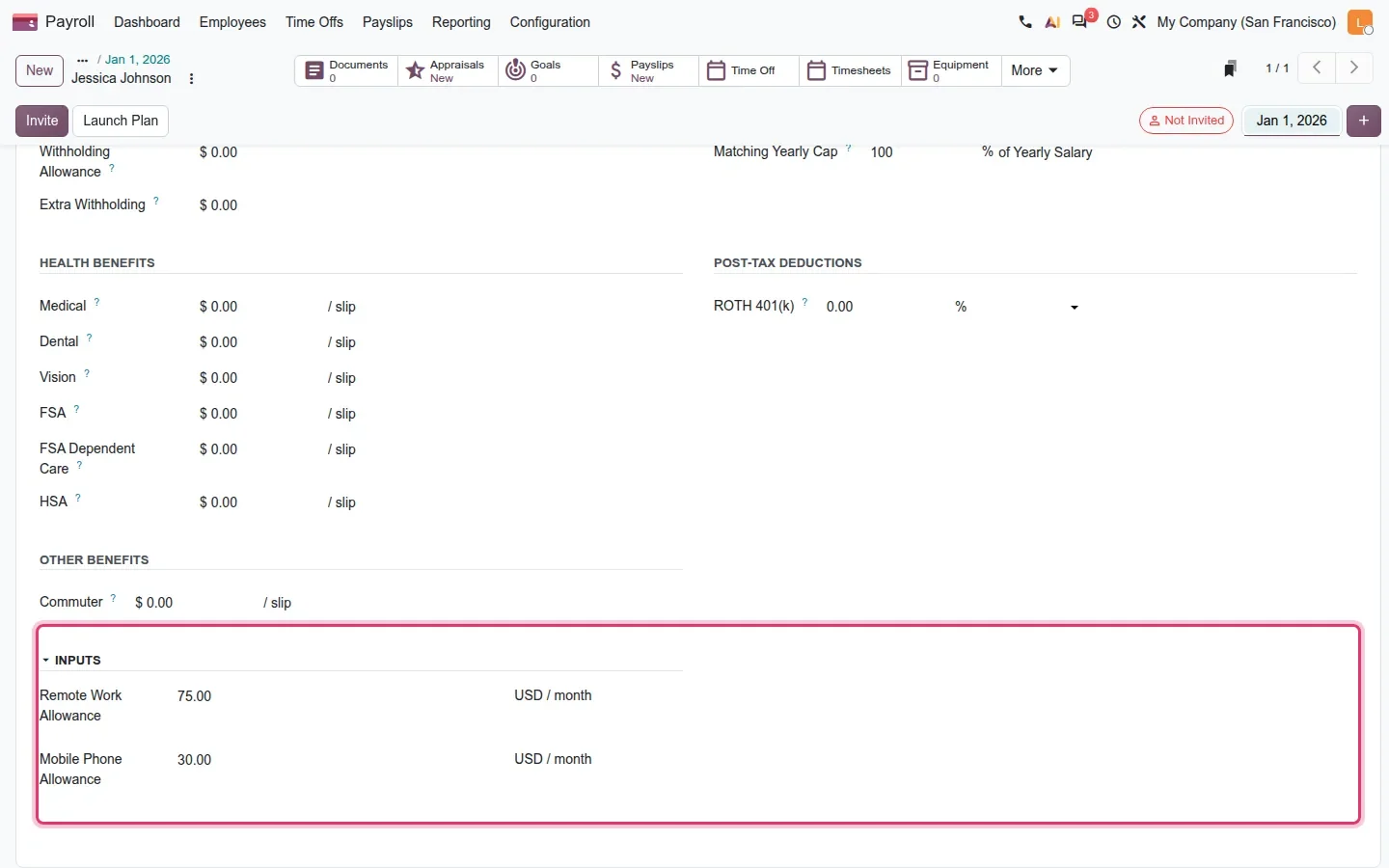
One correction to the guide. It describes Many2one and selection properties with a dedicated model for the values. On the pre-release build, the properties block is generated from the rules that are inputtable on Employee, and every property is a number with a suffix: our two allowances show as 75 and 30 USD / month. Nothing on screen defines a joint committee or a car category as a dropdown. Treat that part of the guide as roadmap.
Second correction: the guide lists Employees, Employee Records and Payslip Adjustments under Payroll > Employees. In normal mode only Employees is there; the other two need developer mode. Payroll officers work from the employee form's Payroll tab.
Review states, configurable warnings and blocked payslips
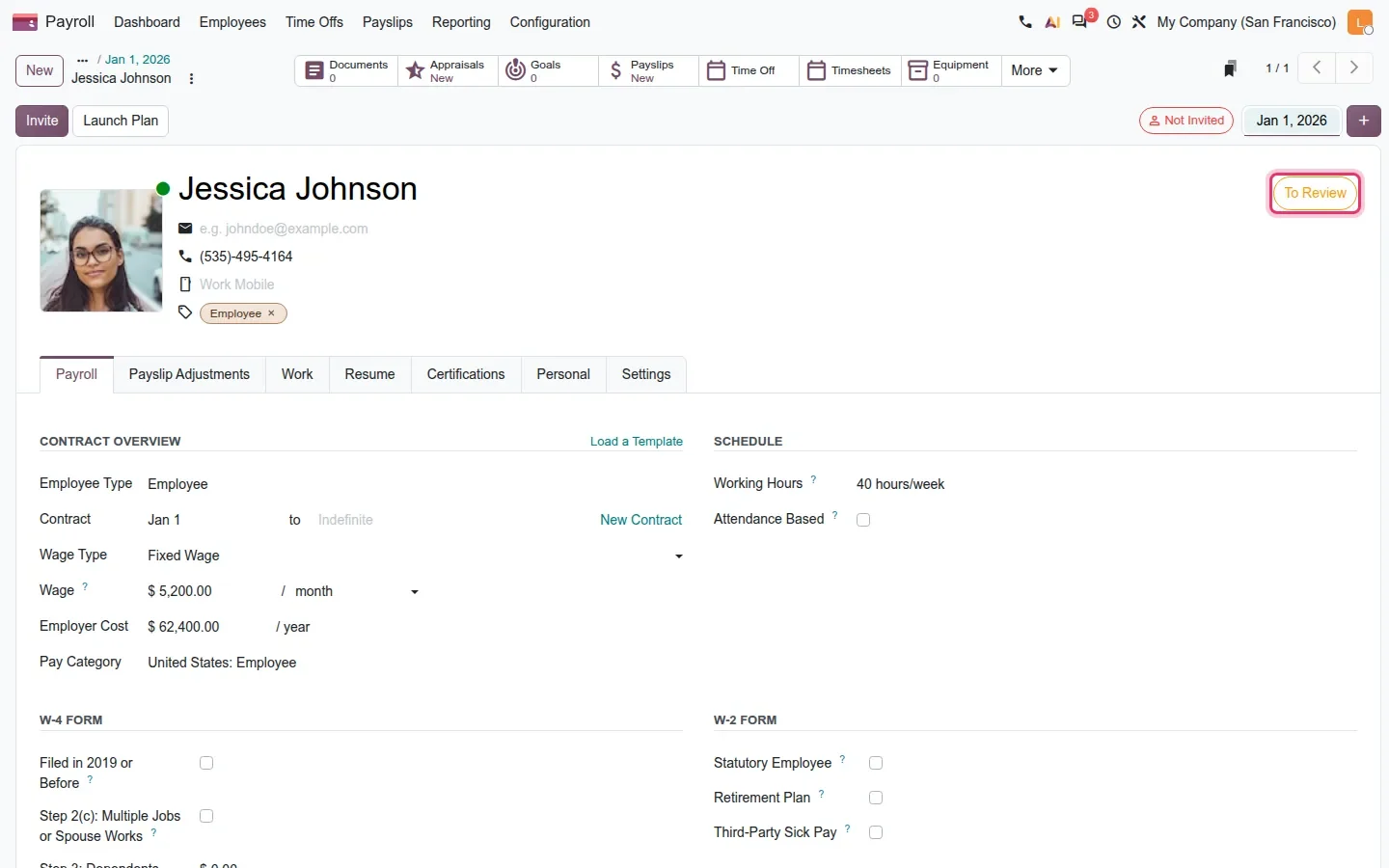
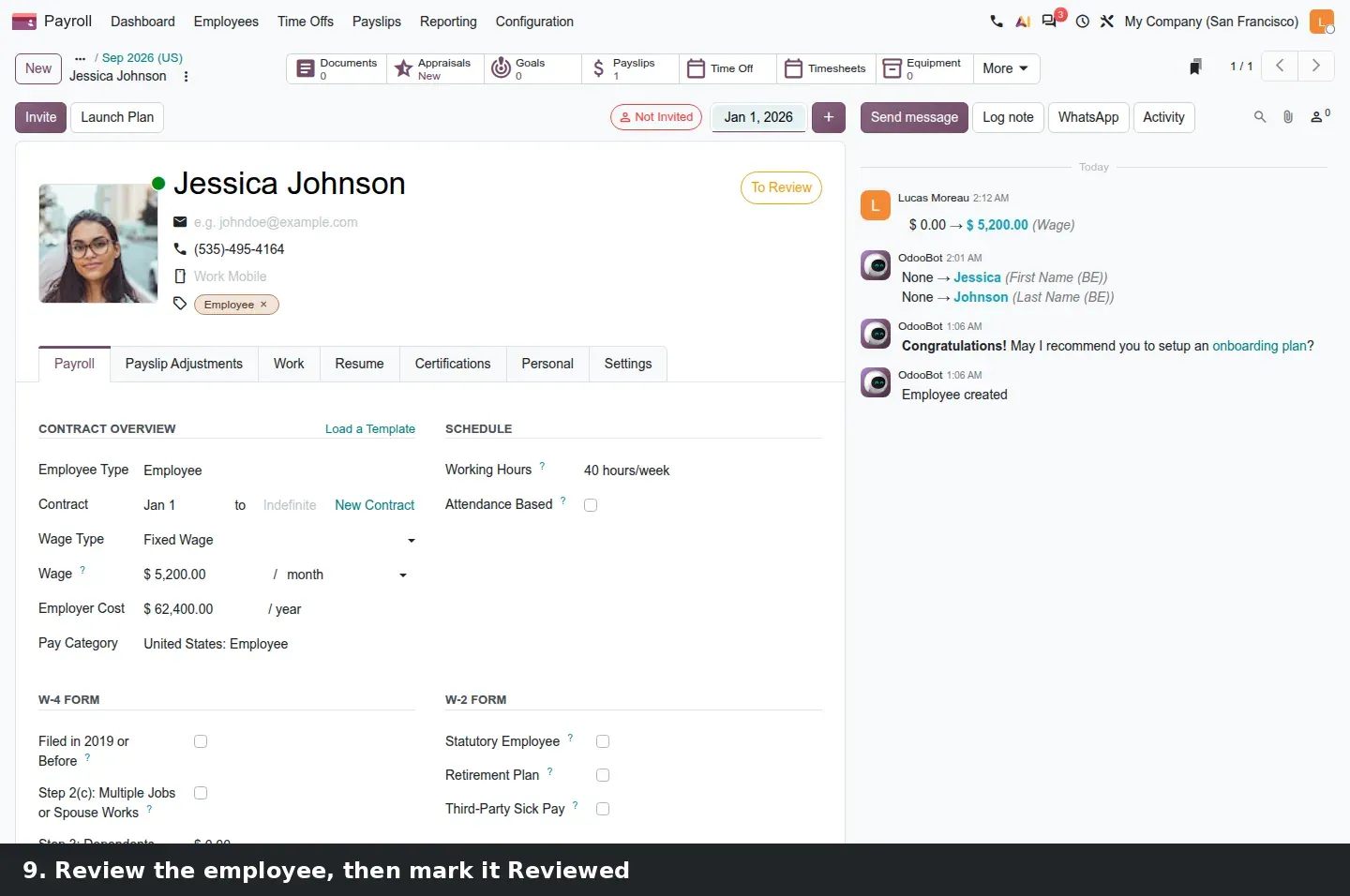
This is the part a payroll officer feels first. Every employee has a review state, Reviewed, To Review or Anomaly, shown as a badge on the form. The guide says any tracked change flips it to To Review. On this build that happens only when the editor is not a Payroll Officer; an edit by the payroll team leaves the state alone. When HR changes a wage, payroll gets a flag.
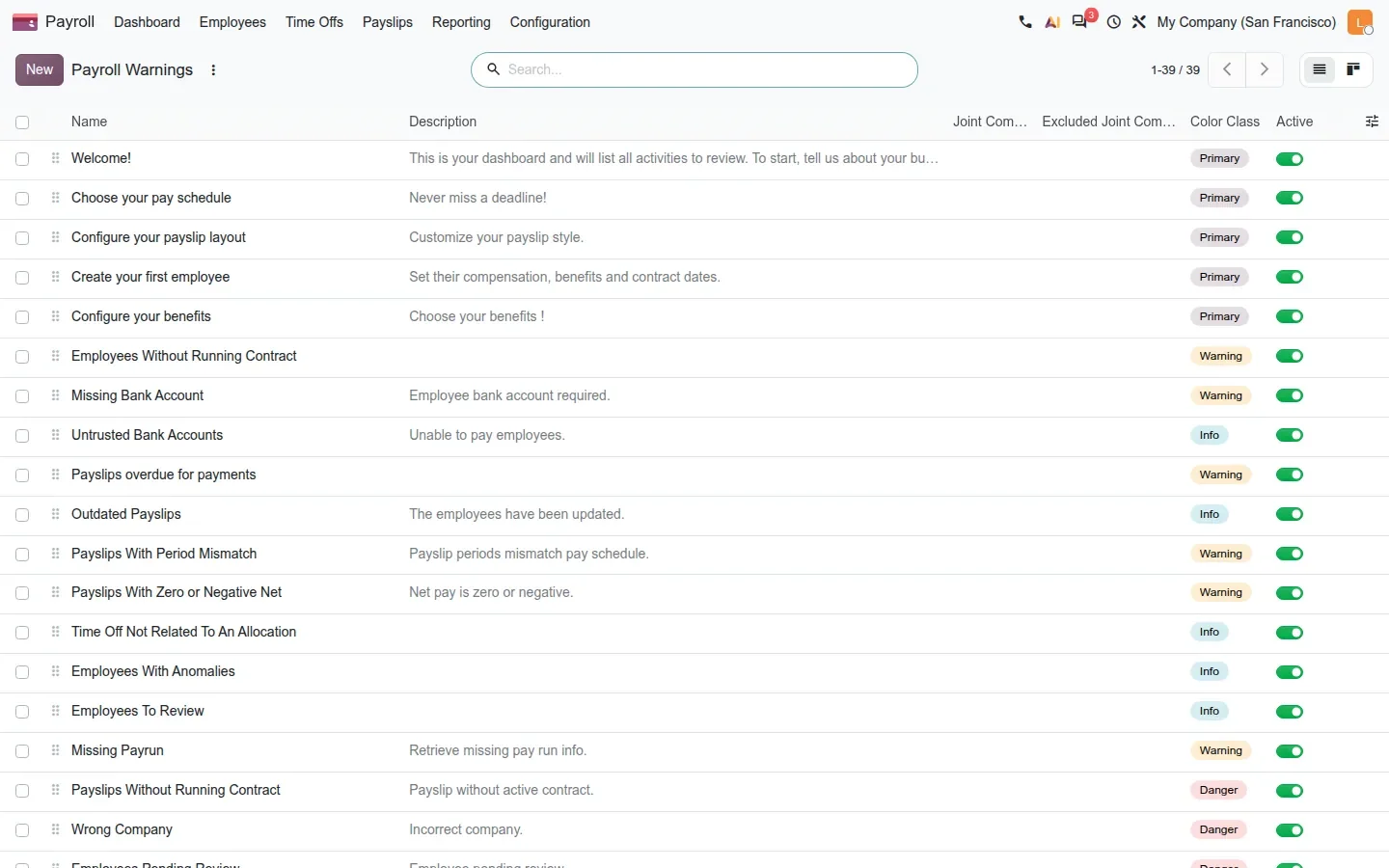
Dashboard warnings are records under Payroll > Configuration > Dashboard > Warnings: 39 on the demo, each with a description, a colour class (Primary, Info, Warning, Danger) and an active toggle. Employees To Review, Employees With Anomalies and Payslips With Zero or Negative Net are all there.
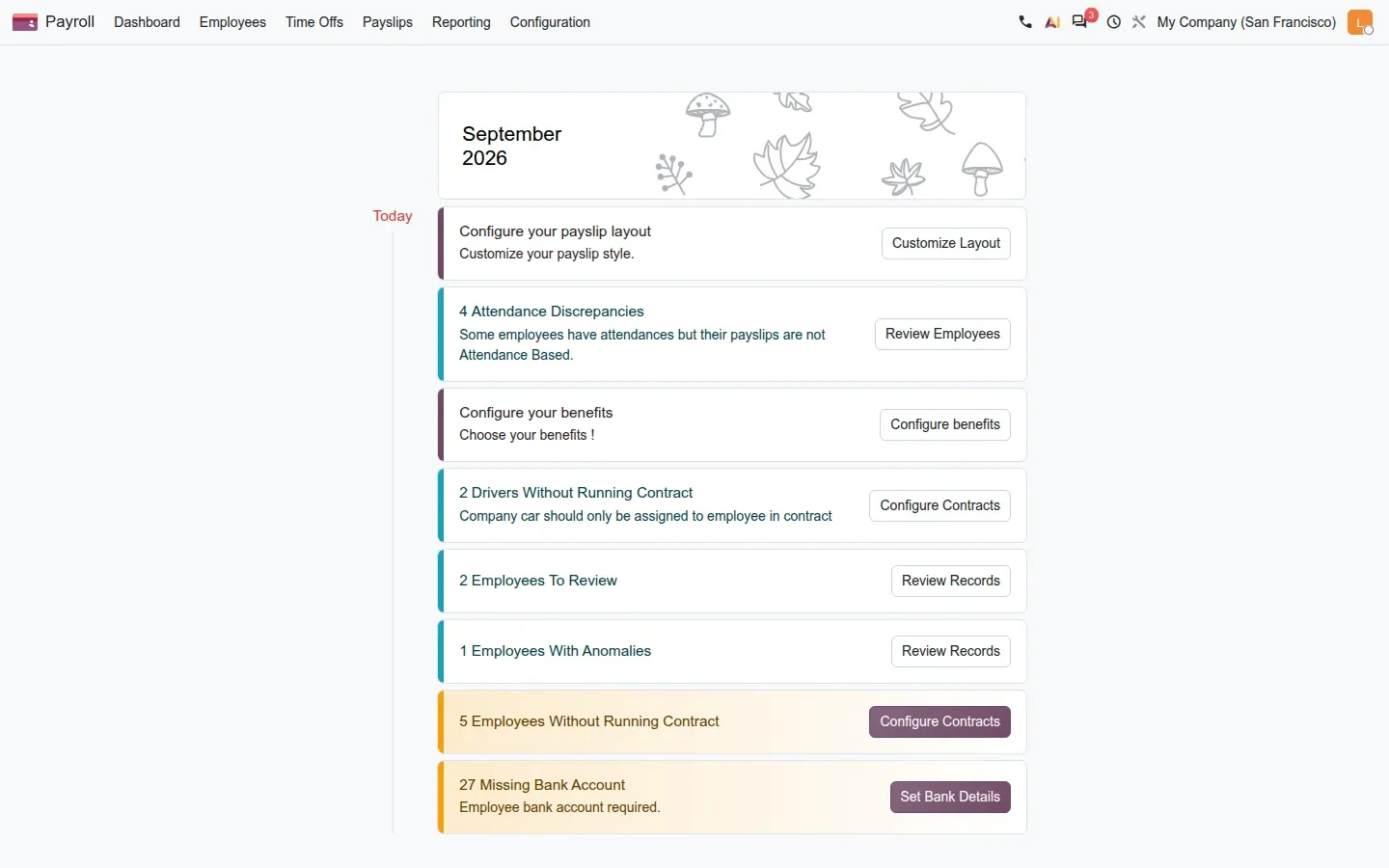
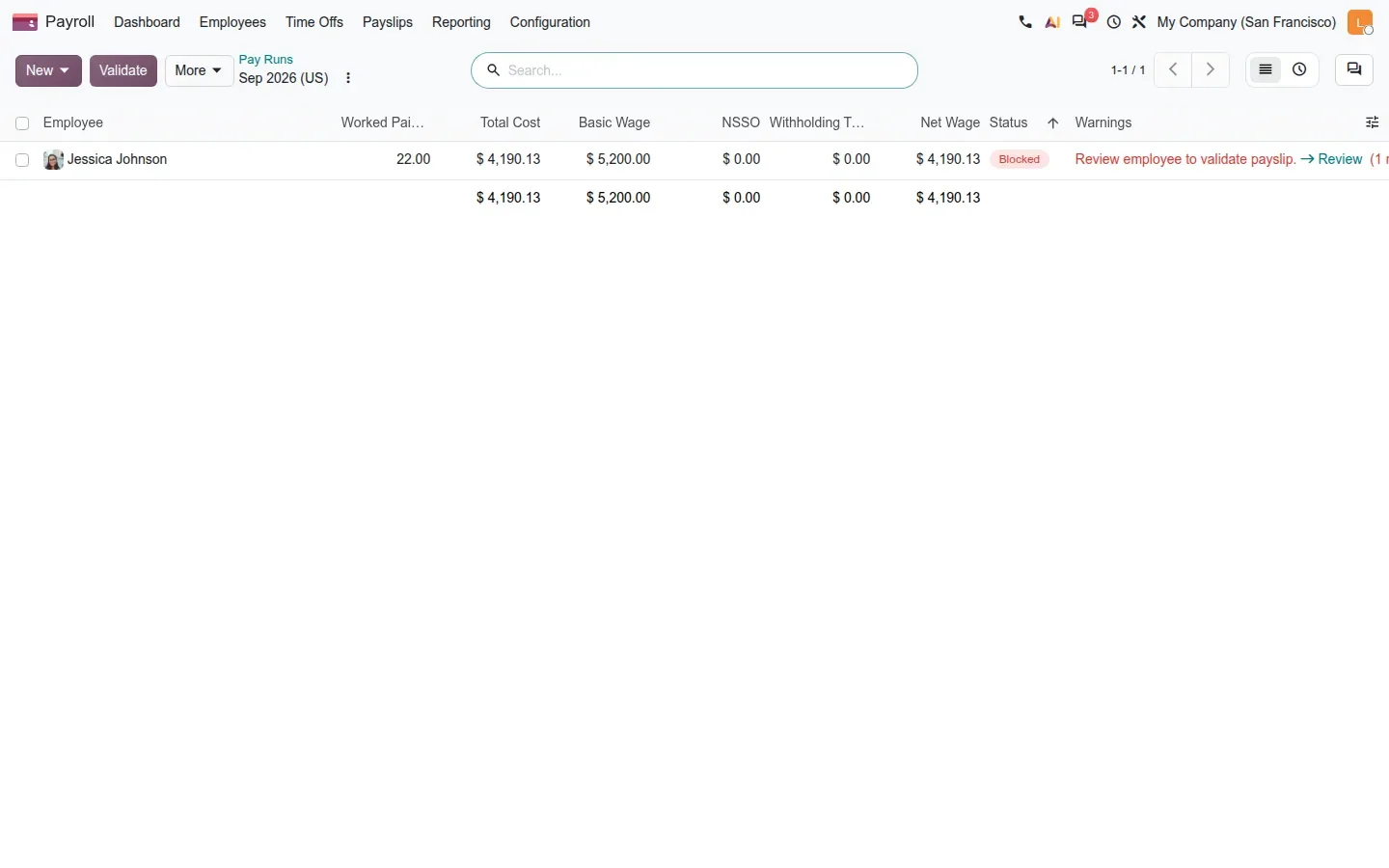
The guide describes a Review Employees banner on the pay run. We did not find one. Instead, the payslip of an employee in To Review shows the status Blocked with the warning "Review employee to validate payslip" and a Review link. A Review Employees button does exist, in the warning dialog shown when you start a pay run, and on the dashboard card as Review Records. Pay run states are Draft, Ready, Done and Paid, plus Cancelled.
Pro tip
Before your first Odoo 20 pay run, agree on who marks employees as Reviewed. If the same officer edits records and validates payslips, the state rarely flips: the safety net only works when HR and payroll are different groups.
First Payrun Date and Benefits inside Payroll
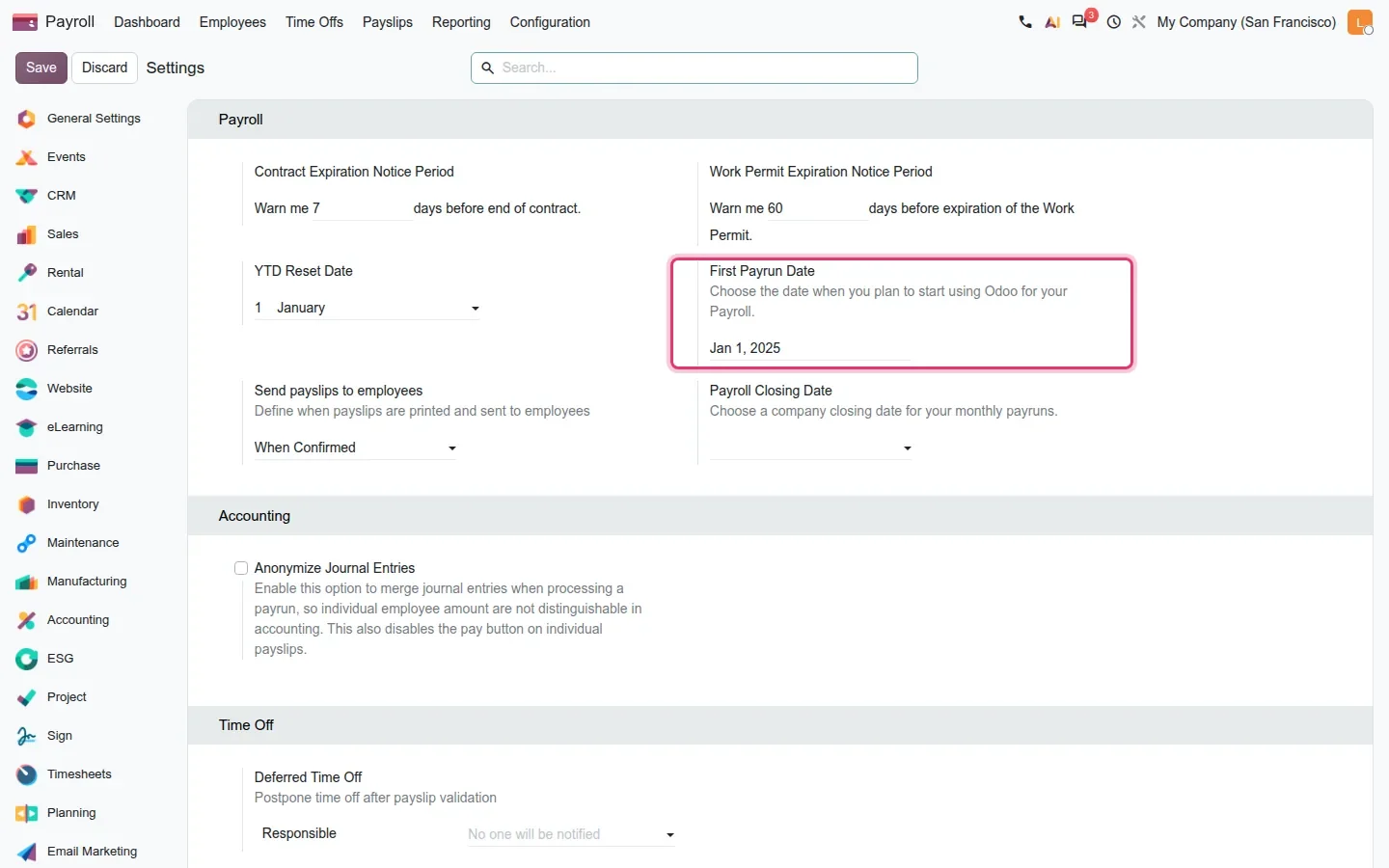
Under Payroll > Configuration > Settings, a First Payrun Date tells Odoo not to generate anything for periods before go-live, which removes the "missing payrun" warnings for months you paid in the old system. We set it to Jan 1, 2025 on the San Francisco company.
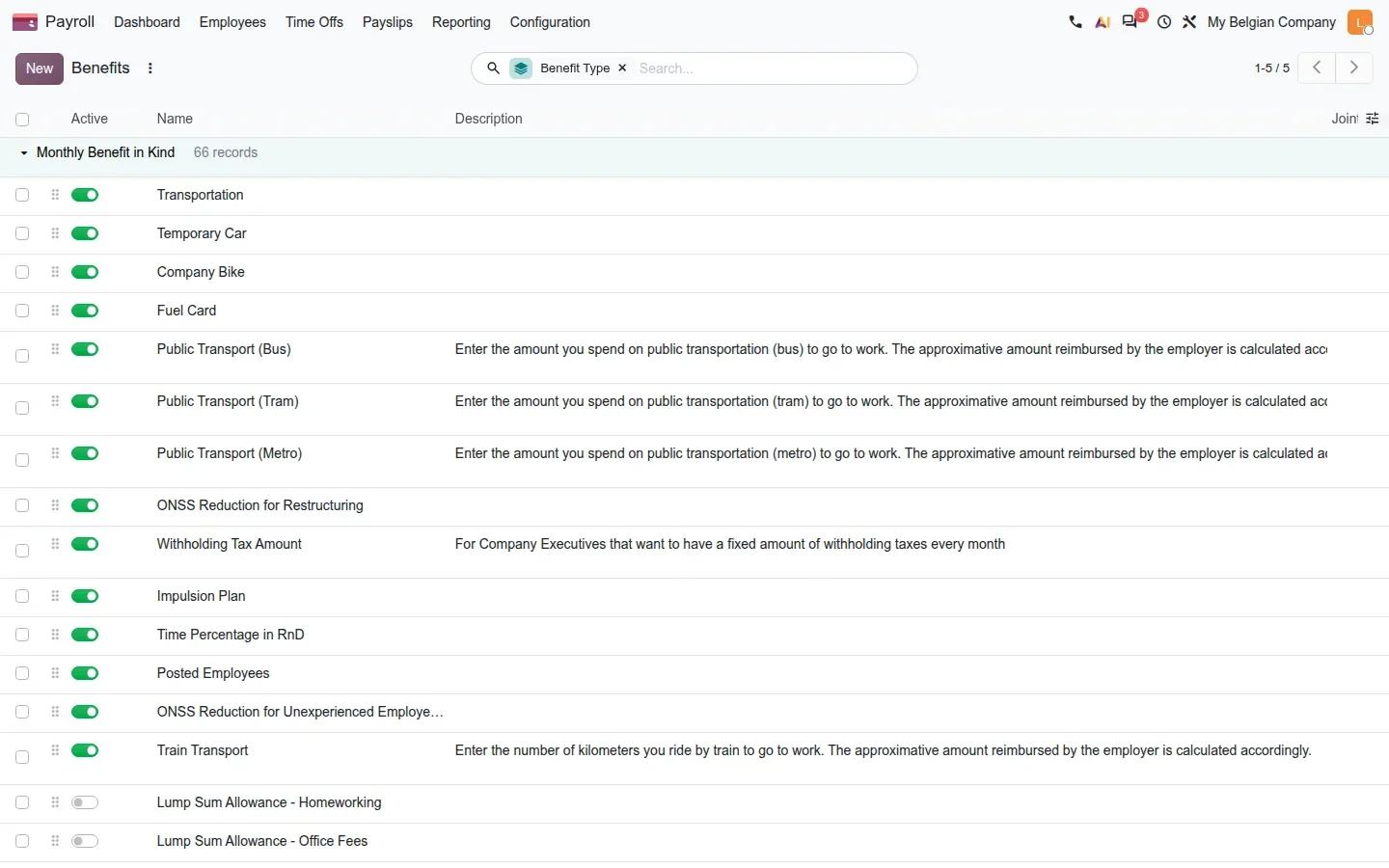
Benefits configuration has moved out of the Salary Configurator into Payroll > Configuration > Salary > Benefits, grouped by benefit type, so HR and payroll share one definition. The guide also says an offer can now be a contract amendment for an existing employee, with a Sign PDF template picked from the offer form; that module was not installed on our demo, so we saw the Benefits menu but not the offer form.
Iraq, Kuwait, Oman and the Philippines, plus a Saudi GOSI connector
According to the guide and the 20.0 source, four payroll packages are new: Iraq (social insurance, end of service, overtime), Kuwait (a "Kuwait: Monthly Pay" structure with social security, end of service indemnity and tiered sick leave), Oman (monthly structure, social insurance, two overtime rulesets) and the Philippines. Each ships an accounting bridge so payslips post journal entries. To be plain: neither Canada nor the United States is among the new packages. The US package is still there, and our demo pay runs used its United States: Regular Pay structure; the guide does not mention the Canadian package.
Saudi Arabia deepens. A GOSI module connects to the General Organization for Social Insurance API, fetches contribution data and logs each update as a wage update record; it is configured with a certificate key in the payroll settings. A companion module collects late hours from Attendances and runs them through To Approve, Approve and Refuse. Salary Package Configurators are localised for the United Arab Emirates, India, Saudi Arabia and Egypt. None of this was installed on our demo, so this paragraph is from the source, not from the screen.
Belgium: declarations produced from Odoo, connectors retired
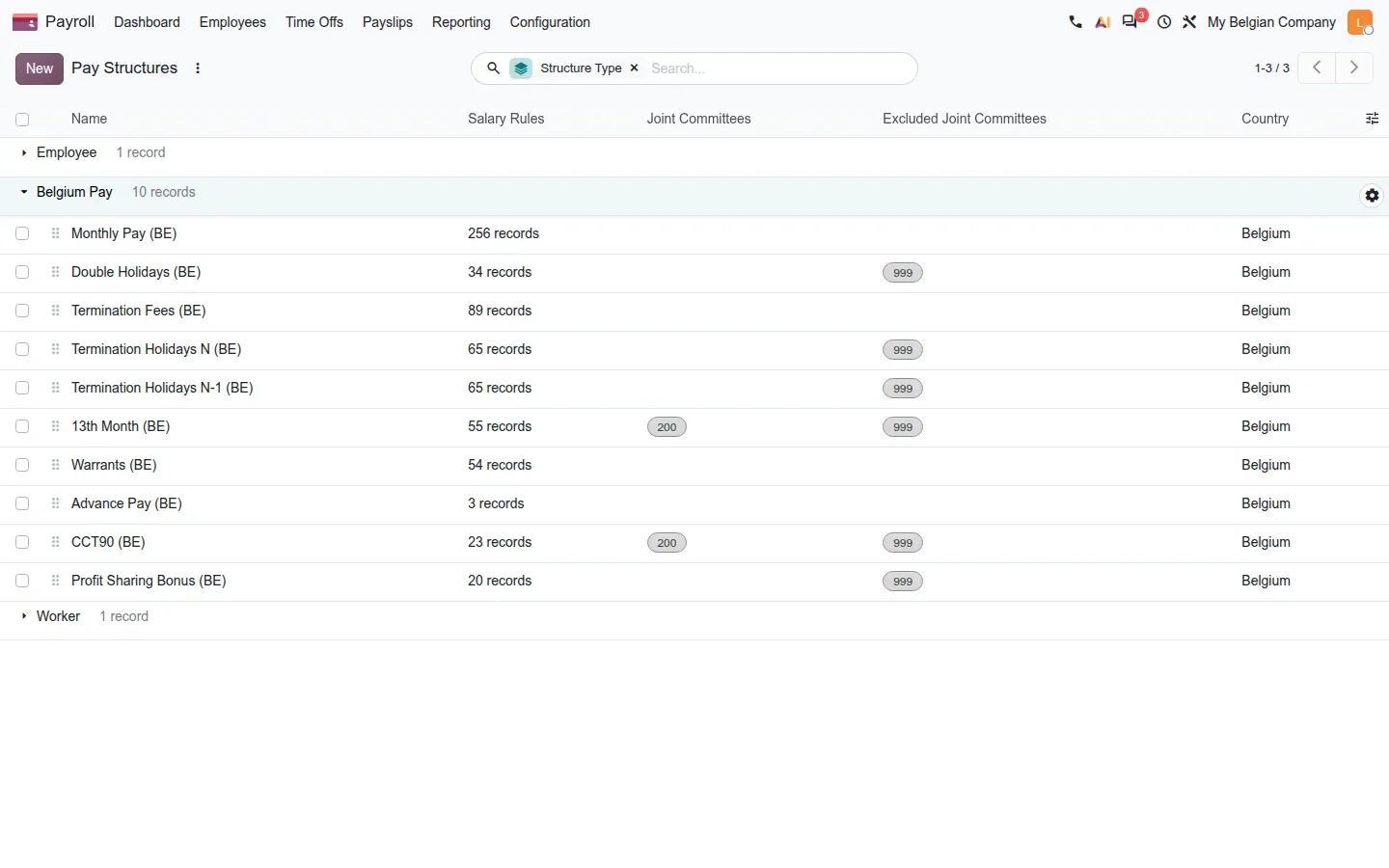
Belgium remains the most active localisation. Under Configuration > Salary > Structures, the Belgium Pay group lists Monthly Pay (BE) with 256 rules, Double Holidays, Termination Fees, 13th Month and more. Know this before you install it: the Belgian package archives its structures, rules and categories right after install; they come back once a Belgian company is configured. An empty list on a fresh database is expected.
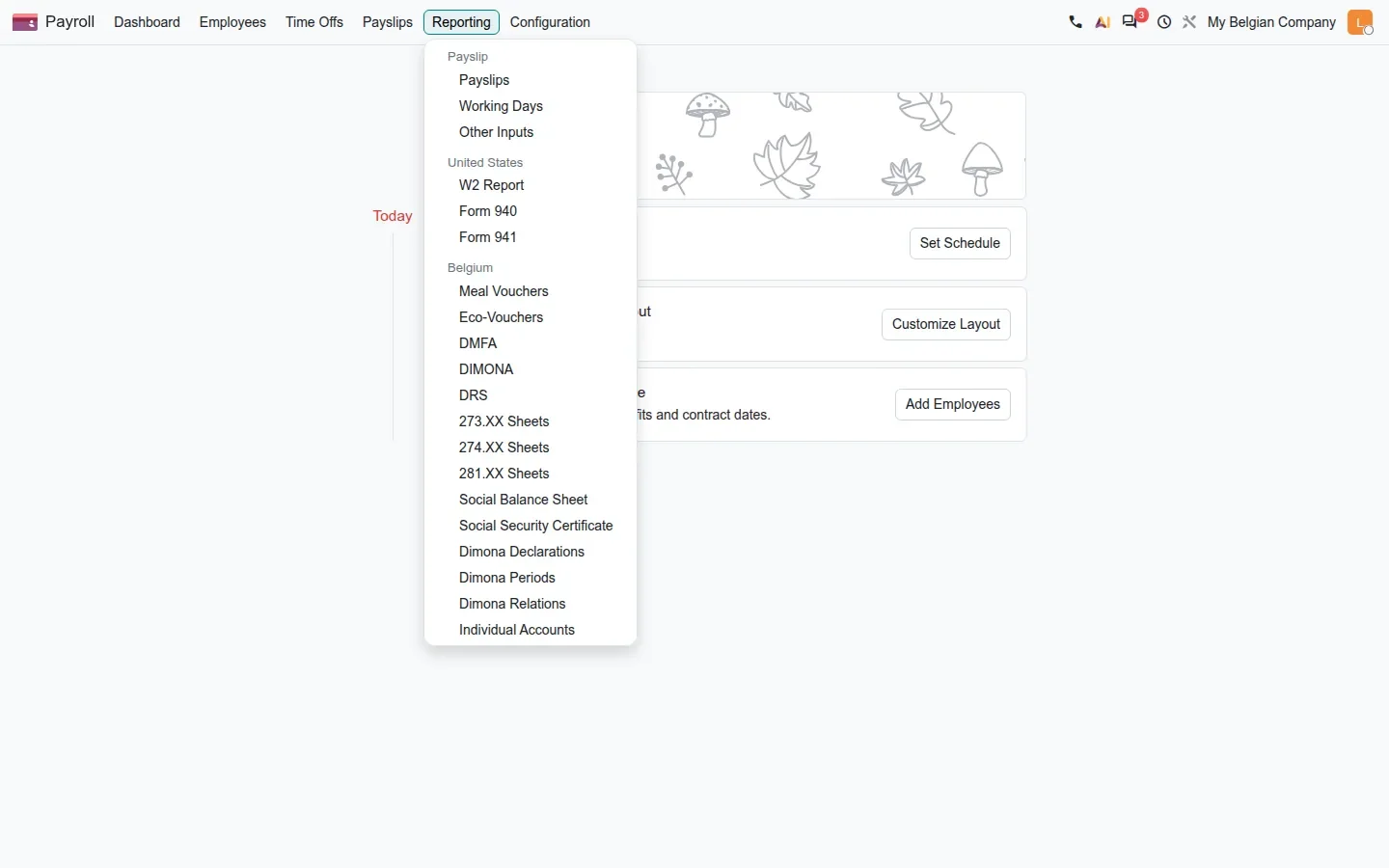
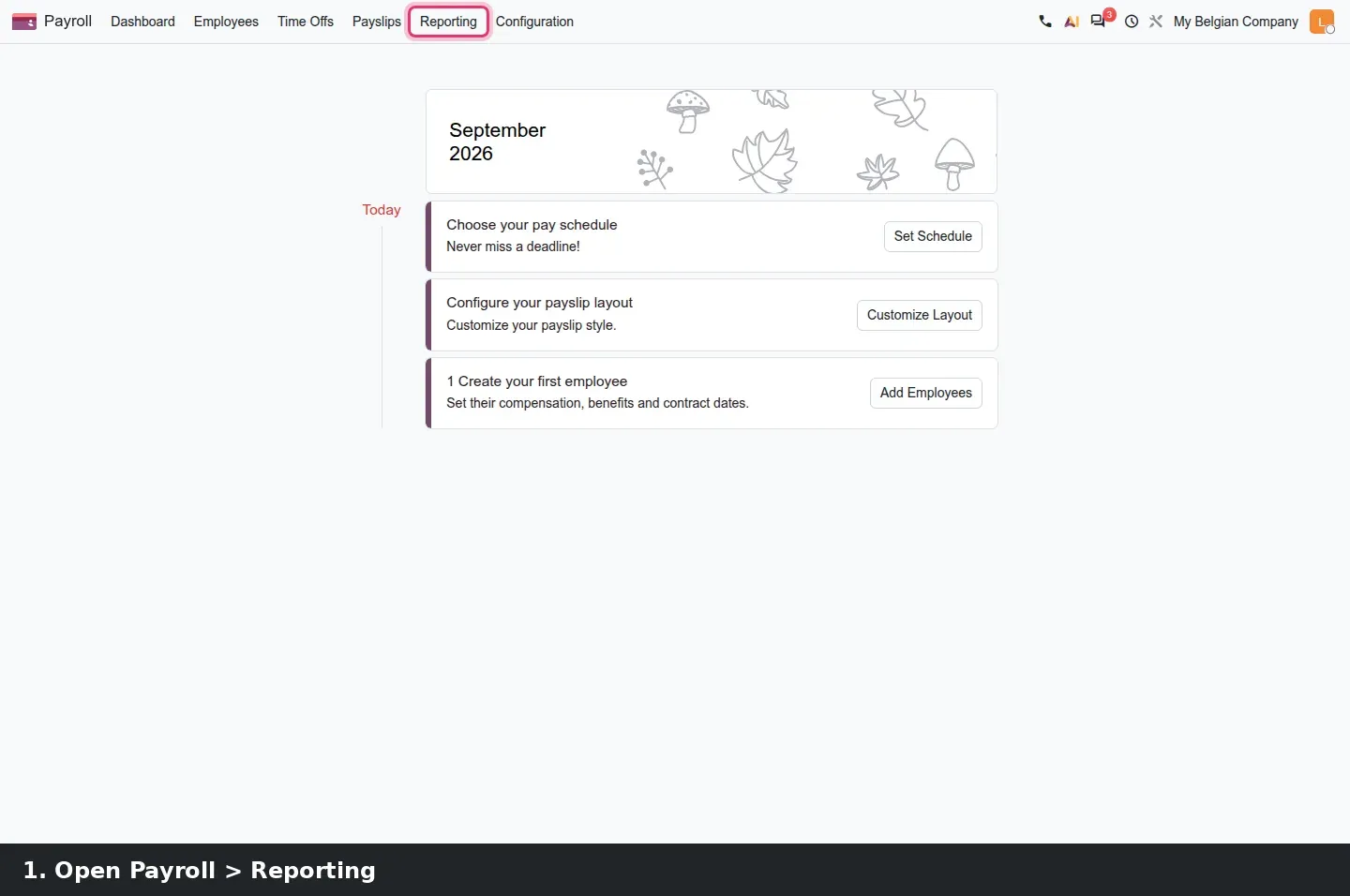
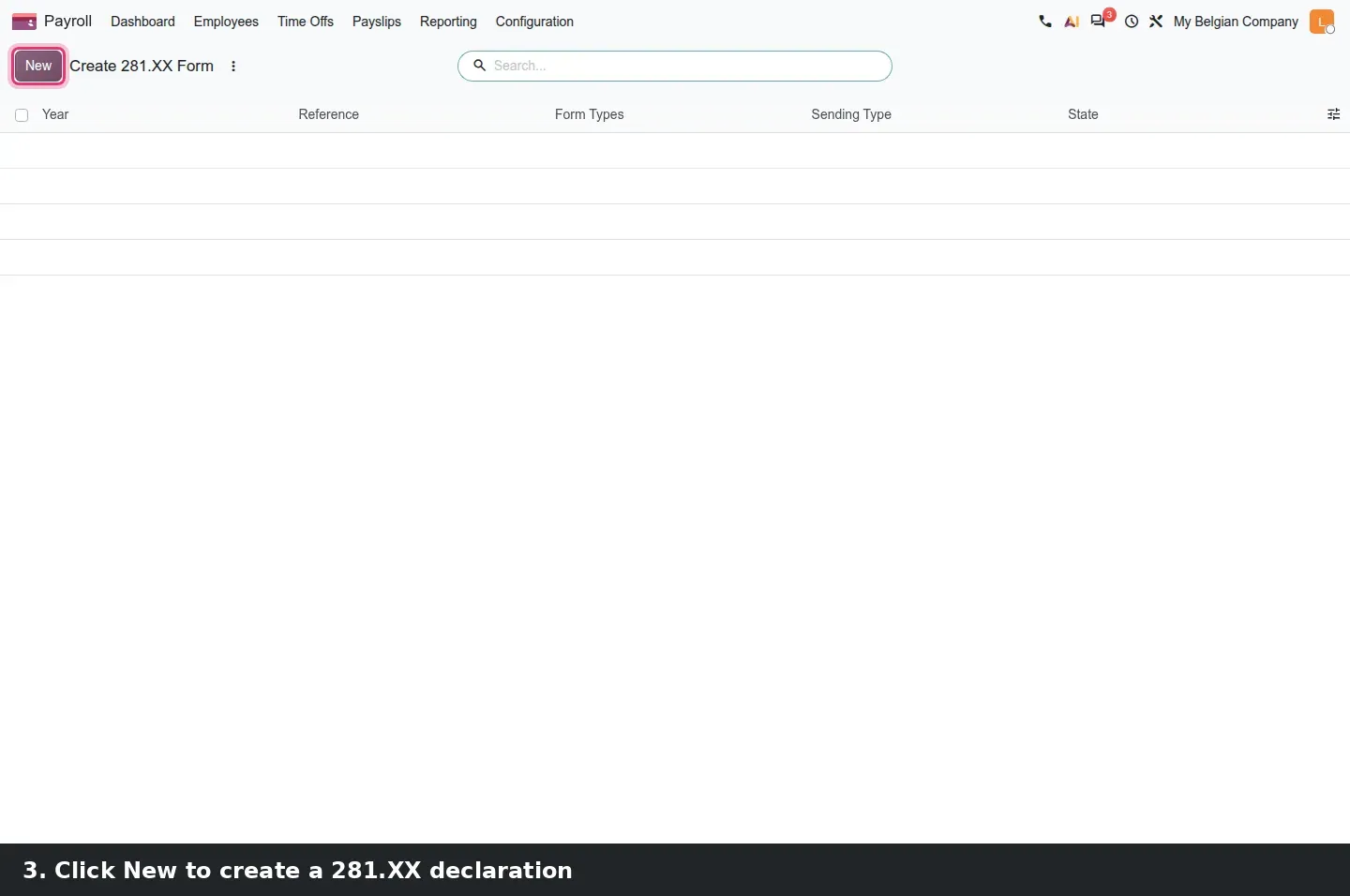
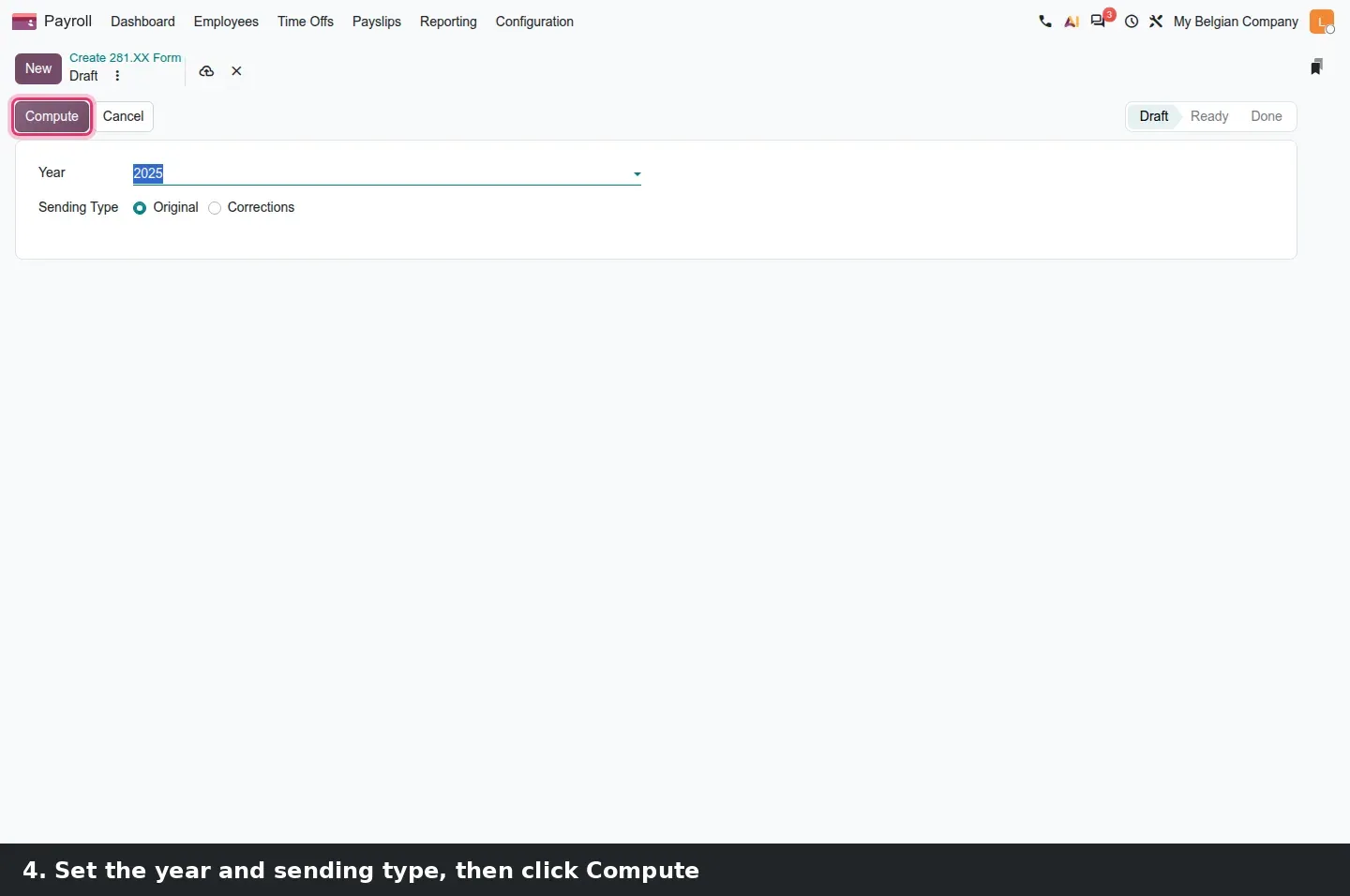
The Reporting menu on a Belgian company lists Meal Vouchers, Eco-Vouchers, DMFA, DIMONA, DRS and the 273.XX, 274.XX and 281.XX Sheets, among others. The guide mentions a "281.30 declaration"; there is no menu of that name. The entry is Reporting > Belgium > 281.XX Sheets, the form is titled Create 281.XX Form, and it asks only for a Year and a Sending Type (Original or Corrections) before Compute.
The guide also lists a correction flow for the 273S declaration, a thirteenth month for joint committee 302 and a mobility budget module bridging payroll and expenses. And a removal that matters: the connectors to SD Worx, Partena, Group S, UCM, Acerta and Prisma no longer exist as modules, according to the 20.0 source diff. Dimona was folded into the main Belgian module.
How to try it on a demo database
- Install Payroll with demo data on a company whose country ships salary rules (the United States package worked for us).
- Open
Payroll > Configuration > Salary > Rules, create a rule, set Amount Type to Input Value, tick Inputtable on Employee and fill the Input Options tab. - Open Payroll > Employees, pick an employee and fill the new property in the Payroll tab.
- As an HR user who is not a Payroll Officer, change that employee's wage; the badge switches to To Review.
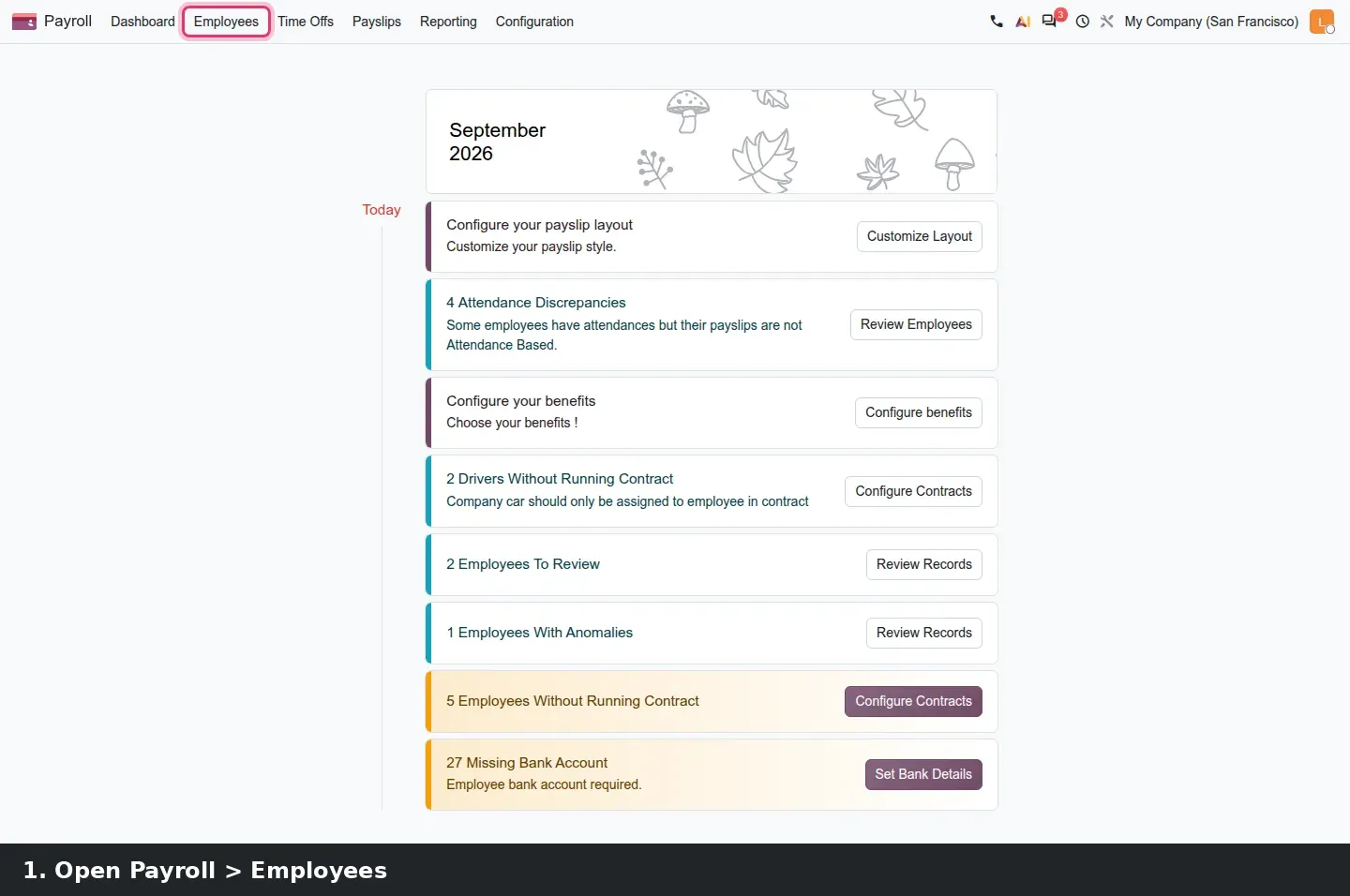
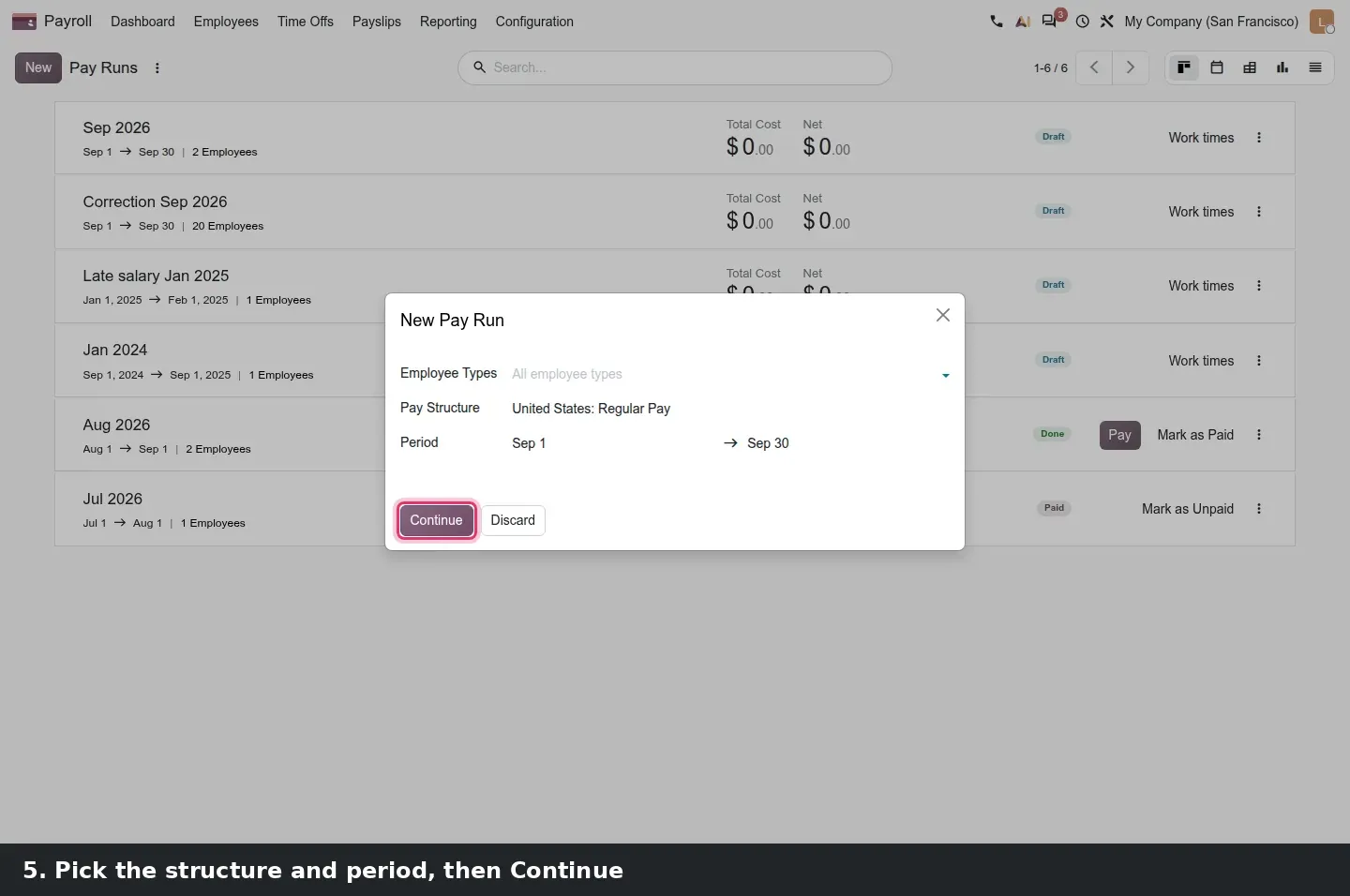
- Open Payroll > Payslips > Pay Runs, click New, pick the structure and period, then Continue. The payslip shows Blocked with a Review link.
- Follow the link, mark the record Reviewed, and validate the pay run.
- For Belgium, switch company, open Reporting > Belgium > 281.XX Sheets, click New, set Year and Sending Type, then Compute.
What we could not verify on the pre-release build
We did not see the Kuwait, Oman, Iraq or Philippines structures and payslips, the Saudi GOSI settings, wage update log and late-attendance approvals (modules not installed, and GOSI needs a real certificate key), the Salary Package Configurator pages and the contract-amendment offer form (not installed), or a computed 281.XX PDF and a Belgian payslip (the Belgian demo company had no employees or payslips). Many2one and selection payroll properties did not exist in this build, the Review Time action needed pending time off, and the mobility budget banner needs a Belgian employee with a budget and an expense. Everything else on this page was clicked through on the 20.0 Enterprise build of 23 September 2026.
What this means for an upgrade
If you run payroll on Odoo 17, 18 or 19, expect three kinds of work. First, every payslip input type becomes a salary rule with Inputtable on set, and custom rules that read inputs by code need a check, since the hr_work_entry_* bridges and hr_payroll_holidays were merged into payroll. Second, verify your country: according to the 20.0 source diff, the France, US ADP, Italy SD Worx and Hong Kong eMPF packages are absent from the 20.0 enterprise branch, with no removal commit to explain them. Third, decide who owns the Reviewed state and set the First Payrun Date to your go-live month. We run this checklist inside our migration service; if any script pulls payslip data over XML-RPC or JSON-RPC, add the RPC migration audit, since Odoo has scheduled the removal of those endpoints for Odoo 20. The series hub lists the other changes in the same upgrade.
Frequently asked questions
Are payslip input types gone in Odoo 20?
Yes. The separate input type list is replaced by salary rules that are themselves inputs: set Amount Type to Input Value and tick Inputtable on Employee or Payslip. Sections, defaults and suffixes live on the rule's Input Options tab, under Payroll > Configuration > Salary > Rules.
Does Odoo 20 add payroll for Canada or the United States?
No. The new packages named in the guide are Iraq, Kuwait, Oman and the Philippines, with deeper Saudi, UAE, Egypt and Belgian coverage. The United States package is still present; our demo pay runs used its Regular Pay structure. The guide does not mention changes to the Canadian package, so check it against your own setup before upgrading.
Why is a payslip Blocked in my Odoo 20 pay run?
Because the employee is in the To Review state. A tracked change made by someone who is not a Payroll Officer flips the record to To Review, and the payslip stays Blocked with a Review link until a payroll officer opens the record and marks it Reviewed. Then the pay run can be validated.
What happened to the French payroll package in Odoo 20?
According to the 20.0 source diff, l10n_fr_hr_payroll is absent from the 20.0 enterprise branch, as are US ADP, Italy SD Worx and Hong Kong eMPF. No removal commit explains it, so the packages may have moved elsewhere. Confirm with Odoo before planning a French payroll migration.
Where is the Belgian 281.30 declaration in Odoo 20?
Under Payroll > Reporting > Belgium > 281.XX Sheets on a Belgian company. Click New, choose the Year and the Sending Type (Original or Corrections), then Compute. There is no separate 281.30 menu; the same form covers the 281 family. The Belgian rules must be active, which happens once a Belgian company is configured.
Where did Benefits configuration go in Odoo 20?
It moved from the Salary Configurator into Payroll > Configuration > Salary > Benefits, grouped by benefit type. The point is one definition shared by HR offers and payroll computation, instead of two lists that drift apart. The configurator offer form still references those benefits when it builds a package.