
Two ways to stop typing hours by hand
Odoo 20 closes two old gaps in time tracking. Attendances can now receive punches from physical biometric terminals: every punch becomes a Biometric Attendance Event, is matched to an employee through the badge ID, and creates a normal attendance flagged with a new Biometric mode. Connectors ship for ZKTeco BioTime servers, eSSL and Mantra devices. On the other side of the building, the Timesheets Assistant becomes a full feature with its own menu, a rule engine, and suggestions built from your calendar, your Odoo activity and browser activity collected locally by ActivityWatch. This matters for HR and operations managers with hourly staff who will not accept a tablet kiosk, and for services firms that bill time and lose hours to forgotten timesheets.
This post covers the biometric inbox and the connector settings, then the assistant's settings, rules and suggestion panel, then the systray where the timer now lives. Two things we could not exercise on the pre-release build, a real BioTime server and real ActivityWatch data, are called out where they apply.
Observed on the Odoo 20.0 Enterprise pre-release build of September 23, 2026. Names, menus and availability can change before general availability; we will update this page when they do.
One inbox for every punch a terminal sends
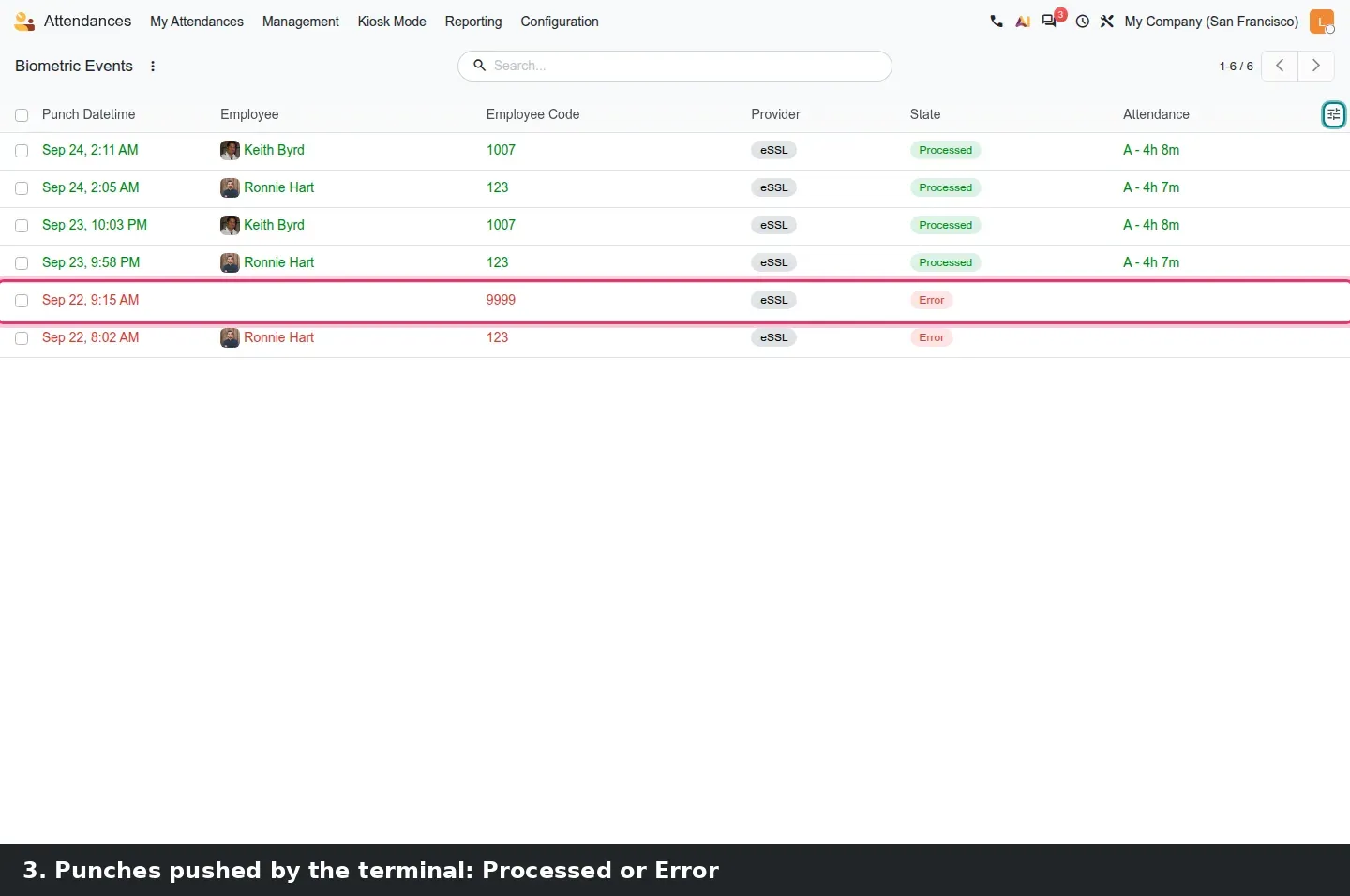
Every punch received from a device becomes one Biometric Attendance Event with the provider, the employee code the terminal sent, the device identifier, the punch time and a state, Processed or Error. Odoo matches the code to the employee through the badge ID on the employee form, so the only setup per person is to copy the terminal's user code into that field. The list lives under Attendances > Management > Biometric Events and shows Punch Datetime, Employee, Employee Code, Provider, State and the resulting Attendance. Processed events cannot be deleted, and a punch that arrives twice is rejected by a unique constraint per company, provider and punch reference.
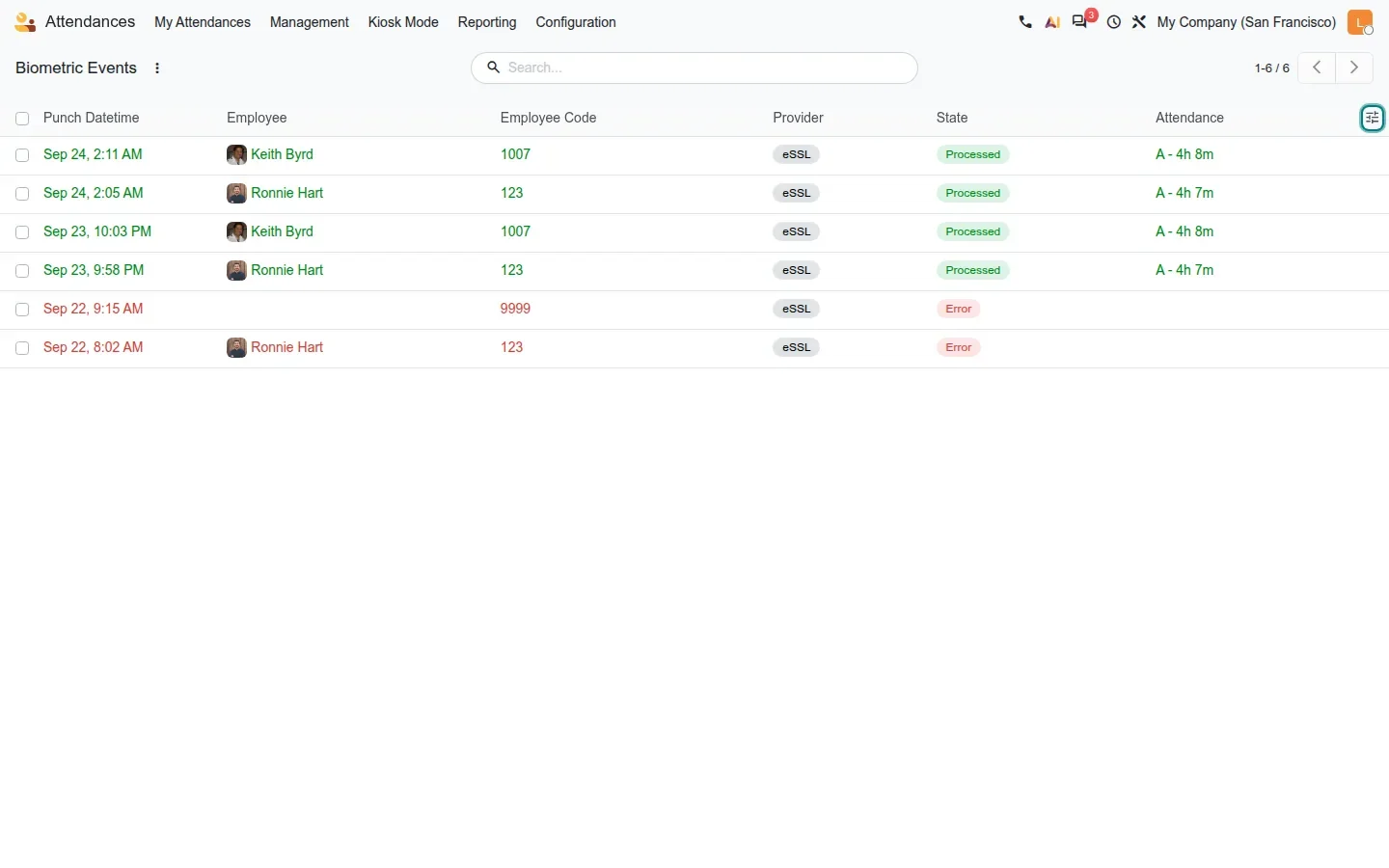
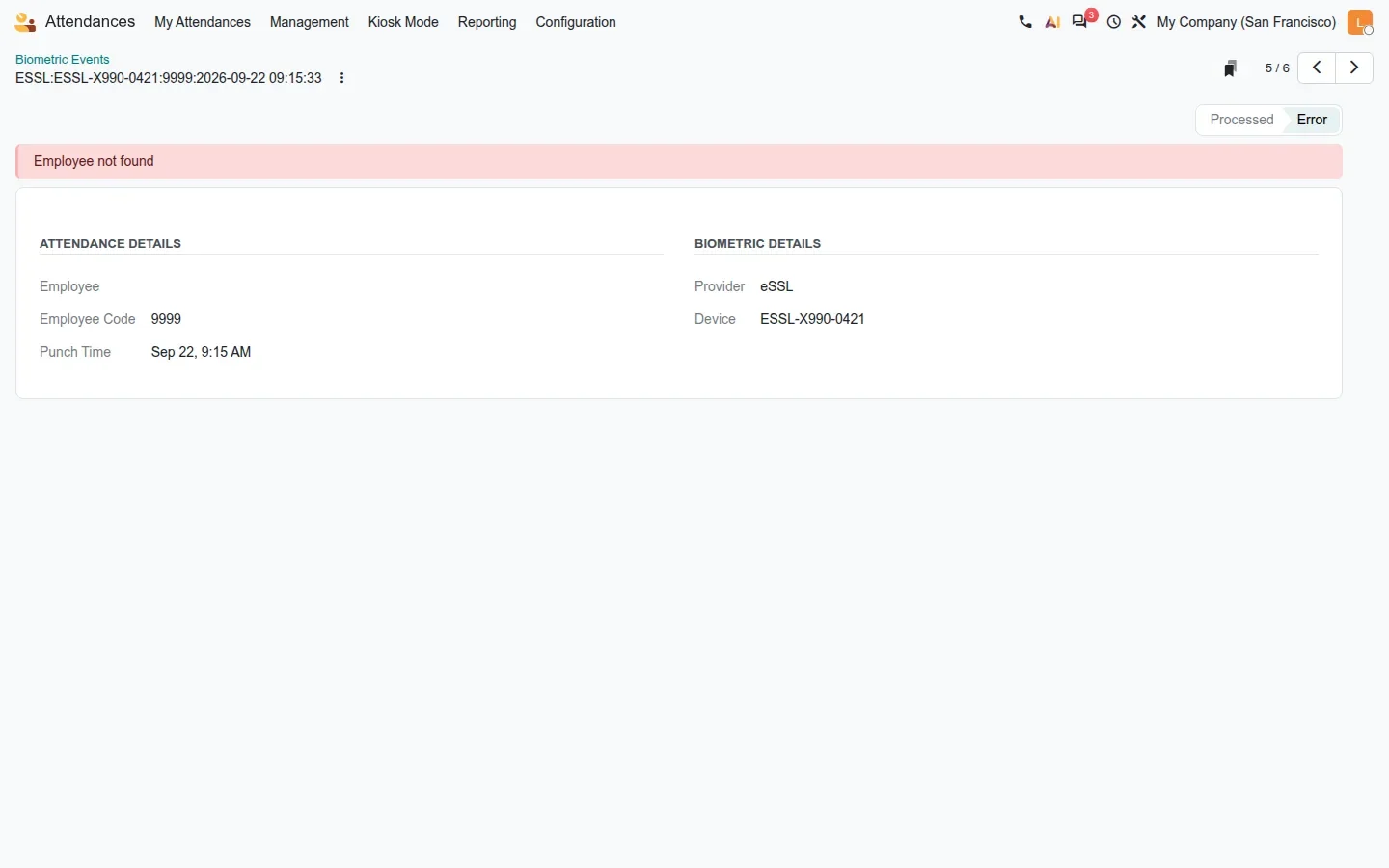
The attendance officer only looks at the Error rows. On the demo we sent a punch with badge 9999, which no employee carries: the event lands in Error and its form shows a red banner reading Employee not found, with the code, the punch time and the device. The guide describes a warning note column; on this build the note appears only as that banner. A second cause of rejection is not in the guide: an event whose punch time is earlier than the last processed punch is refused, which protects the check-in and check-out pairing from devices that replay old data. In both cases the fix is at the source.
ZKTeco pulls, eSSL and Mantra push
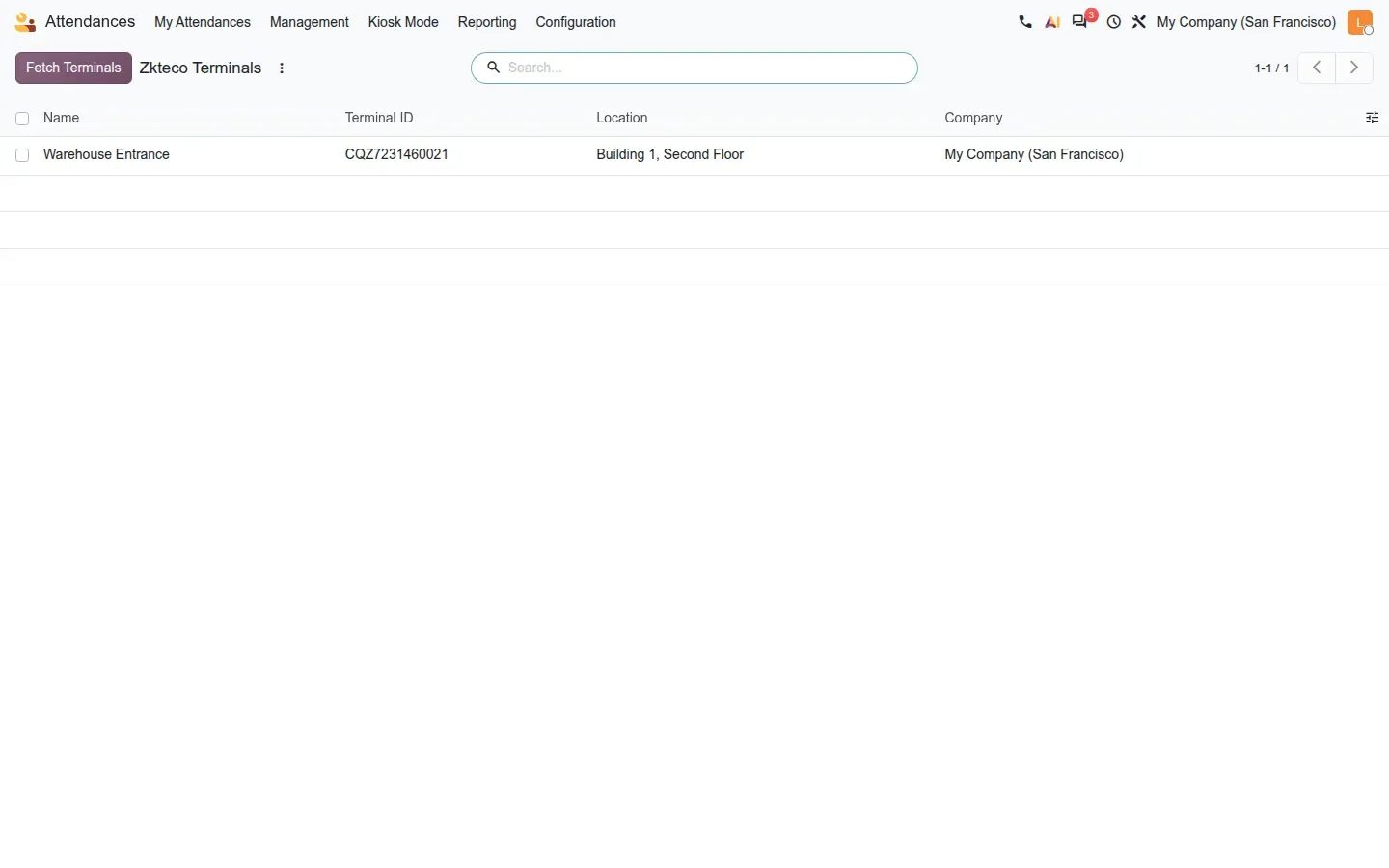
The three connectors feed the same inbox but work in opposite directions. ZKTeco integrates with BioTime 8.5 and 9.0 servers. In Attendances > Configuration > Settings, a ZKTeco BioTime block holds the Server URL, Email and Password of the BioTime account, a Transaction Fetch Window in days, a Check-out Lookback in days used to pair a check-out with an open attendance, and a Connection link to test the credentials. A scheduled job then pulls the transactions. Terminals are listed under Configuration > Zkteco Terminals, where a Fetch Terminals button imports them from the server; each record carries a name, a Terminal ID, a work Location and a Company. On this build the terminal views refuse to open before the first successful sync, so the credentials come first.
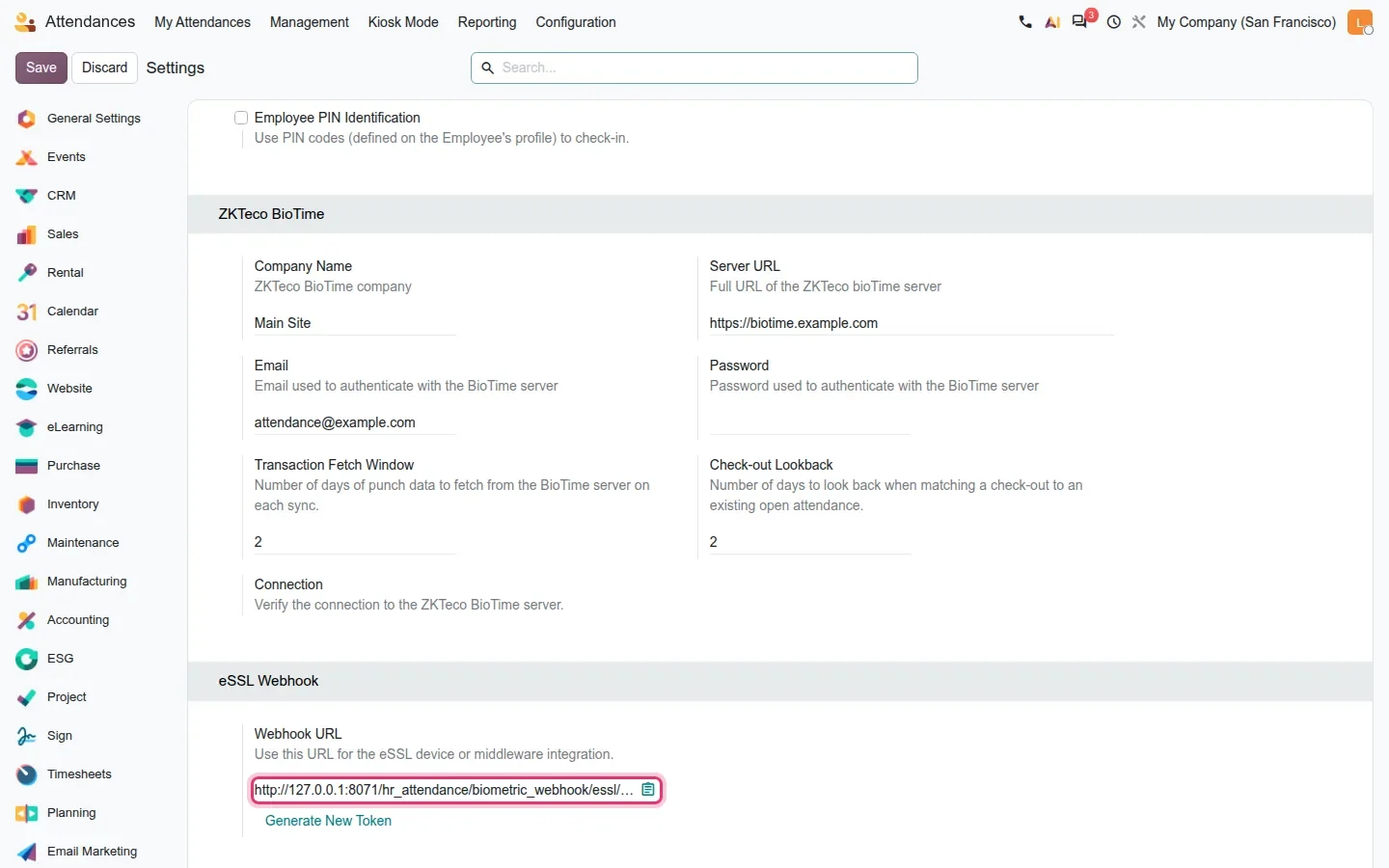
eSSL and Mantra work the other way around. Each exposes a Webhook URL in the same settings page, with a Generate New Token link that rotates the secret in the URL, and the device or its middleware pushes punches to Odoo as they happen. There is no polling job and no terminal record to maintain. On the demo the punches were posted to the real eSSL webhook, which is how the rows above were produced.
Before the first device goes live
Treat the webhook URL as a credential. Anyone who has it can post punches into your attendance records, so regenerate the token once setup is done, share it only with the device middleware, and review with your integrator how the URL is exposed. Then send a test punch with an unknown badge and confirm it lands in Error.
Terminal punches are separated from kiosk and manual entries
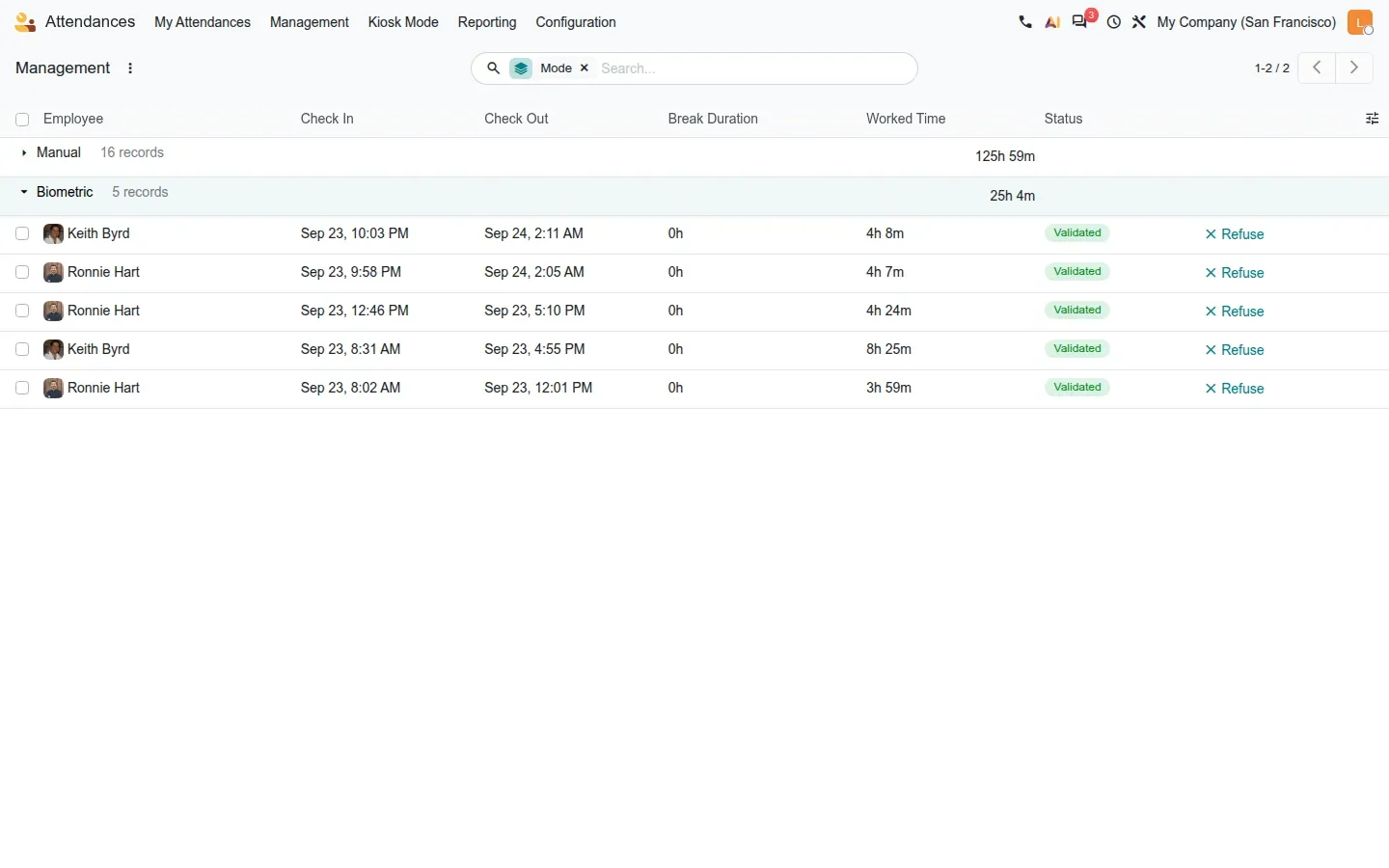
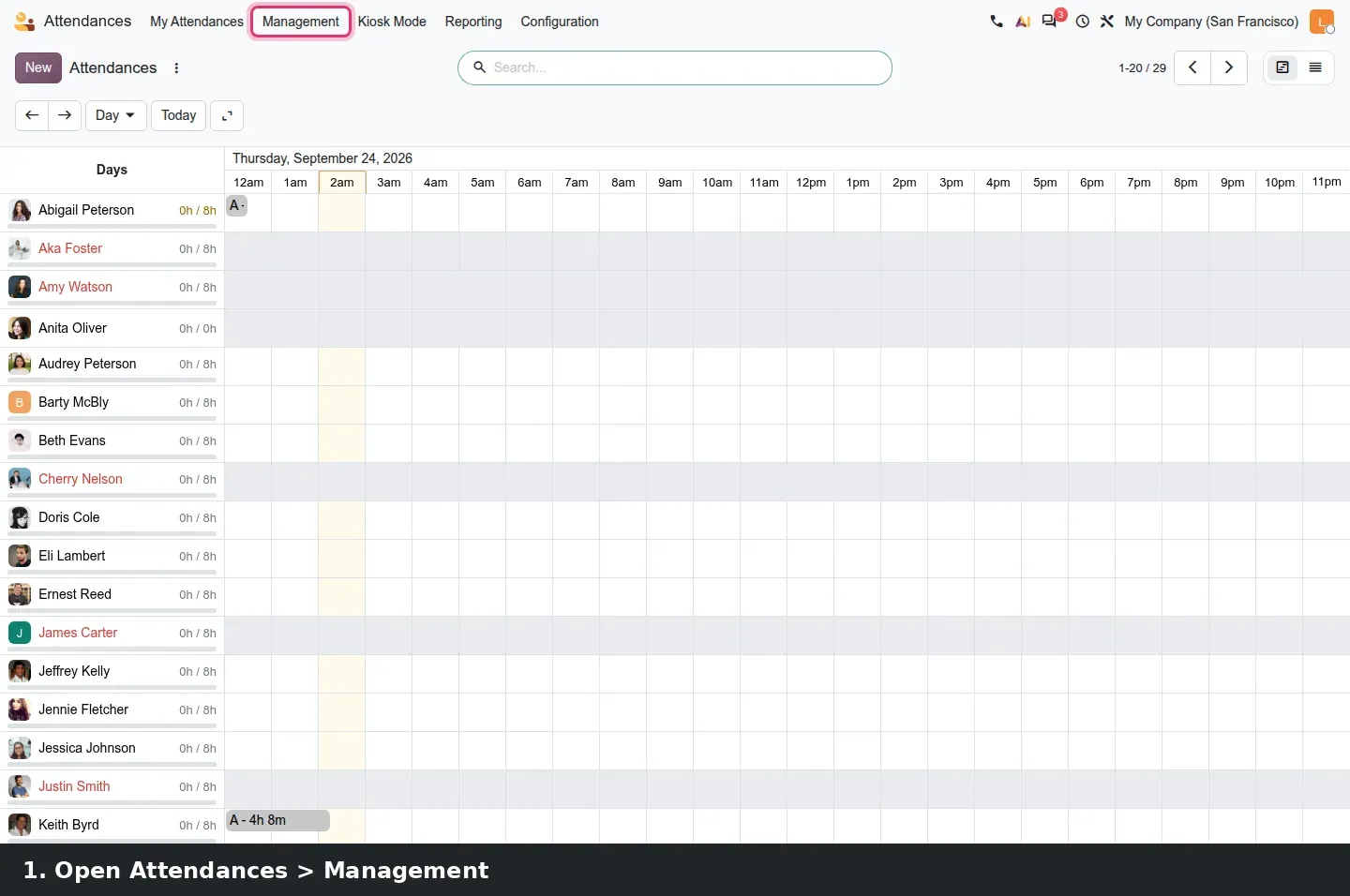
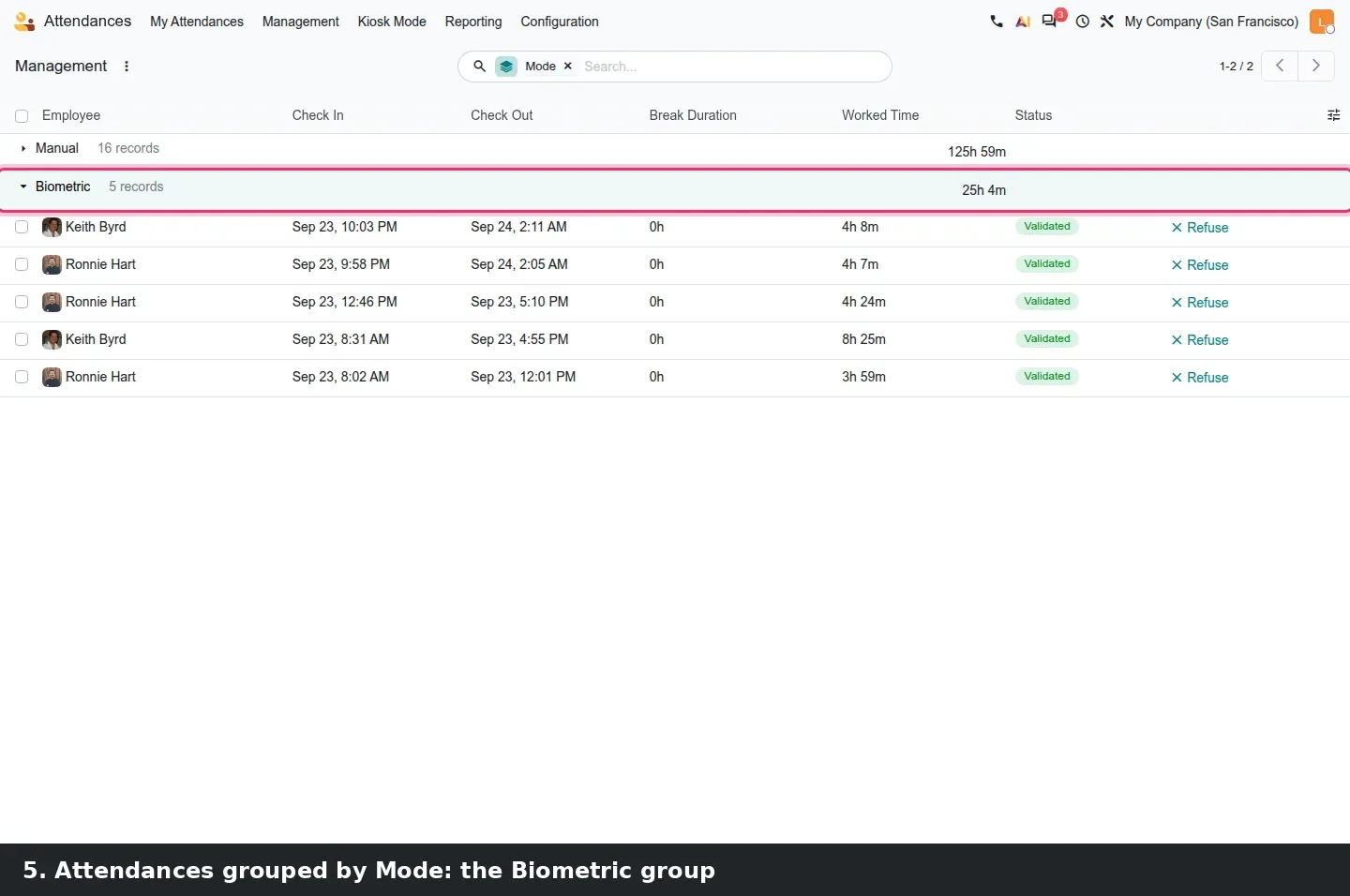
Attendances created from a terminal carry a new Biometric check-in and check-out mode. In Attendances > Management, grouping the list by Mode splits Manual from Biometric, each with its own total of worked time, so a payroll or HR person sees at a glance which hours came from a device and which were typed or clocked on a kiosk. Downstream nothing changes: these records feed overtime, work entries and payroll like any other attendance. For a plant with existing hardware, this removes the spreadsheet between the terminal export and the pay run.
The Timesheets Assistant: an opt-in setting and a rule engine
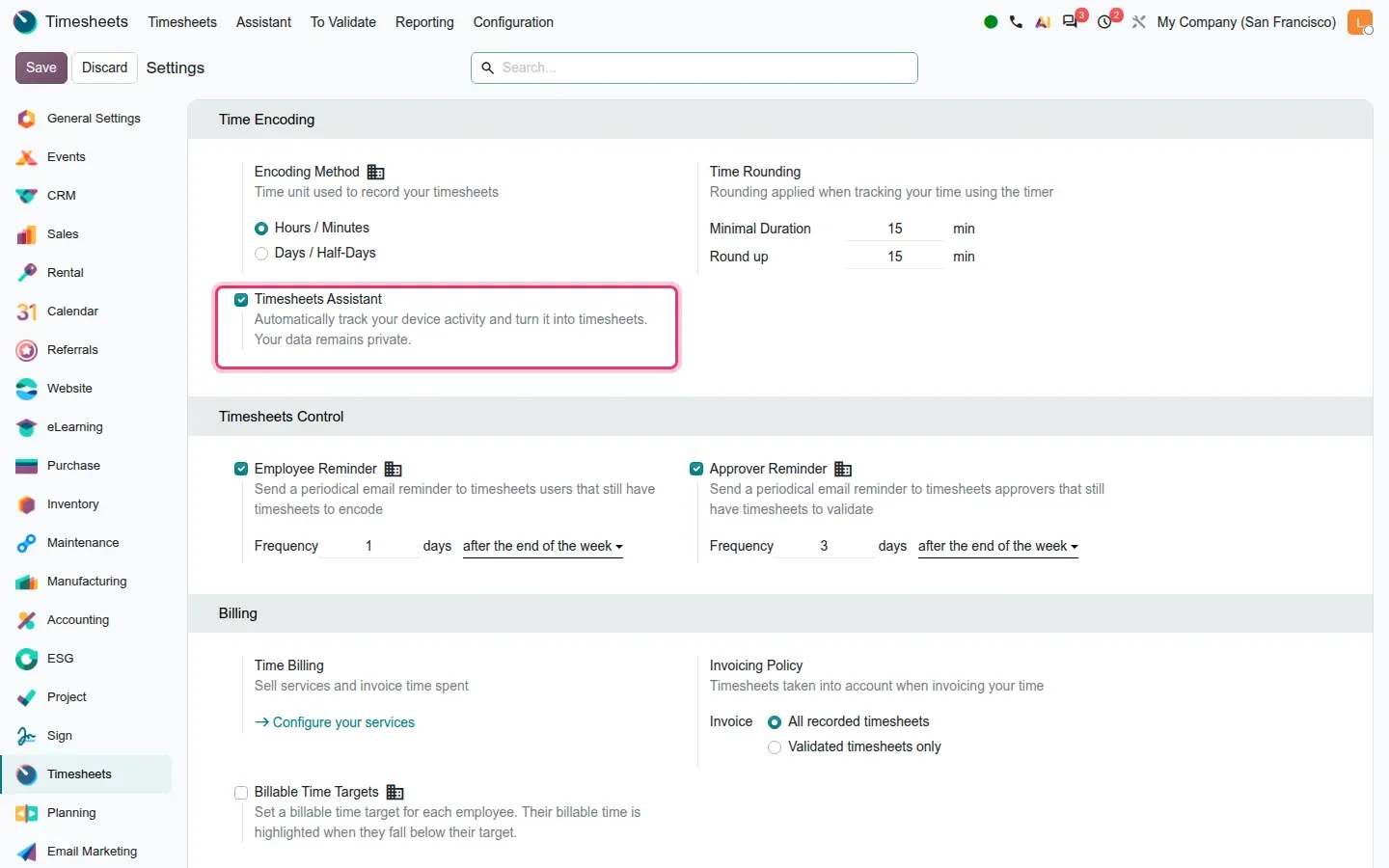
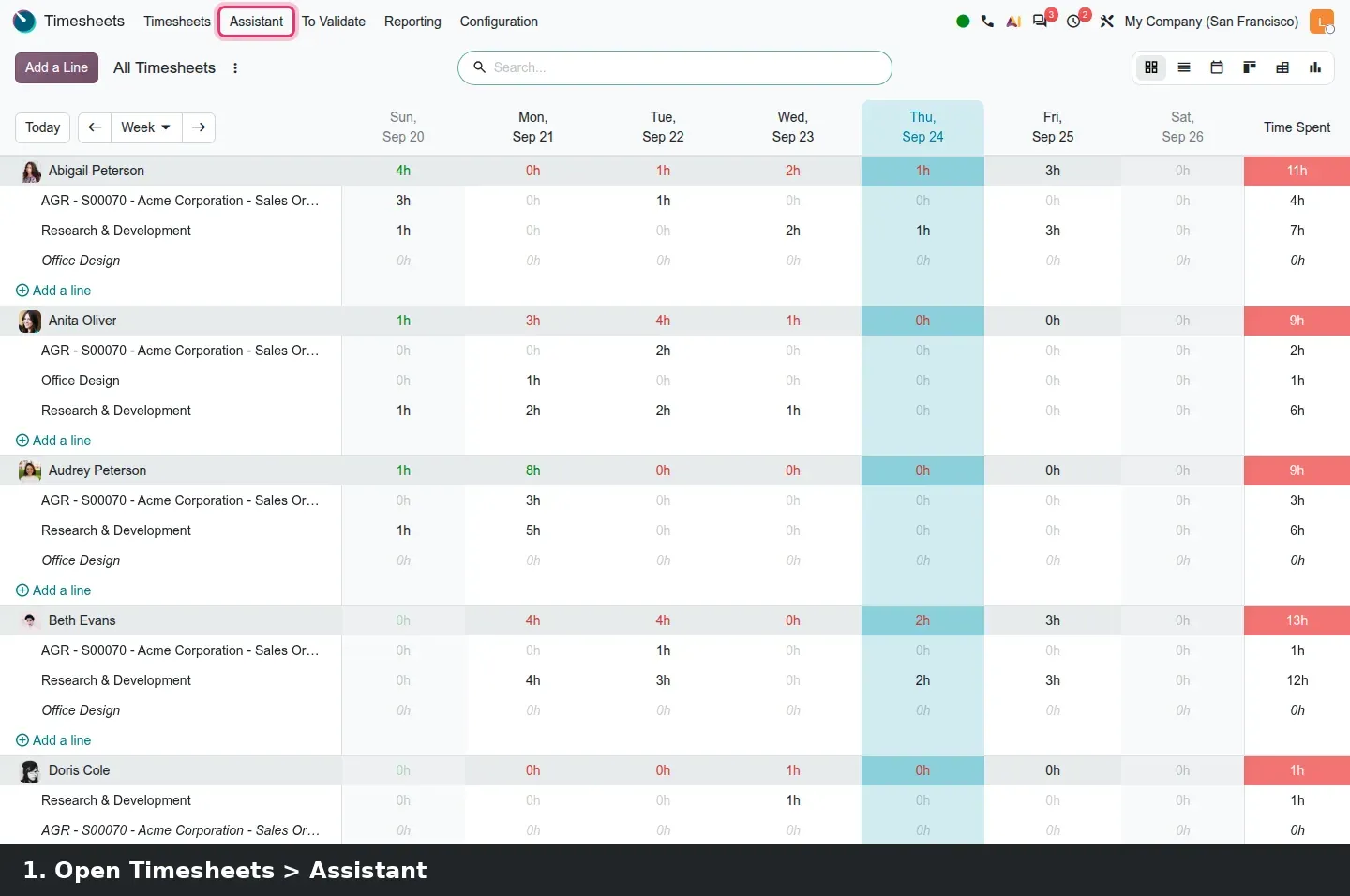
The whole feature sits behind one checkbox in Timesheets > Configuration > Settings, Timesheets Assistant, described on screen as "Automatically track your device activity and turn it into timesheets. Your data remains private." Nothing is collected until a company ticks it. Once enabled, an Assistant menu appears in the Timesheets app, and Configuration > Timesheets Assistant > Assistant Rules holds the rules that decide what a window title or URL means.
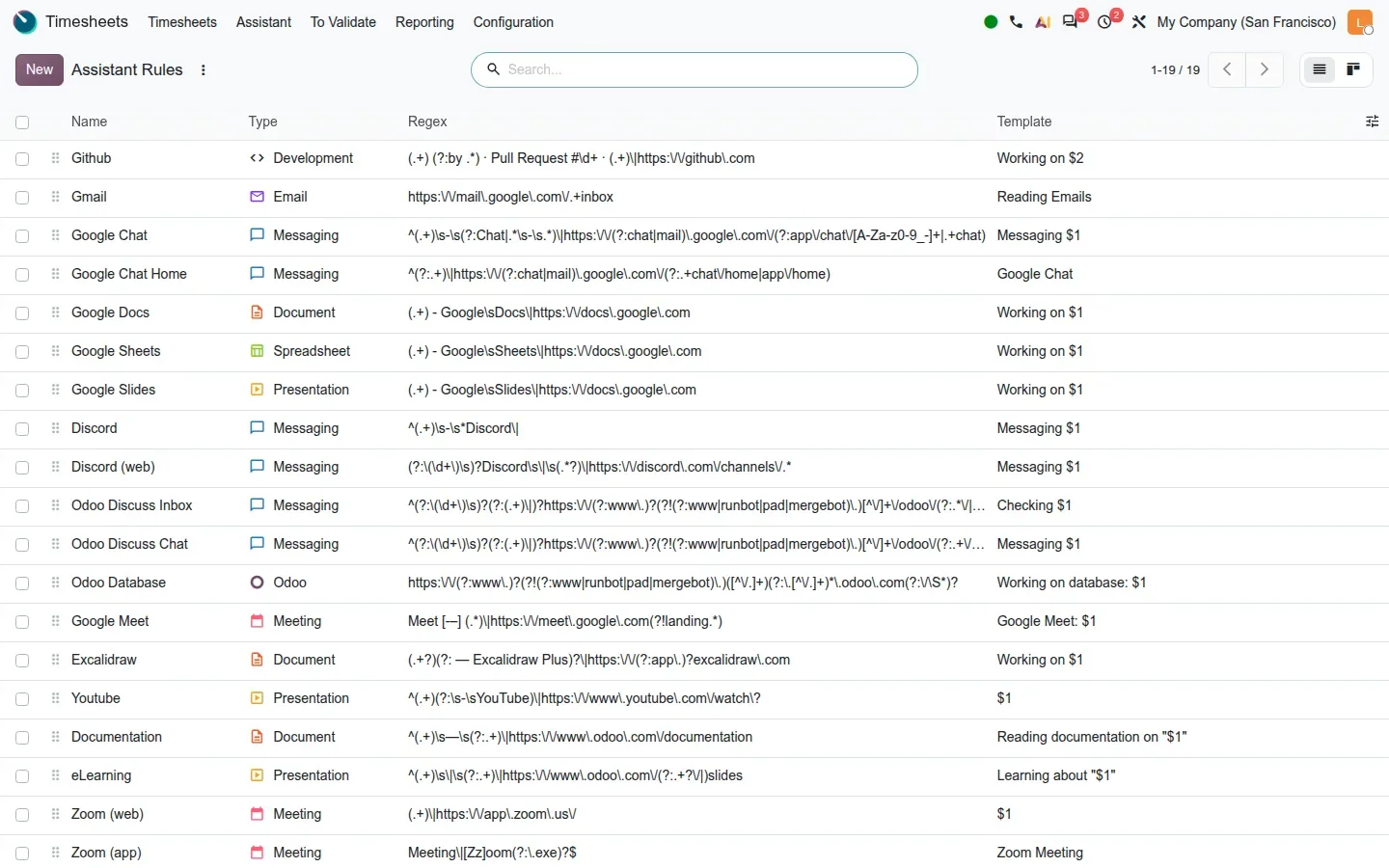
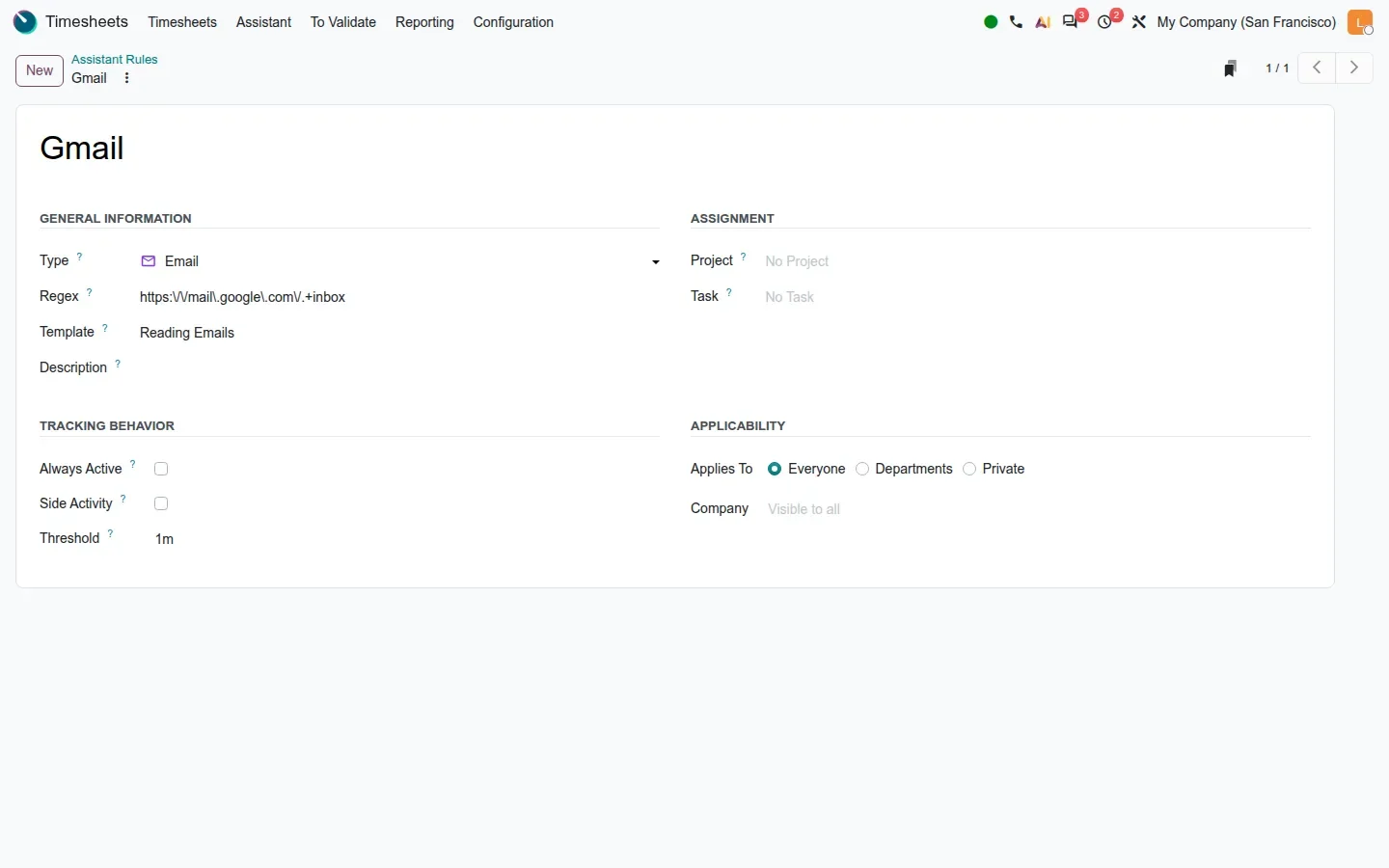
The pre-release build ships 19 rules for common tools: Gmail, Google Docs, Sheets, Slides, Meet and Chat, GitHub, Discord, Zoom, Excalidraw, YouTube, the Odoo documentation and eLearning, and the Odoo database itself, so time spent in a task, ticket or lead is attributed to that record. The list shows Name, Type, Regex and Template; the guide mentions a Threshold column, but on this build the threshold is only on the form. The Gmail rule reads as a sentence: Type Email, a regular expression on the inbox URL, the Template "Reading Emails", a Threshold of one minute below which activity is ignored, and two flags, Always Active and Side Activity, the second marking work that should not count as the main task. A rule can pin a Project and a Task, and applies to Everyone, to Departments or is Private to one user.
What the Assistant proposes, and what accepting does
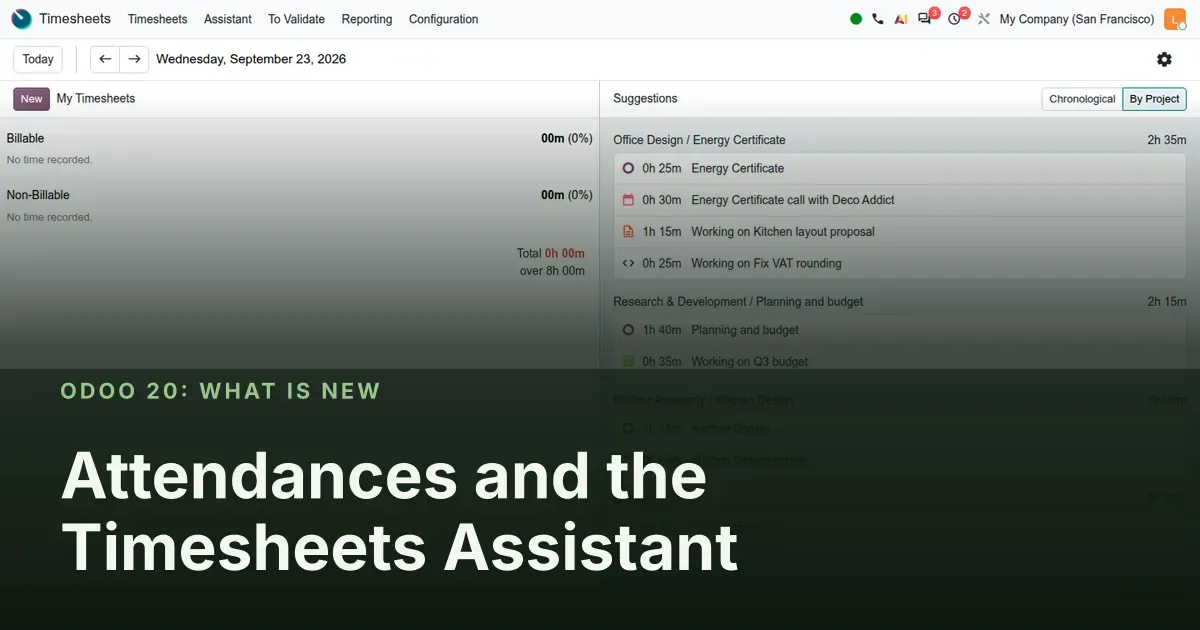
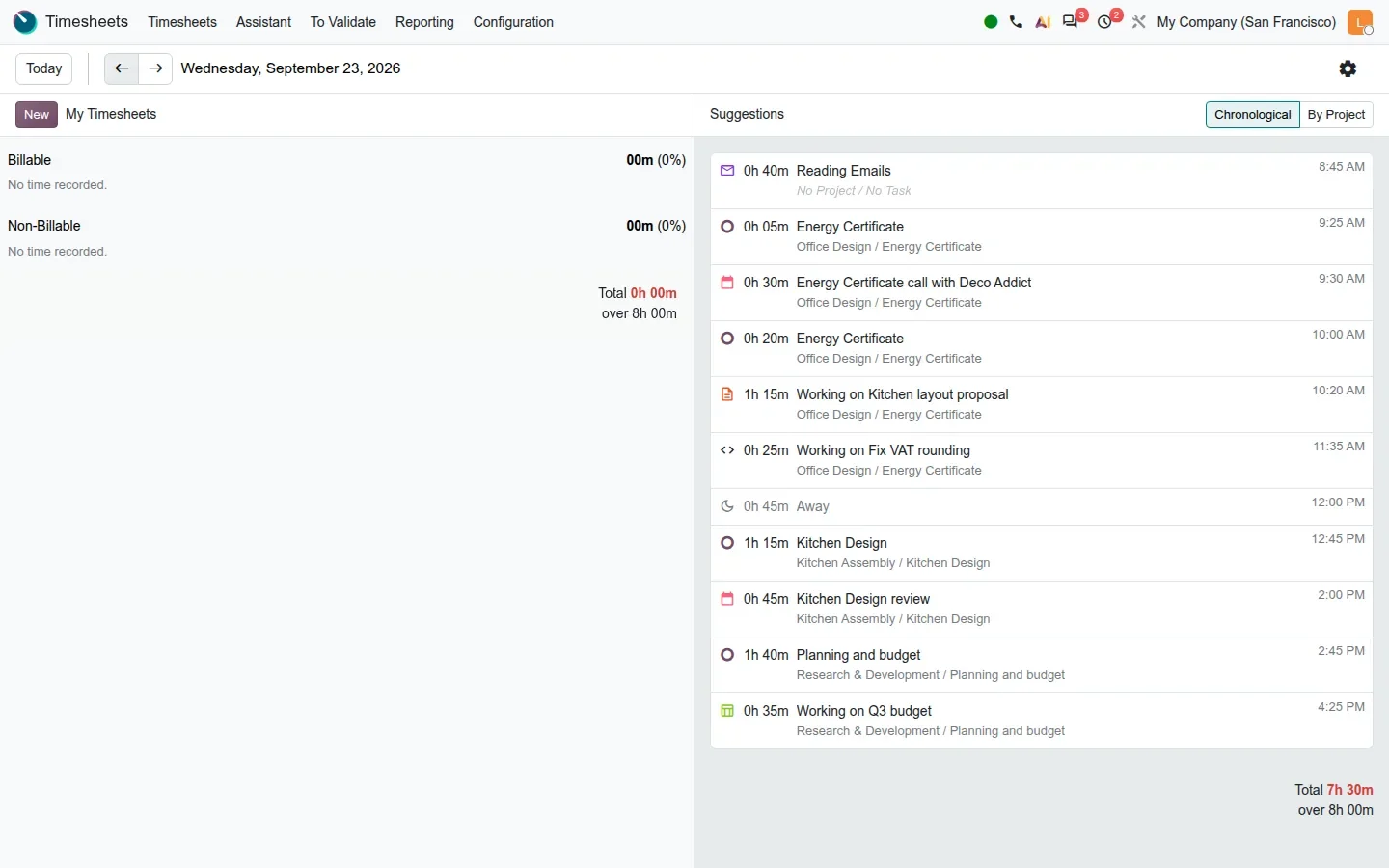
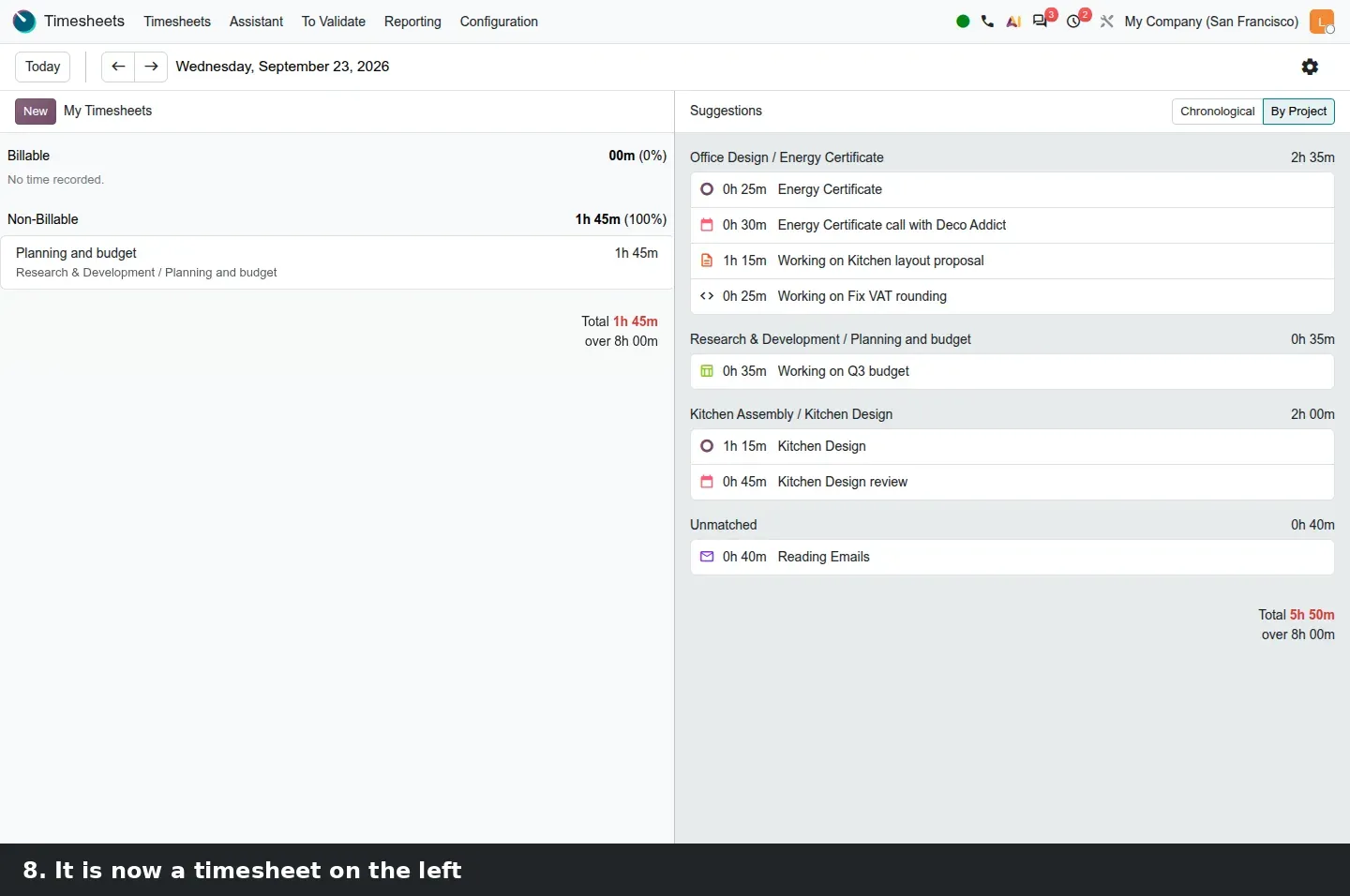
Timesheets > Assistant opens a two-pane screen for one day. The left pane is My Timesheets, split into Billable and Non-Billable with totals against the day's expected hours. The right pane is Suggestions, with a Chronological and a By Project toggle. Each suggestion carries an icon for its source, a duration, a description and the project and task it was matched to. On our demo day the sources were an email block, Odoo tasks opened during the day, two calendar meetings linked to tasks, a Google Doc, a GitHub pull request and a Google Sheet, plus an Away block over lunch. Suggestions use the real record name rather than the raw window title, so a task opened in Odoo appears as "Energy Certificate" under Office Design, not as a URL. Planning shifts are also a source on this build, although the guide does not list them.
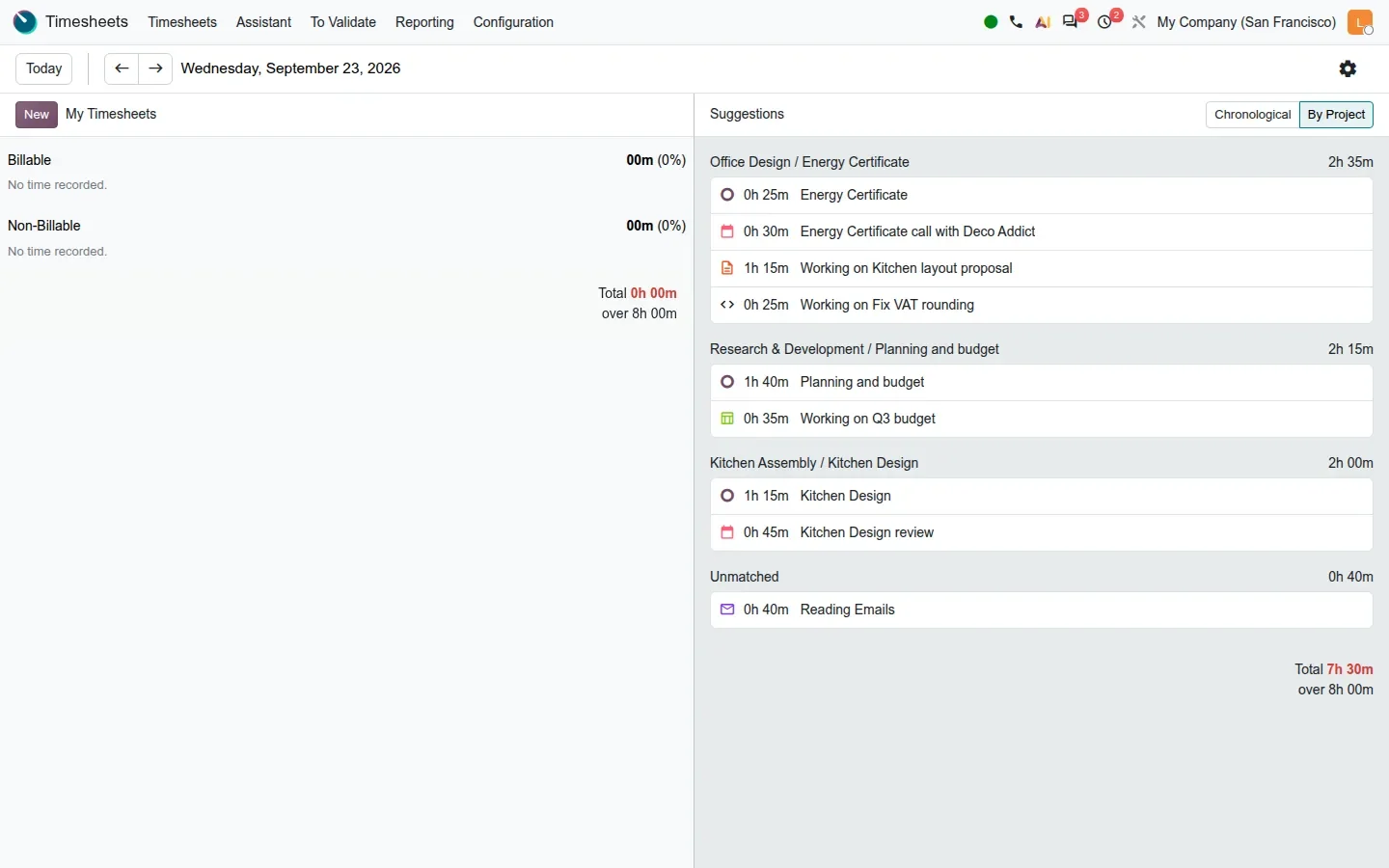
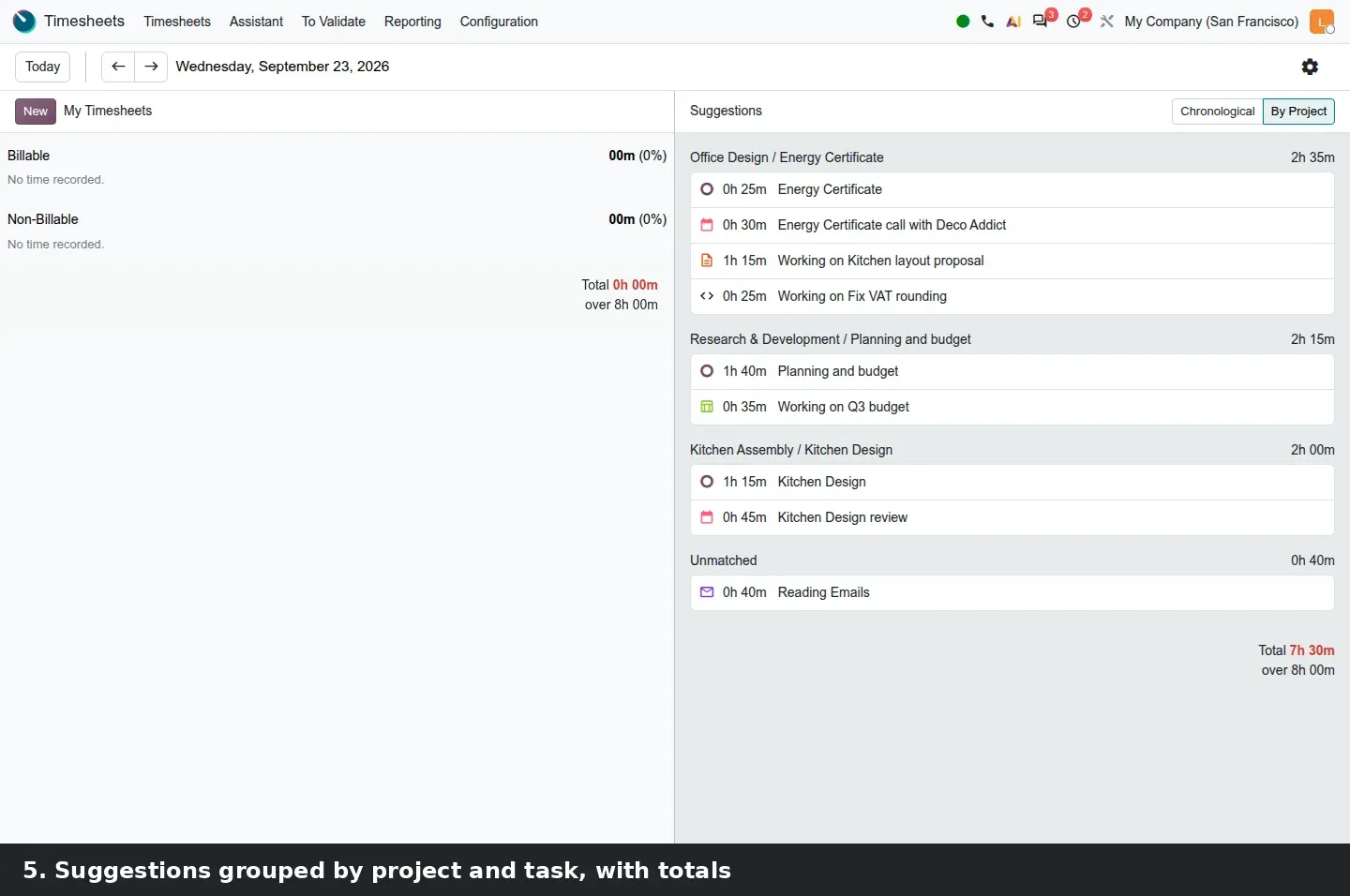
By Project regroups the day under project and task headings with a subtotal per group, and puts what the rules could not place under Unmatched; on the demo, forty minutes of Reading Emails. Accepting a suggestion creates a timesheet line on the left and removes it from the right. The recorded duration follows the timesheet rounding setting: our 1h 40m suggestion was recorded as 1h 45m because the company rounds to 15 minutes. When two sources overlap, the calendar event wins. The AI layer, ai_timesheet_grid, sits on top; according to the guide it proposes descriptions and groupings and answers questions about your week through an AI agent. No AI prompt appeared in the panel during our capture, so everything shown here is the rule engine and the bridges, with no generated text.
The timer moves into the attendance systray
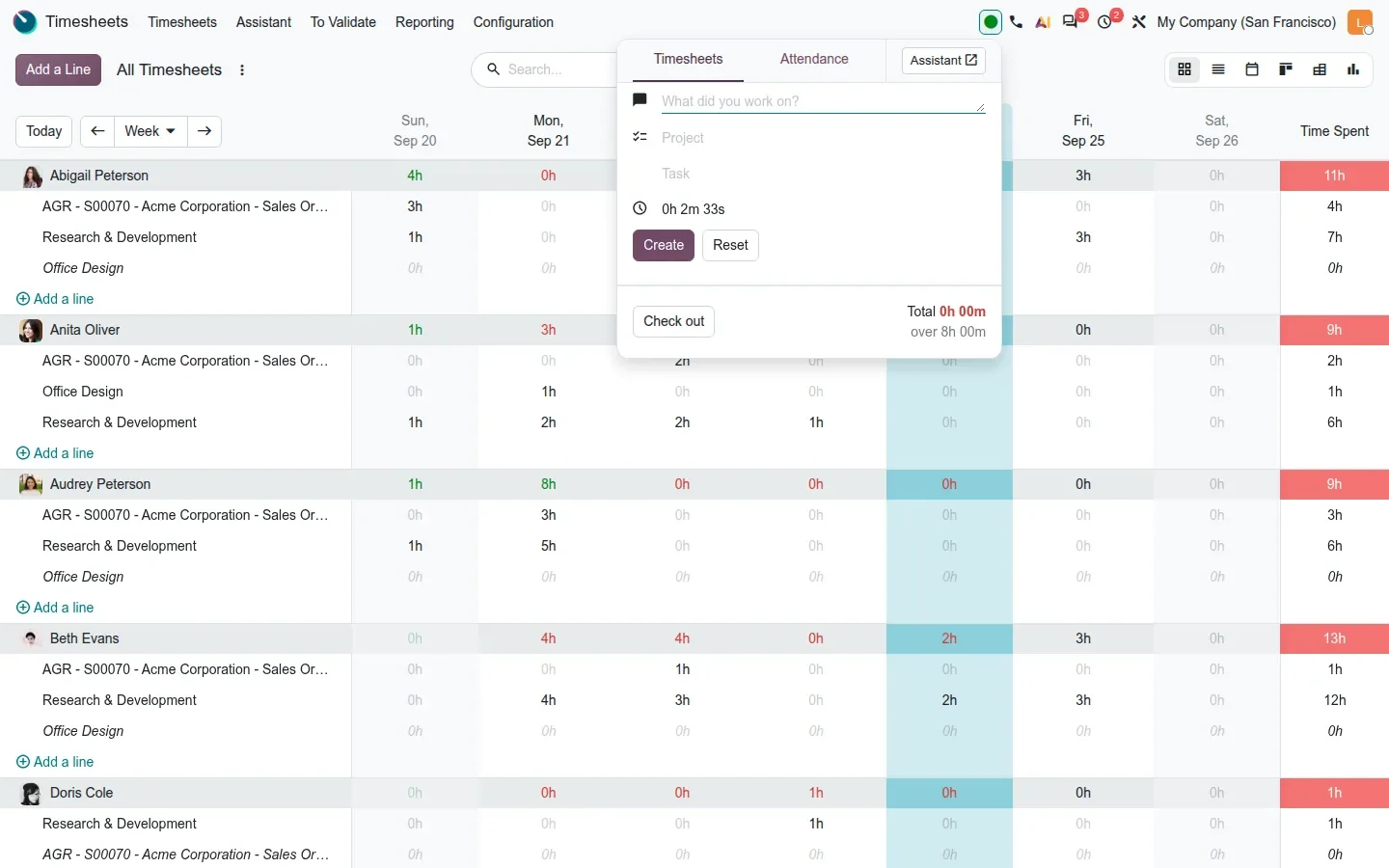
The guide describes a separate timesheets clock in the systray. With Attendances installed, that is not what you get on this build: the timer lives inside the Attendance systray popover, on a Timesheets tab next to the Attendance tab, and the tab only appears after you Check in. It holds a "What did you work on?" field, a Project and Task, the running timer, Create and Reset buttons, an Assistant shortcut and the Check out button with the day's total. Clocking in and starting a timer become one gesture. On a day with no captured data, the Assistant recommends a browser extension from the Chrome Web Store or a Firefox add-on; the guide only mentions ActivityWatch, so expect both paths at rollout.
On privacy, we repeat only what the settings screen and the guide say: ActivityWatch stores its data on the employee's own machine, the setting text states that your data remains private, and Odoo receives what the rules match. Explain that to staff before the checkbox is ticked.
How to try it on a demo database
- Install Attendances and the eSSL connector, open
Attendances > Configuration > Settingsand copy the Webhook URL. - Set the Badge ID of two demo employees to the codes a terminal would send.
- Post a few punches to the webhook, including one with a badge nobody carries.
- Open
Attendances > Management > Biometric Events, then open the Error row to read the banner. - Open
Attendances > Management, group by Mode and expand the Biometric group. - Tick Timesheets Assistant in
Timesheets > Configuration > Settings, then openTimesheets > Configuration > Timesheets Assistant > Assistant Rulesand the Gmail rule. - Install ActivityWatch with its browser watcher, create a meeting linked to a task, open a few tasks, then open
Timesheets > Assistant, toggle By Project and accept one suggestion. - Check in from the systray and open the Timesheets tab to start a timer.
What we could not verify on the pre-release build
We had no BioTime 8.5 or 9.0 server, so the ZKTeco settings and terminal screens are shown with placeholder credentials and the scheduled pull was not observed. The Mantra connector is in the source tree but was not installed. The Timesheets Assistant ran on simulated ActivityWatch data, not a real day of browsing, and the AI layer never surfaced a prompt or a question in the panel, so we cannot describe its output. The Meet suggestion was hidden behind an overlapping calendar meeting. Everything else on this page was clicked through on the 20.0 Enterprise build of 23 September 2026.
What this means for an upgrade
If you run Odoo 17, 18 or 19 with a terminal export, a custom attendance import or a third-party connector, the upgrade is the moment to retire it: put the terminal codes in the Badge ID field, choose pull or push depending on the hardware, and decide who reviews the Error events each morning. Any homegrown connector that posts attendances over XML-RPC or JSON-RPC needs attention first, because Odoo has scheduled the removal of those endpoints for Odoo 20; our RPC migration audit finds those calls before they break. For timesheets, agree the privacy wording and the rounding setting before enabling the Assistant, then start with one billing team. Both fit inside our migration service, and the series hub lists the payroll and planning changes that land in the same upgrade.
Frequently asked questions
Which biometric terminals does Odoo 20 support?
Three connectors ship in the 20.0 source: ZKTeco, which pulls transactions from a BioTime 8.5 or 9.0 server, and eSSL and Mantra, which push punches to a webhook URL exposed in the Attendances settings. Other brands can reach the same Biometric Attendance Event inbox through middleware that posts to a webhook, which is a job for your integrator.
How does Odoo match a terminal punch to an employee?
Through the Badge ID field on the employee form. The terminal sends its user code with each punch; if an employee carries that code as a badge ID, the event is Processed and an attendance is created. If nobody carries it, the event lands in Error with an Employee not found banner.
Does the Timesheets Assistant send my browsing history to Odoo?
According to the guide and the settings screen, ActivityWatch stores activity on the employee's own machine and Odoo receives what the Assistant Rules match, such as a task URL or a Gmail inbox. The feature is off until a company ticks the Timesheets Assistant setting, and rules can be limited to departments or kept private.
Do I need ActivityWatch to use the Timesheets Assistant?
Not for every source. Calendar meetings, Odoo tasks and Planning shifts are proposed through bridge modules without any local tracker. Browser and desktop activity needs ActivityWatch with its browser watcher, or the browser extension the Assistant recommends on a day with no data.
Why did an accepted suggestion record a different duration?
Because accepting a suggestion applies the company's timesheet rounding. On the demo, a 1h 40m suggestion was recorded as 1h 45m with the 15-minute rounding setting in Timesheets > Configuration > Settings. Adjust the Minimal Duration and Round up values if that is not what you bill.