
Three apps, one post, the same kind of change
Not every Odoo 20 change gets a keynote slide. Appraisals, Time Off and Helpdesk each received improvements that nobody will call a new product, yet the people who run those processes will feel them every week: forty appraisals confirmed in one click, leave booked for a whole crew by dragging over a Gantt, an SLA that matches how tickets are actually triaged. We grouped them because they are the smaller HR-and-services changes of the release, and because the head of people or the head of support usually owns all three.
Each app gets its own section, in the guide's order: Appraisals, the Time Off Gantt, then Helpdesk configuration and its link to the new Field Service inside Planning. Everything comes from the screens we clicked through on the pre-release build; where the guide and the build disagreed, we followed the build. The AI side of Helpdesk, similar tickets and suggested solutions, is covered in our AI agents post.
Observed on the Odoo 20.0 Enterprise pre-release build of September 23, 2026. Names, menus and availability can change before general availability; we will update this page when they do.
Appraisals: bulk actions and goals with a hierarchy
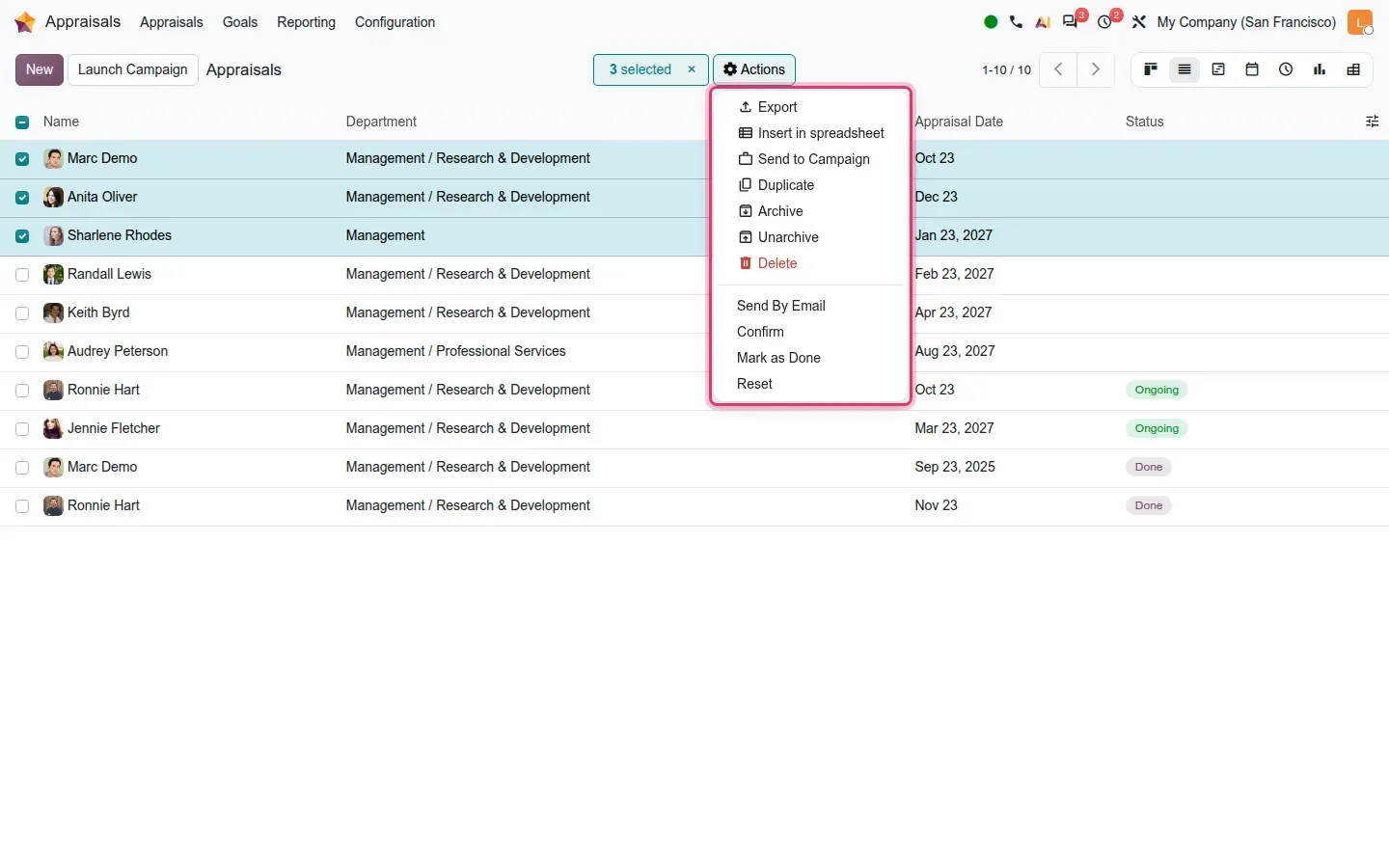
The first change is about volume. Open Appraisals > Appraisals in list view, tick several records and open the Actions menu: the bottom of the menu now holds Send By Email, Confirm, Mark as Done and Reset, each applied to every selected appraisal. Eighty appraisals that used to be confirmed one form at a time become a filter and one click. The Launch Campaign button sits in the control panel next to New, so the yearly cycle no longer starts behind a wizard.
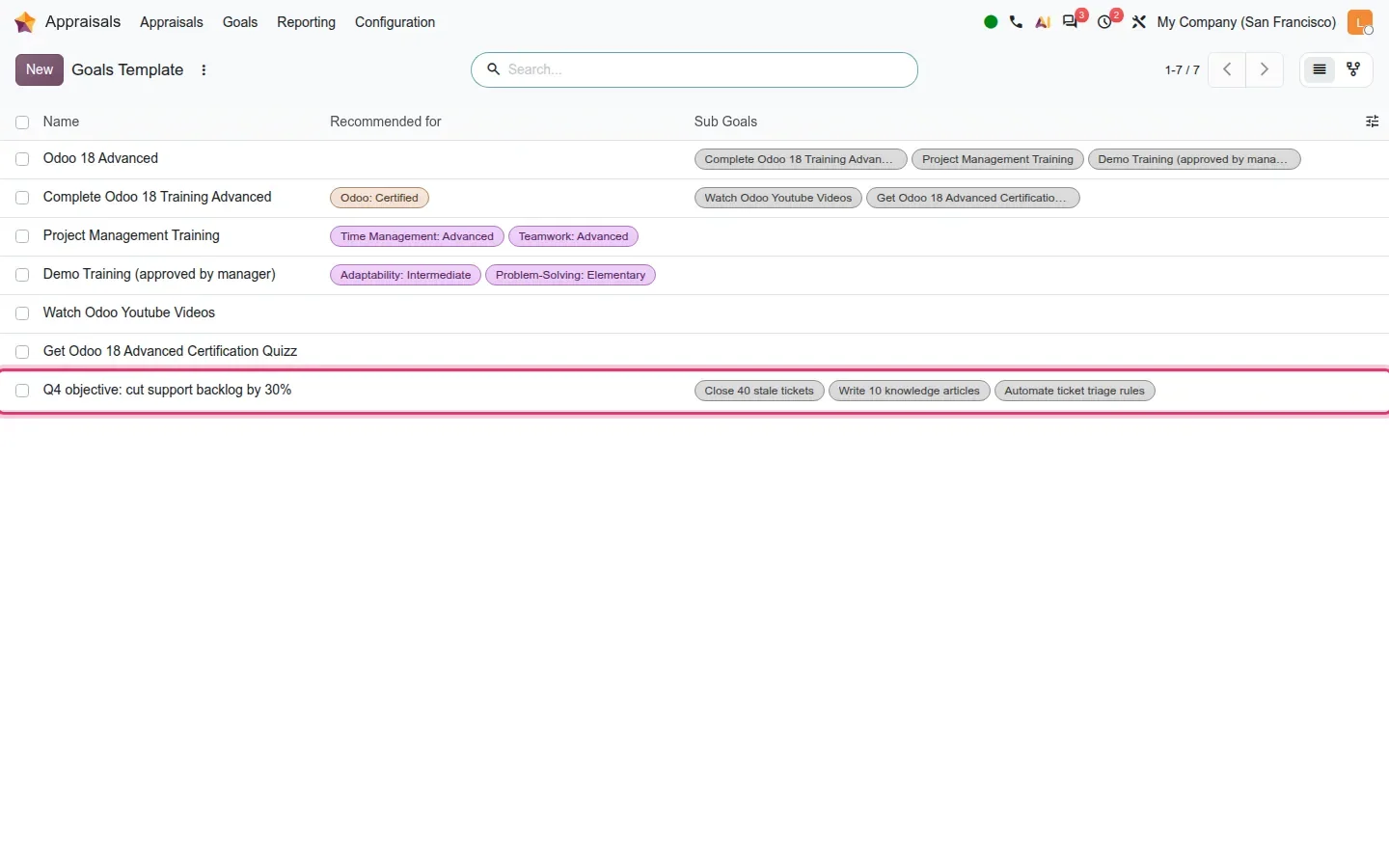
The second change is structural: goal templates can belong to a parent. On the pre-release build the templates live in Appraisals > Configuration > Goals > Library, where the record is called Goals Template. Each form has a Parent Goal Template field and a Sub-Goals tab listing the templates underneath it, with a Recommended for column. We built a department objective, Q4 objective: cut support backlog by 30%, with three sub-goals underneath. In the library list the parent row shows its sub-goals as tags, so the hierarchy is readable without opening anything.
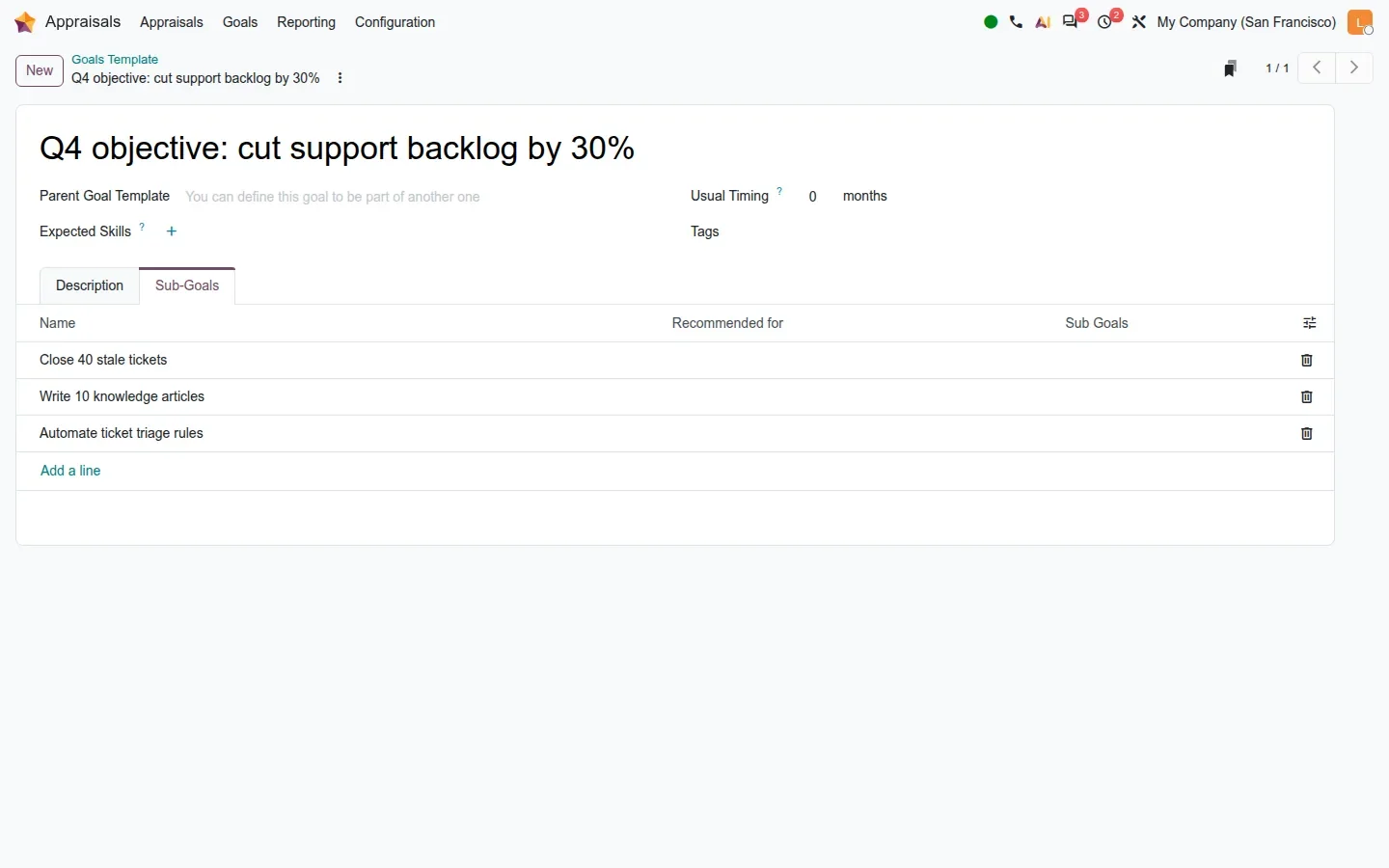
Two details matter for an HR manager. The Goals menu hides goals that have children, so the department objective is managed from the library, not from the employee goal list. And the parent's progress is computed from its children in the database, the average of the sub-goals, but that value is not displayed on the template form or in the library list in this build; read the numbers on the individual goals for now. The guide also lists a default appraisal template loaded on install, an editable Next Appraisal Date on the public employee card, reviewed access rules and redesigned appraisal emails.
Before your next campaign
Build the goal library first: one parent template per department objective, two to four sub-goals each, with Recommended for set to the right roles. When the campaign launches, managers pick from a library that already mirrors the company plan instead of typing goals from scratch.
Time Off: the Gantt becomes a planning tool
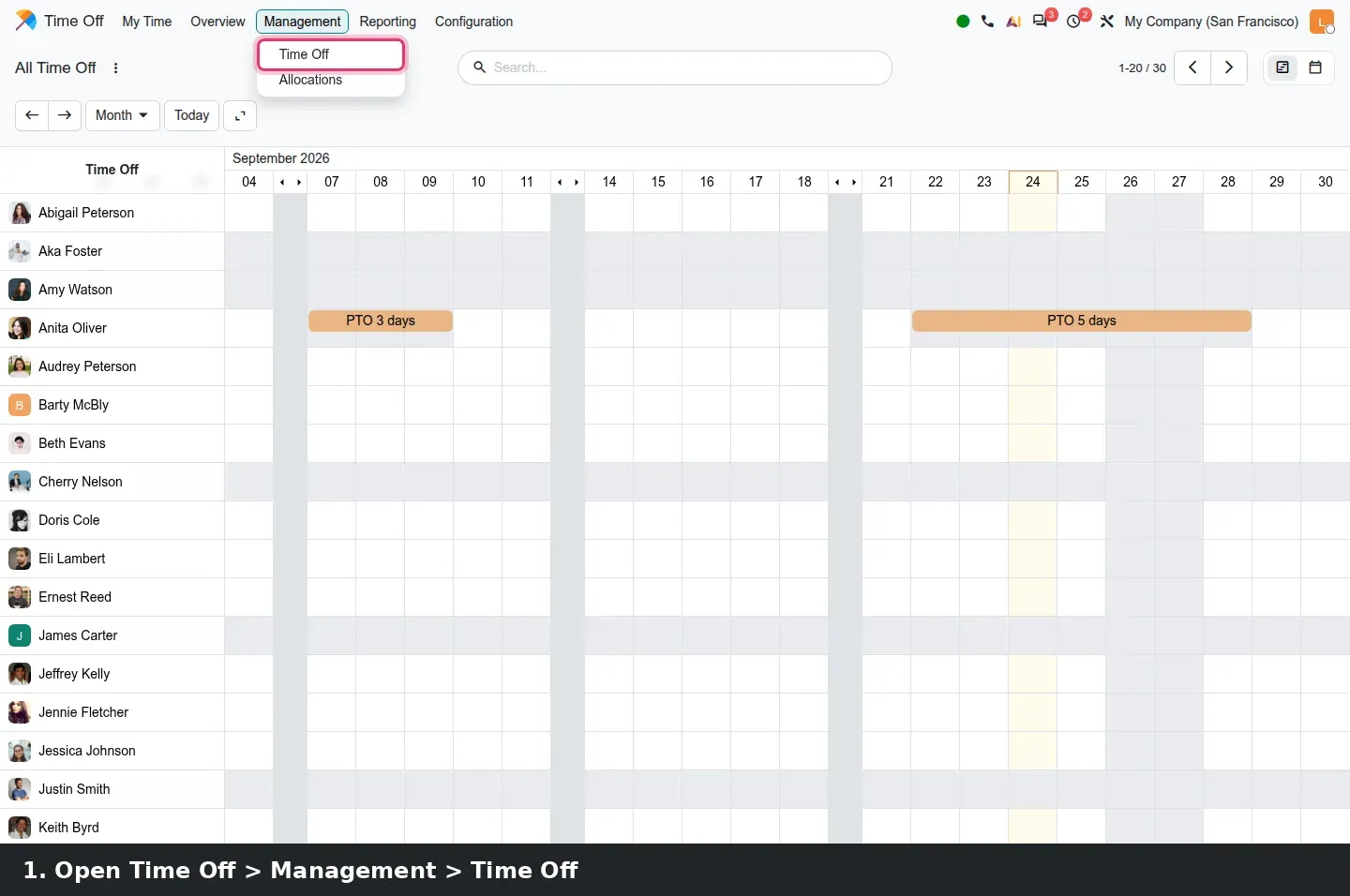
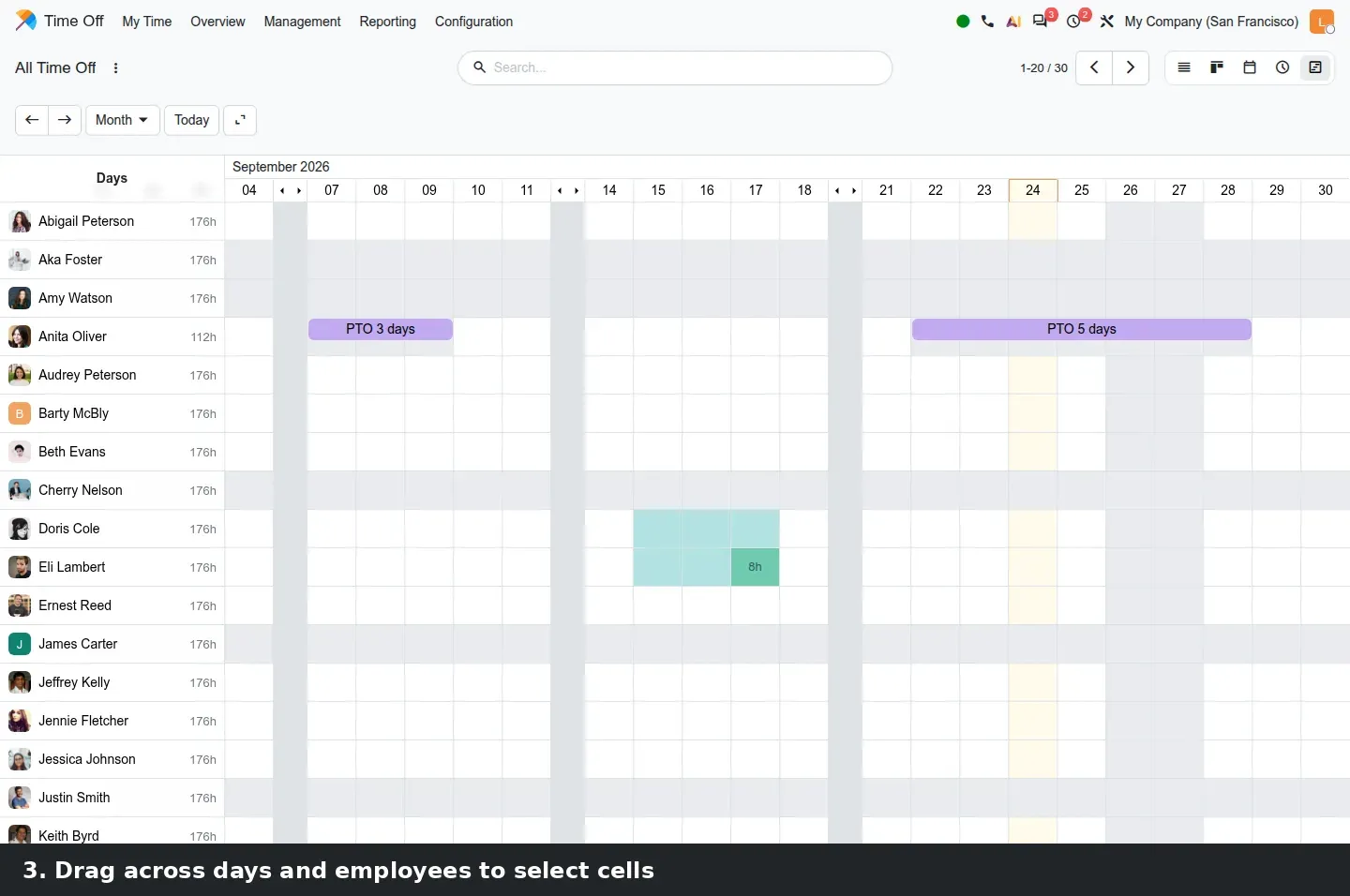
In Odoo 19 the Time Off Gantt was something you looked at. In Odoo 20 it is something you plan in. Open Time Off > Management > Time Off and switch to the Gantt view. Every employee is listed with a progress figure next to the name, 176h for a full-time month on our demo, whether or not they have leave. Nothing needs to be switched on: drag across cells, over several days and several employees at once, and the selection turns teal with a counter in the control panel.
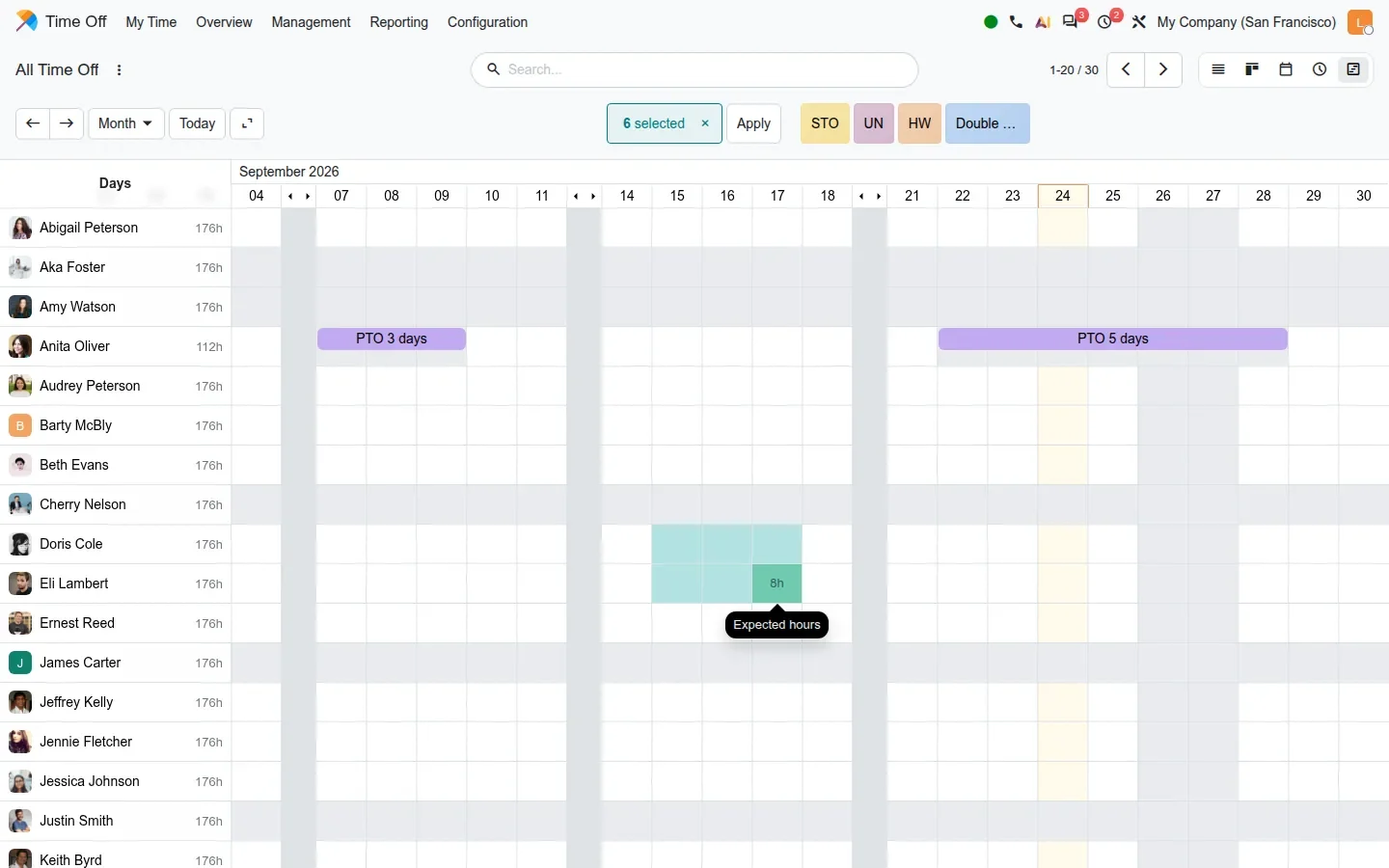
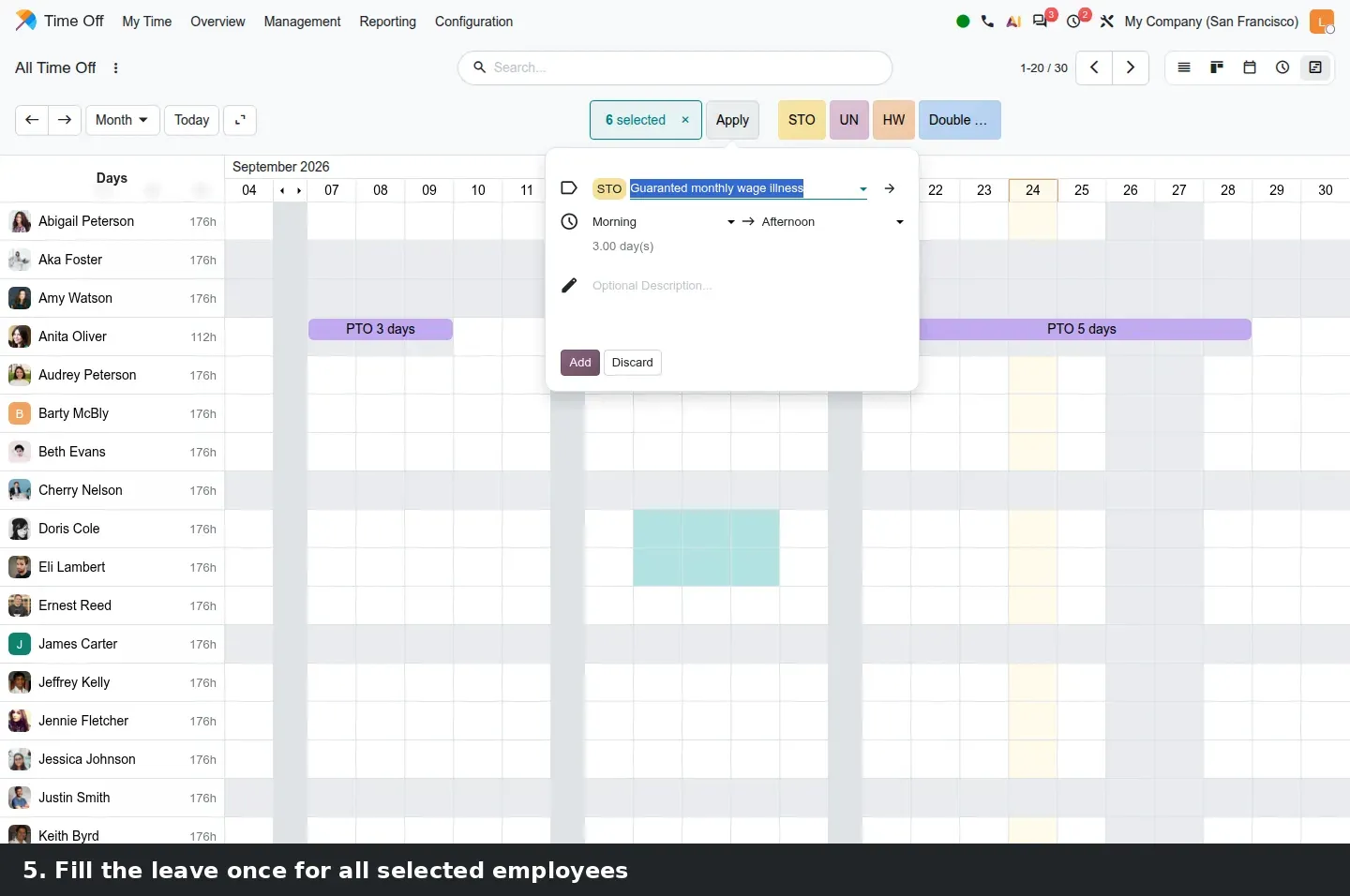
With six cells selected across two employees, the control panel reads 6 selected and offers an Apply button plus one shortcut per time off type, STO, UN, HW and Double on our demo. Either opens a popover: the time off type, a Morning to Afternoon range, the computed 3.00 day(s), an optional description, then Add or Discard. One popover creates the leave for every selected employee. The guide says the types offered are filtered by each employee's actual allocation, so a manager cannot book paid leave an employee does not own. We discarded the popover, so no leave was created.
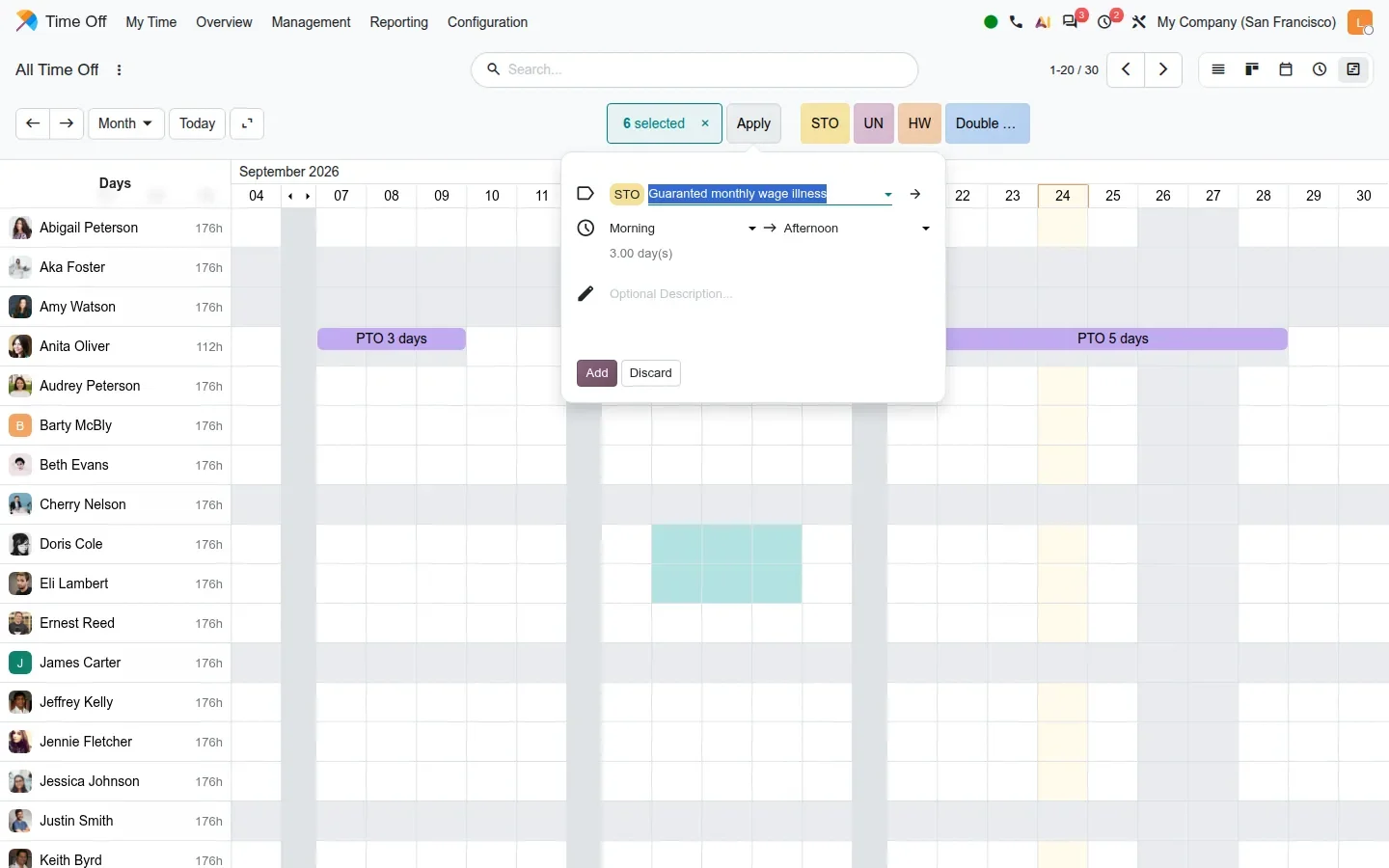
The Overview menu is still read-only; multi-create lives in Management > Time Off, Gantt view, and the switch the guide mentions does not exist on the build. The rest of the polish is on the same screen: half days use a full pill so they stay legible, and employees on a flexible schedule get correct grey cells and progress figures. The same Gantt powers the time off step of a Payroll pay run.
Helpdesk: SLAs by domain, ratings per stage, a reminder before auto-close
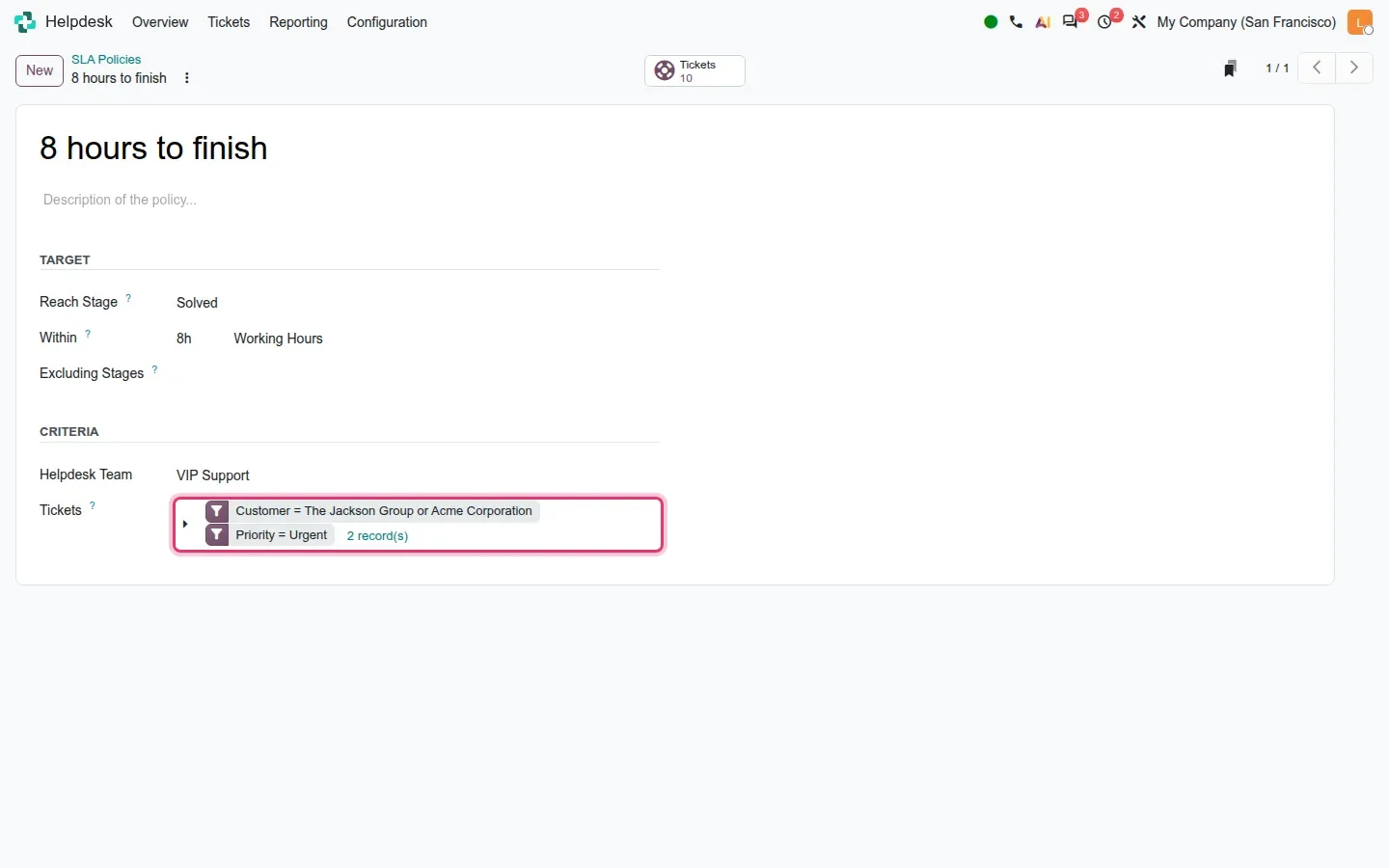
Helpdesk keeps the same ticket screen but changes how the rules around it are written. Start with Helpdesk > Configuration > SLA Policies. An SLA still has a Target block, Reach Stage, Within a number of hours, Excluding Stages, and a Helpdesk Team. What changed is the Criteria block: the fixed criteria fields are replaced by a Tickets field that holds a domain. Our 8 hours to finish policy targets the VIP Support team with Customer = The Jackson Group or Acme Corporation and Priority = Urgent, and the editor shows 2 record(s) matching. Any ticket field, including a custom one, can now drive a policy.
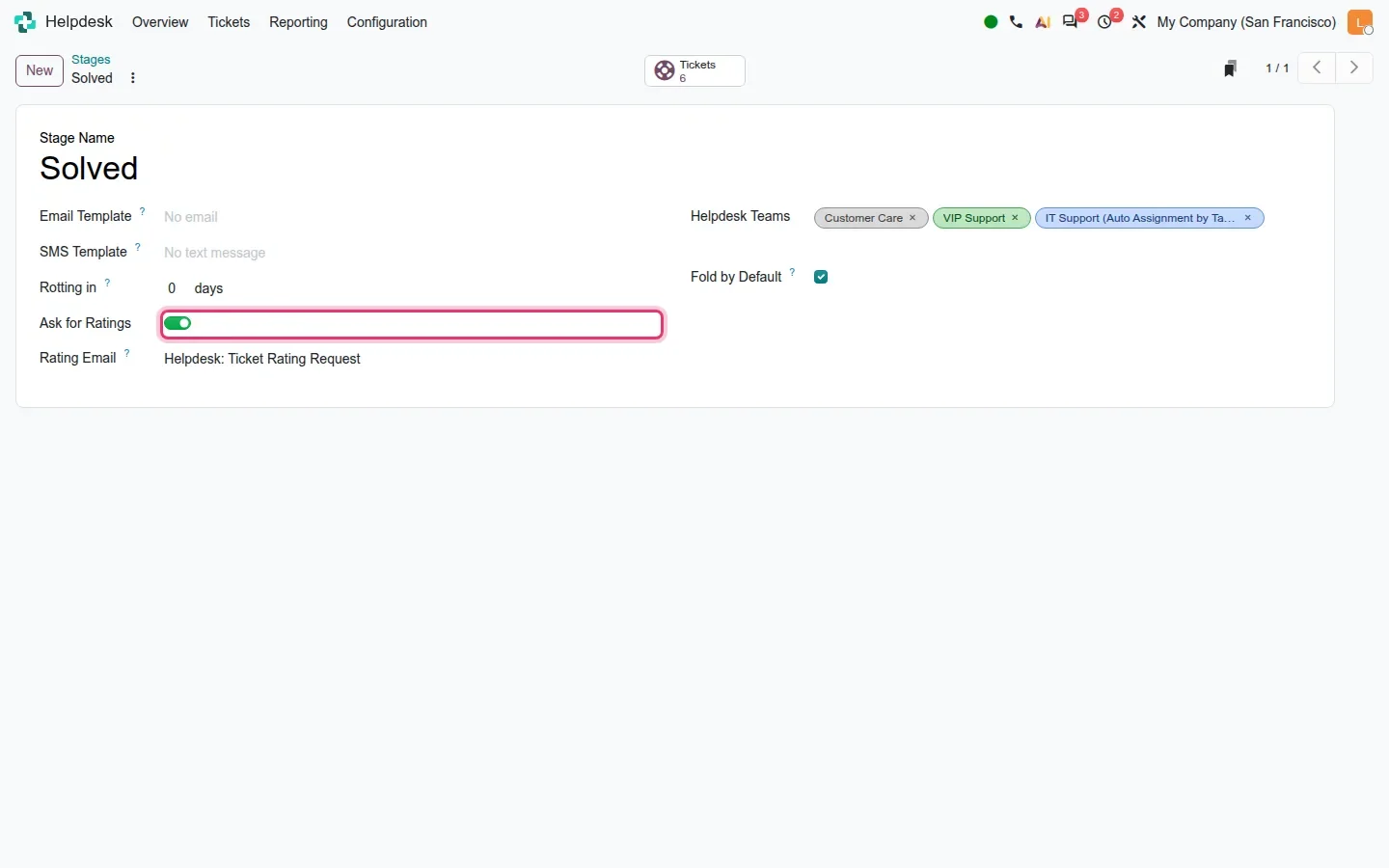
Customer ratings move from the team to the stage. Under Helpdesk > Configuration > Stages, each stage carries an Ask for Ratings toggle and a Rating Email field, set to Helpdesk: Ticket Rating Request on our Solved stage. The team form keeps a Customer Ratings block, now with a Set Up Ratings on Stages link. You can ask once when a ticket is solved and again when it is closed, with a different template each time.
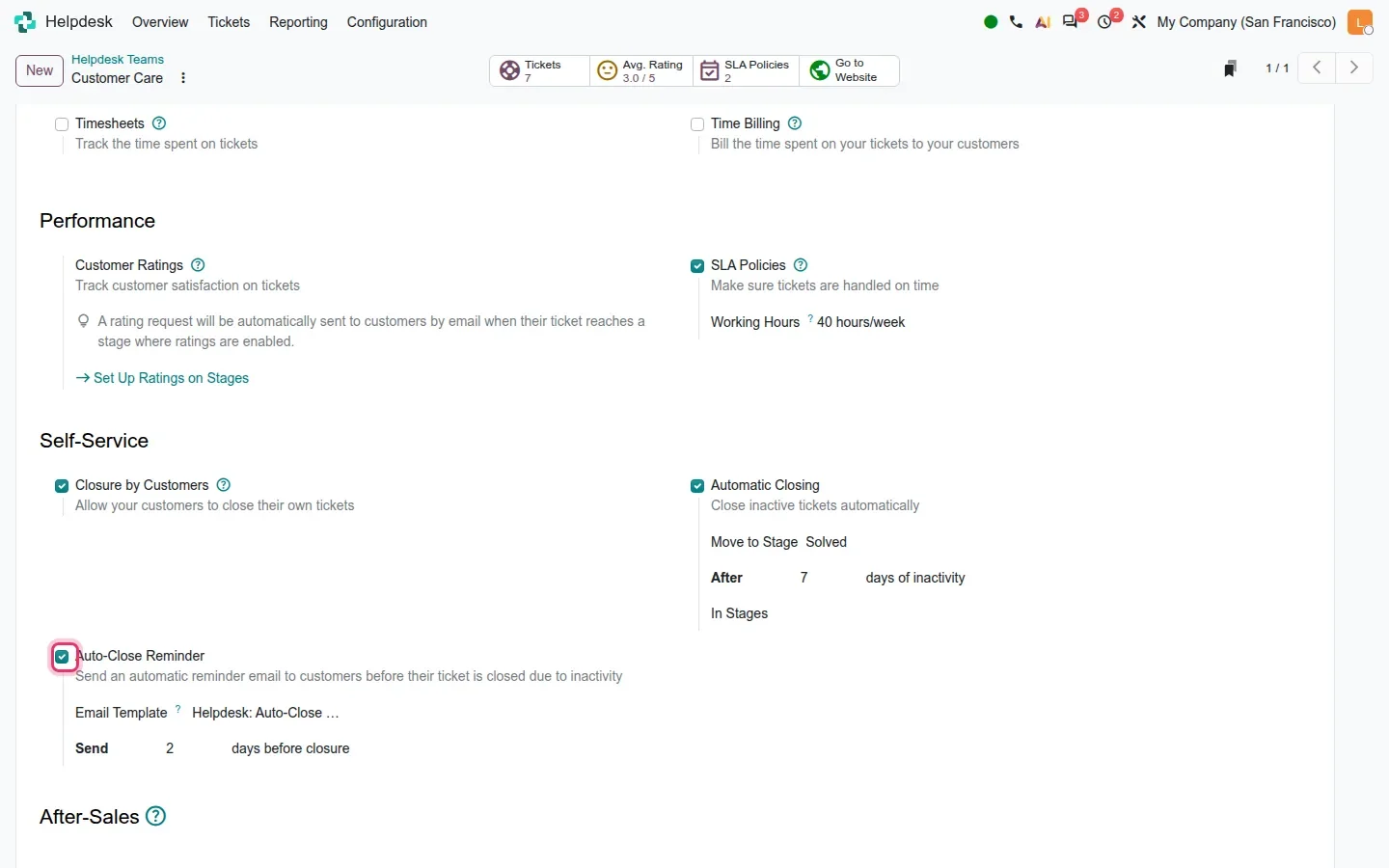
Teams that auto-close inactive tickets gain a warning shot. On the team form, the Automatic Closing block still reads Move to Stage Solved, After 7 days of inactivity, In Stages. Underneath, a new Auto-Close Reminder toggle adds an Email Template, Helpdesk: Auto-Close by default, and a Send N days before closure field, set to 2 on our demo. The customer gets a nudge before the ticket silently closes. The guide also lists an Unanswered filter for tickets where the customer is waiting, a cleaner portal ticket page and a record rule limiting internal users to relevant tickets. Our Helpdesk page covers the basics of the app.
Helpdesk to Field Service: Plan Intervention and the Shifts smart button
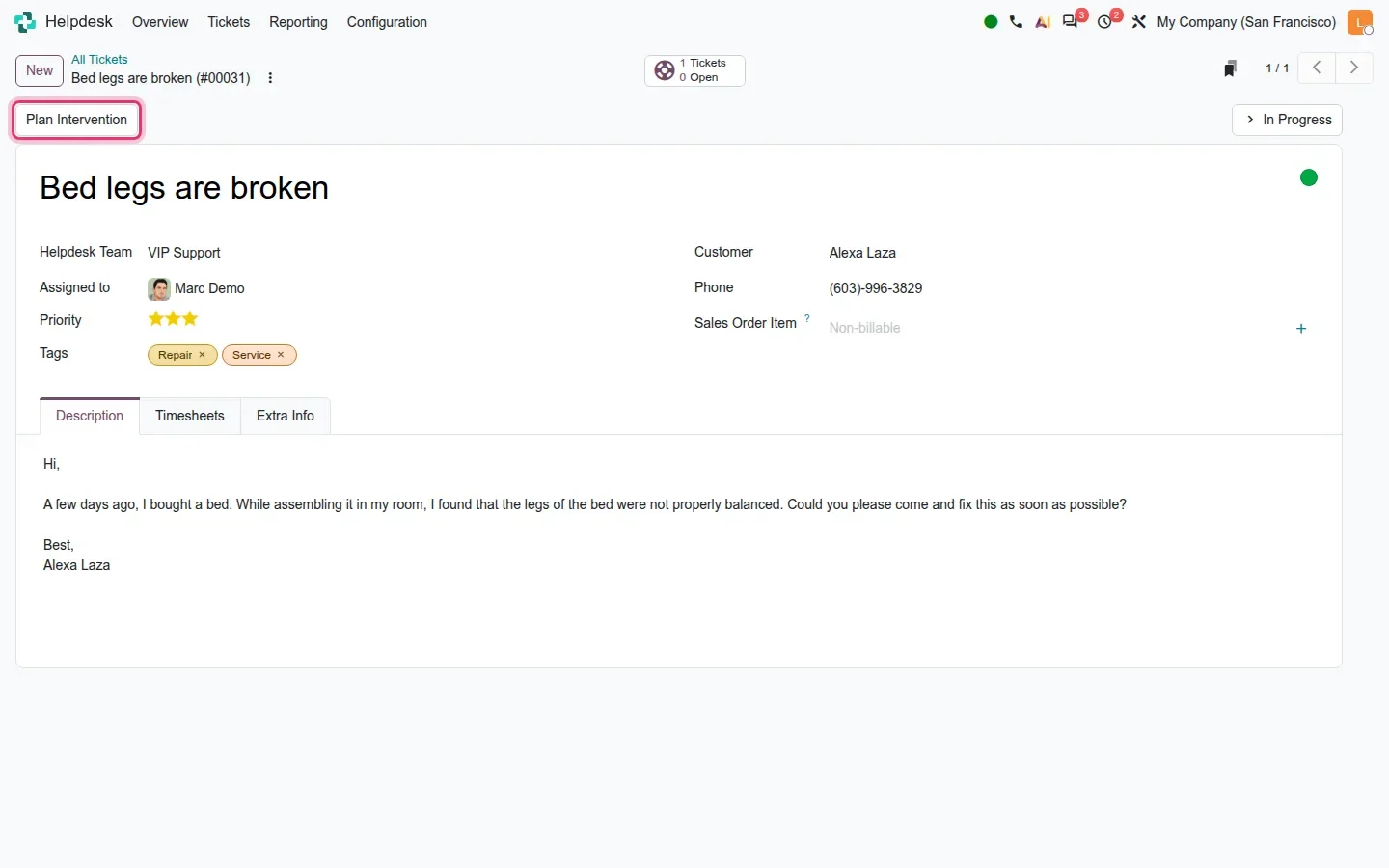
Field Service is no longer a standalone app in Odoo 20. According to the 20.0 source diff, the industry_fsm modules and the helpdesk_fsm bridges are gone, replaced by a planning_field_service family inside Planning. For a support team the visible result is a Plan Intervention button in the header of every ticket: click it and Odoo creates a shift in Planning for the technician, tied to the ticket and its customer. Our ticket Bed legs are broken shows the button before any intervention exists.
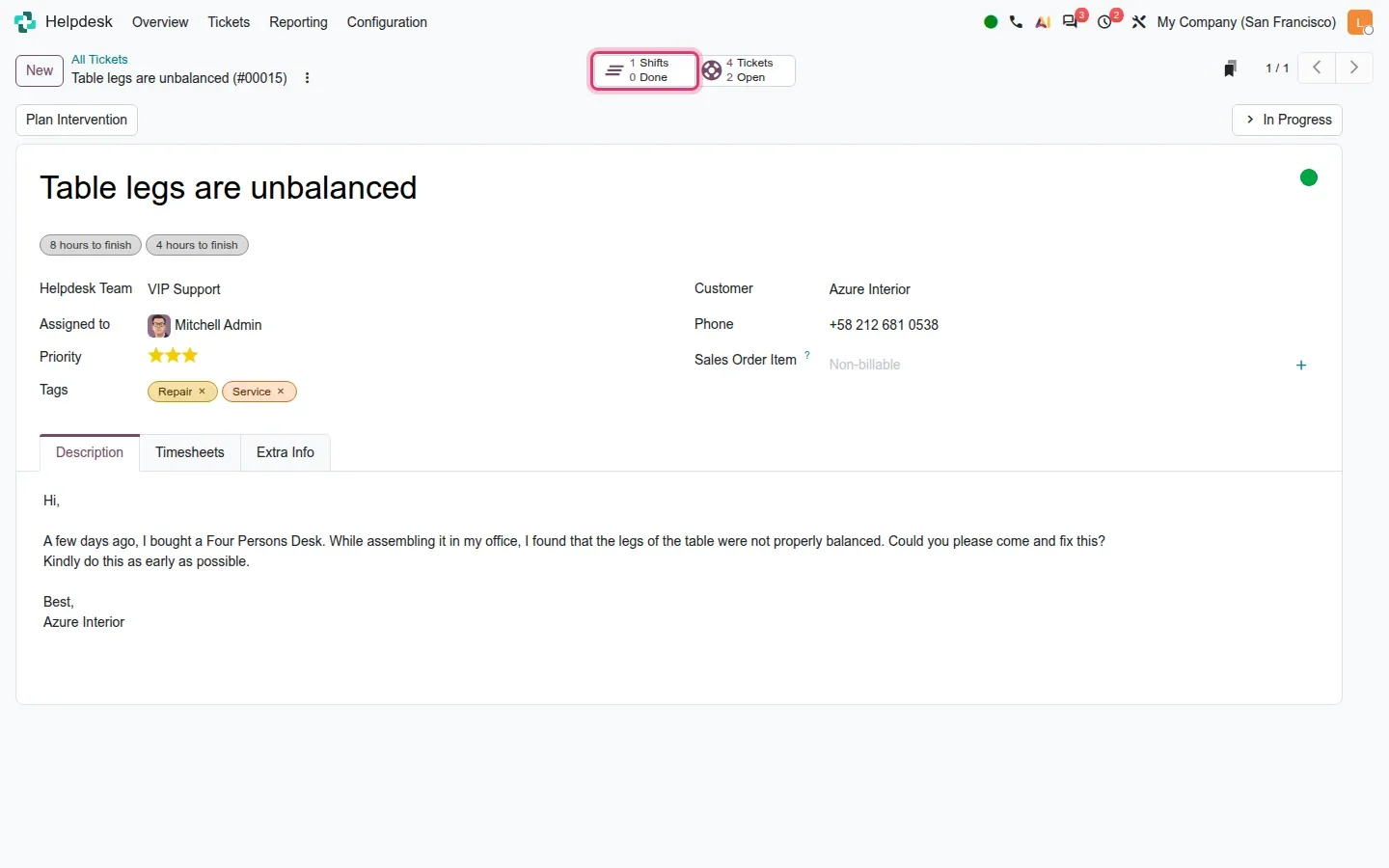
Once an intervention has a scheduled date, a Shifts smart button appears with two counters, planned and Done: 1 Shifts and 0 Done on the ticket Table legs are unbalanced. It only shows once the ticket has a scheduled date, so tickets without an intervention stay uncluttered. The guide adds that with Sales and Timesheets installed, the intervention is linked back to the sales order item and the time logged on it. For a team that used the old Helpdesk Field Service bridge, the workflow survives; the app it opens is now Planning.
How to try it on a demo database
- Install Appraisals, Time Off, Payroll and Helpdesk with demo data, and enable Field Service in Planning.
- Open Appraisals > Configuration > Goals > Library, create a Goals Template and add lines in its Sub-Goals tab. The list shows them as tags on the parent row.
- Open Appraisals > Appraisals in list view, tick three records and open the Actions menu: the bulk actions are at the bottom.
- Open Time Off > Management > Time Off, switch to the Gantt view and drag over cells across two employees. Click a type shortcut or Apply, read the popover, then Discard.
- Open Helpdesk > Configuration > SLA Policies, open a policy and add two conditions in the Tickets domain.
- Open Helpdesk > Configuration > Stages, open Solved, switch on Ask for Ratings and pick a Rating Email.
- Open a Helpdesk team, scroll to Automatic Closing and switch on Auto-Close Reminder.
- Open a ticket, click Plan Intervention, give the shift a date, then return to the ticket to see the Shifts smart button.
What we could not verify on the pre-release build
The parent goal's computed progress exists in the database but is not displayed on the template form or in the library list, so we could not show a department objective averaging its sub-goals. Hovering an employee avatar in the Time Off Gantt only showed a name tooltip, not the summary card the guide describes. We did not look for import and export of time entries from the Gantt, and did not capture the Unanswered filter, the portal ticket page, the default appraisal template, the Next Appraisal Date on the employee card or the redesigned emails. The multi-create popover was opened and discarded, not confirmed. Everything else on this page was clicked through on the 20.0 Enterprise build of 23 September 2026.
What this means for an upgrade
If you run Odoo 17, 18 or 19, three items deserve a line in the upgrade plan. Helpdesk SLA policies will be re-expressed as ticket domains, so list them now with their criteria and check the upgraded domains match; rating settings move from teams to stages, so decide which stages should ask. If you used the Helpdesk Field Service bridge, the target app becomes Planning and technician calendars need a look before go-live. Appraisals and Time Off carry no data change, but plan a short session with managers on the goal library and the Gantt multi-create. Integrations that push tickets or leave requests over XML-RPC need our RPC migration audit, since Odoo has scheduled the removal of those endpoints for Odoo 20. We scope all of this in our migration service, and the series hub lists the other changes that touch the same upgrade.
Frequently asked questions
Can I create time off for several employees at once in Odoo 20?
Yes. In Time Off > Management > Time Off, switch to the Gantt view and drag over cells across several days and employees. A counter shows how many cells are selected, and one popover with the type, morning or afternoon and the number of days creates the leave for every selected employee. The Overview menu stays read-only.
Where do I create parent goals in Odoo 20 Appraisals?
In Appraisals > Configuration > Goals > Library, on a Goals Template record. Each template has a Parent Goal Template field and a Sub-Goals tab. The Goals menu hides goals that have children, so the department-level objective is managed from the library, and its computed progress is stored but not displayed in this build.
How do SLA policies work in Odoo 20 Helpdesk?
An SLA policy keeps its target, a stage to reach within a number of working hours, and its Helpdesk Team, but the fixed criteria fields are replaced by a Tickets domain. You can combine priority, customer, tags, type or any custom field in one policy, and the editor shows how many tickets match while you build it.
Can Odoo 20 Helpdesk ask for a customer rating at more than one stage?
Yes. Ratings are configured per stage rather than per team: each stage has an Ask for Ratings toggle and its own Rating Email template. You can request feedback when the ticket reaches Solved and again when it is closed, with a different email each time.
What happened to Helpdesk Field Service in Odoo 20?
The standalone Field Service app and its Helpdesk bridge are replaced by a Field Service mode inside Planning, according to the 20.0 source diff. A ticket gains a Plan Intervention button that creates a shift, and a Shifts smart button counts planned and done interventions once the ticket has a scheduled date.