
The window between the order and the pass
Odoo 20 spends most of its Point of Sale effort on the minutes between a server pressing Send and the food leaving the kitchen. The Preparation Display, the kitchen screen that ships with pos_enterprise, has been redrawn so a cook can read it from the line: colour-coded stage badges, a guest count on every card, and a timer that turns red when an order waits longer than the stage allows. Around it come ticket printing from the display, a one-click way to move a whole stage forward, a combo suggestion at the register, scheduled cashiers first on the login screen, and two commission achievements that count register sales.
This post is for restaurant and retail owners and for the floor managers who run a shift. We walk through each screen as it appears on the pre-release build, in the order a service happens: the kitchen screen, the printer settings, the batch and combo helpers, the cashier login, then the commission plan. Where the real interface differs from Odoo's release notes, we say so.
Observed on the Odoo 20.0 Enterprise pre-release build of September 23, 2026. Names, menus and availability can change before general availability; we will update this page when they do.
A kitchen screen you can read from the line
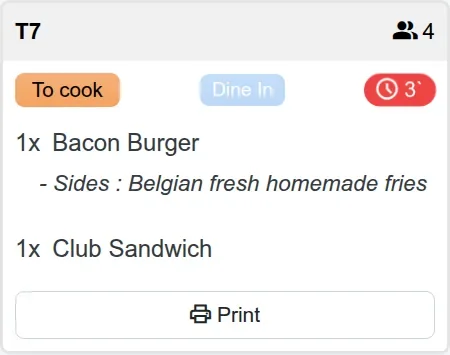
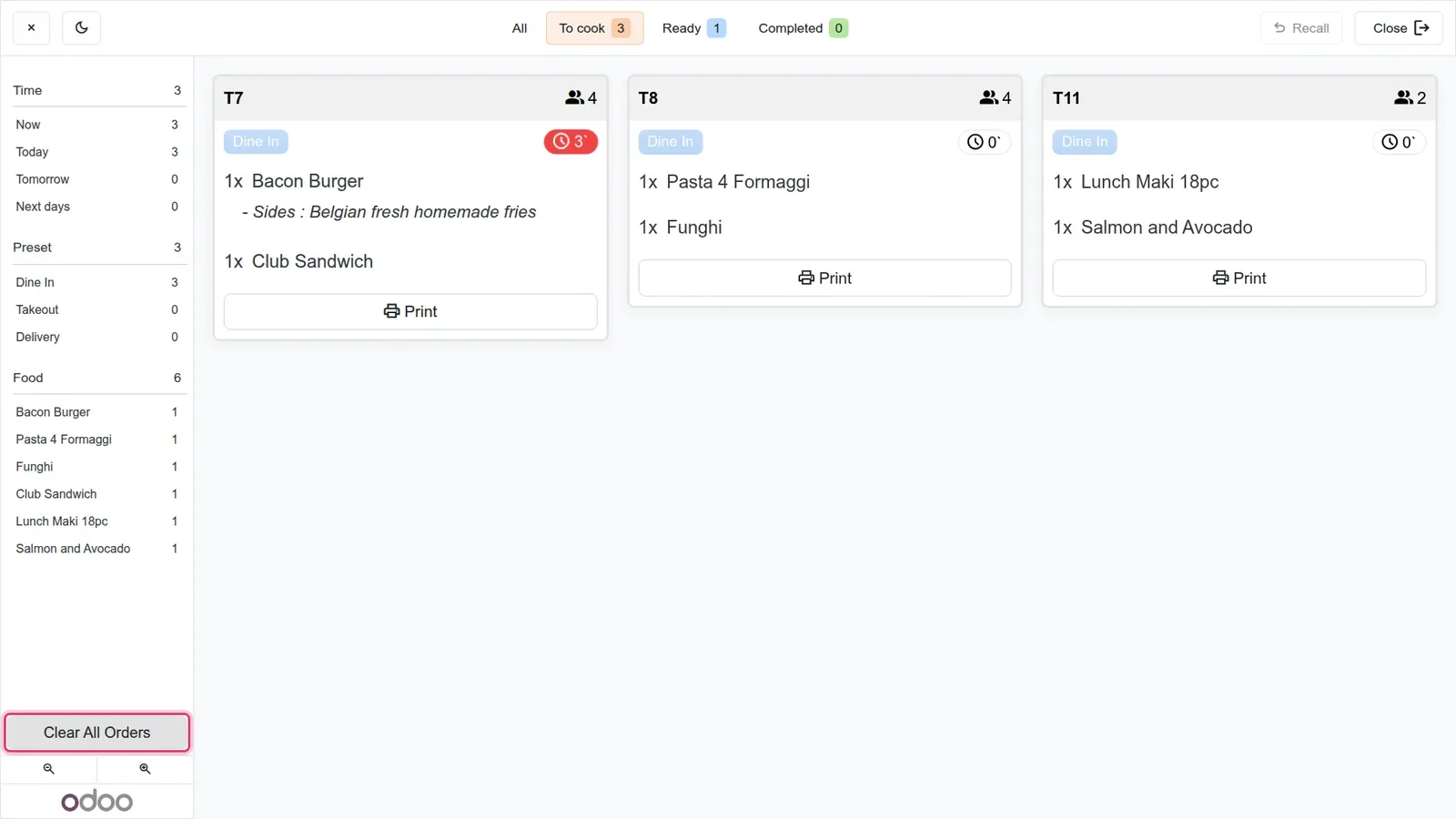
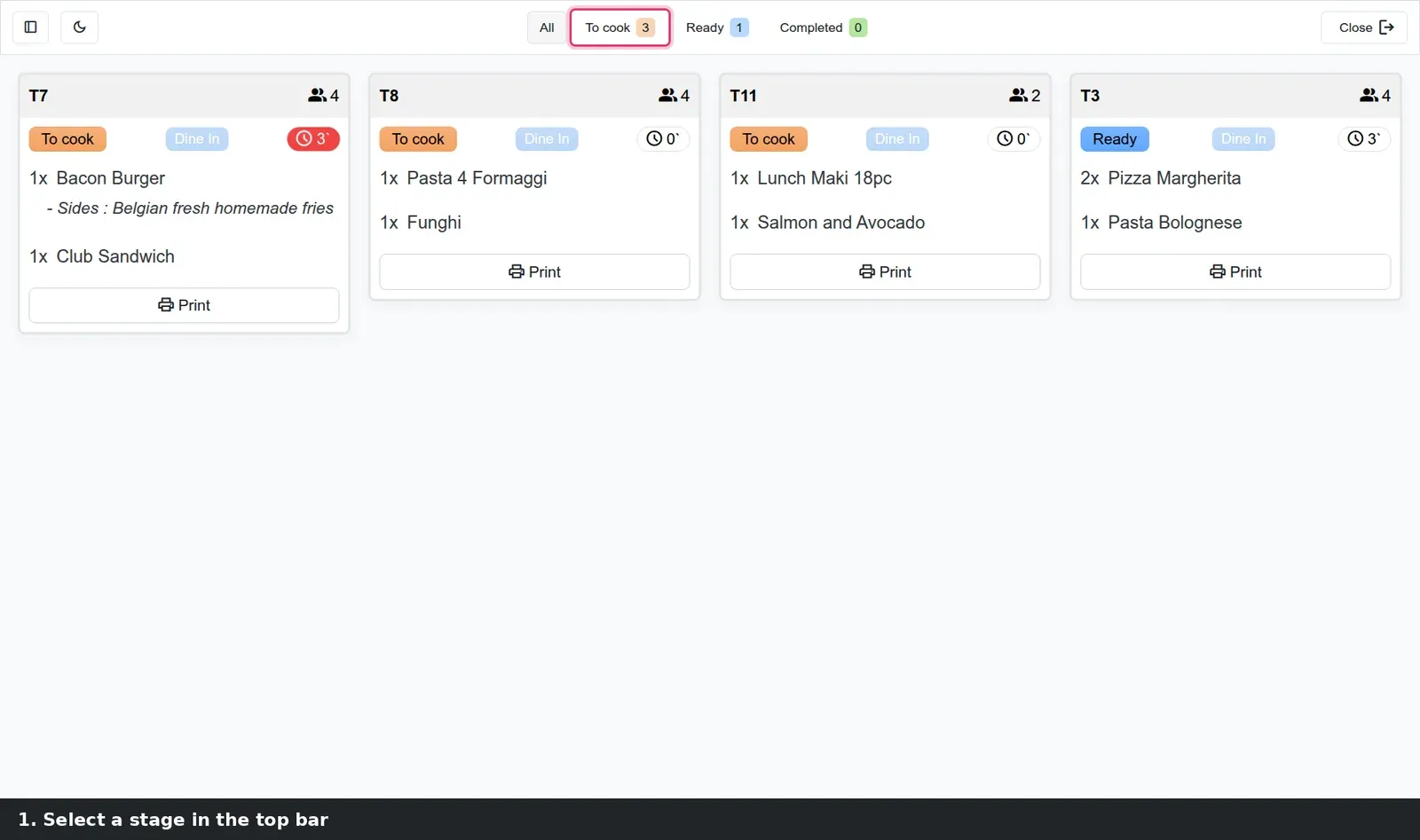
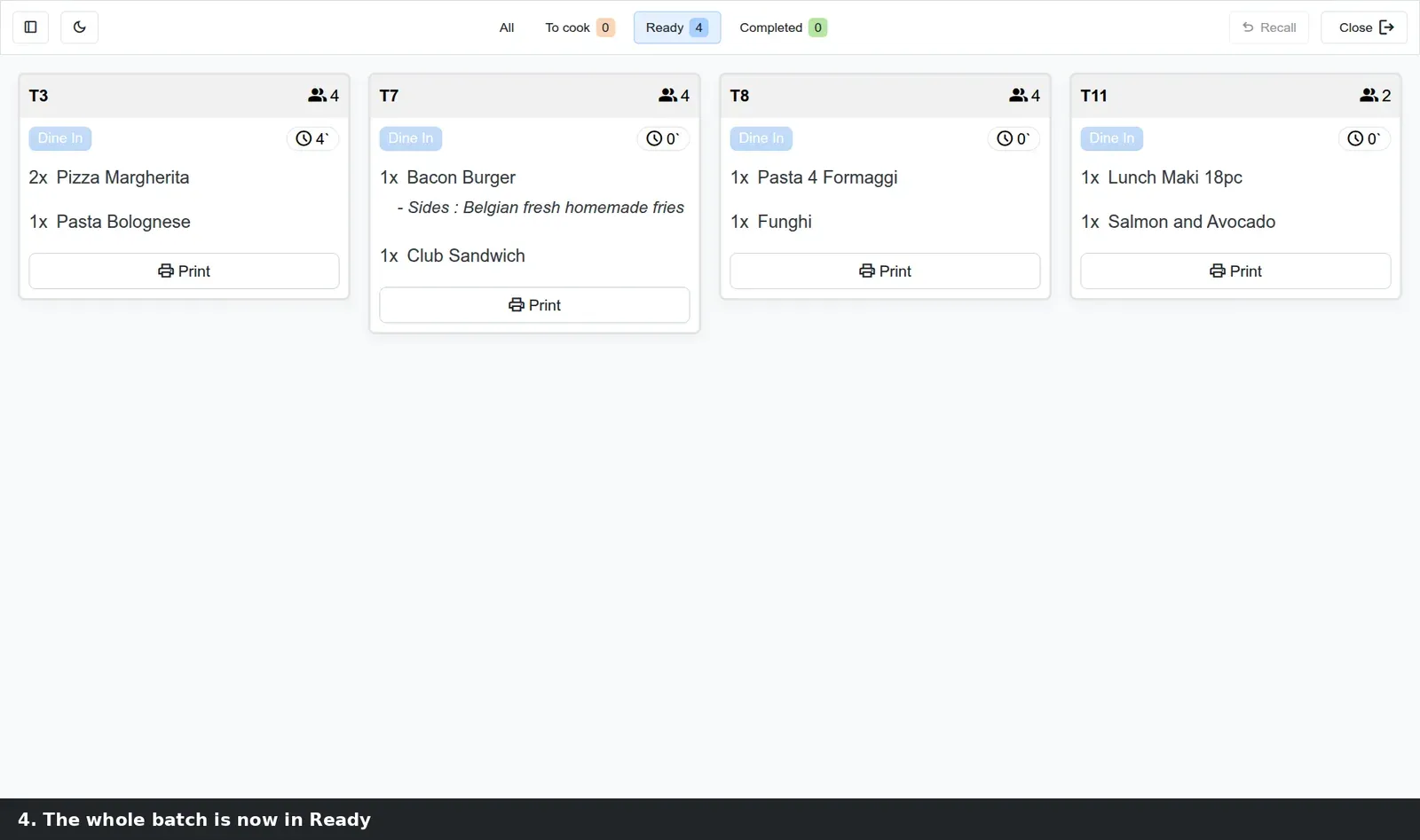
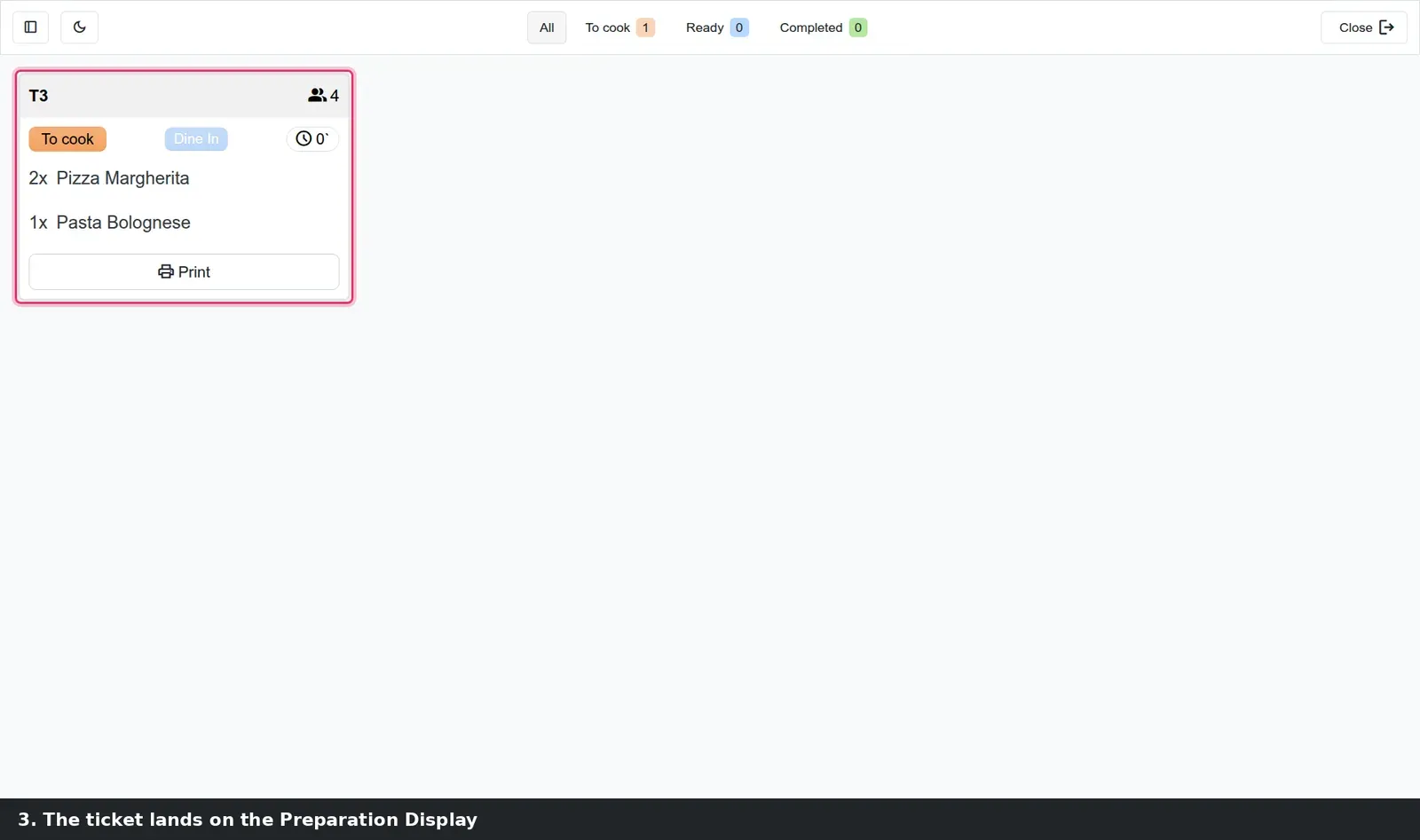
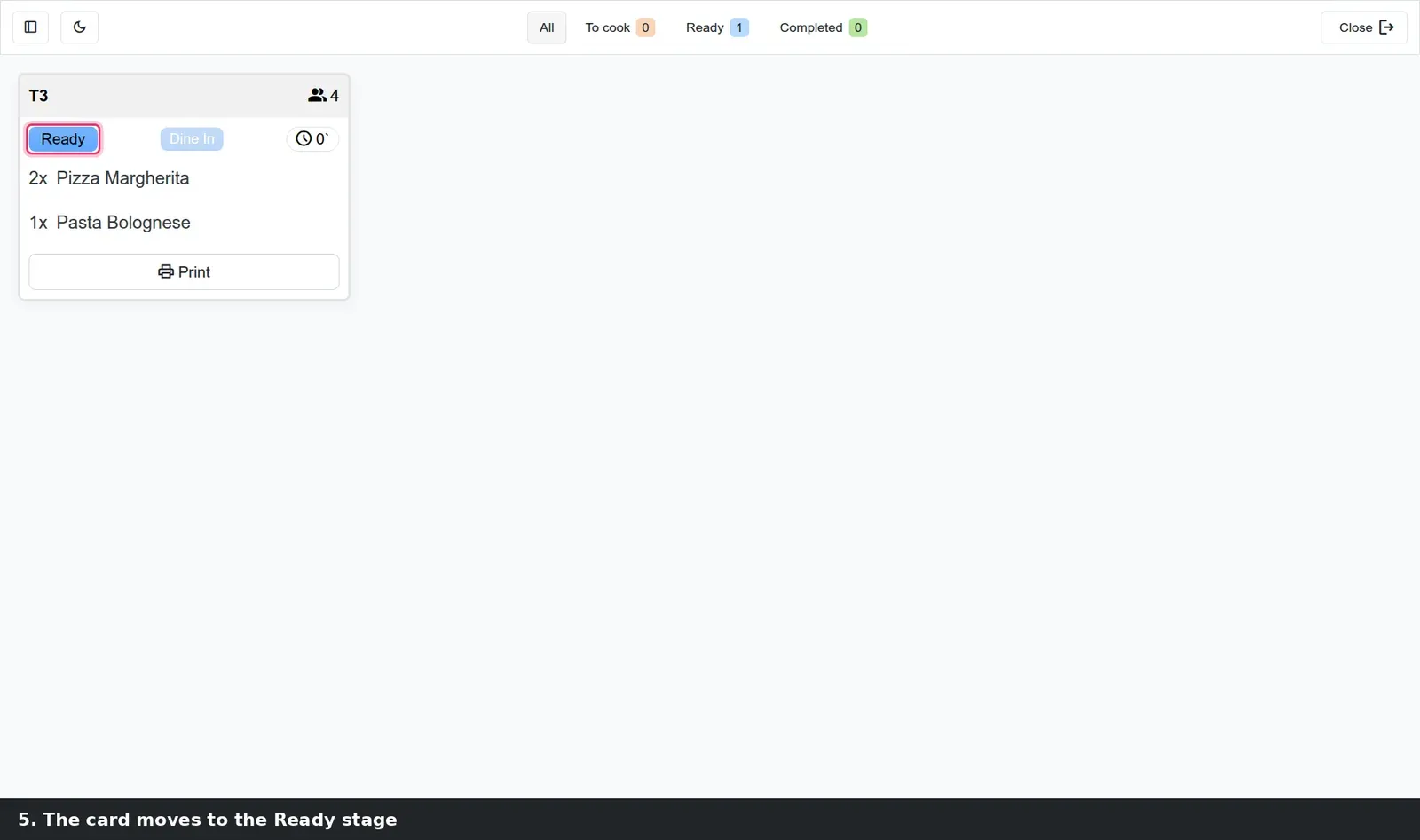
Open Point of Sale > Orders > Preparation Display and click Preparation Screen on the Kitchen Display card, or use the separate Kitchen Display icon on the home menu. Each order is a card with the table number and the number of guests in its header, a stage badge (To cook in orange, Ready in blue, Completed in green on our demo), a Dine In, Takeout or Delivery tag, the lines with their sides, and a timer. The top bar filters the board by stage with a live count, All shows every open card, and a dark mode button suits kitchens that dim the lights in the evening.
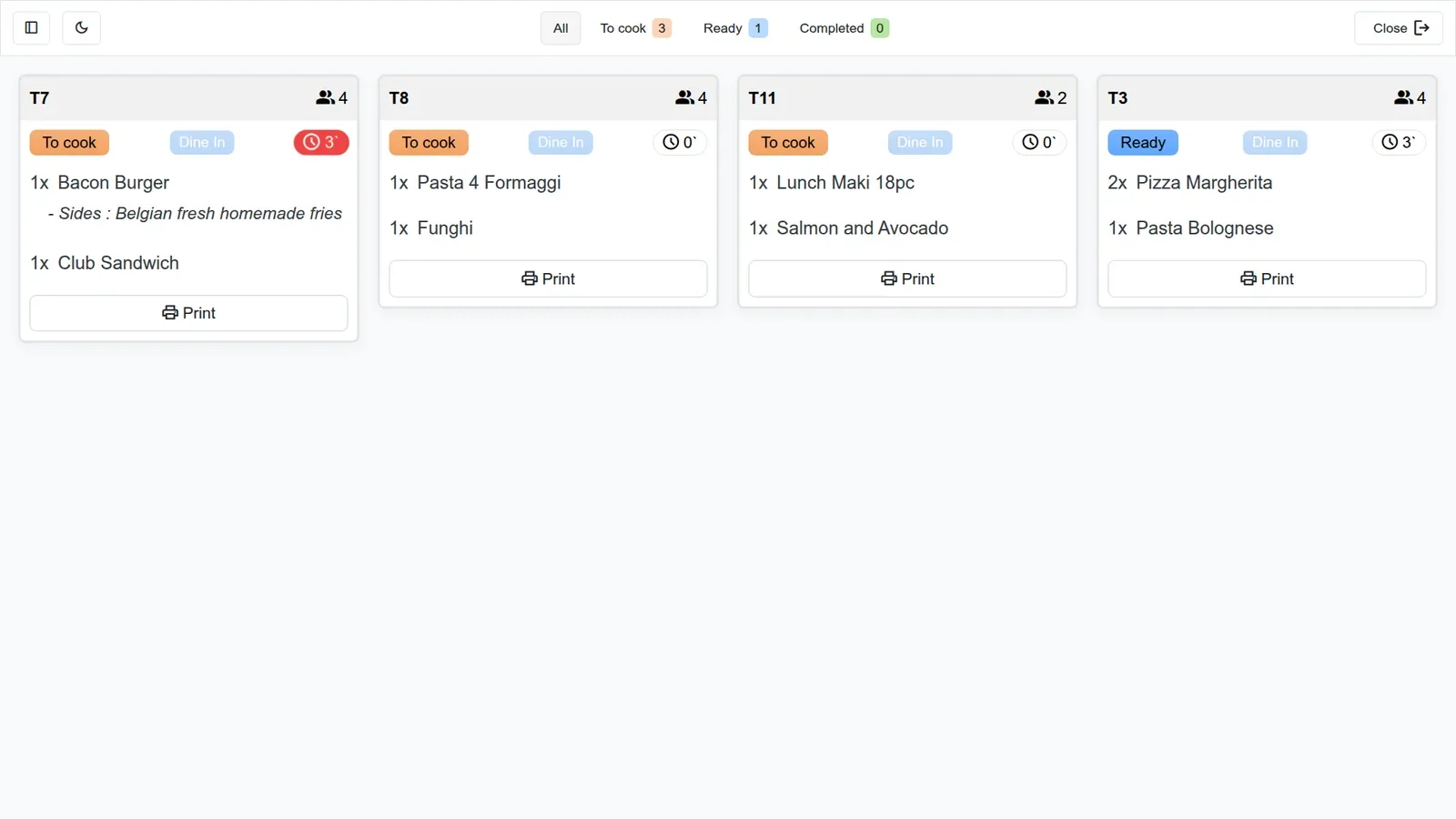
The timer is the part that matters on a busy night. Every stage carries an alert time in minutes, and when a card sits in a stage past that limit its timer badge turns red. On the demo we set To cook to 2 minutes and Ready to 5, then left table 7 waiting: its badge went red at 3 minutes while tables 8 and 11, sent a moment before the capture, still read 0. Nobody has to ask which ticket is late; the board says it from across the kitchen.
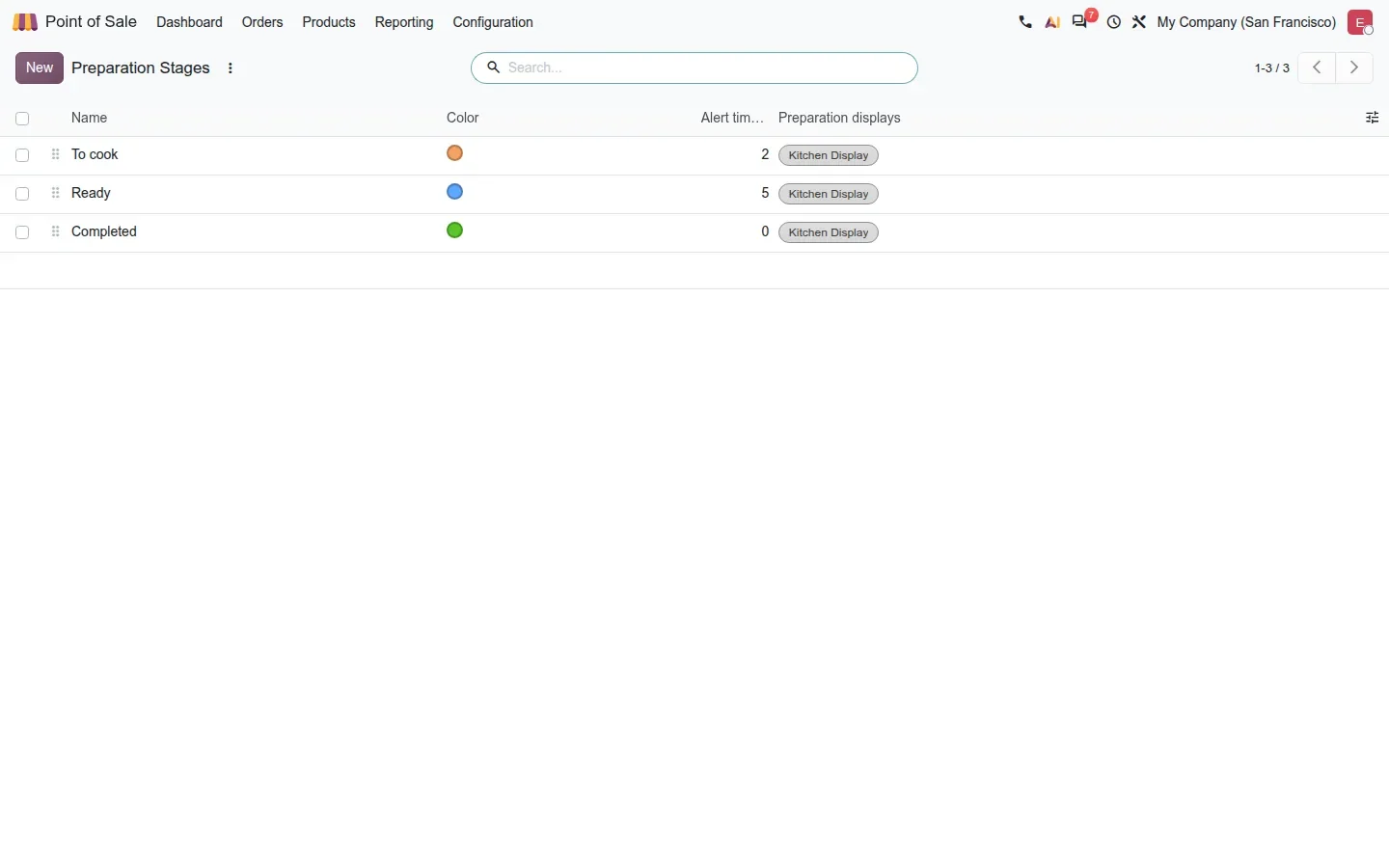
Stages are yours to define under Point of Sale > Configuration > Preparation Stages: a name, a colour and the alert time. Three stages fit most kitchens; a bakery that proofs, bakes and packs can add a fourth.
Tickets print from the display, with a barcode to bump the order
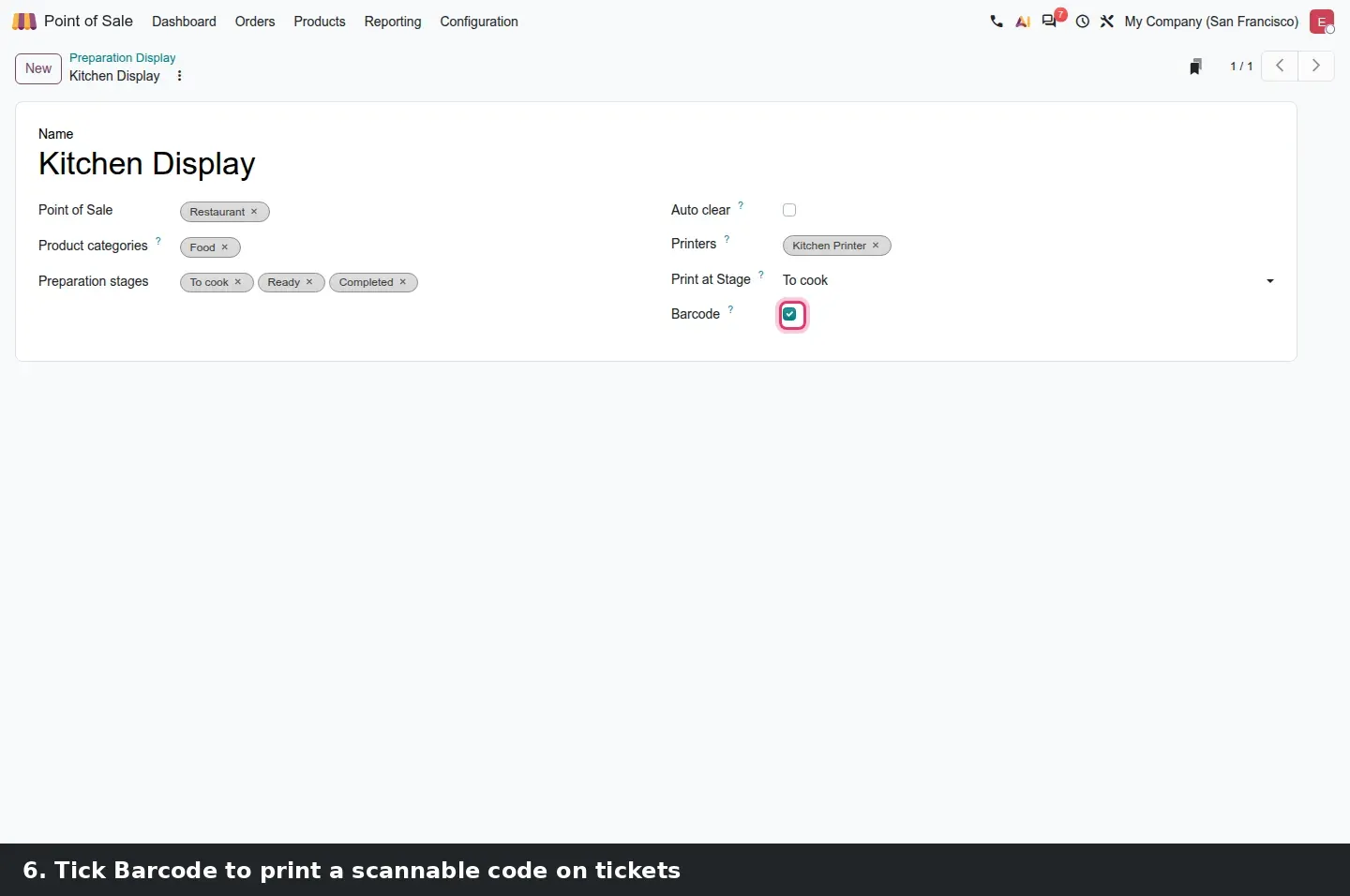
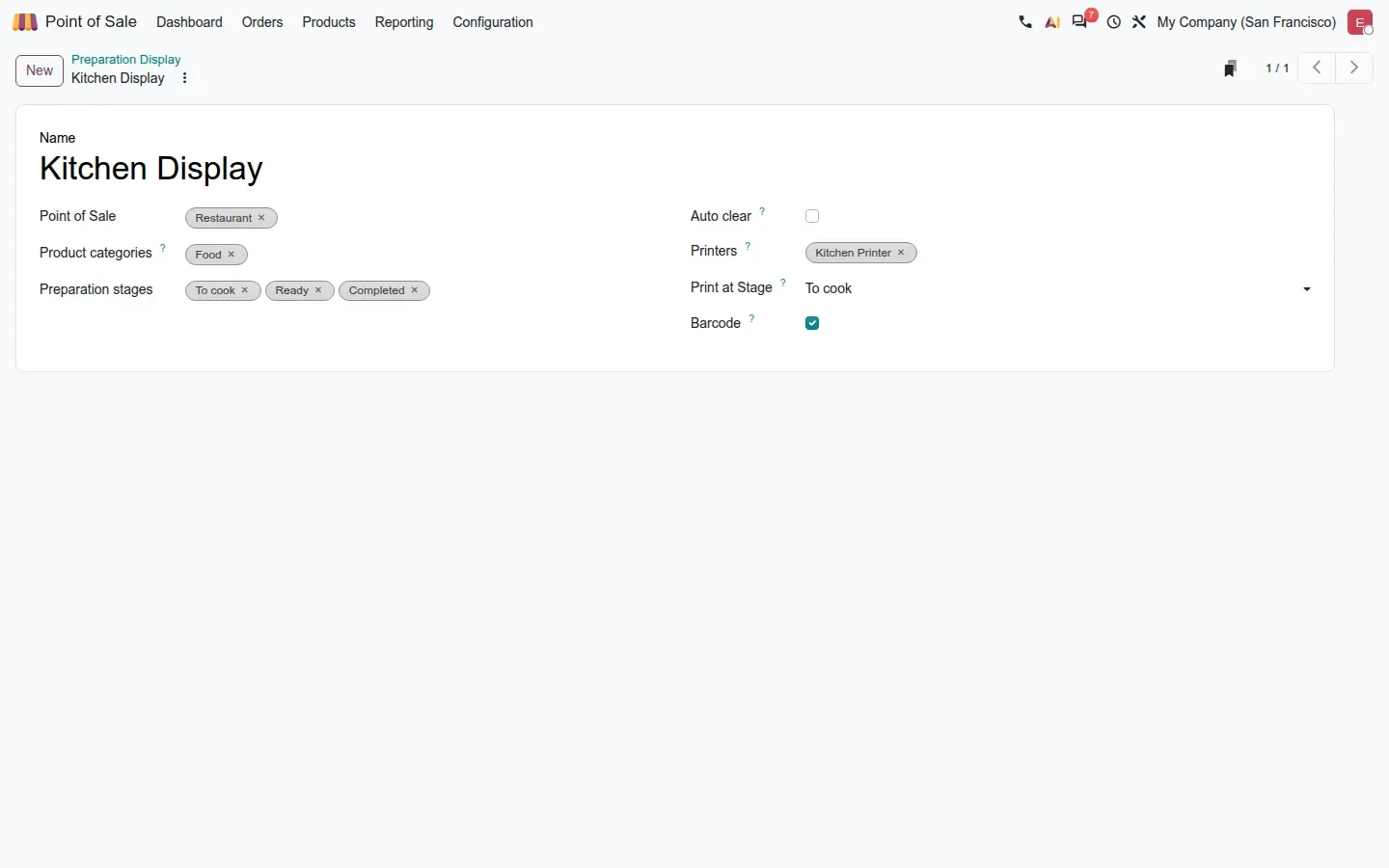
Until now the ticket printed when the server pressed Send. In Odoo 20 each Preparation Display has its own list of Printers and a Print at Stage field. When an order reaches the chosen stage, To cook in our example, the display prints the ticket itself. The Barcode box adds a barcode to that ticket, and scanning it moves the order to the next stage, so a line cook with wet hands bumps an order with a scanner instead of touching the screen. Every card keeps a manual Print button. Network ePoS printers plug straight into this; printers that go through an IoT box are a hardware topic we cover in the Obox post of this series.
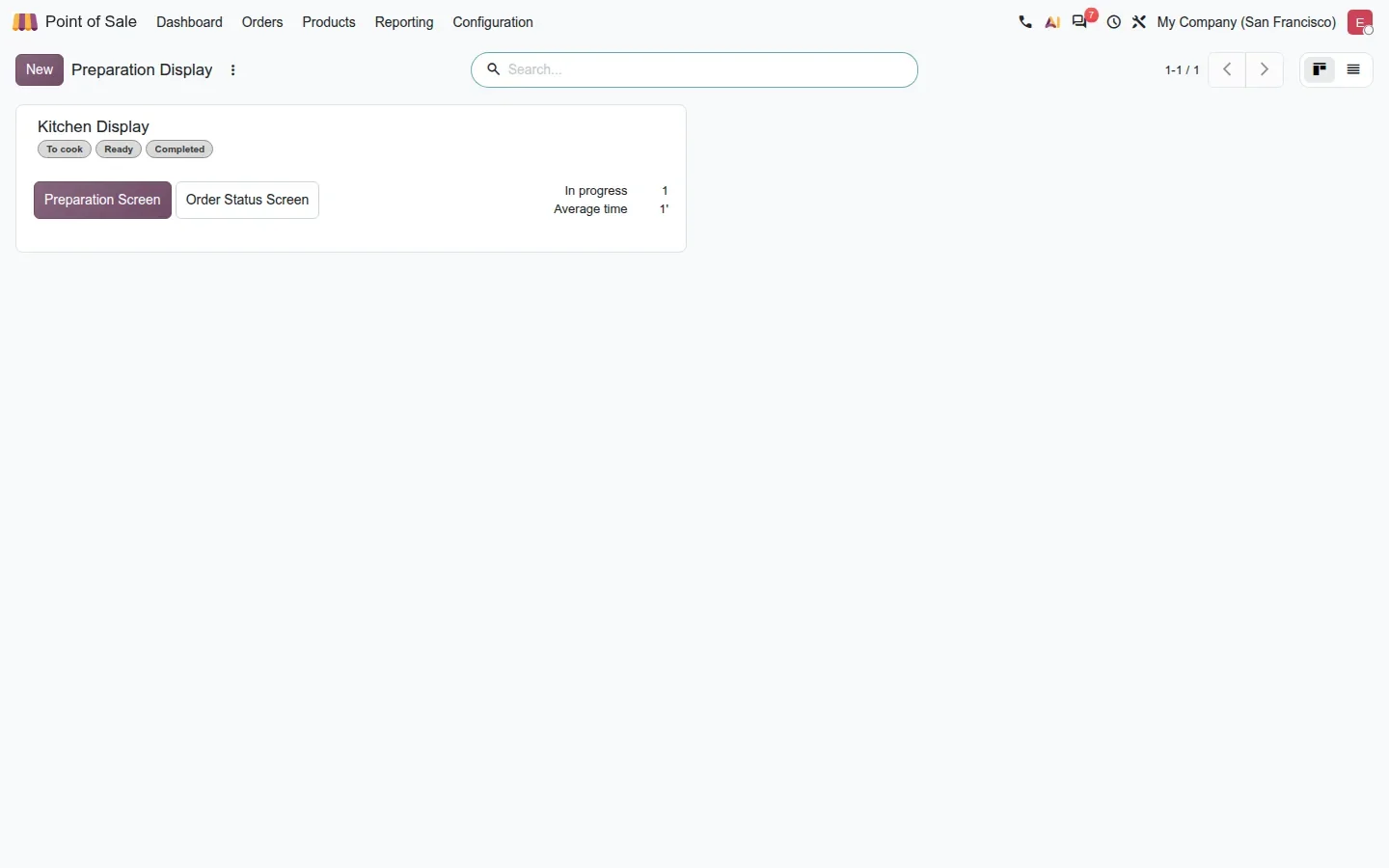
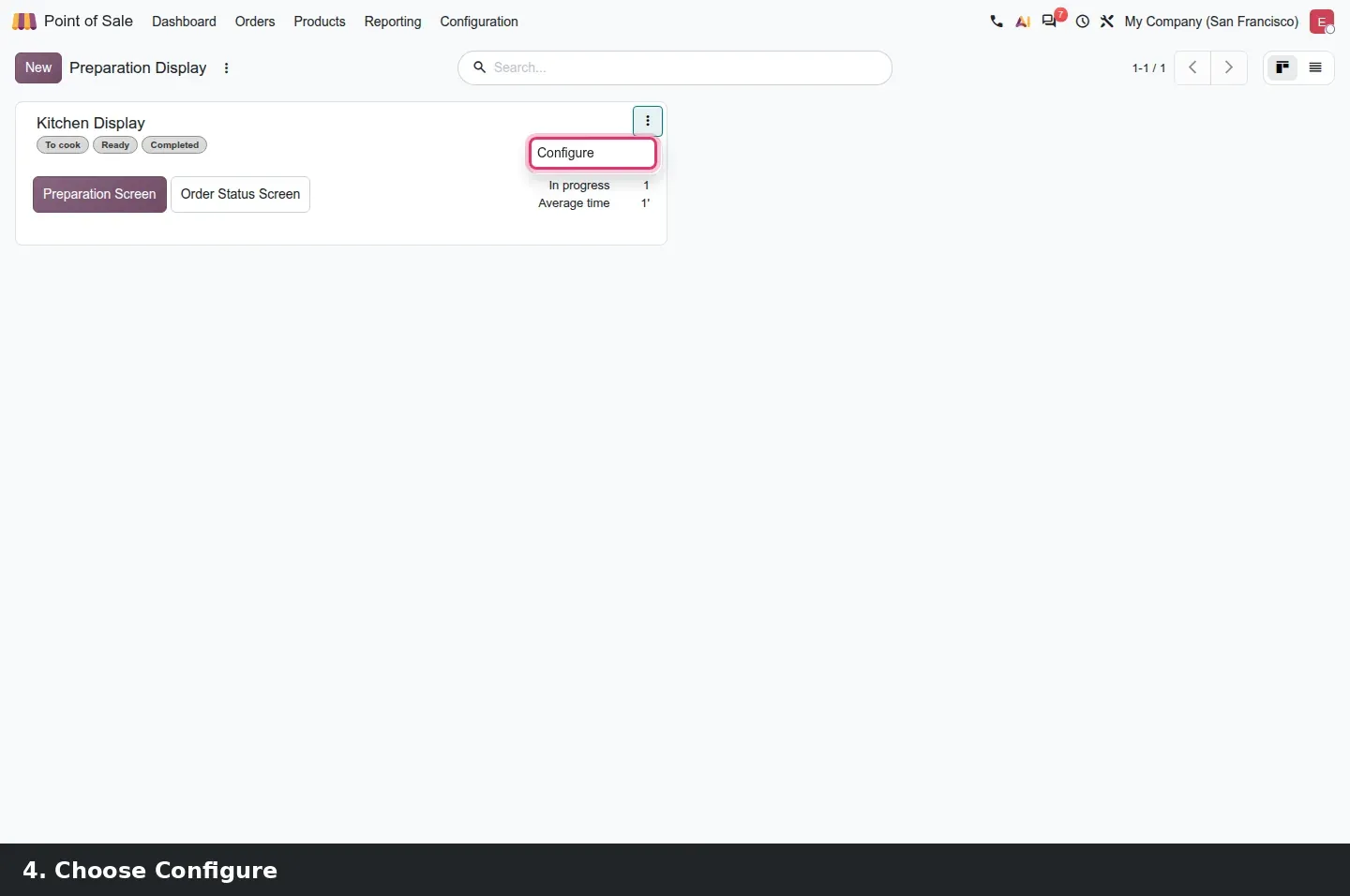
The settings are not where the guide points. The kanban card has two buttons, Preparation Screen and Order Status Screen (the customer-facing screen listing ready order numbers), and the configuration opens from the card's menu under Configure. The form lists the Point of Sale registers the display listens to, the Product categories it shows, so a bar screen can ignore food, the Preparation stages, the Printers and the Print at Stage choice.
Clear a whole stage in one click, and turn loose lines into a combo
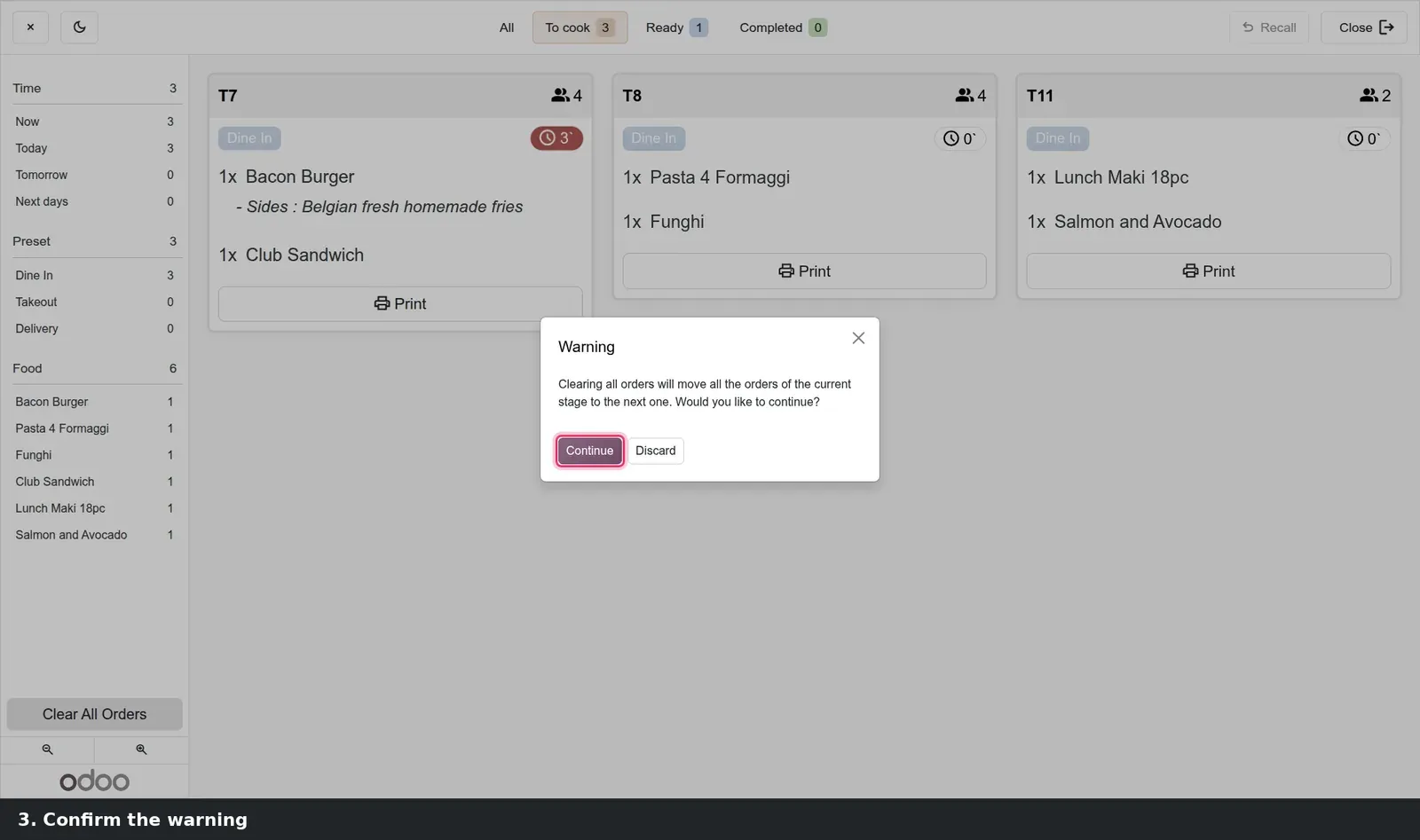
Two changes target the Friday rush. In the display sidebar, with the board filtered on a stage, a Clear All Orders button moves every card of that stage to the next one at once, after a confirmation dialog. When twelve starters go out together, that is one tap instead of twelve. The same sidebar filters the board by time, by preset (Dine In, Takeout, Delivery) and by product, so the cook on the grill sees only the burgers.
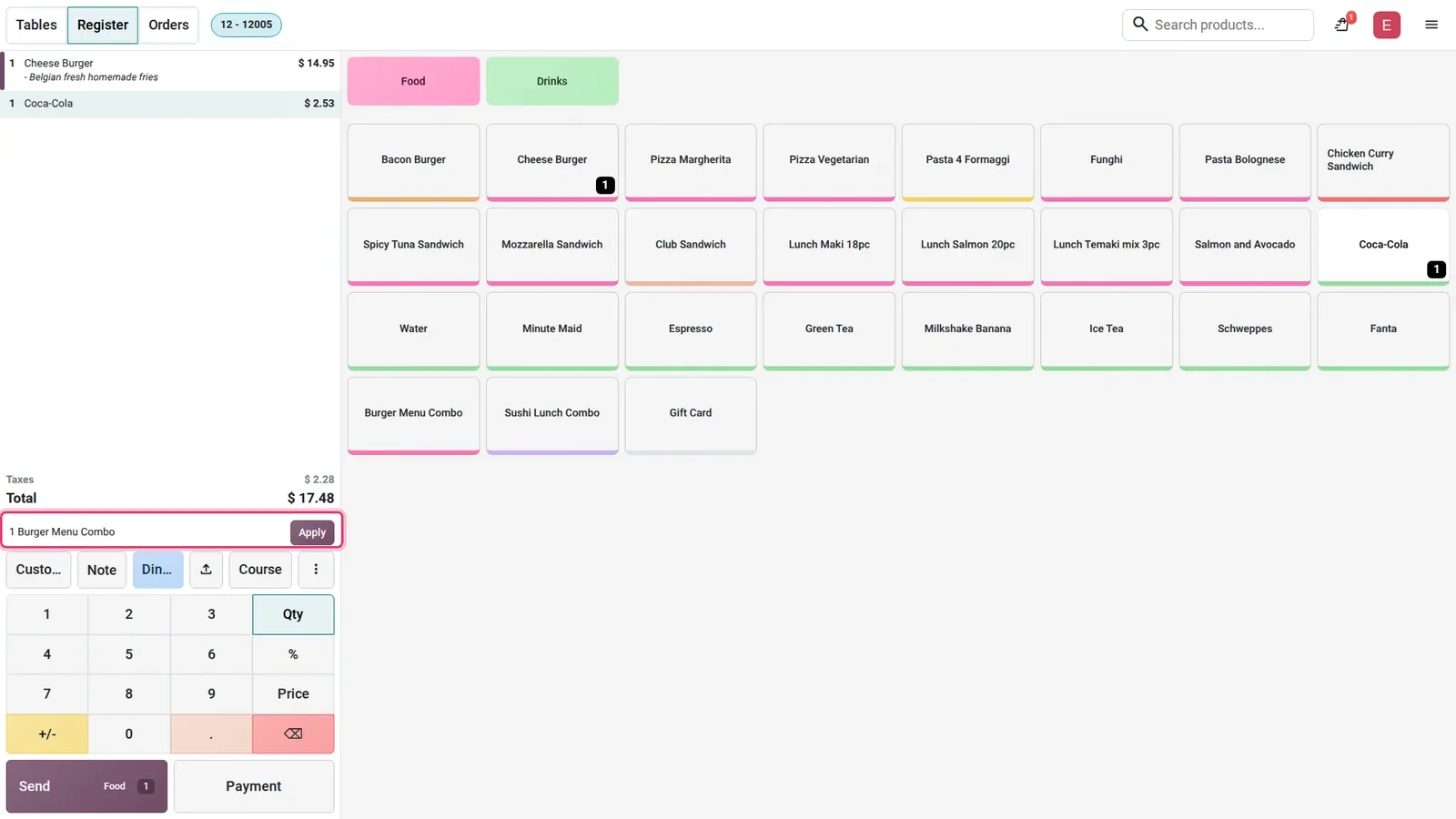
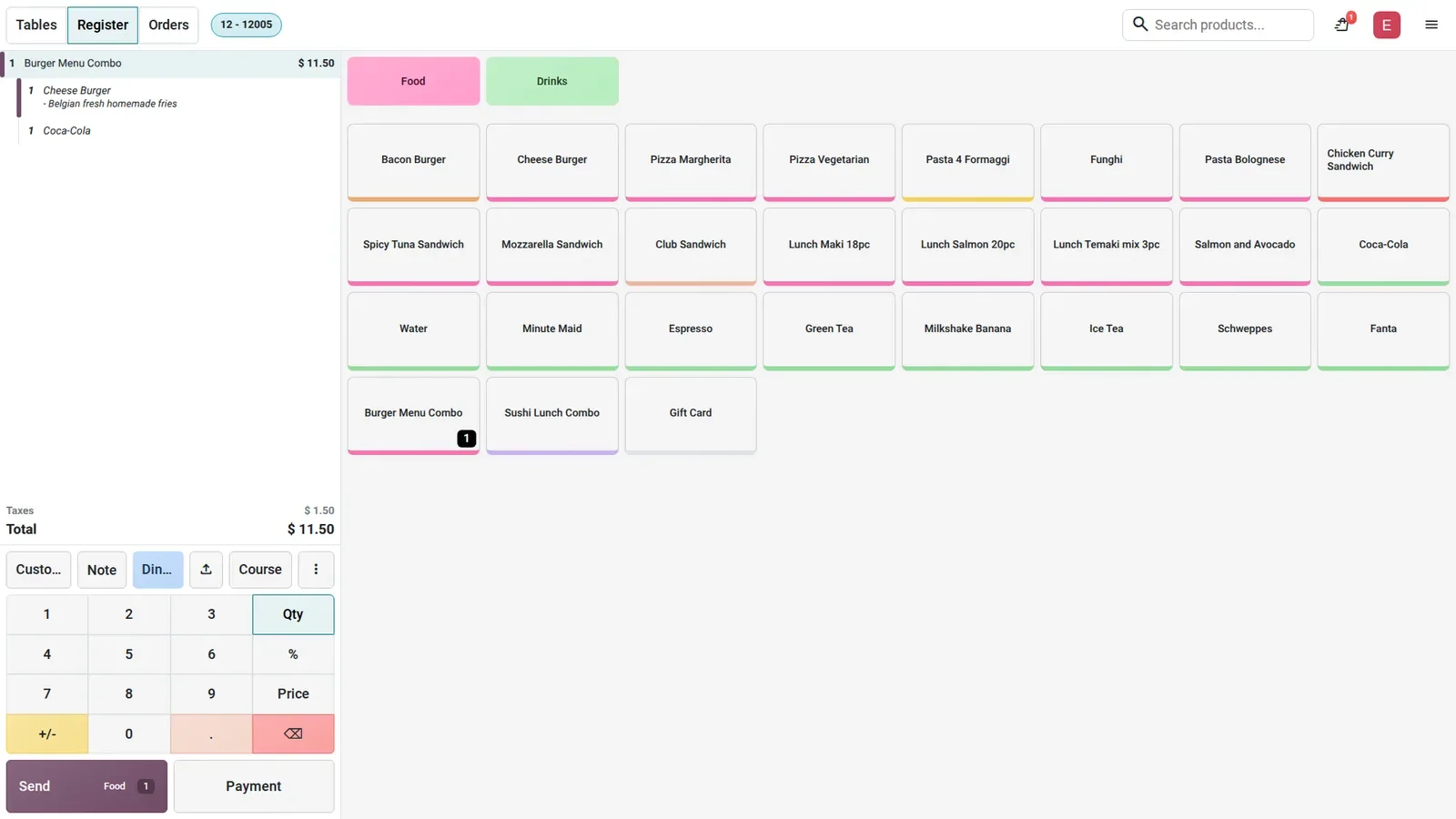
At the register, the combo helper works differently from the one-click conversion the guide describes. A server rings up a Cheese Burger and a Coca-Cola as separate lines; the order summary shows a banner, 1 Burger Menu Combo, with an Apply button, or Choose when several combos match. One tap replaces the two lines with a single Burger Menu Combo line at the combo price, $11.50 on the demo instead of $17.48 for the two products. The guest gets the meal deal, the cashier does not void and re-ring, and the sales report counts a combo rather than two items.
Set alert timers from real tickets
Time a dozen tickets from Send to the pass on an ordinary evening before you pick the alert minutes. An alert set below your real median turns the whole board red at 7 pm, and the cooks stop looking at it. Start generous and tighten one stage at a time.
Scheduled cashiers come first on the login screen
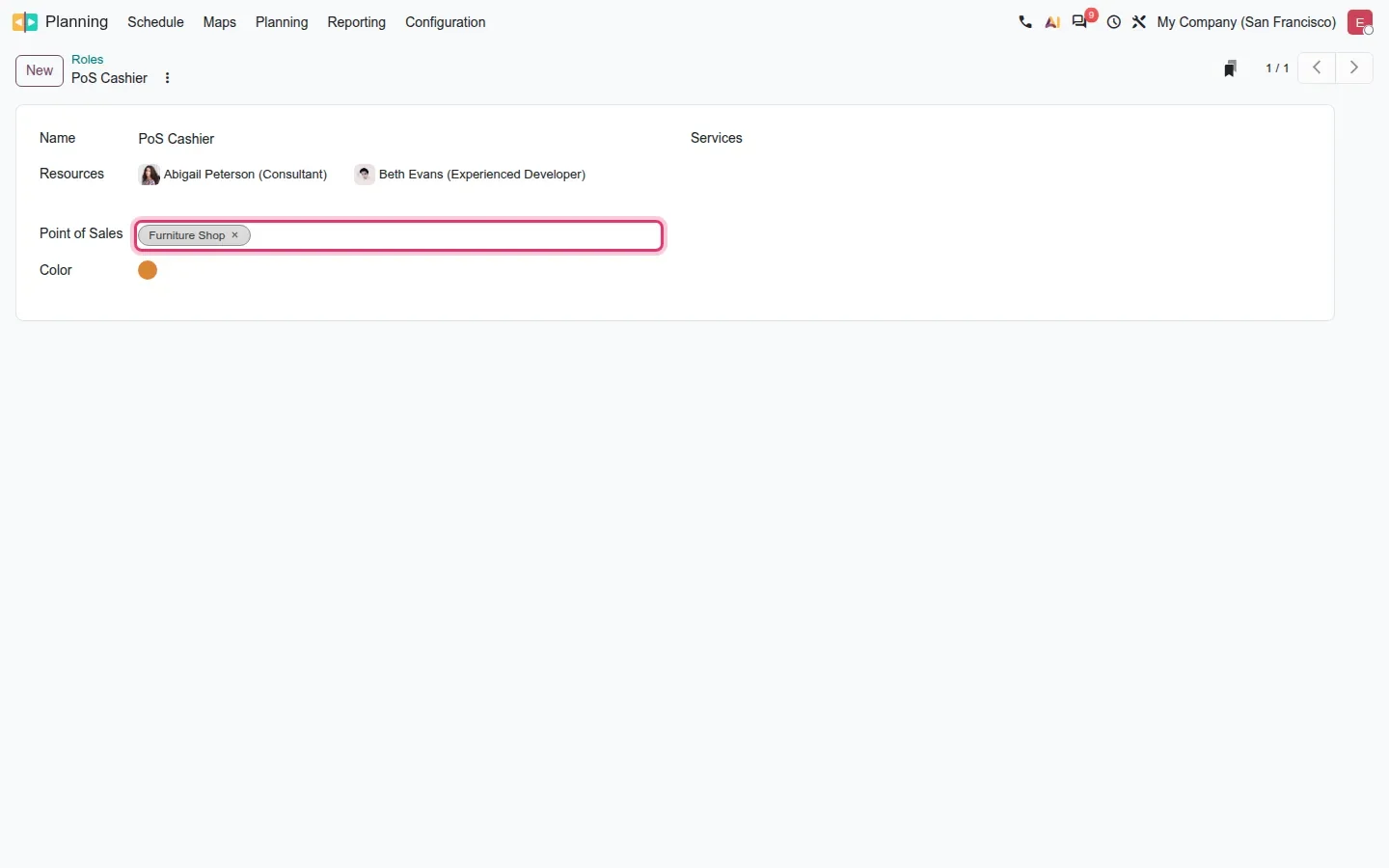
With Planning installed alongside Point of Sale, the pos_planning bridge links a Planning role to one or more registers. Open Planning > Configuration > Roles, pick a role such as PoS Cashier, and fill the new Point of Sales field with the shops it covers, Furniture Shop on our demo. Then publish shifts for that role as you already do.
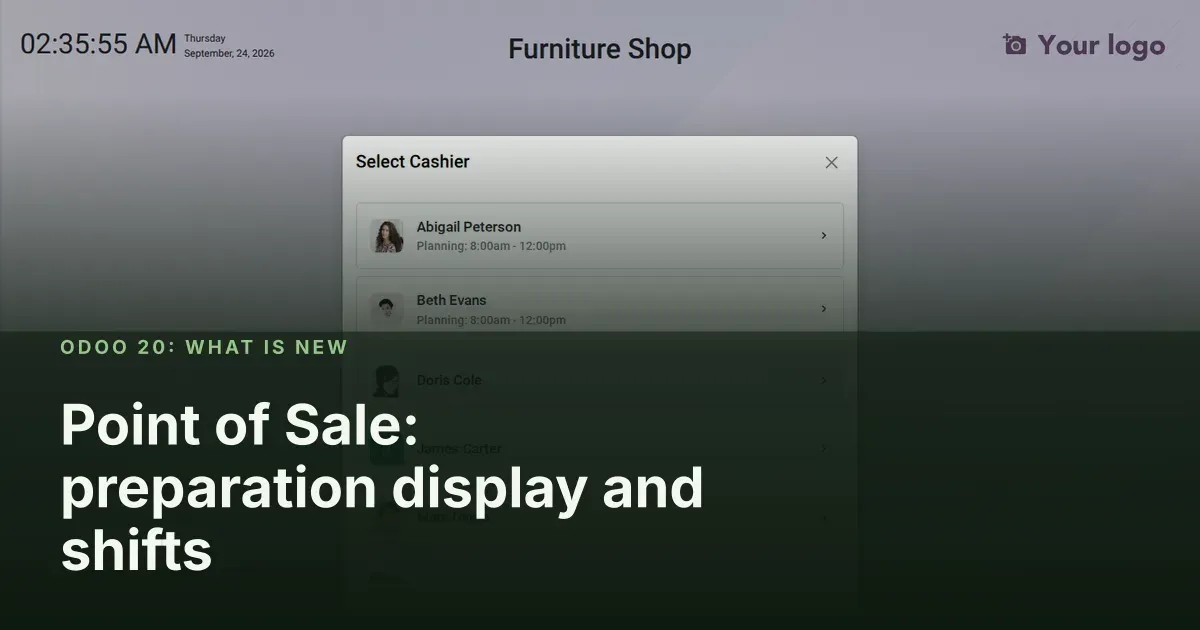
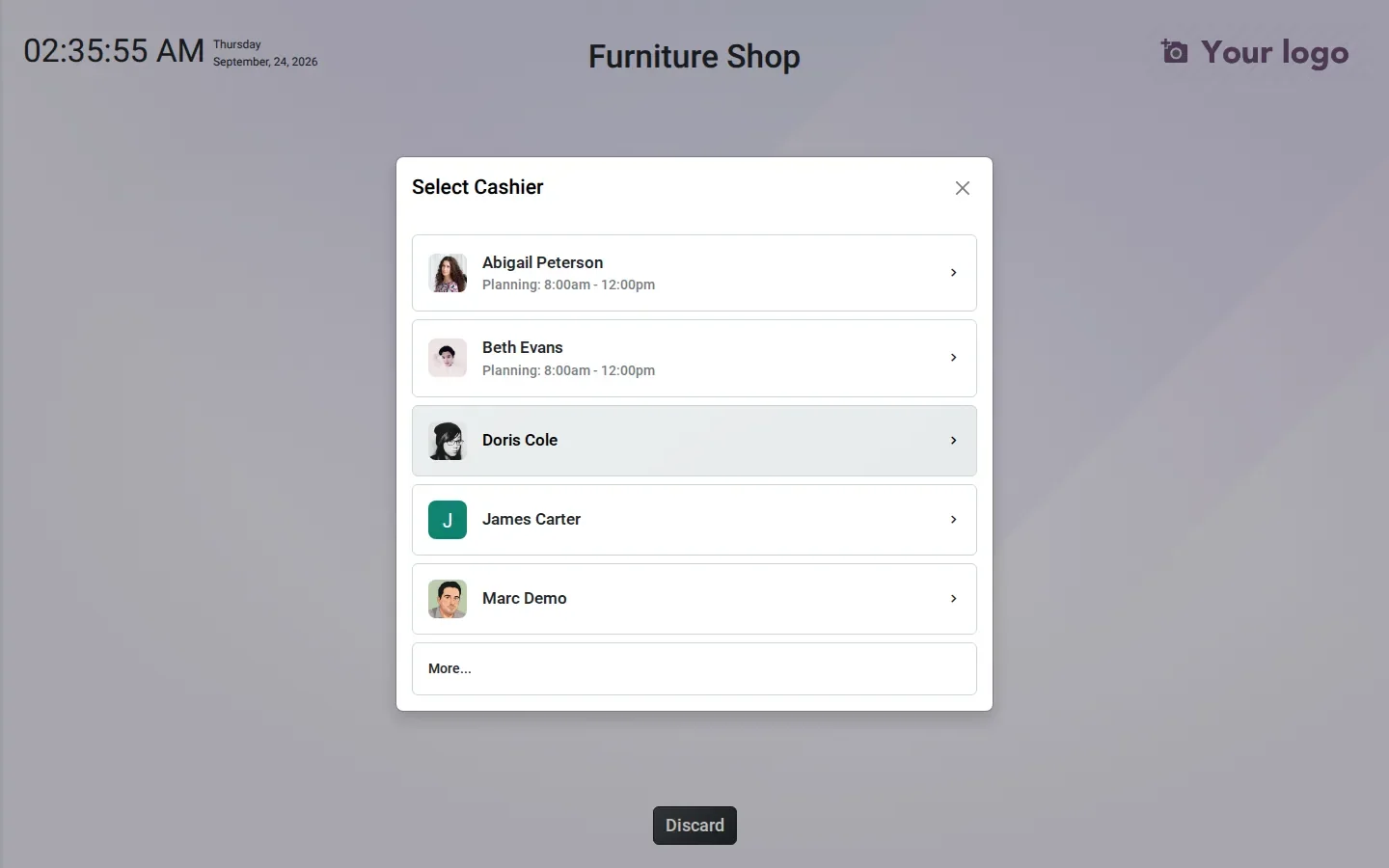
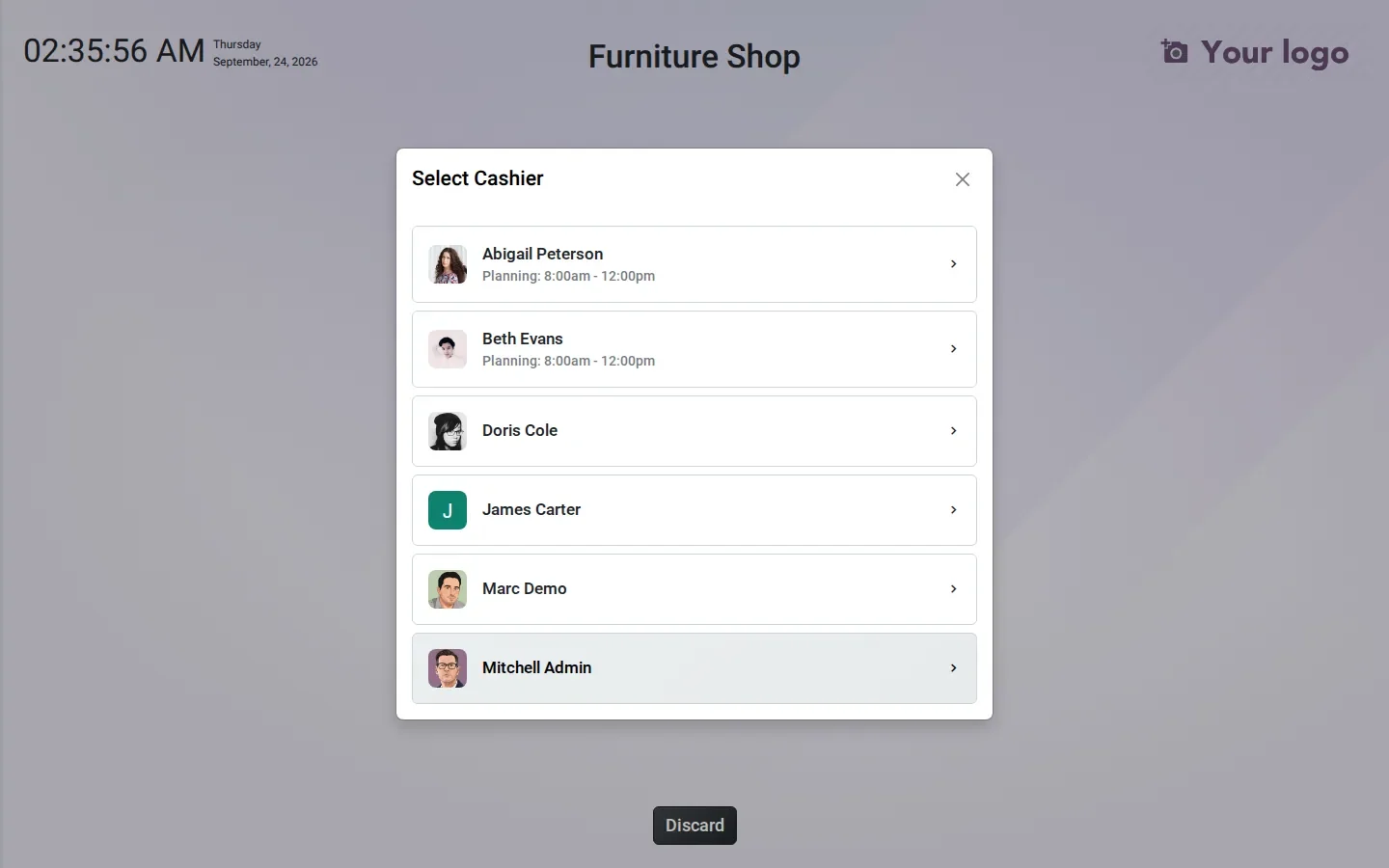
The effect shows at the register when multi-employee login is enabled. The Select Cashier dialog lists the employees who have a shift today first, each with a Planning: 8:00am - 12:00pm subtitle, then the other cashiers, and More... reveals the rest of the staff. The guide says employees without a shift no longer appear as valid cashiers. That is not what the build does: nobody is hidden or blocked, the list is sorted and annotated. It makes it obvious when someone off the schedule opens a register; it does not prevent it. A hard block is still an access-rights exercise or a small customization.
Commission plans reach the shop floor
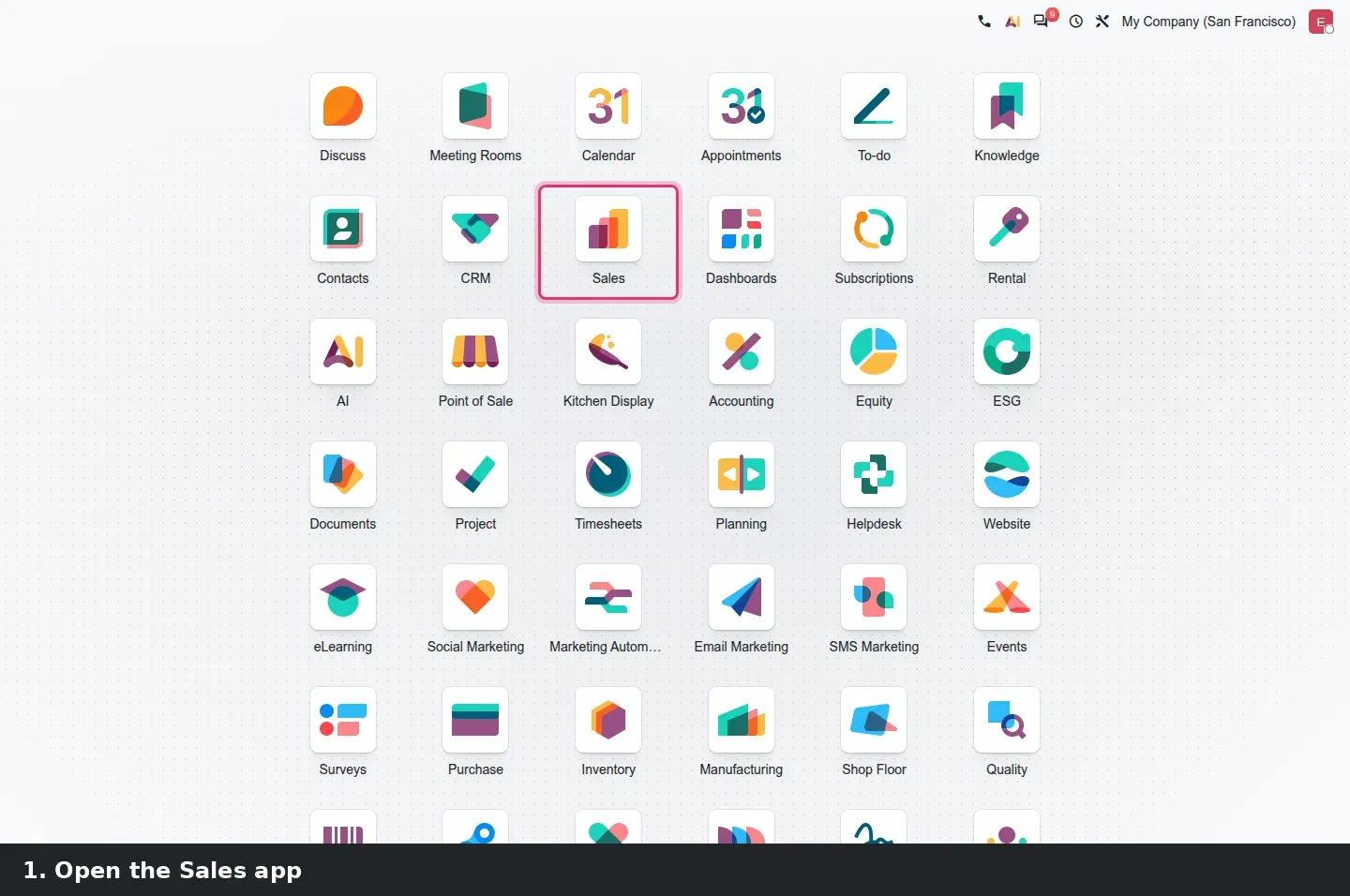
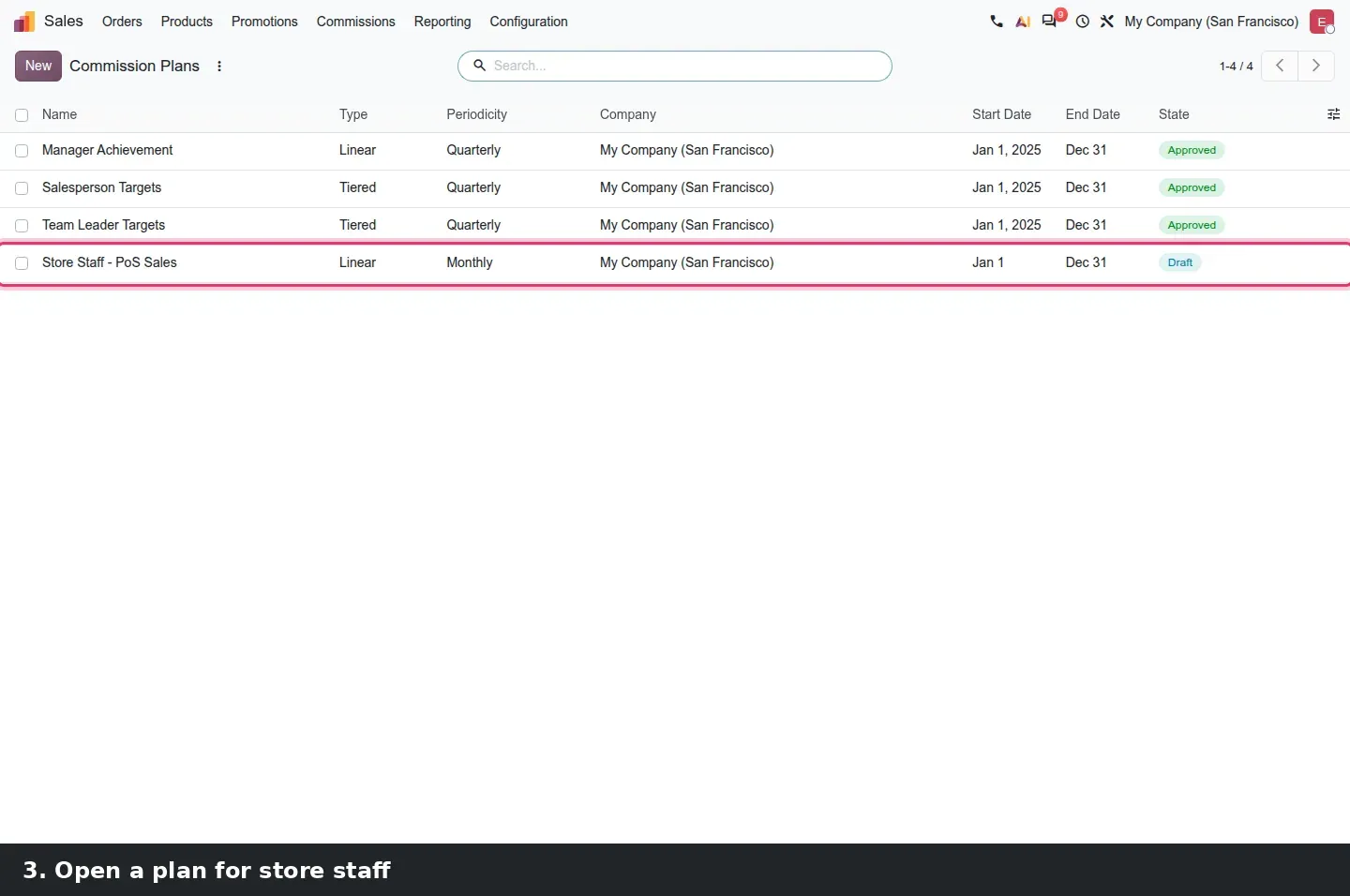
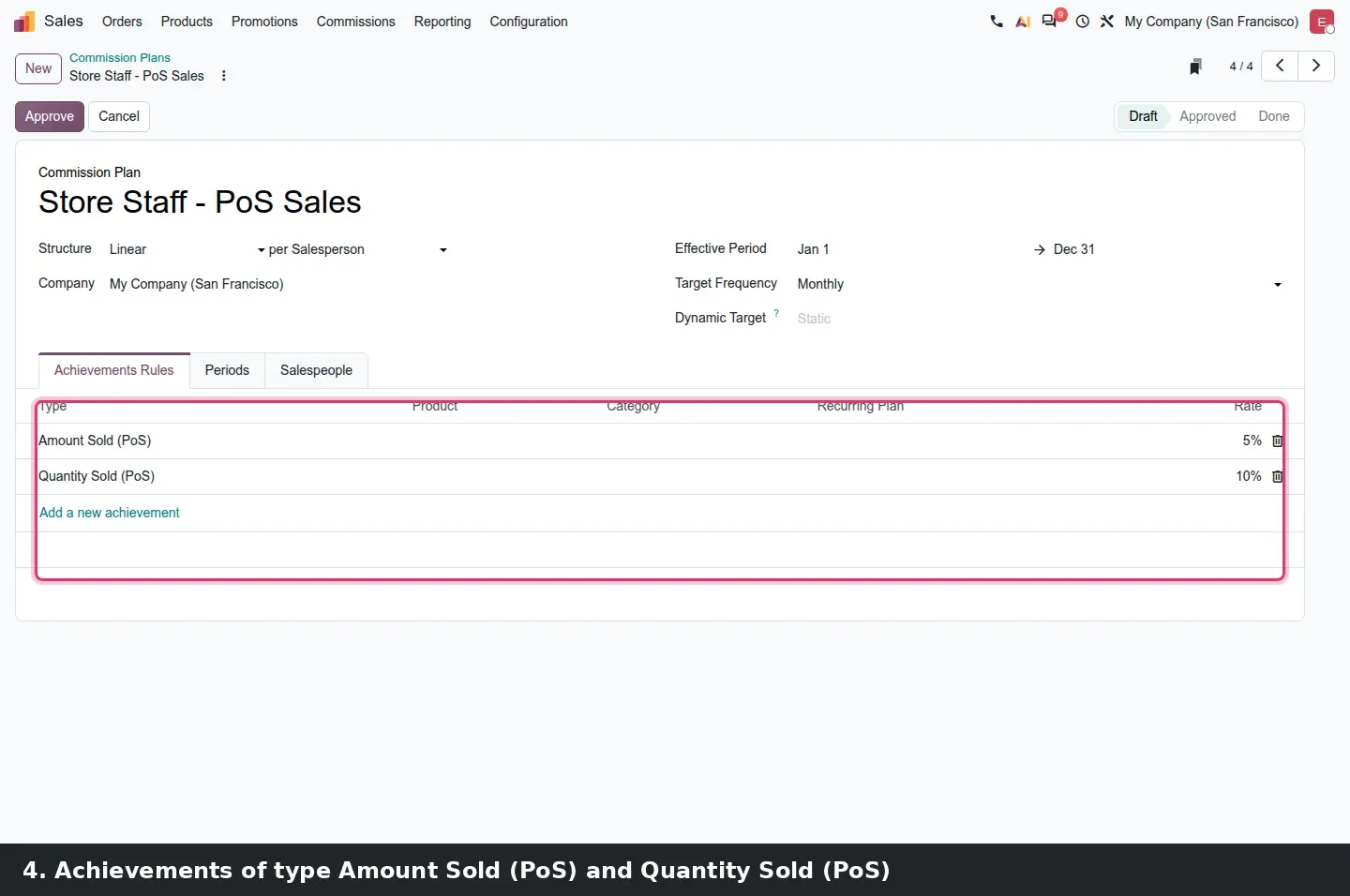
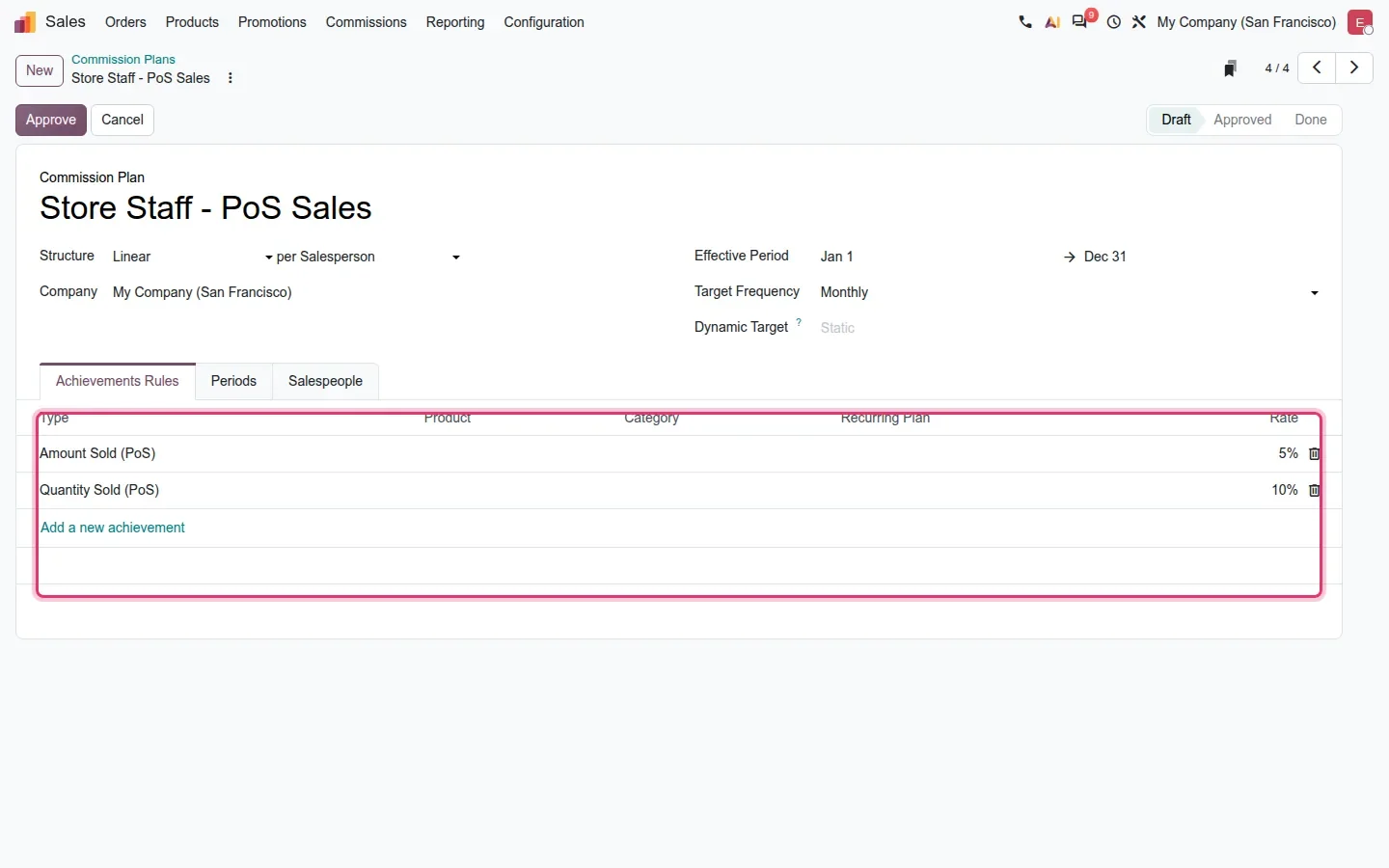
Commission plans used to count sales orders and invoices only, which left store staff out. Odoo 20 adds two achievement types to the Achievements Rules tab of a plan: Amount Sold (PoS) and Quantity Sold (PoS). Under Sales > Commissions > Commission Plans, our demo plan Store Staff - PoS Sales pays 5% of the amount sold at the register and 10% per unit, with the people it covers on the Salespeople tab. According to the guide the achievement report picks up register orders directly, so month-end no longer needs an export of PoS sales into a spreadsheet; we could not populate that report on the demo, see below.
One change has no screen but matters when you plan modules: the stock-related pieces of the enterprise Point of Sale moved to a separate pos_stock_enterprise module, so a café or a service counter that runs the register without Inventory no longer carries stock logic it does not use.
How to try it on a demo database
- On a demo database with Point of Sale, Restaurant and Planning installed, open Point of Sale > Configuration > Preparation Stages and give each stage a colour and an alert time.
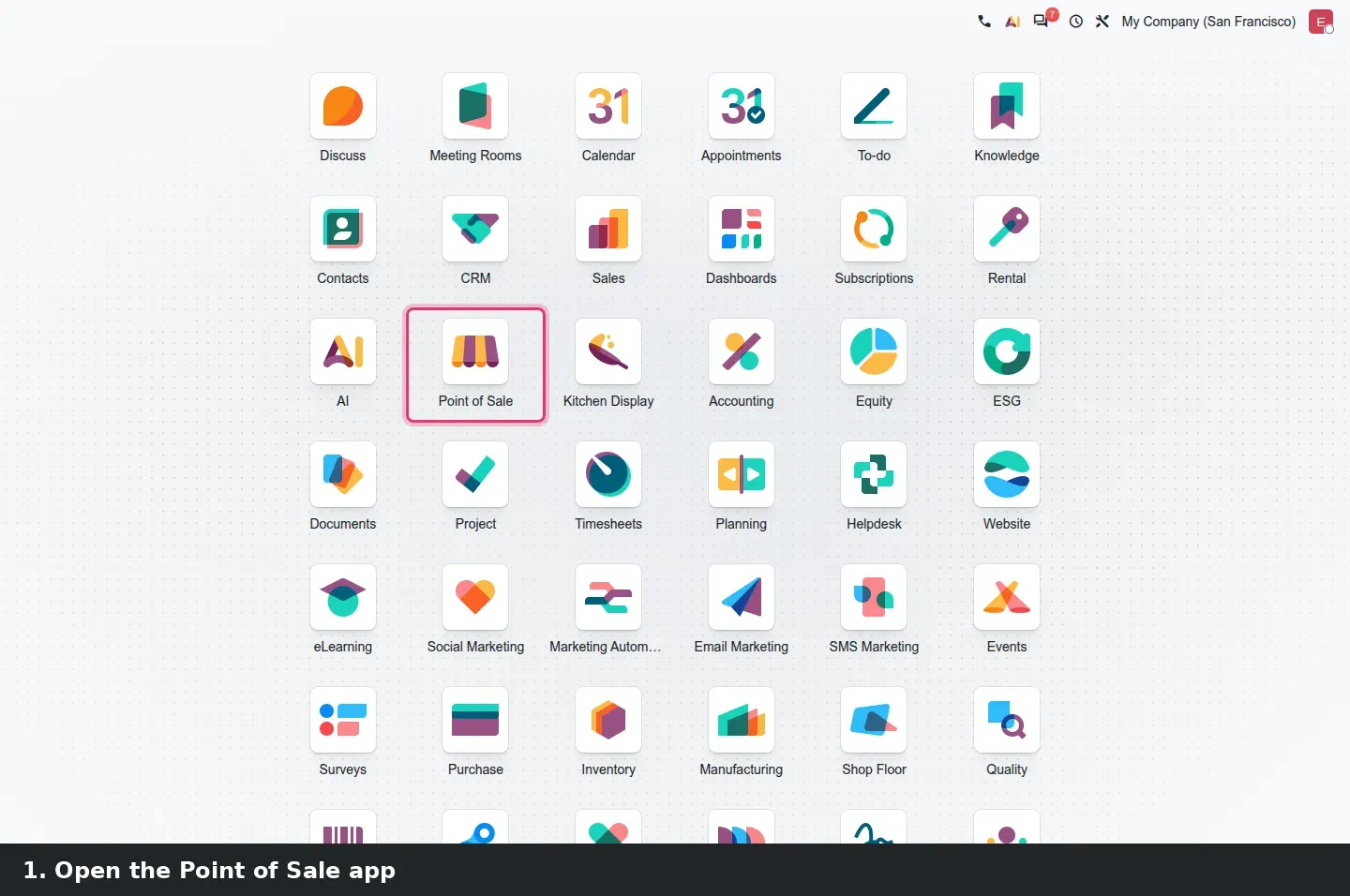
- Open Point of Sale > Orders > Preparation Display, open the Kitchen Display card's menu, click Configure, and check the registers, categories, stages and, if you have a preparation printer, Print at Stage.
- Back on the card, click Preparation Screen and leave that tab open on a second screen.
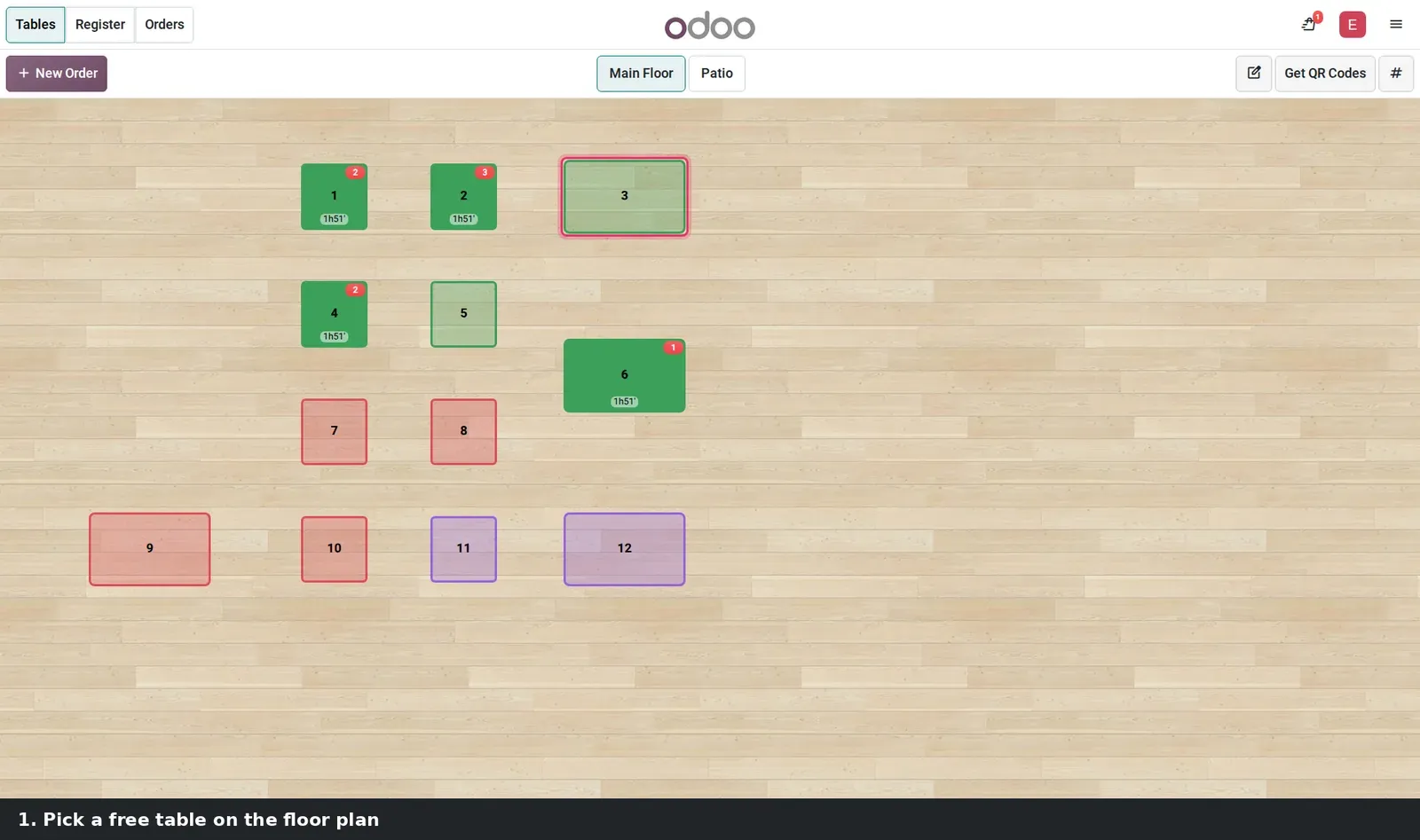
- Open the Restaurant register, pick a table, add a few dishes and press Send. Tap the card on the display to move it to Ready, or filter on To cook and use Clear All Orders.
- On a new order, ring up a Cheese Burger and a Coca-Cola, then click Apply on the 1 Burger Menu Combo banner under the total.
- For shifts, open Planning > Configuration > Roles, set Point of Sales on a role, publish a shift for today, enable multi-employee login on that register and open it.
- For commissions, open Sales > Commissions > Commission Plans, create a plan and add Amount Sold (PoS) under Achievements Rules.
What we could not verify on the pre-release build
We had no ePoS printer on the demo, so the printed preparation ticket, its barcode and automatic printing at a stage are shown only through the settings form and the card's Print button; scanning a barcode to move an order forward needs that ticket and a scanner. The demo restaurant products are not tracked, so we did not see a lot or serial number on a card. The commission achievement report stayed empty because the capture users owned no register orders and the demo cashiers were not on a plan. The pos_stock_enterprise split has no screen to show. Everything else on this page was clicked through on the 20.0 Enterprise build of 23 September 2026.
What this means for an upgrade
If you run a kitchen screen on Odoo 17, 18 or 19, sit down with the chef before go-live to name the stages and set alert times, because the new display makes lateness visible to the whole kitchen. Check whether your preparation printers are network ePoS models the display can drive on its own, and decide at which stage the ticket should print. Retailers who schedule in Planning should set Point of Sales on their cashier roles, and finance should decide whether store staff join a commission plan. If a script or a third-party system pulls register orders out of Odoo over XML-RPC or JSON-RPC, Odoo has scheduled the removal of those endpoints for Odoo 20; our RPC migration audit finds them before they fail. All of this is part of the scoping in our migration service, and the series hub lists the other changes that touch the same upgrade.
Frequently asked questions
Does the Odoo 20 Preparation Display need an IoT box?
No. The display runs in a browser on any screen or tablet in the kitchen. The Printers listed on the display form are preparation printers such as network Epson ePoS models; a printer that goes through an IoT box is a separate hardware setup.
Can an employee without a shift still open the register in Odoo 20?
Yes. On the pre-release build the Planning bridge only sorts the Select Cashier dialog: scheduled employees come first with their shift as a subtitle, the others follow, and More... reveals everyone else. Nobody is hidden or blocked, so a hard restriction still needs access rights or a customization.
Can I pay store staff a commission on register sales?
Yes. Odoo 20 adds Amount Sold (PoS) and Quantity Sold (PoS) as achievement types on a commission plan, under Sales > Commissions > Commission Plans. A plan can pay a percentage of register revenue, an amount per unit sold, or both, on the same monthly or yearly targets as field sales plans.
Is the Preparation Display available in Odoo Community?
No. The kitchen screen is delivered by the enterprise module pos_enterprise, and the shift-aware cashier login and PoS commission achievements depend on Planning and the Sales Commissions app, which are also Enterprise features.
What does Clear All Orders do on the kitchen display?
It moves every order in the stage you are filtering on to the next stage in one go, after a confirmation dialog. It is meant for the moment a whole batch is ready at once, such as all the drinks for a large table, and it does not delete anything.
Does Odoo 20 turn order lines into a combo automatically?
Not on its own. When the lines on an order match a combo, the order summary shows a banner with the combo name and an Apply button, or Choose when several combos match. The cashier decides; one tap replaces the lines with a single combo line at the combo price.