
Closing a period becomes a checklist that Odoo keeps for you
In Odoo 19, closing a VAT or sales-tax period meant opening the tax report, reading the figures and trusting that nothing had been missed. Odoo 20 treats every recurring declaration as a record called a return: it has a type, a period, a deadline, a workflow and a list of checks that must pass before it is validated. The same mechanism powers a yearly audit working file, two AI agents are wired to it, and the release ships e-invoicing and statutory reports for new countries. If you close the books for one company or a dozen client files, this release changes your month.
The return screens were clicked through on a Belgian demo company, because a tax return needs a localization that ships a tax report; the US Tax Report and the Interco Comparison come from a US company. For the AI agents we show the configuration only, since agent replies could not be captured on the private demo. For the localizations, we list the new countries as the source names them and say where Canada and the United States stand.
Observed on the Odoo 20.0 Enterprise pre-release build of September 23, 2026. Names, menus and availability can change before general availability; we will update this page when they do.
Every tax return is a record with a deadline, a workflow and checks
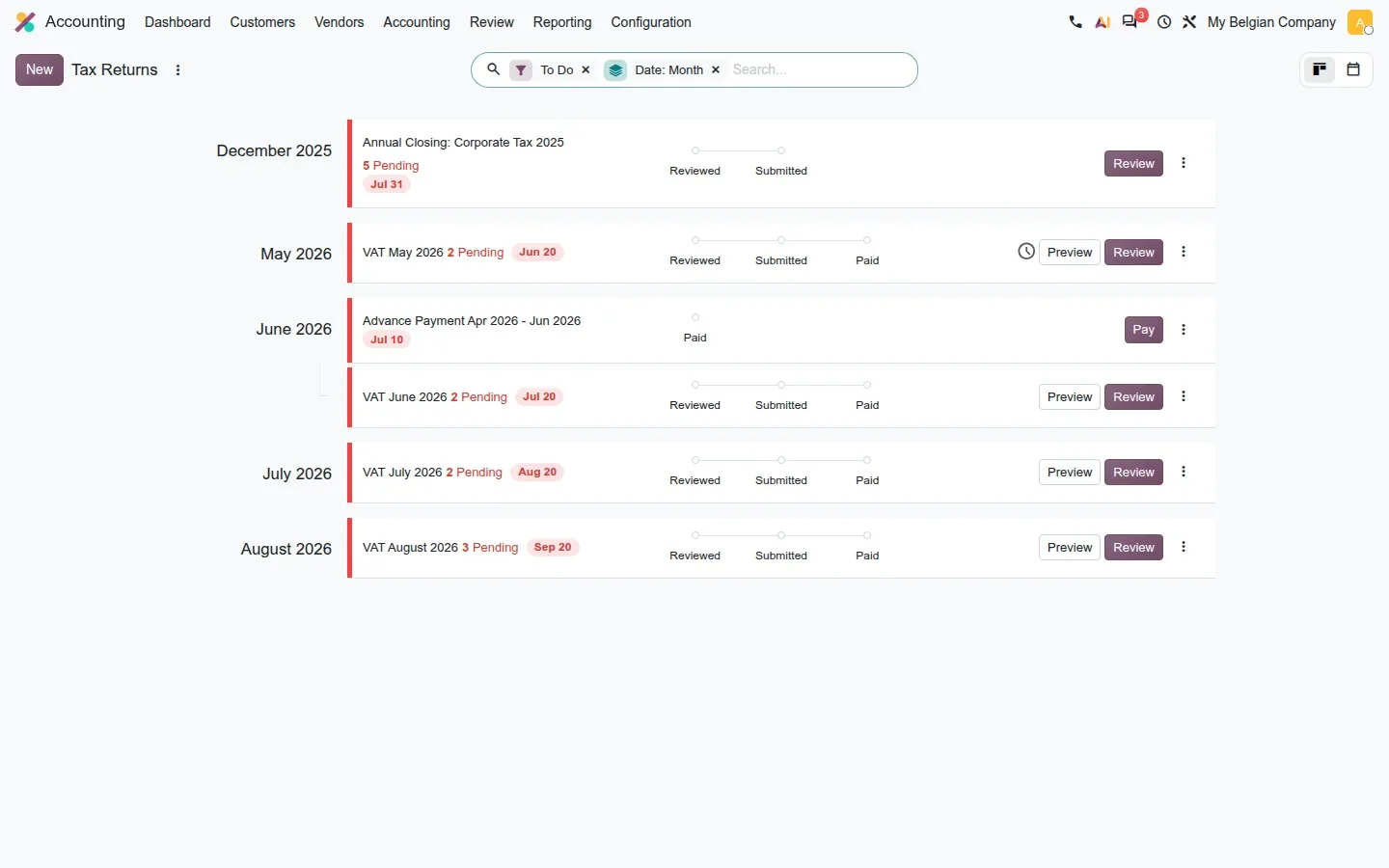
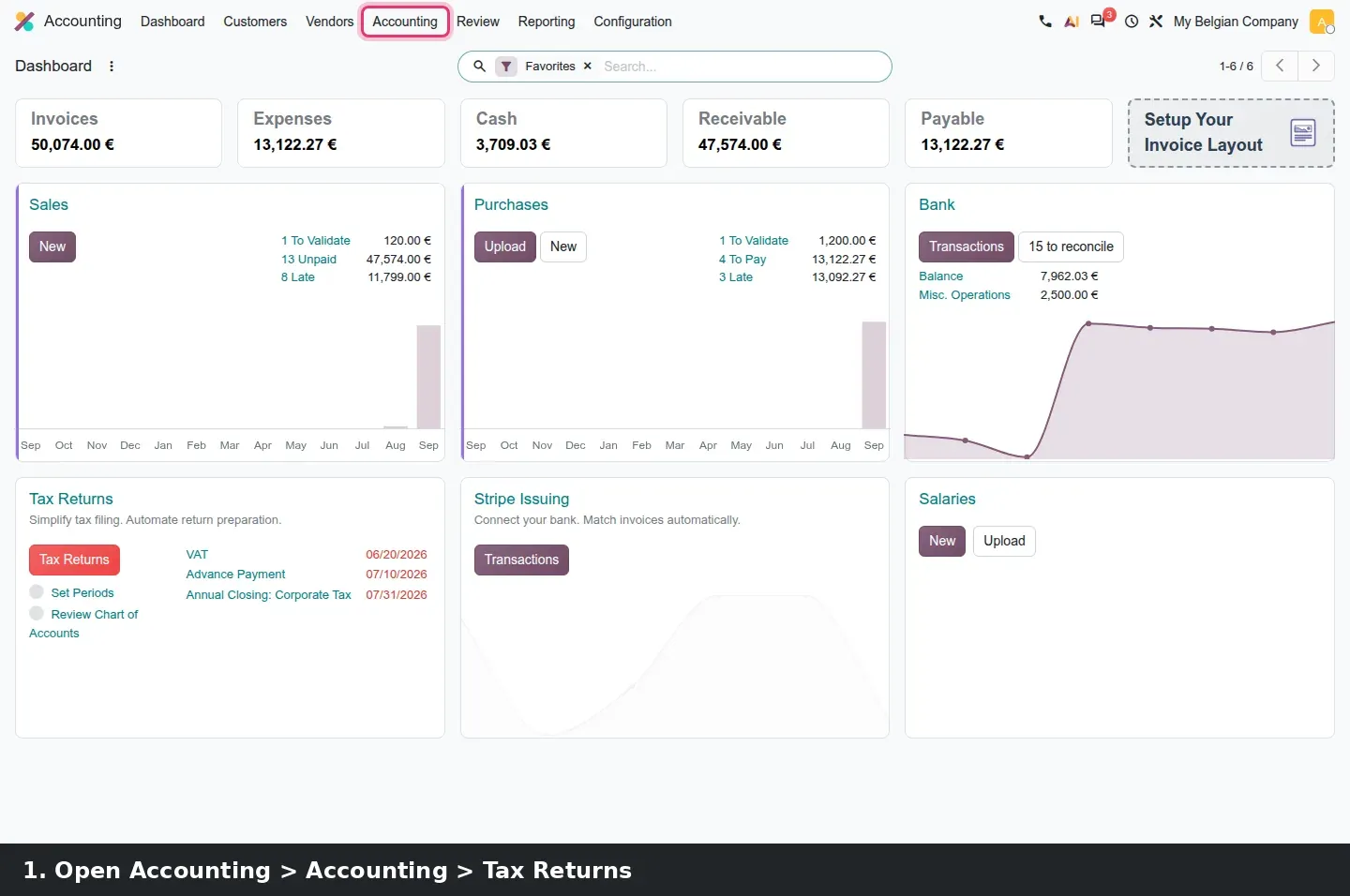
Accounting > Accounting > Tax Returns opens a kanban grouped by period. Each card carries the return name, a pending-check counter such as 3 Pending, a deadline badge such as Sep 20, and the workflow steps of its return type: Reviewed, Submitted, Paid. Review opens the return, Preview the underlying tax report, and Pay appears on returns whose only step is a payment, like a quarterly advance. The To Do filter hides what is done, so a controller supervises every open declaration from one list.
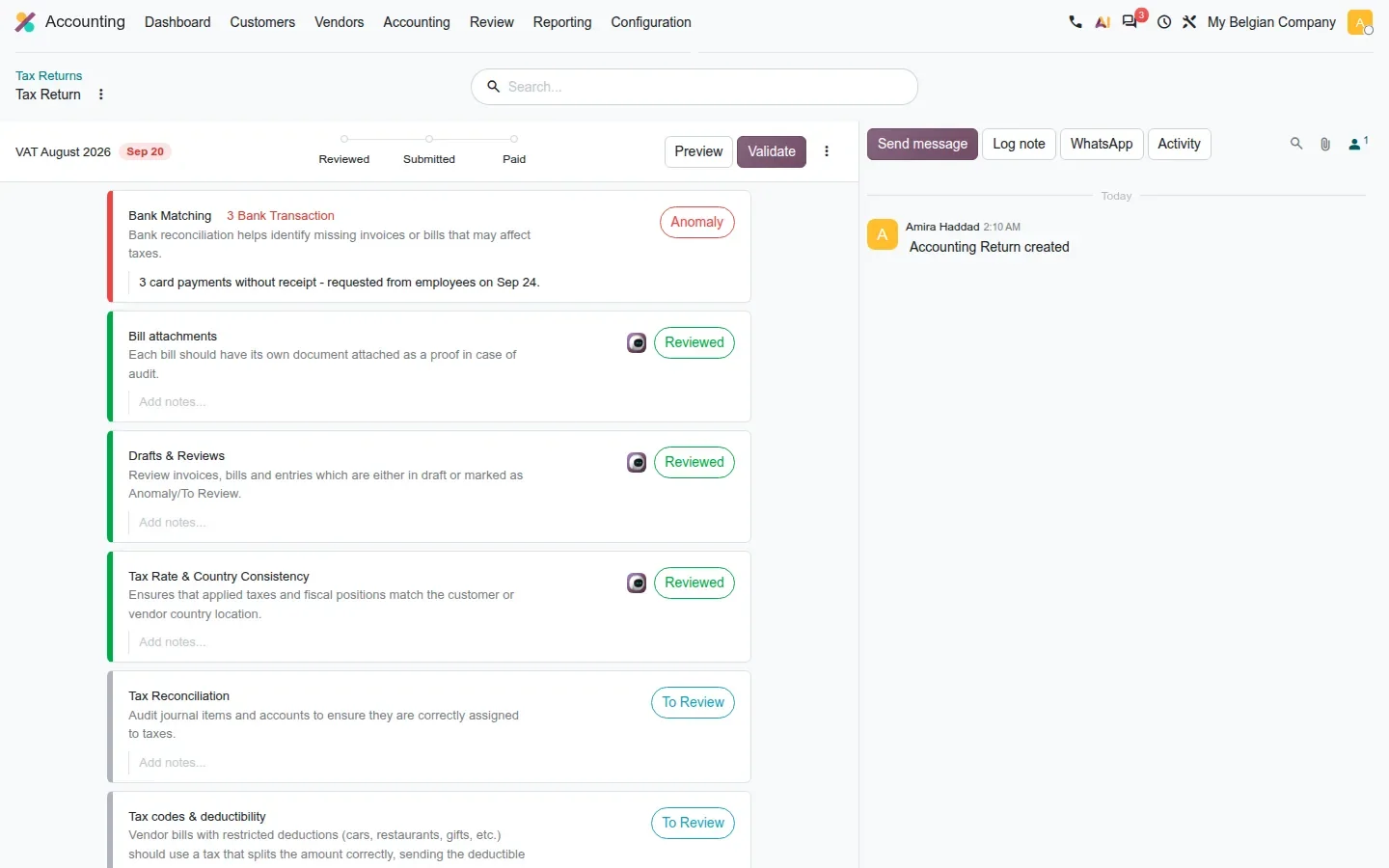
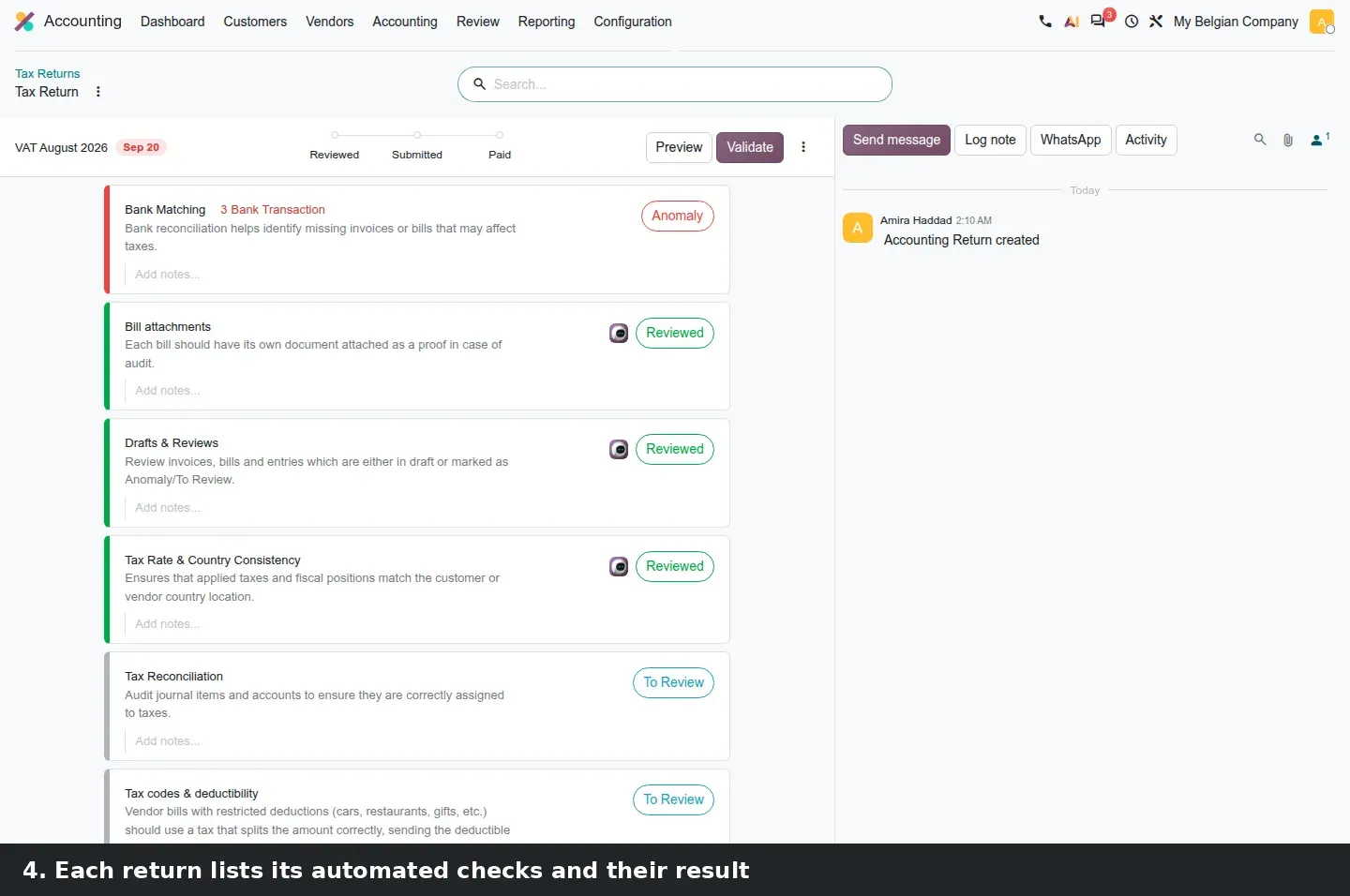
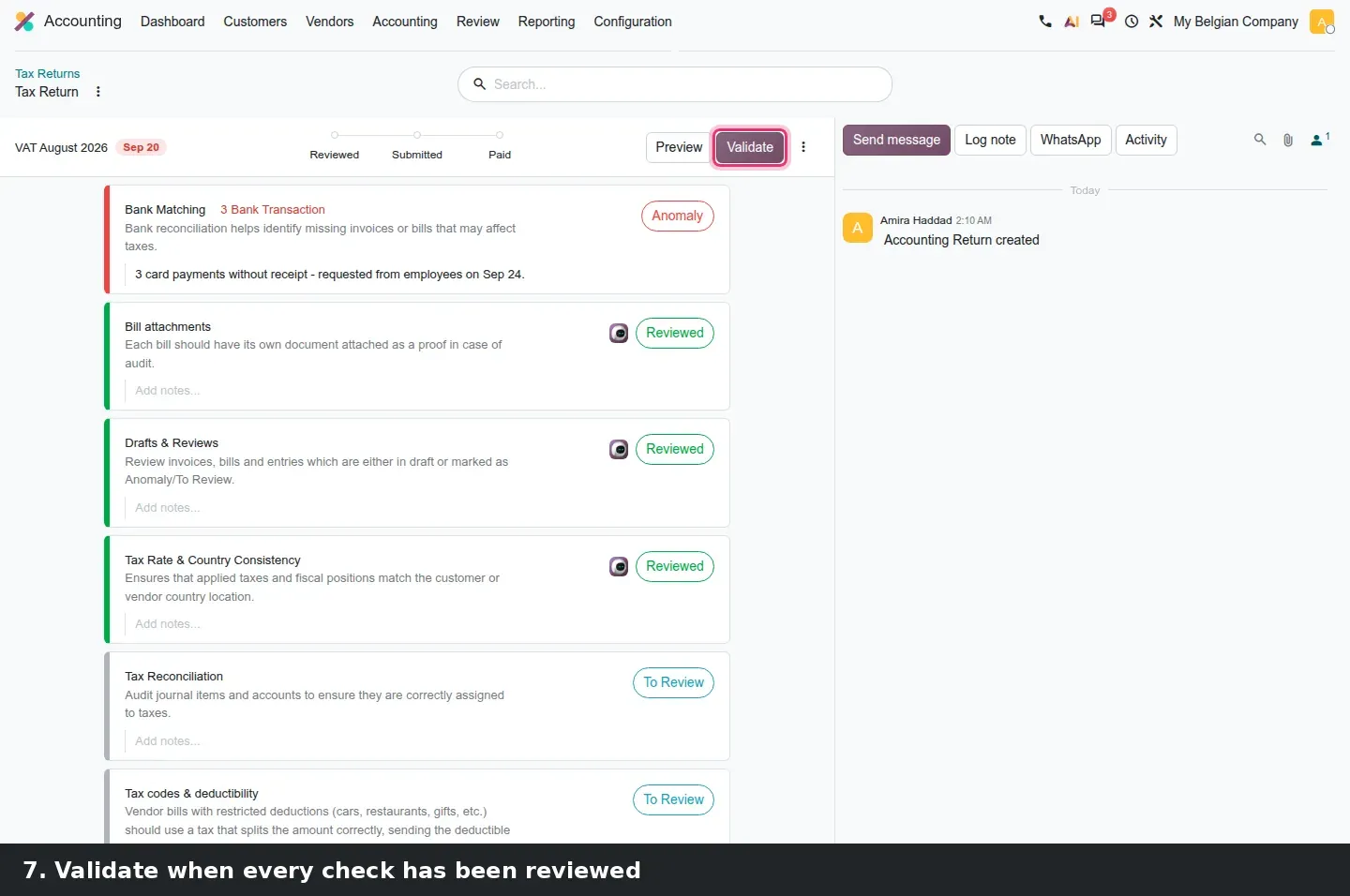
Inside a return, the checks do the work. On the VAT August 2026 return, Bank Matching is flagged Anomaly with 3 bank transactions behind it and carries the note we typed: 3 card payments without receipt, requested from employees on Sep 24. Four other checks are Reviewed or To Review. Clicking the count opens the flagged records, so a bookkeeper works from the check rather than from a journal, and the notes stay on the return for whoever picks up the file next. Validate moves the return to its next step. Four workflows exist per return type: reviewed; reviewed and submitted; reviewed, submitted and paid; or paid only.
The yearly audit is a working file of checks grouped by cycle
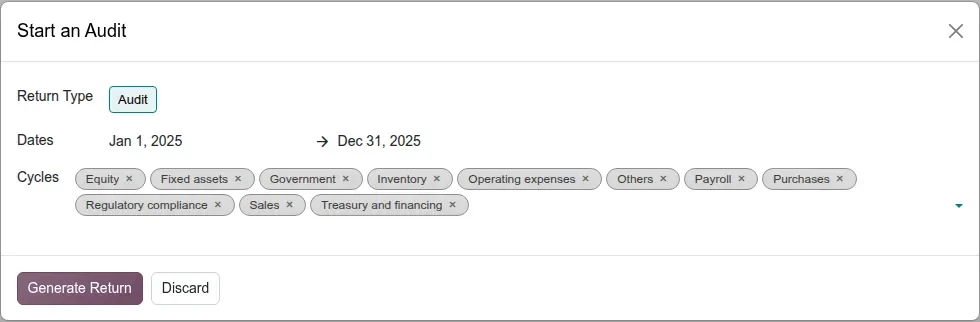
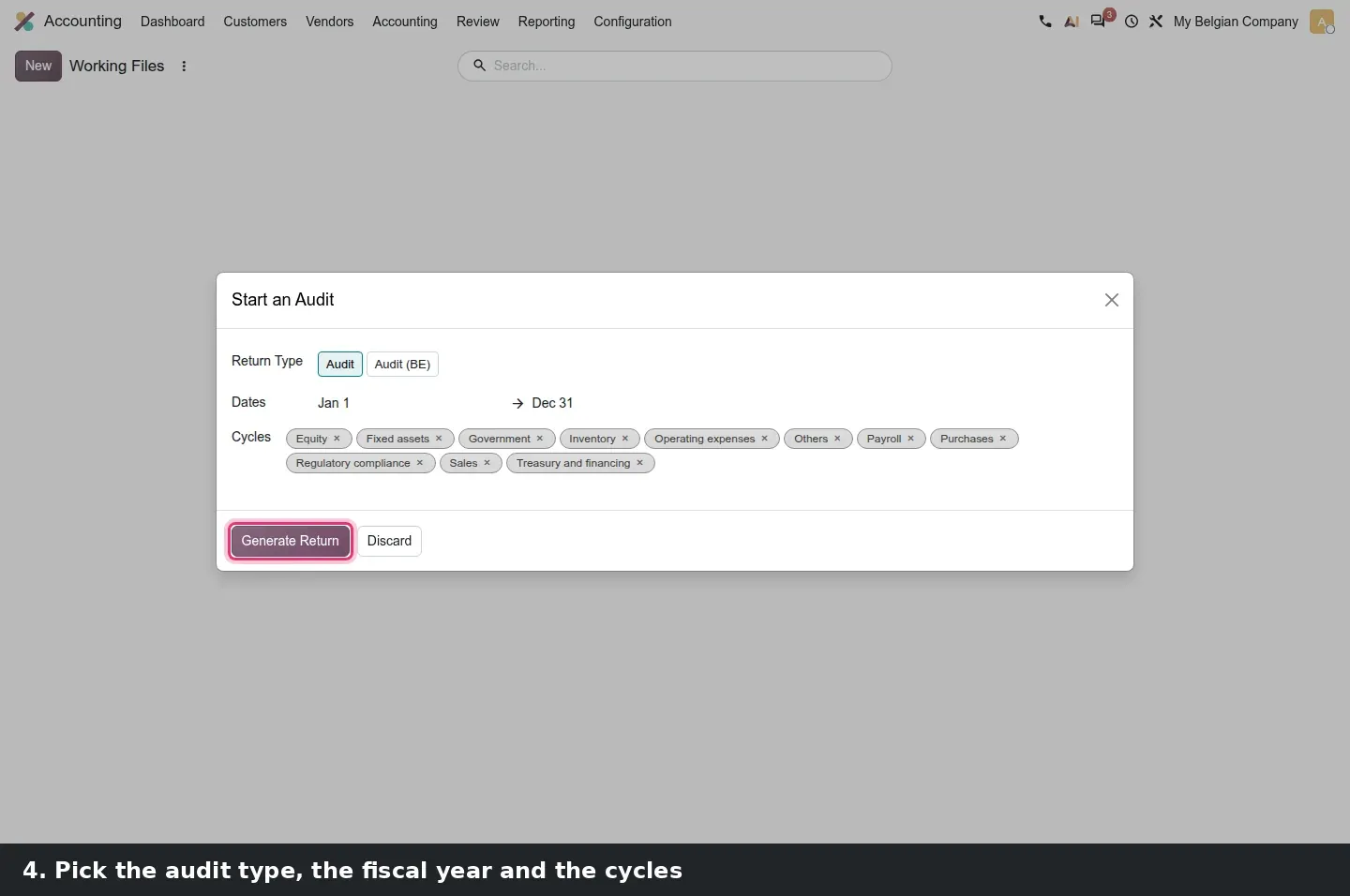
Return types come in two categories, Tax Return and Audit, and the Audit category feeds a yearly flow under Accounting > Review > Working Files. New opens the Start an Audit dialog: a Return Type (Audit, plus a localized Audit (BE) on the Belgian company), the fiscal year dates and the cycles to include, eleven of them from Equity to Treasury and financing. Generate Return builds the working file.
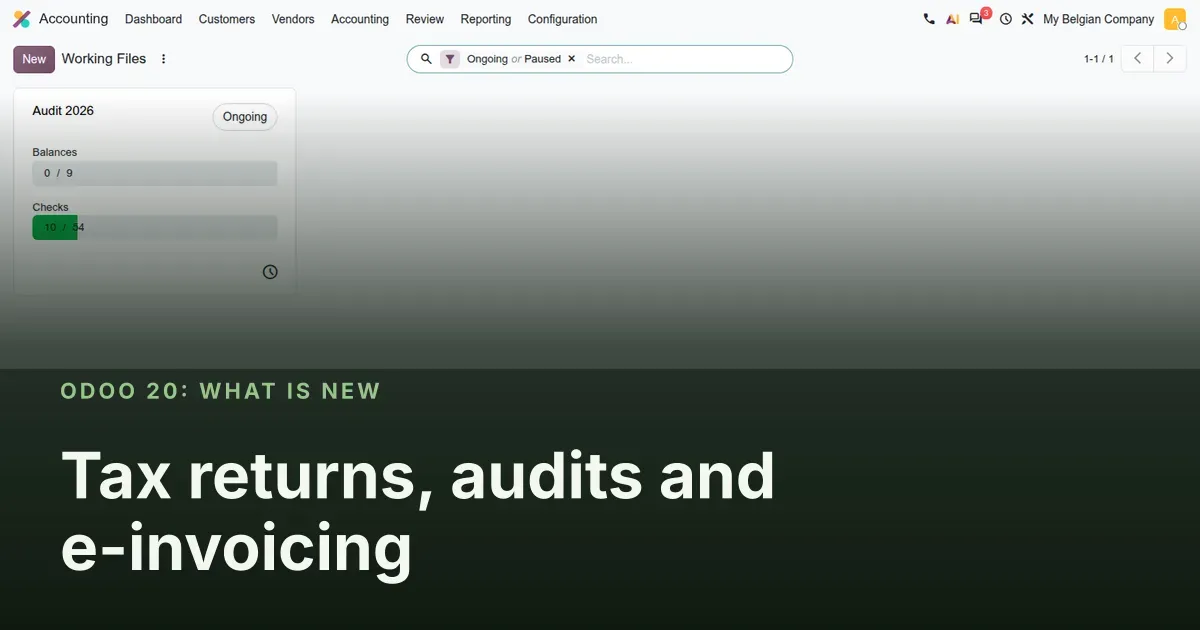
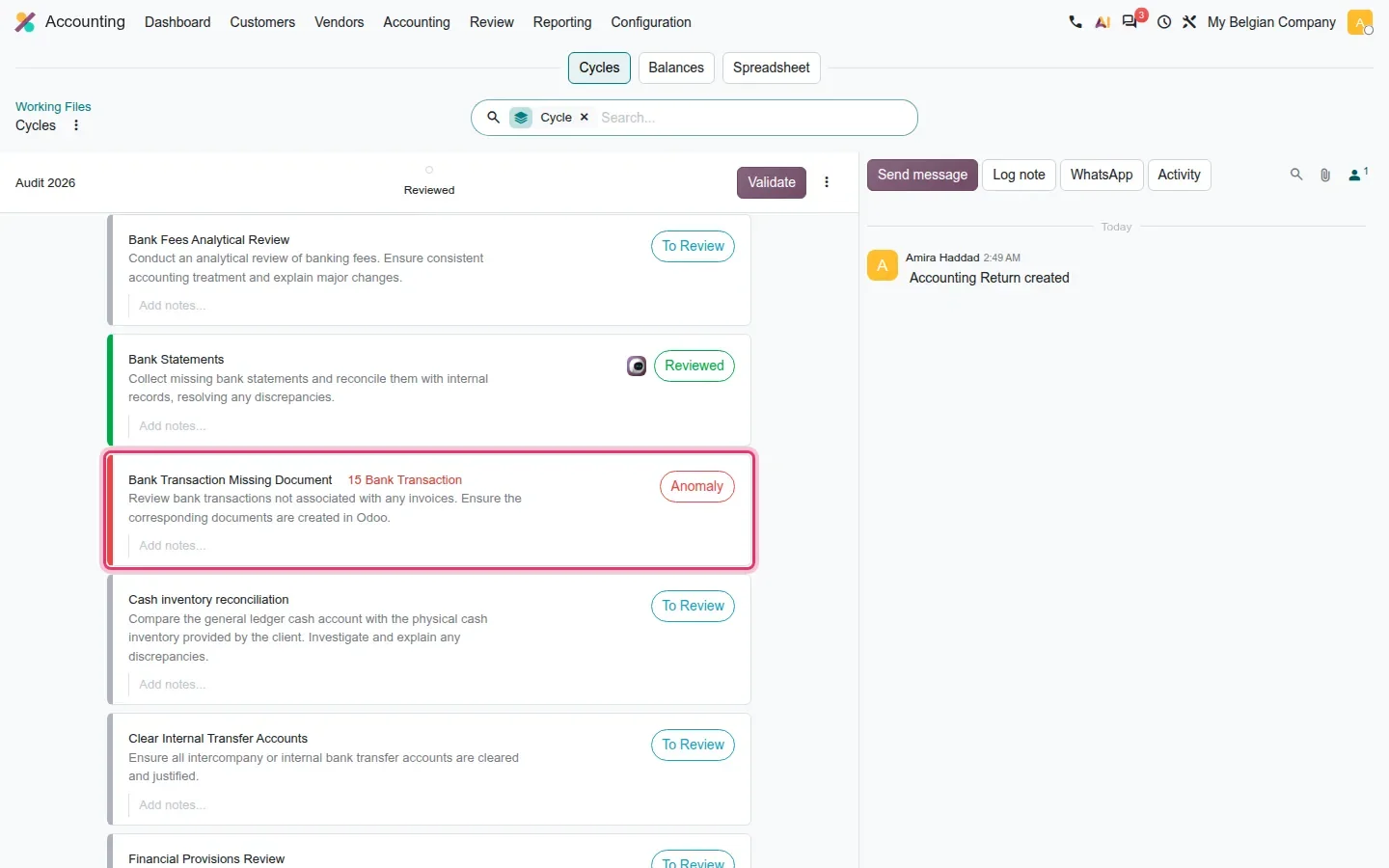
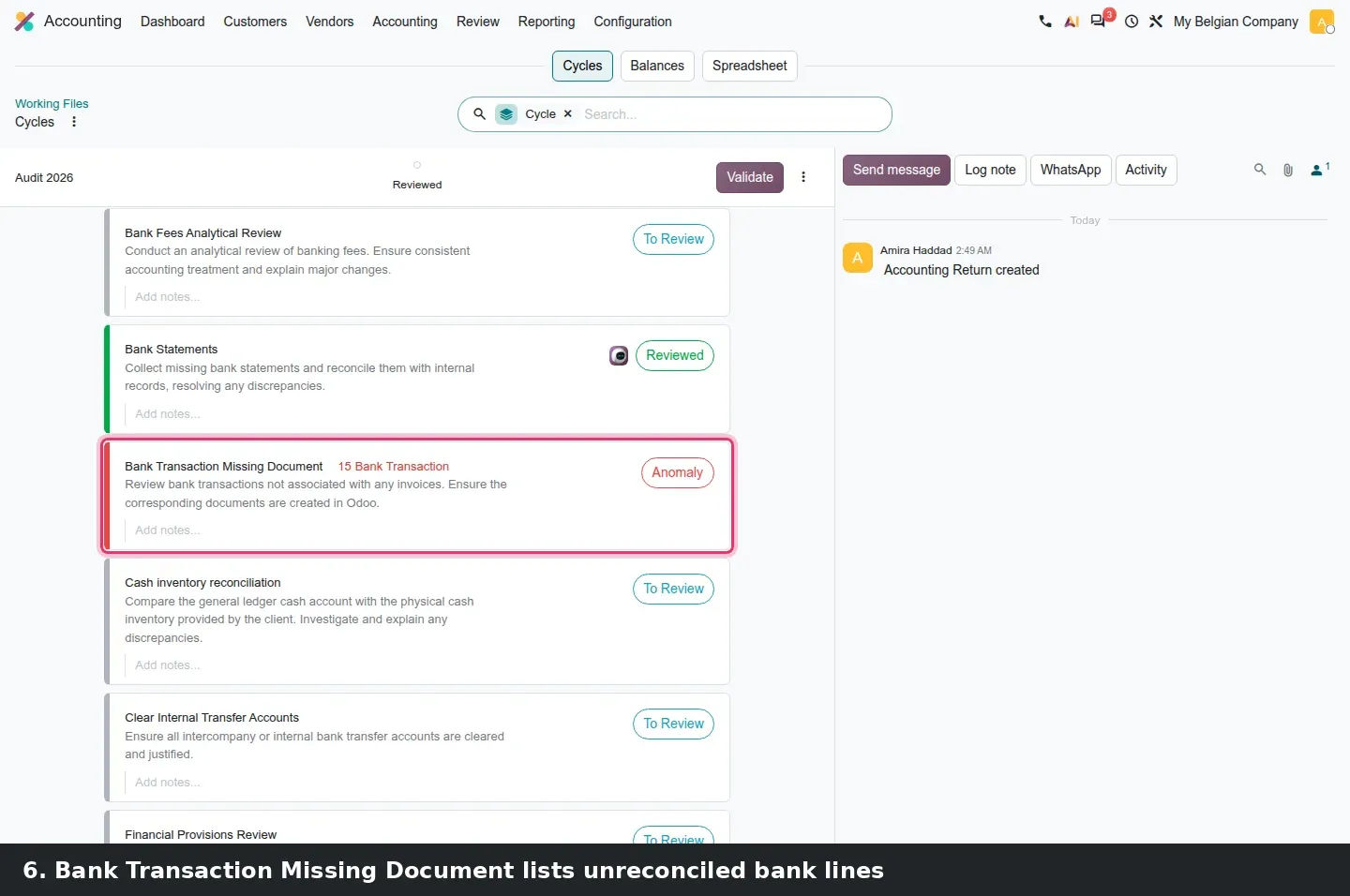
The working file card shows two progress bars, Balances and Checks; the fresh Audit 2026 read 0 of 9 balances and 10 of 54 checks. Inside, three tabs, Cycles, Balances and Spreadsheet, and the checks grouped by cycle, each To Review, Reviewed or Anomaly, each with a notes field, plus a Validate button for the whole file. Look first at Bank Transaction Missing Document, in the Treasury and financing cycle: it lists every bank statement line not linked to an invoice or a bill, 15 on the demo, and the accountant creates the missing documents from that list instead of scrolling the bank journal. The audit periodicity follows the fiscal year defined on the company, and each return keeps its own lock date and submission date.
Return types, check templates and the Interco Comparison report
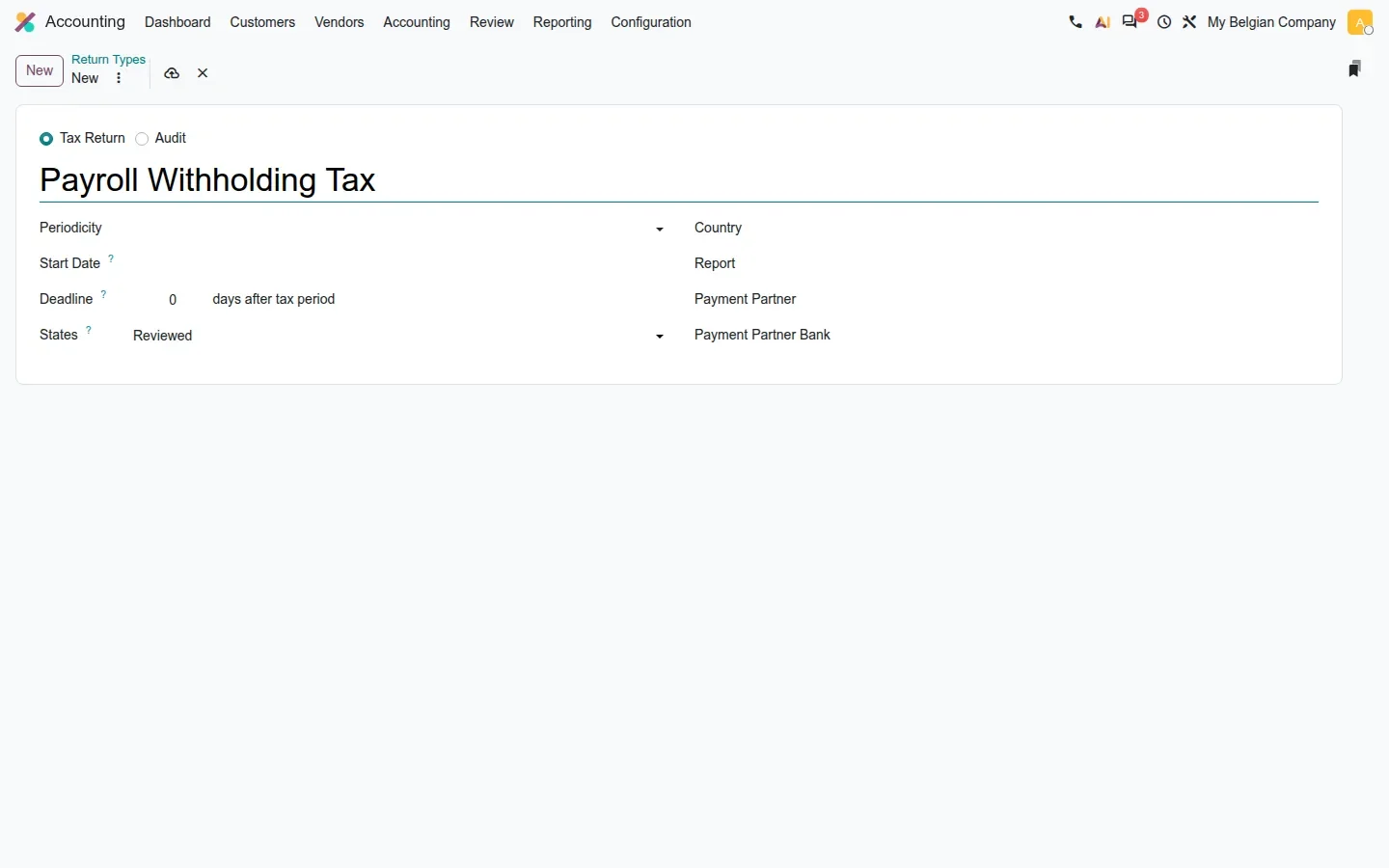
Accounting > Configuration > Return Types lists Tax Return and Audit types with their periodicity and an active toggle. The Belgian VAT type shows what a return type carries: the Tax Return or Audit radio, Periodicity, Start Date, a Deadline in days after the tax period, the Country and Report it is built on, and the tax accounts. Create your own and one more field appears: States, the workflow the return follows. On this build, States is shown only on custom return types; the master types of a localization hide it. The gear menu offers Duplicate and Delete; archiving is the active toggle in the list.
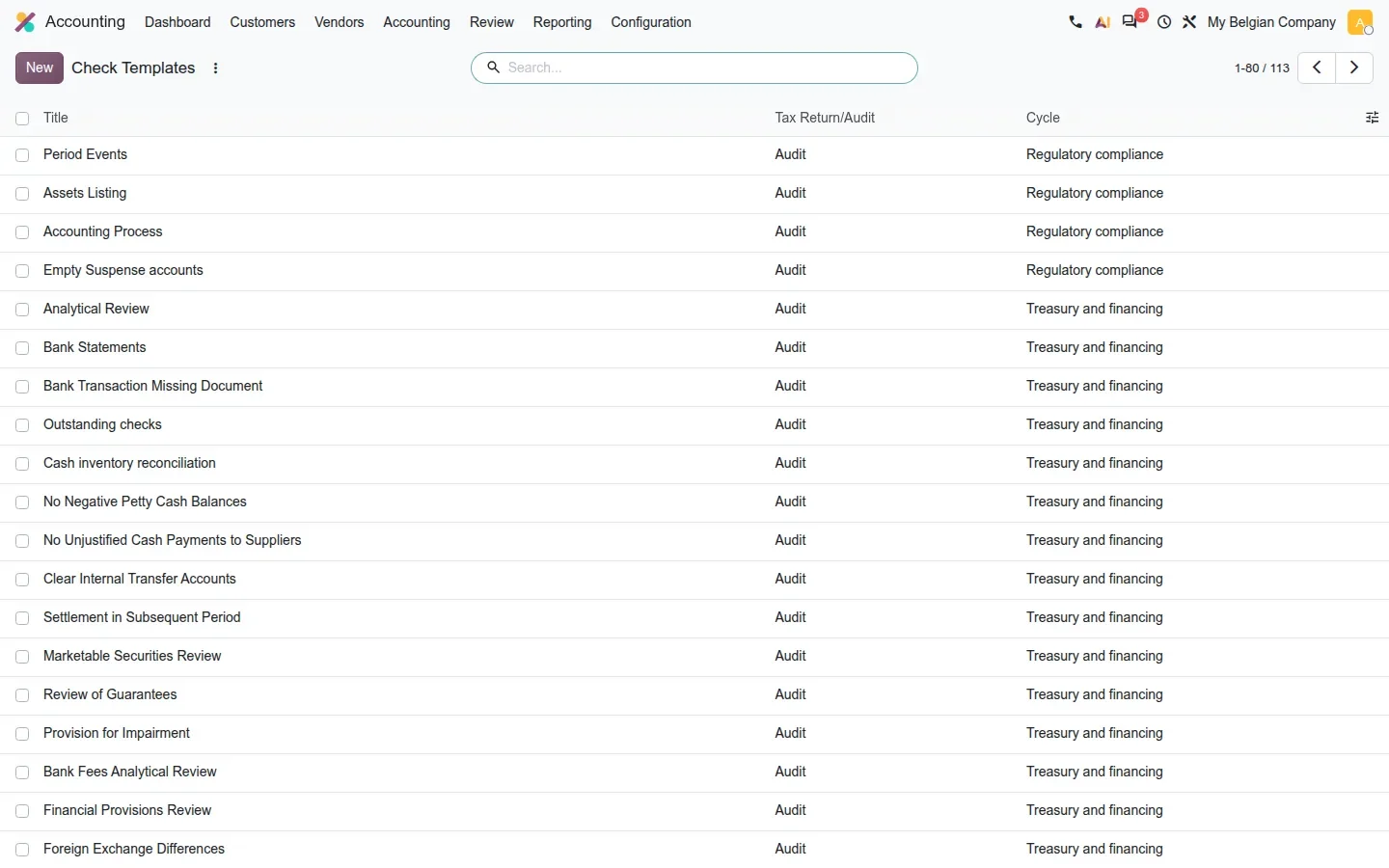
Accounting > Configuration > Checks holds the library of check templates, grouped by the same cycles, from aged receivables review to minimum share capital compliance, and you can add your own.
For a Canadian or US firm
Create a custom return type for a filing your localization does not model as a return yet, a payroll withholding remittance for instance, with a monthly periodicity and a deadline in days, and attach the checks your team runs from a spreadsheet today. That filing then shows up on the kanban next to the tax returns.
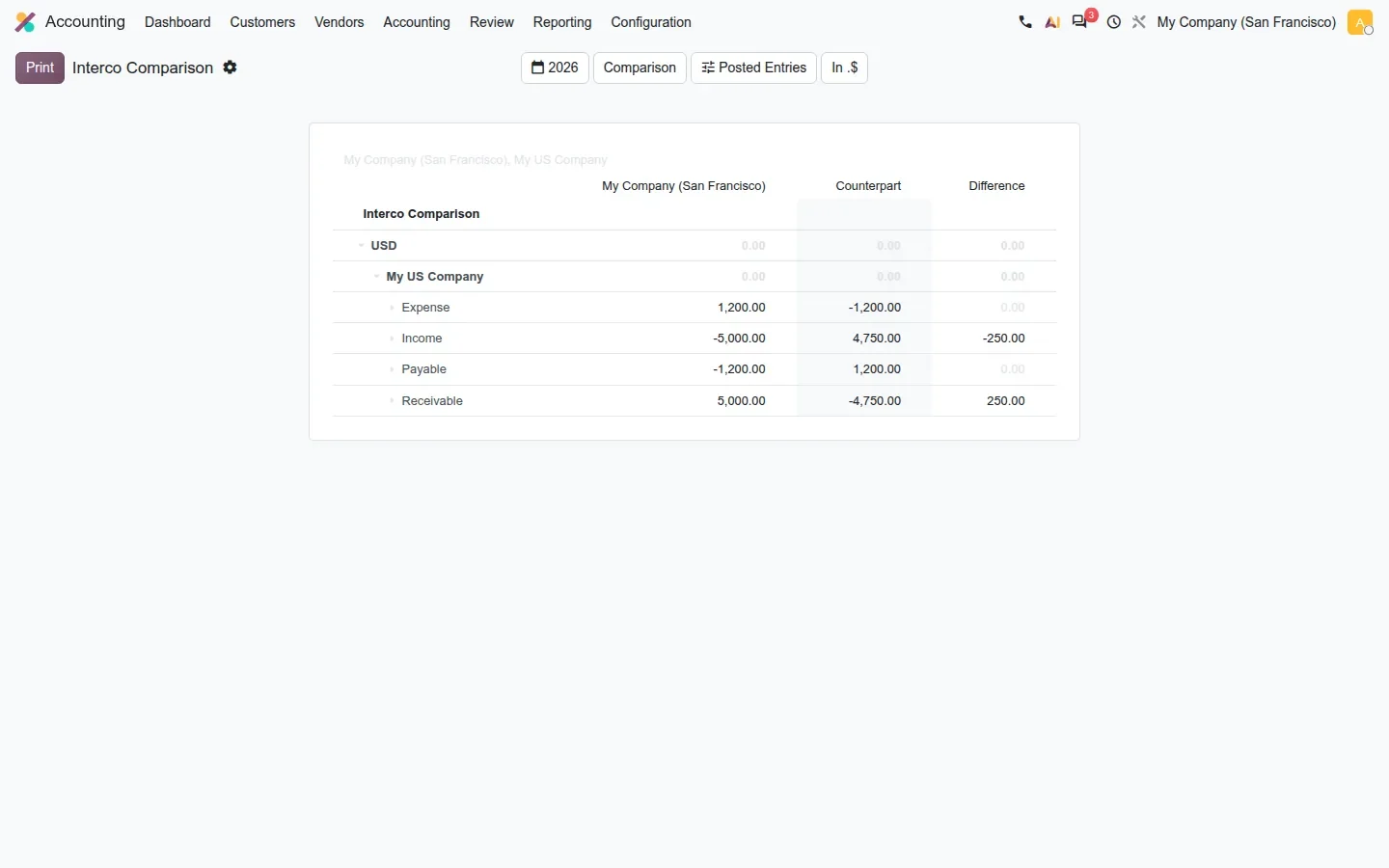
Multi-company groups get the Interco Comparison report: main company balance, counterpart balance and Difference per account type, with drill-down to journal items. We posted intercompany invoices between two US companies with a deliberate 5,000 against 4,750, and the report shows the 250.00 gap on Income and Receivable. Two corrections to the feature guide: the report has no entry under Reporting on this build, it opens from the audit check Intercompany account reconciliation; and Horizontal Groups are still hidden without developer mode, we reached the list by direct URL.
Auditor and Audit Reviewer: two agents wired to the working file
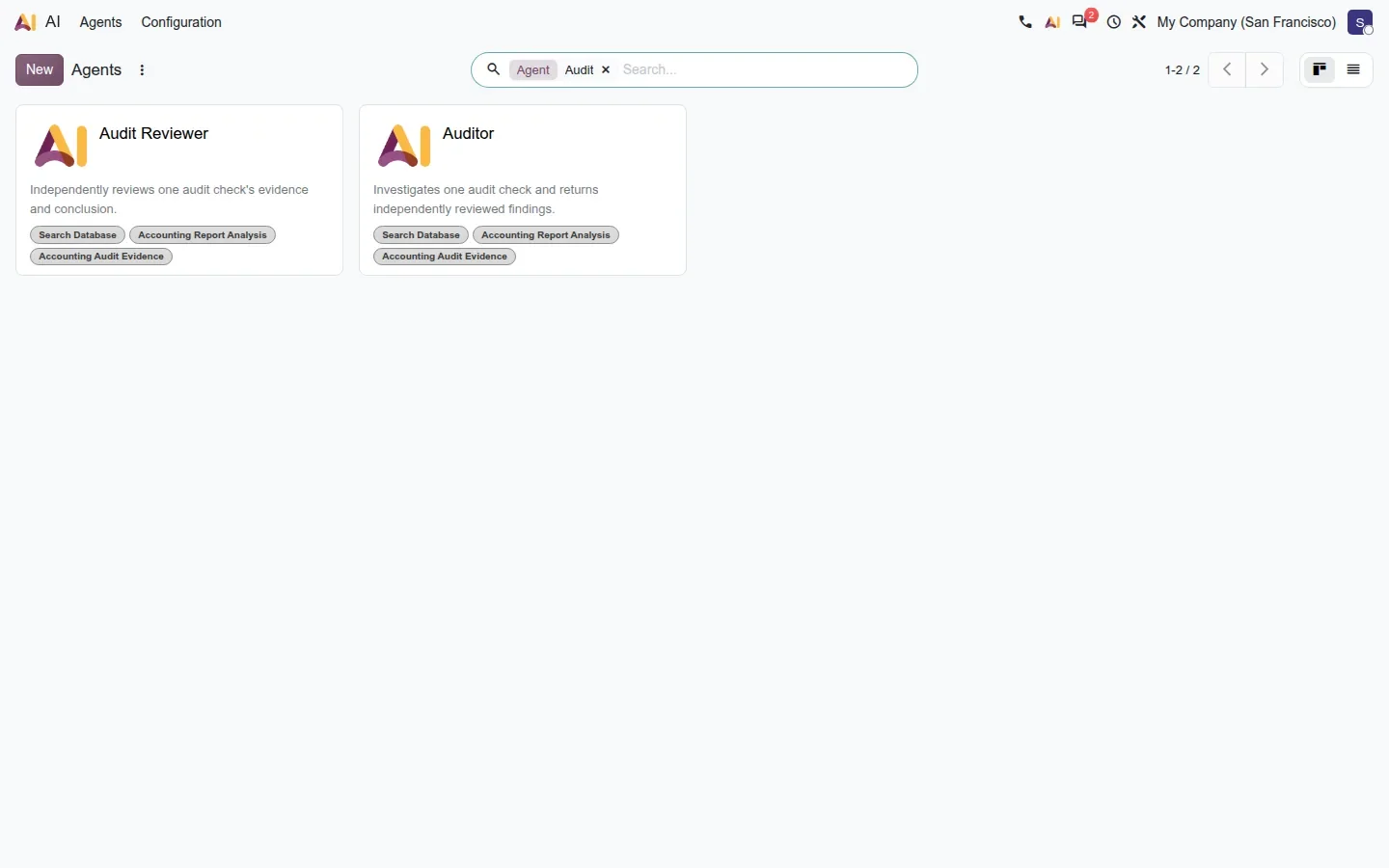
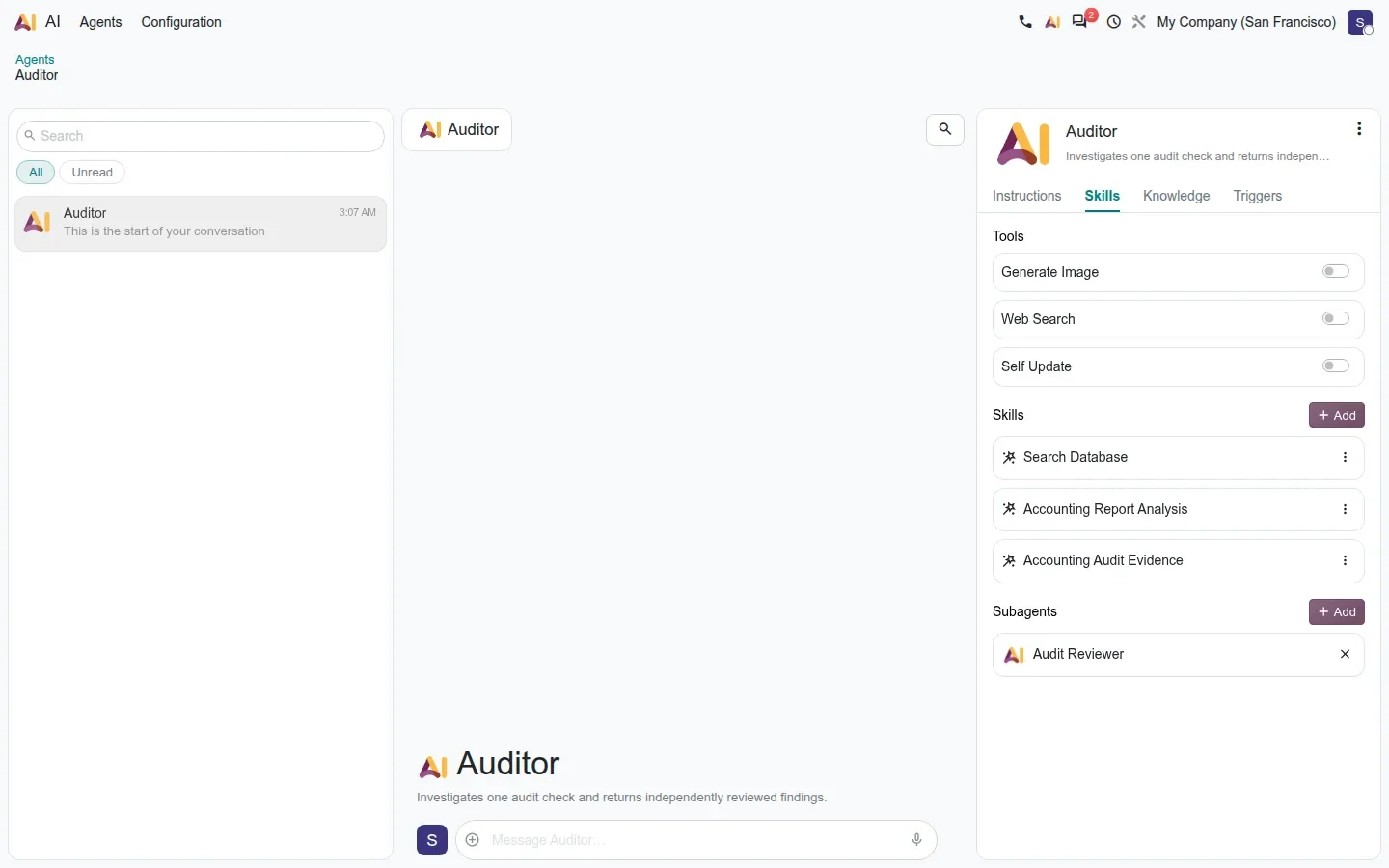
The module ai_account_reports adds an accounting skill set and two agents under AI > Agents. Auditor's card says it investigates one audit check and returns independently reviewed findings; Audit Reviewer independently reviews one check's evidence and conclusion. Both carry the skills Search Database, Accounting Report Analysis and Accounting Audit Evidence. Auditor's Skills tab shows the design: Generate Image, Web Search and Self Update are off, and Audit Reviewer is listed under Subagents. The intent, per the feature guide, is that Auditor gathers evidence, hands its conclusion to Audit Reviewer, which challenges it, and the result is written back on the check with the evidence, so the assistant does not mark its own homework.
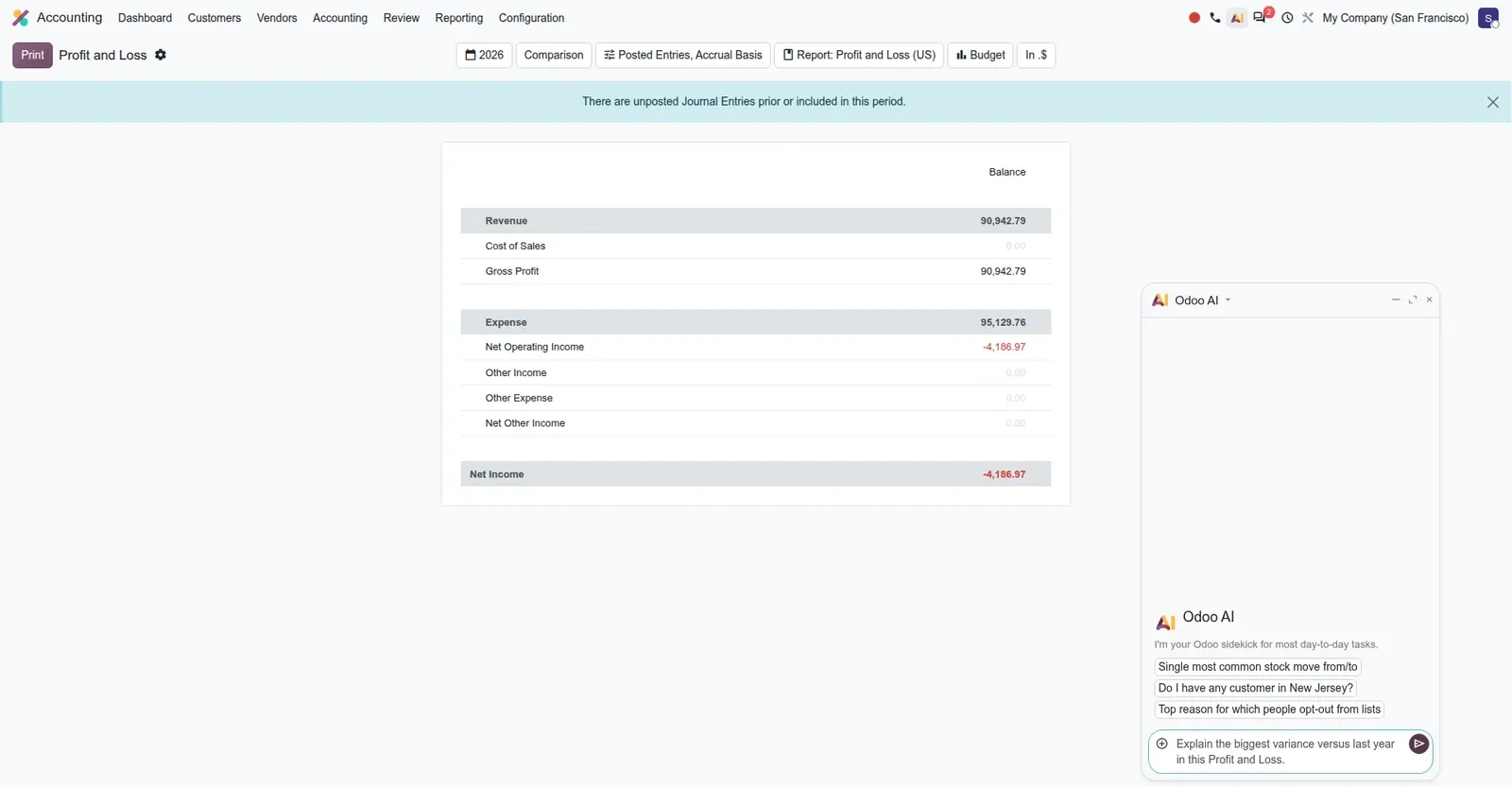
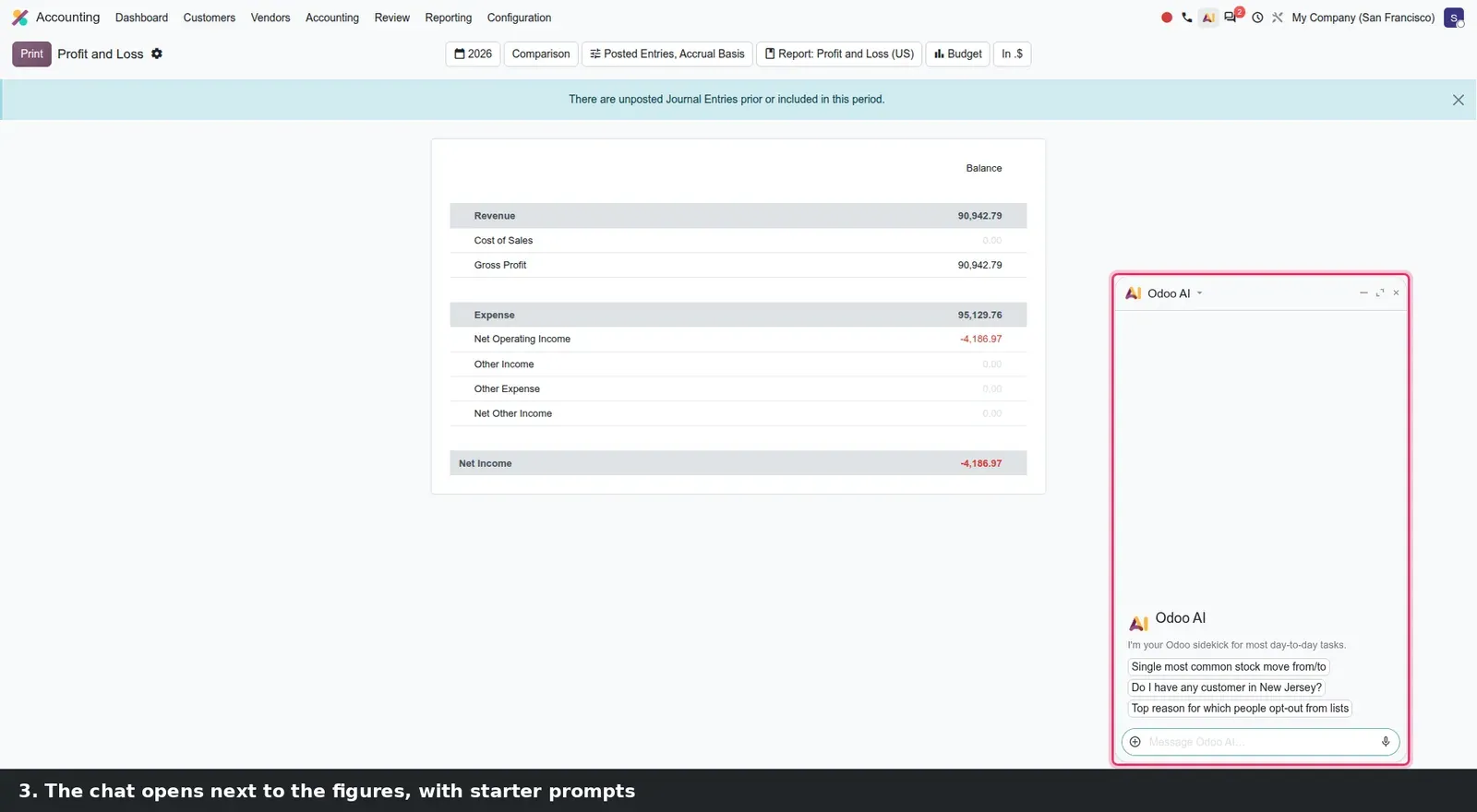
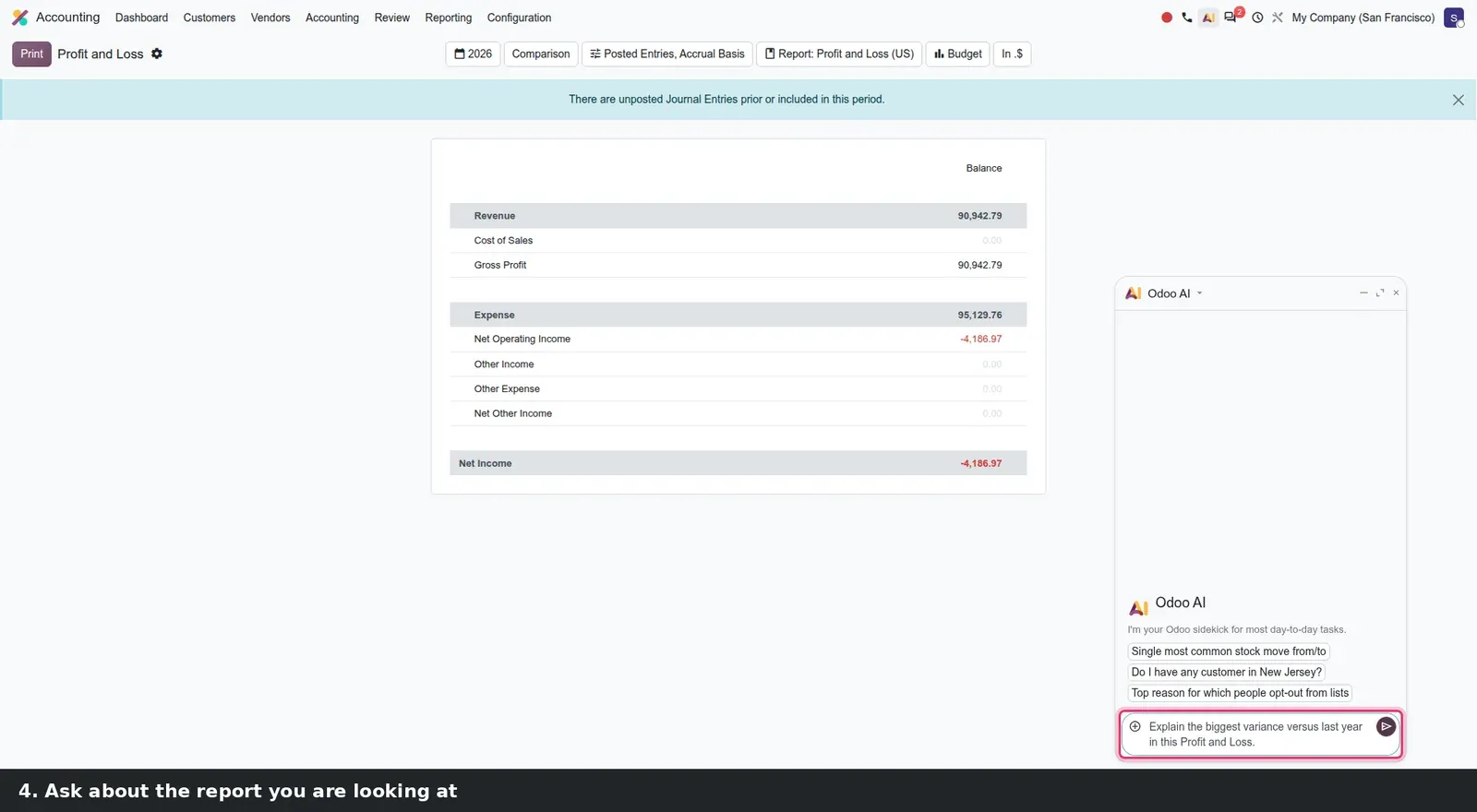
The report side is simpler. Every accounting report has an AI icon that opens the Odoo AI chat with the current report and its options as context. On the US company's Profit and Loss we typed: Explain the biggest variance versus last year in this Profit and Loss. That is as far as we can take you; the reply goes through Odoo's asynchronous AI endpoint, which calls the database back over a public URL, so on a private demo it never arrives. Where the data goes is known: to Odoo's proxy, billed in IAP credits, with no setting to pick the model or bring your own key. A firm bound by client confidentiality should settle that first.
New localizations and e-invoicing: mostly outside North America
Odoo 20 adds a large batch of country modules. According to the feature guide, the biggest piece is Türkiye's first complete e-invoicing stack through the Nilvera integrator; the rest is e-invoicing in Latin America and West Africa, statutory reports, and Intrastat for six more countries with bridges that feed stock movements into the declaration. The table lists them as the guide names them.
| Country | What is new | Type |
|---|---|---|
| Türkiye | Nilvera e-invoice and e-archive, UBL 1.2.1 e-dispatch, central bank buy and sell rates | E-invoicing |
| Ivory Coast | Normalized electronic invoice sent to the DGI, QR code on the PDF | E-invoicing |
| Dominican Republic | Electronic invoicing with document type ranges and DGII status request | E-invoicing |
| Uruguay | E-tickets from the Point of Sale, final consumer limit | E-invoicing |
| Peru | Electronic withholding documents sent to SUNAT | E-invoicing |
| Hong Kong | AutoPay files for batch payments | Payments |
| Norway | SAF-T import of historical data | Import |
| Guatemala, North Macedonia, Hungary, Romania, Philippines | VAT books, financial statements, A60, D390, BIR 2306 and 2307 | Statutory reports |
| Bulgaria, Greece, Hungary, Malta, Serbia, Sweden | Intrastat declarations, plus stock bridges for every country | Intrastat |
| United States | AvaTax exempt and non-taxable amounts in their own columns of the US Tax Report | Tax report |
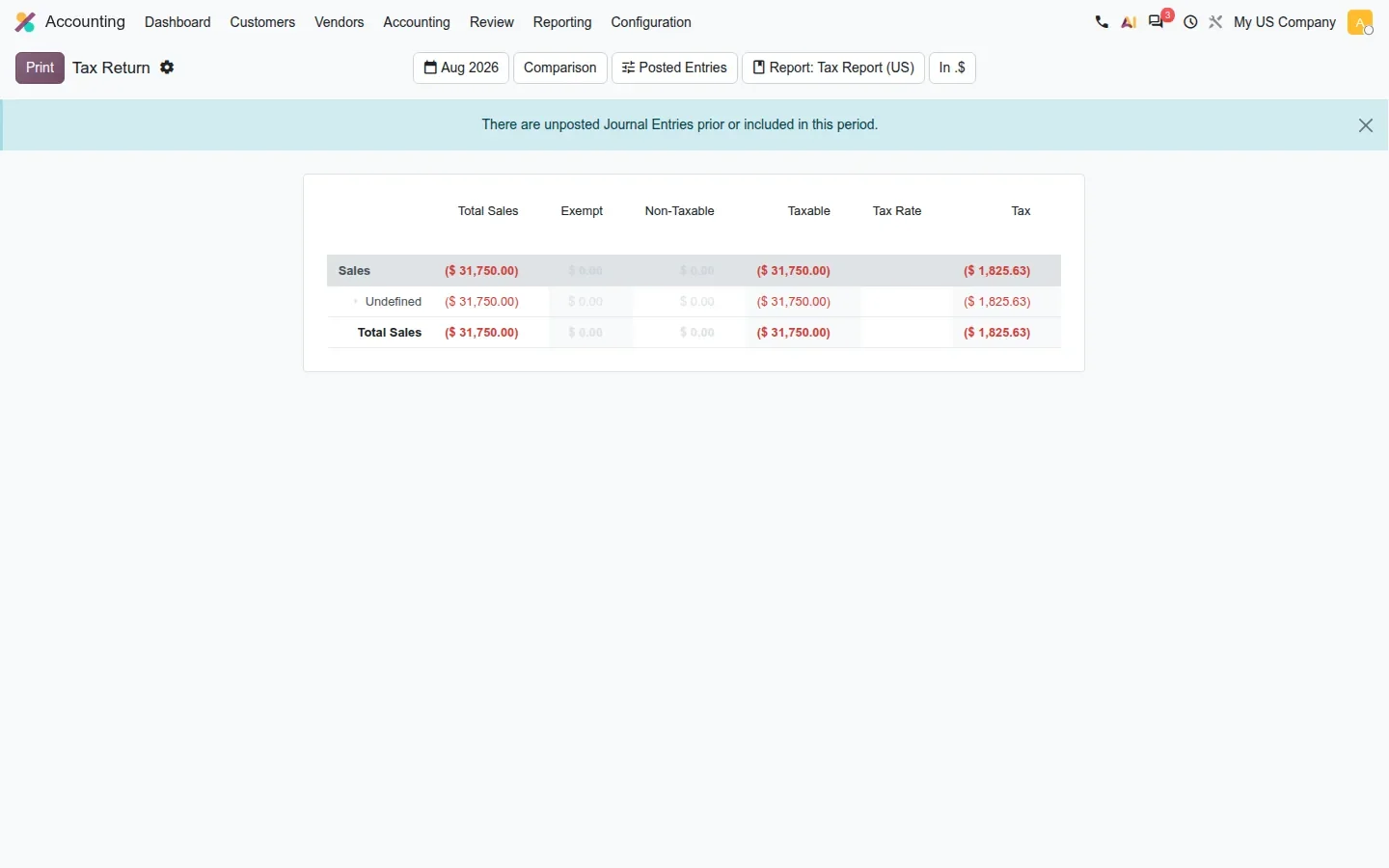
Where does that leave Canada and the United States? The guide names no change to the Canadian localization, so a Canadian company should expect its GST, HST, PST and QST setup to carry over as it is. For the United States, the one named change is on the tax report: AvaTax users get their exempt and non-taxable amounts in the correct columns. On the US demo company the Exempt and Non-Taxable columns sit next to Total Sales, Taxable, Tax Rate and Tax; we could not test the AvaTax feed itself. The guide's appendix also lists country reports removed from the 20.0 enterprise branch, among them the Netherlands and Sweden tax returns and German Elster; a group with a subsidiary there should confirm the replacement first.
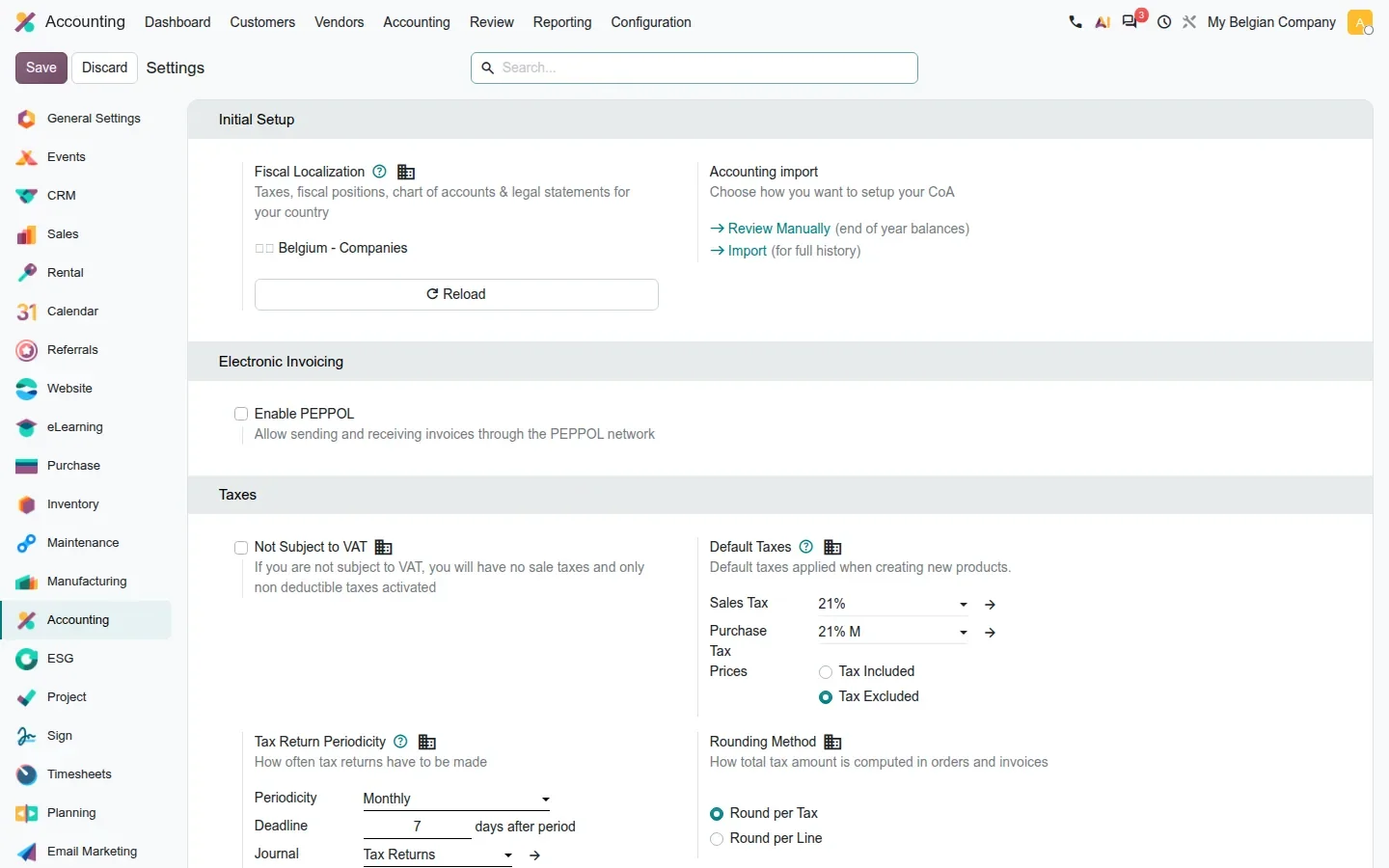
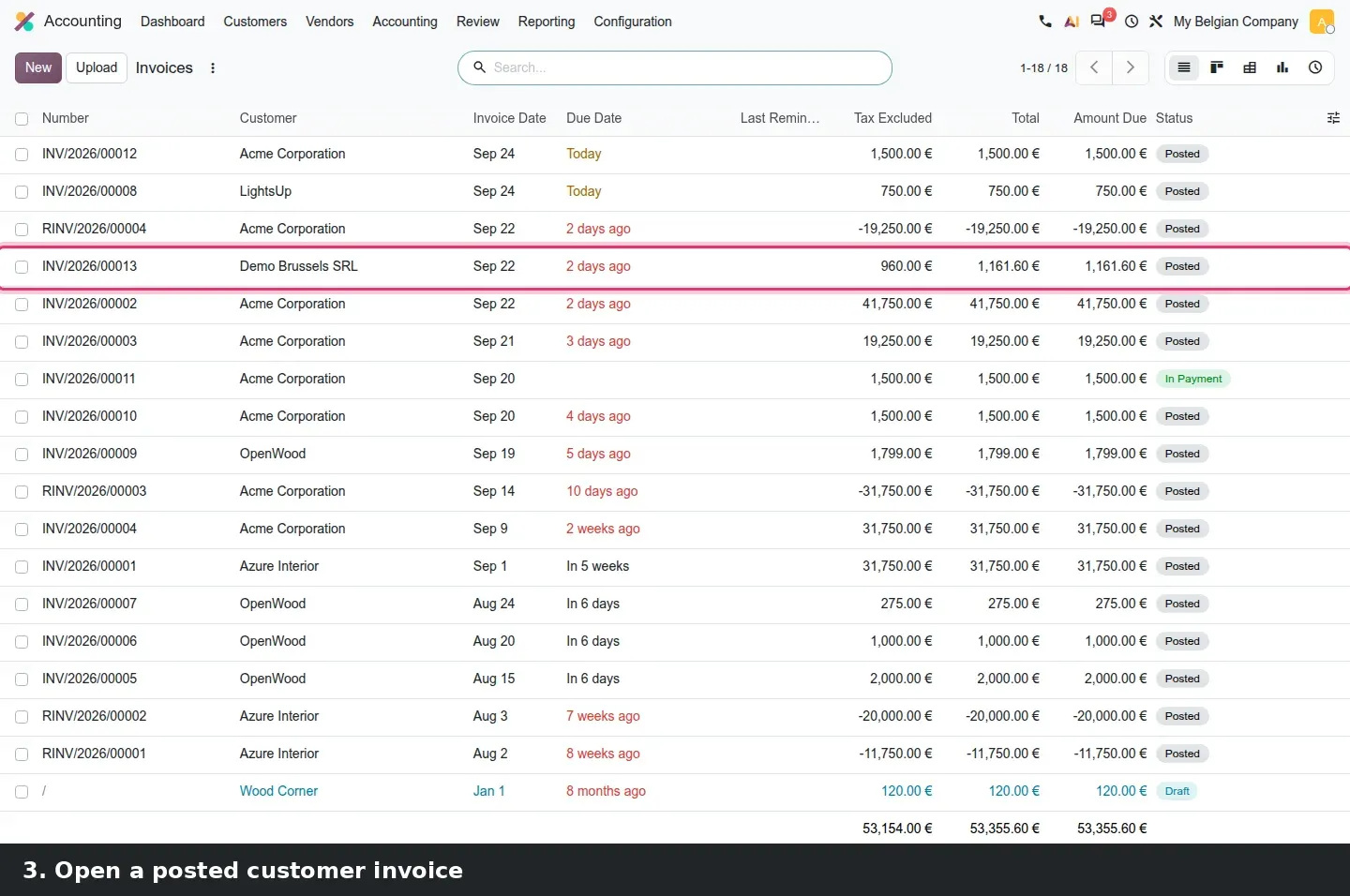
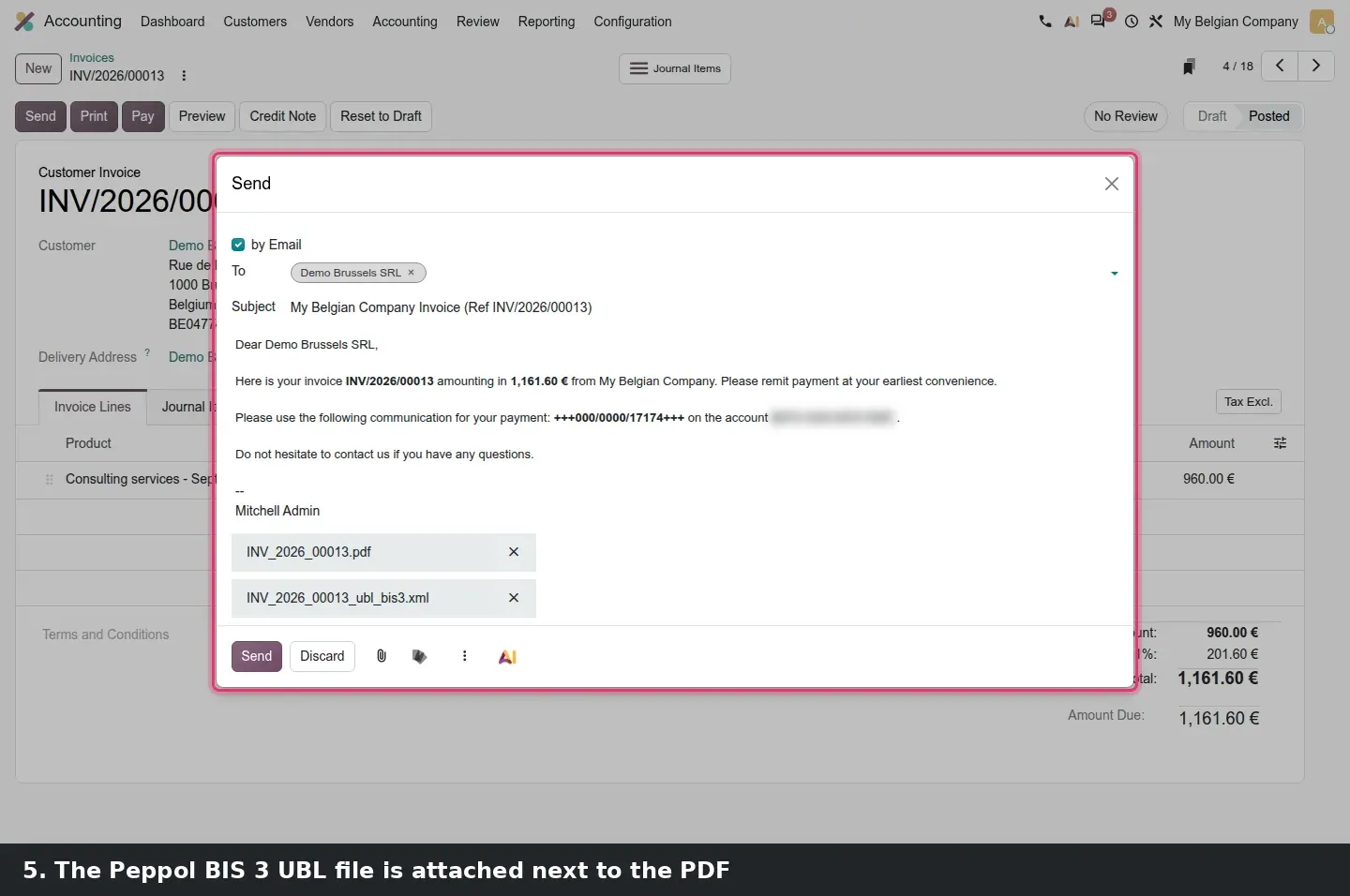
The e-invoicing baseline sits in Accounting > Configuration > Settings: Fiscal Localization, then Electronic Invoicing with Enable PEPPOL, then Tax Return Periodicity. Peppol is not new in Odoo 20, and sending through it needs a registration on the Odoo Peppol proxy. On a Belgian customer set to the Peppol BIS 3 format, Send on a posted invoice attaches the UBL BIS 3 XML next to the PDF. A Canadian or US company meets this when a European subsidiary or customer requires it.
How to try it on a demo database
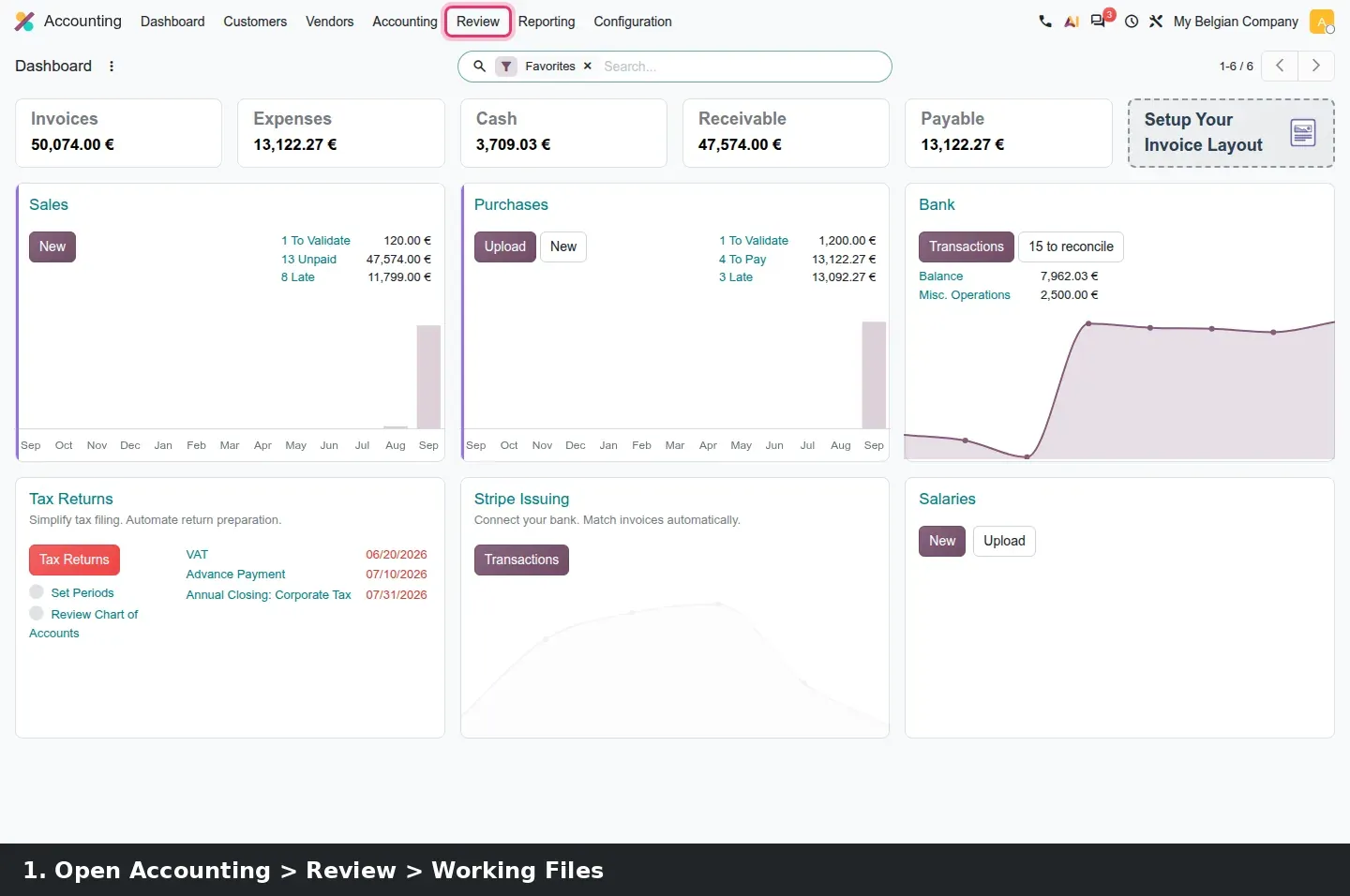
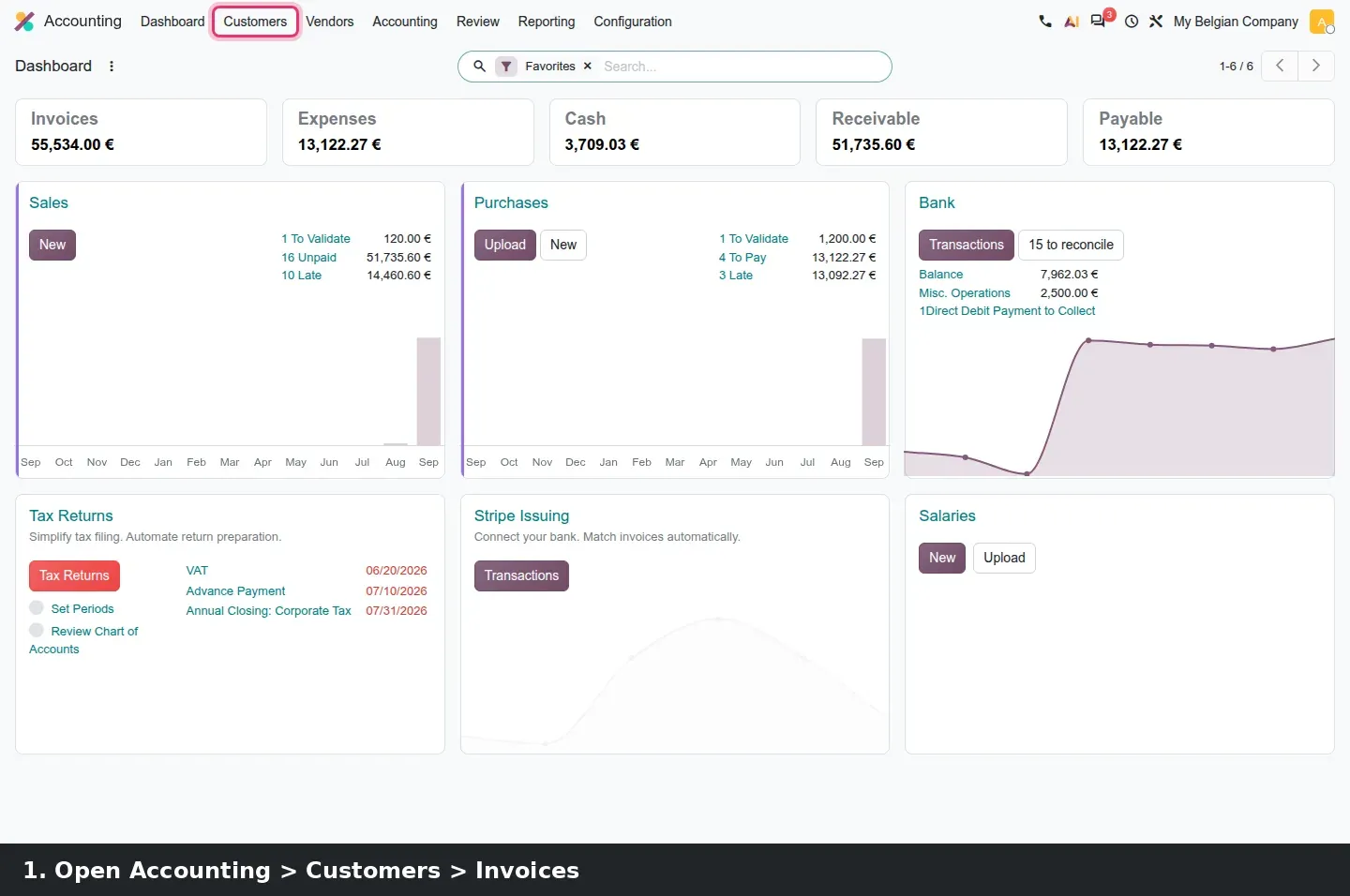
- On a demo database with a localization that ships a tax report, open Accounting > Accounting > Tax Returns.
- Click Review on a return, click the count next to a flagged check, type a note in Add notes, then click Validate.
- Open Accounting > Review > Working Files, click New, keep the Audit type, set the fiscal year and click Generate Return.
- In the working file, open Treasury and financing and click the count on Bank Transaction Missing Document.
- Open Accounting > Configuration > Return Types, click New and note the States field; then open Accounting > Configuration > Checks.
- With intercompany invoices posted, open the Interco Comparison from the audit check Intercompany account reconciliation.
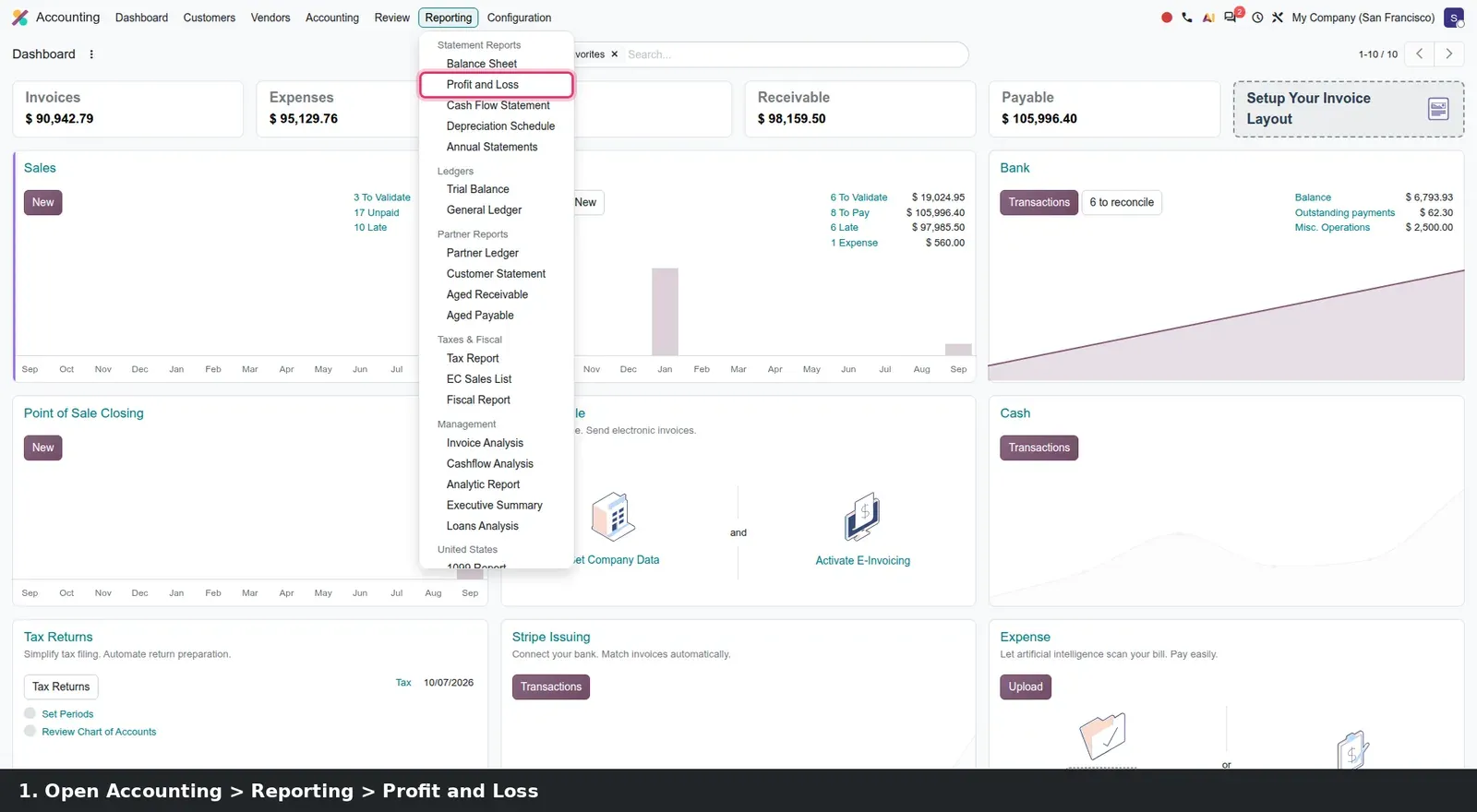
- Open AI > Agents > Auditor and read its Skills tab, then Accounting > Reporting > Profit and Loss and click the AI icon.
- Open Customers > Invoices, open a posted invoice for a Peppol customer and click Send to see the UBL attachment.
What we could not verify on the pre-release build
We did not see an AI reply: the Profit and Loss variance explanation and the Auditor's findings written back on a check both run as agent chats through Odoo's asynchronous AI endpoint, which fails on a private demo. Only Belgium and the United States were installed, so none of the new country modules in the table, the new Intrastat countries or the AvaTax columns were exercised. Peppol sending was not completed because it requires a registration on the Odoo Peppol proxy. Contrary to the guide, the Interco Comparison has no Reporting menu entry and Horizontal Groups did not appear under Configuration without developer mode. Everything else on this page was clicked through on the 20.0 Enterprise build of 23 September 2026.
What this means for an upgrade
If you run Odoo 17, 18 or 19, your tax reports do not change; what changes is that Odoo generates returns from the return types of your localization, so plan a session to map your closing checklist onto check templates and pick a workflow per return type. Groups with several entities should read the Interco Comparison before their first Odoo 20 close. Accounting is also the app with the most scripts around it: bank feed imports, a tax engine or a BI tool pulling journal items over XML-RPC or JSON-RPC are all at risk in Odoo 20, for which Odoo has scheduled the removal of both endpoints, so run our RPC migration audit first. The return type mapping is part of the scoping in our migration service, and the series hub lists the other accounting changes in the same upgrade.
Frequently asked questions
What is a tax return in Odoo 20?
A record generated from a return type for one period. It carries a deadline, a workflow of up to three steps (Reviewed, Submitted, Paid) and a list of checks that flag records to review, each with a free-text note. You find them under Accounting > Accounting > Tax Returns, grouped by period.
Can I create a return type for a Canadian GST/HST remittance or a US state filing?
Yes. Under Accounting > Configuration > Return Types you create a custom type with a periodicity, a deadline in days after the period, an optional report and the States workflow, then attach the checks you want. The localized master types shipped by Odoo hide the States field; your own types show it.
Do the return checks need AI credits?
No. Checks are rules that point to a set of records and count what they find; they run without the AI app. Only the Auditor and Audit Reviewer agents and the AI icon on reports go through Odoo's AI proxy and consume IAP credits.
Does the Odoo 20 audit working file replace an external auditor?
No. It gives your team and your accountant a shared checklist grouped by cycle, with statuses, notes and record counts, so the file that reaches the auditor is documented. The opinion, the sampling and the sign-off remain the auditor's work.
Is Canada affected by the new Odoo 20 localizations?
Not according to the feature guide, which names no Canadian change in this release. The new modules cover Türkiye, Ivory Coast, the Dominican Republic, Uruguay, Peru, Hong Kong, Norway, Guatemala, North Macedonia, Hungary, Romania, the Philippines and six Intrastat countries. For the United States, the named change is the Exempt and Non-Taxable columns of the US Tax Report for AvaTax users.
Where do I open the Interco Comparison report?
On the pre-release build it has no entry under Reporting. Open a yearly audit working file and click the check named Intercompany account reconciliation; the report shows the main company, the counterpart and the difference per account type, with drill-down to the journal items.