
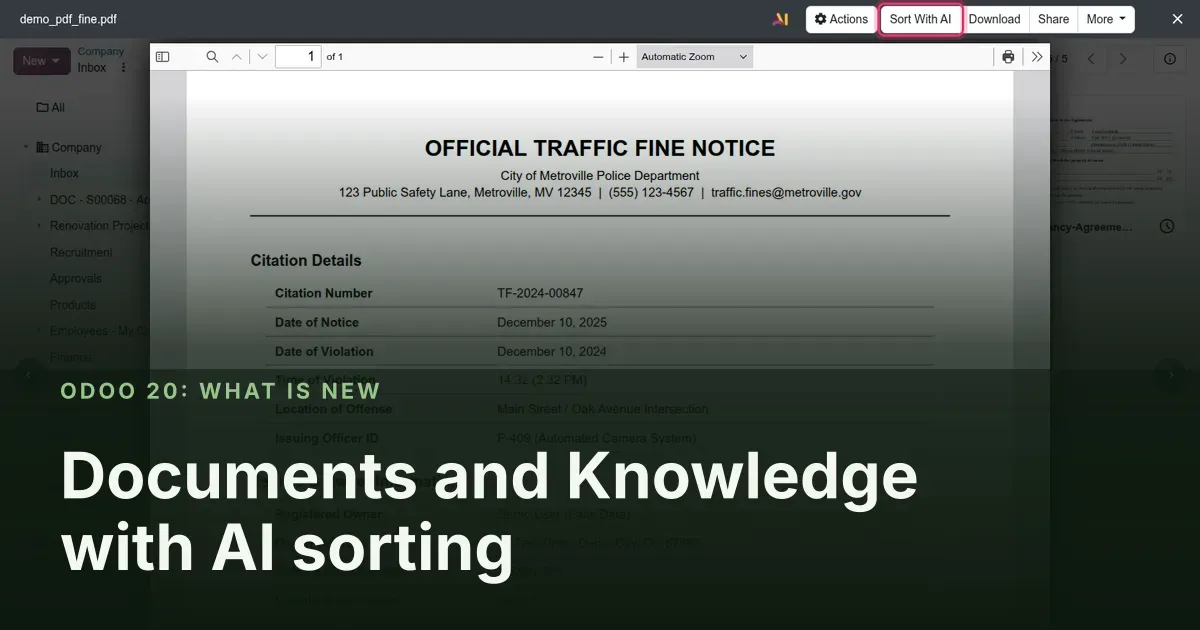
Finding files, controlling who sees them, and letting AI do the filing
Documents in Odoo 20 works on the two problems that show up once a company has more than a few thousand files: finding the right one and controlling who can open it. Search in Folder looks through a folder and everything below it, right-click menus reach both the folder tree and the cards, and access can be granted to a user group instead of to people one by one. The AI app adds a bridge to Fleet: a scanned traffic fine dropped in the Inbox is read, renamed and filed on the right vehicle. Knowledge gains copy-link anchors on public articles, and accountants get an Annual Report list.
This post is for the office manager who runs the folder tree, the accountant who receives supplier paperwork, and the fleet manager who chases fines. We clicked through every screen below on the pre-release build, including the Sort With AI result, a one-shot feature that did run on our private demo. The AI audit assistant and the ESG features from the same chapter of the guide have their own posts in this series.
Observed on the Odoo 20.0 Enterprise pre-release build of September 23, 2026. Names, menus and availability can change before general availability; we will update this page when they do.
Search in Folder and right-click menus
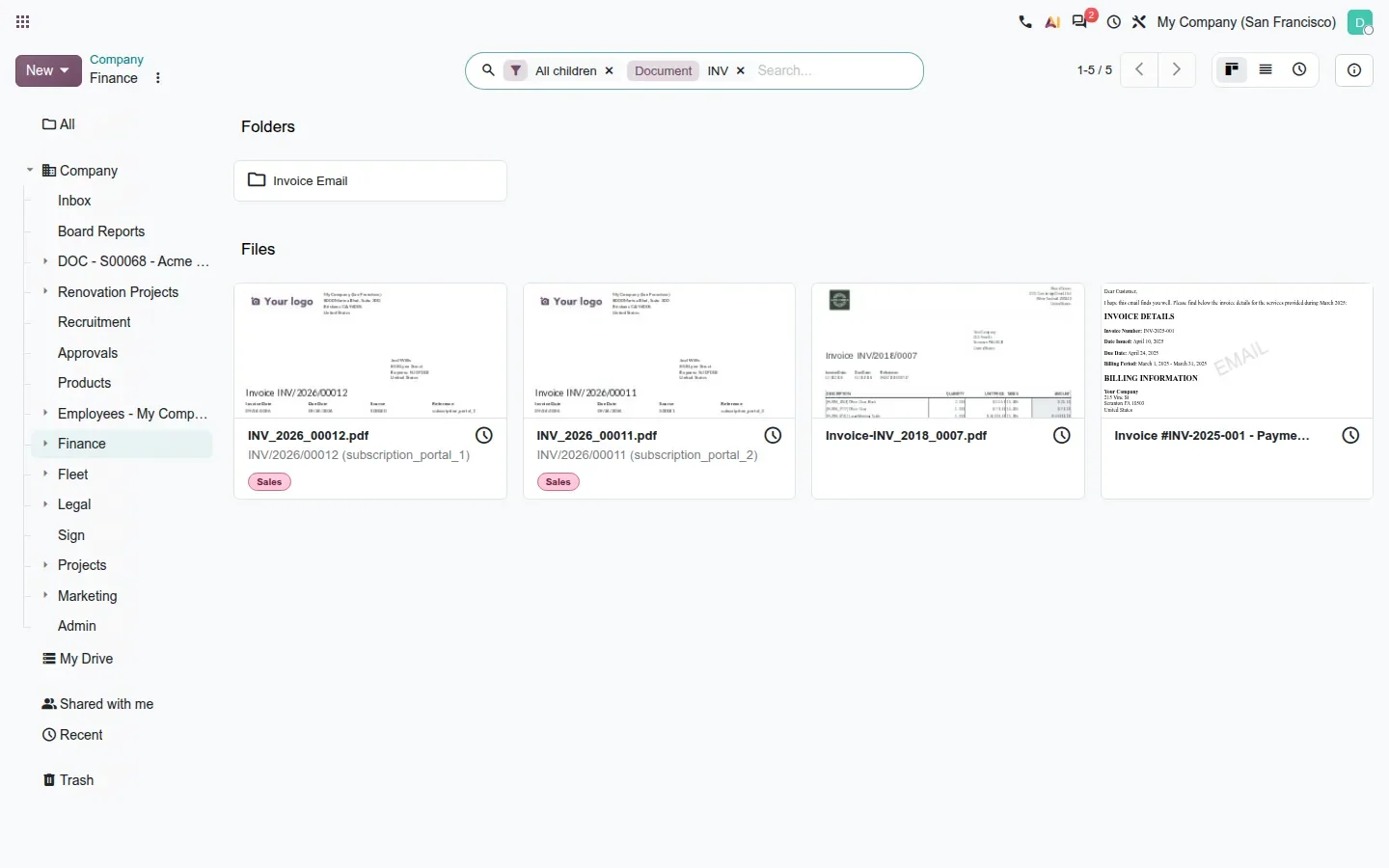
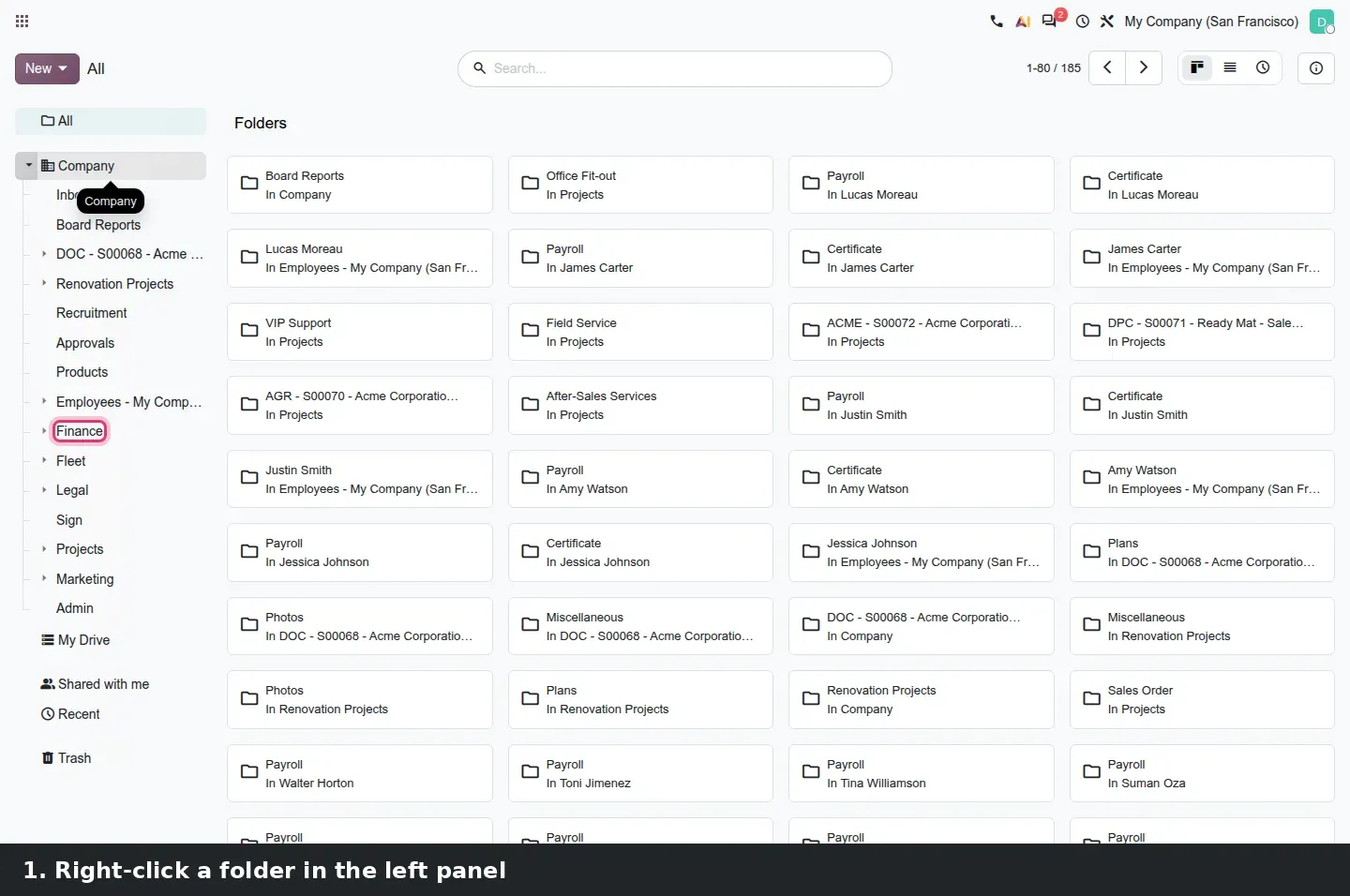
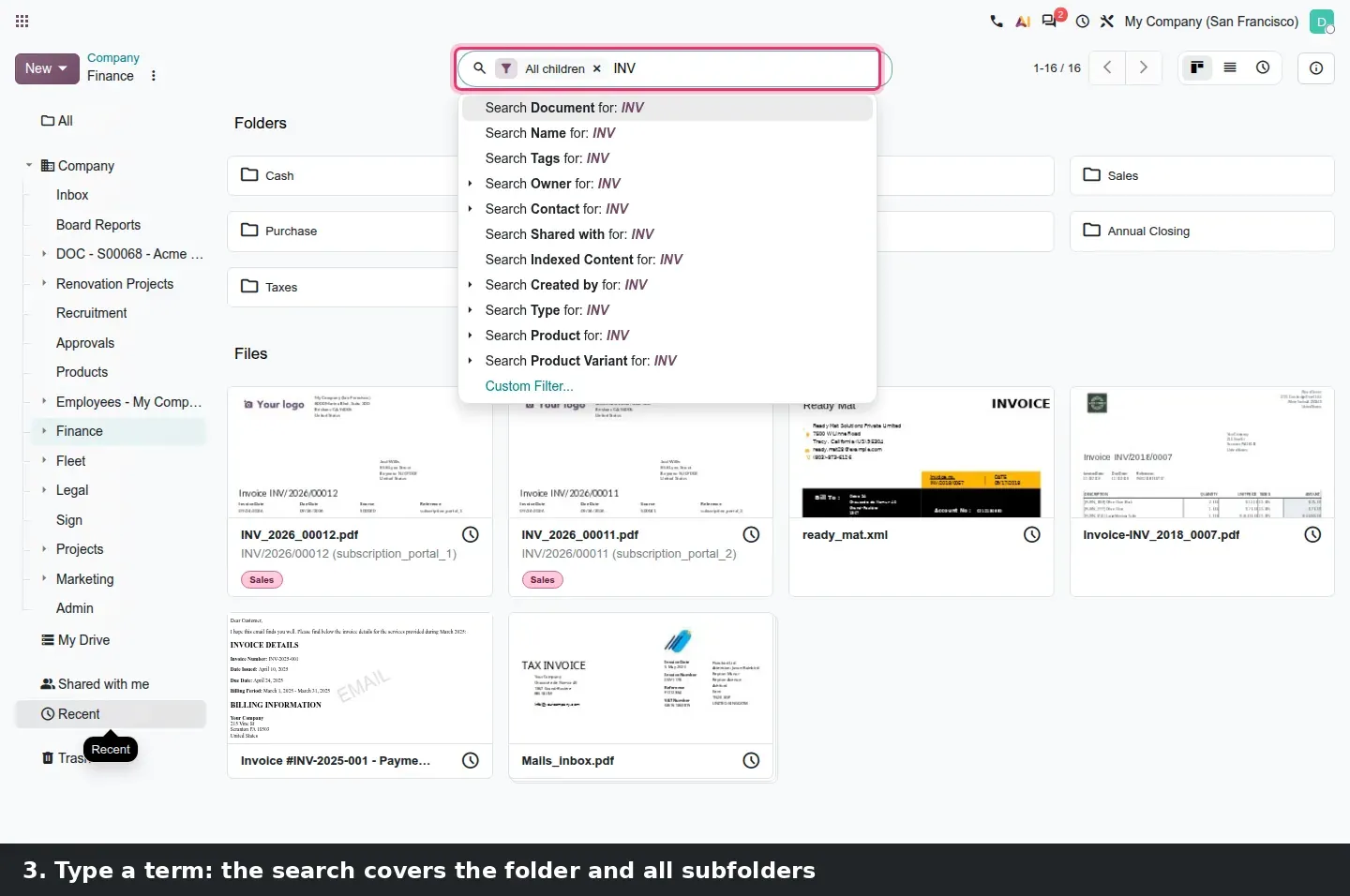
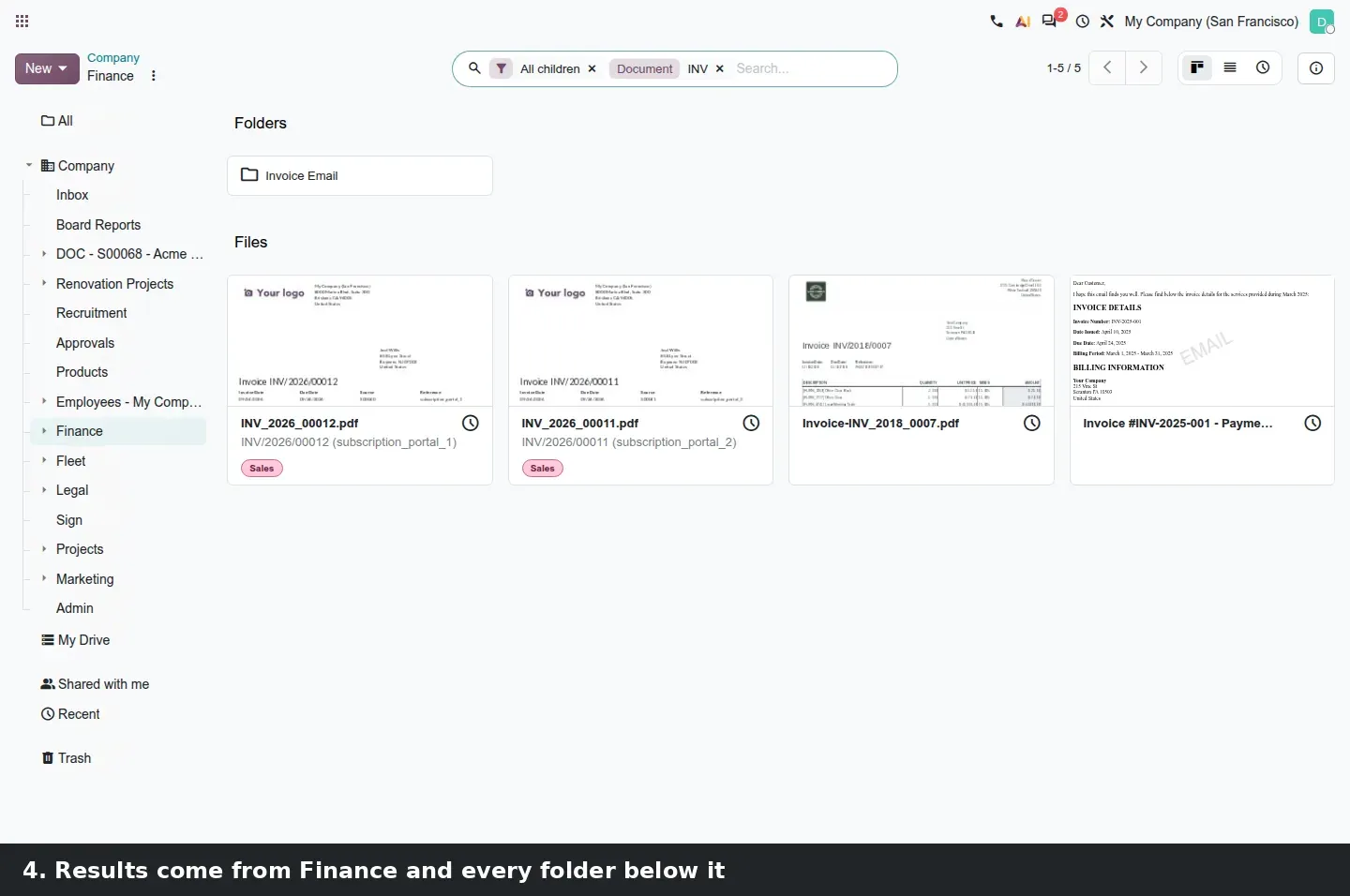
Until now, searching inside a branch of the folder tree meant writing a custom filter. In Odoo 20 you right-click a folder in the left panel, or open its cog menu, and choose Search in Folder. The search bar receives an All children facet, and whatever you type is matched against that folder and every subfolder under it. On the demo, right-clicking Finance and typing INV returned invoice PDFs from Finance itself and from its Invoice Email subfolder.
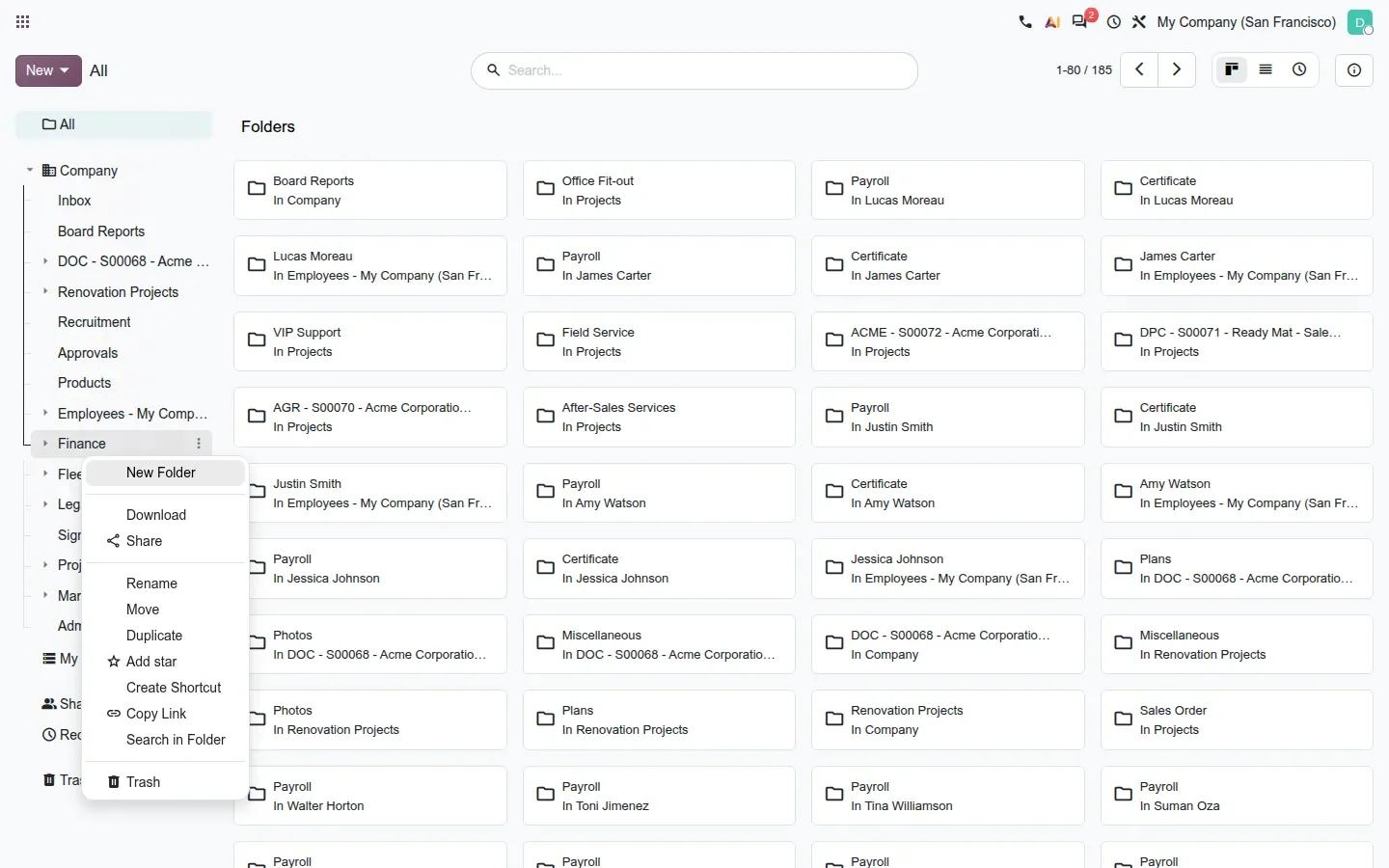
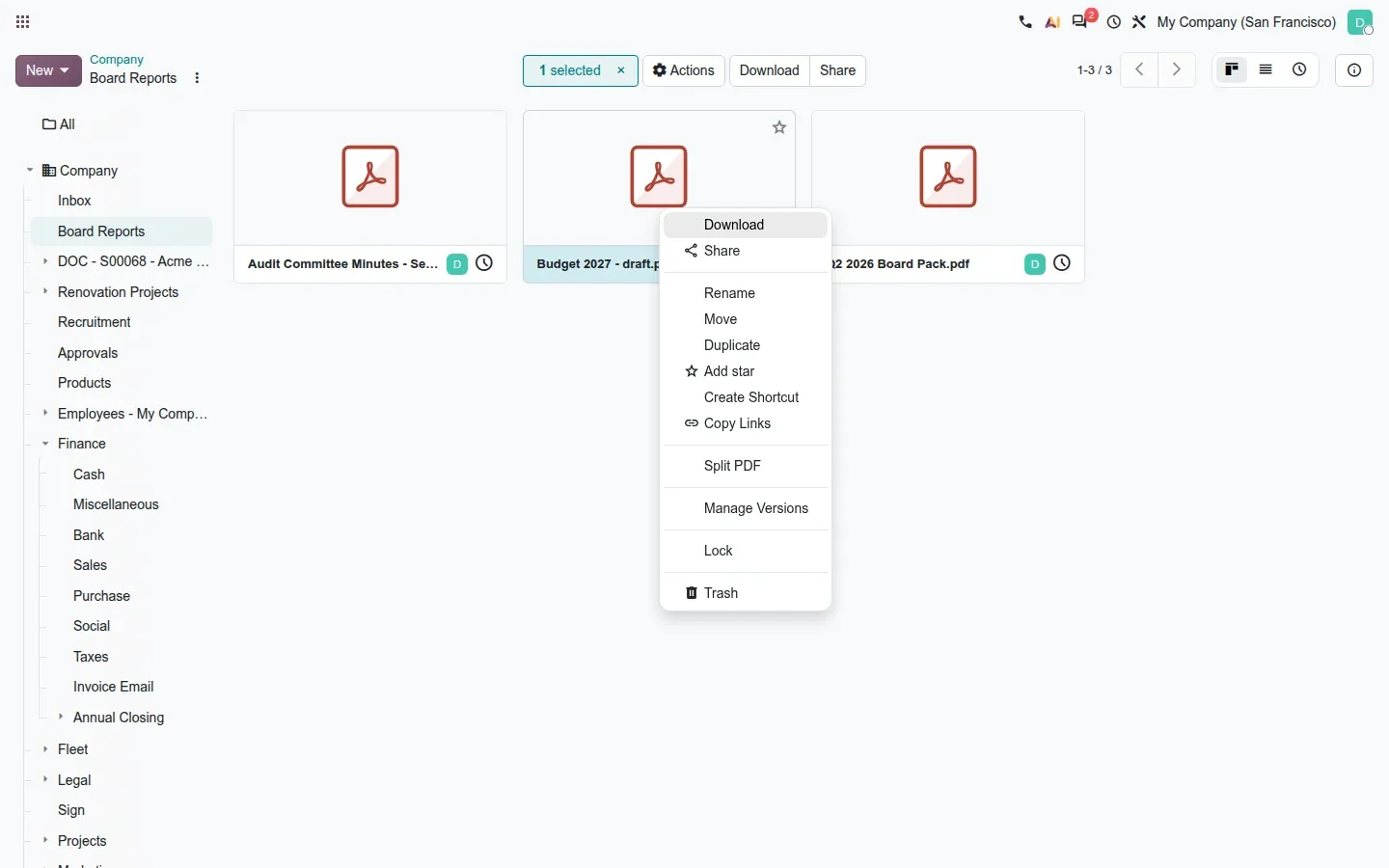
Two smaller changes go with it. Breadcrumbs now behave like a browser: open a folder from the Folder field of a document, go back, and you return to the view you came from rather than to the parent folder. The right-click menu also exists on document cards, with the same actions as the cog menu: Download, Share, Rename, Move, Duplicate, Split PDF, Manage Versions, Lock and Trash. And the list that opens when you attach an existing document to a record now shows a preview.
Share a folder with a user group, not a list of names
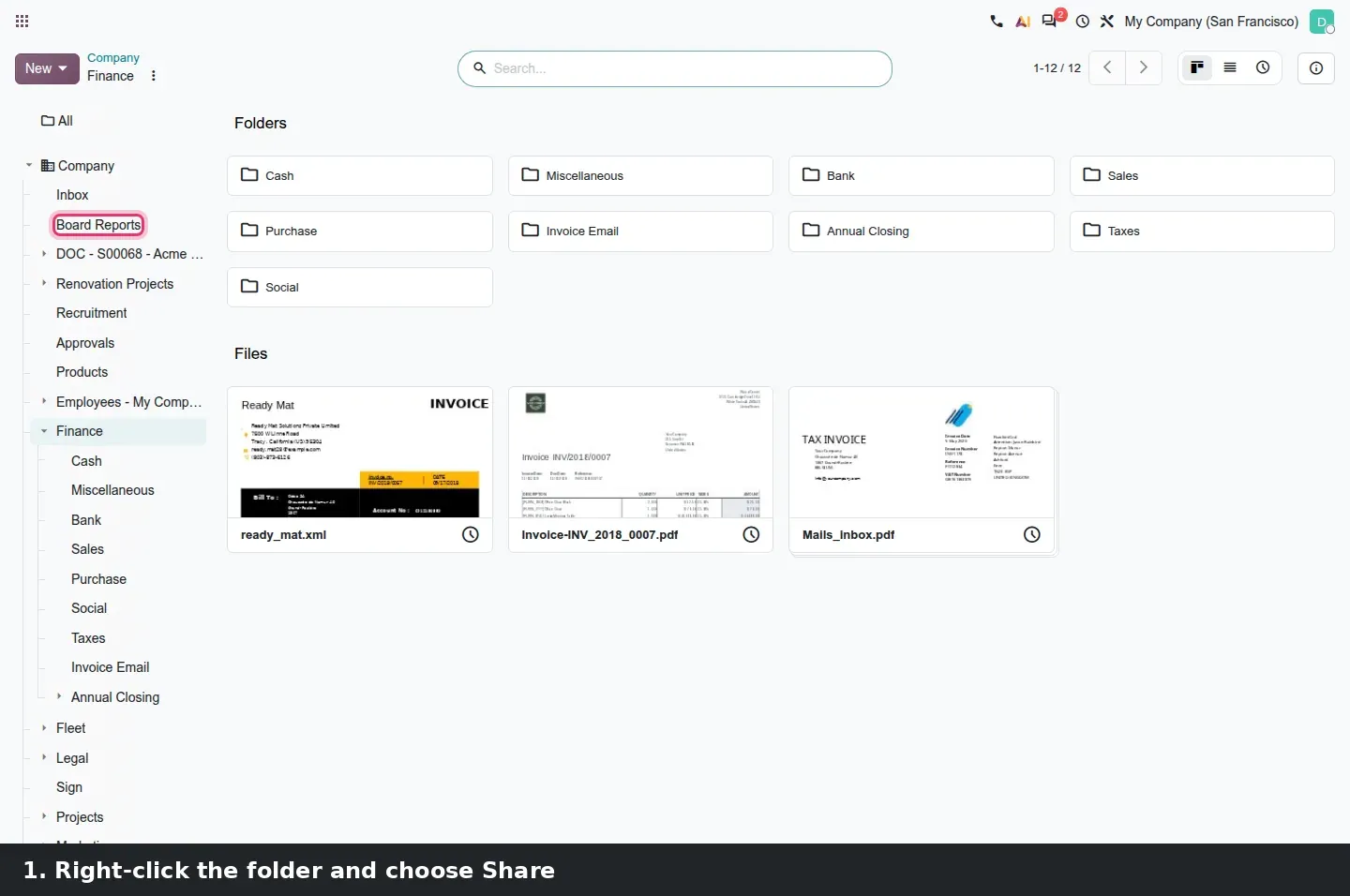
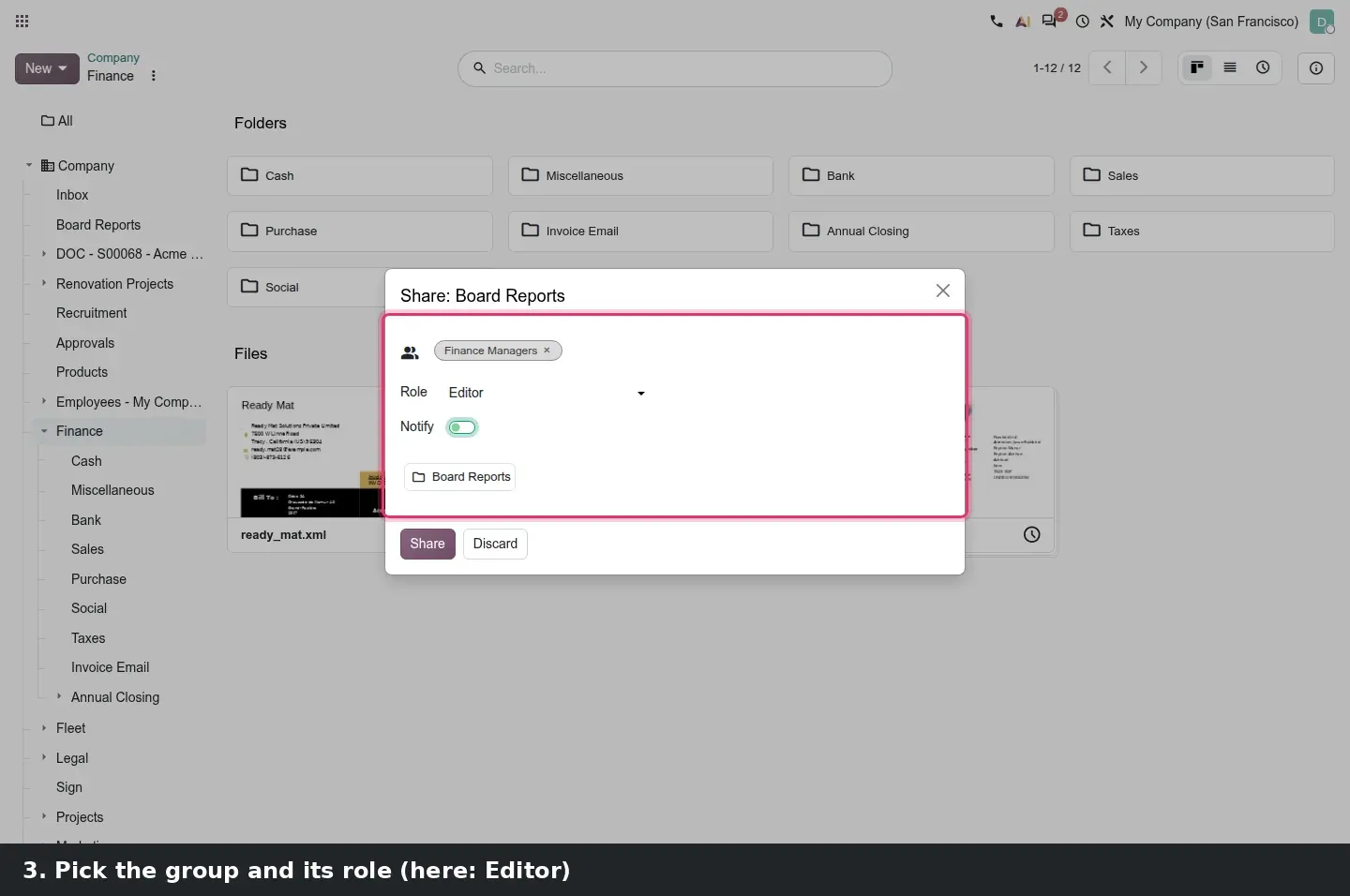
This is the structural change of the release. The Share dialog on a folder or a document now has two modes, Add People and Add Groups. A group row gets a role like any person, Editor or Viewer. On the demo we shared the Board Reports folder with the Finance Managers group as Editor and with Marc Demo as Viewer, and the People with access list shows both rows side by side, the group with its member count.
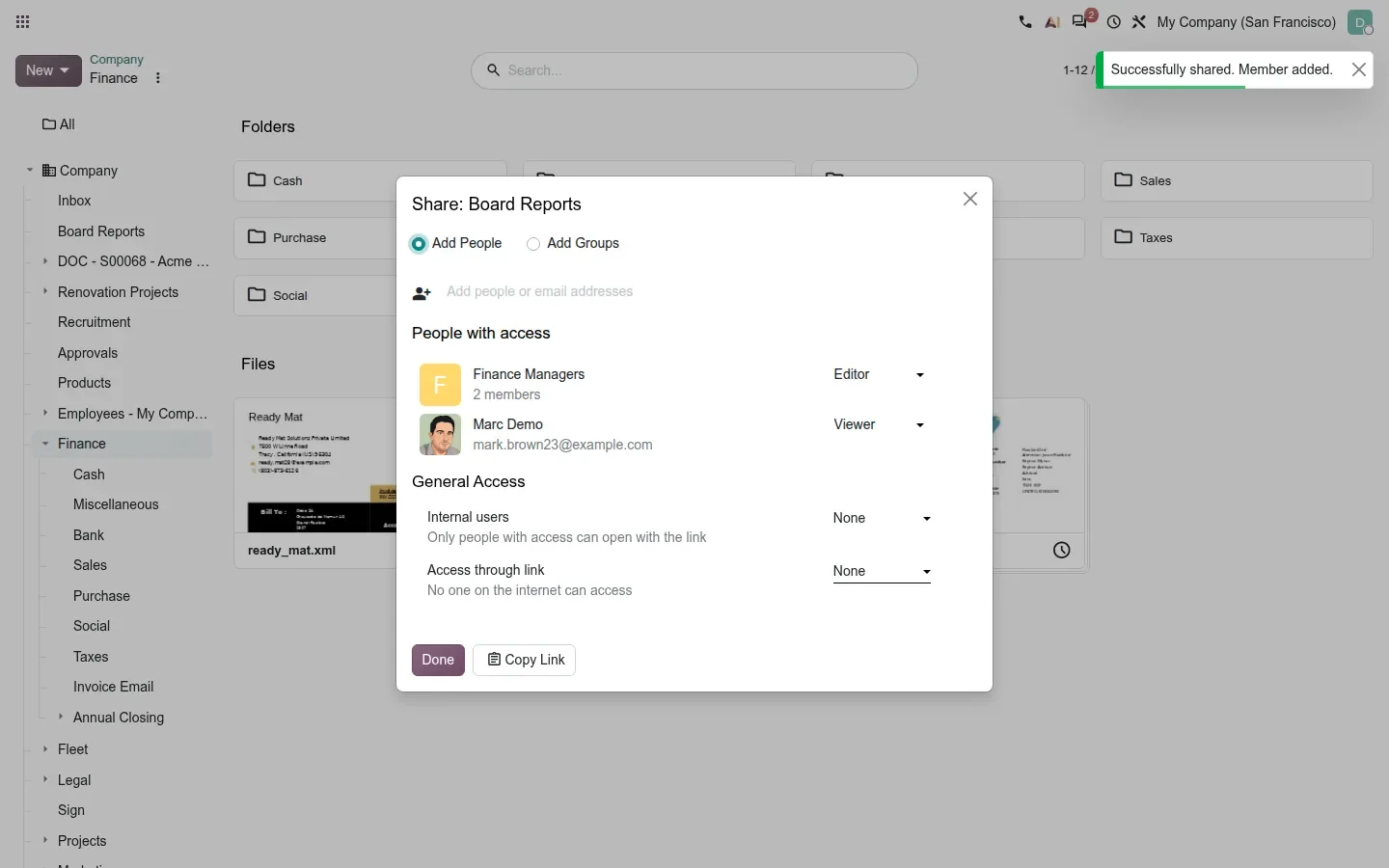
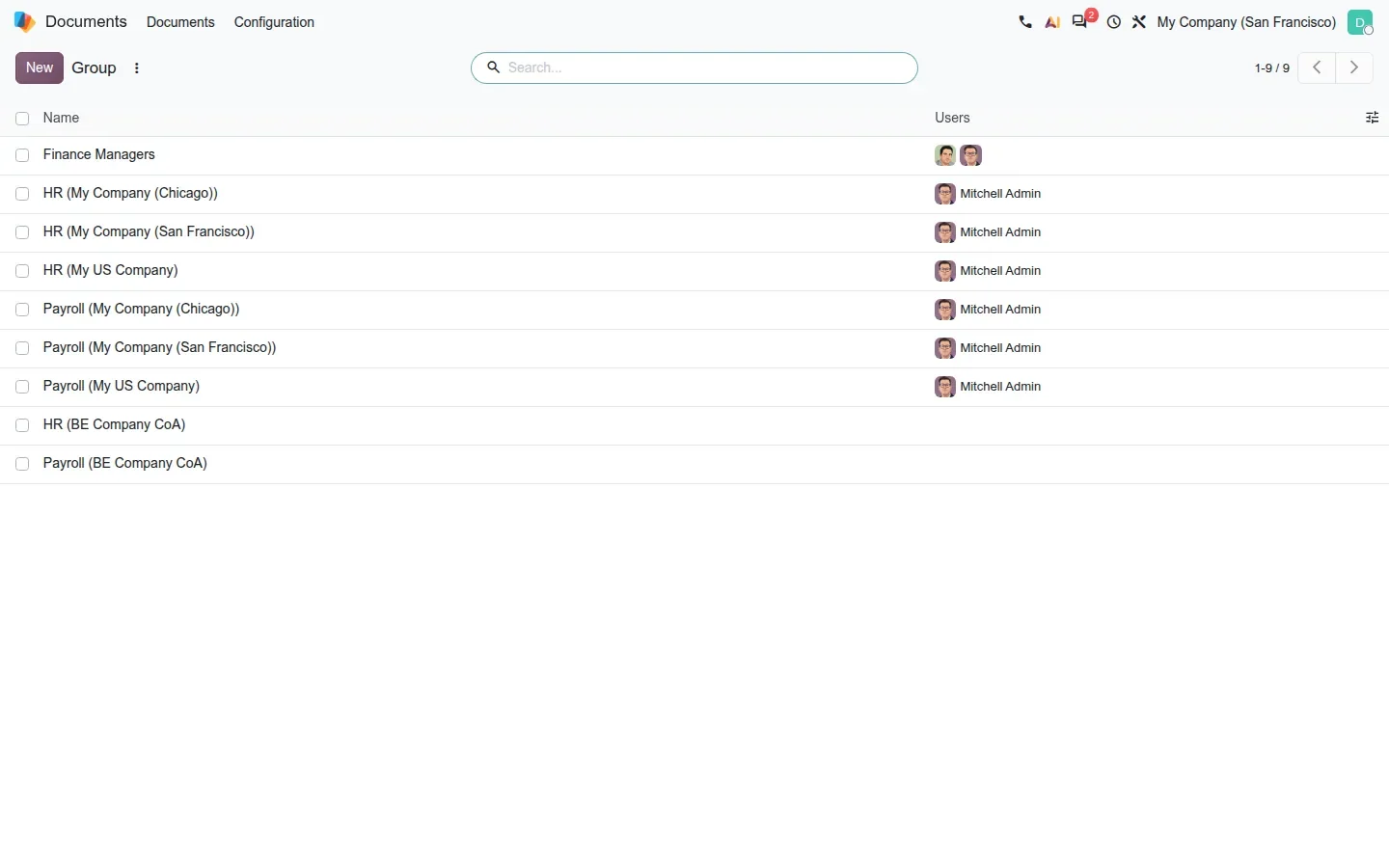
The rules are simple. If a user belongs to several groups, or has personal rights on top of a group, the highest level wins. Adding a group notifies its current members. Adding a user to the group later is enough: they inherit every folder the group can see, so onboarding a new accountant no longer means editing dozens of folders. The groups themselves live under Documents > Configuration > Groups, a list of functional groups with their users.
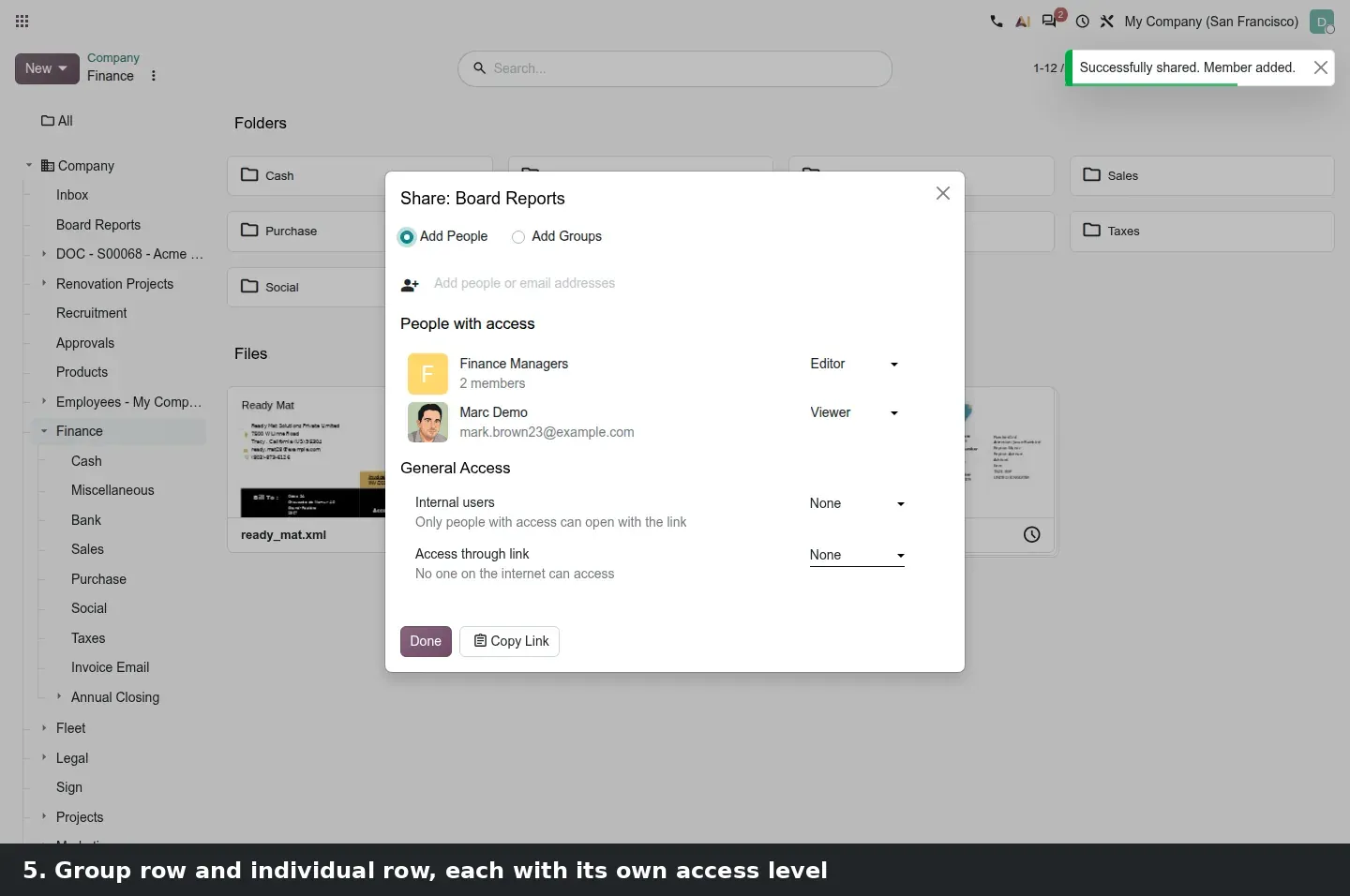
When you share with a contact who has no user yet, Odoo invites them to register, and the new user is linked to the existing contact rather than creating a duplicate. We could not test that step on the demo because it needs outgoing email.
Before you migrate
Draw the target folder tree and the groups that should see each branch before the upgrade, not after. Individual rights from Odoo 17 to 19 carry over as individual rows; replacing them with three or four functional groups is a half-day job that pays back every time someone joins or leaves.
Version management that says what you are about to delete
Manage Versions, reachable from the card menu, lists the current version and the previous ones, each with Download and Delete, plus Upload New Version at the top. What changed is the confirmation text. Deleting a previous version asks: "Are you sure you will not need this previous version? Once deleted, it is gone for good." Deleting the current version warns that the previous one will be restored.
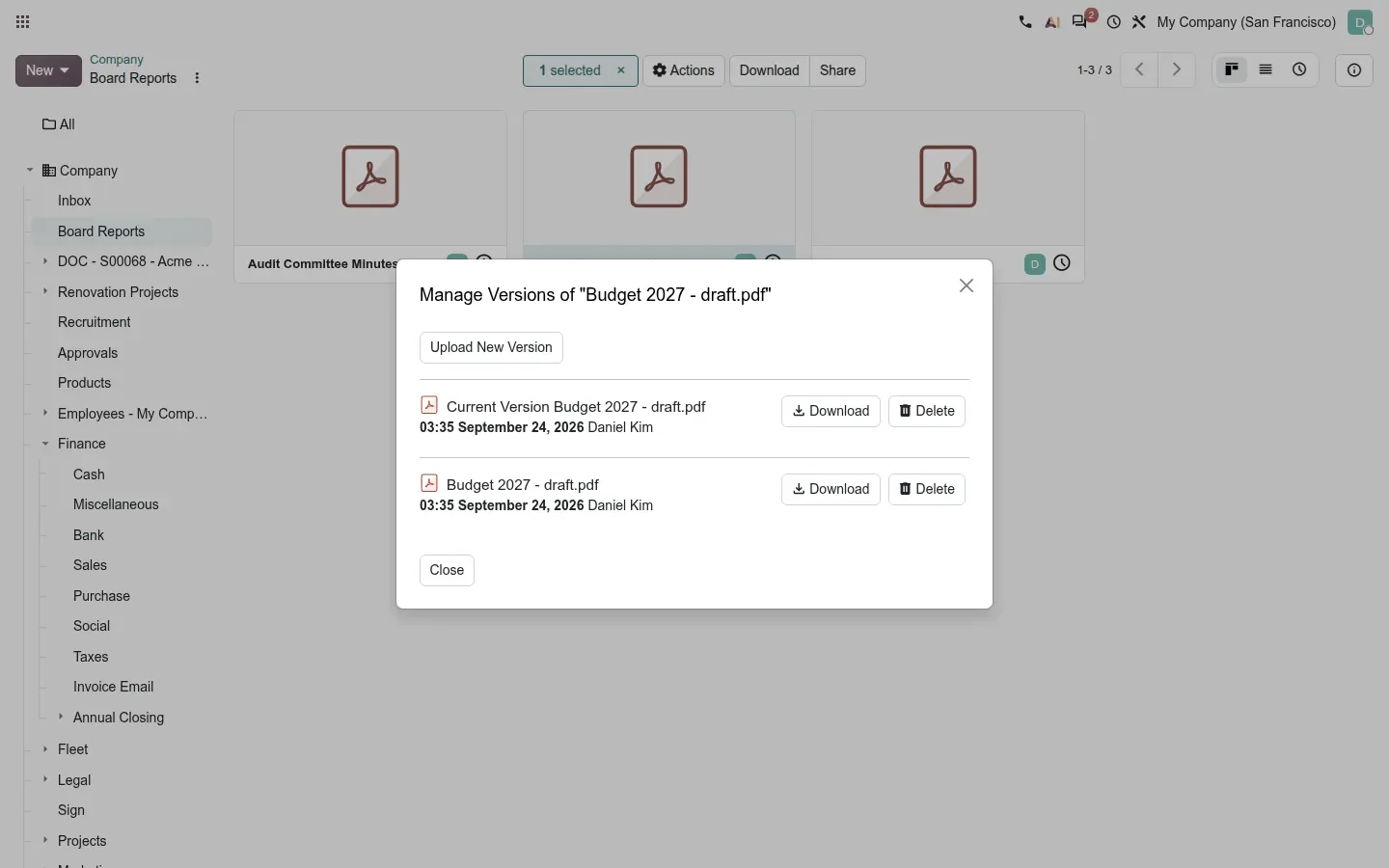
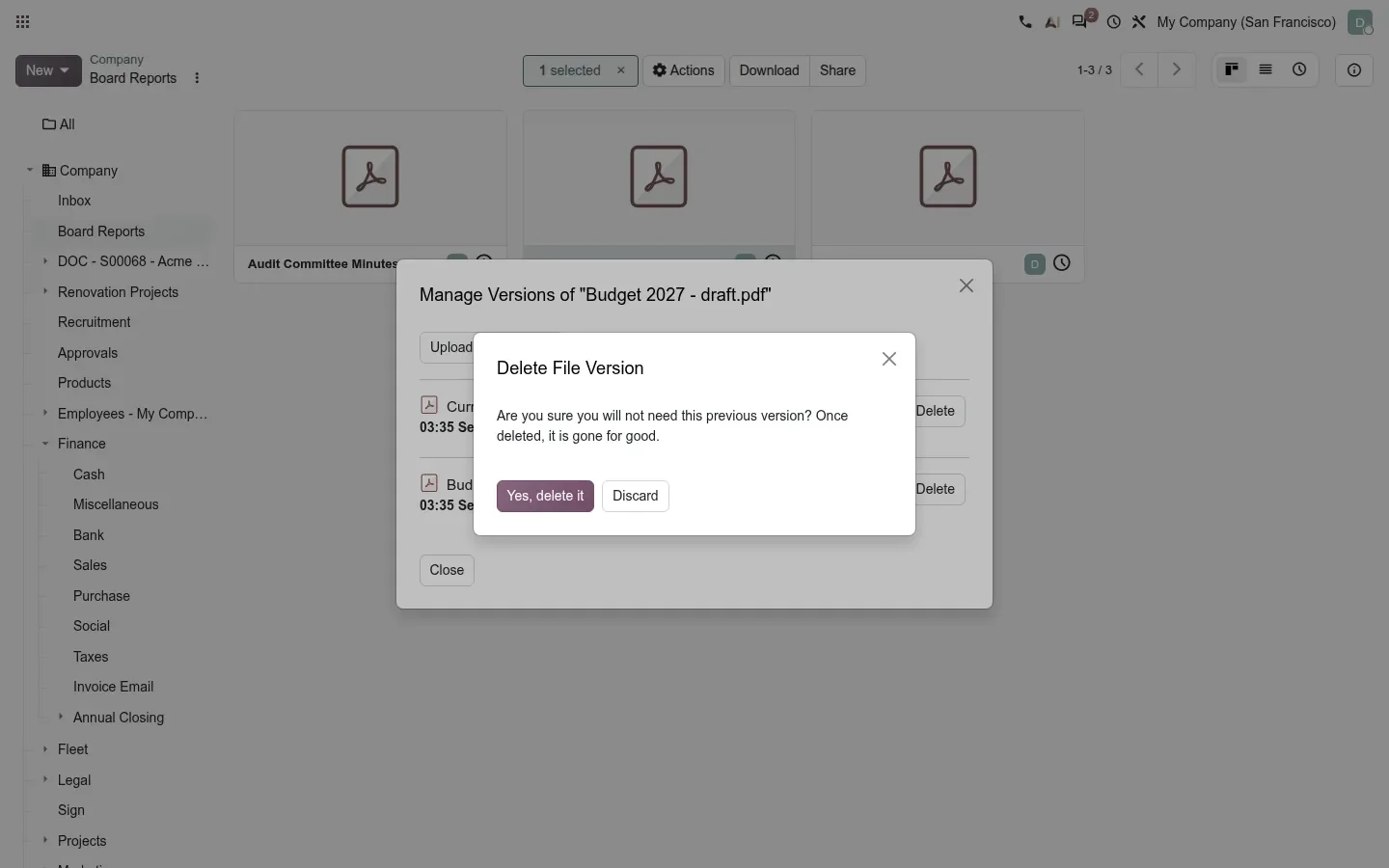
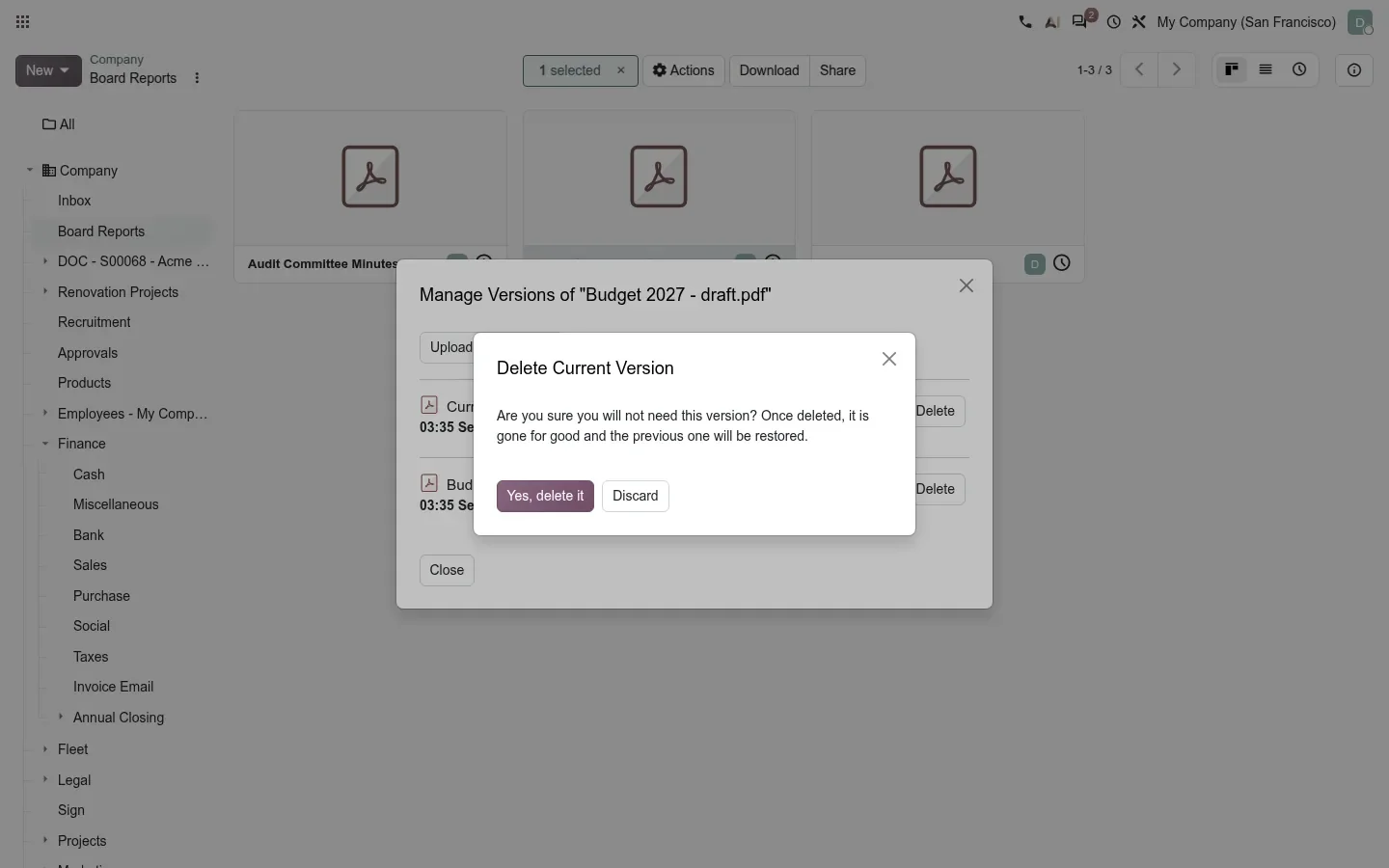
Document requests now accept several files in one upload, so a supplier asked for a certificate and an insurance proof sends both against the same request. The chatter also records in detail how a document was created: uploaded, requested, generated from a report or filed by a bridge module. For an accountant tracing a scan, that message is the audit trail.
Sort With AI files a traffic fine on the right vehicle
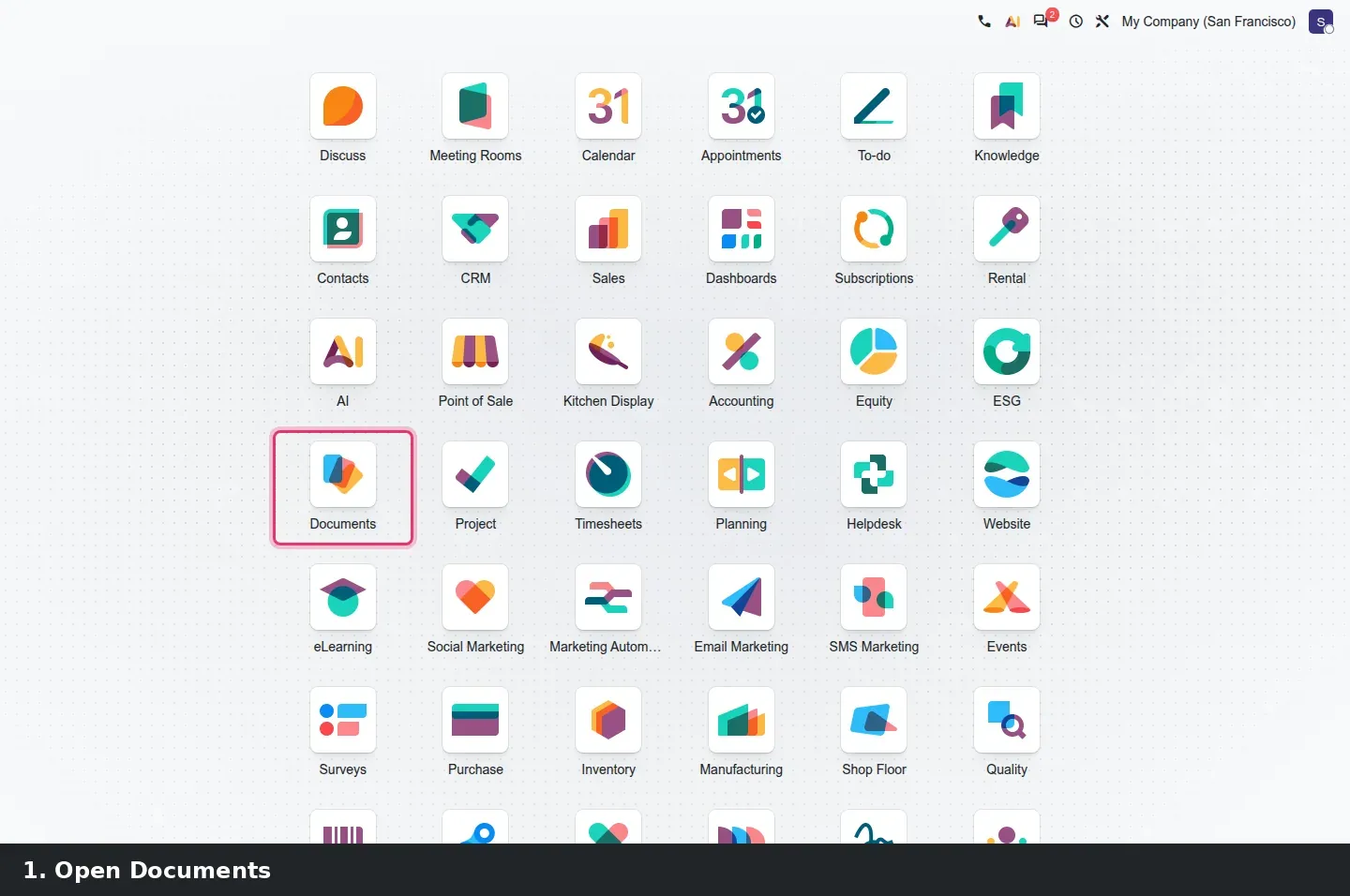
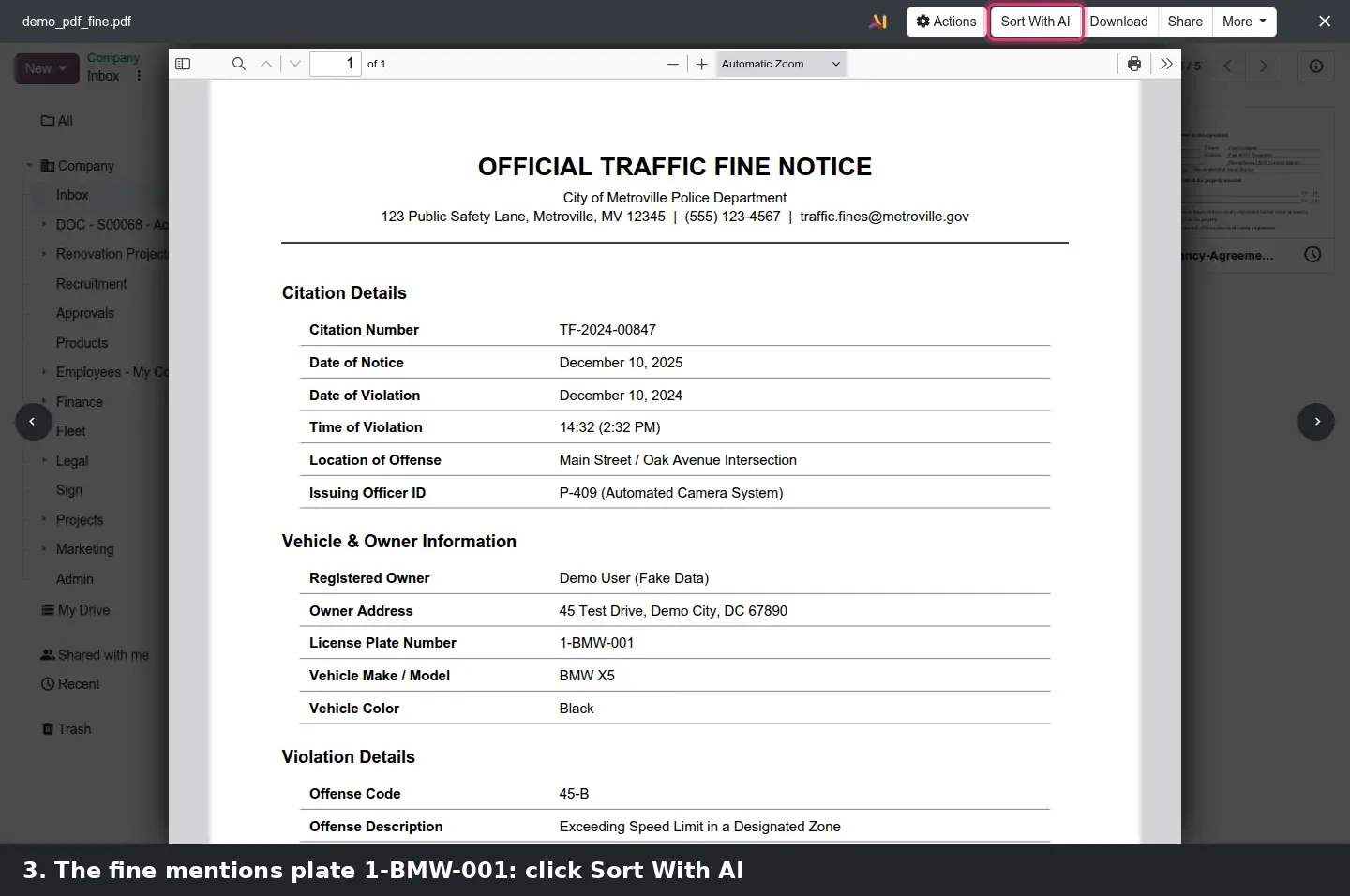
The AI bridge for Documents, ai_documents_fleet according to the 20.0 source, reads a scanned document, finds a licence plate and links the file to the matching vehicle in Fleet. On the demo we dropped a PDF traffic fine notice for plate 1-BMW-001 into Documents > Inbox, opened it in the viewer and clicked the Sort With AI button.
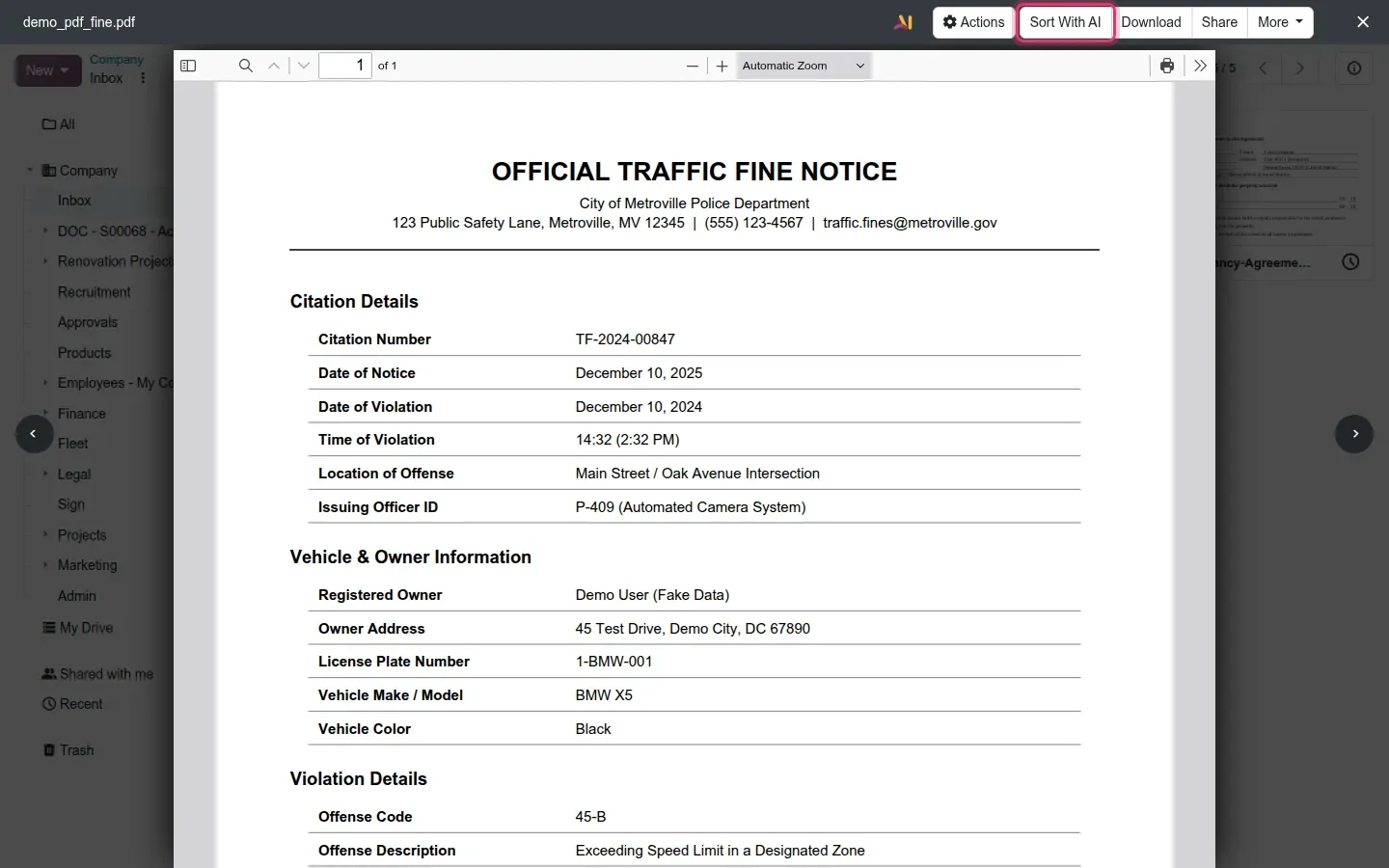
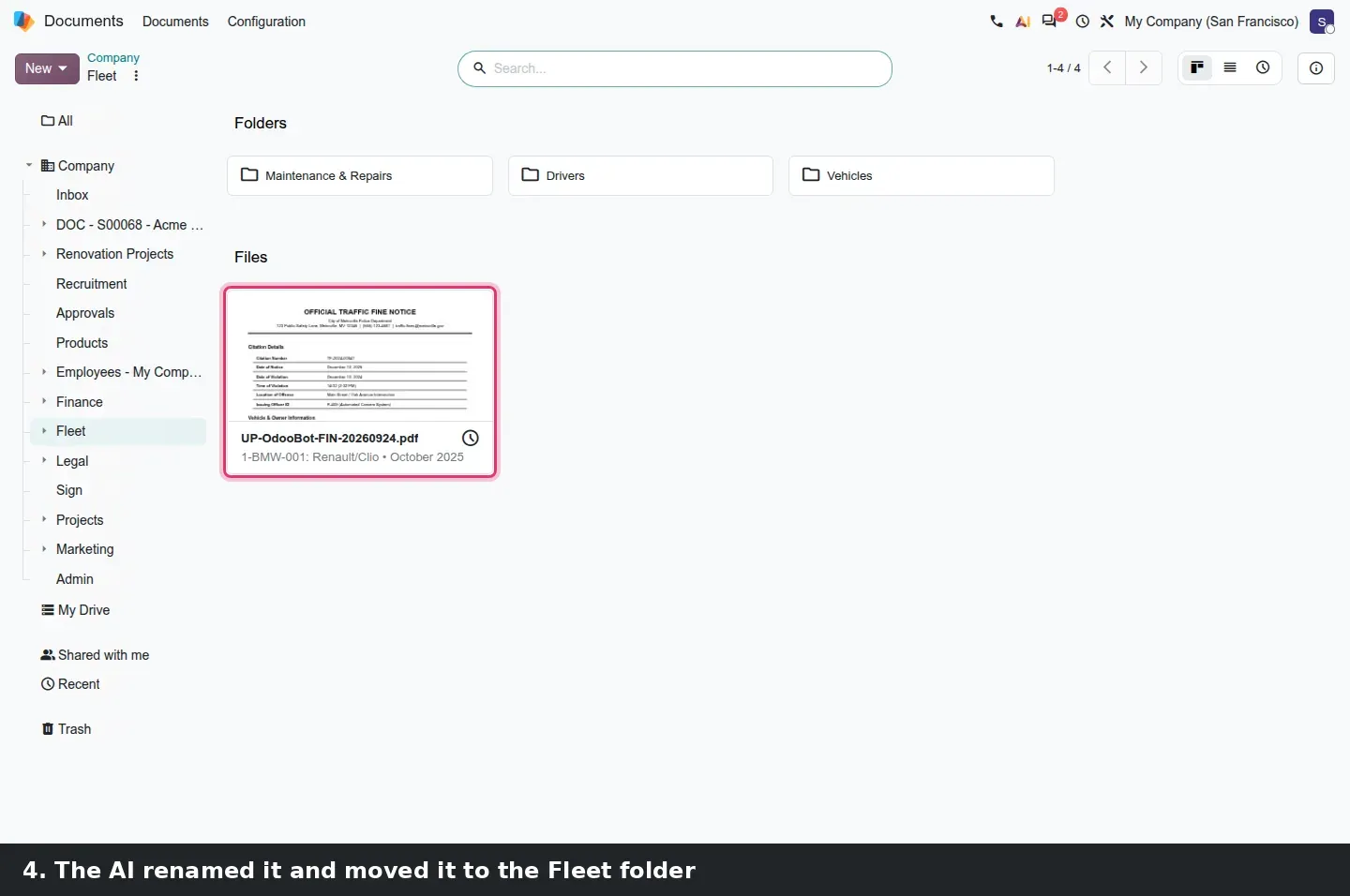
The result was immediate. The AI renamed the file UP-OdooBot-FIN-20260924.pdf, moved it from Inbox to the Fleet folder and linked it to the vehicle record 1-BMW-001, a Renault/Clio. Opening that vehicle in Fleet shows a Documents smart button with a count of 1, and the button opens the fine. A fleet manager who used to download the fine, look up the car and attach the PDF by hand now checks a folder. The Inbox also sorts on arrival: moving a file into Inbox triggered the same sort without a click.
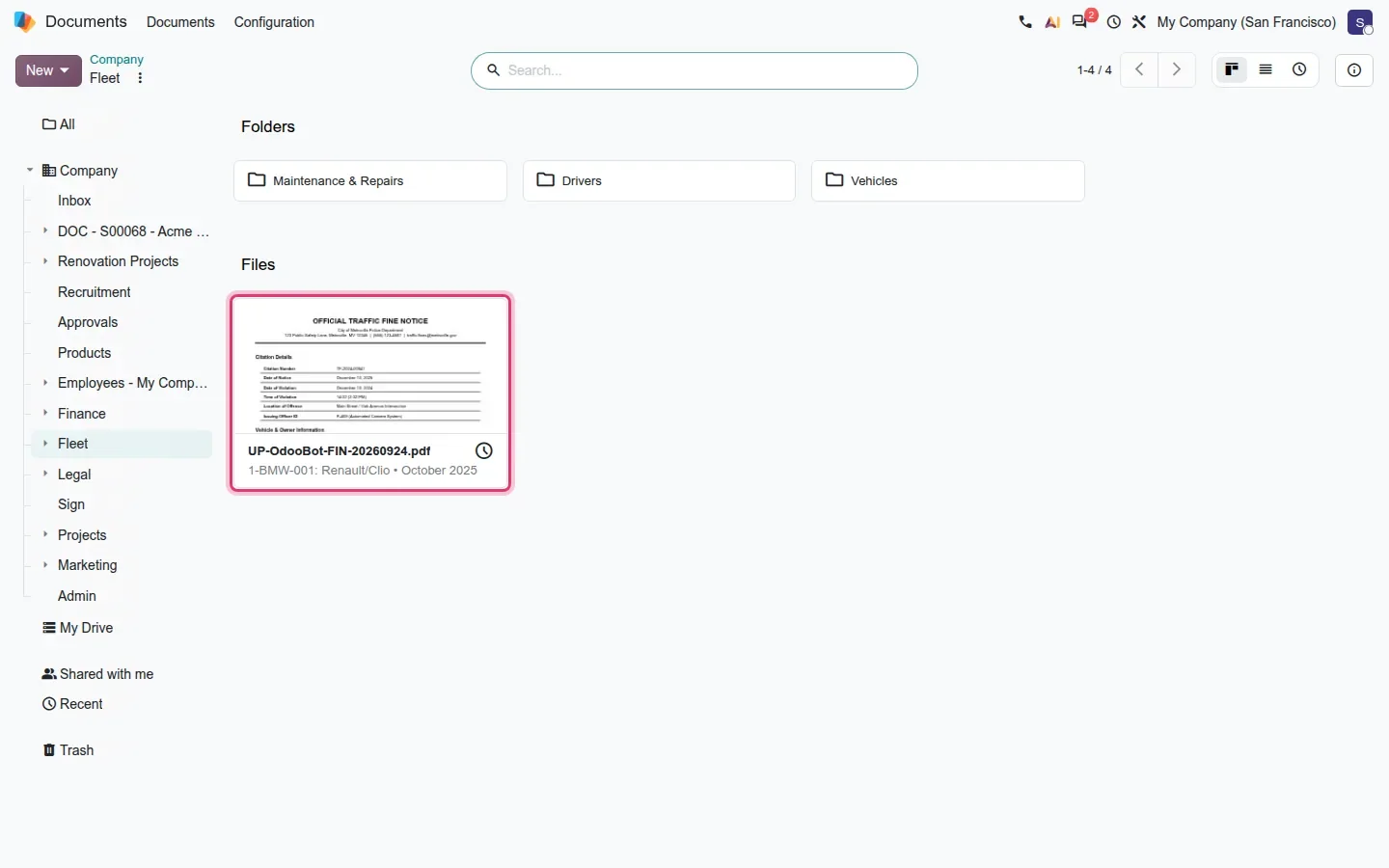
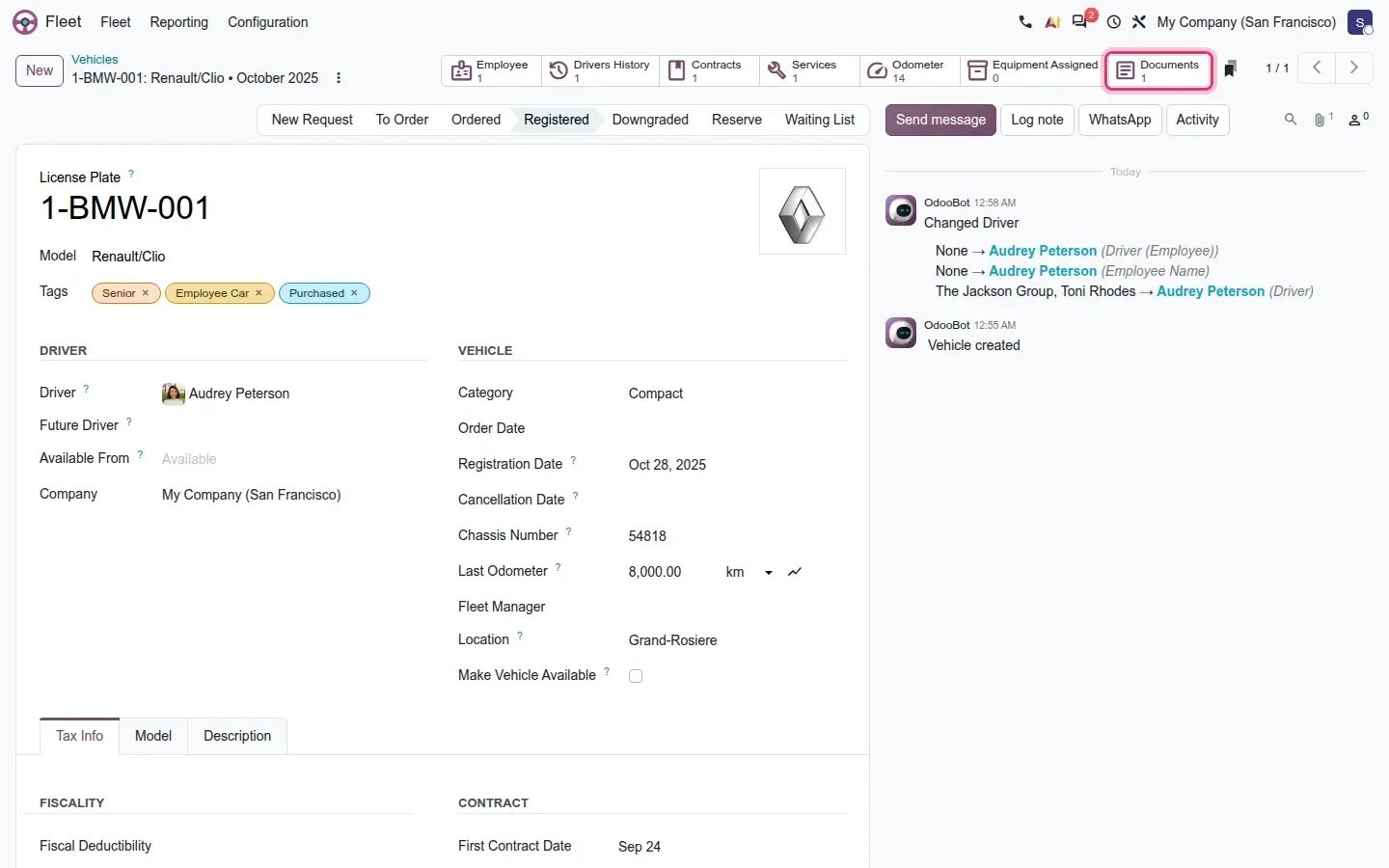
Two things to know before you rely on it. Sort With AI is a one-shot request, which is why it worked on our private demo where agent chats did not. And like every AI feature in Odoo 20, it sends the document to Odoo's AI proxy and is billed in IAP credits, according to the 20.0 source. If fines and repair invoices contain data that must not leave the server, keep that folder out of the AI path.
Applicant, certificate and signed HR files land in Documents
Three bridge modules connect HR to the folder tree. documents_hr_recruitment files the résumé and cover letter an applicant sends into the Recruitment folder, with the tags you set in the Recruitment settings. documents_hr_skills puts uploaded certificates in each employee's documents folder. documents_hr_sign links signed HR documents to the employee. On the demo, a cover letter attached to the applicant Yin Lee appeared in the Recruitment folder next to the existing CVs.
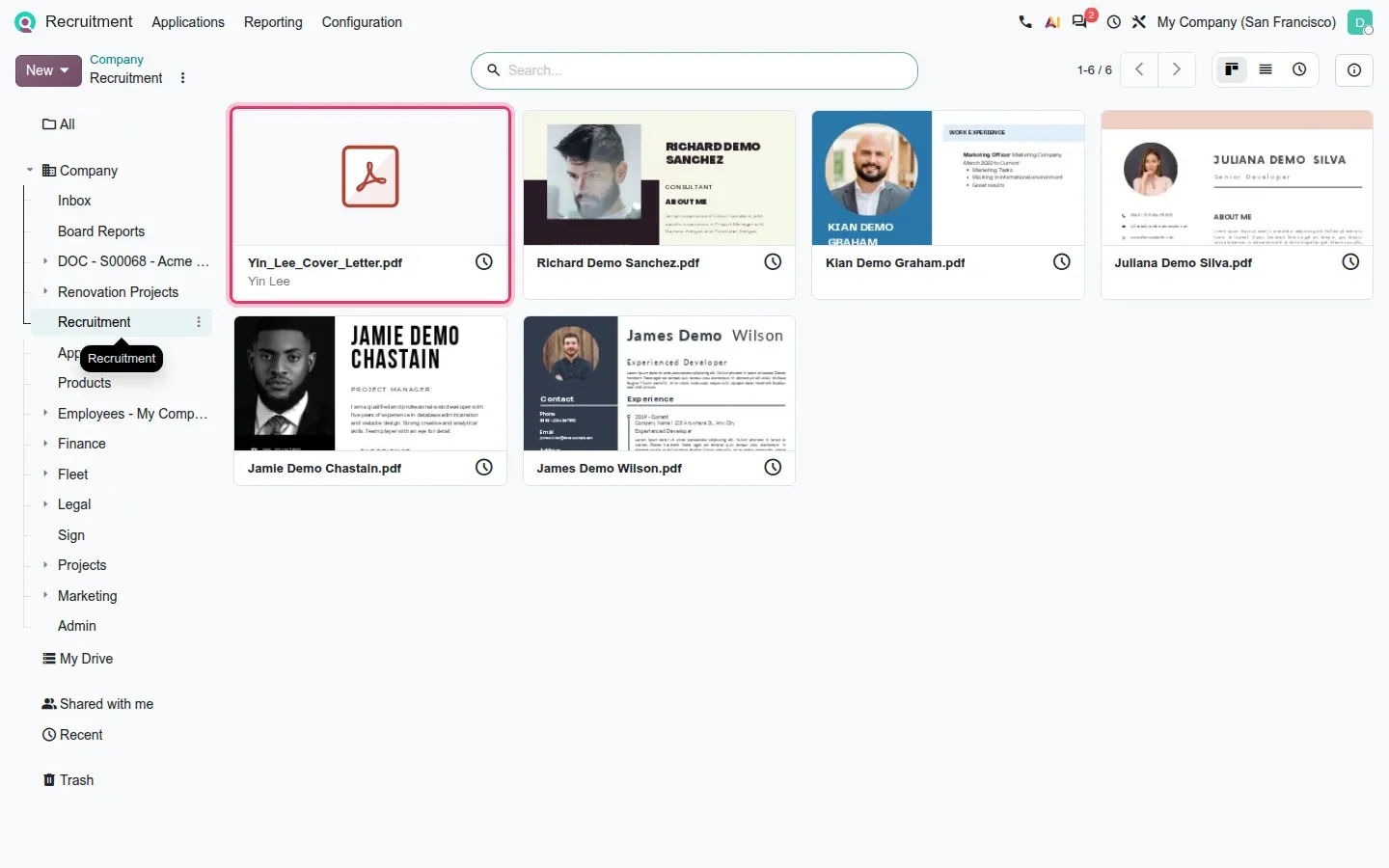
One correction to the feature guide: there is no Documents smart button on the applicant form in this build. The count sits on the applicant's kanban card, where the paperclip opens Documents, and the Job form has a Documents stat button.
Anchor links on public articles and an Annual Report list
Knowledge takes the Frost redesign and gains one small feature people asked for: on a read-only or public article, hovering a heading shows a copy-link icon, so a reader can share a link to a specific section even when the editor is not loaded. The anchor depends on an identifier the editor writes on each heading when the article is saved, so an article nobody has edited since the upgrade, such as the demo Helpdesk FAQ, shows no anchor until someone opens and saves it. Knowledge articles can also serve as sources for AI agents, covered in the AI agents post of this series.
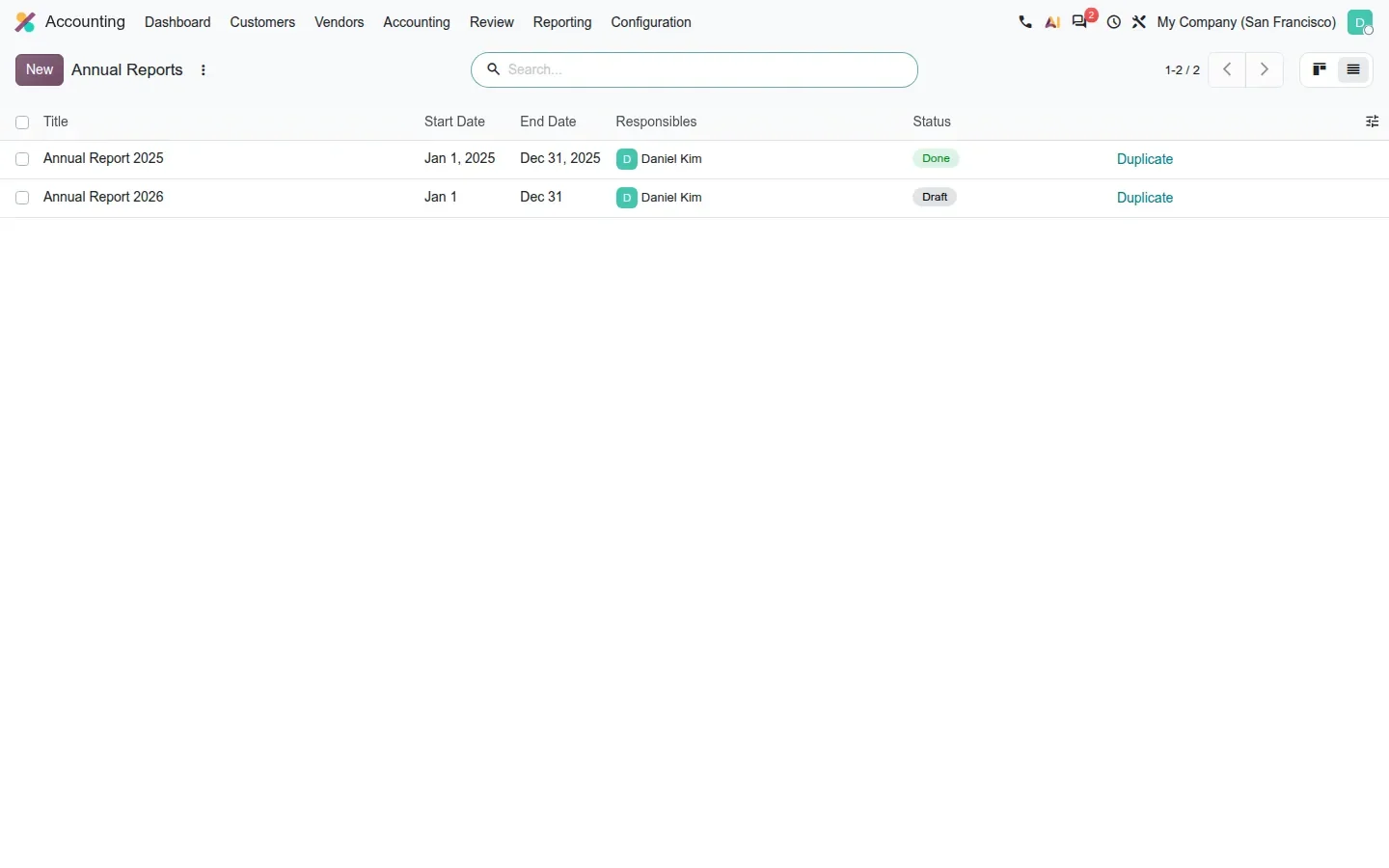
For accountants, the Knowledge-based reporting workflow renames Audit Report to Annual Report and gets a real list under Accounting > Reporting > Annual Report: title, start and end dates, responsibles, a status badge and a Duplicate action per row. The report applies the company layout and always exposes the PDF download. A French module adds the plaquettes annual report template built on the French chart of accounts; we did not check it on this database.
How to try it on a demo database
- Open Documents, right-click the Finance folder in the left panel and choose Search in Folder. Type INV and watch the All children facet appear.
- Right-click any folder and choose Share. Switch to Add Groups, pick a group from Documents > Configuration > Groups, set its role, then add one person with a different role.
- Right-click a PDF card, choose Manage Versions and upload a new version. Click Delete on each row in turn to read the two confirmation messages, then cancel both.
- Drop a PDF that mentions a vehicle plate into Documents > Inbox, open it and click Sort With AI. Then open Fleet, find the vehicle and click its Documents smart button.
- In Knowledge, publish an article, open it as a visitor and hover a heading to see the copy-link icon.
- In Accounting, open Reporting > Annual Report to see the list view with its status badges.
What we could not verify on the pre-release build
We could not register a new user from a share invitation, because the demo has no outgoing email. The applicant Documents smart button described in the guide does not exist on the applicant form in this build, so we show the filed cover letter instead. The French plaquettes template was not checked on this database, and the Frost styling of the Knowledge editor belongs to our post on the redesign. Everything else on this page was clicked through on the 20.0 Enterprise build of 23 September 2026.
What this means for an upgrade
If you run Documents on Odoo 17, 18 or 19, your folder rights are lists of individuals, and they will migrate as individual rows. Use the upgrade to define functional groups under Documents > Configuration > Groups, re-share the top-level folders once, then remove the personal rows. Check whether any procedure still uses the old Audit Report name in Knowledge, since it becomes Annual Report. If scanned paperwork reaches the Inbox by email, decide before go-live whether AI sorting may read it, because it costs IAP credits and sends the file to Odoo's proxy. We plan both steps in our migration service, and the series hub lists the other changes that touch the same upgrade.
Frequently asked questions
Can I share an Odoo 20 Documents folder with a user group?
Yes. The Share dialog has an Add Groups mode next to Add People, and a group row receives a role such as Editor or Viewer. Members added to the group later inherit the access, and when a user has several rights the highest level wins. Groups are managed under Documents > Configuration > Groups.
What does Search in Folder do in Odoo 20 Documents?
It adds an All children facet to the search bar so your term is matched against the selected folder and every subfolder below it. You reach it by right-clicking a folder in the left panel or from its cog menu, with no custom filter to write.
How does Sort With AI link a document to a Fleet vehicle?
The AI reads the document, finds the licence plate and matches it to a vehicle in Fleet. On the pre-release build it renamed a scanned fine, moved it from Inbox to the Fleet folder and linked it to vehicle 1-BMW-001, which then showed a Documents smart button with one file.
Does Odoo 20 Documents keep previous versions of a file?
Yes. Manage Versions lists the current and previous versions with Download and Delete buttons and an Upload New Version action. Deleting a previous version warns that it is gone for good; deleting the current one warns that the previous version will be restored.
Can readers link to a specific heading in a Knowledge article?
Yes, on read-only and public articles. Hovering a heading shows a copy-link icon. The anchor relies on an identifier the editor writes when the article is saved, so older articles show it only after someone opens and saves them once.
Is AI sorting in Documents free?
No. According to the 20.0 source, every AI feature sends its request to Odoo's AI proxy and is billed in IAP credits, Sort With AI included. It also needs an internet connection, so a folder that must never leave the server should stay out of the AI path.