
Two marketing apps that a marketer can finally run alone
Marketing Automation has always been capable and a little too technical for the marketer it was built for. Odoo 20 works on that from three sides: the audience, with dynamic lists that maintain themselves; the content, with a Templates menu and a Start Designing button inside the campaign; and the control, with a Global Reply Path node that pulls a participant out of the flow when they answer. Social Marketing gets its first real refresh: personal LinkedIn accounts, stories, per-network character counters and a reworked connection flow. This post is for the marketing manager who runs both in a small or mid-size company.
We cover the non-AI changes here and show the screens as they are on the pre-release build. Both apps also gain an AI assistant; those belong to the AI agents post of this series. Where the build differs from the guide, we follow the build.
Observed on the Odoo 20.0 Enterprise pre-release build of September 23, 2026. Names, menus and availability can change before general availability; we will update this page when they do.
Dynamic lists keep the audience current without an import
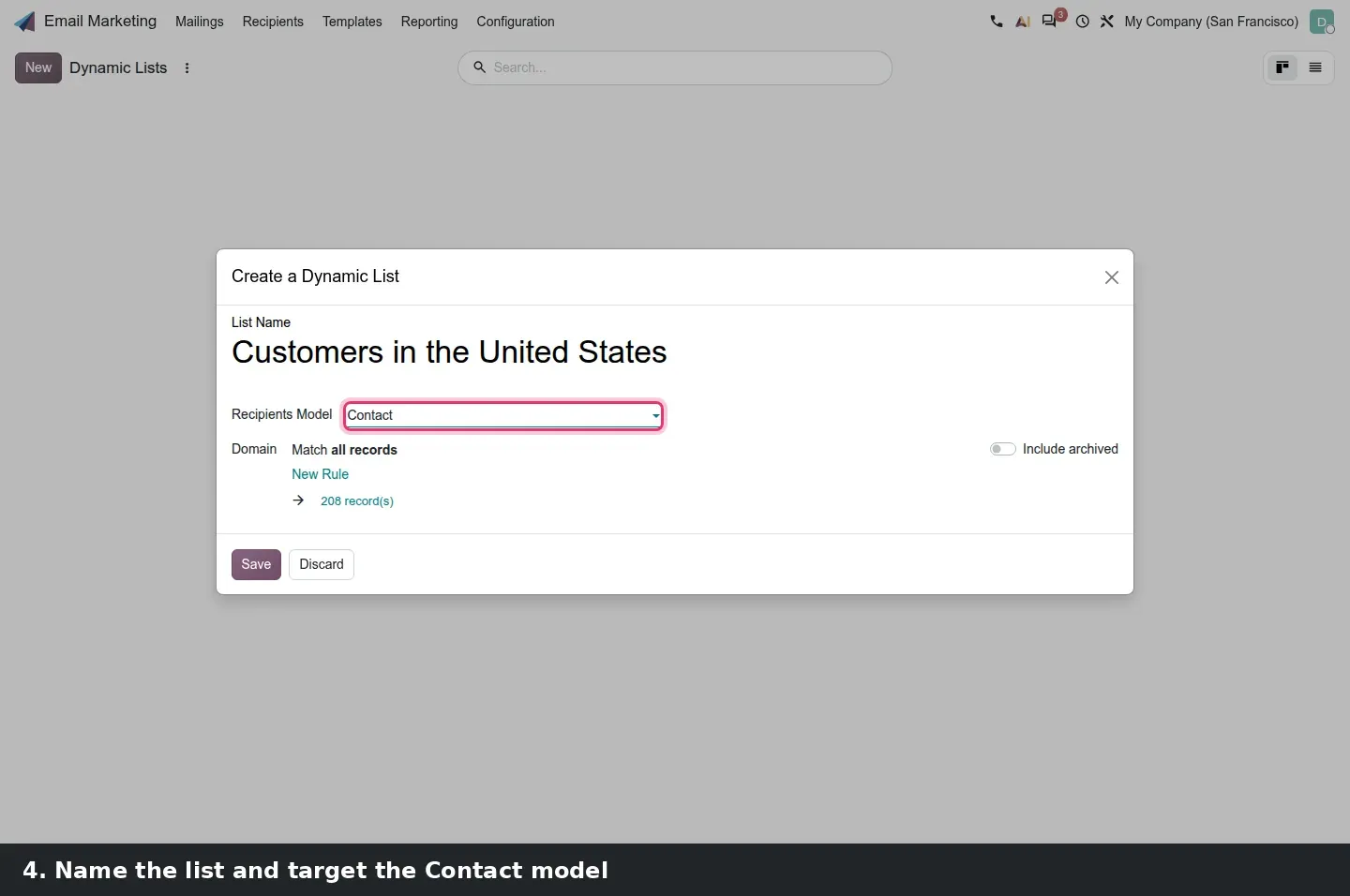
Until now a campaign audience was either a filter written on the campaign or a mailing list you kept up to date by hand. Odoo 20 adds dynamic lists. A dynamic list has a Recipients Model and a set of rules, and every record that matches is in the list, today and each time the campaign checks again. On the pre-release build the menu is Email Marketing > Recipients > Dynamic Lists rather than a dynamic option on a classic list as the guide suggests. The form is short: List Name, Recipients Model, the rule editor, a live record count under the rules and an Include Archived toggle.
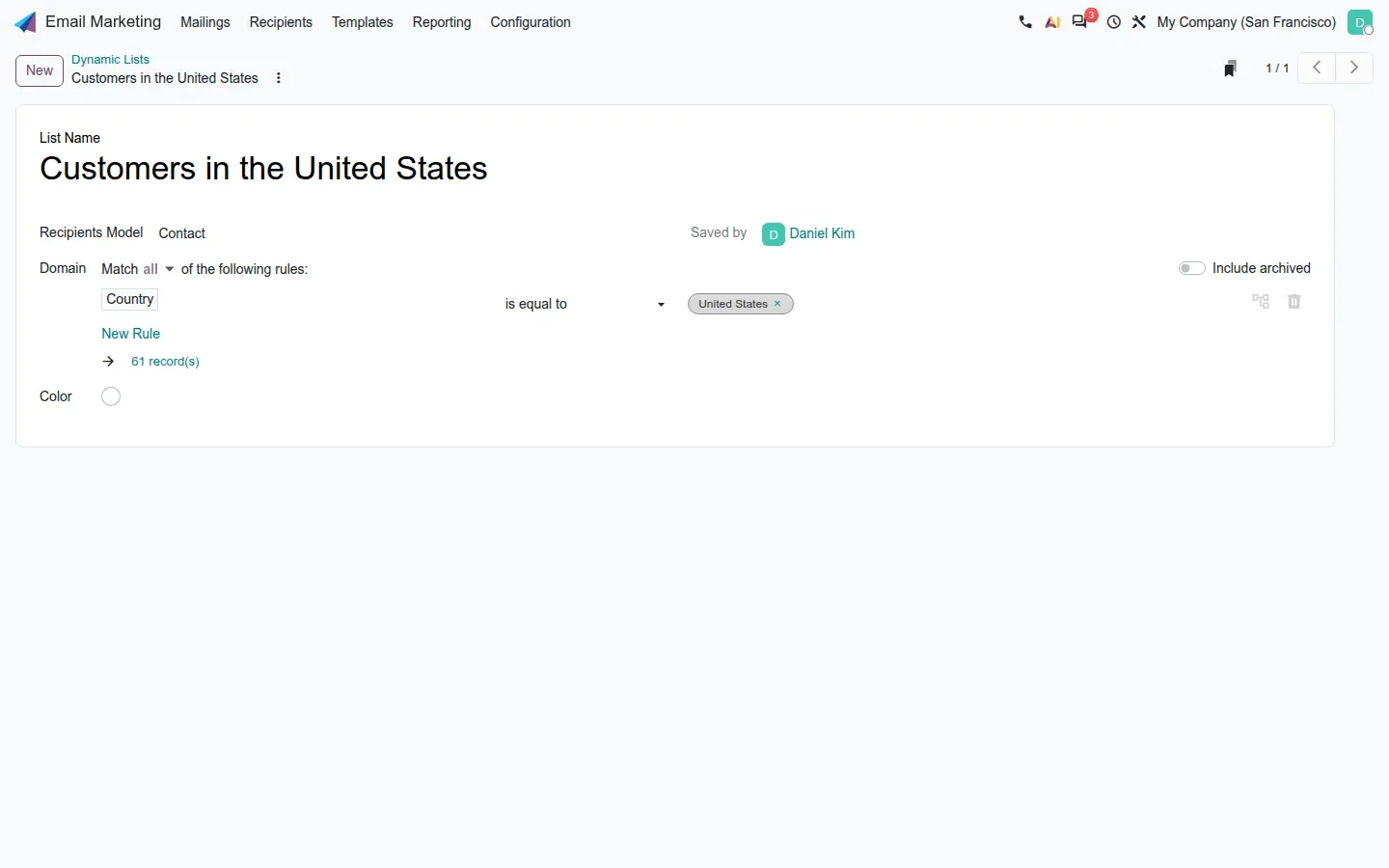
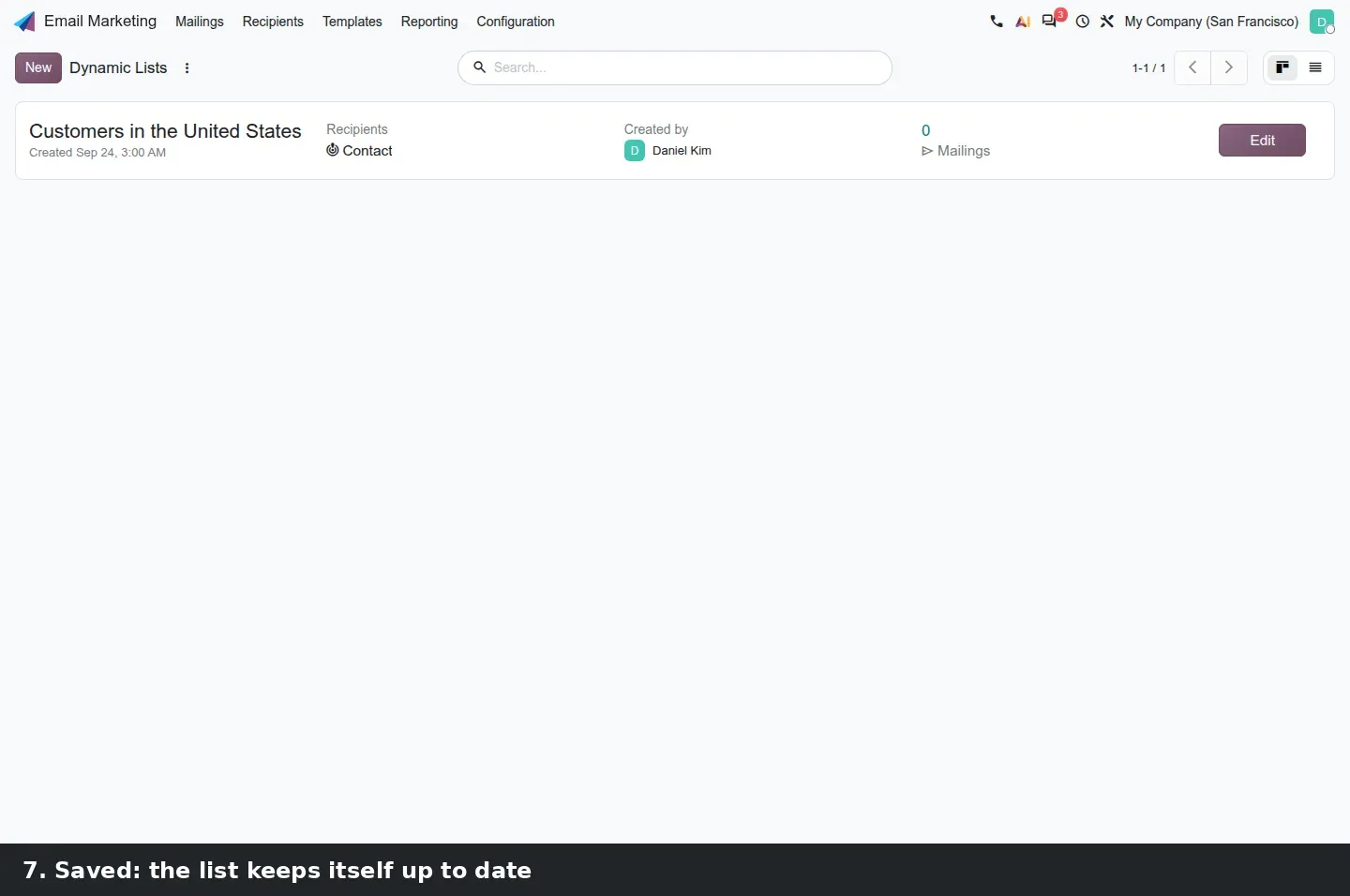
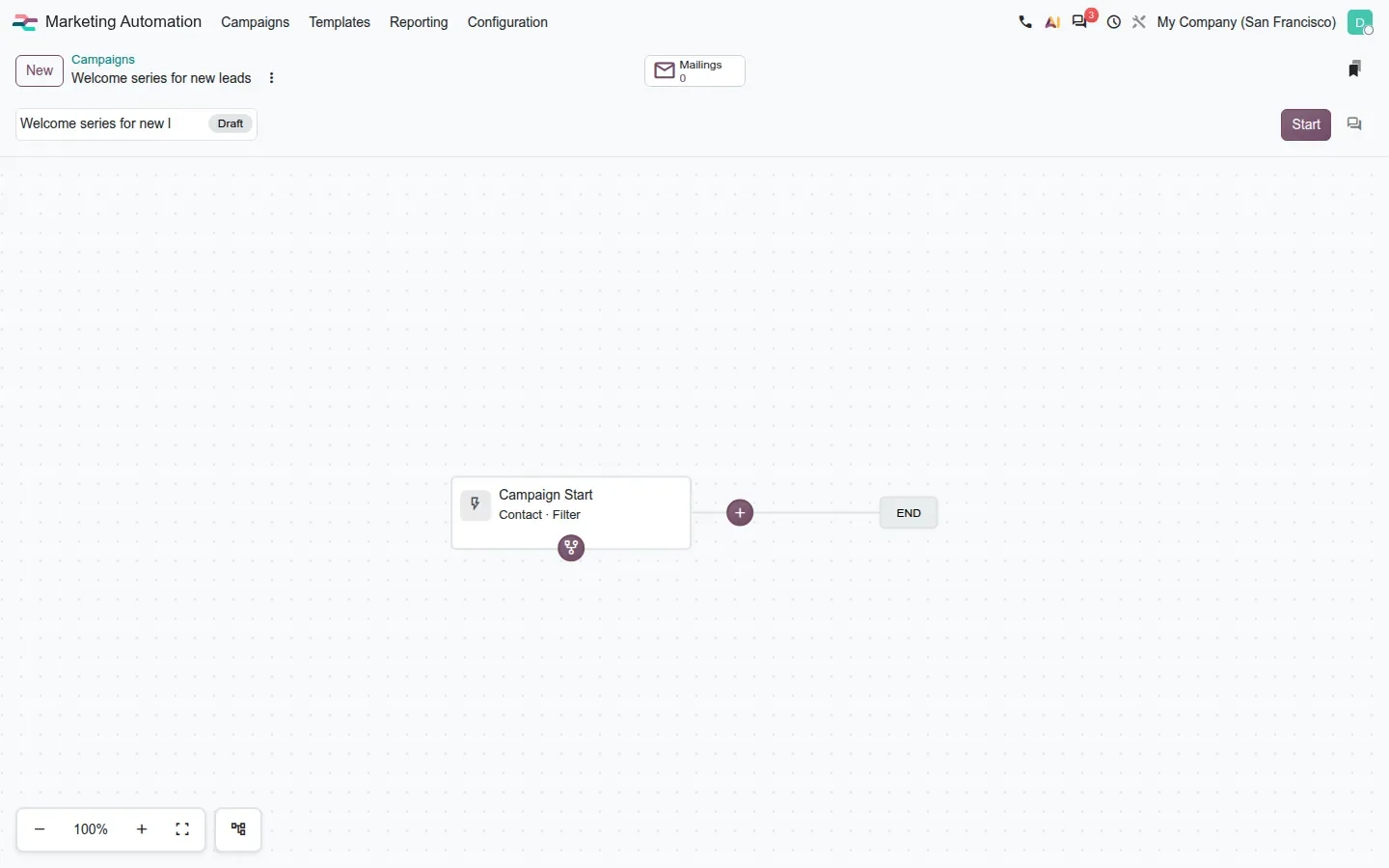
The list then becomes a trigger. When you define the trigger of a new campaign, the dynamic list is offered as the audience and the Campaign Start node carries it. For a marketing manager this replaces the monthly export of a segment from CRM and its re-import into a mailing list: the rule, not a snapshot, defines who is in.
Templates and Start Designing: build the email without leaving the campaign
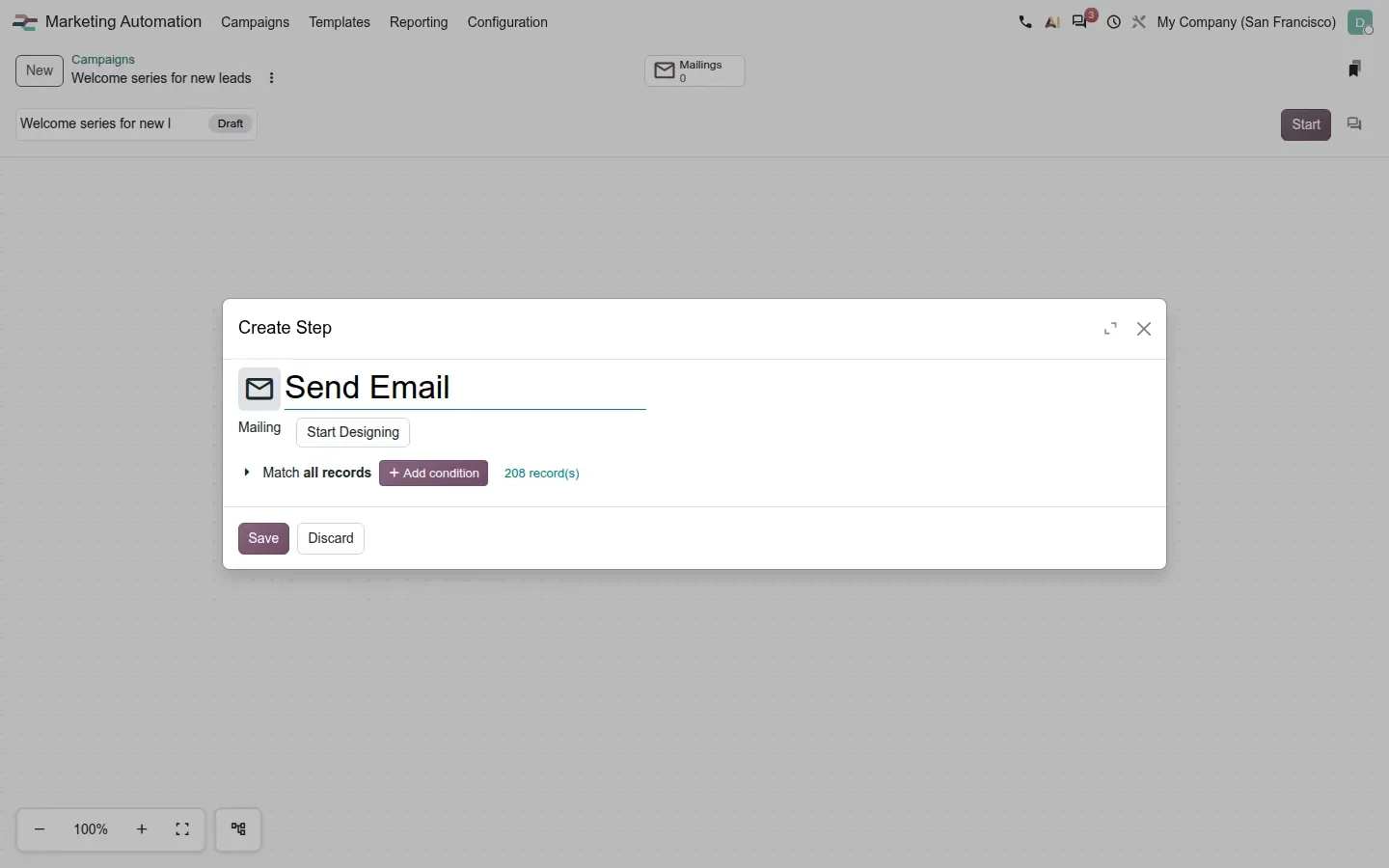
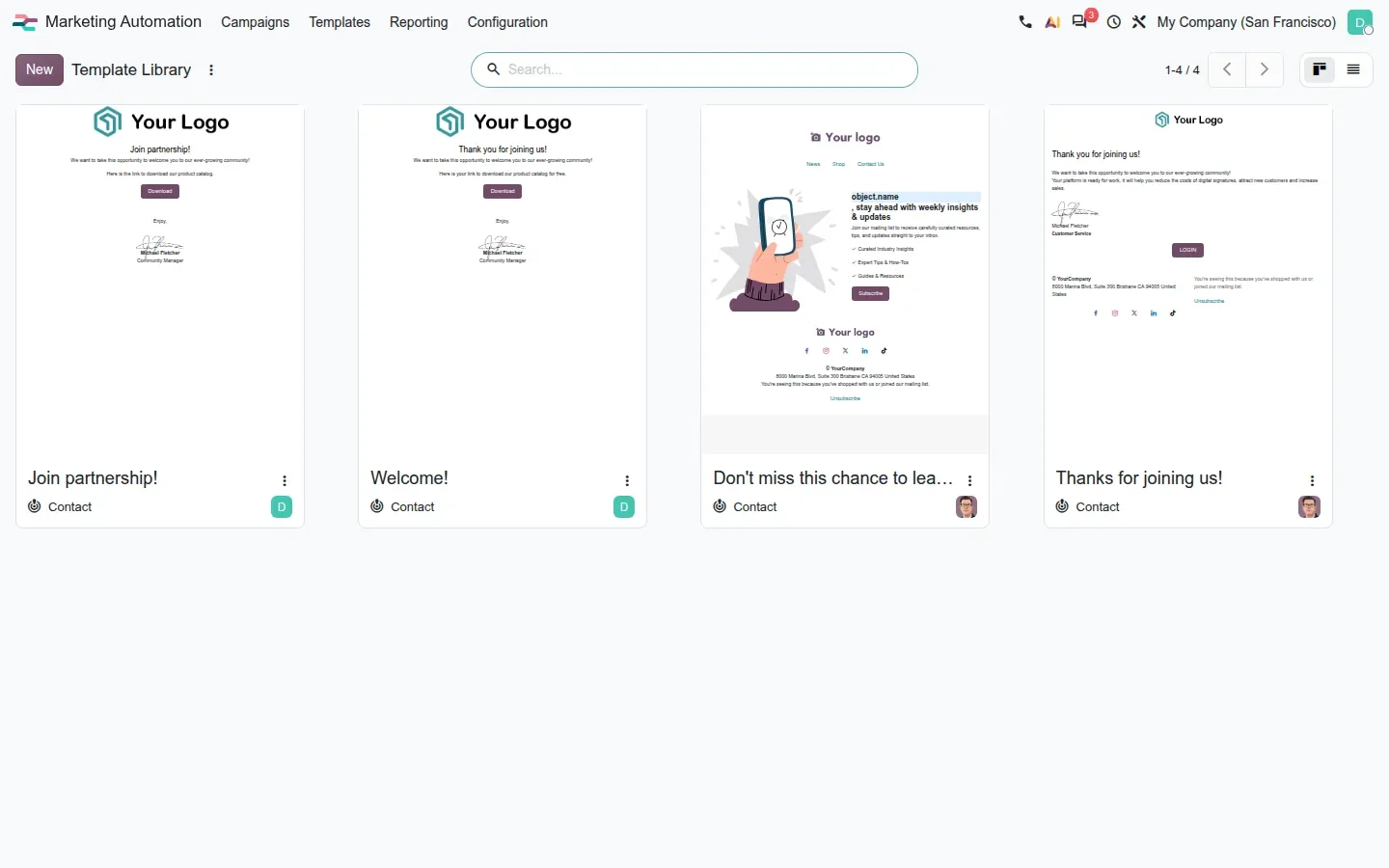
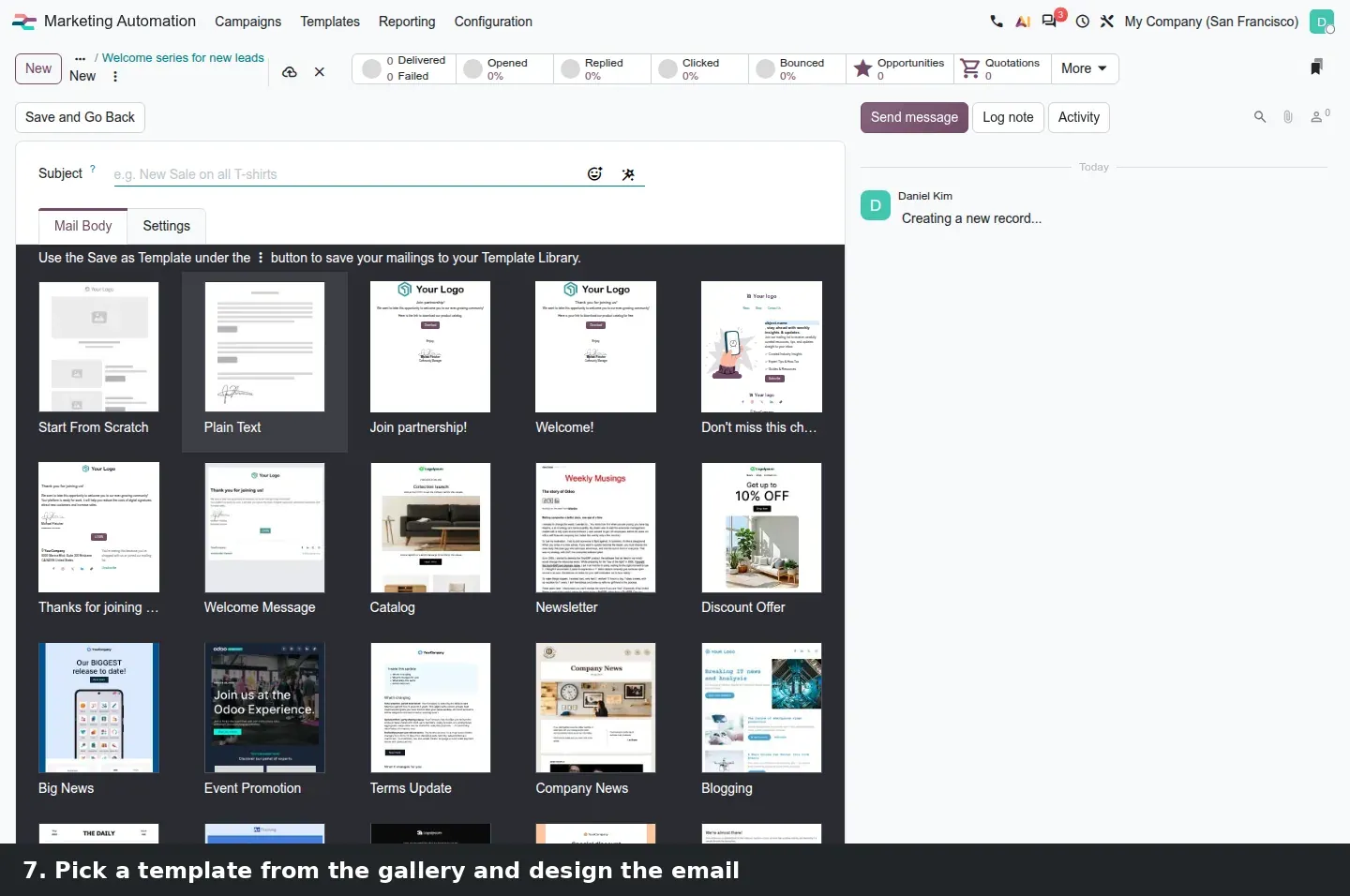
Marketing Automation gets its own Templates menu, the same Template Library that Email Marketing uses. More useful day to day is the Start Designing button. When you add a Send Email step and no mailing exists yet, the Create Step dialog shows Start Designing in the Mailing field. It opens the mailing editor on the template gallery, your saved templates first, and brings you back to the campaign once the email is built. The same dialog shows the step audience, Match All Records with a live record count, so you can narrow a step before you design its email.
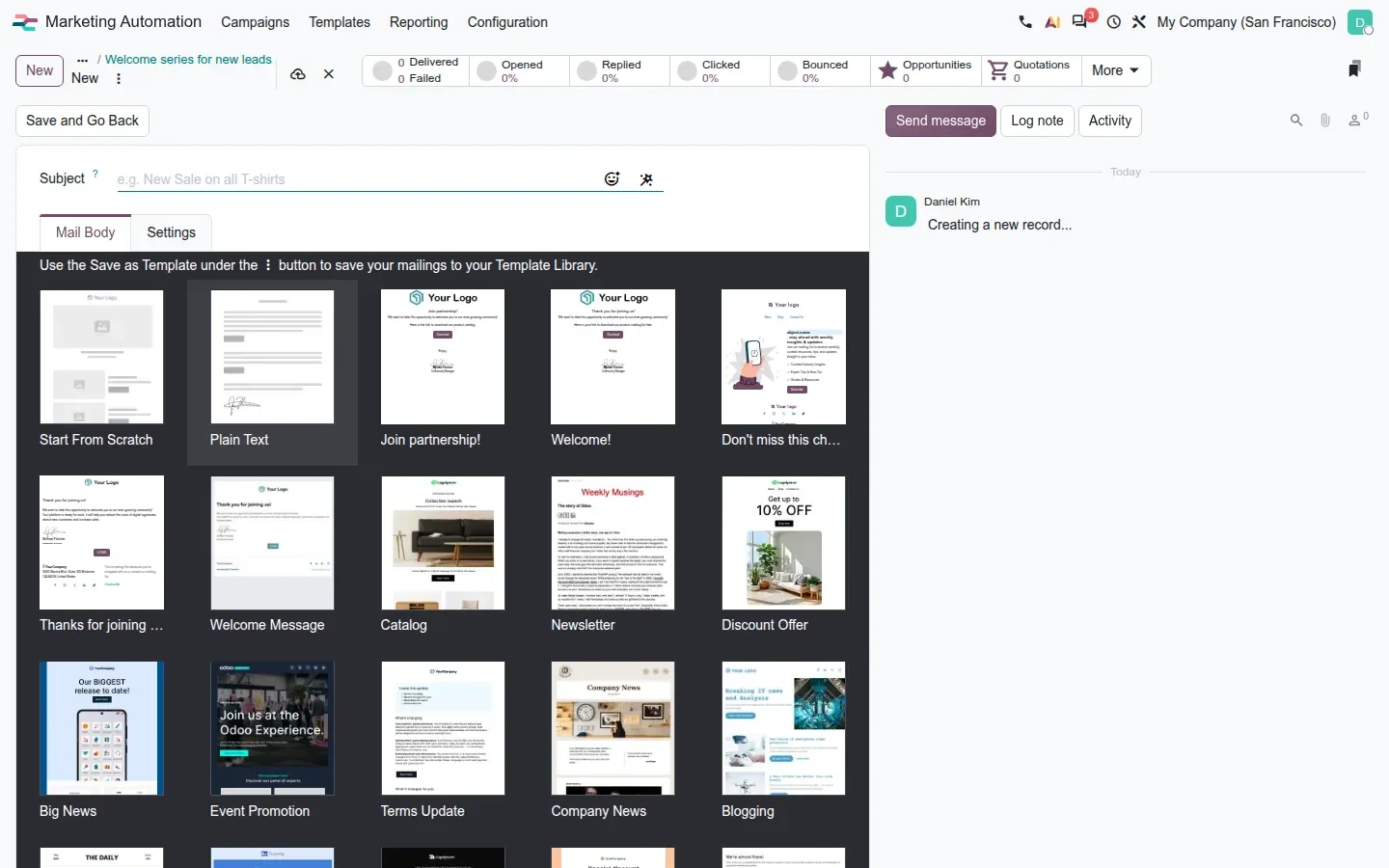
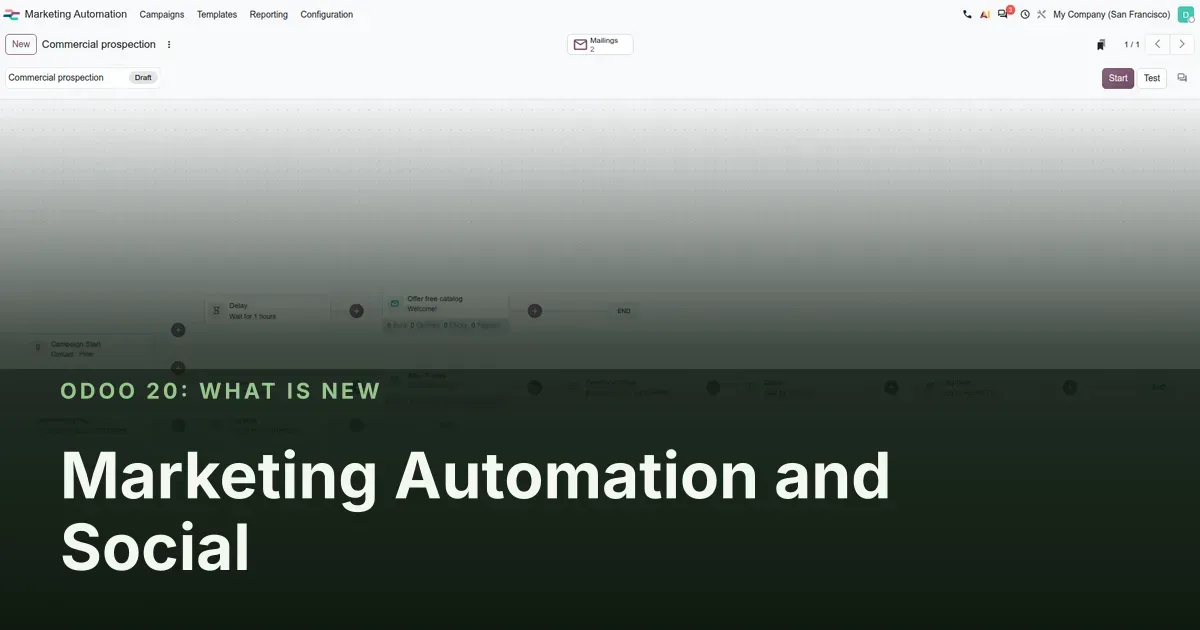
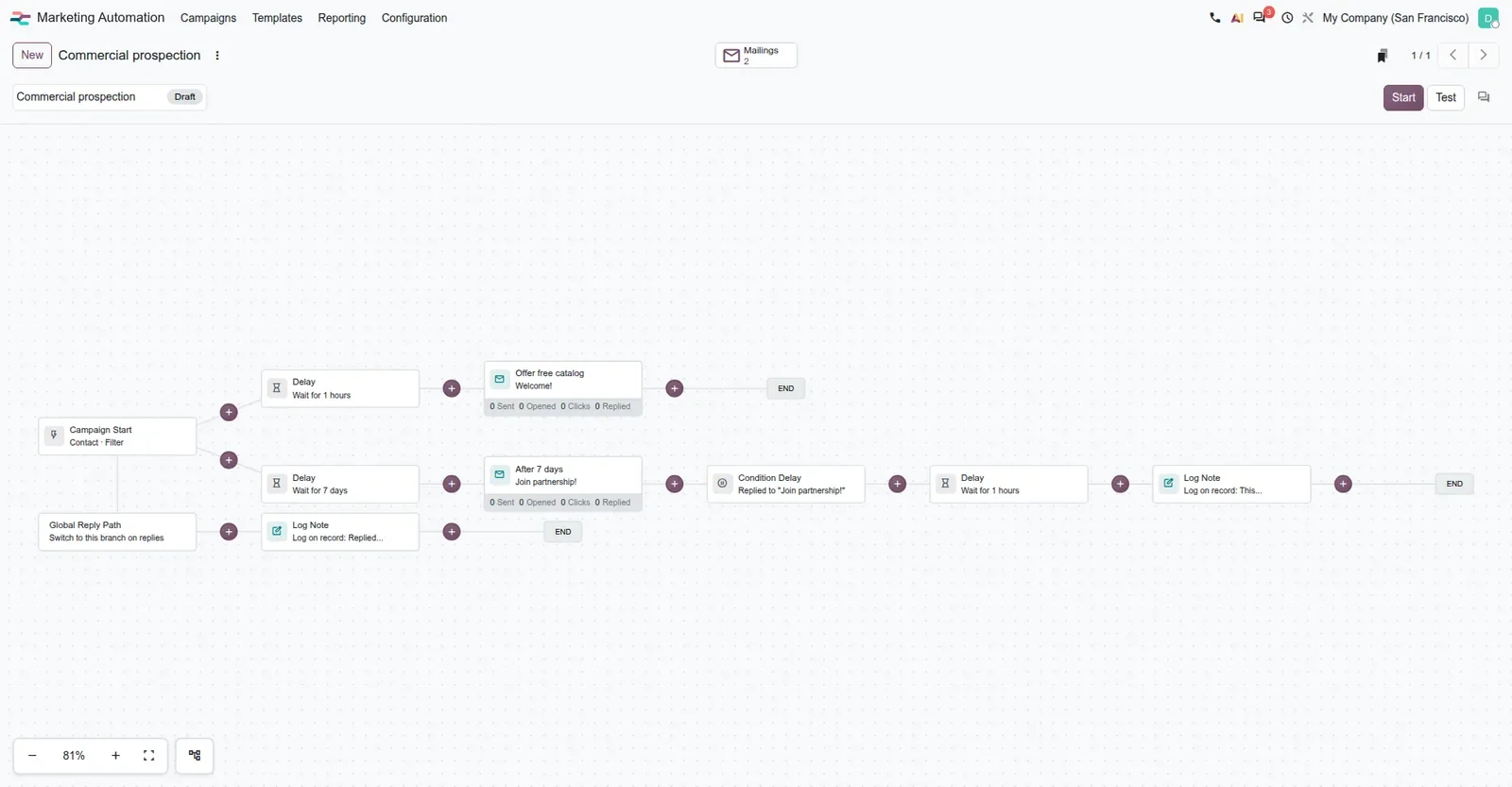
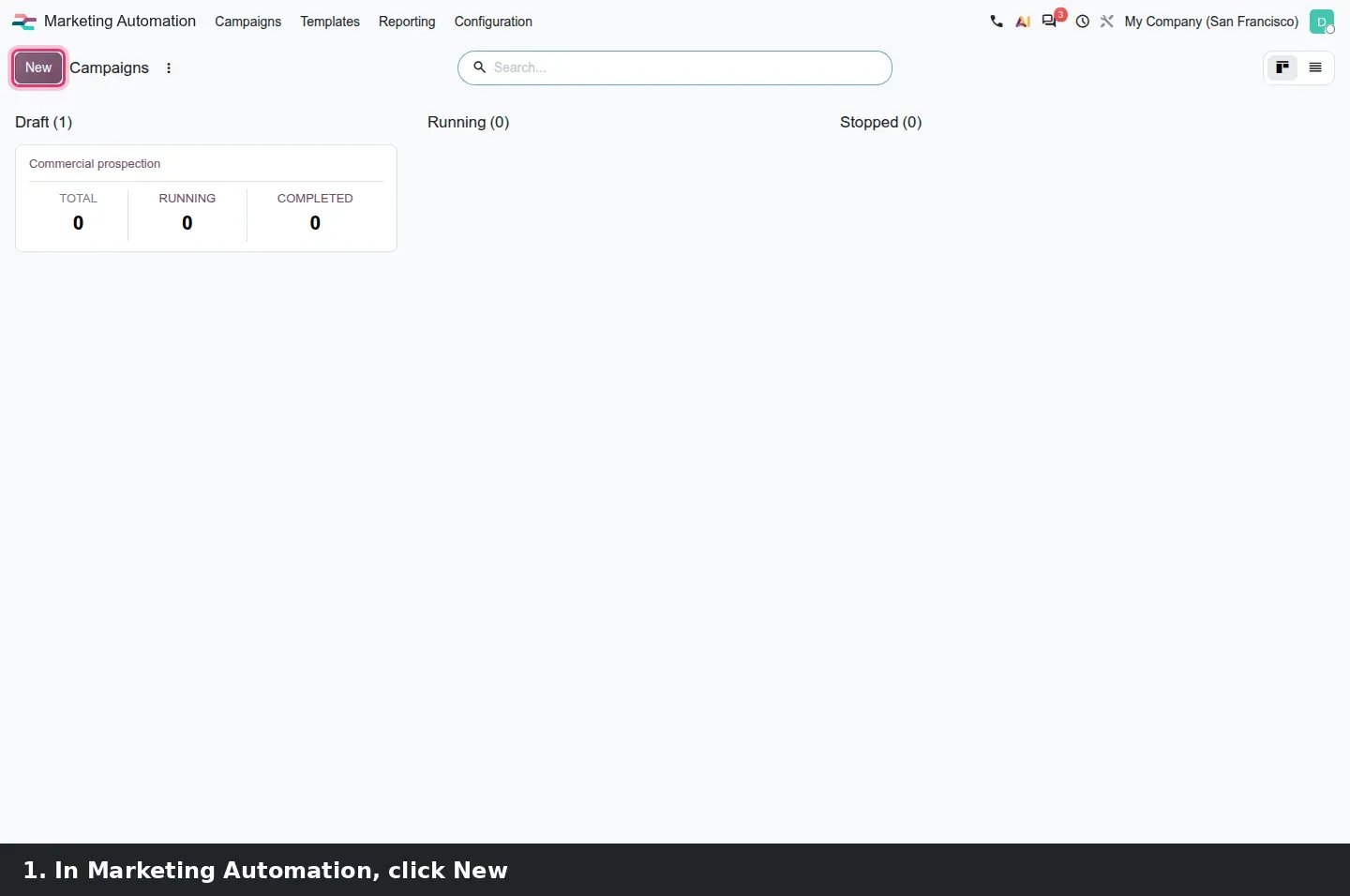
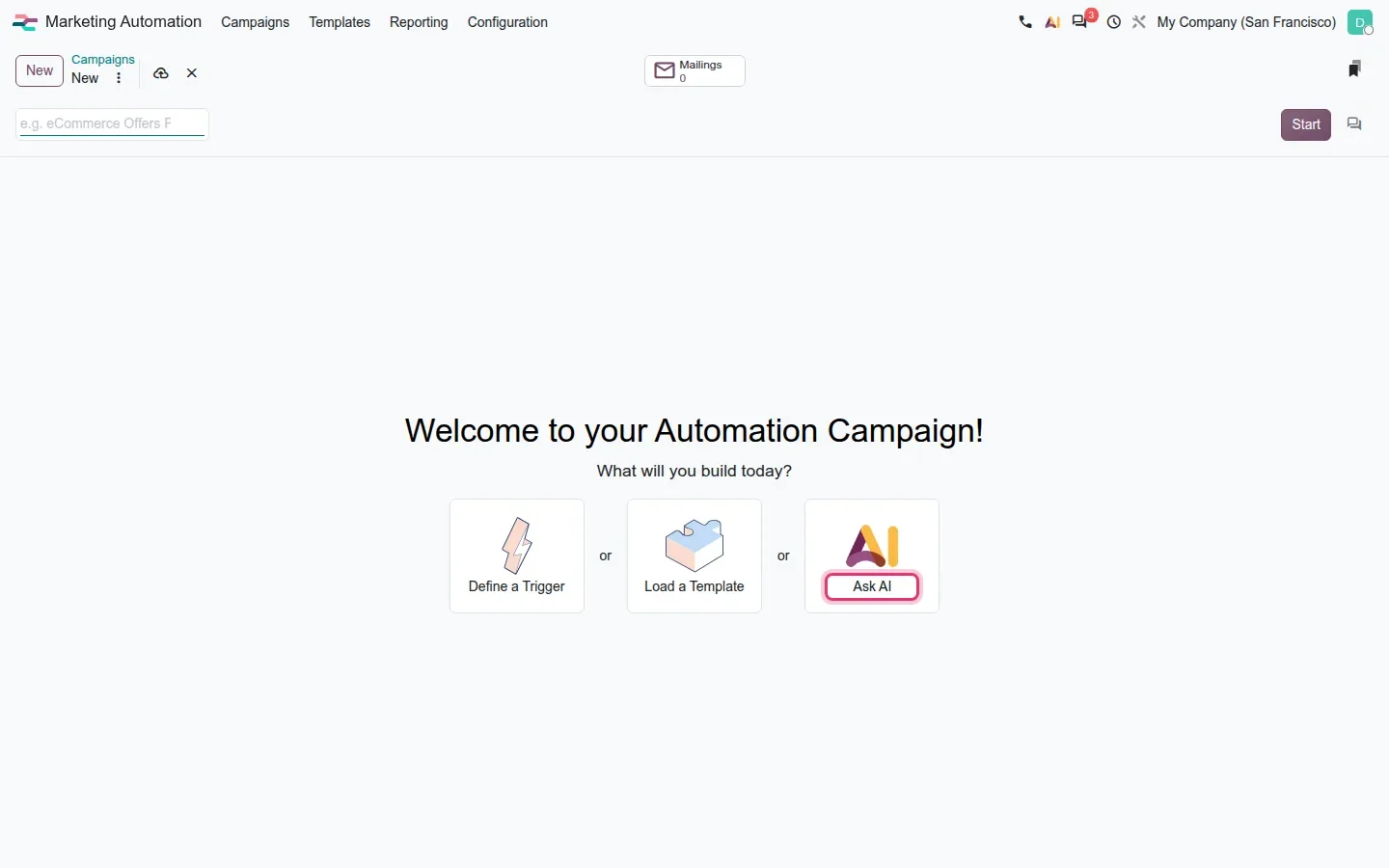
On the campaign form, the Mailings stat button now lists every mailing linked to that campaign. A new campaign opens on a welcome screen with three choices, Define a Trigger, Load a Template and Ask AI; we built the Commercial prospection campaign shown below from a built-in template. Ask AI opens the AI Campaign Assistant, with its Help me create a campaign and Improve my campaign shortcuts, which we cover in the AI agents post.
The composer: character counters, first comment, stories and a calendar with icons
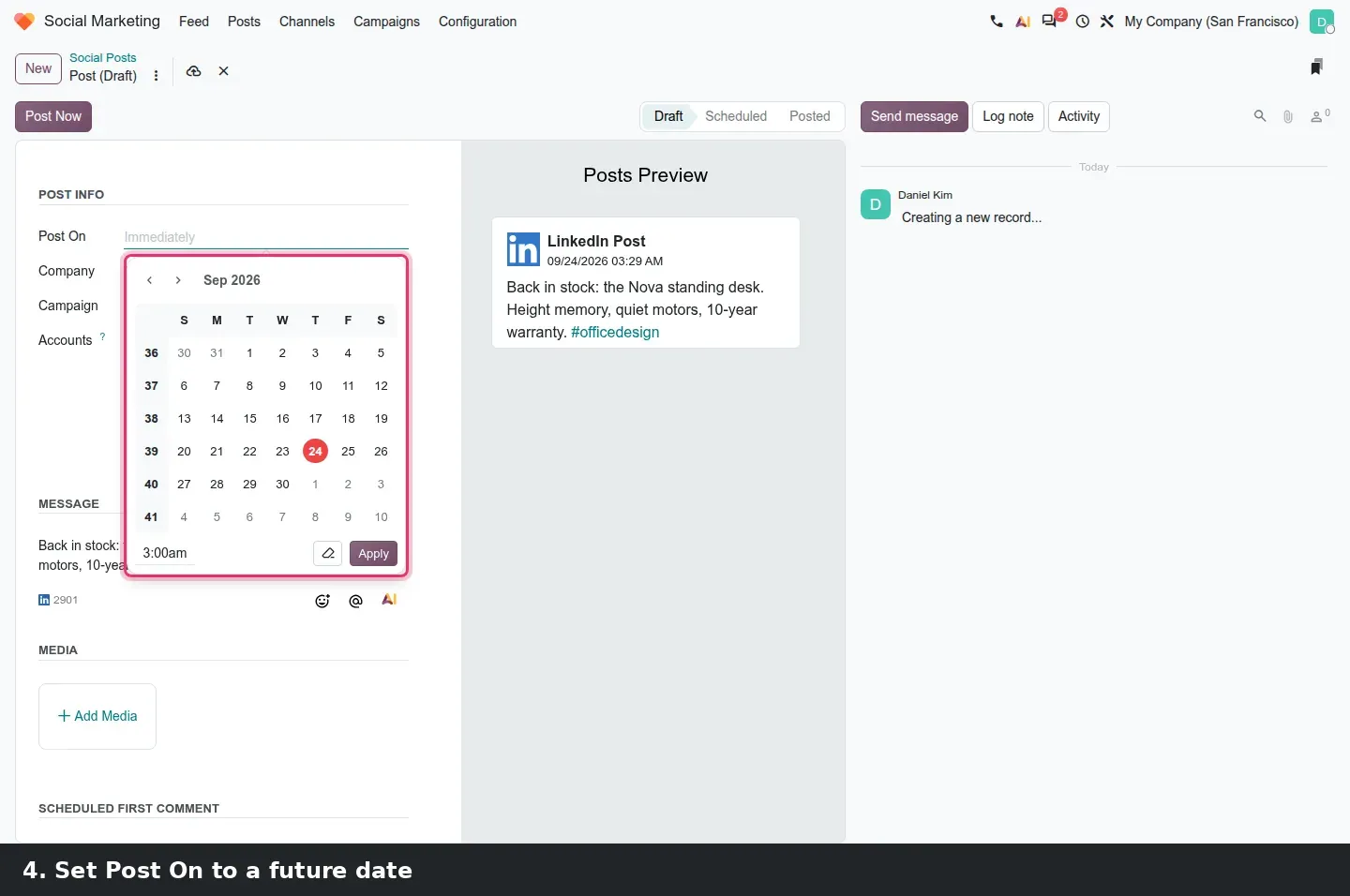
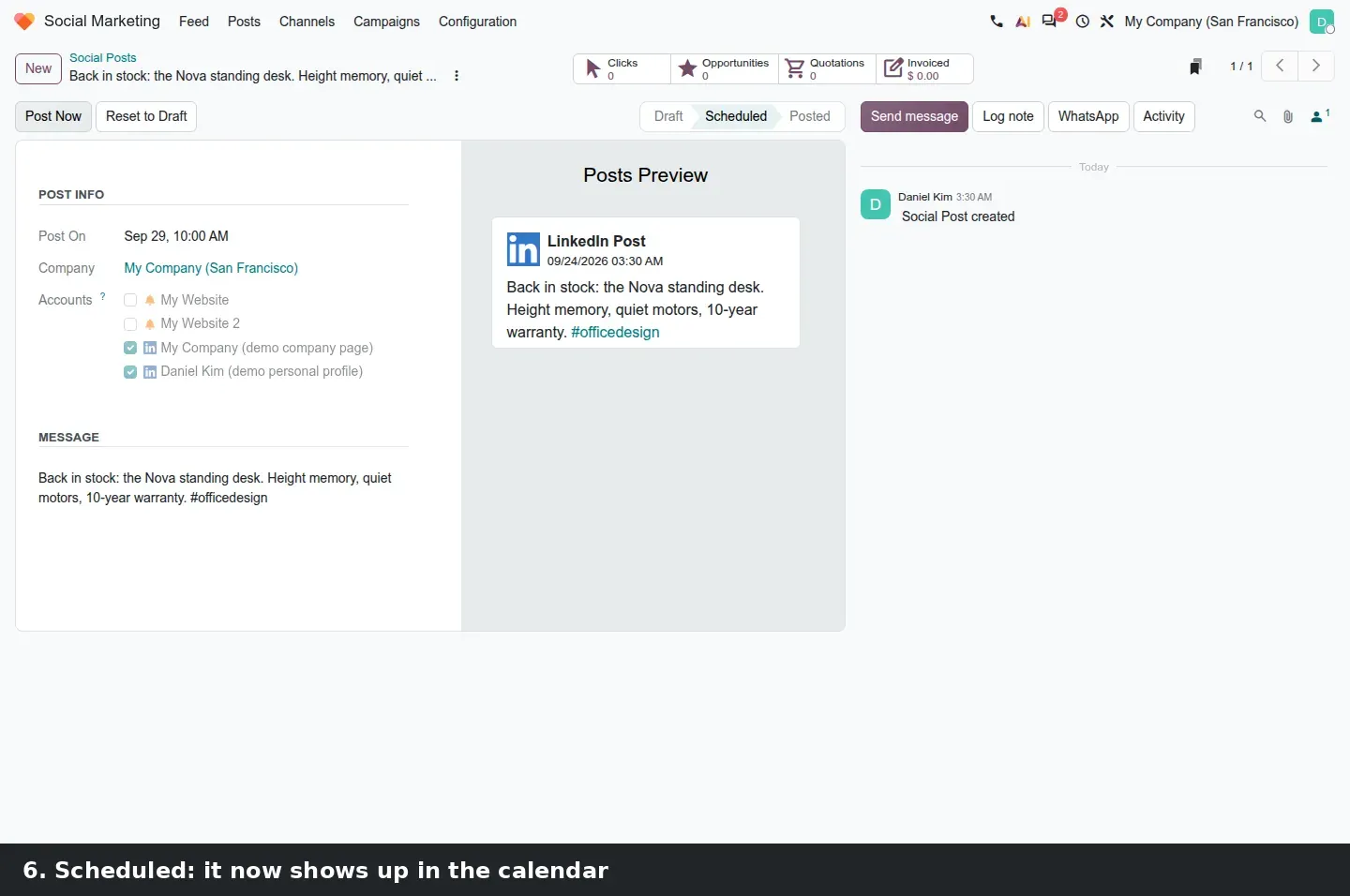
The composer is where the daily work happens. Under the Message field a counter shows the remaining characters for each selected network, with the network icon next to it, and the Posts Preview panel renders the post as the network will show it. Post On defaults to Immediately; pick a date, click Schedule and the post moves to Scheduled. A Scheduled First Comment section holds the comment Odoo publishes under your own post as soon as it goes live, and images can be sorted before posting. The post keeps stat buttons for Clicks, Opportunities, Quotations and Invoiced, which ties a social post to CRM and sales on the same database.
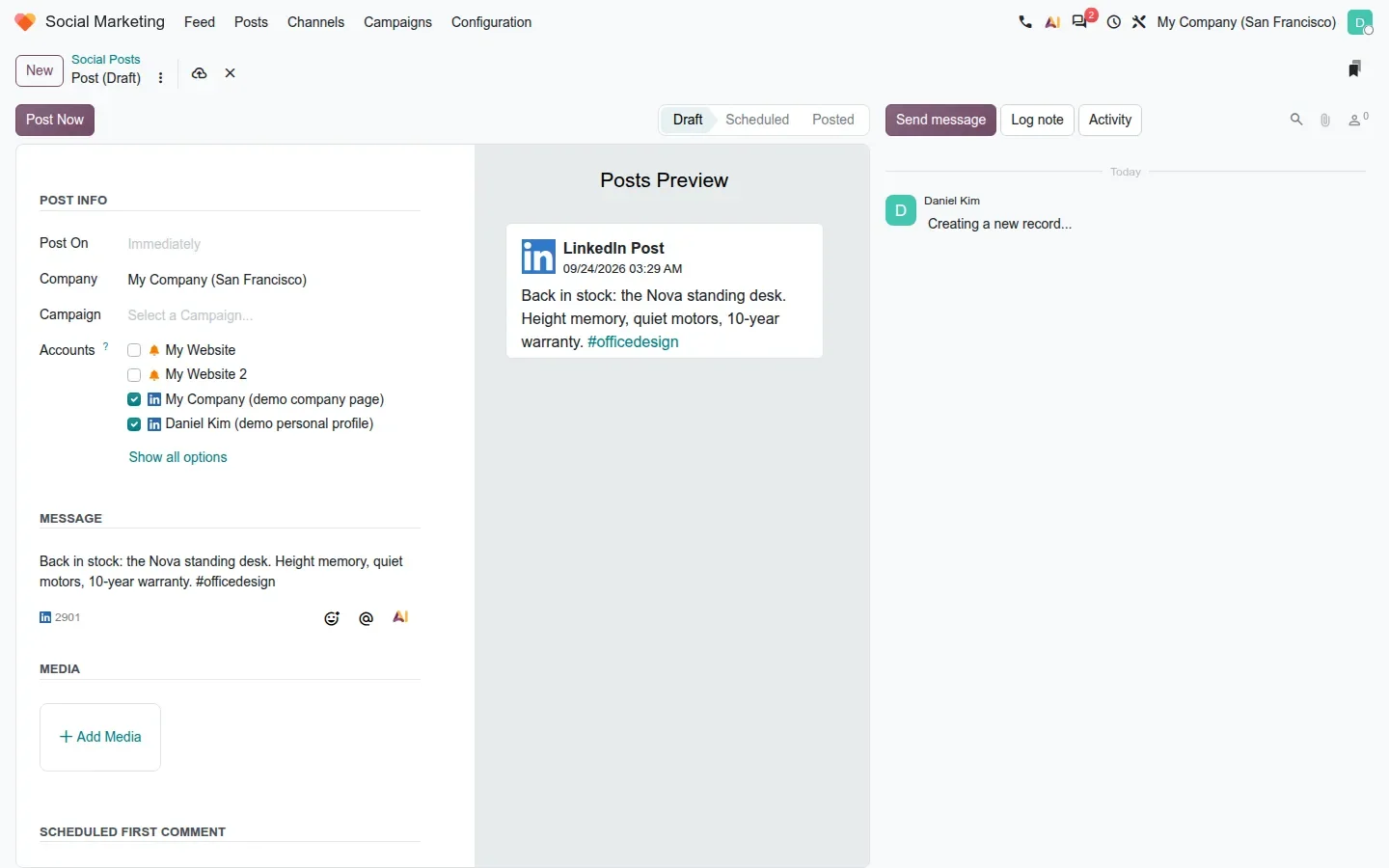
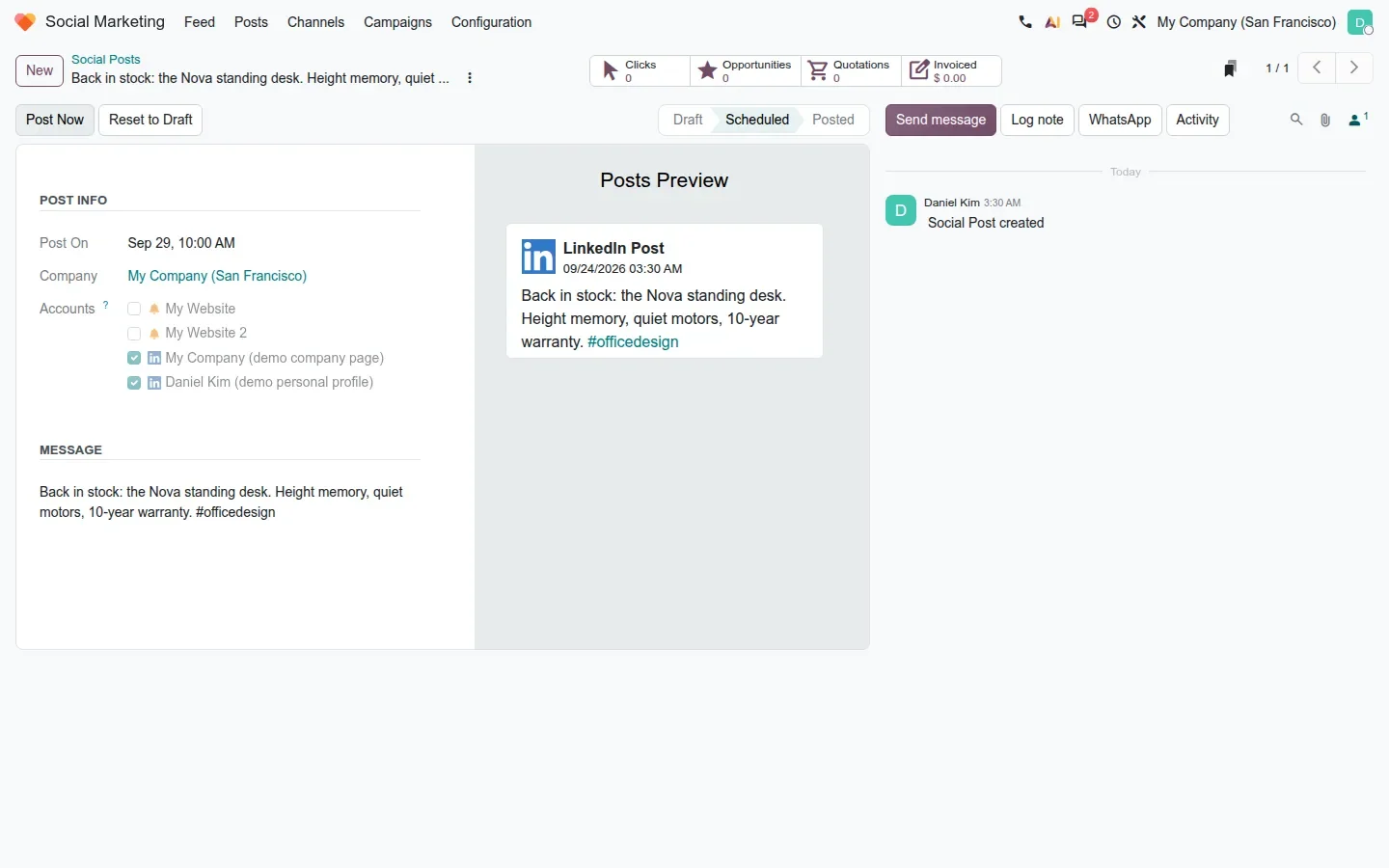
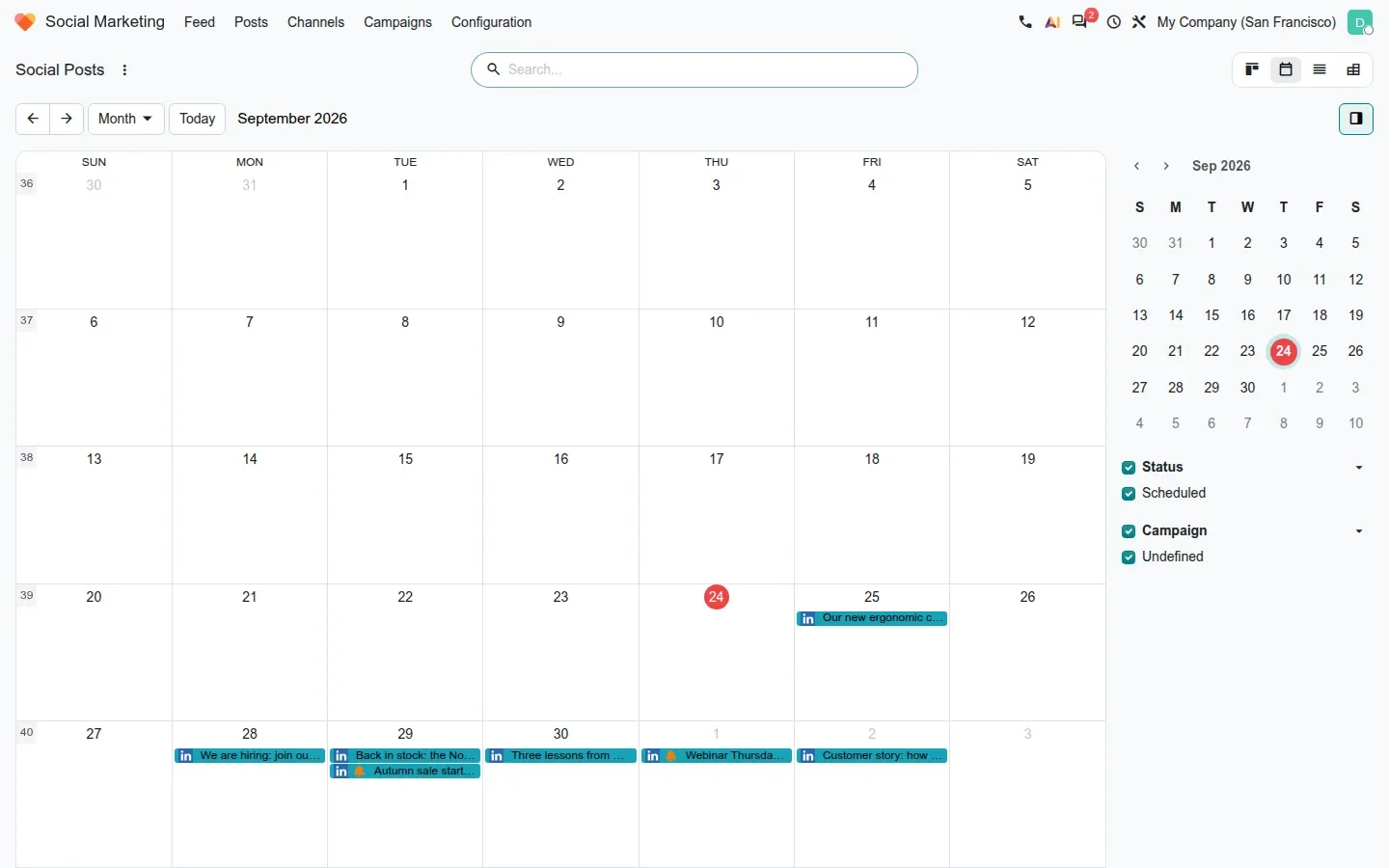
The Posts calendar shows the network icon on every entry. On live posts, engagement is split into likes, comments and shares instead of one aggregate figure; the kanban cards on the build already show separate Clicks, Likes, Comments and Shares rows. A live post can be cancelled at the last minute, and the digest email gains a Social Media Clicks indicator. Stories are the other headline: when you compose for Facebook or Instagram, Post as Story publishes the item as a story, the live post keeps the story URL, and the Live Posts kanban shows a story card until it expires. With ai_social installed, the AI icon in the Message field opens a Social Post Editor assistant that drafts the text from your brief.
How to try it on a demo database
- Install Marketing Automation, Email Marketing and Social Marketing on a 20.0 demo database with demo data.
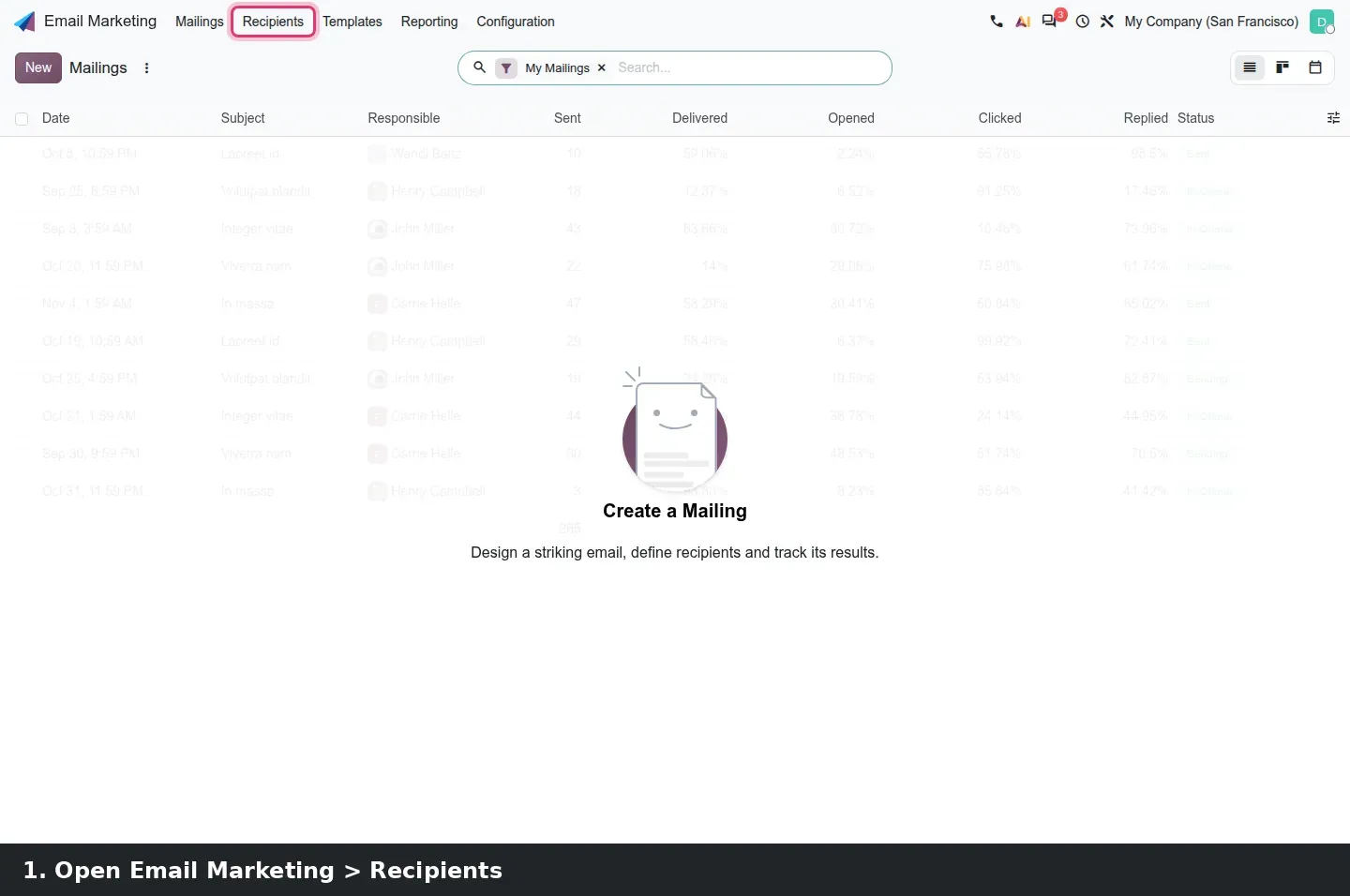
- Go to Email Marketing > Recipients > Dynamic Lists, click New, set Recipients Model to Contact, add a rule such as Country is equal to United States and save.
- Go to Marketing Automation > Campaigns, click New, choose Define a Trigger and pick the dynamic list, or Load a Template.
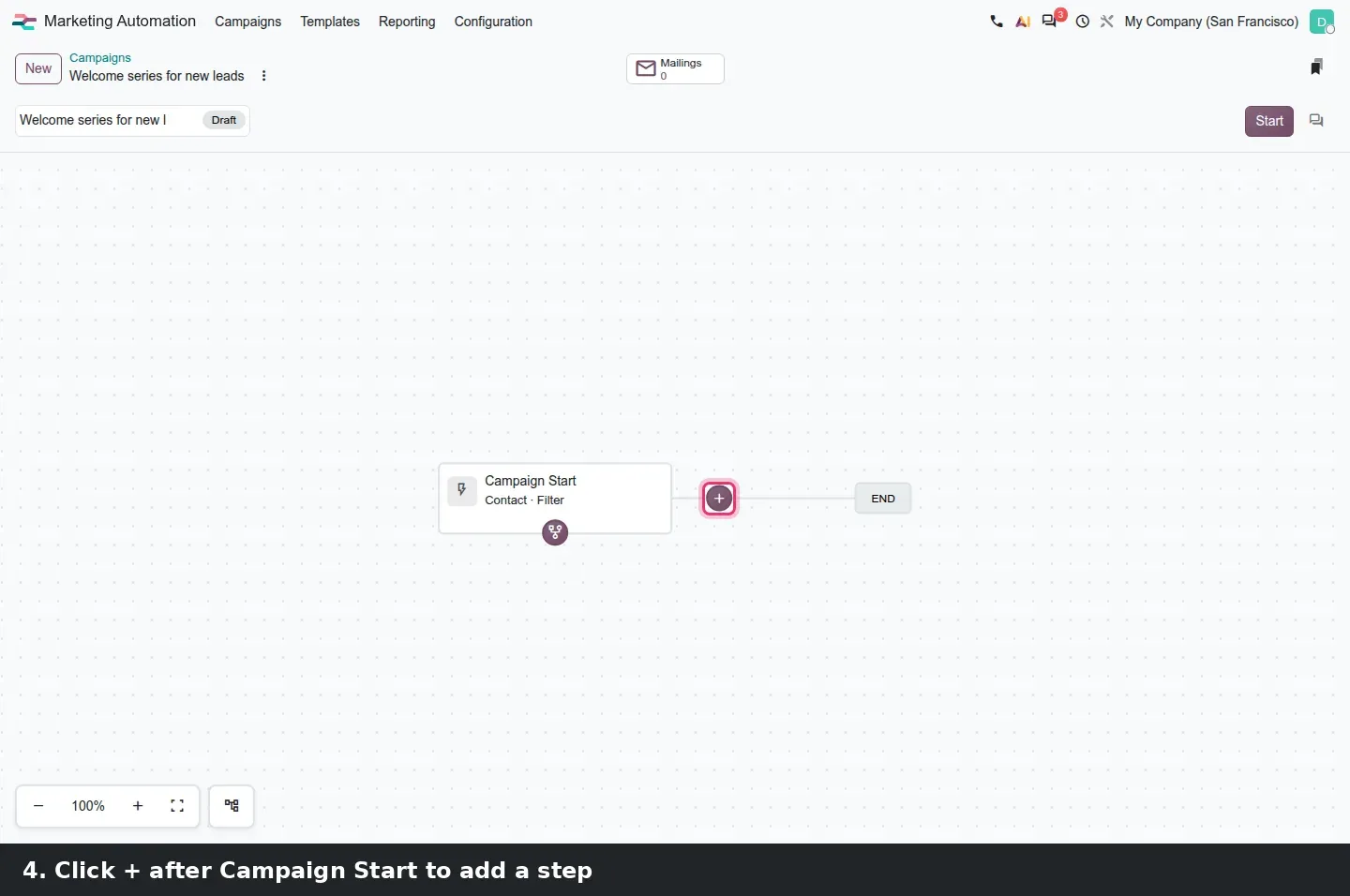
- Click the plus after Campaign Start, choose Send Email, click Start Designing and pick a template.
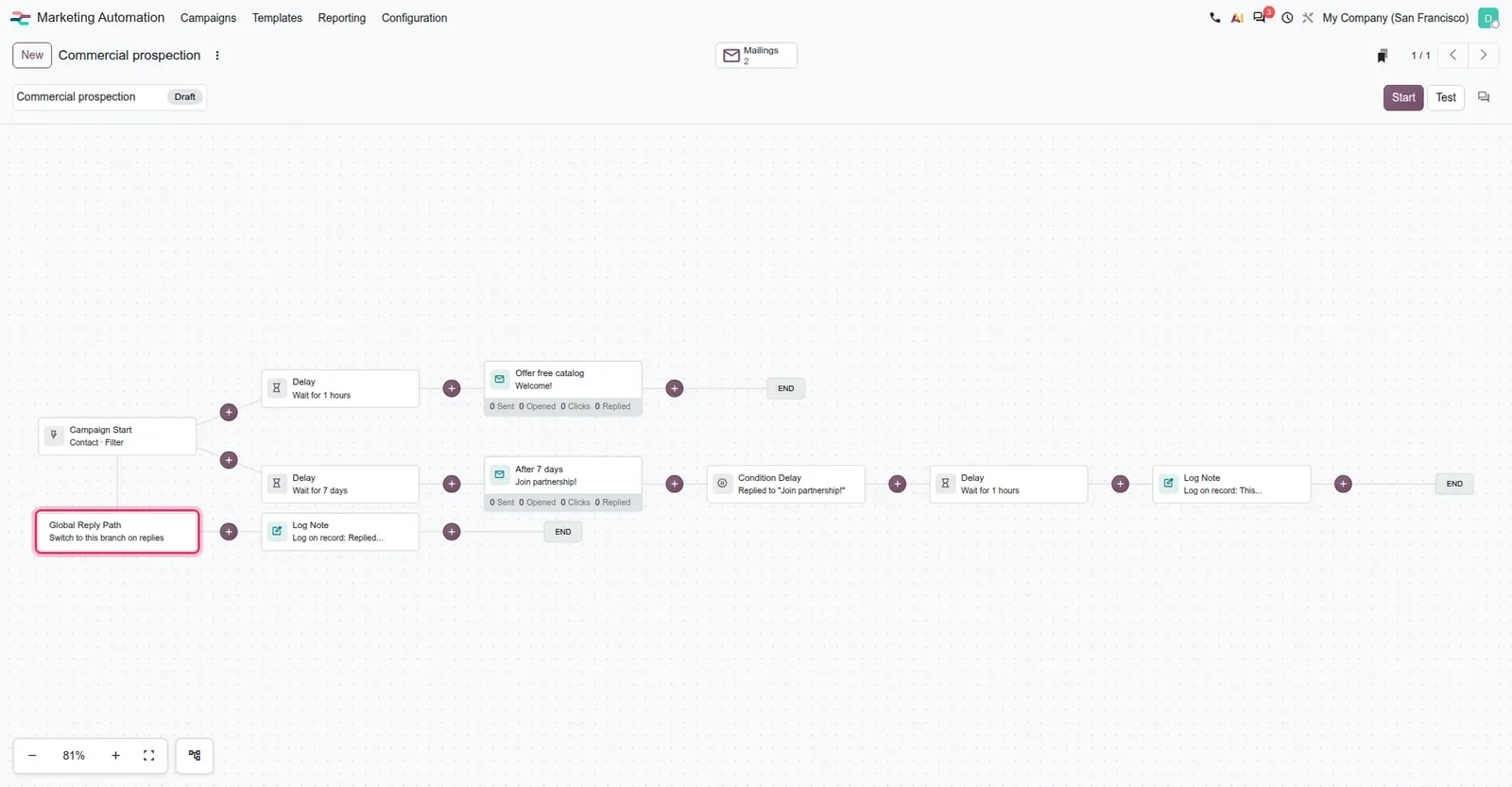
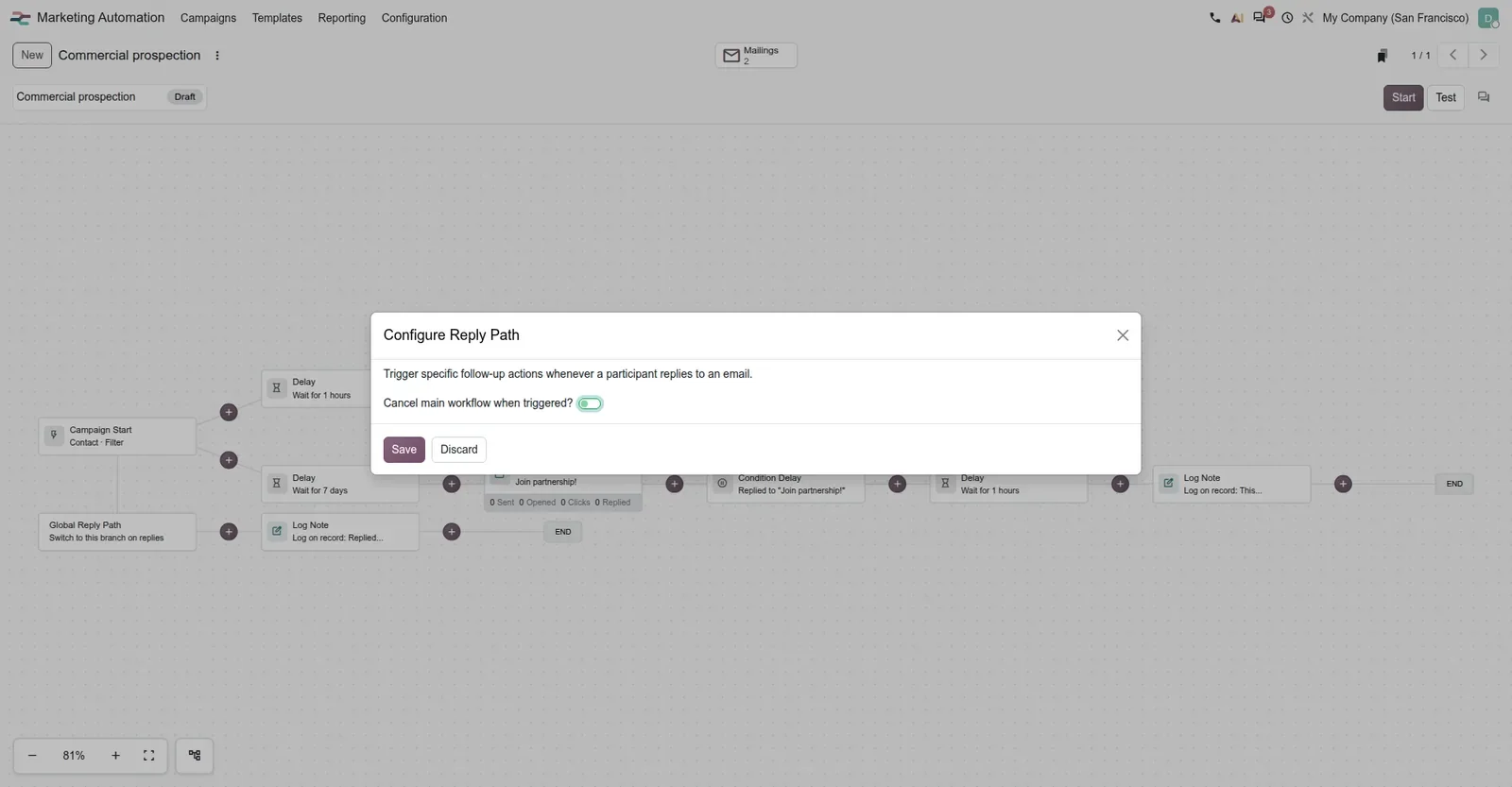
- Click the Global Reply Path node, switch on Cancel Main Workflow When Triggered? and save.
- Open Marketing Automation > Templates to see the Template Library inside the app.
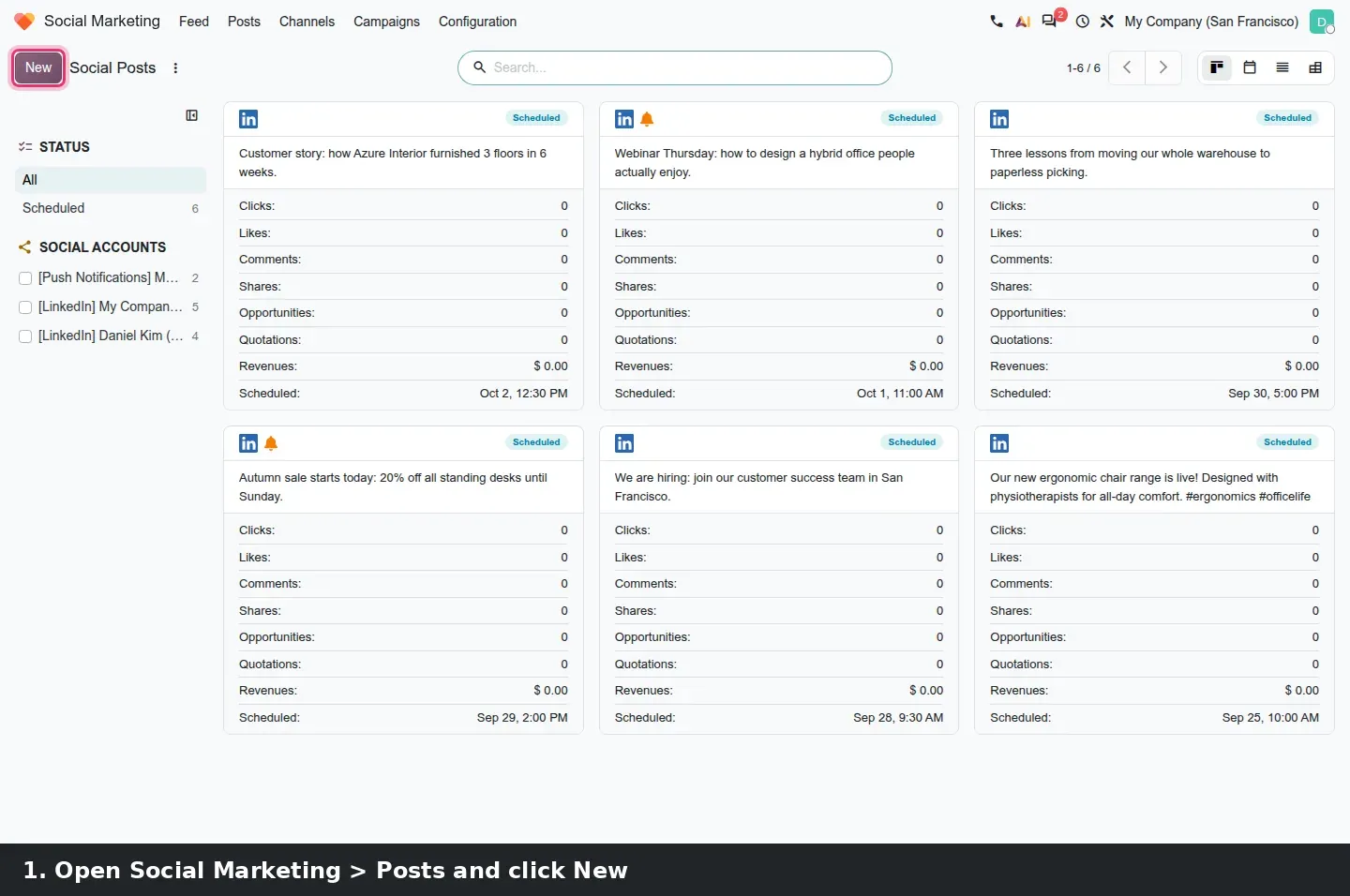
- Go to Social Marketing > Posts, click New, tick accounts, write the message, set Post On and click Schedule. Switch to the calendar view to see the network icons.
What we could not verify on the pre-release build
In Marketing Automation, the webhook test URL and logs need debug mode and an external caller, the batch-size system parameters have nothing to show in the interface, and the Coupon step type appears in the step menu but we did not configure a loyalty program behind it. The AI Campaign Assistant never answered, because no AI provider or IAP credit was configured. In Social Marketing, Post as Story, the story card in Live Posts, live publishing, the engagement split and the cancellation of a live post all need connected Facebook and Instagram accounts, whose tokens only exist after the real OAuth flow; the OAuth popup and loading screen need real credentials too, and our two LinkedIn accounts are demo records that were never connected. Everything else on this page was clicked through on the 20.0 Enterprise build of 23 September 2026.
What this means for an upgrade
Campaigns, mailing lists and social accounts carry over from Odoo 17, 18 or 19, and the new menus and nodes appear on the upgraded database. What changes is method. If your team maintains segments by export and import, rebuild them as dynamic lists after the upgrade and point the campaigns at them. Review every running prospecting campaign for its reply path, because the node exists on each campaign but the cancel toggle is your decision. Expect social accounts to need reconnecting if tokens expire during the migration window. We include that review in our migration service, and the series hub lists the other Odoo 20 changes that touch the same upgrade.
Frequently asked questions
What is a dynamic mailing list in Odoo 20?
A list defined by a model and a set of rules rather than by a fixed set of contacts. Every record that matches the rules is in the list, so it updates itself, and a Marketing Automation campaign can use it as its trigger audience. On the pre-release build it lives under Email Marketing > Recipients > Dynamic Lists.
Can Odoo 20 Marketing Automation stop a campaign when someone replies?
Yes. The Global Reply Path node under Campaign Start has a Configure Reply Path dialog with one toggle, Cancel Main Workflow When Triggered?. When it is on, a participant who replies to a campaign email leaves the main flow and runs the reply branch instead, for example a Log Note or a sales activity.
Can I post to a personal LinkedIn profile from Odoo 20 Social Marketing?
Yes. The Connect a New Account dialog now offers LinkedIn Personal Account next to LinkedIn Brand Pages, and both kinds of account appear in the composer's Accounts list, so one post can go to the company page and a person's profile at the same time. The connection needs real LinkedIn credentials.
Does Odoo 20 Social Marketing support Instagram and Facebook stories?
According to the guide, yes: when composing for Facebook or Instagram you tick Post as Story, the live post keeps the story URL and the Live Posts kanban shows a story card until it expires. We could not verify it on the pre-release build because the story options only appear with connected Facebook and Instagram accounts.
Do I need the AI modules to use the new Marketing Automation features?
No. Dynamic lists, the Templates menu, Start Designing, the Global Reply Path, the launch validity check and the webhook improvements work without any AI module. Only the AI Campaign Assistant and the Social Post Editor need the AI modules, an AI provider and IAP credits.
Which social networks can Odoo 20 connect to?
On the pre-release build the Connect a New Account dialog lists Facebook, X, YouTube, Instagram, LinkedIn Brand Pages and LinkedIn Personal Account. Website push notification channels also appear as accounts in the post composer, so one post can reach social networks and website visitors together.
Social Marketing: personal LinkedIn accounts and a reworked connection flow
Social Marketing had barely changed since it was introduced; Odoo 20 is the first version to revisit it in depth. The Feed opens on an empty state with a Connect an Account button, and the Connect a New Account dialog offers six tiles: Facebook, X, YouTube, Instagram, LinkedIn Brand Pages and LinkedIn Personal Account. The last one is new. Until now LinkedIn meant the company pages you administer; a founder or a salesperson who builds an audience under their own name now schedules from the same composer.
Connected accounts are listed under Social Marketing > Configuration > Social Accounts. In the post composer, the Accounts field shows every account with its network icon, and you can tick the company page and the personal profile for the same post. The connection flow was reworked: the network's authentication page opens in a new window and closes when done, a loading screen covers the token exchange, and an account can be removed from the Connect Account dialog. We could not run the real OAuth flow on the demo; our two LinkedIn accounts are demo records that were never connected.