
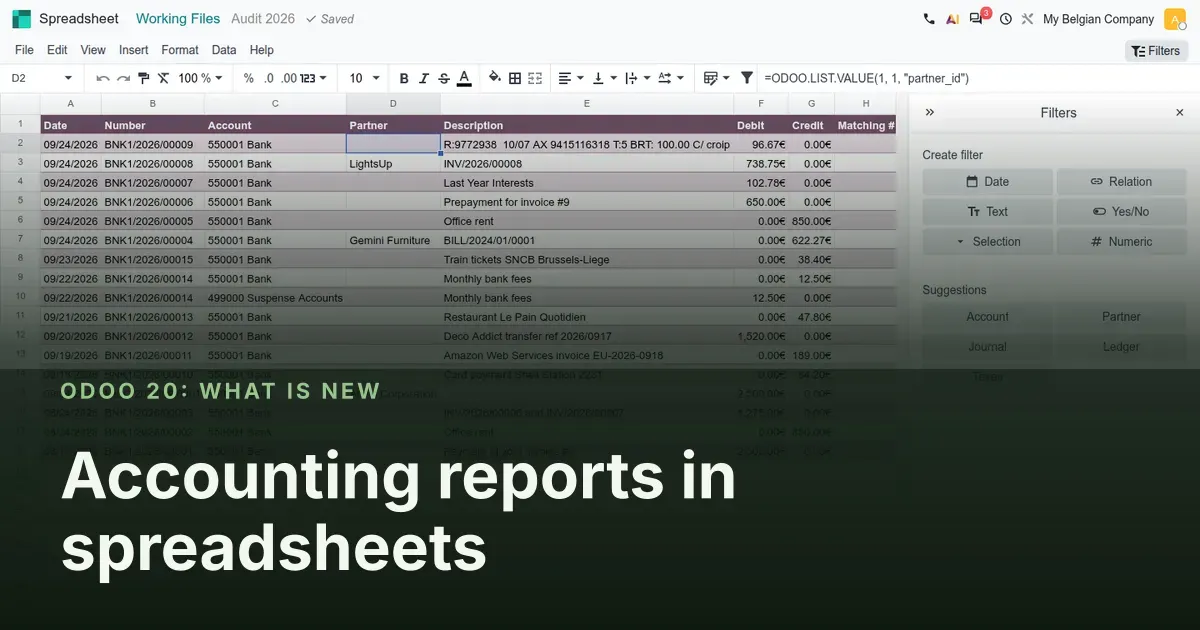
The audit workbook now lives inside the audit
Odoo Spreadsheet has been growing for several releases. Odoo 20 wires it into the accounting close. A new module, account_reports_spreadsheet, gives every audit working file its own spreadsheet, and the Insert in Spreadsheet dialog gains a Working Files tab so a filtered list of journal items or a pivot lands in that workbook in two clicks. The editor changes too: global filters live in the side panel, a cell that came from Odoo can jump back to its data source, File > Print opens a real preview, and dark mode is native. Sign gets an Export Answers button that turns signed forms into rows and columns.
This post is for the controller or finance manager who builds the month-end pack and the year-end audit file. We walk through the working file spreadsheet, the filters and the editor changes, then answer the question we get most often: what happens to the report views and PDF exports you already use. Where the guide and the pre-release build disagree, we say so.
Observed on the Odoo 20.0 Enterprise pre-release build of September 23, 2026. Names, menus and availability can change before general availability; we will update this page when they do.
Every audit working file opens its own spreadsheet
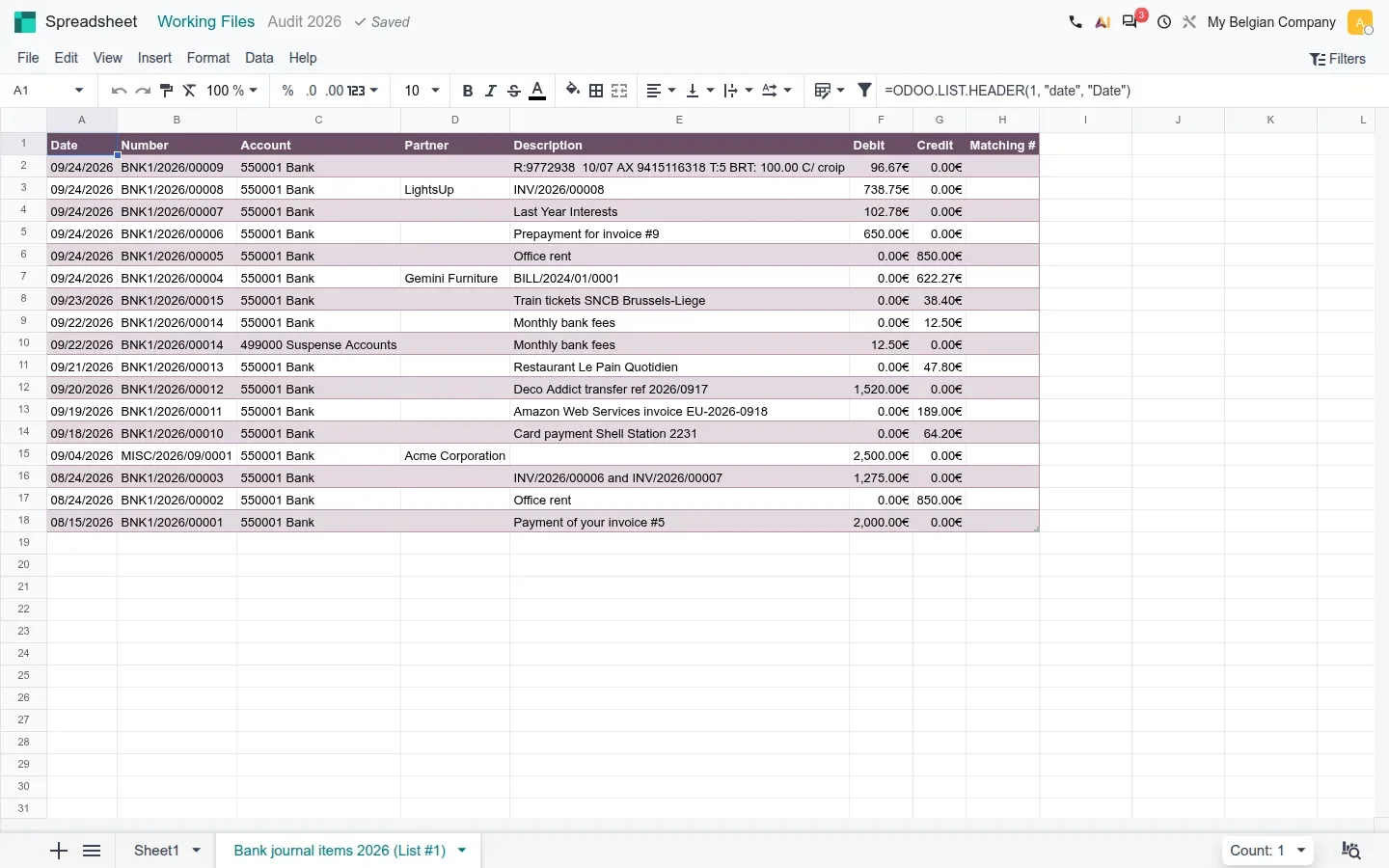
An audit return in Odoo 20 is called a working file. Open Accounting > Review > Working Files, open the audit (ours is Audit 2026) and the form has three tabs: Cycles, Balances and Spreadsheet. The Spreadsheet tab opens the editor with the breadcrumb Working Files > Audit 2026. That sheet is stored against the return, not in a Documents folder you have to find later, so the supporting schedules sit next to the checks they document. According to the guide, the working files come along when the audit is exported, which gives an external auditor a package that ties each figure back to Odoo data.
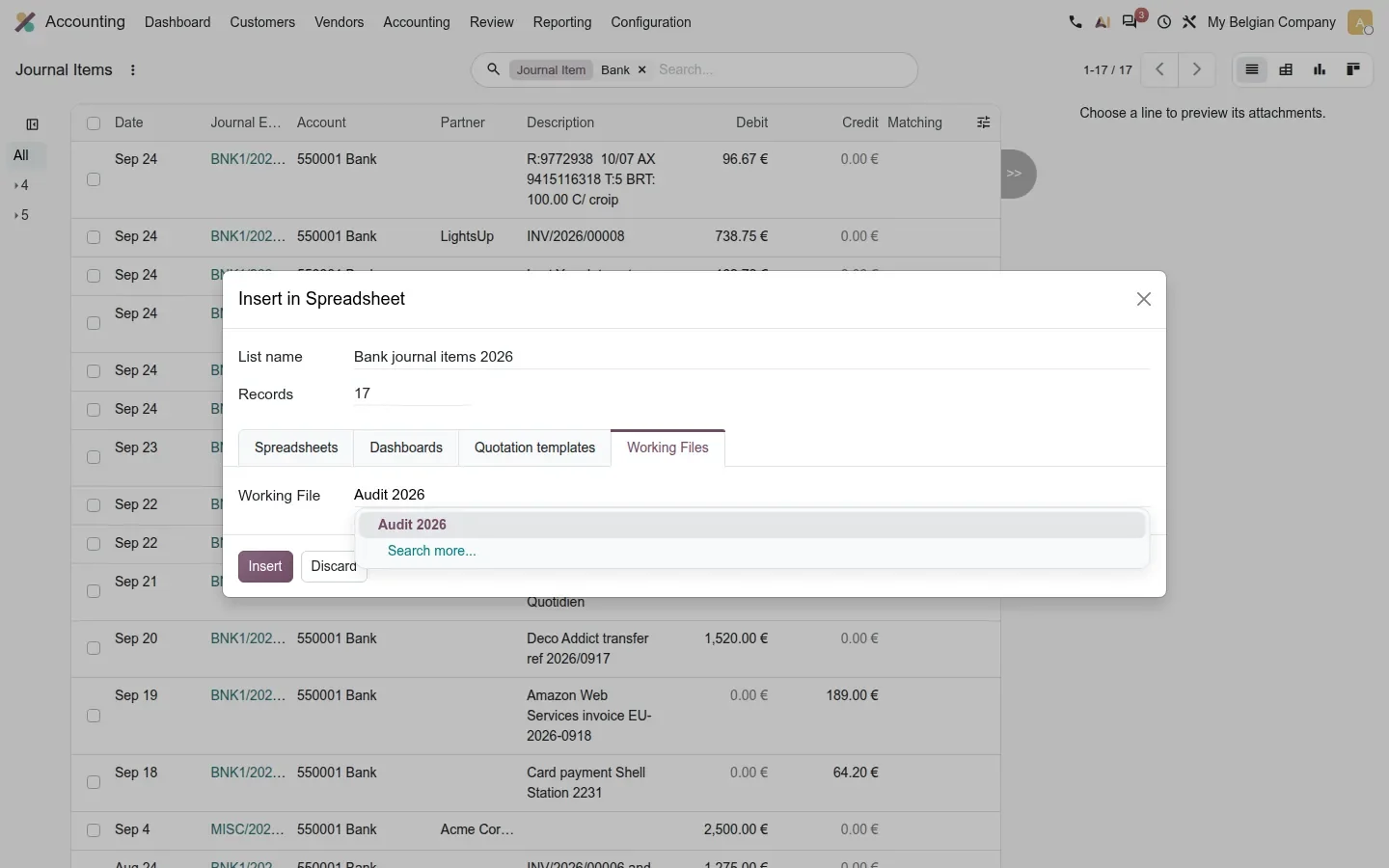
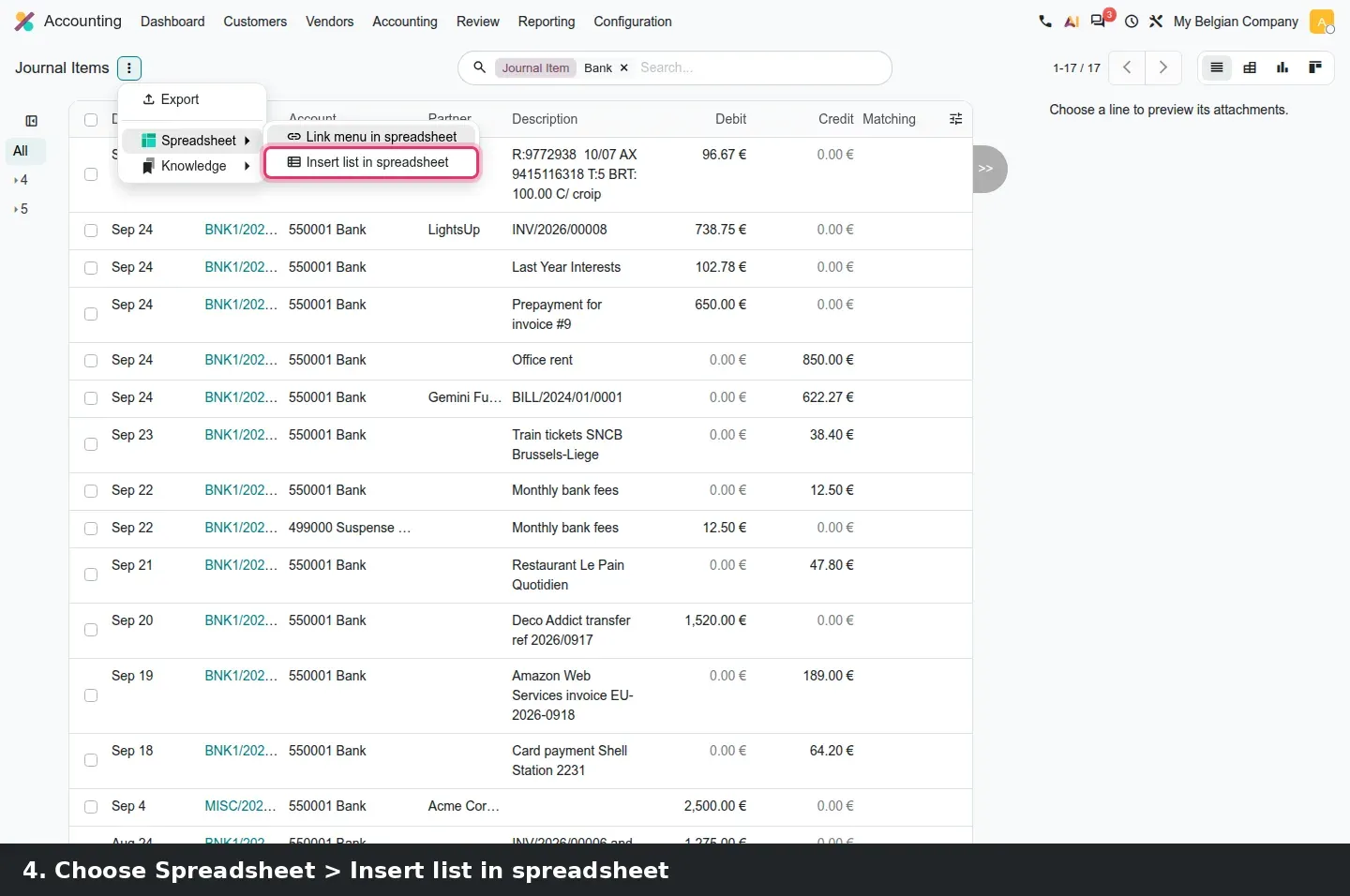
The second half is the Insert in Spreadsheet dialog. From a list in Accounting, the gear menu offers Spreadsheet > Insert list in spreadsheet. The dialog shows the list name and the record count, then four tabs: Spreadsheets, Dashboards, Quotation templates and the new Working Files tab, where a Working File selector lists the open audits. On the demo we filtered Journal Items to the bank journal, 17 records, named the list Bank journal items 2026, picked Audit 2026 and clicked Insert.
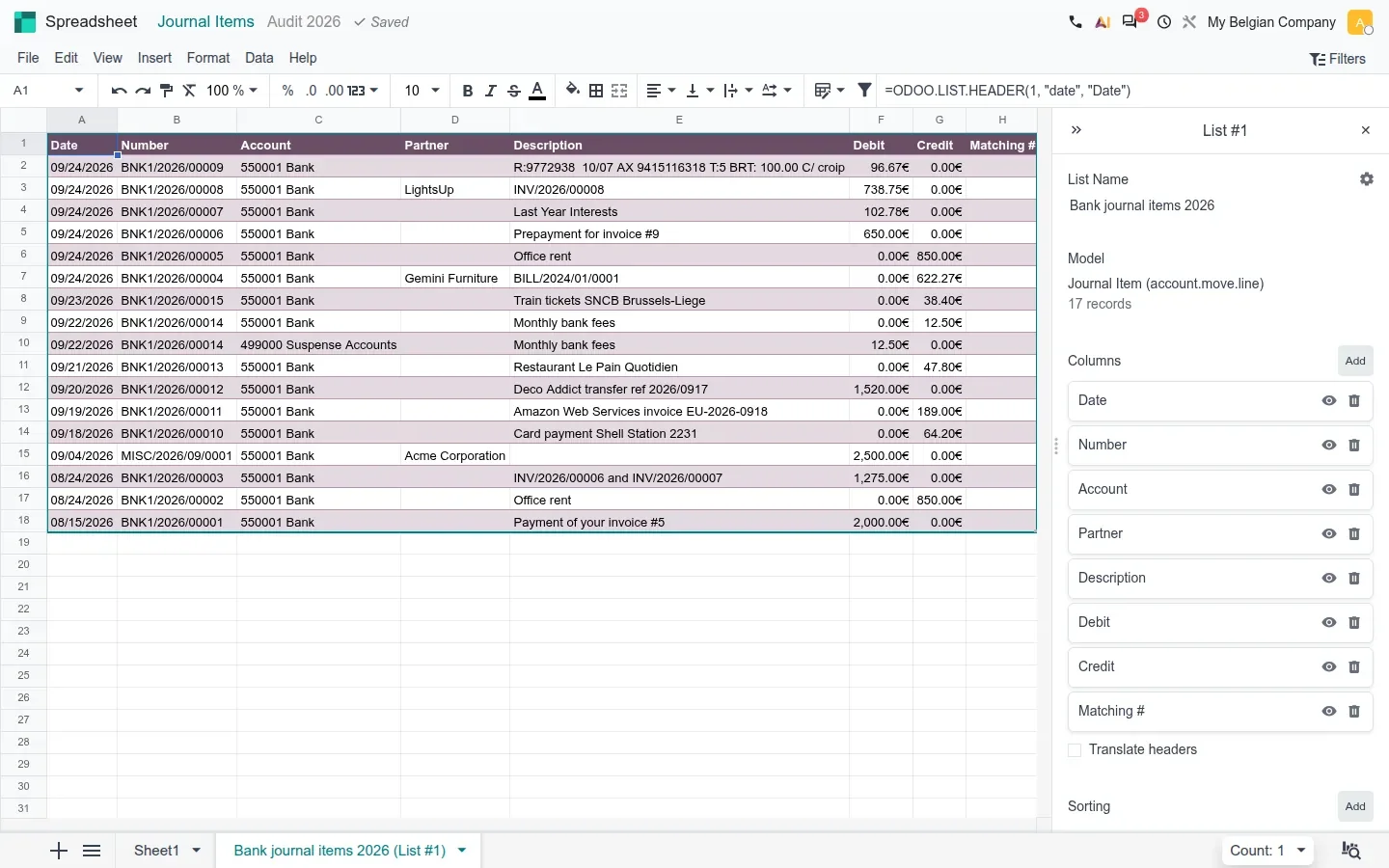
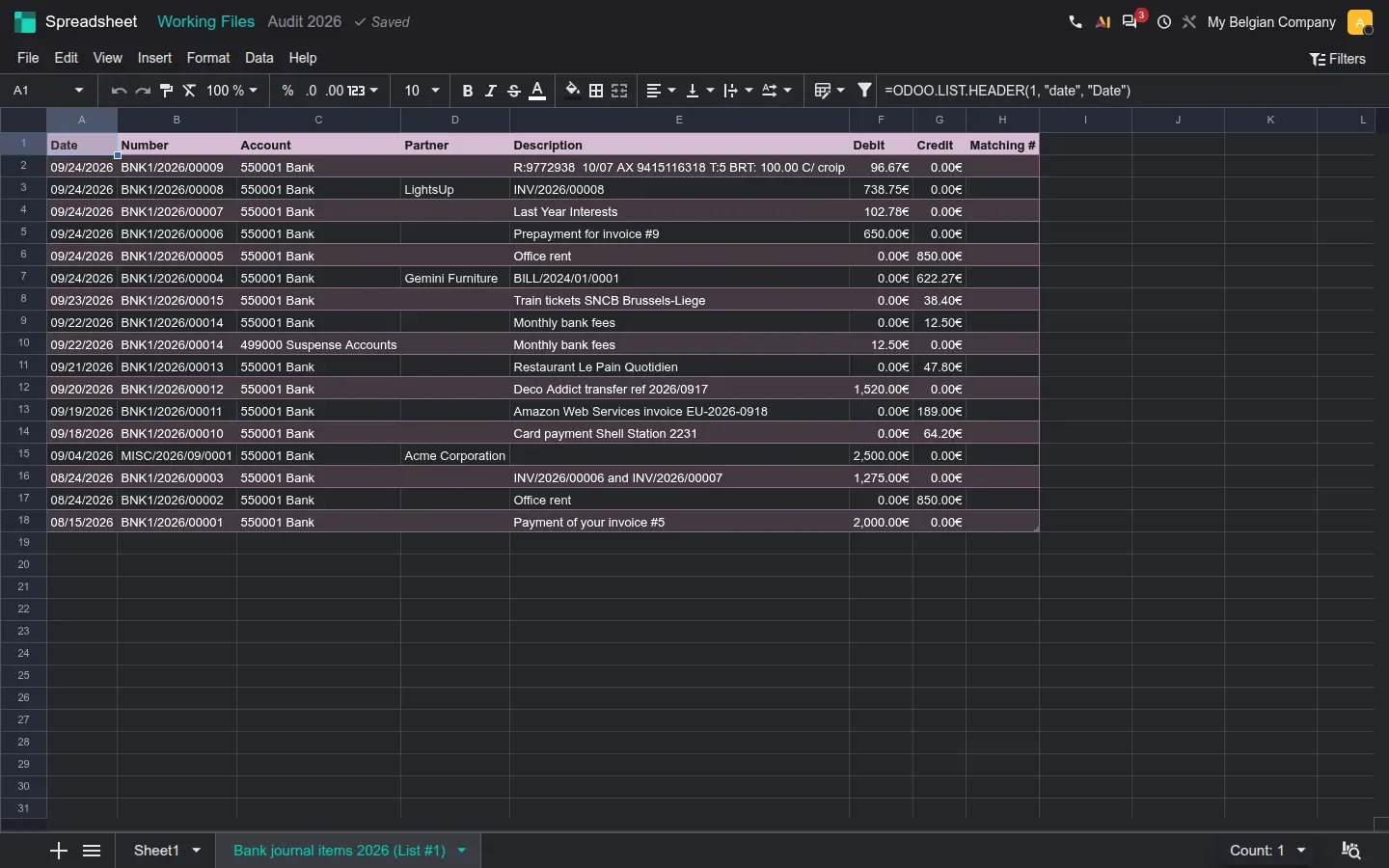
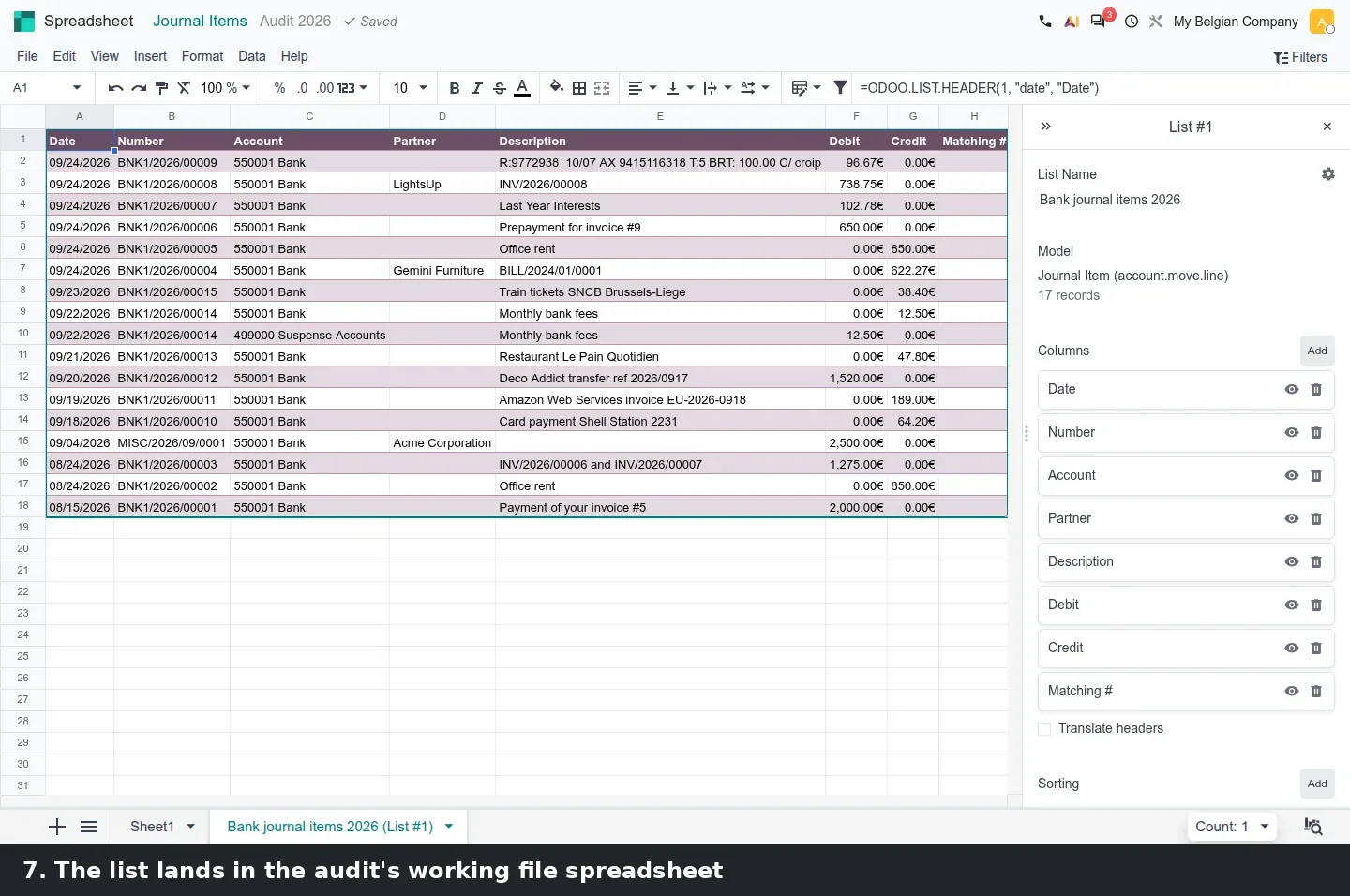
The list lands in a new sheet tab named after it, with a List side panel: the model (Journal Item, account.move.line), the record count, the columns with a hide and a delete control each, a Translate headers checkbox and a Sorting section. The cells are ODOO.LIST.HEADER and ODOO.LIST.VALUE formulas, not pasted values, so the schedule reads the ledger instead of a copy of it. For a controller this is the month-end question answered: the aged balance, the fixed-asset listing and the suspense-account lines go into the workbook that supports the checks, and stay linked.
Global filters are built in the side panel
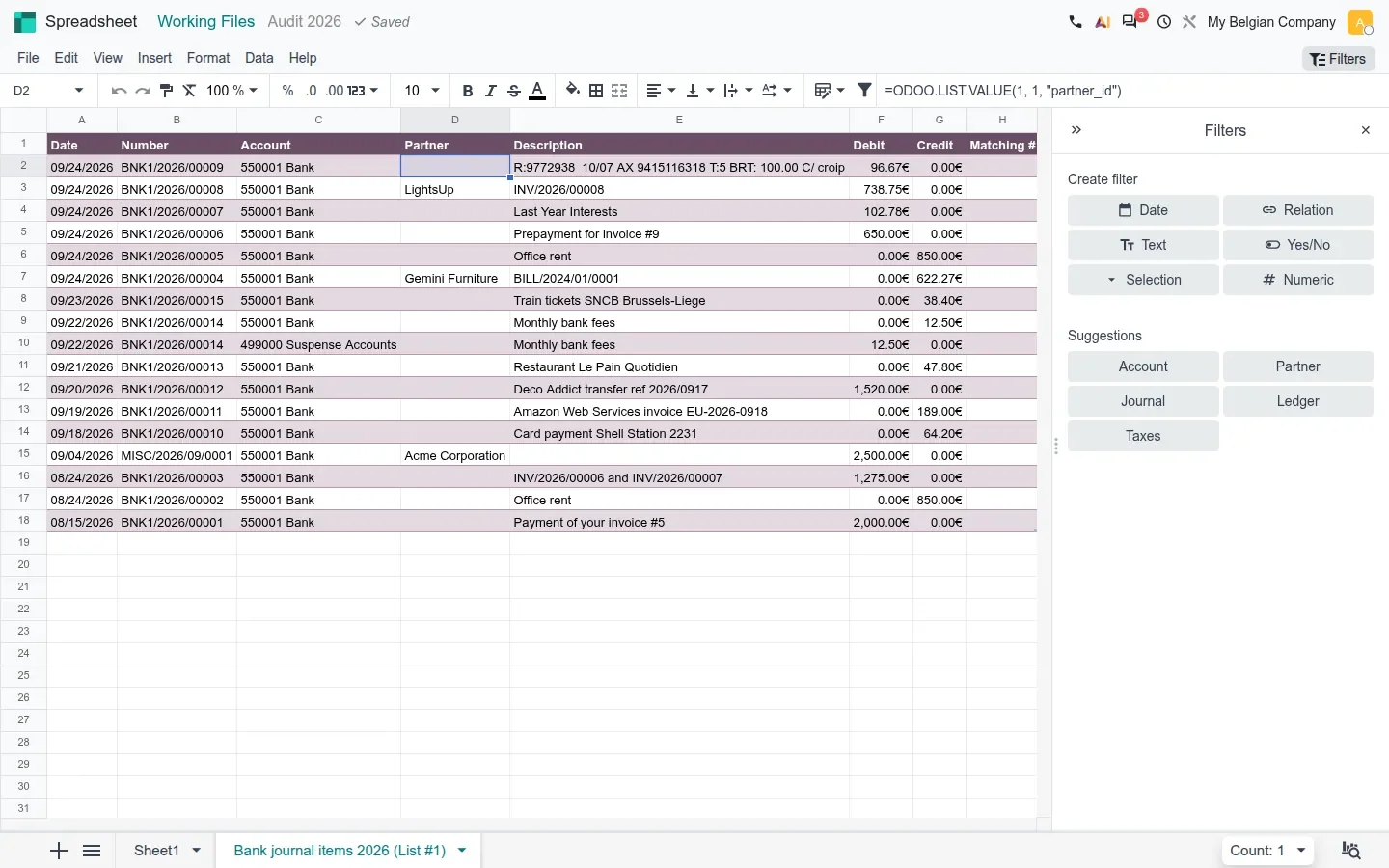
Until now a global filter was created in a dialog and edited in the side panel, two screens that did not quite match. Odoo 20 does both in the panel. Click Filters at the top right of the editor and Create filter offers six types: Date, Relation, Text, Yes/No, Selection and Numeric. Under it, a Suggestions block proposes filters drawn from the data you inserted; for our journal items list it offered Account, Partner, Journal, Ledger and Taxes, one click each.
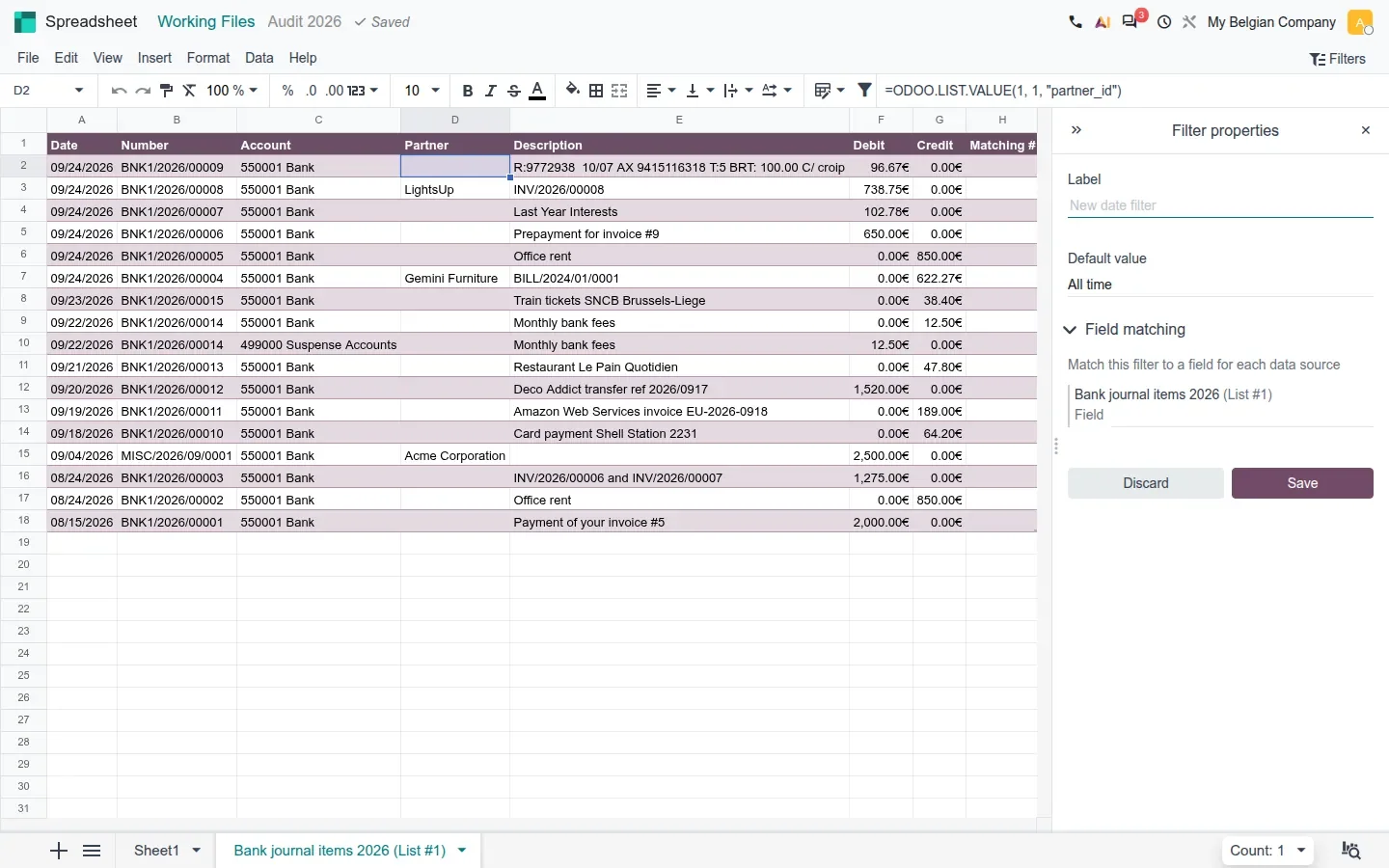
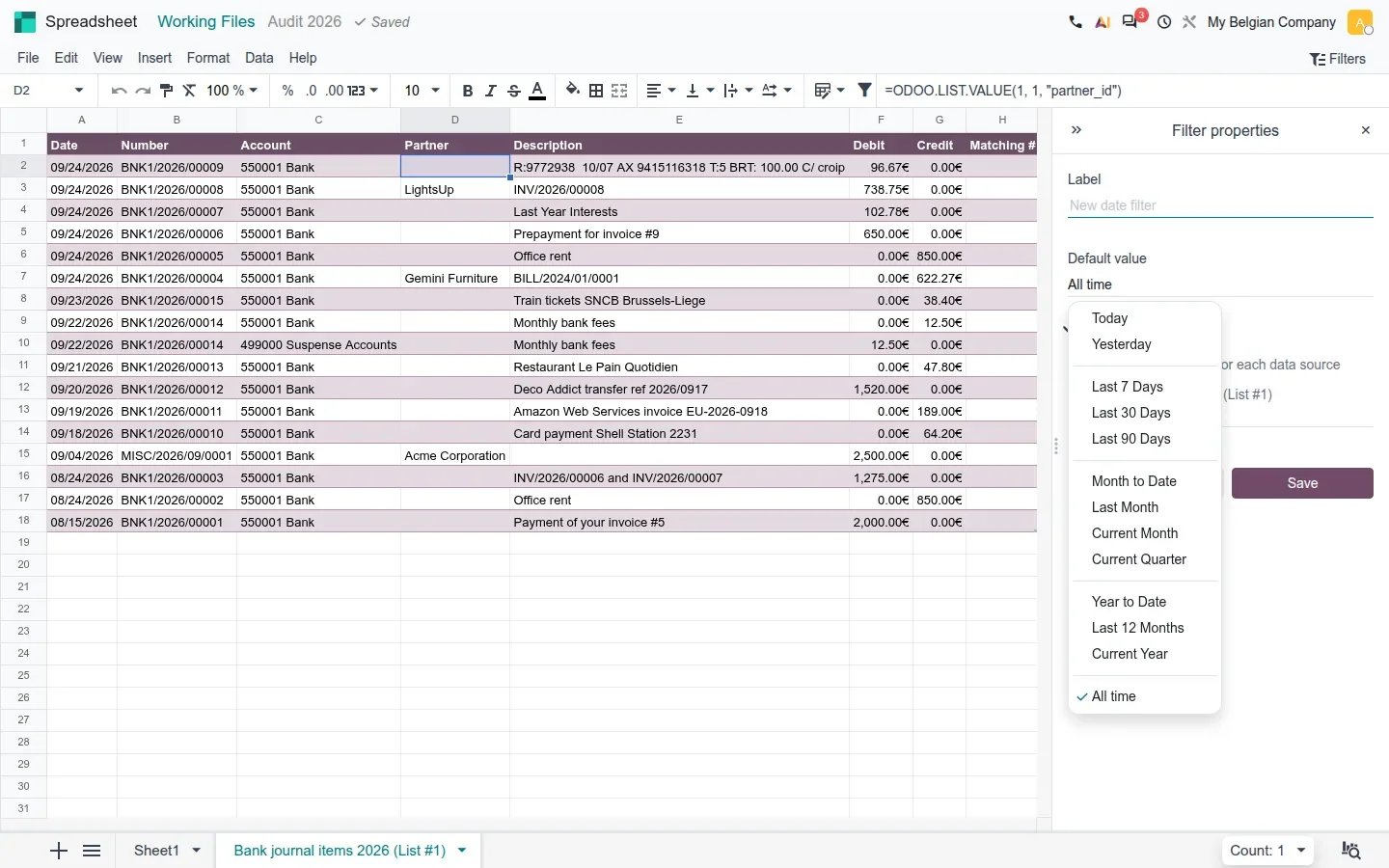
A Date filter opens Filter properties with a Label, a Default value and a Field matching section that maps the filter to a date field of every data source in the file, here Bank journal items 2026 (List #1). The Default value list has Today and Yesterday; Last 7 Days, Last 30 Days and Last 90 Days; Month to Date, Last Month, Current Month and Current Quarter; Year to Date, Last 12 Months and Current Year; and All time. Pick one, click Save, and every list and pivot mapped to the filter narrows together.
One correction to the guide. It announces a fiscal year global filter enabled by a small bridge, spreadsheet_edition_account. On the build we tested, no fiscal year entry appears in the default value presets. The module passes the company's fiscal year bounds to the spreadsheet model, but we found no visible option to pick the fiscal year the way you pick Current Year. If your year ends in June, plan to set the range by hand for now.
Build the pack once
Create one Date filter, map it to every list and pivot in the working file, and set its default value to Last Month. Each month the pack is a Filters click and a Save away, and a reviewer can change the period without touching a formula.
Trace a figure, print a sheet, work in dark mode
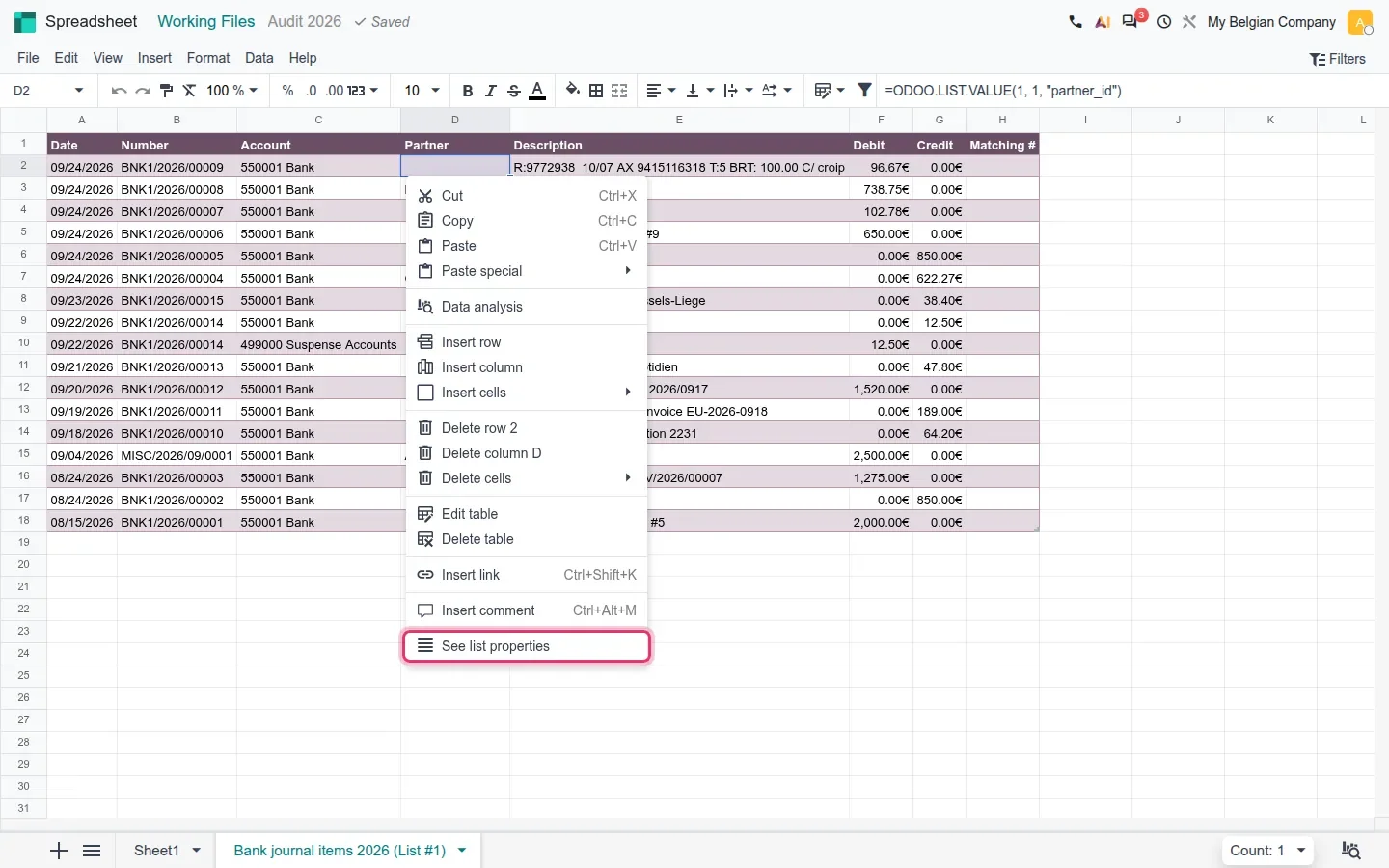
Three editor changes matter to anyone who has to defend a number. First, traceability. Right-click a cell that came from Odoo and the context menu ends with See list properties. It opens the data source panel: which model, how many records, which columns. A reviewer who asks where a figure comes from gets the answer in one click. The guide describes a link that appears on hover; on the build the entry point is this context menu.
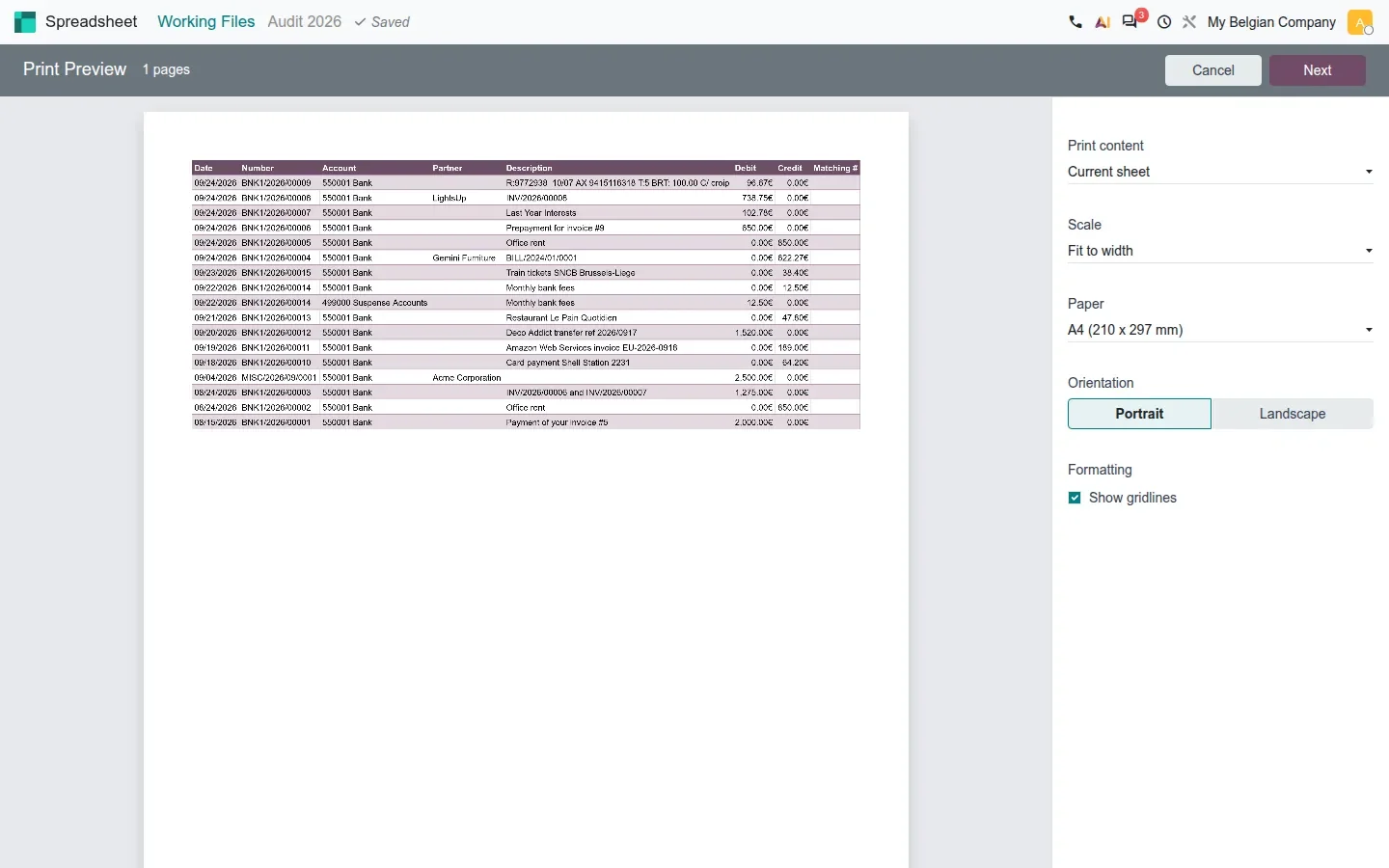
Second, printing. File > Print opens a Print Preview with the page count and a settings column: Print content (Current sheet), Scale (Fit to width), Paper (A4 on our Belgian company), Orientation with Portrait and Landscape, and a Show gridlines checkbox under Formatting. Next hands the result to the browser's print dialog. The guide calls this a real wizard replacing the previous print hook, and that matches what we saw.
Third, dark mode. The spreadsheet now uses the same light and dark colour variables as the rest of Odoo, so a user on the dark theme no longer gets a white grid under a dark navigation bar. On the demo we switched one user's colour scheme to dark and reopened the working file; the toolbar, the grid and the List side panel all follow.
What happens to the report views and PDF exports
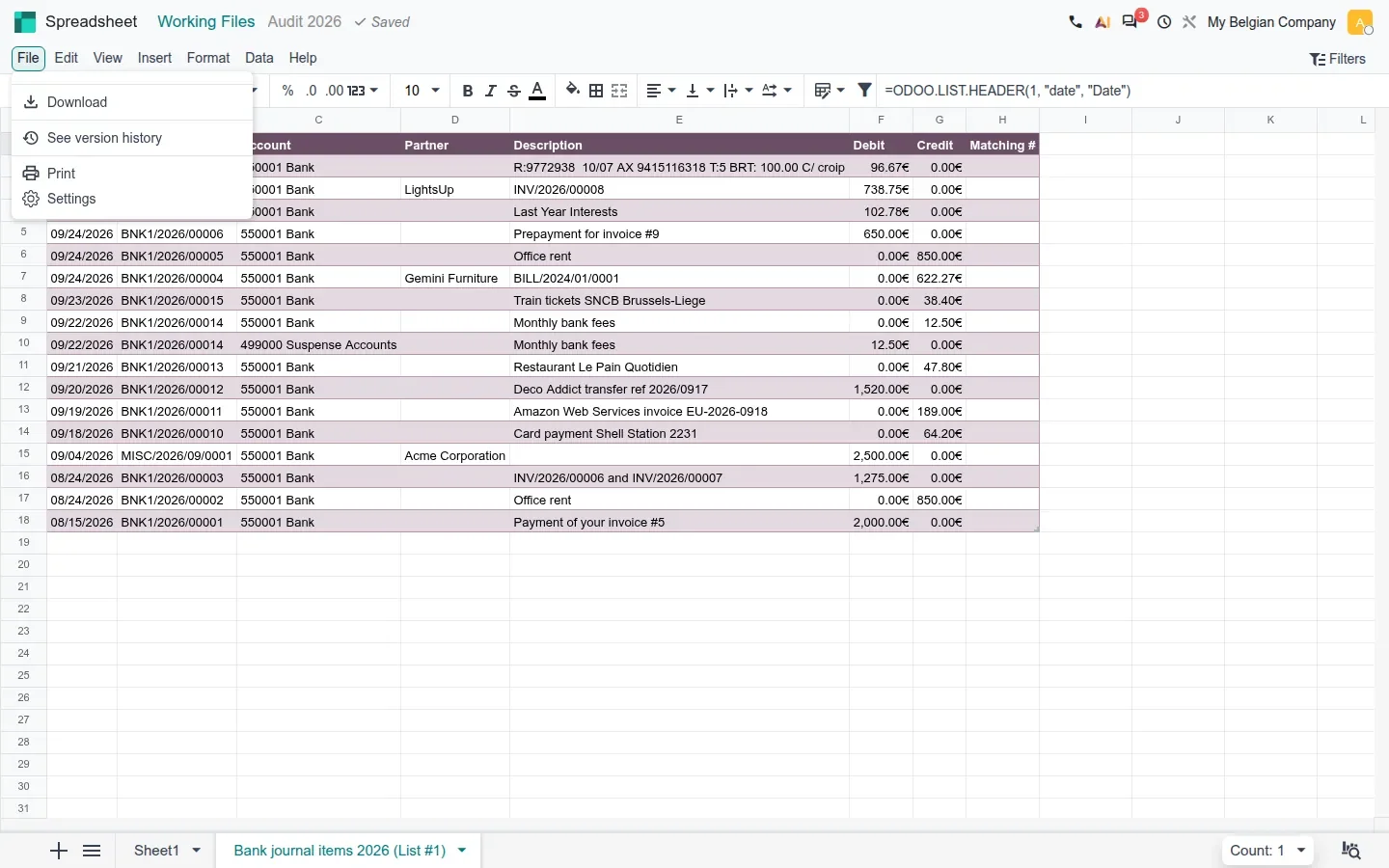
Nothing in the guide moves a financial report out of Accounting > Reporting. The profit and loss, balance sheet, aged reports and general ledger keep their report views, and the guide lists no report removed or replaced in this area. The removals that do appear in the 20.0 module list are country-specific tax reports and returns, covered in the tax returns and audits post of this series. What Odoo 20 adds is a second destination for the same data: instead of exporting a report and rebuilding the schedule outside Odoo, you insert the list or pivot into a working file and keep the link. The spreadsheet has its own outputs, listed in its File menu: Download, See version history, Print and Settings.
| Month-end need | The usual habit | Odoo 20 on this build |
|---|---|---|
| Supporting schedule for a check | Export to XLSX, rebuild it outside Odoo, attach the file | Insert list in spreadsheet > Working Files tab, live formulas stored on the audit |
| Change the period | Re-export, or edit each formula | One Date filter mapped to every data source, with a default value preset |
| Where does this number come from? | Search the formula bar | Right-click > See list properties |
| Paper copy for the binder | Print the grid from the browser | File > Print, with scale, paper, orientation and gridlines |
| Standard financial reports | Accounting > Reporting | Unchanged in the guide; the spreadsheet is an addition |
Signed forms become rows and columns
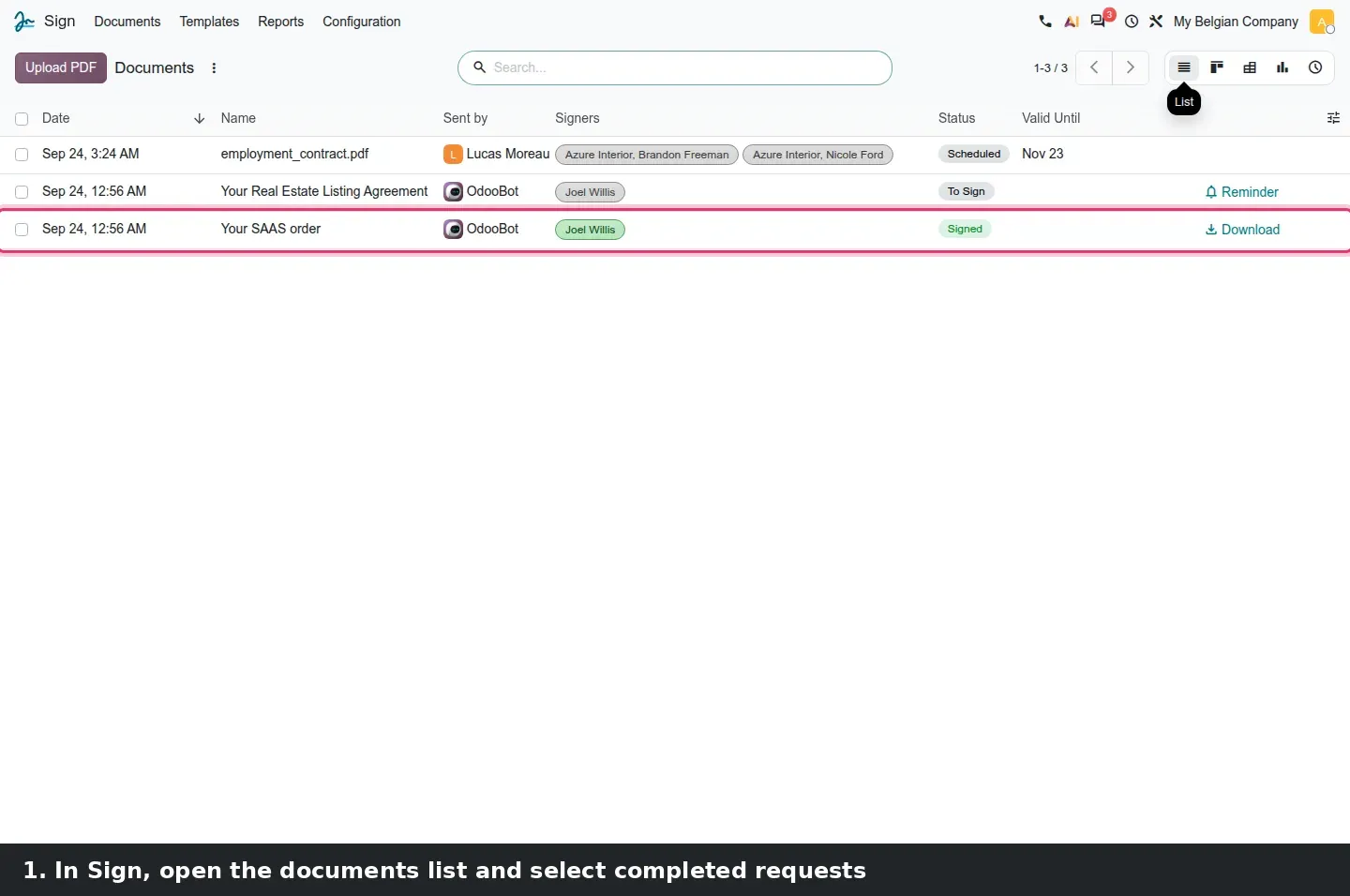
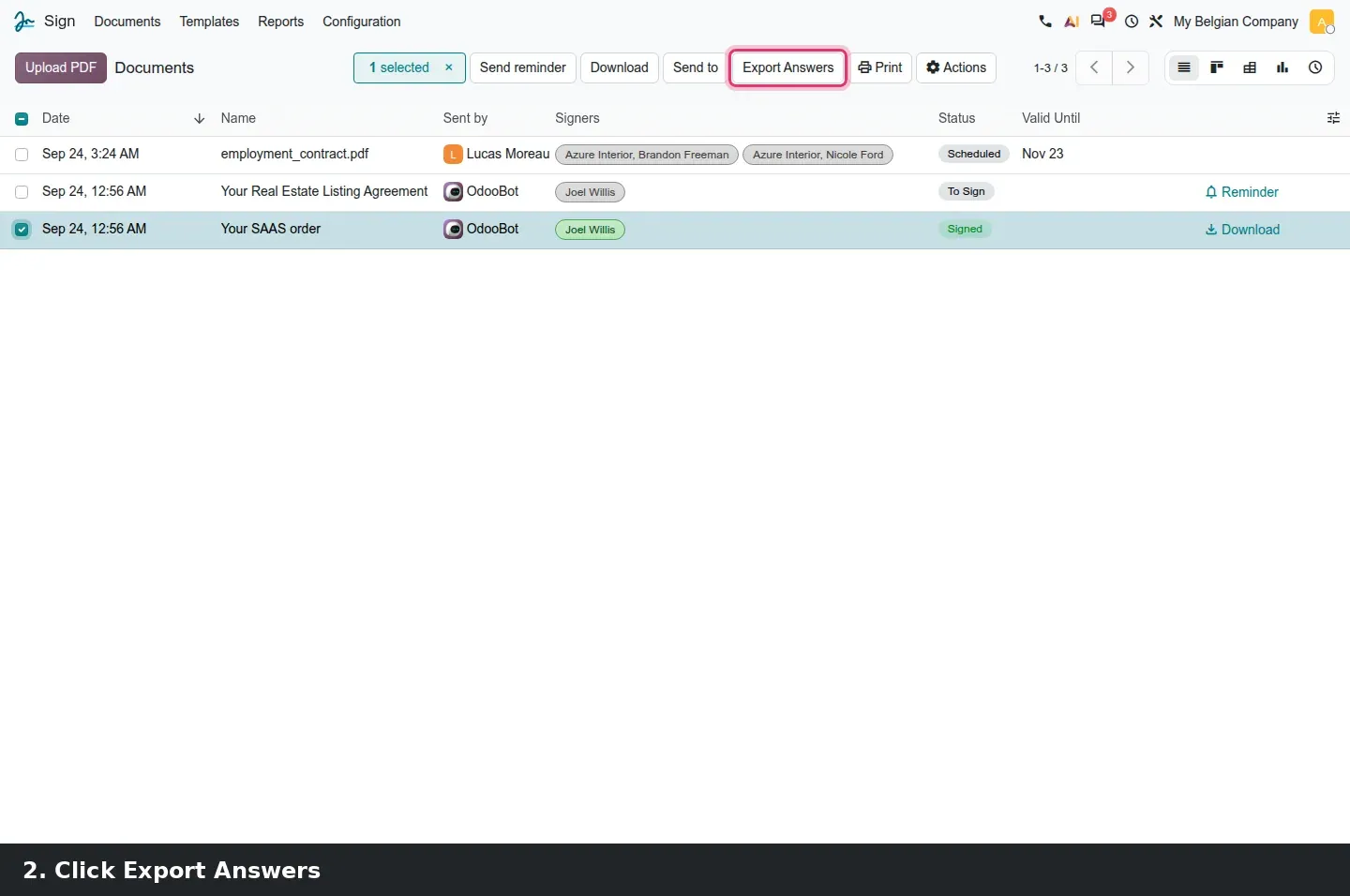
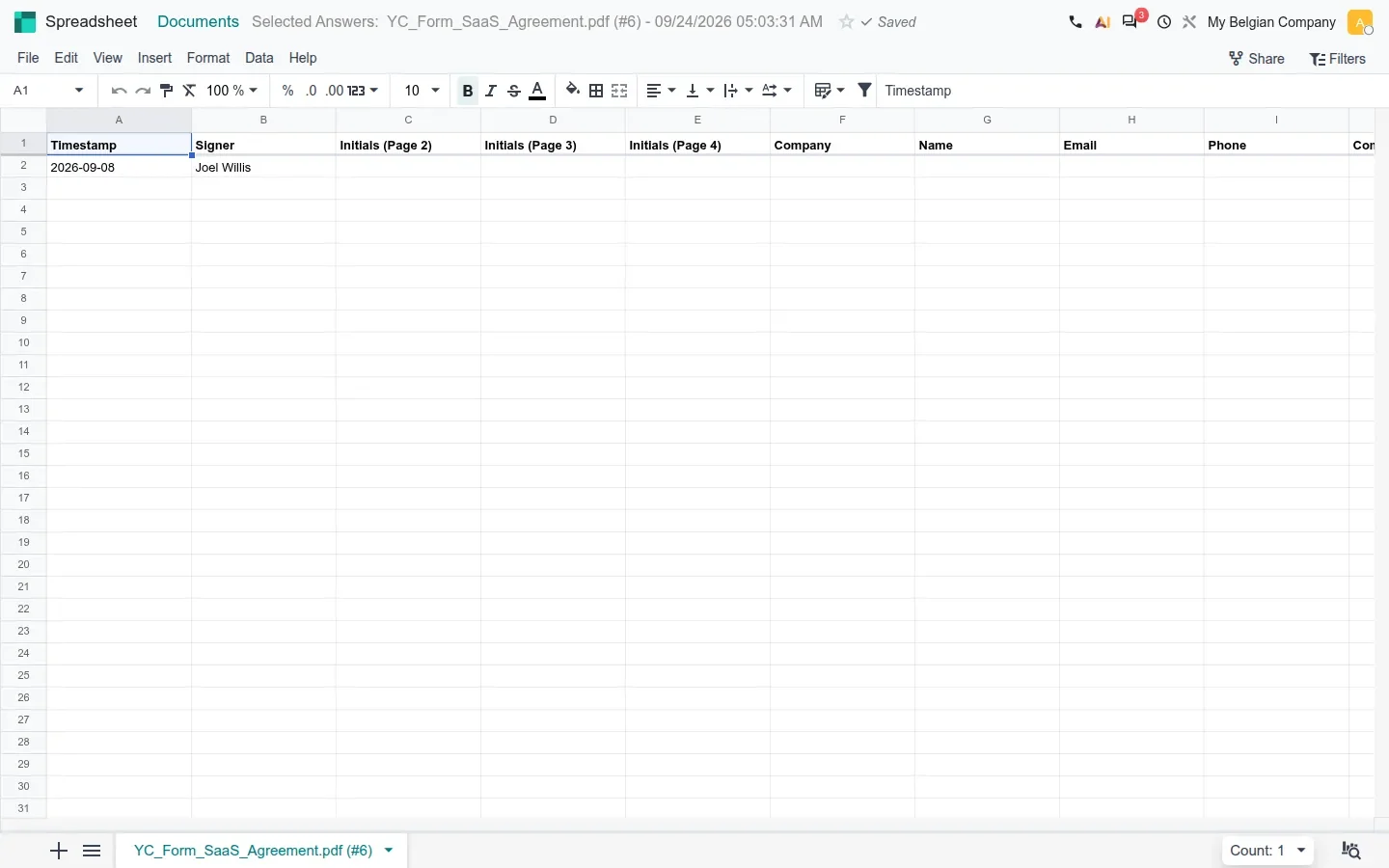
The last piece serves HR and sales more than finance, but it runs on the same engine. The module documents_spreadsheet_sign adds an Export Answers button to Sign. Open Sign > Documents in list view, tick a signed request and click Export Answers in the toolbar. Odoo builds a spreadsheet, filed under Documents and titled Selected Answers with the template name and the date, with one row per signer and one column per field of the document: Timestamp, Signer, the initials for each page, then Company, Name, Email, Phone and whatever else the template asks for.
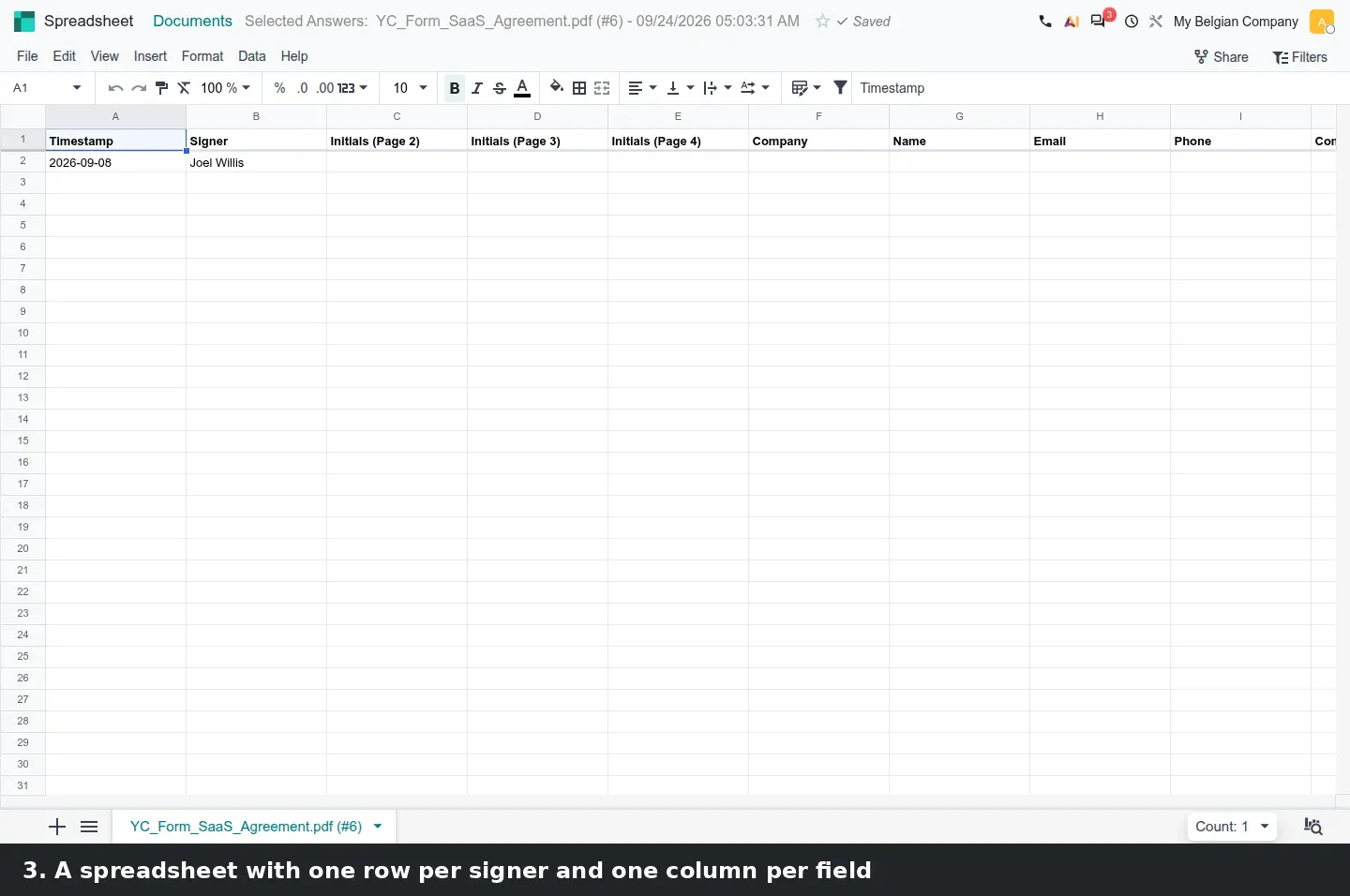
Onboarding forms, consent forms and customer questionnaires stop being PDFs someone retypes. Our demo had a single signed request, so the export has one row; several completed requests of the same template, the guide's scenario, is the one to test on your own data.
How to try it on a demo database
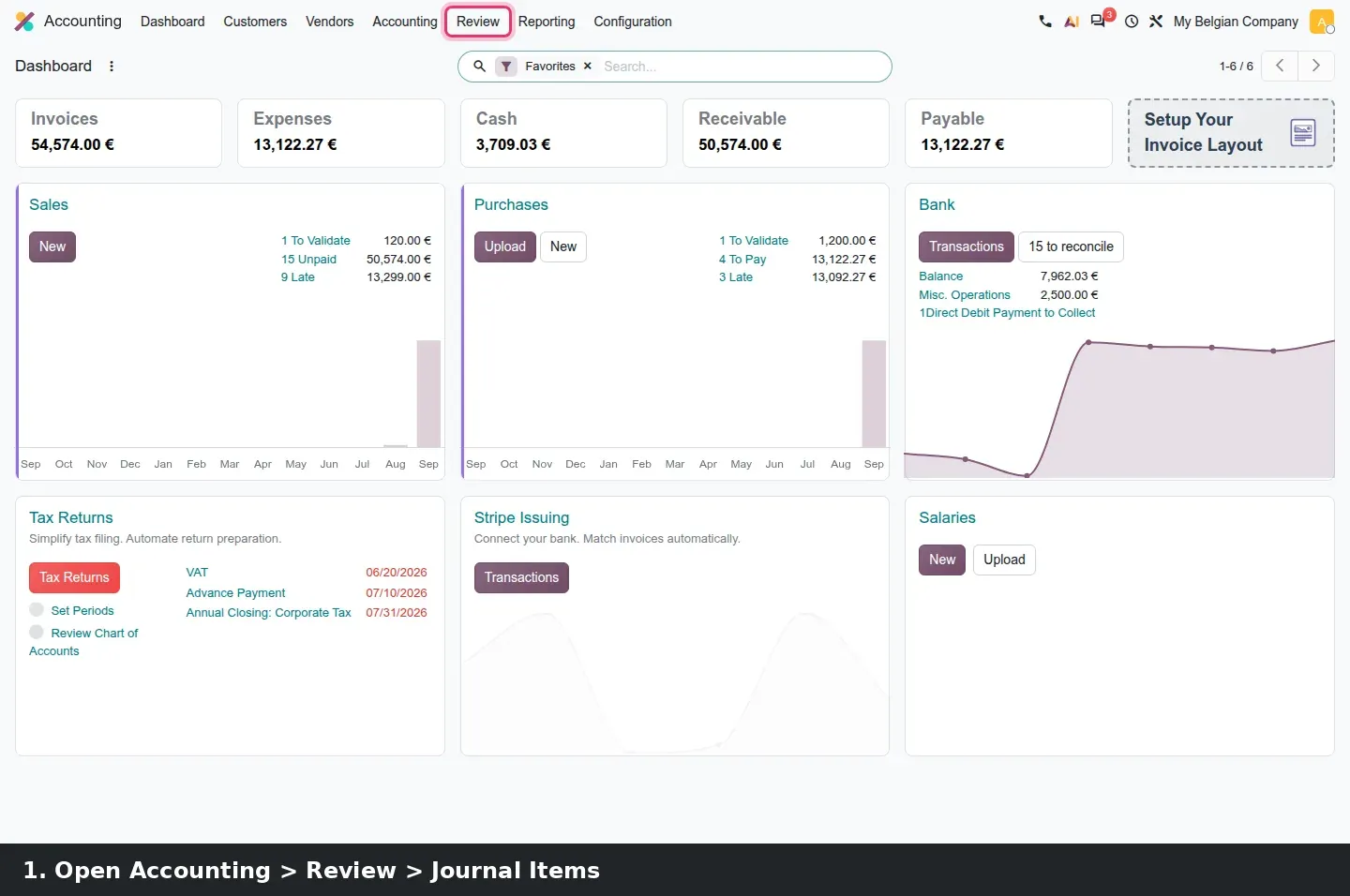
- On a 20.0 demo database with Accounting, Documents and Sign installed, open Accounting > Review > Working Files and open the current audit, or create one with New.
- Open its Spreadsheet tab. The editor opens with the breadcrumb Working Files and the audit name.
- Go to Accounting > Accounting > Journal Items, filter on one journal, then use the gear menu: Spreadsheet > Insert list in spreadsheet.
- In Insert in Spreadsheet, name the list, open the Working Files tab, pick the audit and click Insert.
- In the sheet, click Filters, choose Date under Create filter, set a Default value, match the field for the list and click Save.
- Right-click a cell of the inserted list and choose See list properties, then open File > Print to see the preview.
- Open Sign > Documents in list view, select a signed request and click Export Answers.
What we could not verify on the pre-release build
The fiscal year global filter announced by the guide: the date filter presets stop at Current Year, Last 12 Months and All time, and we found no fiscal year entry, only the fiscal year bounds passed to the model by spreadsheet_edition_account. Export Answers with several completed requests: the demo had one signed request, so we saw a one-row sheet. We also did not run an audit export to confirm that the working file sheets travel with it, and we did not test the per-pivot filters the guide mentions. Everything else on this page was clicked through on the 20.0 Enterprise build of 23 September 2026.
What this means for an upgrade
If you run Odoo 17, 18 or 19 and your month-end pack is a set of XLSX exports rebuilt in Excel, this is the release where that habit can end, but plan it. List the schedules the pack needs, decide which become inserted lists or pivots in a working file, and rebuild them on a 20.0 copy of your data before go-live. Keep your standard report views and PDF exports as they are; nothing here removes them. If your fiscal year is not the calendar year, test the date filter against your closing dates before you rely on it. Rebuilding the closing workbook is part of the scoping we do in our migration service, and the series hub lists the other accounting changes that land in the same upgrade.
Frequently asked questions
Does Odoo 20 replace the financial reports with spreadsheets?
No. The profit and loss, balance sheet, aged reports and general ledger keep their report views under Accounting > Reporting, and the guide lists no report removed in this area. Odoo 20 adds a way to insert the same data into an audit working file as live formulas.
What is a working file in Odoo 20 Accounting?
It is the new name for an audit return. Under Accounting > Review > Working Files, each audit groups its checks by cycle, shows balances and, new in Odoo 20, carries its own spreadsheet where supporting schedules are stored next to the checks they document.
Can I filter spreadsheet data by fiscal year in Odoo 20?
Not through a visible preset on the pre-release build. The date filter offers Today, Last 30 Days, Current Quarter, Current Year, Last 12 Months and similar options, but no fiscal year entry, even though the guide announces one. Companies with an offset fiscal year should set the range by hand for now.
Do lists inserted in a working file update when the ledger changes?
Yes. An inserted list is made of ODOO.LIST.HEADER and ODOO.LIST.VALUE formulas that read from the Journal Item model, not pasted values. The List side panel shows the model, the record count and the columns, and See list properties opens it from any cell.
Can I print an Odoo spreadsheet in Odoo 20?
Yes. File > Print opens a Print Preview where you choose the content to print, the scale, the paper size, portrait or landscape orientation and whether gridlines are shown, then Next hands the page to the browser's print dialog.
What does Export Answers in Sign produce?
A spreadsheet filed under Documents with one row per signer and one column per field of the signed document, such as Timestamp, Signer, initials per page, Company, Name, Email and Phone. Select the requests in Sign > Documents list view and click Export Answers.