
Fewer clicks per transaction, and the audit trail on the right record
Odoo 16 rebuilt the bank reconciliation widget; Odoo 20 makes the biggest change to it since. Matching rules come back as their own object next to reconciliation models, several statement lines can be worked at once, each transaction carries its own chatter and attachments, and a split wizard turns one journal item into many. Around the widget, deferred entries gain a yearly periodicity, invoice reminders were reworked, and the customer form shows an Open Items smart button. If you reconcile every morning, this is the release note to read.
This post follows the screens on the pre-release build in the order an accountant meets them: matching rules, multi-selection, chatter, split wizard, then the settings and follow-up changes around them. Where the build differs from Odoo's own feature notes, we say so. The widget is labelled Bank Matching on this build, and we use that name below.
Observed on the Odoo 20.0 Enterprise pre-release build of September 23, 2026. Names, menus and availability can change before general availability; we will update this page when they do.
Matching rules return, as a separate list next to reconciliation models
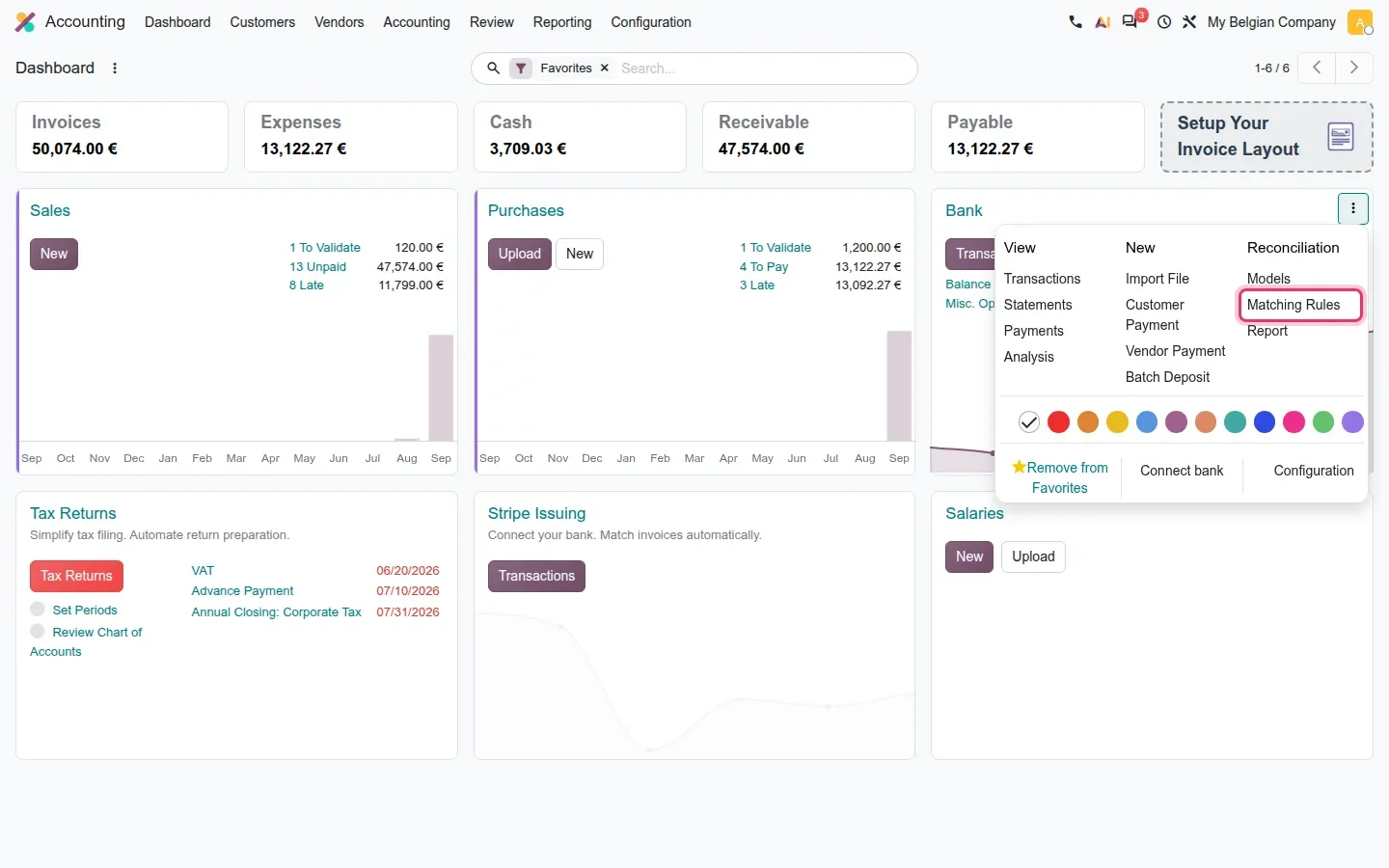
Reconciliation models now come in two kinds, and the pre-release build keeps them in two lists. Open the menu of the bank journal card on the dashboard and a Reconciliation column offers Models and Matching Rules. A model does what it always did: it proposes counterpart lines, a fixed account or a write-off when you click it on a transaction. A matching rule, the new kind, searches your open invoices and bills for one that fits the transaction and reconciles it without asking. Odoo's notes describe matching rules as a type on the reconciliation model form; on this build they are a menu entry of their own.
The form is short. Filters on Journals, Partners, Amount and Label restrict which transactions the rule may touch, a Next Activity can be scheduled when it fires, and a Counterpart Items tab lists what to post. The two fields that power users missed from the old widget are back: Payment Tolerance, entered as an amount or In percentage, and Matching Order, with Oldest first as the default. Together they let an accountant say that a payment within 2 % of an invoice balance belongs to that invoice, and that the earliest installment is settled first. The Matching Rules list was empty on the demo, so the rule below is one we filled in and did not save.
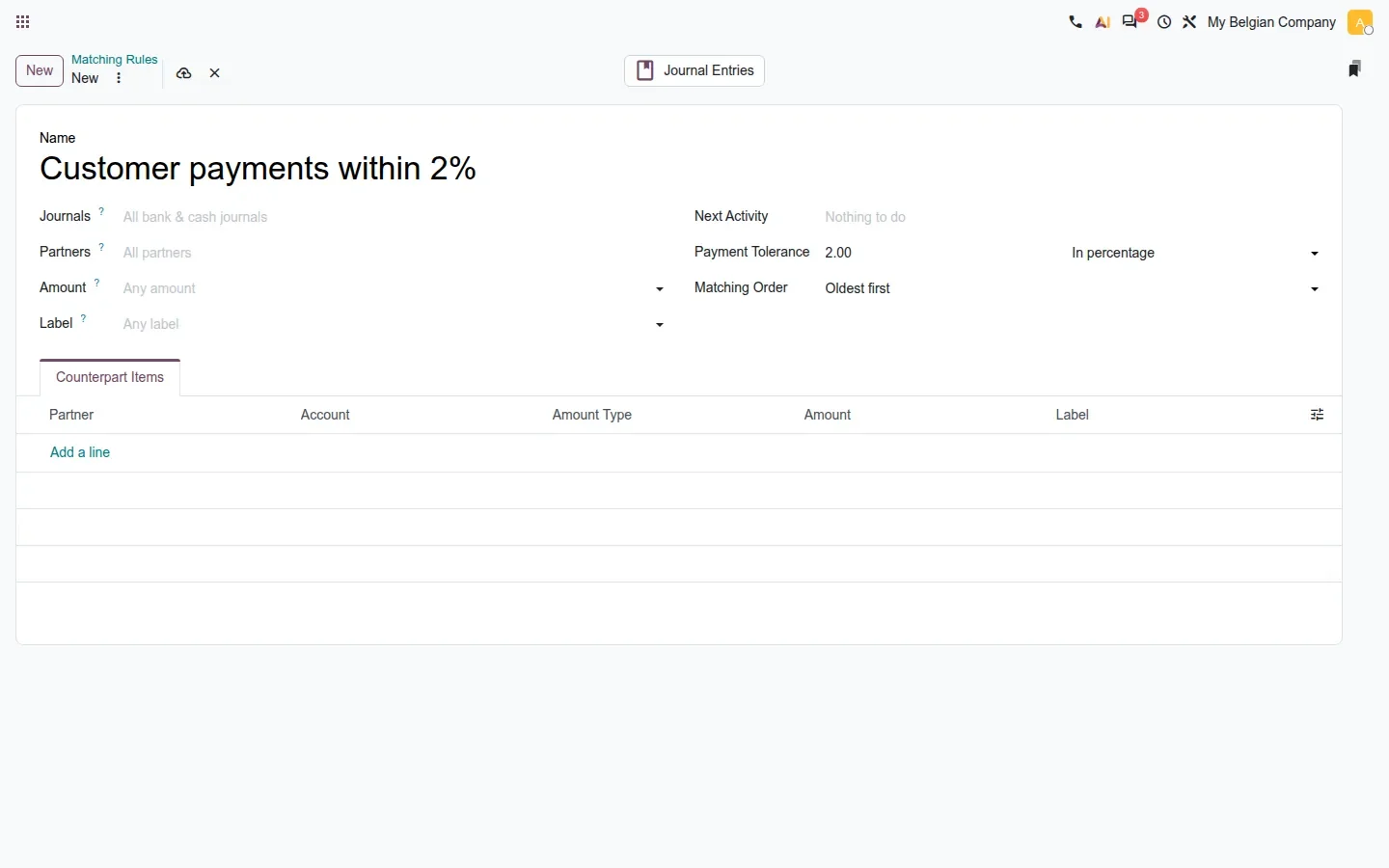
For a daily reconciler, the practical change is that automatic matching becomes something you configure and review rather than something that happens or not. A rule that matches too eagerly can be narrowed by journal or partner; a rule that misses can be given a wider tolerance.
Work on several transactions at once
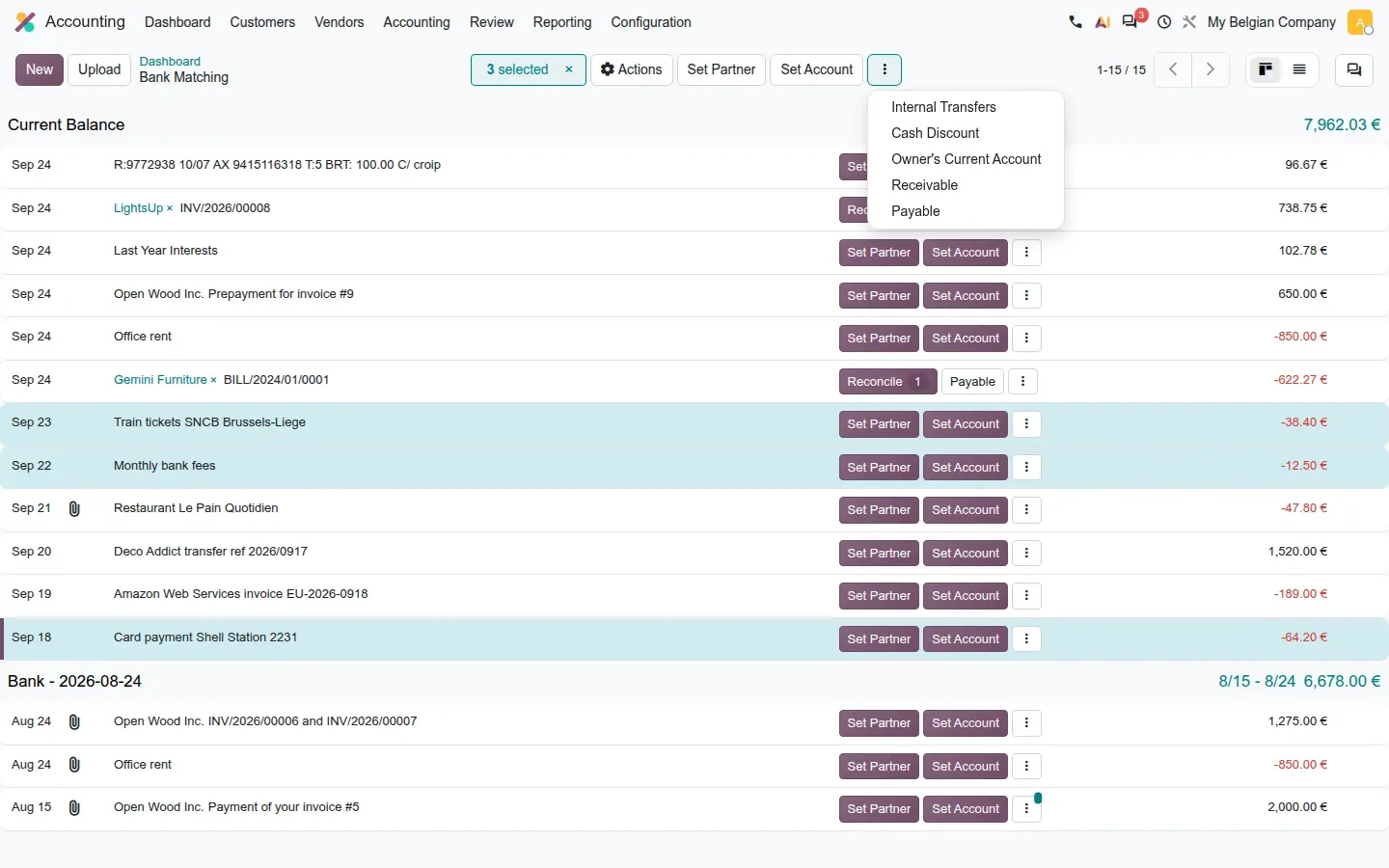
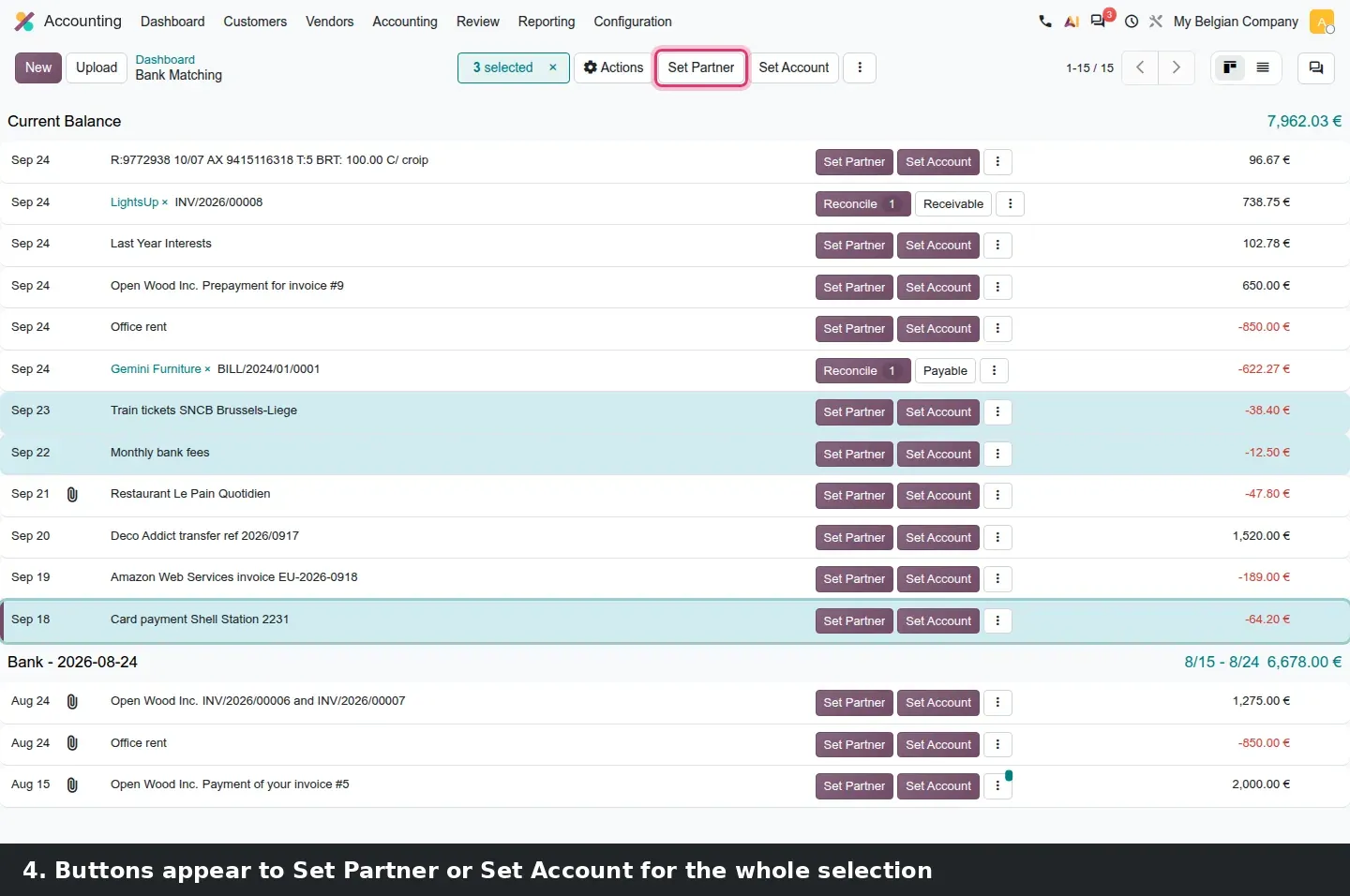
Open the bank journal's Transactions and hold Alt while clicking lines. A counter appears in the control panel, 3 selected on our screenshot, with Set Partner and Set Account buttons beside it. Set Partner assigns one partner to every selected line. Set Account posts them all to the same account, which is how a week of bank fees, train tickets and card payments gets booked in one move instead of three.
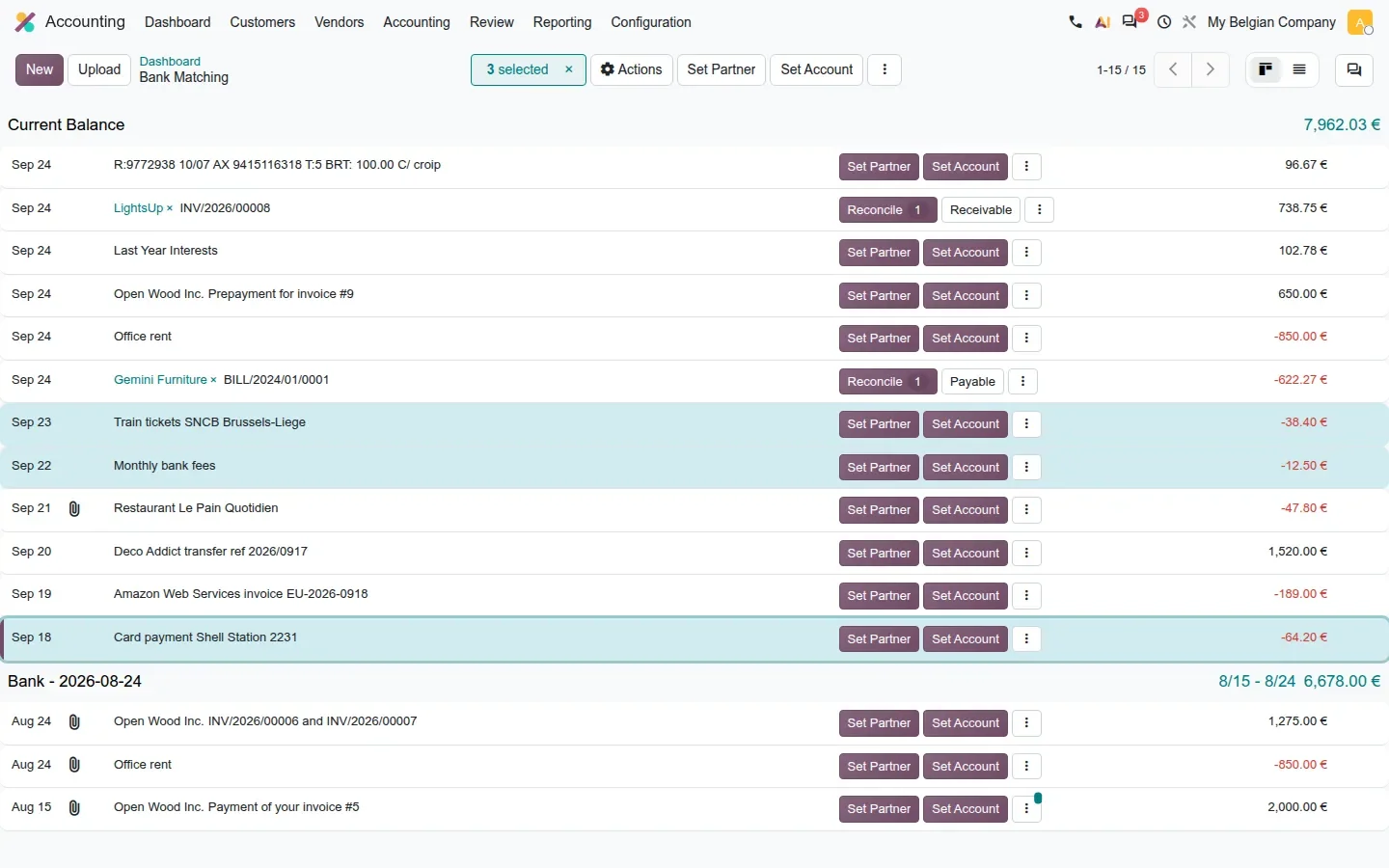
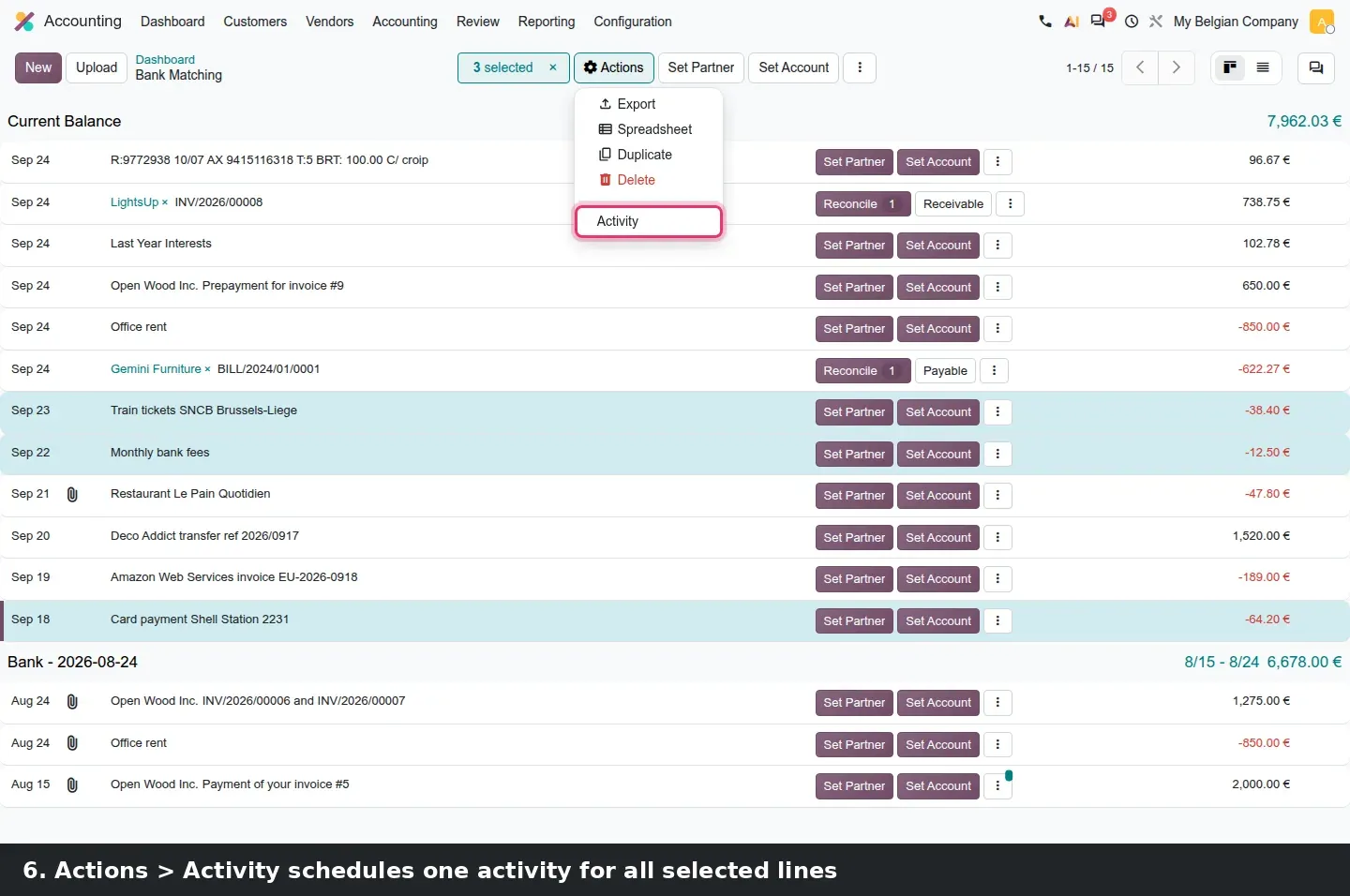
The kebab menu next to those buttons lists the reconciliation models valid for every selected line, on the demo Internal Transfers, Cash Discount, Owner's Current Account, Receivable and Payable. A model that would not apply to one of the lines does not appear, so you cannot half-apply a model by accident. The Actions menu on the same selection offers Export, Spreadsheet, Duplicate, Delete and Activity. Activity is the one that matters for a team: it schedules a single activity for all selected transactions, for example asking a colleague to upload the missing receipts. Activities on bank transactions now open the transaction itself rather than the statement line, so the assignee lands where they can act.
Start with the cheap lines
Try the multi-selection first on the small recurring lines that share one account: bank fees, card payments, fuel, train tickets. They are where Set Account on three lines saves the most clicks, and where a wrong account is quick to reverse. Keep customer payments for the matching rules.
Each transaction gets its own chatter and attachments
In Odoo 19 the chatter shown in the widget belonged to the underlying journal entry. Odoo 20 moves the chatter to the bank statement line. Click a transaction and the right-hand panel shows its own messages, the Send message, Log note, WhatsApp and Activity buttons, and a Files area. On our demo the restaurant receipt sits there with the note Receipt uploaded by the employee. Back in the list, a paperclip icon marks every line that carries a document, so a reconciler sees at a glance which transactions still need one.
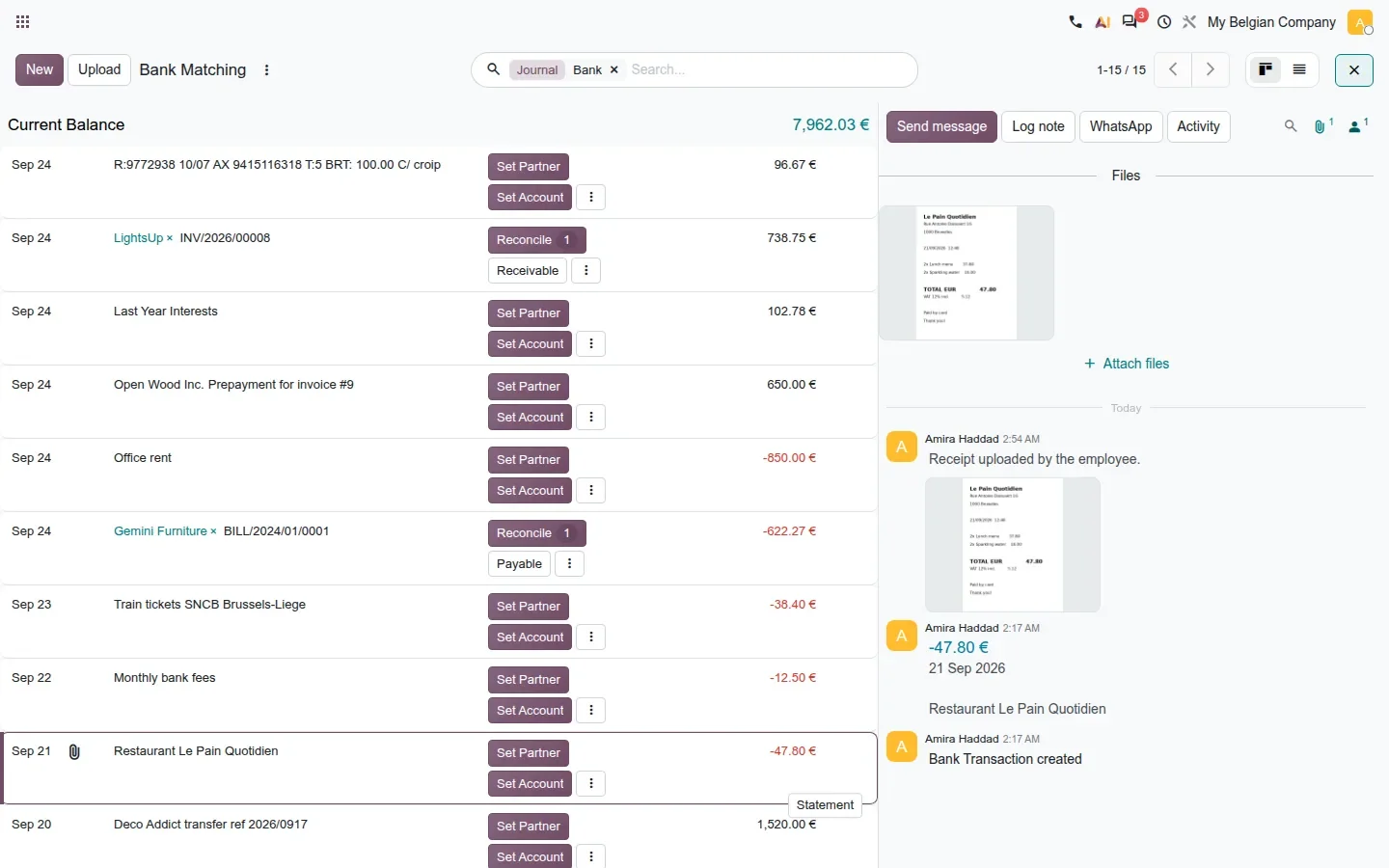
This is a small change with a large effect on audits. When the auditor asks for the supporting document of a bank line, it is attached to that line, not to a journal entry that may have been reconciled with three other lines. The chatter also gives a place to leave a colleague a question on the transaction where it arose.
Split one journal item into many
A supplier bill often has one line for ten identical items, and the fixed-asset register needs ten assets. Odoo 20 answers that frequent request with a Split button in the Journal Items list, next to Reconcile and Create Asset. Select the line, click Split, enter a Quantity and confirm. The wizard produces that many journal items with the amount divided equally and the entry still balanced. On the demo, one line of 12,500.00 for ten laptops became ten lines of 1,250.00, each ready for Create Asset.
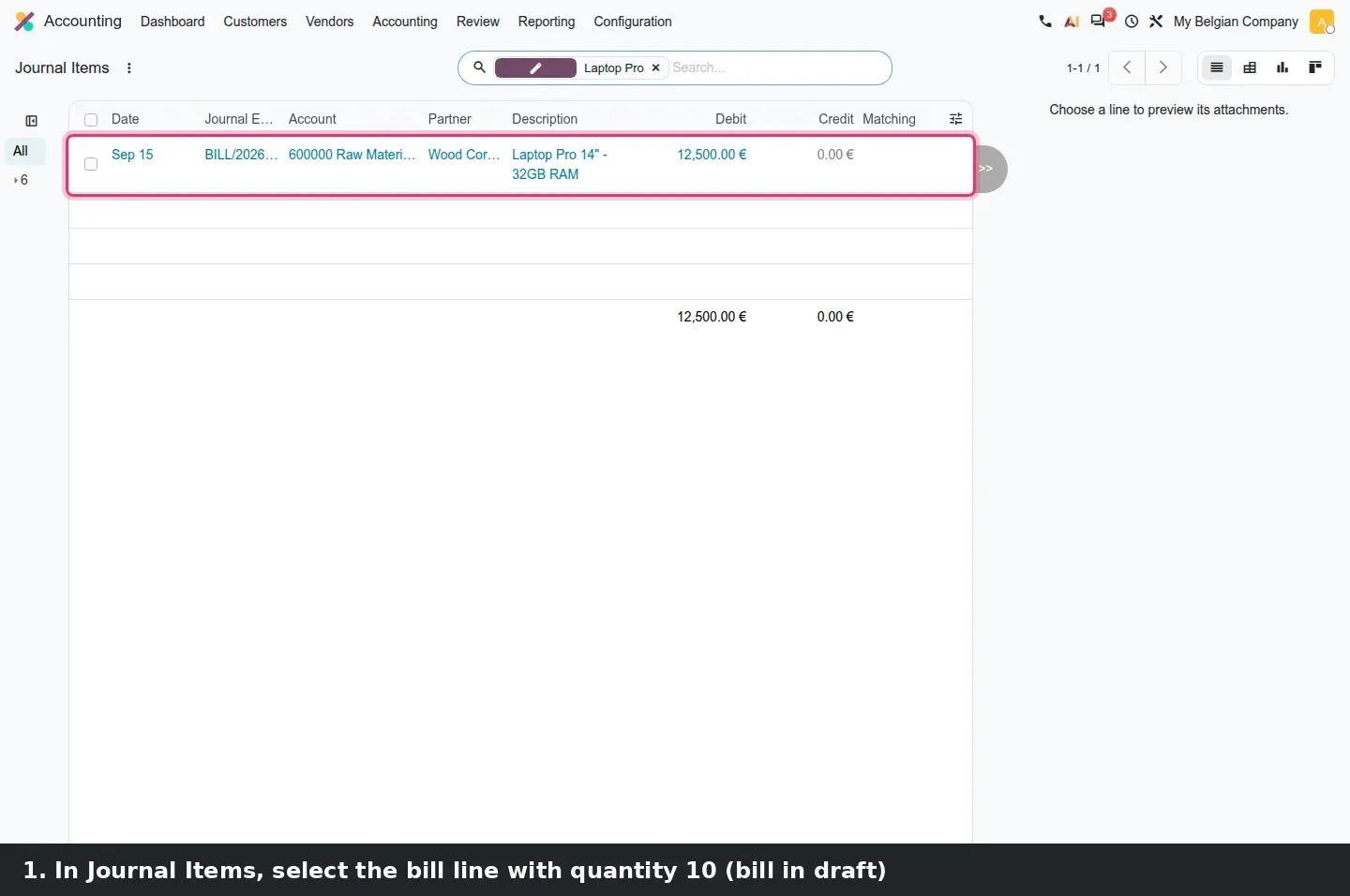
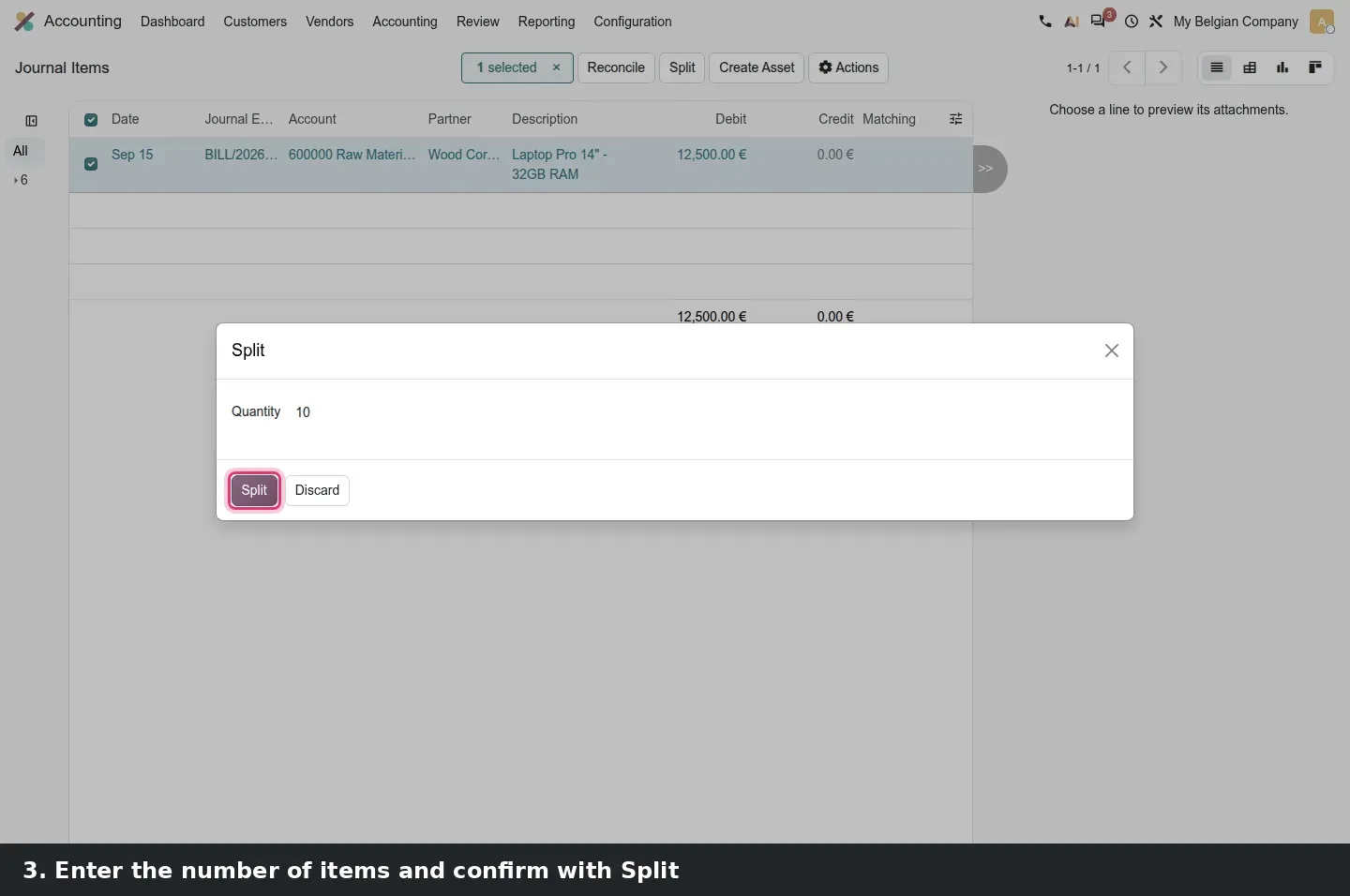
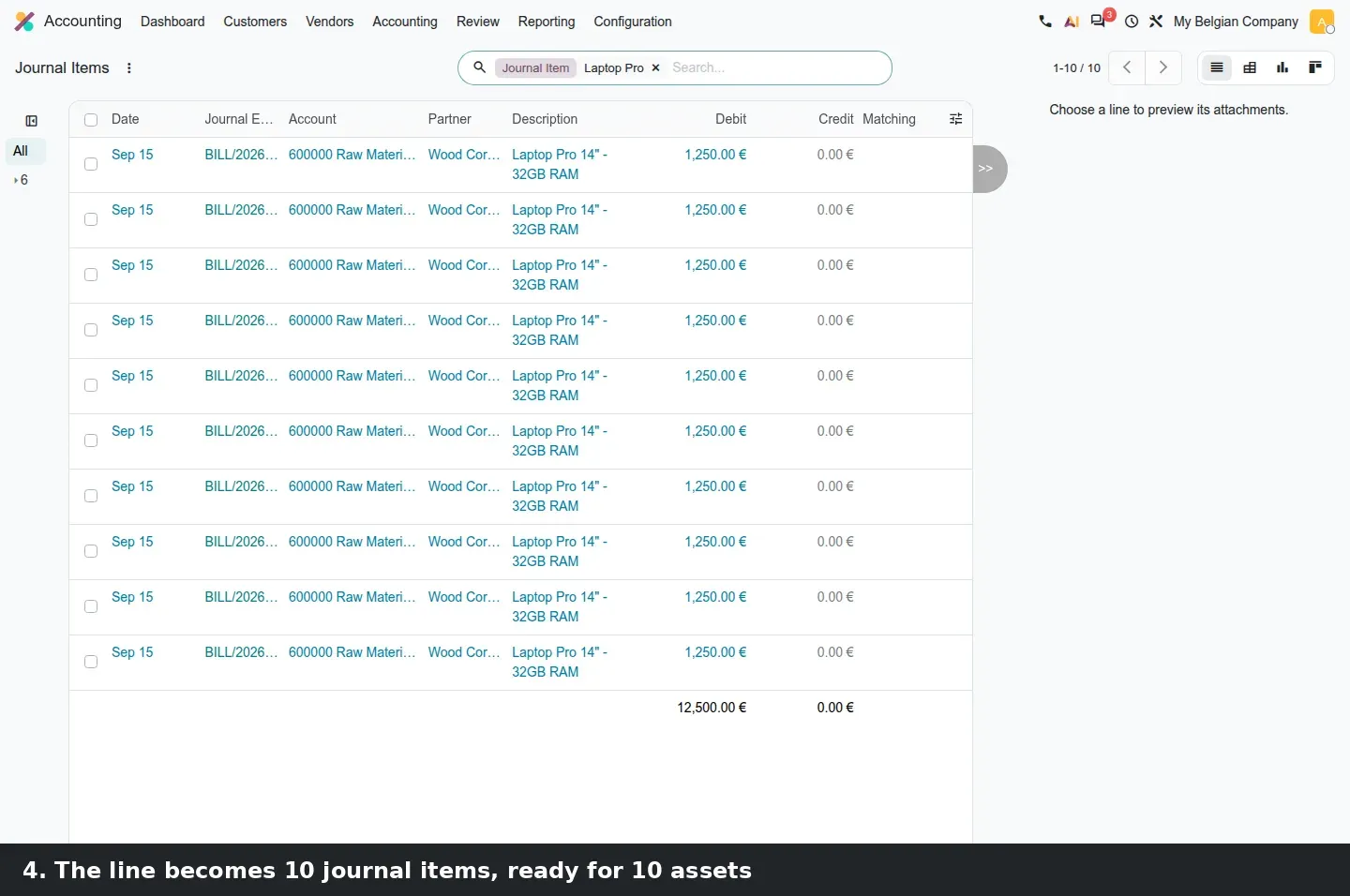
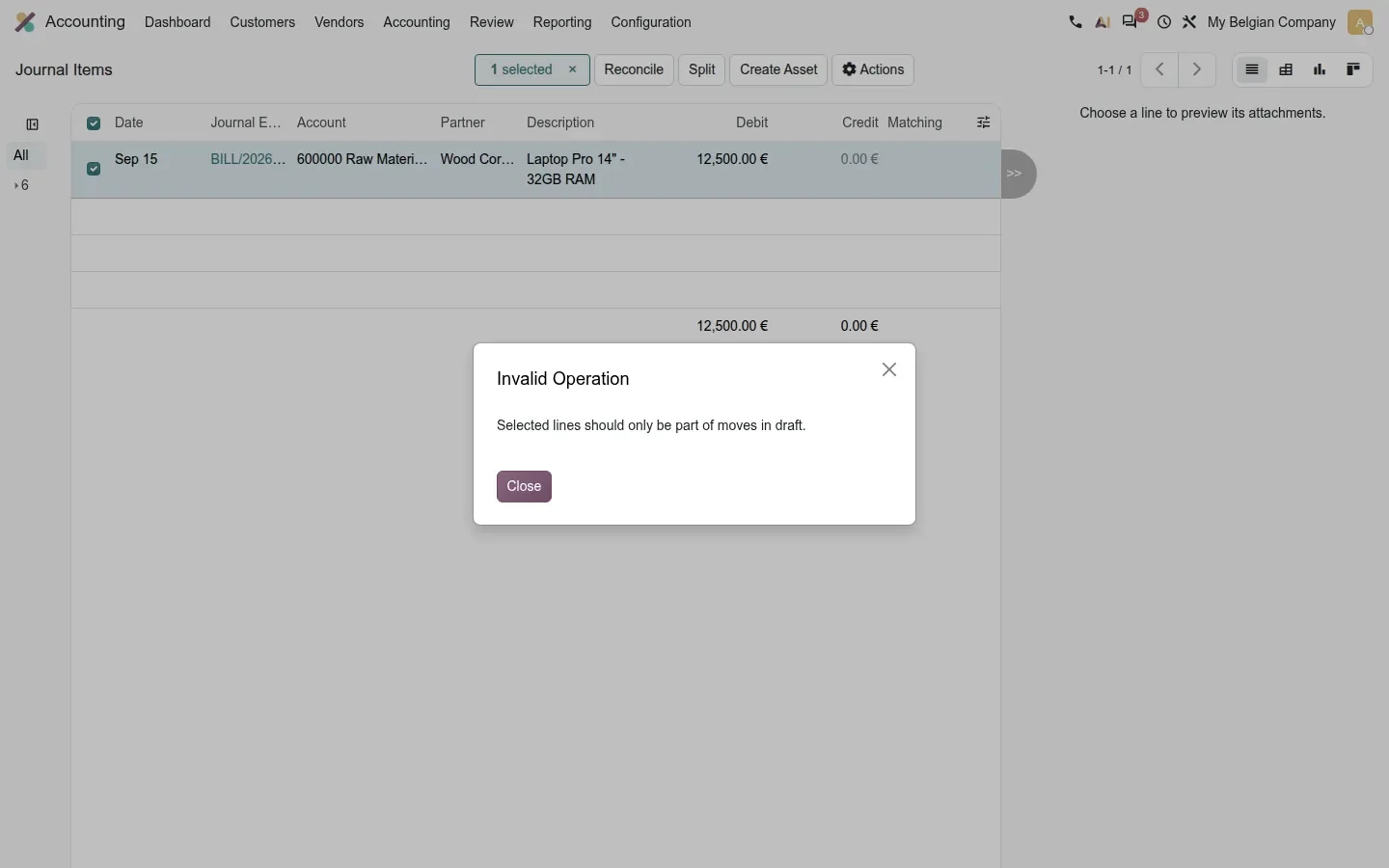
One correction to the feature notes: the wizard does not work on posted entries. On the pre-release build, splitting a line of a posted bill stops with the message Selected lines should only be part of moves in draft. Reset the bill to draft first, split, then post again. A short detour, but it means the split belongs in the bill-validation routine, before a period close locks the entry.
Yearly deferrals, reworked reminders and an Open Items button
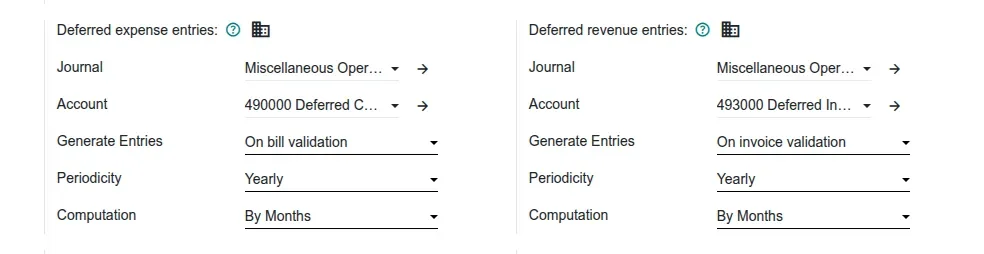
In Accounting > Configuration > Settings, the Deferred expense entries and Deferred revenue entries blocks gain a Periodicity field. When Generate Entries is set to On bill validation or On invoice validation, you choose whether the deferral entries are posted monthly or yearly, and the amount method is now labelled Computation, set to By Months on our demo. A company that closes once a year can stop posting twelve deferral entries for every annual subscription.
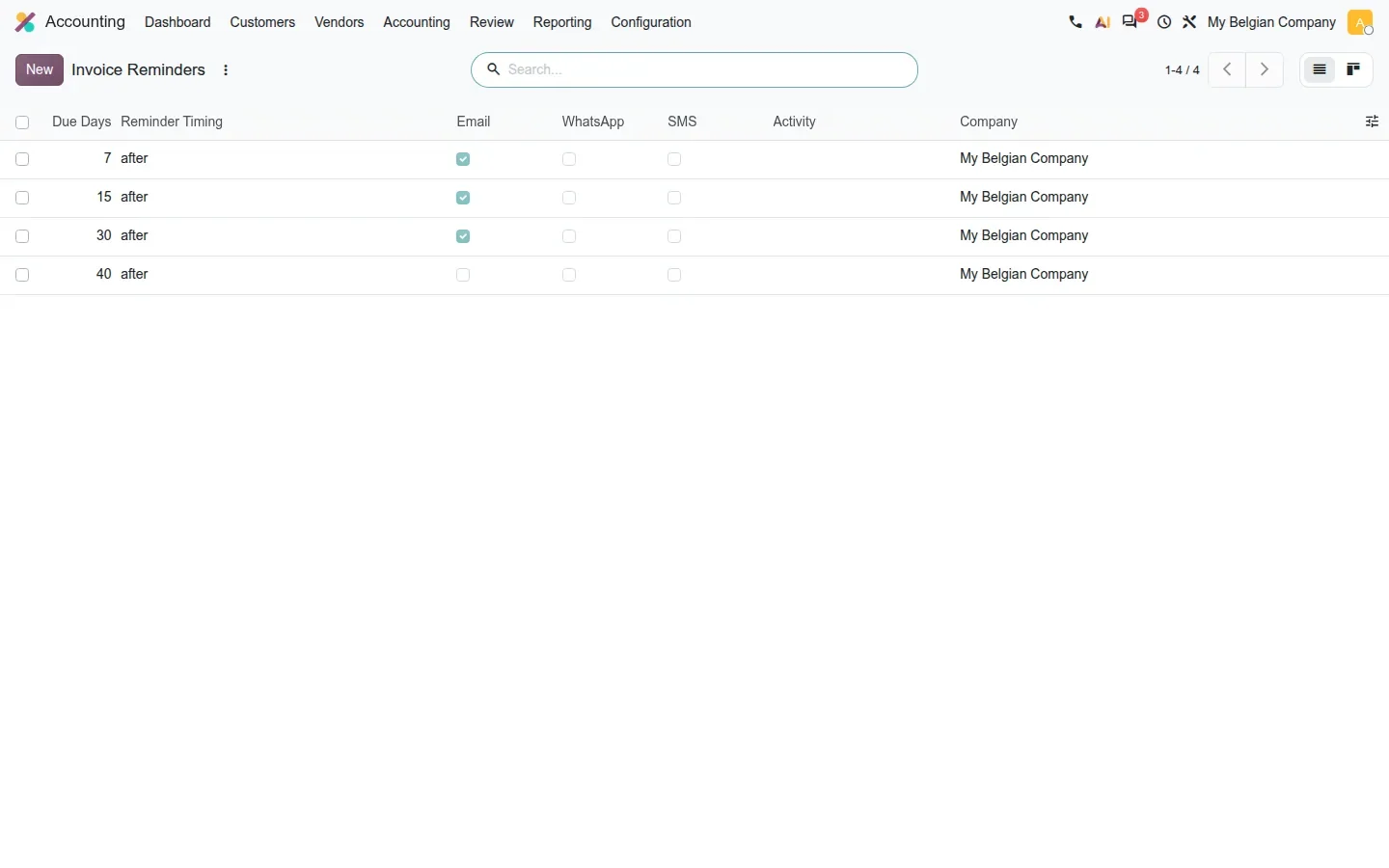
Invoice reminders were reworked. Accounting > Configuration > Invoice Reminders lists the levels with Due Days, Reminder Timing and one checkbox per channel: Email, WhatsApp, SMS and Activity. On the Belgian demo company we set four levels at 7, 15, 30 and 40 days after the due date, the first three by email. Odoo's notes also mention simplified automatic and manual follow-ups, new reminder filters and a sturdier Open Items report, which we did not test line by line.
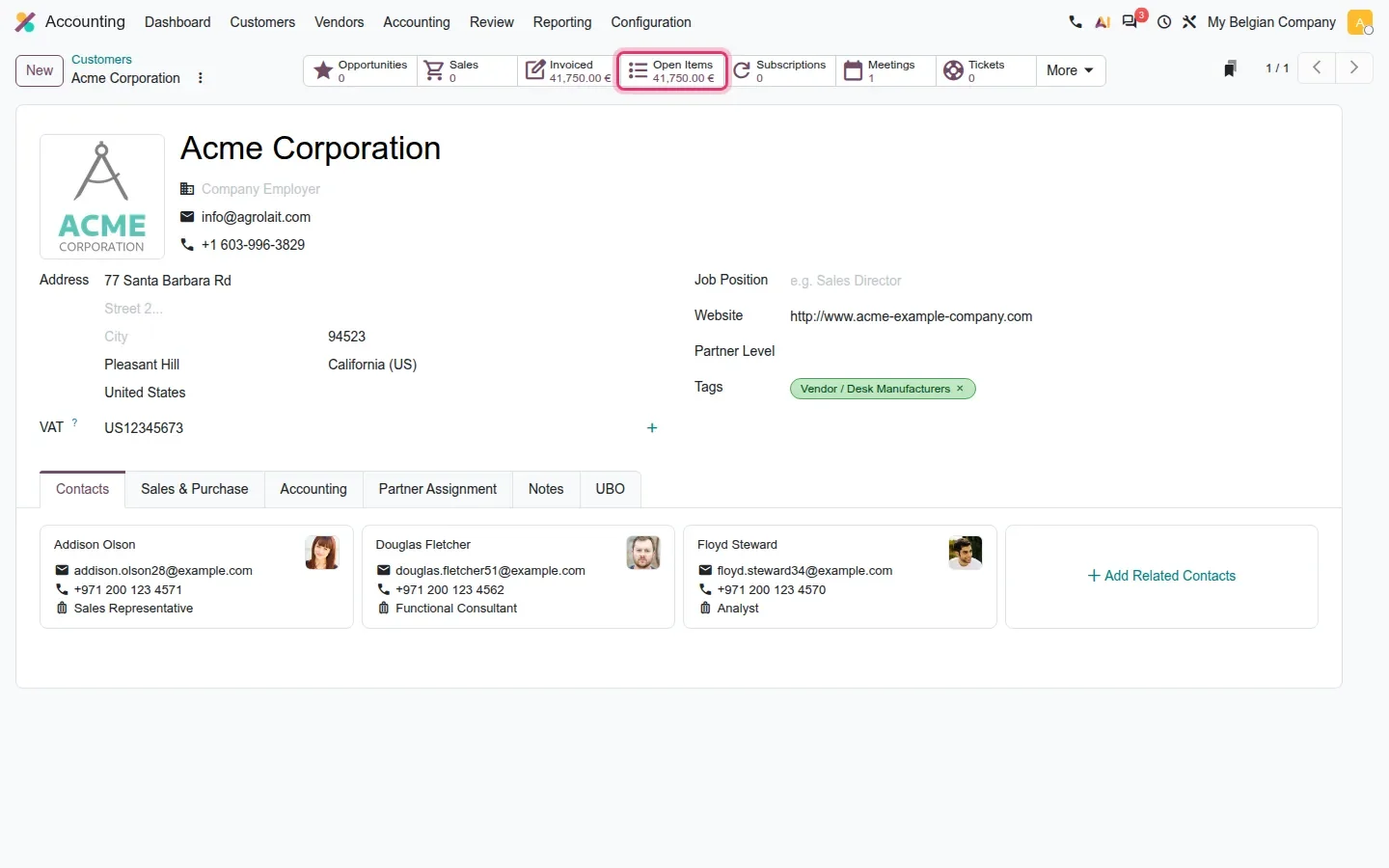
The last one is for whoever chases payments. The customer form now carries an Open Items smart button with the outstanding amount, 41,750.00 EUR on our demo, between Invoiced and Subscriptions. Odoo's notes call it an amount due button; the label on screen is Open Items. Click it and you are on that customer's open items without opening a report.
How to try it on a demo database
- Log into a demo database with Accounting installed and at least ten bank transactions; if you have none, use Upload or New on the bank journal card.
- Accounting > Dashboard, open the menu of the bank journal card and choose Reconciliation > Matching Rules. Click New, set Payment Tolerance to 2 with In percentage and Matching Order to Oldest first, then add a Counterpart Item.
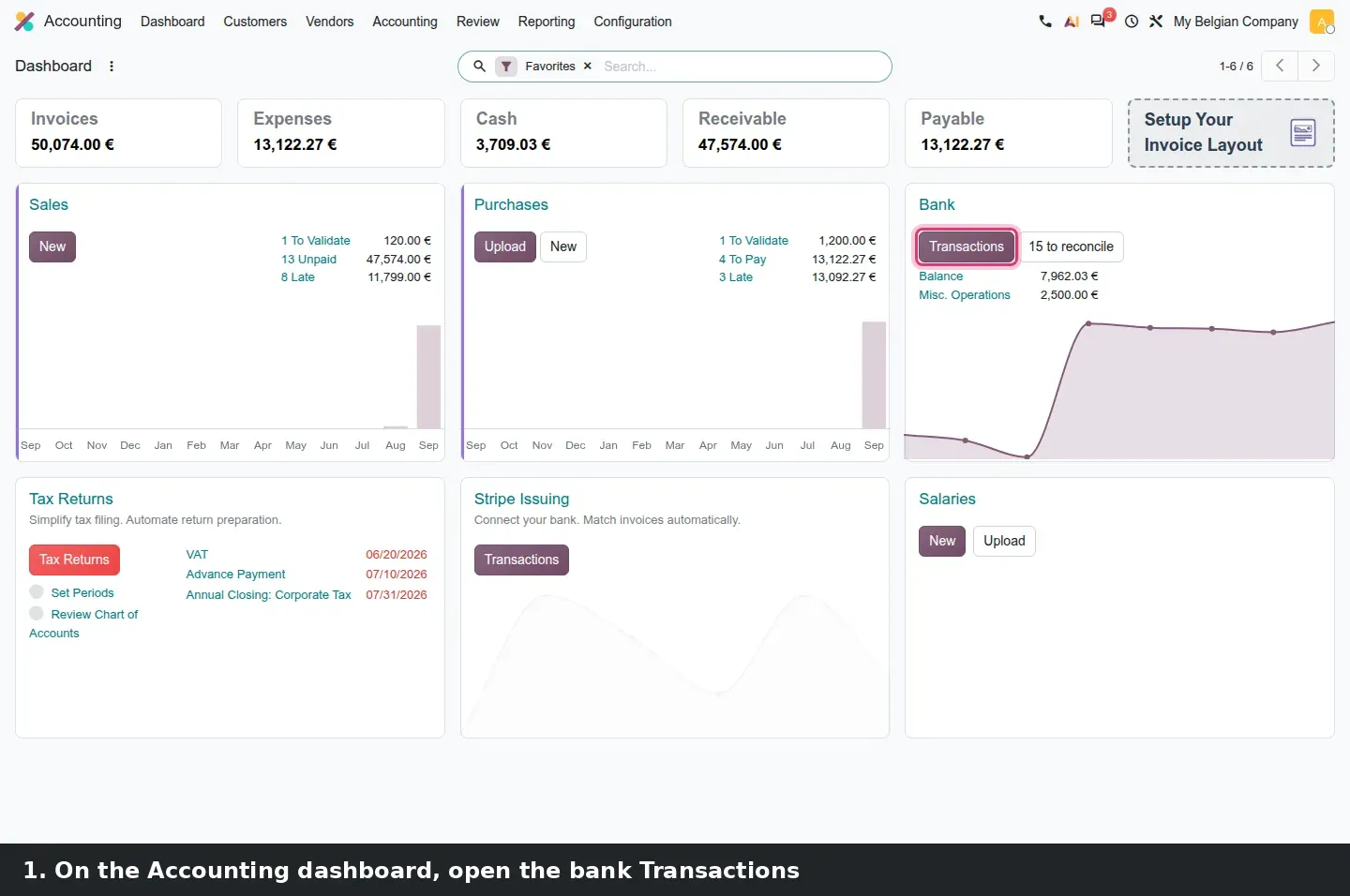
- Back on the dashboard, click Transactions on the bank card. Hold Alt and click three lines. Try Set Partner, Set Account, the kebab menu of reconciliation models, then Actions > Activity.
- Click one transaction, drop a receipt in the Files area of its chatter, and check that the paperclip appears in the list.
- Accounting > Accounting > Journal Items, filter on the line of a draft vendor bill, select it and click Split with Quantity 10. Try the same on a posted bill to see the refusal.
- Accounting > Configuration > Settings, scroll to Deferred expense entries and pick Yearly. Then open Accounting > Configuration > Invoice Reminders.
- Open a customer with unpaid invoices and click the Open Items smart button.
What we could not verify on the pre-release build
The intercompany bank bridge, where a bank line in company A is reconciled against an invoice held by company B through intercompany clearing accounts, was not configured on this demo, so we cannot show the other company's invoices offered as counterparts or the settlement entries posted and reversed. We also did not check two smaller claims in Odoo's notes: that draft statement lines show in blue, and that the widget remembers whether you left the chatter open. Automatic matching of installment payment terms was read, not run, because we did not save a matching rule. Everything else on this page was clicked through on the 20.0 Enterprise build of 23 September 2026.
What this means for an upgrade
If you run Odoo 17, 18 or 19, export your list of reconciliation models before the upgrade and note which ones match invoices; after the upgrade, compare them with the new Matching Rules list and set the tolerance and matching order you want, because those two fields decide how many lines match on their own. Tell the team that receipts now go on the bank transaction, not on the journal entry. If you create assets from split bill lines, split before posting. Reconciliation is one of the first flows we re-run on a copy of your database in our migration service, and the series hub lists the other accounting changes that land in the same upgrade.
Frequently asked questions
What is the difference between a reconciliation model and a matching rule in Odoo 20?
A reconciliation model proposes what to post against a transaction: counterpart lines, a fixed account or a write-off. A matching rule searches your open invoices and bills for one that fits the transaction, within a payment tolerance and in a chosen matching order, and reconciles it automatically. Both live under Reconciliation in the bank journal card menu.
How do I reconcile several bank transactions at once in Odoo 20?
Open the bank journal's Transactions, hold Alt and click each line. Set Partner, Set Account and a menu of reconciliation models then apply to the whole selection, and Actions > Activity schedules one activity for all of them. Only the models valid for every selected line are offered.
Can I split a journal item on a posted bill?
Not on the pre-release build. The Split button in Journal Items refuses lines of posted entries with the message Selected lines should only be part of moves in draft. Reset the bill to draft, split the line into the quantity you need, post it again, then create the assets from the new lines.
Where did the chatter on bank transactions go in Odoo 20?
It moved to the bank statement line. Each transaction now has its own messages, activities and attachments in the right-hand panel of the widget, and a paperclip icon in the list shows which lines carry a document. Odoo 19 displayed the chatter of the underlying journal entry instead.
Does Odoo 20 support yearly deferred revenue entries?
Yes. In Accounting > Configuration > Settings, the Deferred revenue entries and Deferred expense entries blocks have a Periodicity field, with Yearly available when entries are generated on validation, and a Computation field that sets how the amount is spread, By Months on our demo.