
A rebuilt kiosk and a station form you can set up in minutes
Frontdesk is Odoo's visitor check-in app: a tablet in the lobby where a guest types their name, picks the person they came to see, and that person is told they have arrived. Odoo 20 rebuilds it. The 20.0 commit history describes a redesigned visitor flow, simplified configuration and new welcome and host selection screens, and that matches the pre-release build. A frontdesk record is now called a station, the kiosk fits a landscape tablet, and every setting an office manager needs sits on one tab.
This post is for office managers, reception teams and HR in companies that receive visitors. We walk through the station form, the kiosk flow as a guest sees it, the privacy notice, the host notification channels, the visitor list with badges and mass check-out, and the new members mode. Everything shown was captured on a 20.0 Enterprise demo with a station named SF Office Lobby and six hosts.
Observed on the Odoo 20.0 Enterprise pre-release build of September 23, 2026. Names, menus and availability can change before general availability; we will update this page when they do.
A frontdesk is now a station with one settings tab
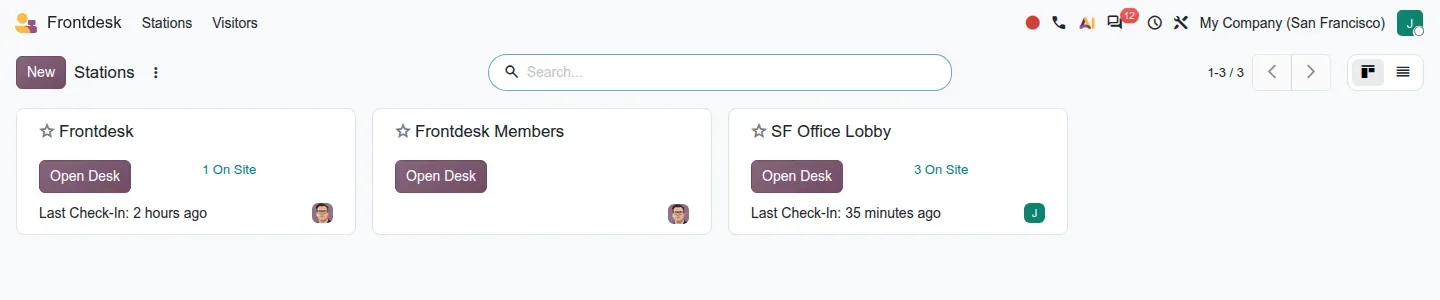
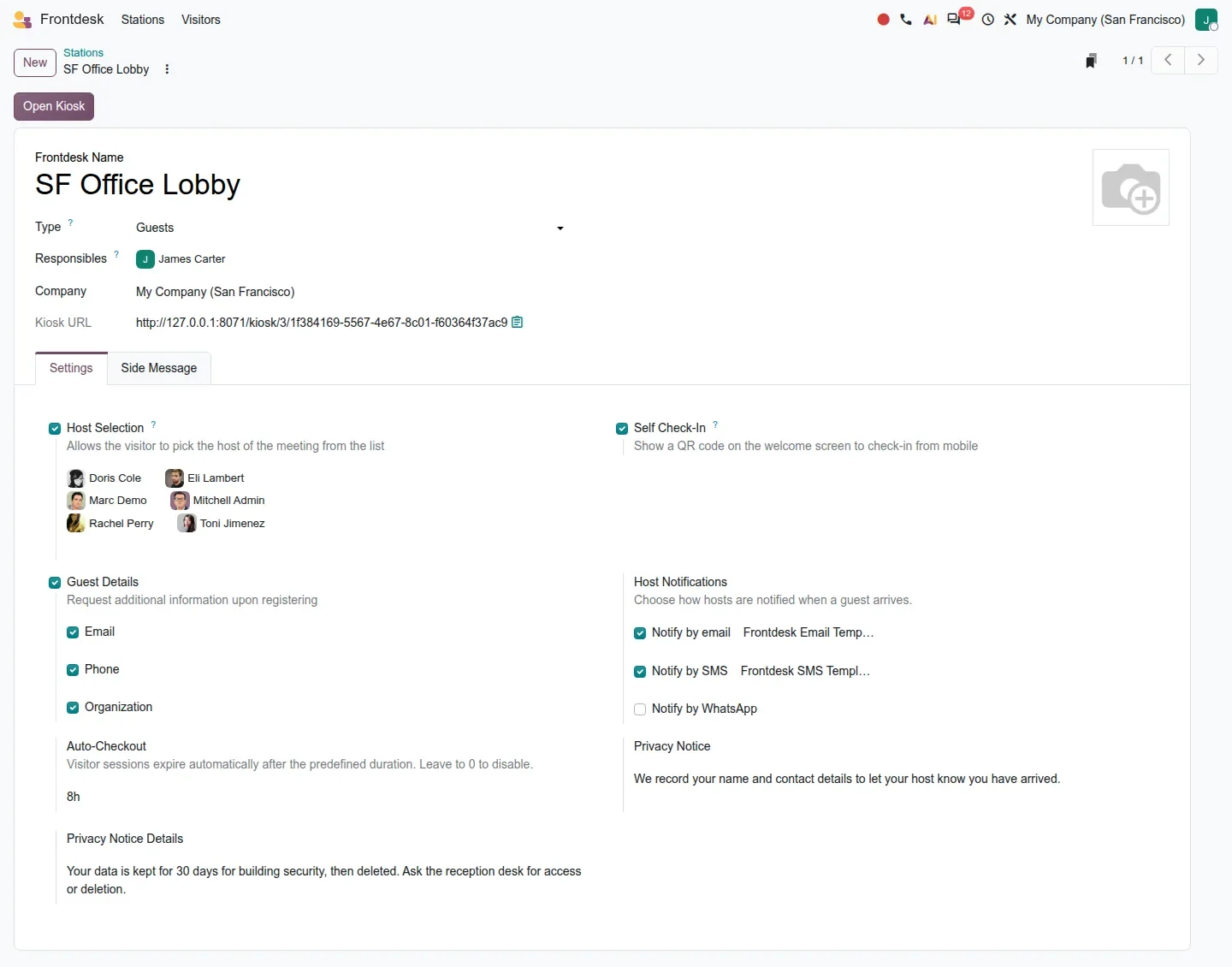
Frontdesk > Stations opens a kanban with one card per station: an Open Desk button, a count of guests on site and the time of the last check-in, so a receptionist covering two entrances sees both at a glance. The station form shows a Frontdesk Name, a Type (Guests by default, or Members), the Responsibles who look after that desk, the Company and a Kiosk URL you can copy into the tablet's browser. An Open Kiosk button at the top launches the kiosk from the back office.
The Settings tab is where the setup happens, and it fits on one screen. Host Selection lets the guest pick who they are visiting; the chosen hosts appear as avatars on the form. Self Check-In shows a QR code on the welcome screen so a guest can register from their own phone. Guest Details decides what you ask for beyond the name: Email, Phone and Organization. Host Notifications lists the channels, covered further down. Auto-Checkout is new: visitor sessions expire after the duration you set, 8 hours on our demo, and the help text says to leave it at 0 to disable it. A second tab, Side Message, sits next to Settings.
Set Auto-Checkout to your longest plausible visit
A scheduled action named Frontdesk: Auto-Checkout Visitors closes sessions that pass the duration. Set it a little above your longest meeting, not a full workday, so a guest who left at noon does not still count as on site at five.
The kiosk flow: two columns, one screen, a Continue button
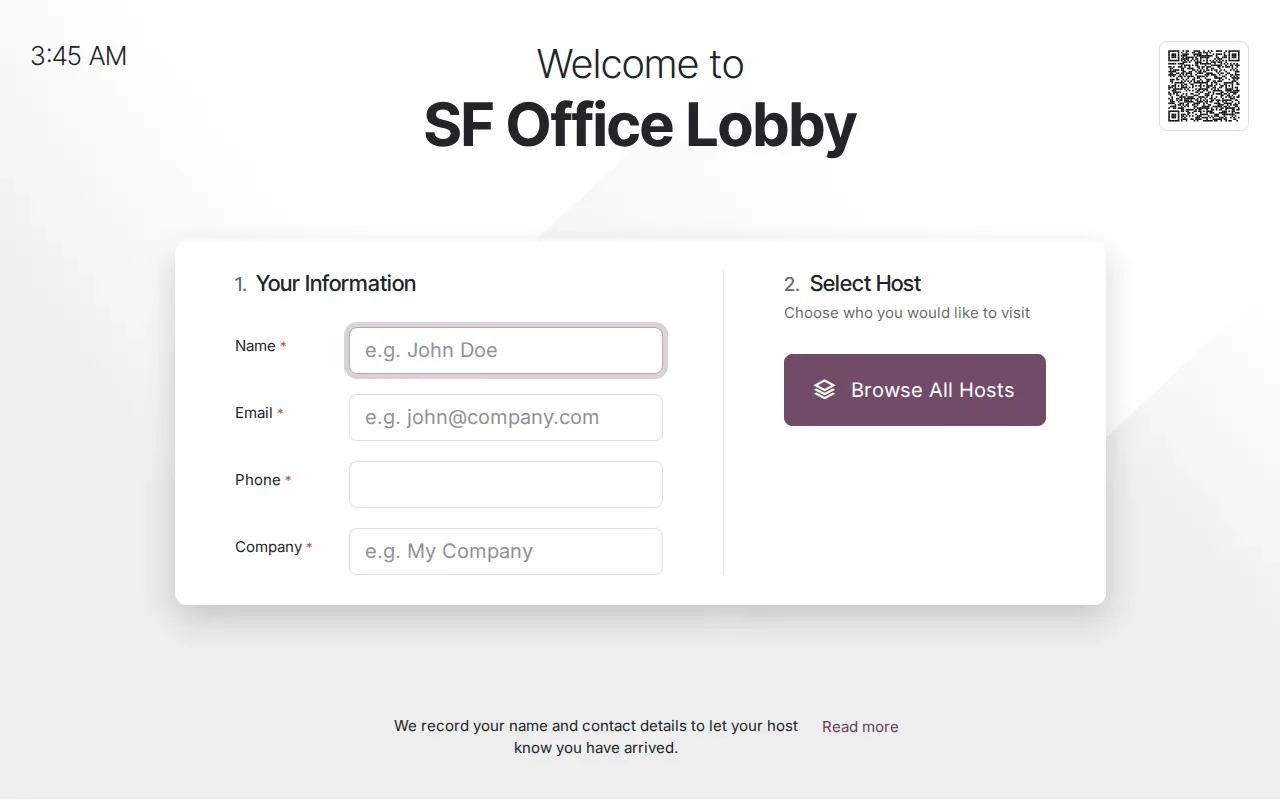
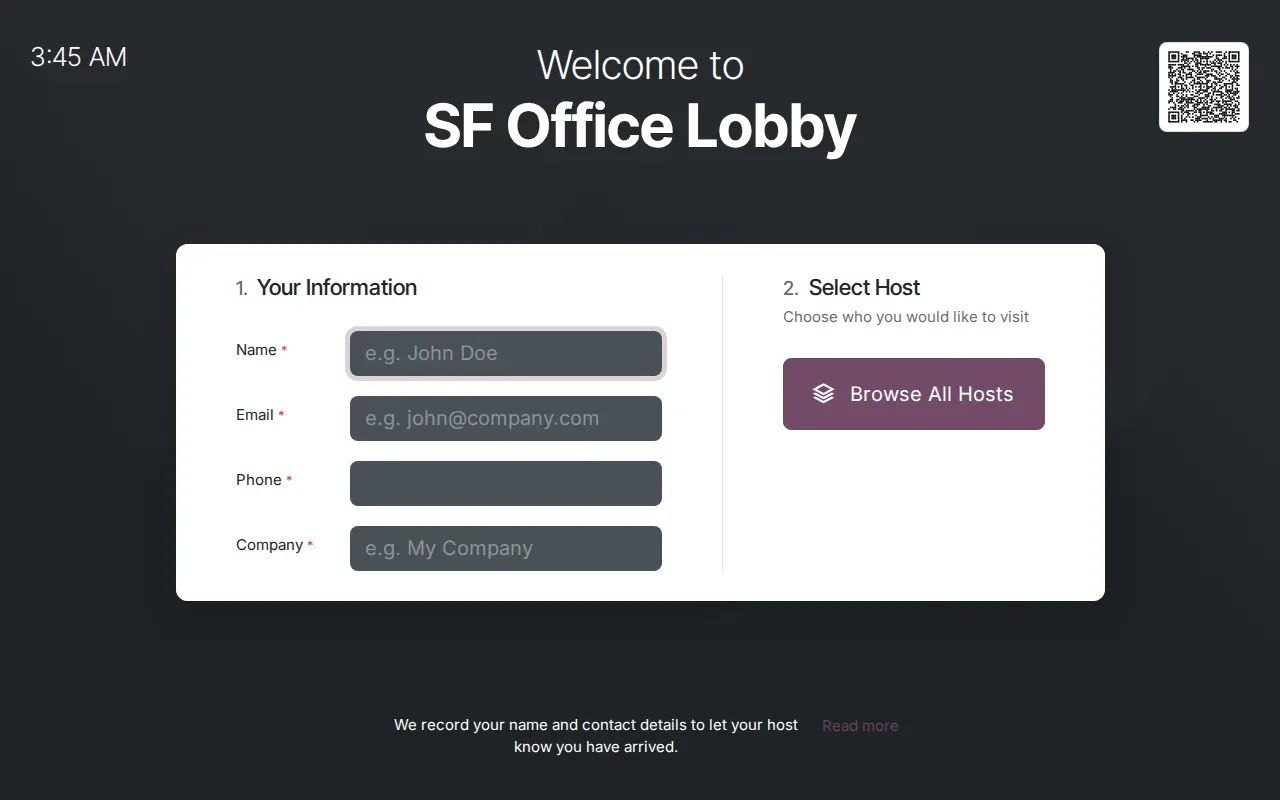
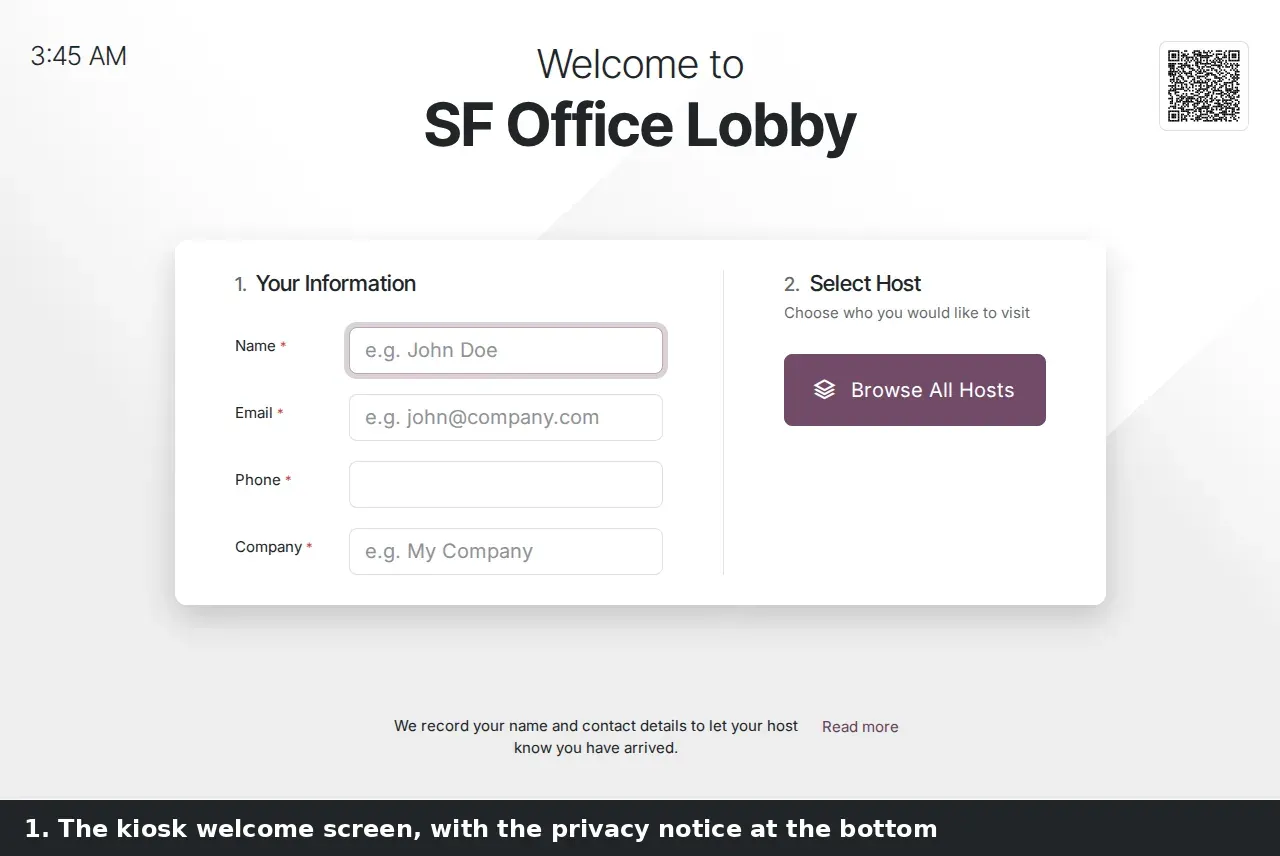
Click Open Kiosk and the tablet shows Welcome to SF Office Lobby, the time in the top left and the self check-in QR code in the top right. The screen is split in two: on the left, Your Information with Name, Email, Phone and Company, each required because we ticked all three guest details; on the right, Select Host with a Browse All Hosts button. The privacy notice sits at the bottom with a Read more link. Nothing scrolls.
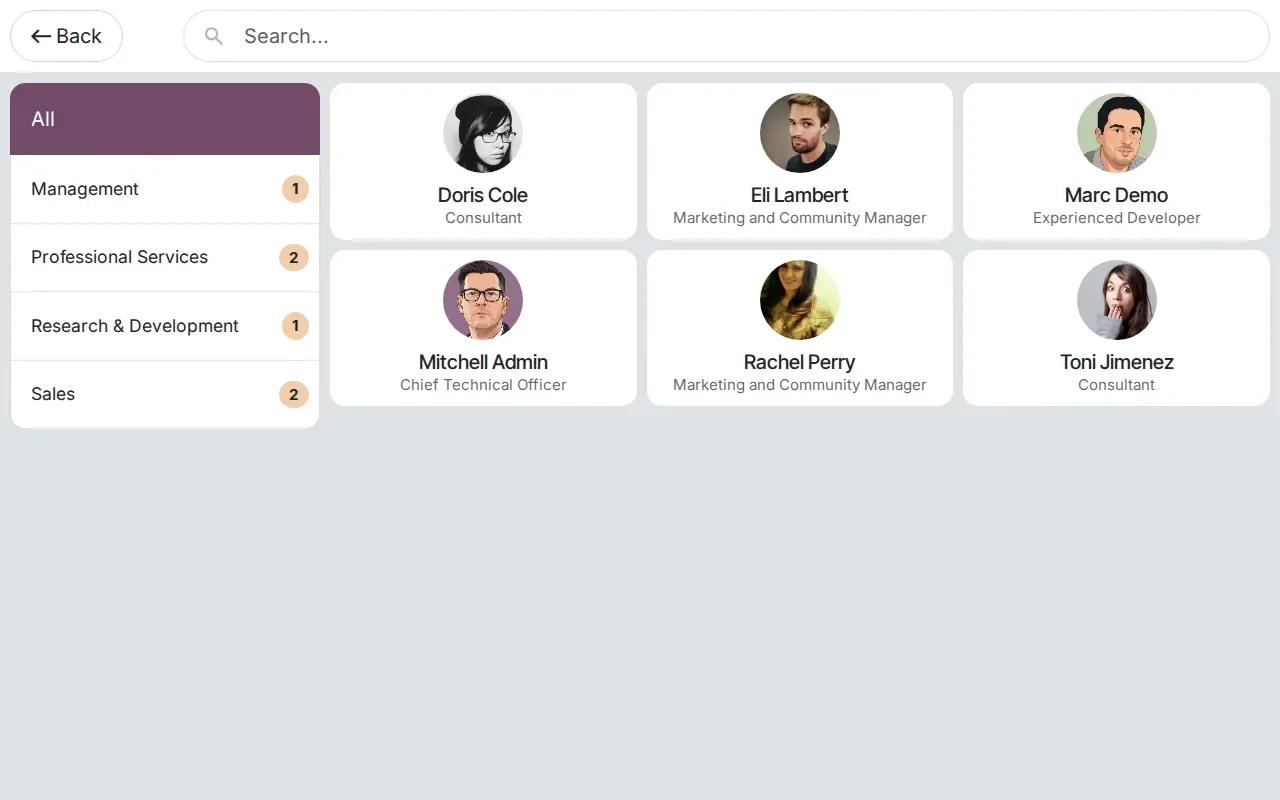
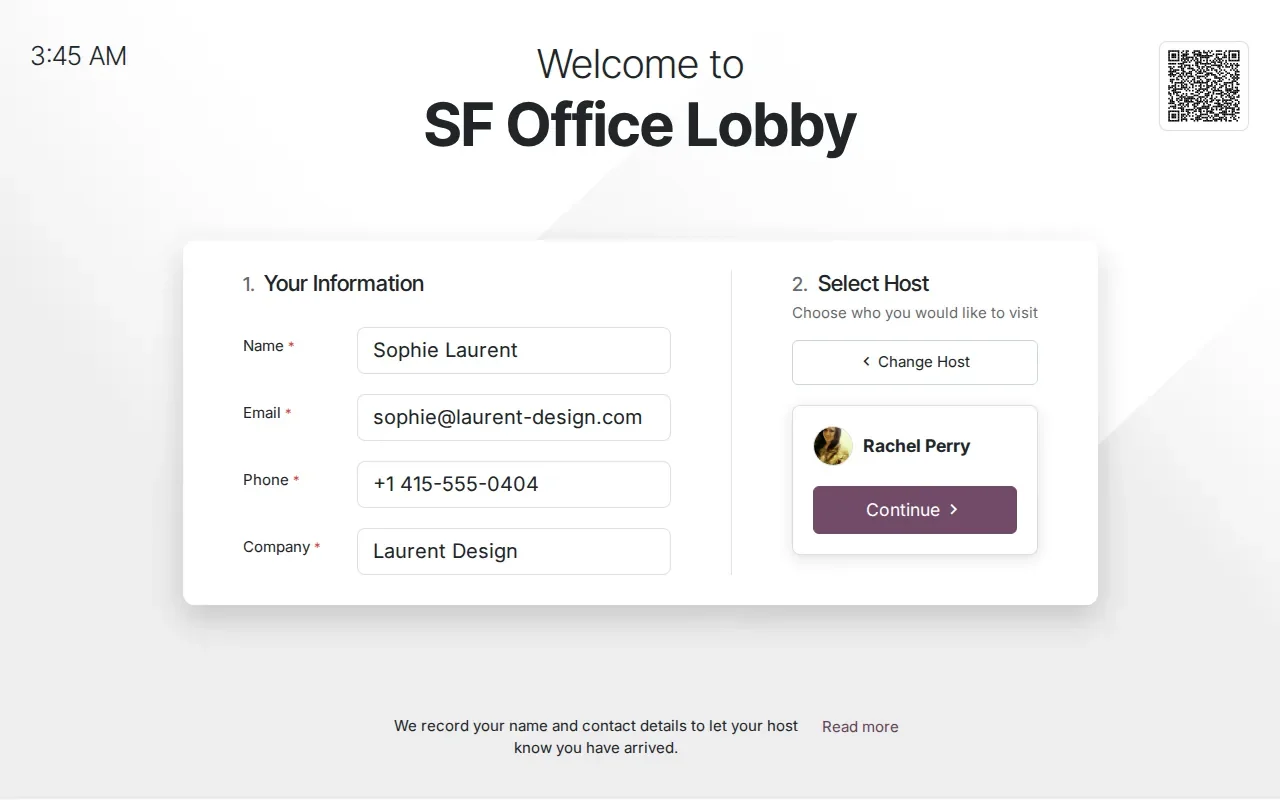
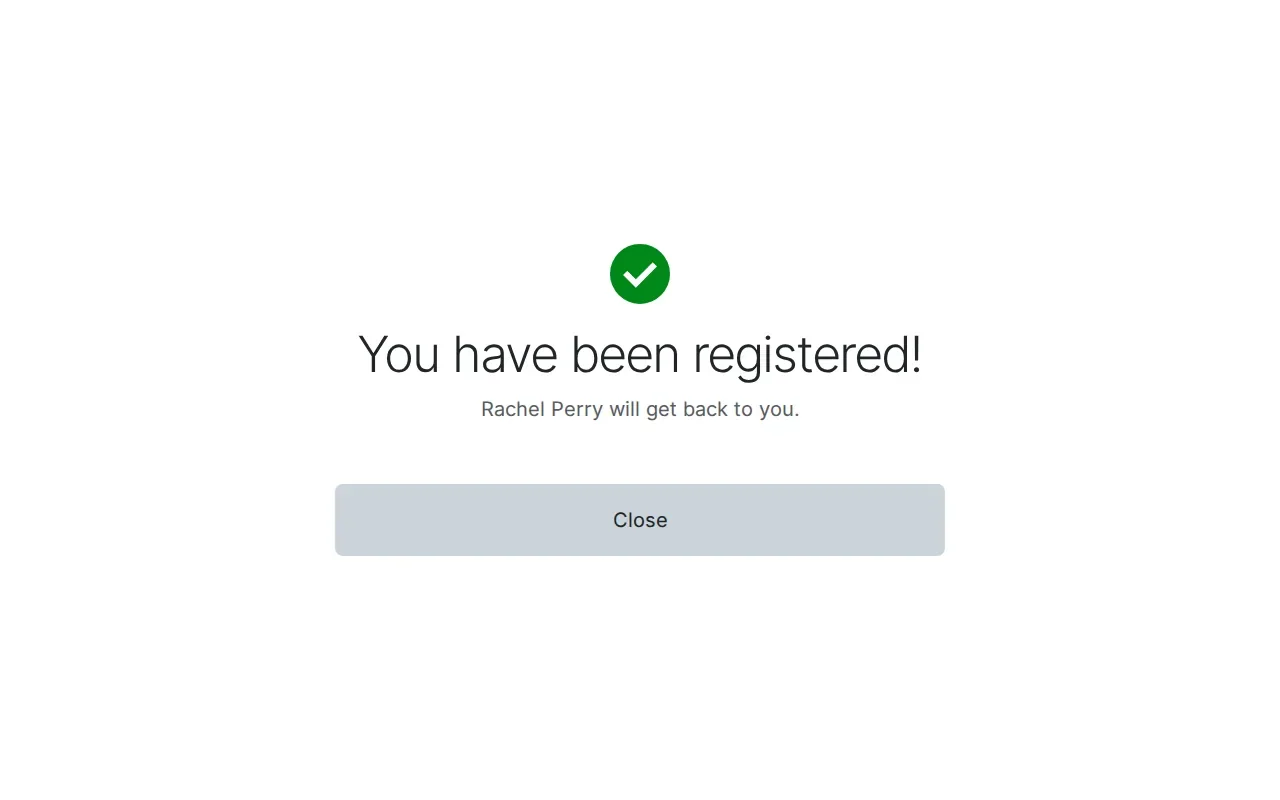
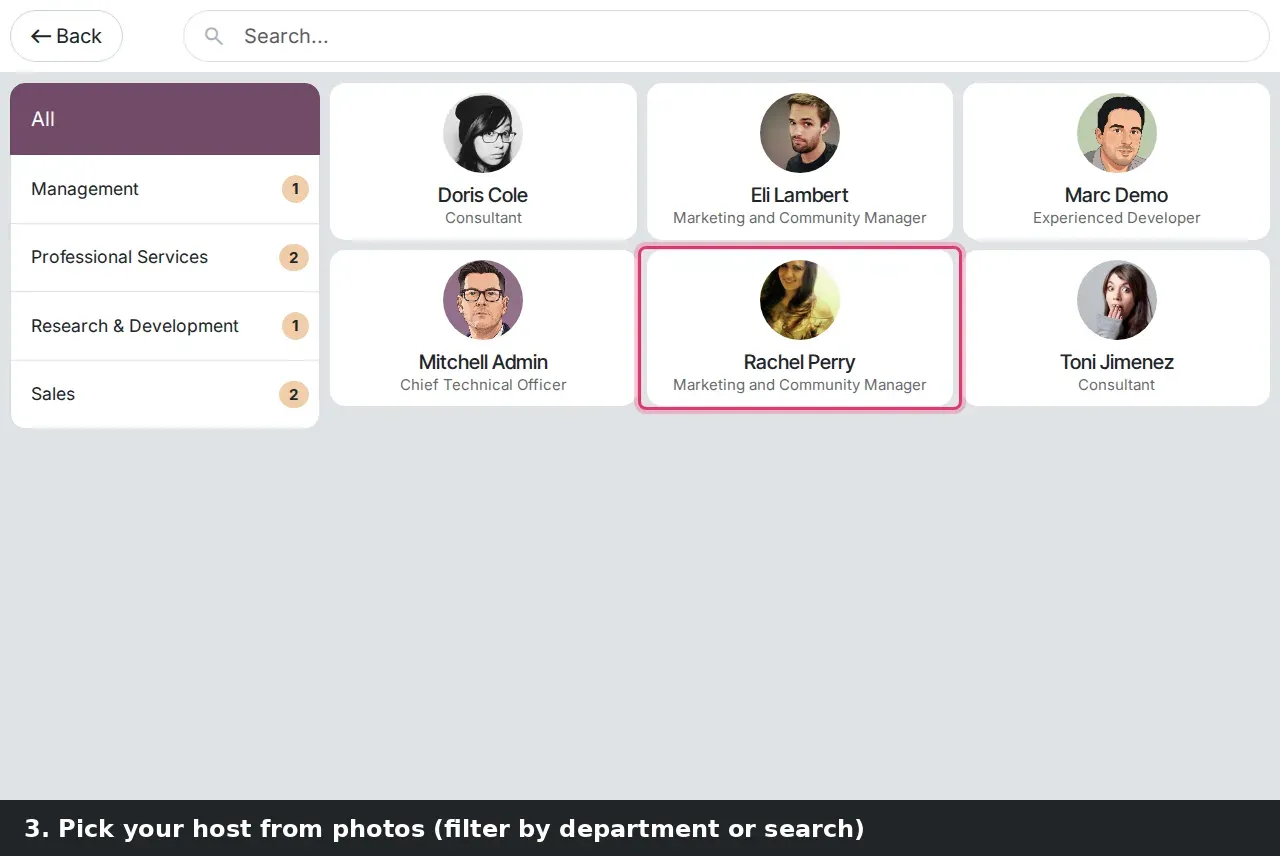
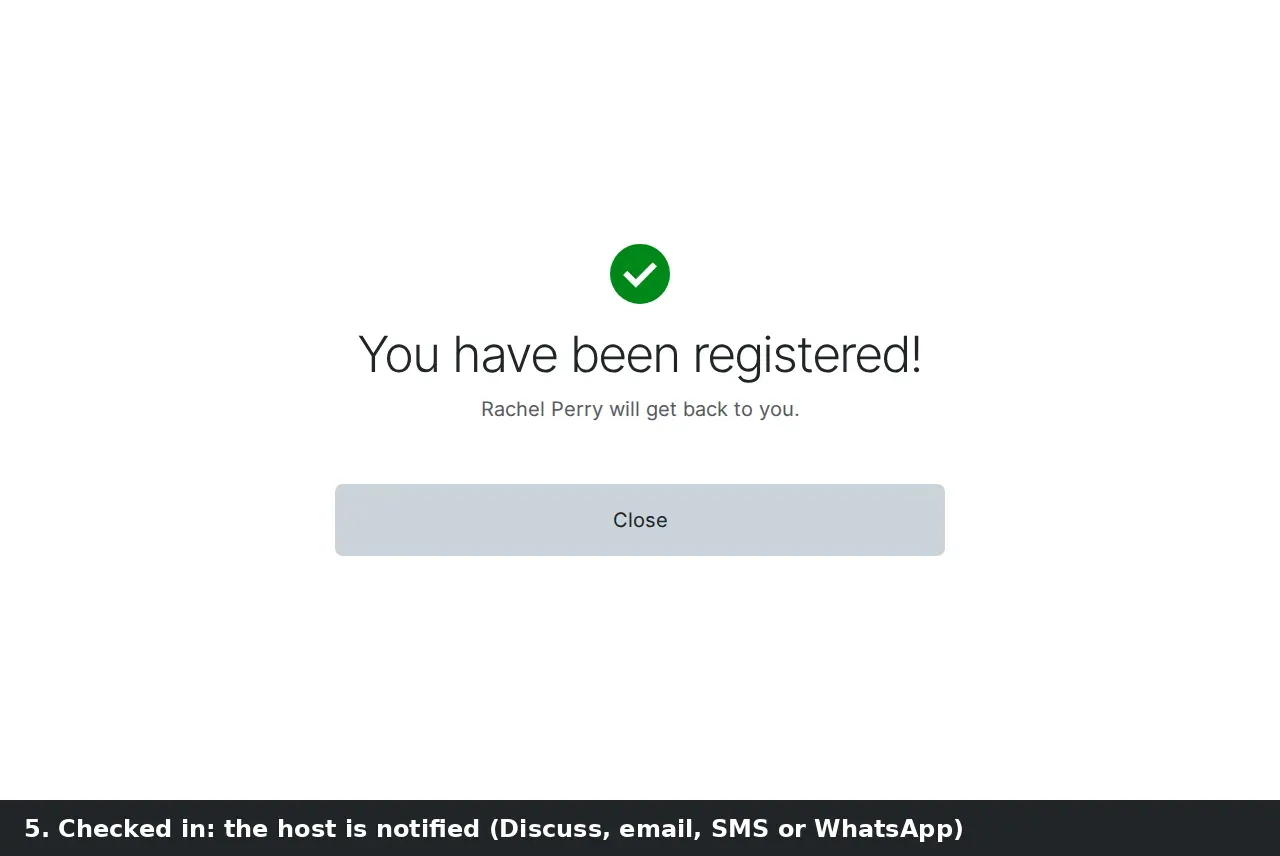
Browse All Hosts opens a grid of host cards with the employee photo, name and job title, a department list on the left with counts, a search bar and a Back button. Tap a host and the welcome screen shows the choice with a Continue button; tap Continue and a green check mark confirms "You have been registered! Rachel Perry will get back to you." A Close button returns the kiosk to the welcome screen for the next guest. The station also carries a theme; set to Dark, the same layout renders on a dark background.
A privacy notice before the guest types anything
The station form has two text fields, Privacy Notice and Privacy Notice Details. The first is one sentence at the bottom of the welcome screen, on our demo "We record your name and contact details to let your host know you have arrived." The second opens in a popup when the guest taps Read more, and is where you state how long you keep the data and who to ask for access or deletion. The guest reads it before filling in a single field.
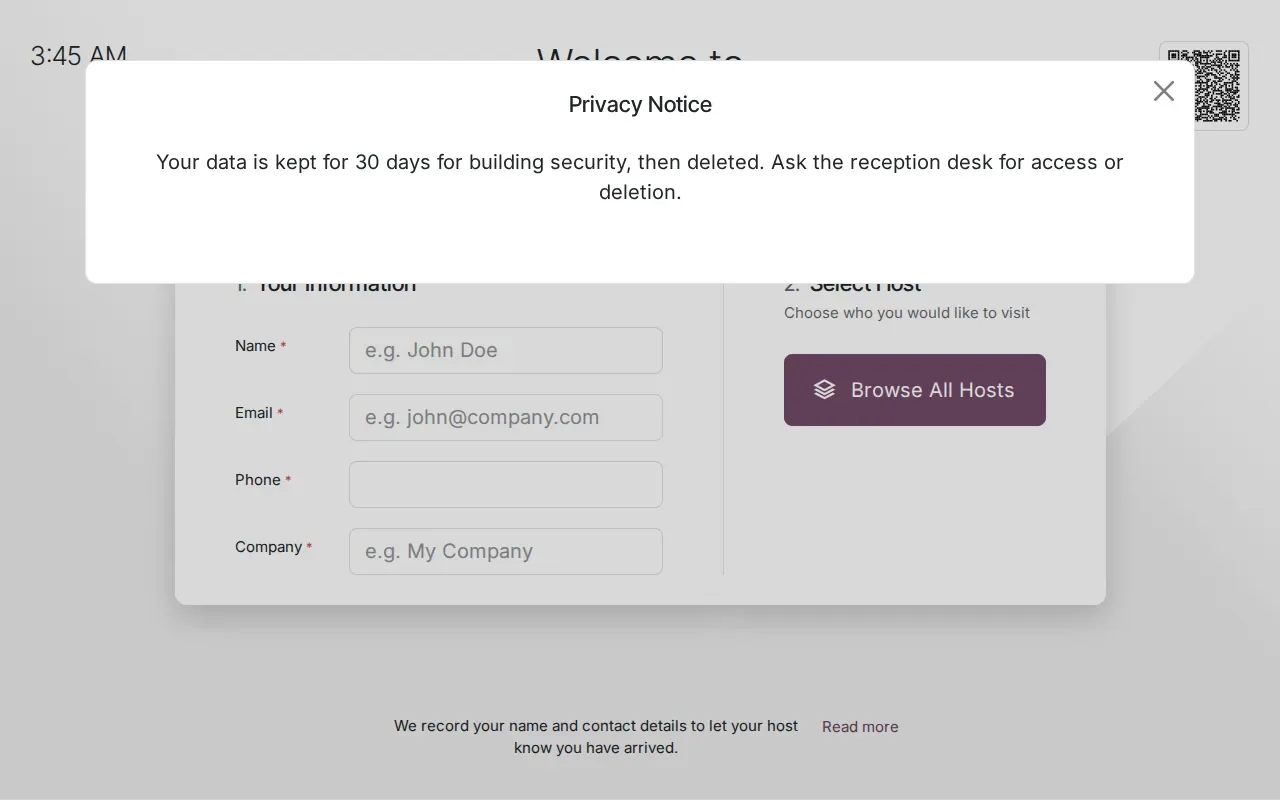
One thing to keep straight: the notice is text you write, and the retention it promises is a commitment your team keeps. Nothing on the station form deletes visitor records after a period, and we found no retention setting on this build. Auto-Checkout closes a visit; it does not erase it. If you promise 30 days, as our demo notice does, plan a routine to honour it. Under GDPR or Quebec's Law 25, the notice and the Export action on the visitor list give you a visitor log; the deletion routine is on you.
Host notifications by email, SMS and WhatsApp
When the guest taps Continue, the host is told. Host Notifications on the Settings tab lists three checkboxes with a template beside each: Notify by email with Frontdesk Email Template, Notify by SMS with Frontdesk SMS Template, and Notify by WhatsApp. Email is in the core app. SMS and WhatsApp come from two bridge modules, frontdesk_sms and frontdesk_whatsapp, which install with the SMS and WhatsApp apps. According to the 20.0 source, the core app also posts to the host in Discuss; we did not capture that message.
The templates are ordinary mail and SMS templates, so you can change the wording or write them in French for a Quebec office. What we could not test is the message arriving: SMS goes out through Odoo's IAP SMS credits and WhatsApp needs a WhatsApp Business account with an approved template, and our demo had neither. The guest sees the same confirmation whichever channels are on, so a failed SMS is invisible at the desk. Check the host's inbox and phone the first time you switch a channel on.
The visitor list: check-out, mass check-out and badges
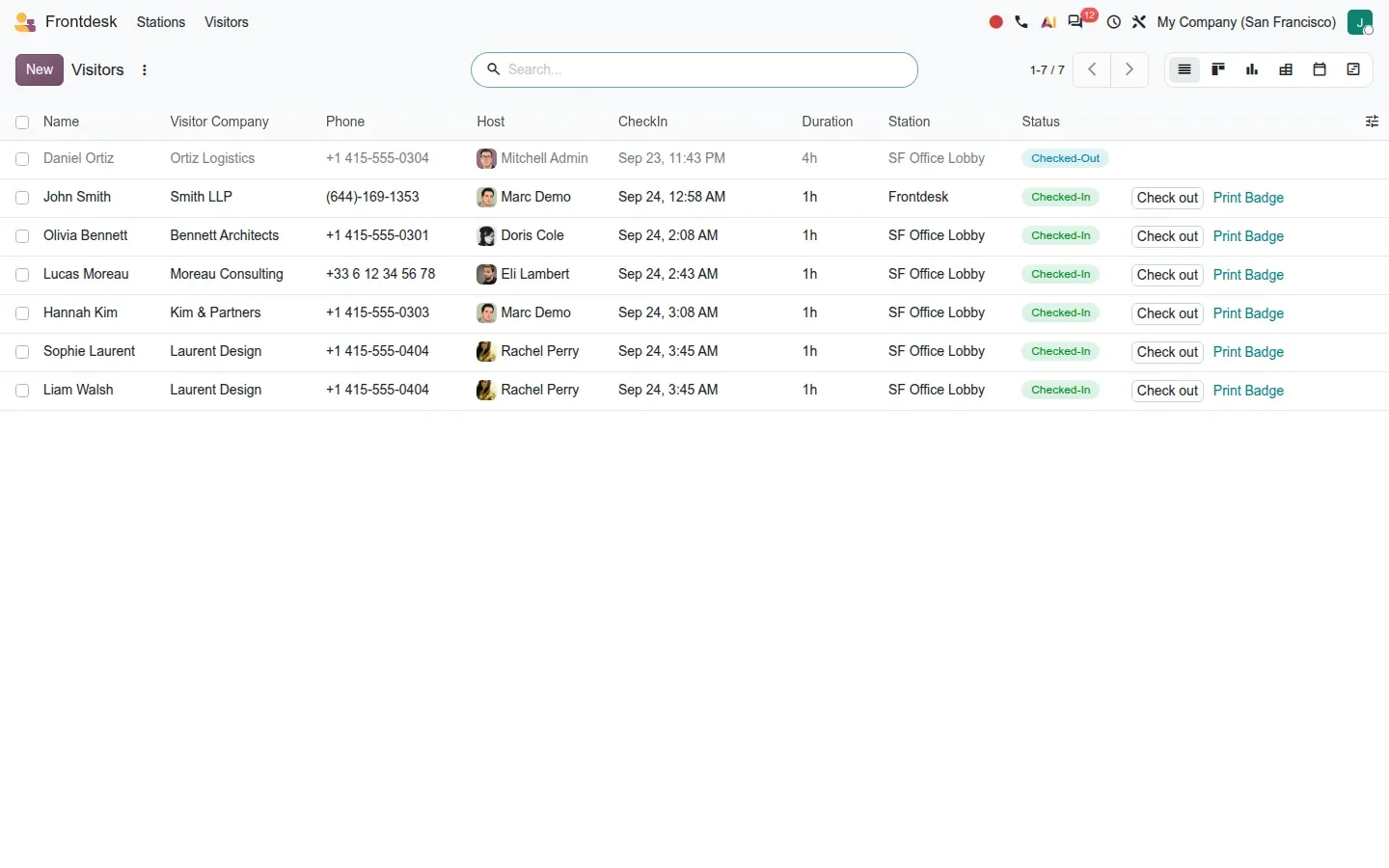
Frontdesk > Visitors is the receptionist's screen: one row per visit with Name, Visitor Company, Phone, Host, CheckIn, Duration, Station and a Status pill that reads Checked-In or Checked-Out. Checked-in rows carry two buttons: Check out and Print Badge. The same list is the security record: who is in the building now, who visited whom last Tuesday, for how long.
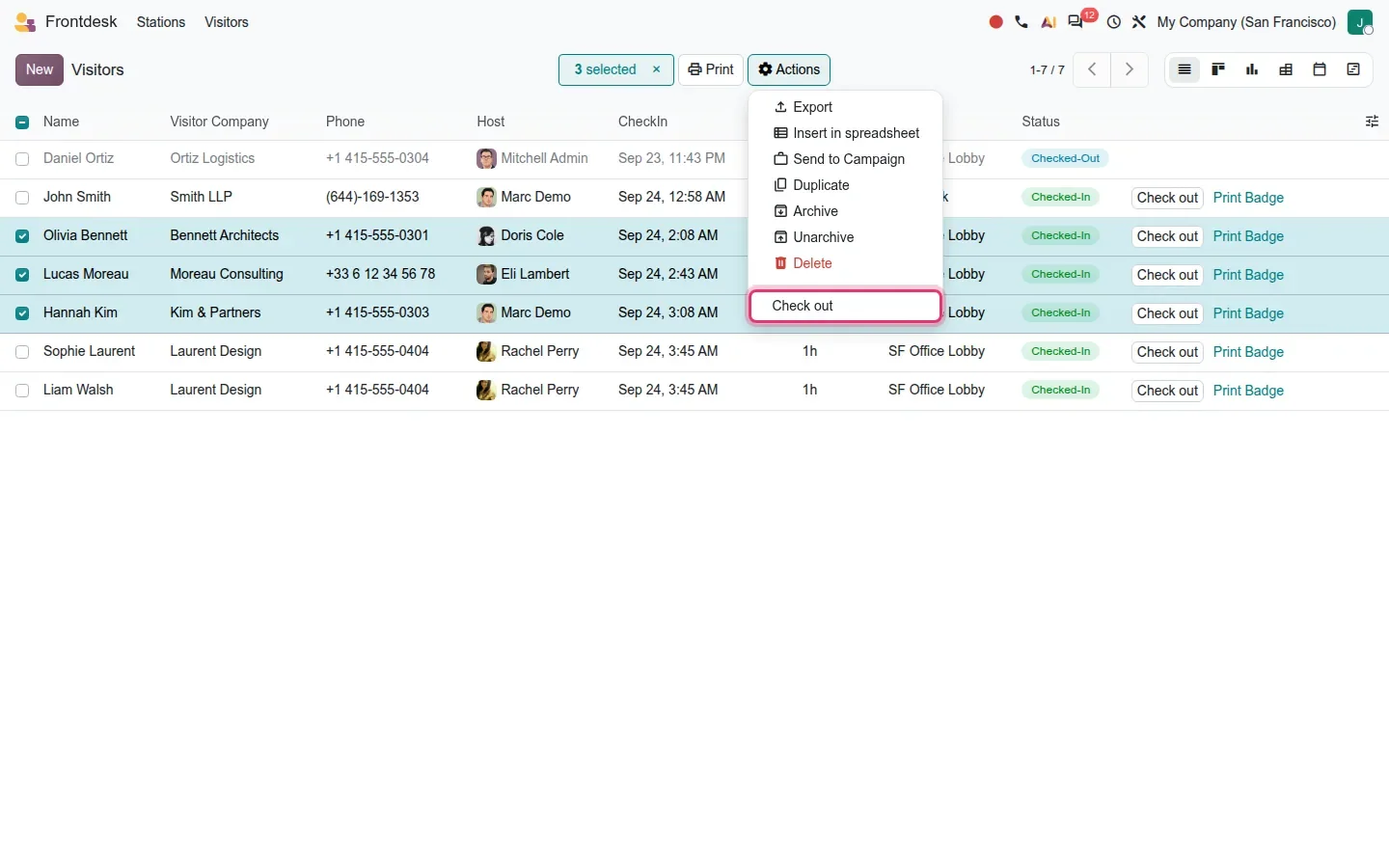
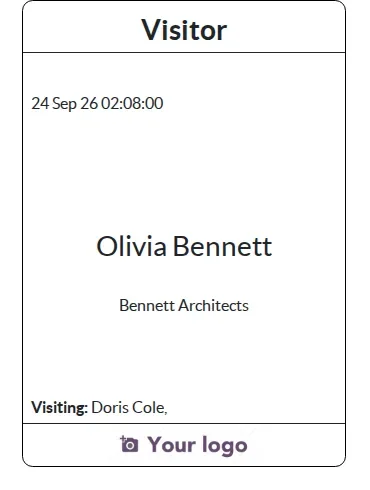
Select several rows and the Actions menu gains a Check out entry, so the receptionist closes everyone who forgot to sign out in one go; the scheduled Auto-Checkout does the same overnight for the ones nobody noticed. Print Badge runs the Print Visitor Badge report: a small card with the visit date and time, the guest's name, their company, the host under Visiting and your logo. It is a plain PDF, so any office printer, or a badge printer set as the default, does the job.
Members mode turns the kiosk into a membership gate
A third bridge, frontdesk_partnership, adds a second station Type. Set Type to Members and the form changes: Host Selection, Guest Details and the notification options disappear, a grades field appears beside the type (empty means All Members), and the Settings tab keeps only Auto-Checkout and a new Passback Timeout, which stops the same contact barcode being used twice within the interval, 10 minutes on the demo station. In this mode, contacts holding a required partner grade enter by scanning their personal barcode instead of typing a name.
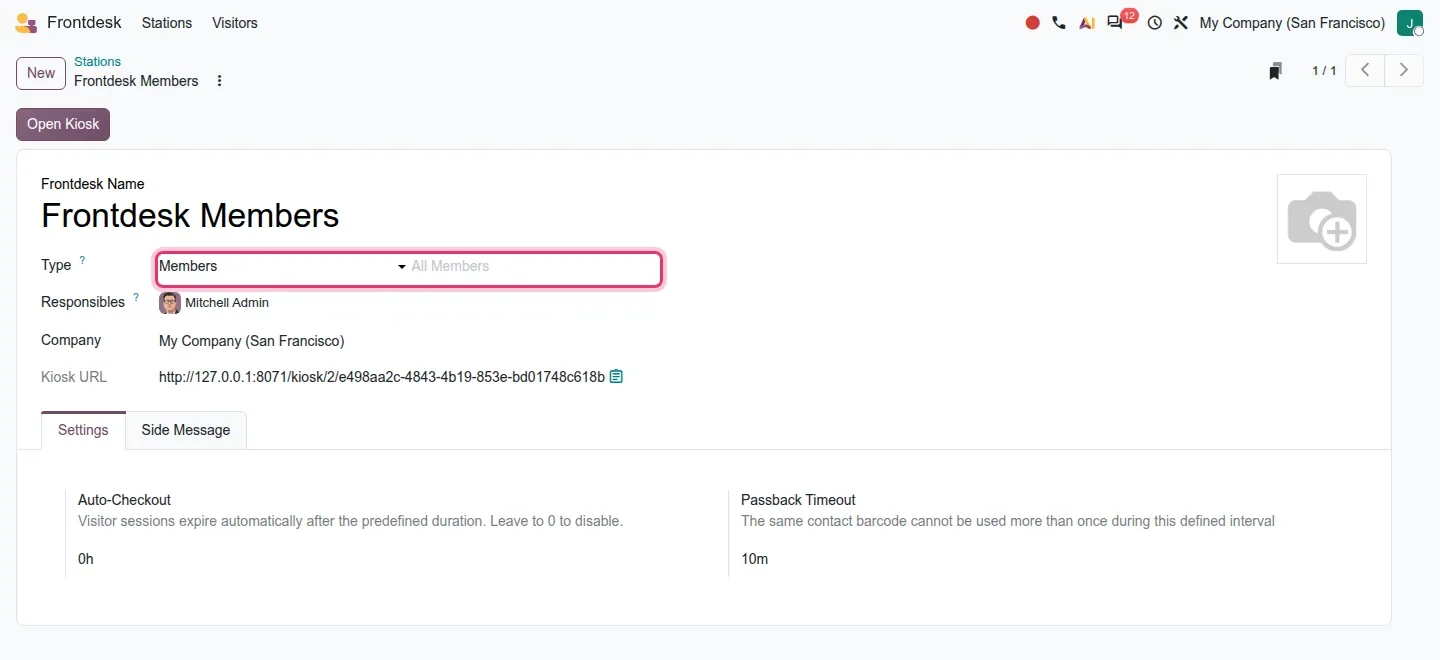
Who this is for: coworking spaces, gyms, clubs and associations that already track membership levels as partner grades in Odoo and want a door check without a separate access-control product. We configured the station but could not run a member through it, since that needs contacts with a grade and a scanner or camera at the kiosk. Treat it as untested until you try it with your own hardware.
How to try it on a demo database
- Install Frontdesk, plus the SMS or WhatsApp app for those notification channels and Partnership for members mode.
- Go to Frontdesk > Stations, click New, give the station a Frontdesk Name and add the Responsibles.
- On the Settings tab, tick Host Selection and pick the hosts, tick Self Check-In, choose the Guest Details to request, set Auto-Checkout, and write the Privacy Notice and Privacy Notice Details.
- Tick Notify by email, and Notify by SMS or Notify by WhatsApp if installed; open the templates to adjust the wording.
- Click Open Kiosk, or paste the Kiosk URL into the tablet's browser, and run a check-in: fill in the guest details, tap Browse All Hosts, pick a host, tap Continue.
- Go to Frontdesk > Visitors, find the visit, click Print Badge, then select a few rows and use Actions > Check out.
What we could not verify on the pre-release build
Four things we could not show. The badge was captured through the report's HTML rendering rather than the PDF that Print Badge downloads; the layout is the same. No SMS or WhatsApp notification was received: the demo had no IAP SMS credits and no WhatsApp Business account, so Notify by SMS was on but no message left the server. Members mode was configured but never used, since a member check-in needs contacts with a partner grade and a scanner or camera at the kiosk. Automatic check-out by the scheduled job was not observed either; it needs 8 hours to pass, or the Frontdesk: Auto-Checkout Visitors action run by hand. Everything else on this page was clicked through on the 20.0 Enterprise build of 23 September 2026.
What this means for an upgrade
If you run Frontdesk on Odoo 17, 18 or 19, your existing frontdesk records appear as stations, and each one deserves a short review: Auto-Checkout is new, the privacy notice fields are empty until you write them, and SMS and WhatsApp notifications need their bridge modules and accounts before the checkbox does anything. If a receptionist still keeps a paper log, this is the version to start with: one station, one tablet, an afternoon. The station setup and a visitor-log routine that honours your privacy notice are part of the scoping in our migration service, and the series hub lists the other changes that touch the same upgrade.
Frequently asked questions
What is a station in Odoo 20 Frontdesk?
It is the new name for a frontdesk record: one physical entrance or desk, with its own kiosk URL, hosts, guest details, notification channels and auto-checkout duration. A company with two entrances creates two stations, and Frontdesk > Stations shows both cards with the number of guests on site and the last check-in.
How does a host know a visitor has arrived in Odoo 20?
Through the channels ticked under Host Notifications on the station: email with the Frontdesk Email Template, SMS through the frontdesk_sms bridge and Odoo's SMS credits, and WhatsApp through frontdesk_whatsapp with a WhatsApp Business account and an approved template. Each channel has its own template you can edit.
Can visitors check in from their own phone?
Yes. Tick Self Check-In on the station and the welcome screen shows a QR code. The guest scans it, fills in the same form on their phone and picks a host. The Kiosk URL on the station form is also the address you paste into the lobby tablet's browser.
Does Odoo 20 Frontdesk delete visitor data automatically?
Not that we found on the pre-release build. Auto-Checkout ends a visit after the set number of hours but keeps the record. The Privacy Notice Details field is where you state your retention period; deleting or archiving old visits after that period is a routine you set up yourself, for example with a scheduled action.
Can Odoo 20 Frontdesk print visitor badges?
Yes. On Frontdesk > Visitors, every checked-in row has a Print Badge button that runs the Print Visitor Badge report: visit date and time, visitor name, company, host and your logo, as a PDF. We saw it through the report's HTML rendering on the demo; the layout is the same.
What is members mode in Odoo 20 Frontdesk?
A station Type added by the frontdesk_partnership bridge. Contacts holding a required partner grade check in by scanning their personal barcode, and a Passback Timeout stops the same barcode being reused within the interval you set. It is aimed at coworking spaces, gyms and clubs that already track membership grades in Odoo.