
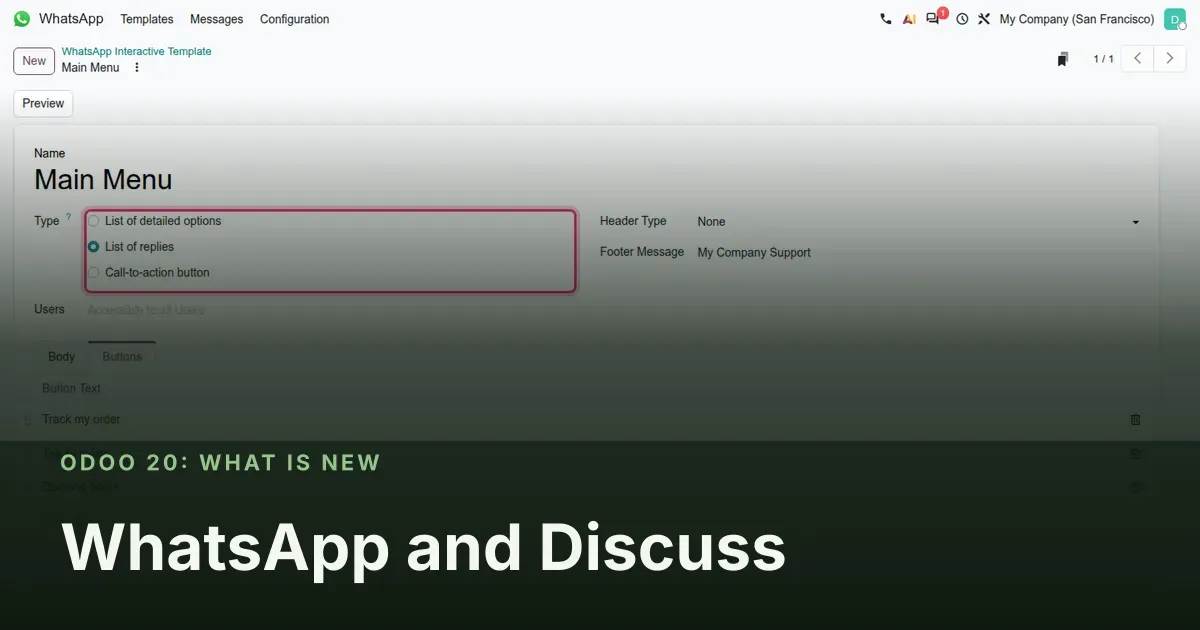
WhatsApp stops being a text box
Until now a WhatsApp conversation in Odoo has been a plain thread: the customer writes, an agent answers from Discuss, and anything structured, such as a menu or a link, is typed by hand. Odoo 20 adds interactive templates with reply buttons, option lists and call-to-action buttons, a blocklist for spam numbers, a WhatsApp smart button on CRM leads and a shift bridge for Planning. Discuss gets a redesigned meeting room. This matters for support, sales and operations teams that already handle customer contact through WhatsApp.
This post covers section 32 of our Odoo 20 review: the interactive templates, how they are sent from Discuss, the blocklist, the two business-app bridges, and the meeting changes. WhatsApp in Odoo talks to Meta's WhatsApp Business API, so a few steps, such as sending a message and receiving the customer's button tap, need a live Meta account; we say which ones we could not exercise.
Observed on the Odoo 20.0 Enterprise pre-release build of September 23, 2026. Names, menus and availability can change before general availability; we will update this page when they do.
Interactive templates: three structured message types
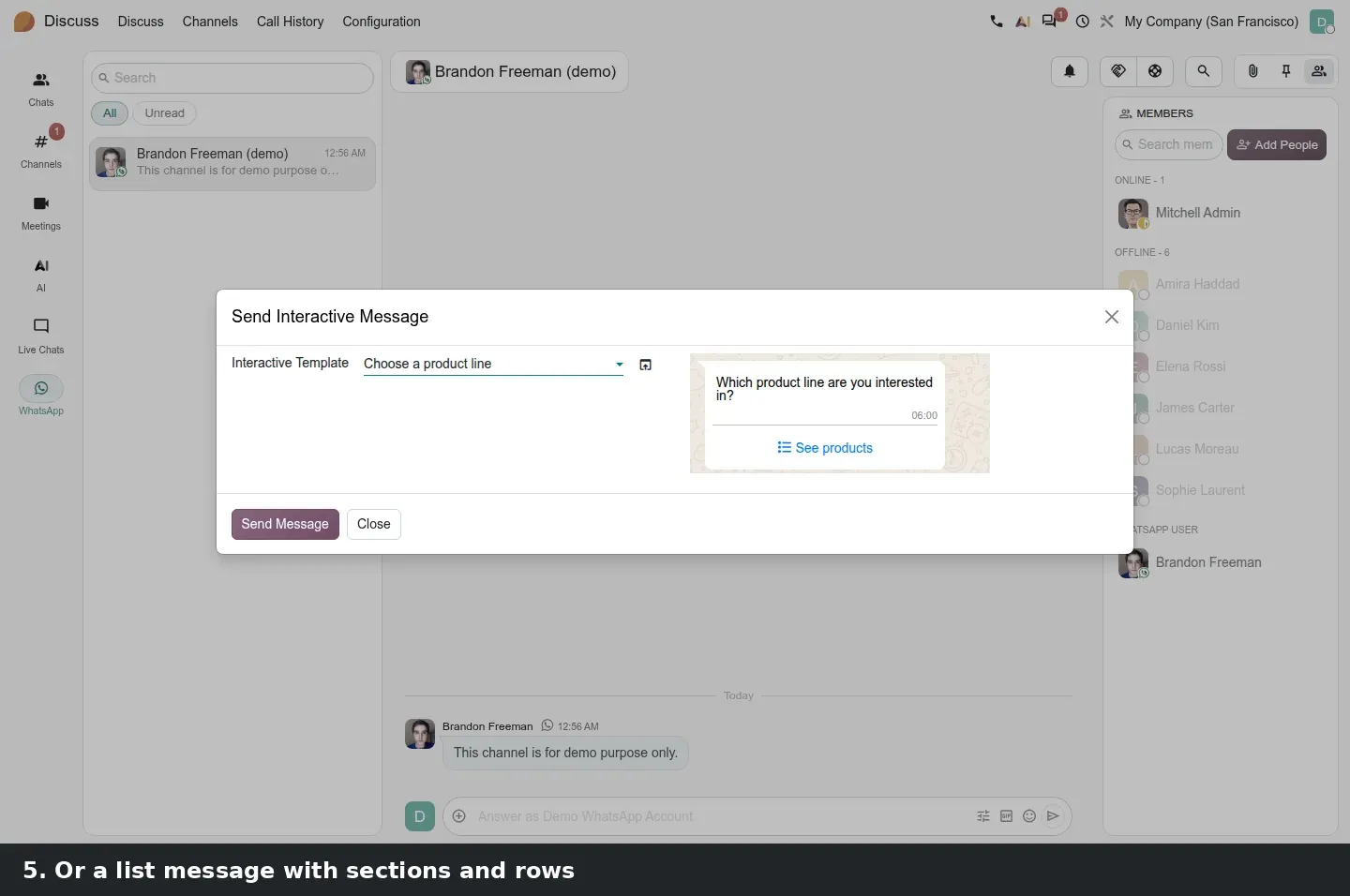
The main addition sits at WhatsApp > Configuration > Templates > Interactive Templates. Next to the classic message templates you now define a second kind, and its Type field offers three options: List of replies, List of detailed options and Call-to-action button. A List of replies puts up to three predefined answers under the message, which is how a "Track my order, Talk to sales, Opening hours" menu is built without a chatbot project. A List of detailed options opens a picker on the customer's phone, with sections, rows and a short description per row, behind a Button Label you choose, such as See products. A Call-to-action button places a link behind a button instead of a raw URL in the text.
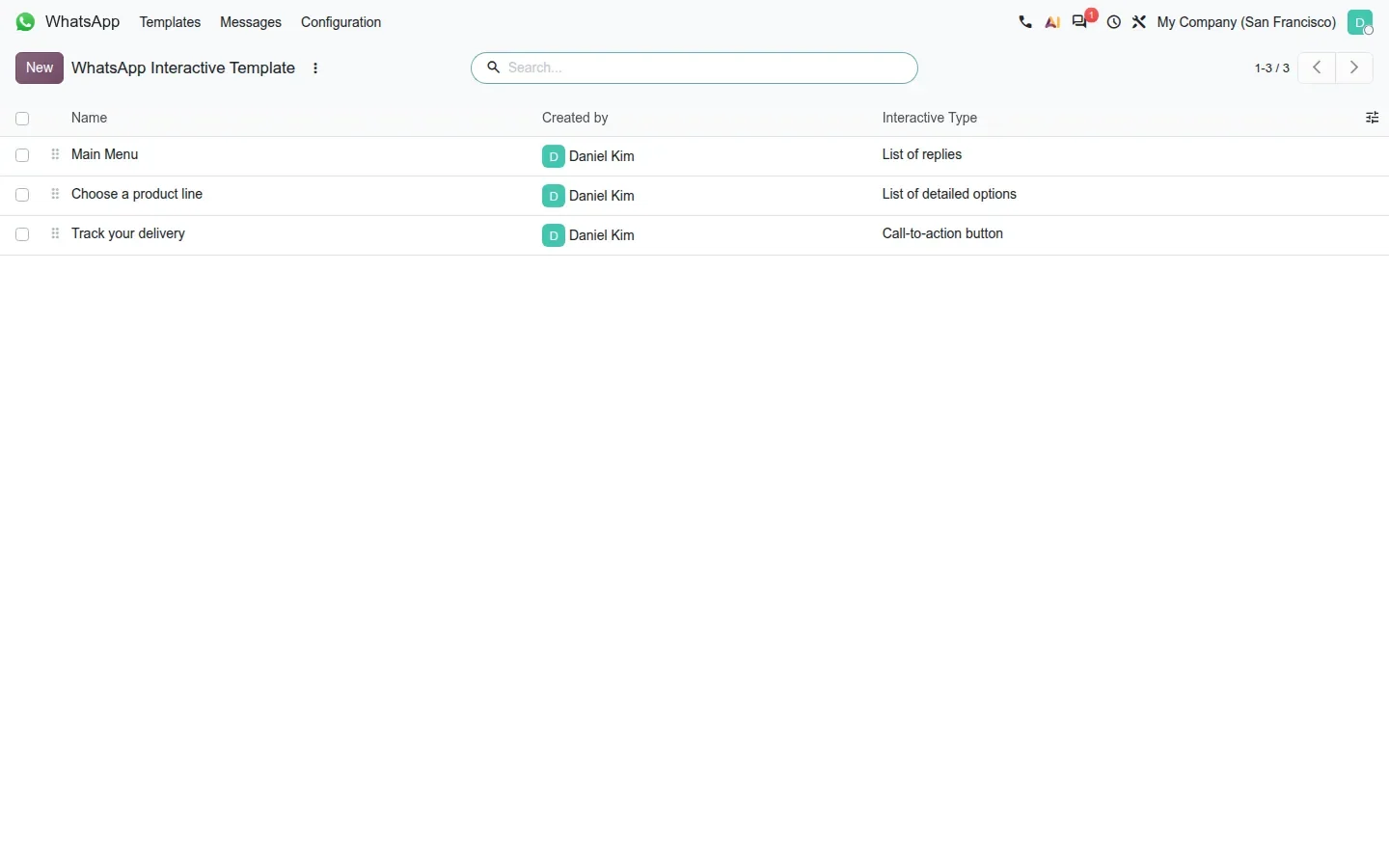
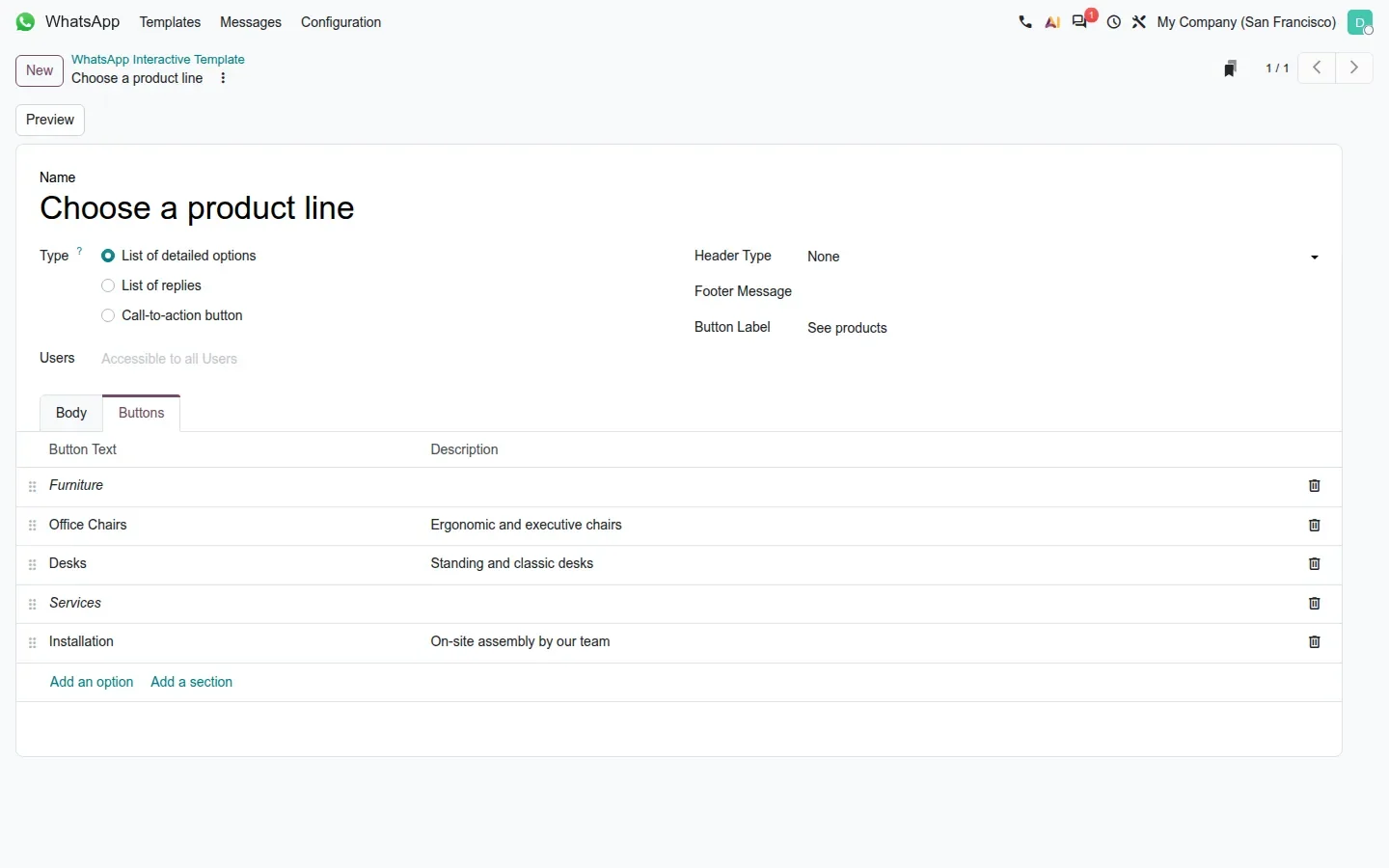
The form is short. The Body tab holds the message text, the Buttons tab holds the answers or the rows, and Header Type and Footer Message add the optional header and the small grey footer WhatsApp shows under a message. On the reply-buttons template we built, the footer reads My Company Support and the Buttons tab has three rows. The Users field restricts who can send the template; left empty, it is accessible to all users.
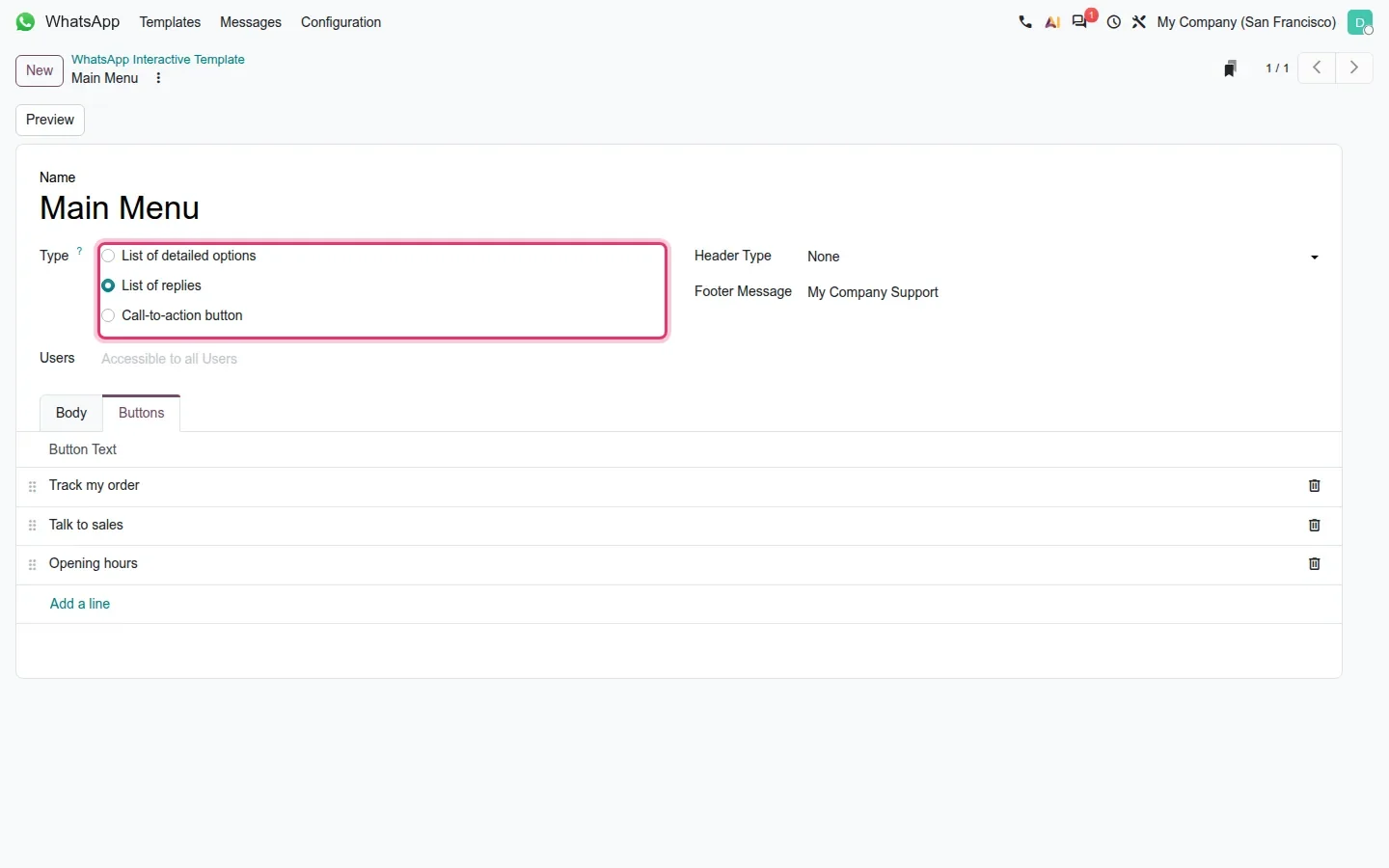
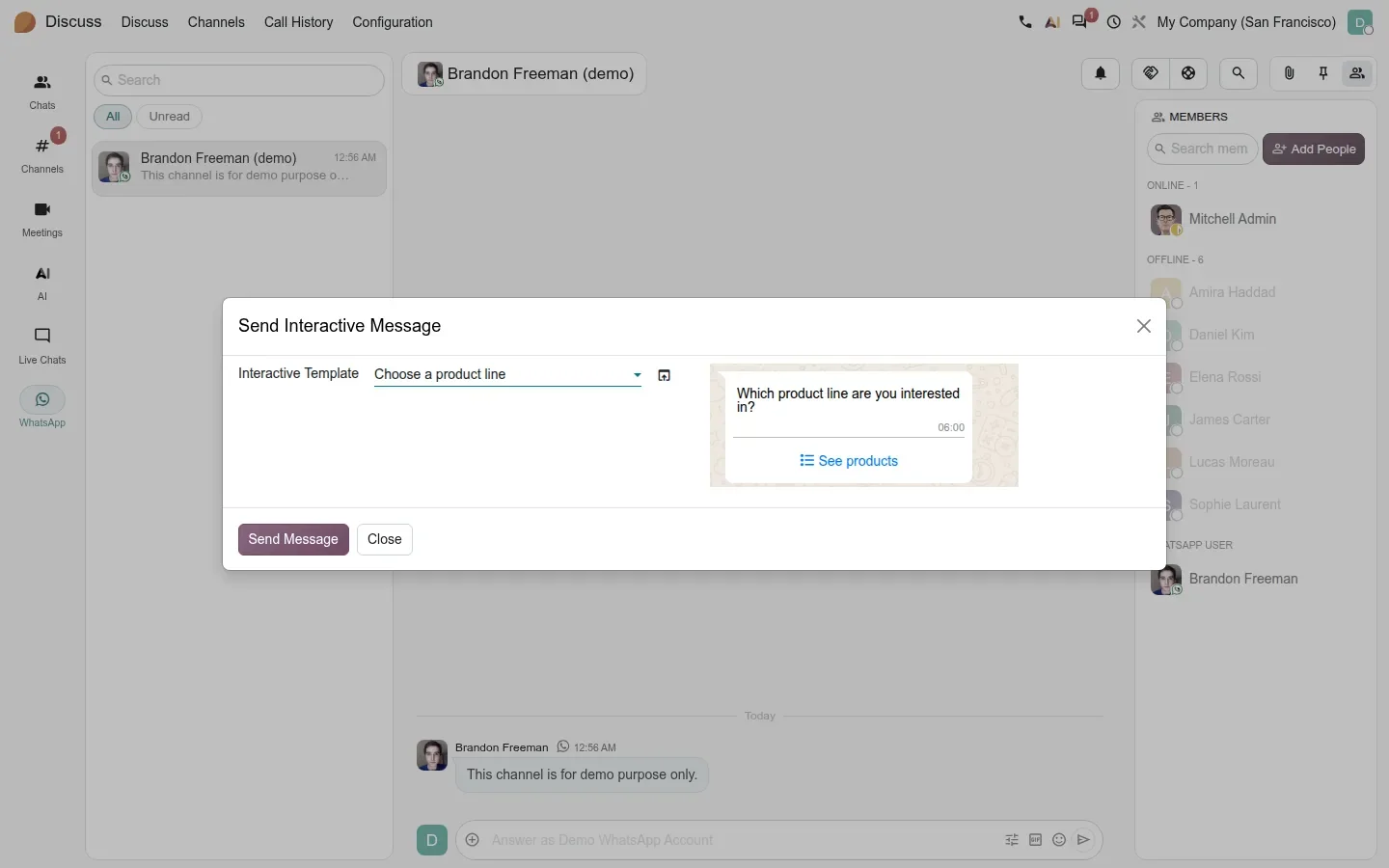
The detailed-options template suits a product line or a service catalogue. On the demo we created two sections, Furniture and Services, with rows such as Office Chairs, Desks and Installation, each with a one-line description. Add an option and Add a section sit at the bottom of the list, and rows are reordered by dragging.
Sending an interactive message from Discuss
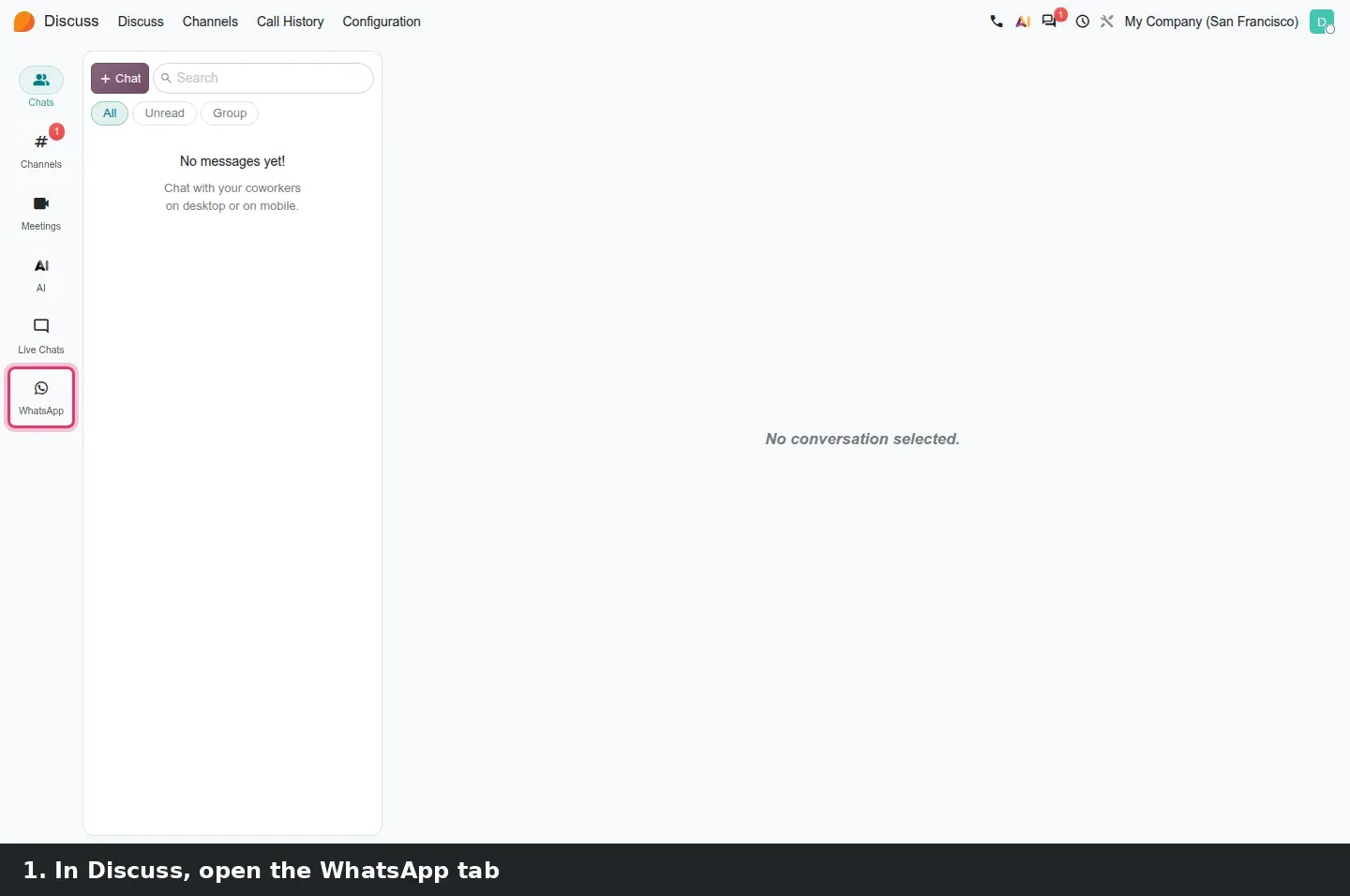
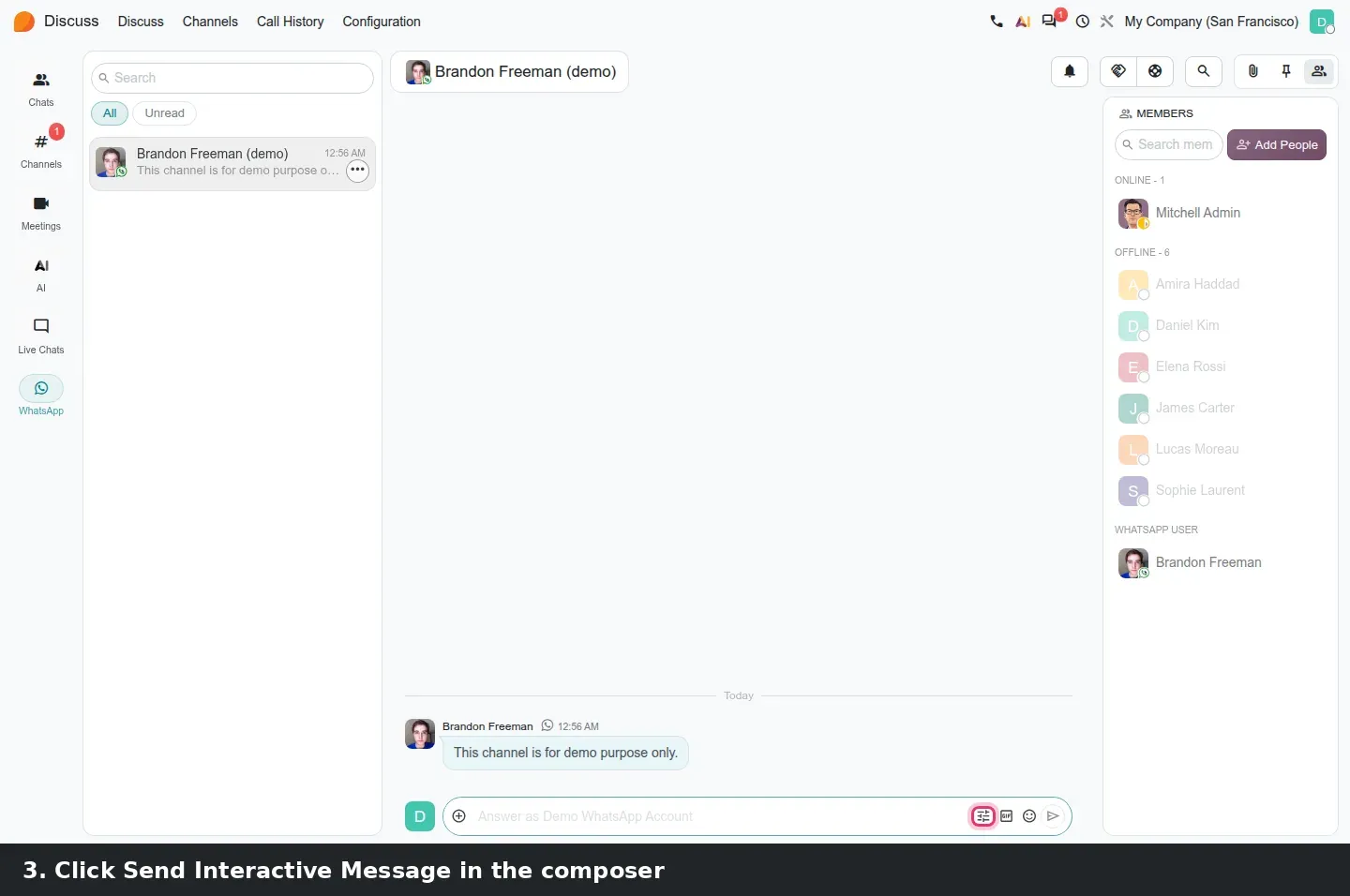
Templates are configured in the WhatsApp app but used in Discuss. WhatsApp conversations have their own tab in the Discuss sidebar, and the composer of an active conversation gains a Send Interactive Message action. It opens a wizard with an Interactive Template selector on the left and a WhatsApp-style preview bubble on the right, with the footer, the timestamp and the buttons the customer will see. Pick Main Menu and the preview shows the three reply buttons; pick the product-line template and it shows a See products button that opens the list. Send Message posts it into the thread.
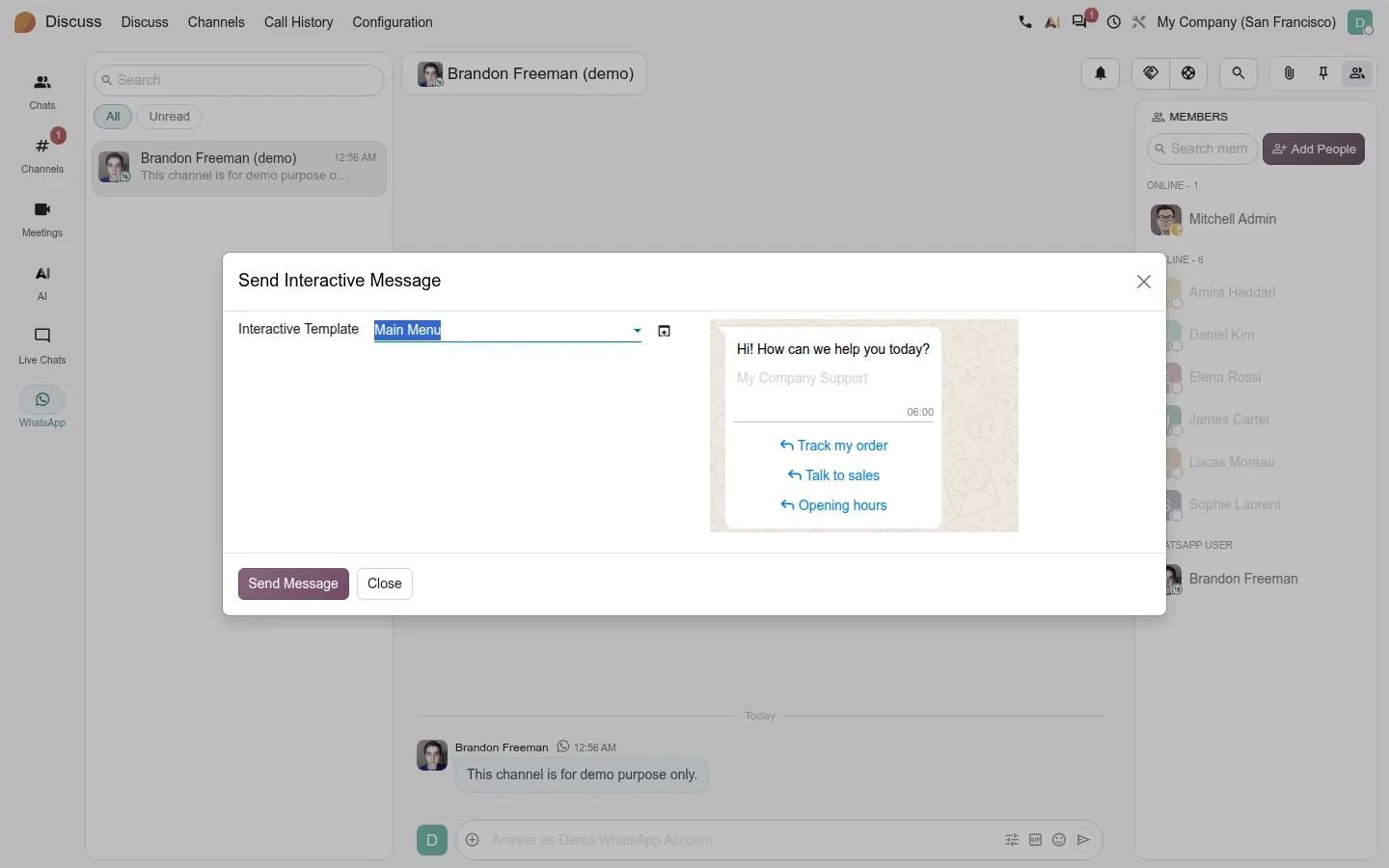
According to the guide, when the customer taps a button or picks a row, the choice comes back as a normal message in the same thread, so the agent, or an automation on the channel, reads "Track my order" as text. We could not send the message or receive the reply on the demo, since both need a live WhatsApp Business account; the wizard and its previews are what we verified.
The 24-hour window
Odoo only lets you answer freely inside 24 hours of the customer's last message. Past that, the composer is disabled and the conversation shows as closed, and you are back to approved message templates to reopen it. Build your interactive menus to be sent as the first reply, while the window is open, and keep reply-button menus to the three answers WhatsApp allows.
A blocklist for spam numbers, favourites and shared renames
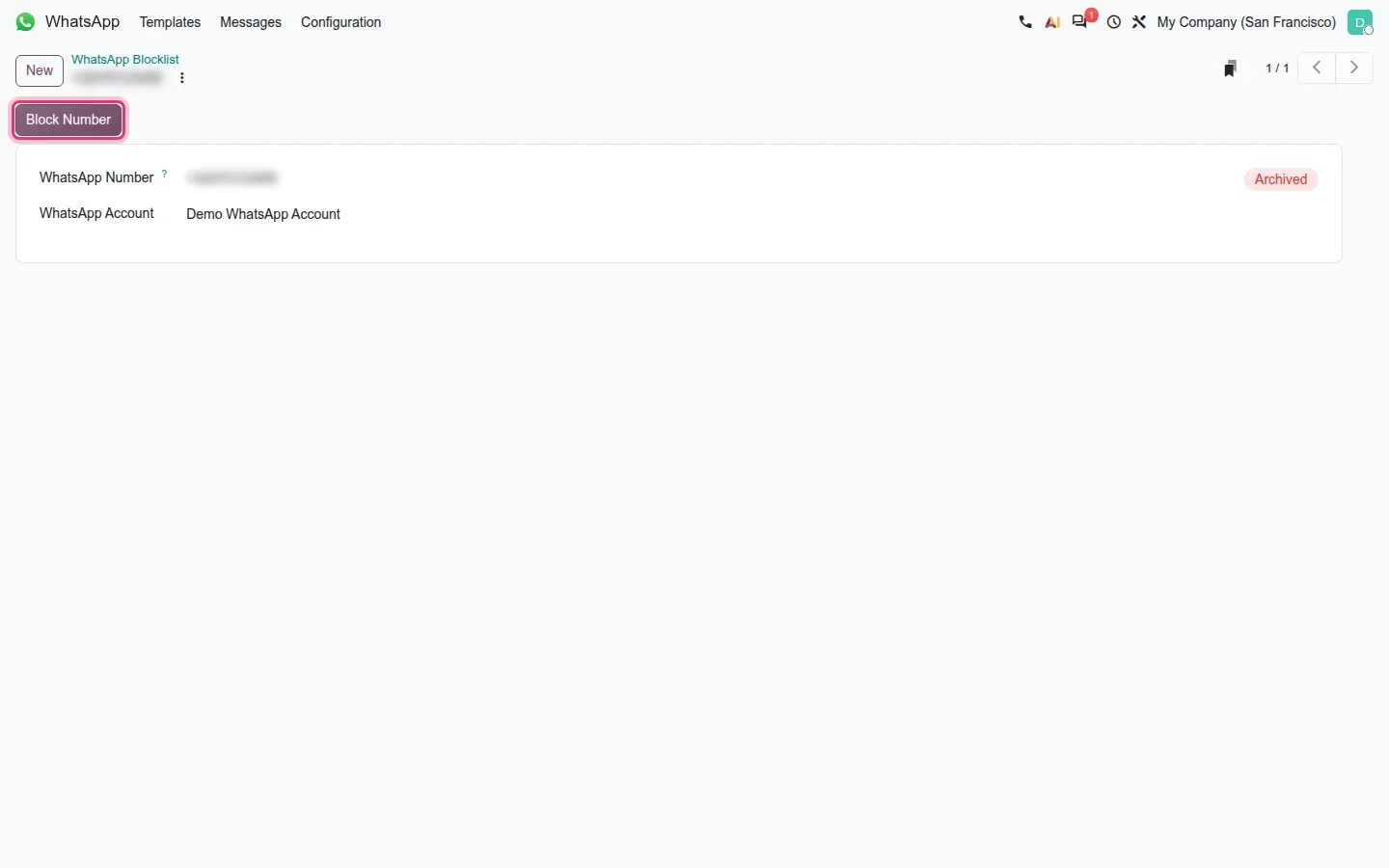
WhatsApp > Configuration > WhatsApp Blocklist is new. An entry is a WhatsApp Number plus the WhatsApp Account it applies to, and a Block Number button at the top of the form calls the Meta API to block the number on the business account; the guide says an Unblock Number button appears once a number is blocked. On our demo the Meta call failed, as expected without a live account, and the error path itself raised a Python error, so the entry in the screenshot was created archived, which is why it still shows Block Number and an Archived badge. Test blocking on your own account before you rely on it.
Two smaller changes help a team that handles dozens of conversations a day. WhatsApp conversations can be marked as favourites in Discuss, and renaming a WhatsApp channel now renames it for everyone, where Odoo 19 only renamed it for you. We did not capture either, so treat them as guide claims.
WhatsApp next to the lead, and shifts over WhatsApp
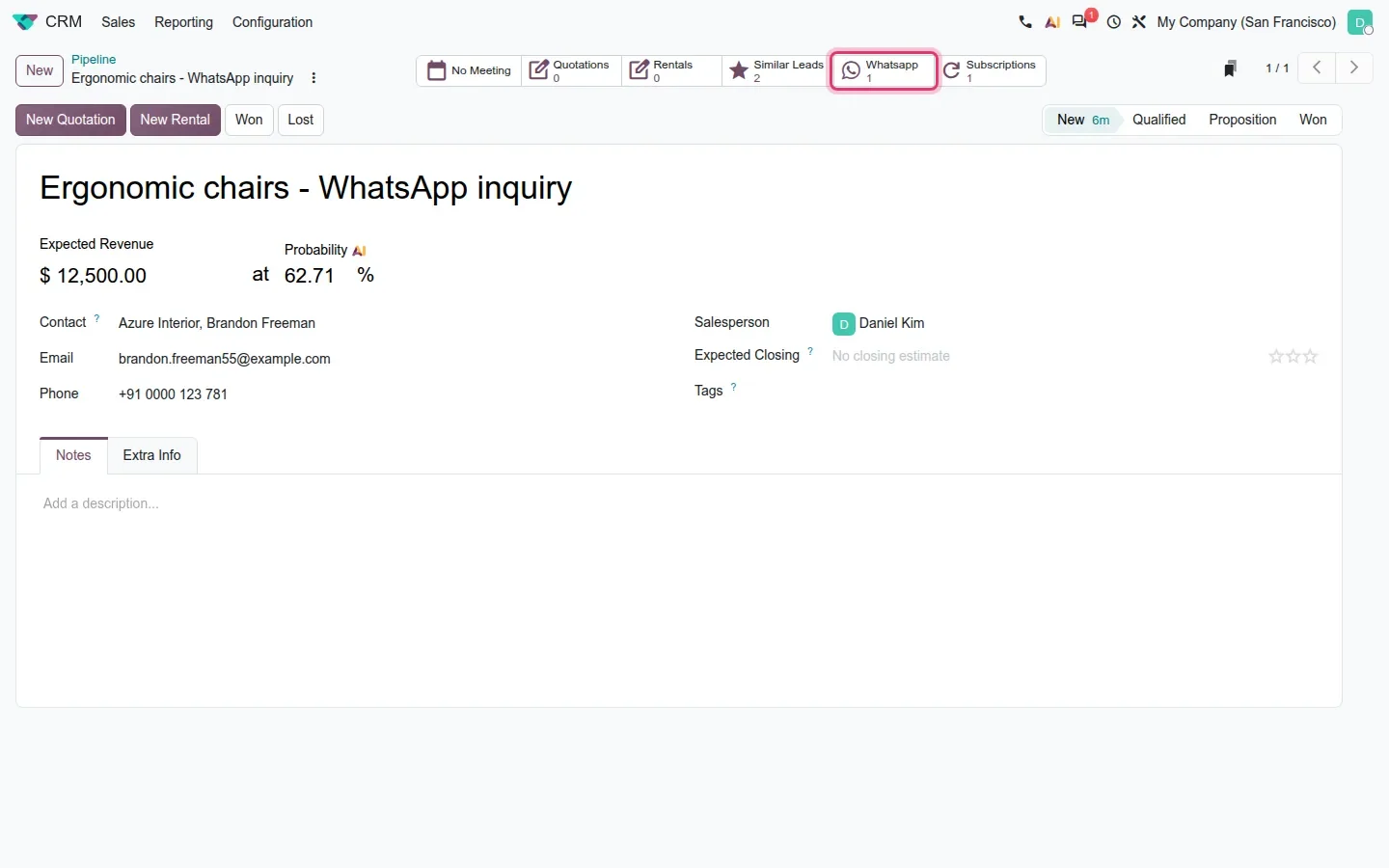
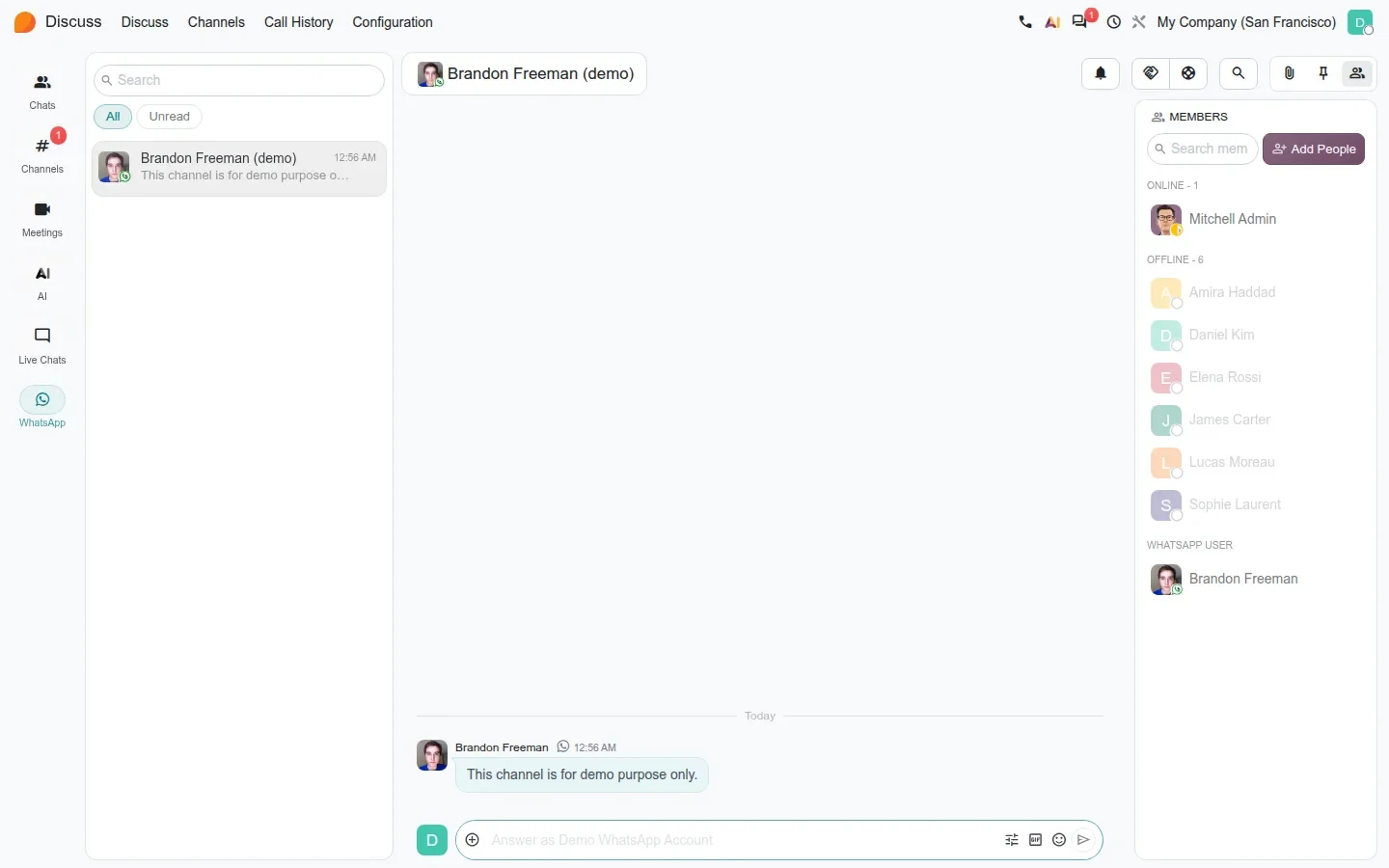
Two bridge modules bring the channel into the business apps. whatsapp_crm adds a Whatsapp smart button to the lead and opportunity form, with the count of conversations linked to that lead. It only shows when at least one conversation exists. On the demo, the opportunity Ergonomic chairs - WhatsApp inquiry for Brandon Freeman carries one conversation; clicking the button opens it, and the same conversation appears under the WhatsApp tab in Discuss with the customer listed as a WhatsApp user next to the internal members.
whatsapp_planning lets employees receive their shifts and submit them for approval over WhatsApp, useful for field or retail staff who never open a laptop; we did not capture that flow. Sign also gains WhatsApp as a delivery channel for signature requests, covered in our Odoo 20 Sign post. For a sales manager, the WhatsApp history now sits on the lead like emails and calls do, instead of on someone's phone.
Discuss meetings: full screen, a share link and five layouts
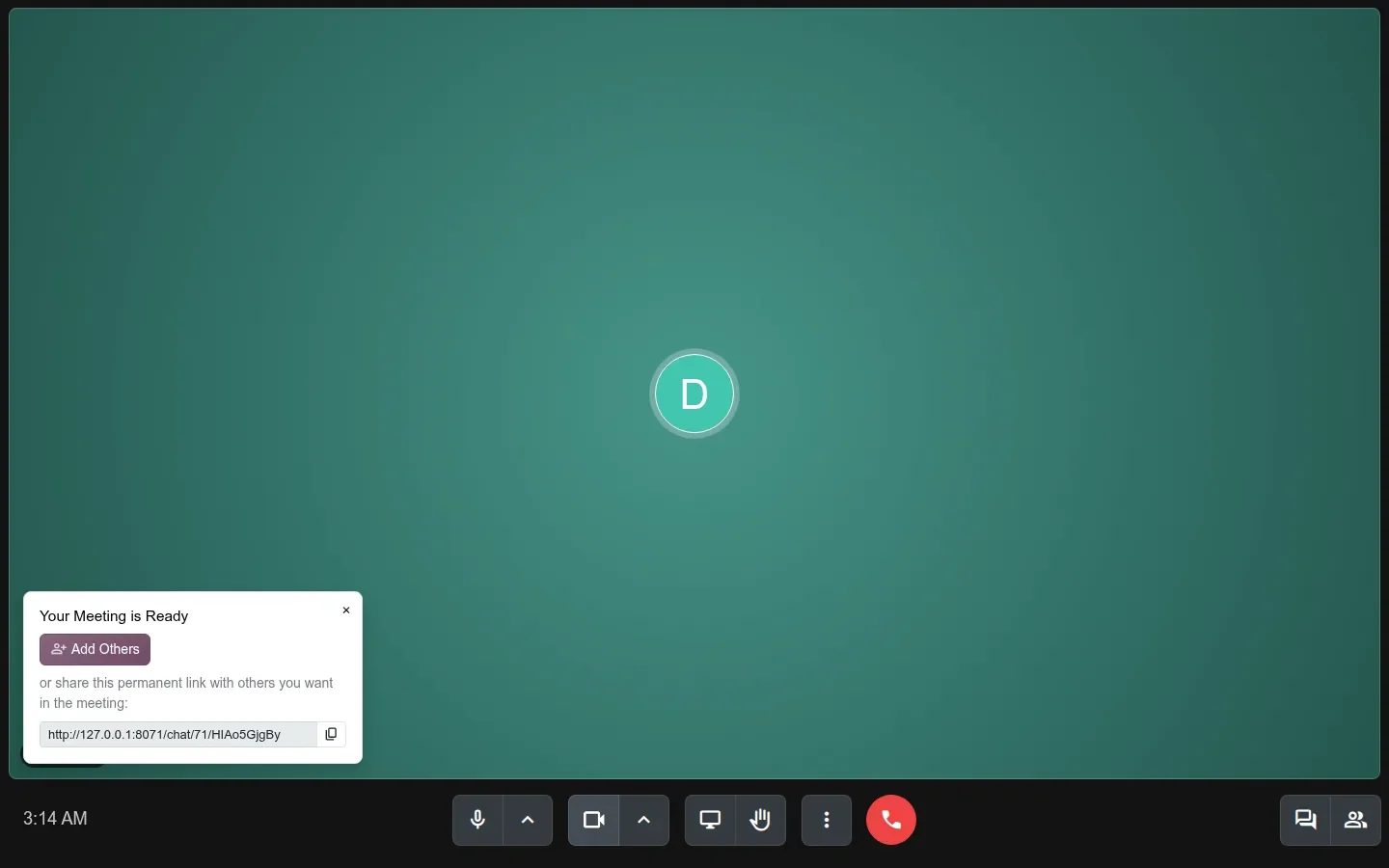
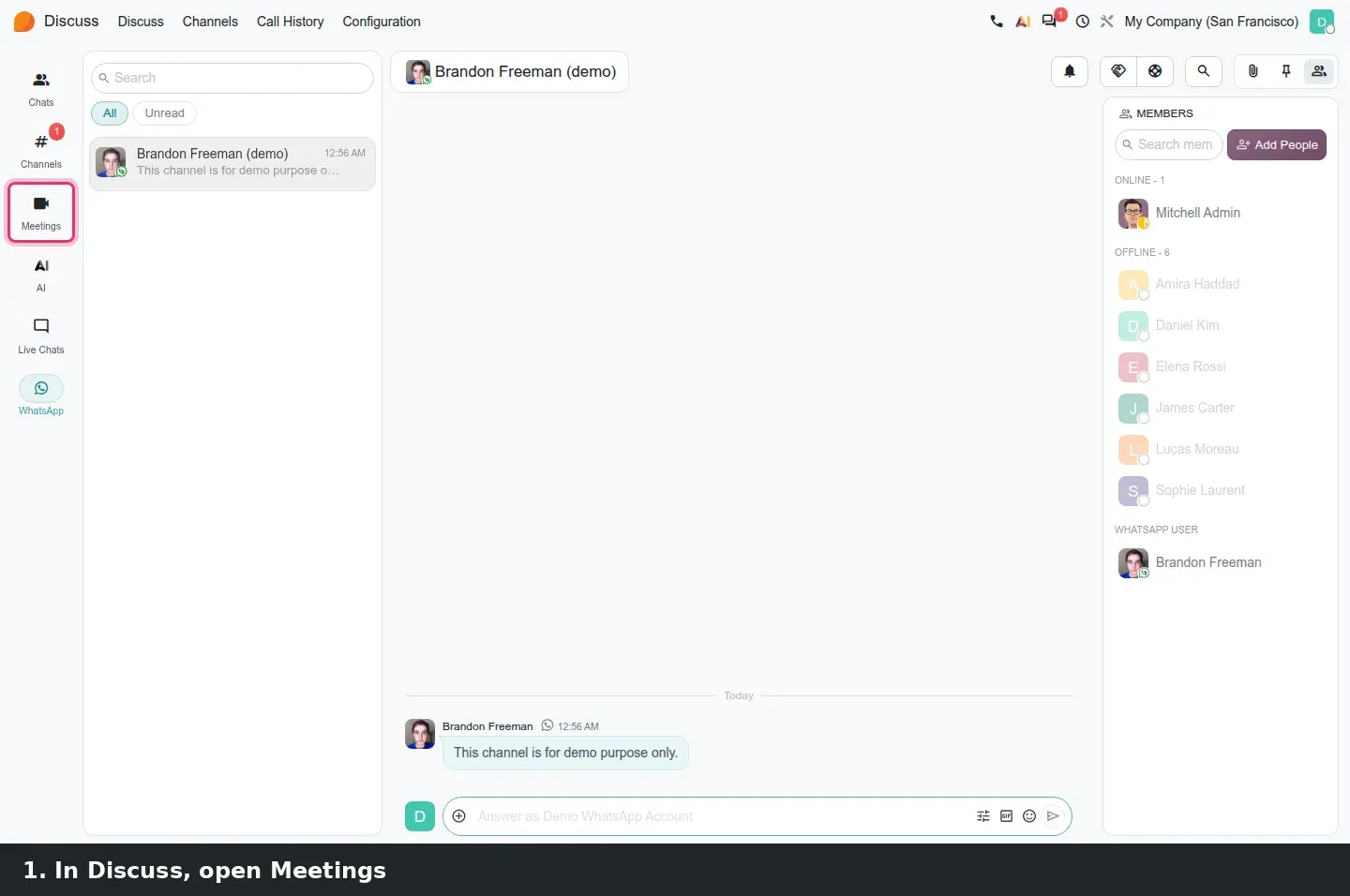
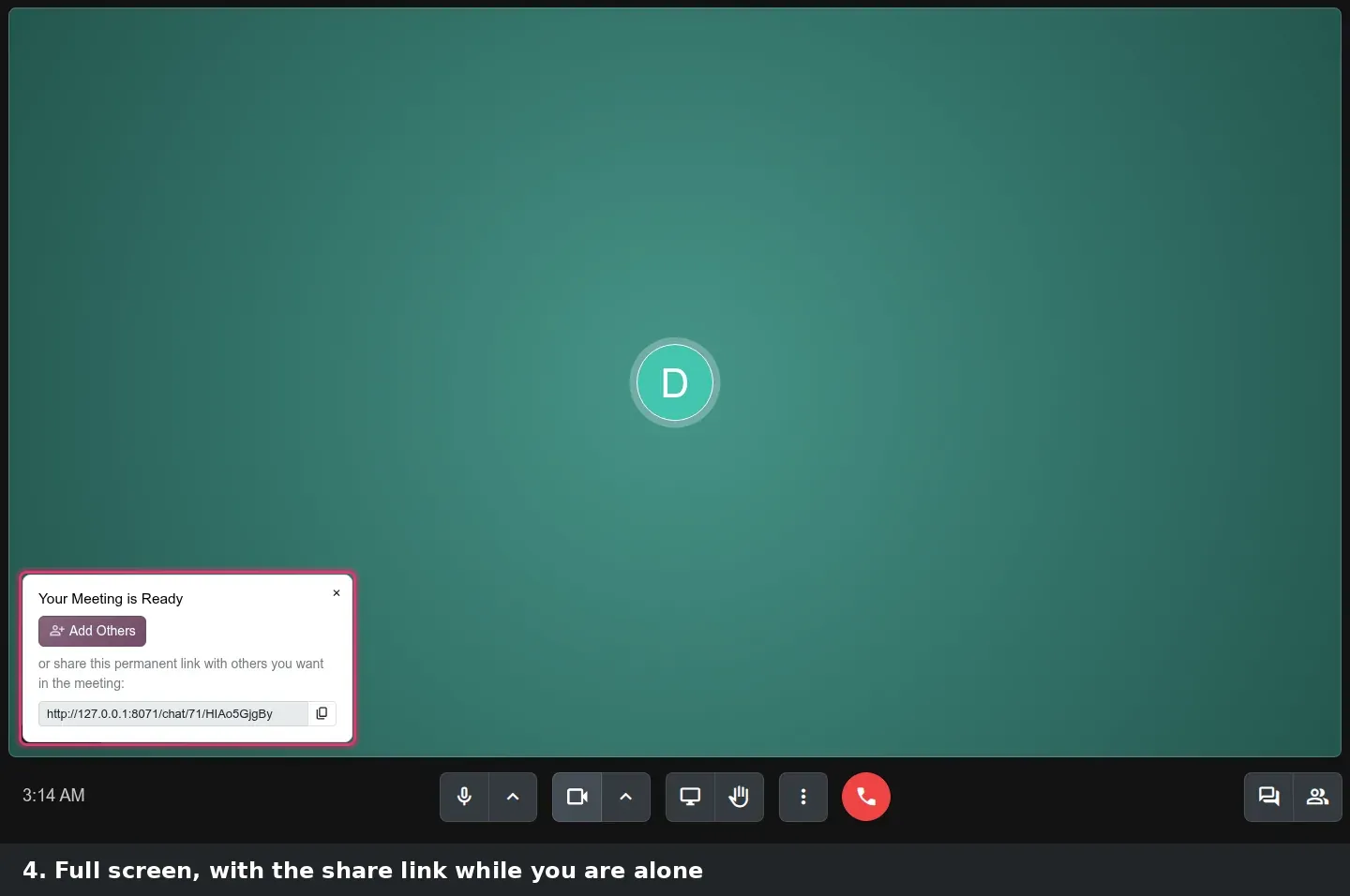
Discuss has a Meetings entry in its sidebar, and New Meeting > Start Now now opens the call full screen. While you are alone, a "Your Meeting is Ready" banner offers an Add Others button and a permanent share link with a copy button; the same link sits in the address bar for the duration of the call. The toolbar carries microphone, camera, screen share and raise-hand controls, a red hang-up button, and a More menu with Change Layout, Fullscreen, Minimize and Picture in Picture.
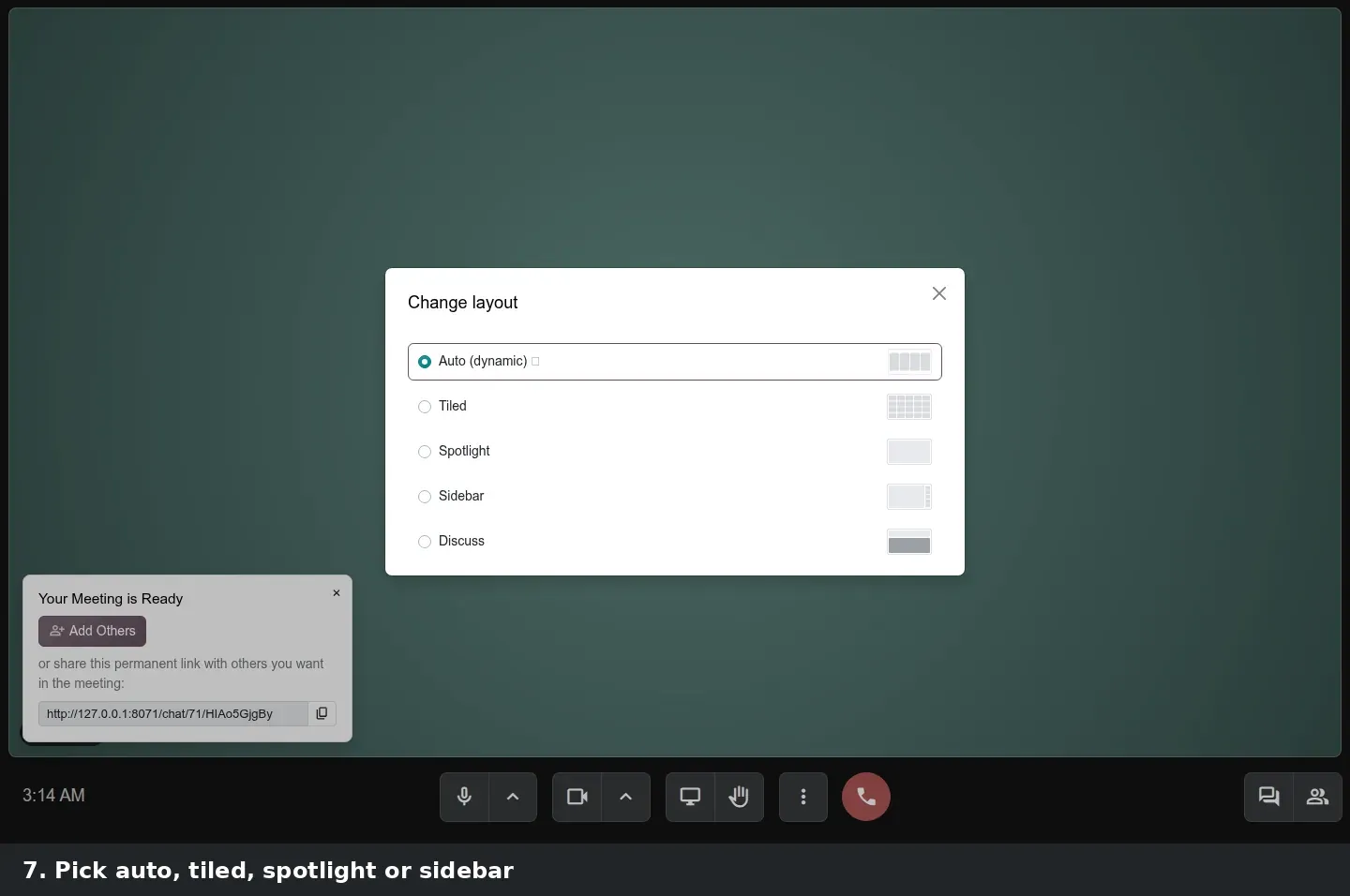
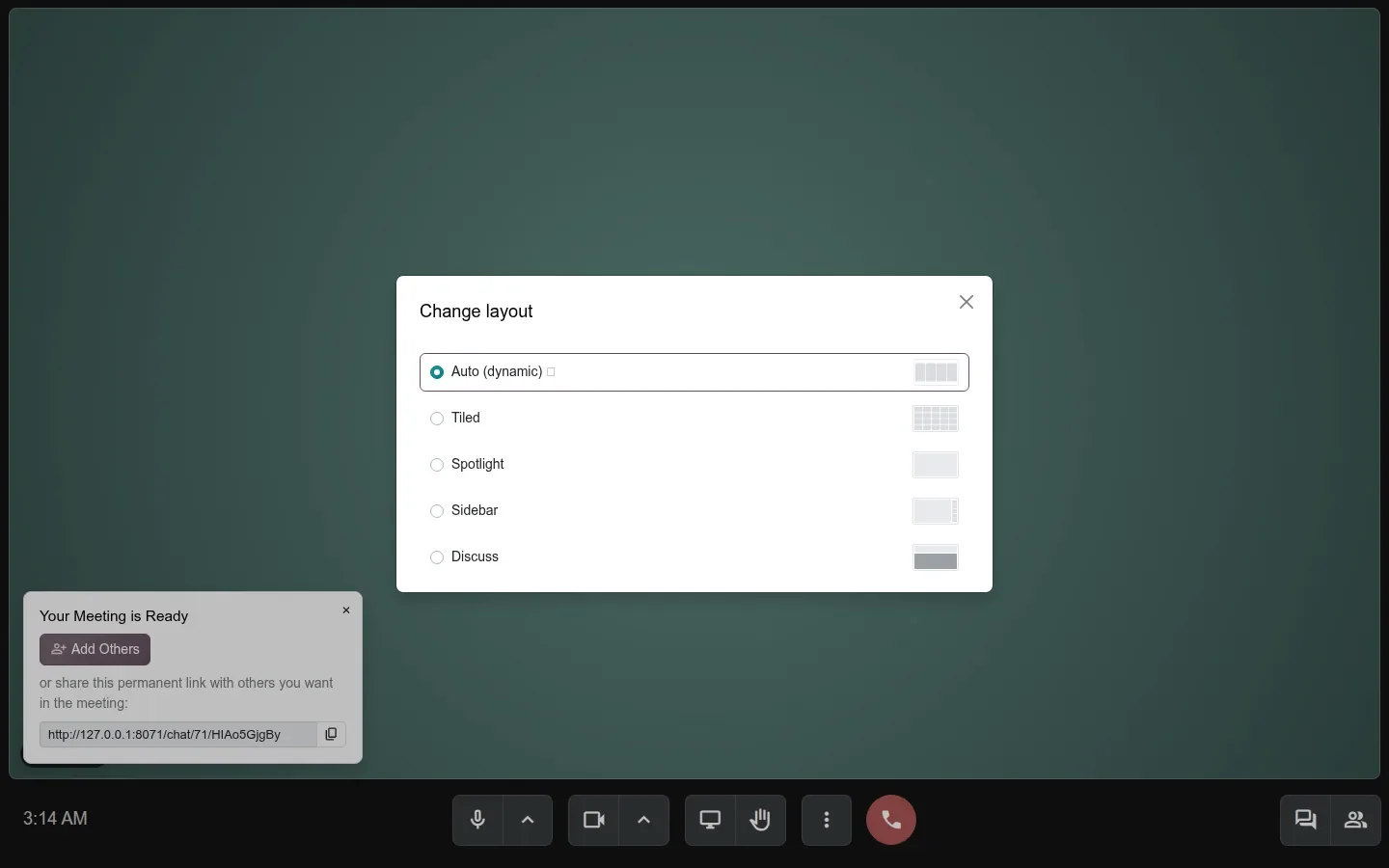
Change Layout opens a dialog with five options: Auto (dynamic), Tiled, Spotlight, Sidebar and Discuss, the last one keeping the chat next to the video. The guide calls this dialog Adjust View and lists four layouts; on the build it is Change layout with five, so use these names in your user documentation. The guide also says the choice is remembered per user, which a screenshot cannot show.
Outside the meeting room, message quick actions were trimmed to two, with Copy Text, Edit Message and Copy Message Link moved into the expanded menu, and group chats show an "is typing" indicator in the sidebar and in chat bubbles. The top-bar messaging menu gains an AI tab listing your AI chats, covered in the AI agents post.
How to try it on a demo database
- Install WhatsApp and CRM on a demo database. Without a Meta business account you can configure templates and open the wizards, but nothing is sent.
- Go to WhatsApp > Configuration > Templates > Interactive Templates, click New, choose the type List of replies and add three rows in the Buttons tab.
- Create a second template with the type List of detailed options, set a Button Label, then use Add a section and Add an option.
- Open Discuss, click the WhatsApp tab in the sidebar and pick a conversation whose last customer message is less than 24 hours old.
- In the composer, click Send Interactive Message, choose a template and check the preview bubble.
- Go to WhatsApp > Configuration > WhatsApp Blocklist, click New, enter a number and the WhatsApp Account, then try Block Number on a live account.
- In CRM, open a lead with a linked WhatsApp conversation and check the Whatsapp smart button.
- In Discuss, open Meetings > New Meeting > Start Now, wait for the "Your Meeting is Ready" banner, then open More > Change Layout.
What we could not verify on the pre-release build
Sending an interactive message and receiving the customer's button reply both need a live WhatsApp Business account at Meta; we verified the templates, the wizard and its previews, not the round trip. Blocking or unblocking a number calls the Meta API, which fails on the demo account and, on this build, raises a Python error on the way back. The Sign and Planning bridges, favourites and shared renames of WhatsApp channels were not captured. The "is typing" indicator needs a second live user and a working websocket. The layout remembered per user and the share link in the address bar do not show in a screenshot. Everything else on this page was clicked through on the 20.0 Enterprise build of 23 September 2026.
What this means for an upgrade
If you run WhatsApp on Odoo 17, 18 or 19, the interactive templates, the blocklist and the CRM smart button are additions you configure after the upgrade, and the CRM bridge only shows a button where conversations already exist. Plan a short session with your support lead to design two or three menus, since a reply-button menu with three answers replaces a lot of typing. Check anything that pushes WhatsApp numbers, leads or messages into Odoo from outside, such as a website form handler or a middleware, because Odoo has scheduled the removal of the XML-RPC and JSON-RPC endpoints for Odoo 20; our RPC migration audit lists what has to move. The rest is part of the scoping in our migration service, and the series hub lists the other changes that touch the same upgrade.
Frequently asked questions
Do I need a WhatsApp Business account to use interactive templates in Odoo 20?
Yes. Odoo sends every WhatsApp message through Meta's WhatsApp Business API, so you need a connected business account before anything leaves the database. On a demo without one you can still create interactive templates, open the Send Interactive Message wizard and see the preview, but the message is not delivered.
How does a customer's button tap come back into Odoo?
According to the Odoo 20 guide, the choice arrives as a normal message in the same Discuss thread, with the button text or the list row as its content, so an agent reads it like any reply. We could not receive one on the pre-release demo because that needs a live Meta account.
Why is the composer disabled on a WhatsApp conversation in Odoo?
The conversation is older than 24 hours since the customer's last message. Odoo closes the free-text window at that point and the composer shows the conversation as closed; you reopen it with an approved message template. Interactive menus should be sent while the window is open.
Can Odoo 20 block spam numbers on WhatsApp?
Yes, through WhatsApp > Configuration > WhatsApp Blocklist. An entry holds the number and the WhatsApp account, and a Block Number button asks Meta to block it on the business account. On the pre-release demo the call failed without a live account, so test it on your own account before relying on it.
Does the WhatsApp smart button appear on every CRM lead?
No. The whatsapp_crm bridge only shows the Whatsapp smart button when at least one WhatsApp conversation is linked to the lead or opportunity, with the number of conversations under it. Leads without a conversation look exactly as they did in Odoo 19.
What changed in Discuss meetings in Odoo 20?
New Meeting > Start Now opens full screen, shows a "Your Meeting is Ready" banner with a permanent share link while you are alone, and the More menu offers Change Layout with five options: Auto (dynamic), Tiled, Spotlight, Sidebar and Discuss. Fullscreen, Minimize and Picture in Picture sit in the same menu.