
In 2026, the Invoice Is Both a Brand Asset and a Compliance Object
The 2026 fiscal year has redefined what an invoice is supposed to do. It is no longer a static demand for payment: it is a structured data object consumed by tax authorities, a branded touchpoint your customer sees the moment money is on the line, and a machine-processable record that has to survive audits, e-invoicing networks, and AI-driven reconciliation engines. Odoo 19, with the Odoo 20 reveal scheduled for the OXP events in September 2026, is the version where customization decisions stop being cosmetic and start carrying real financial weight.
The pricing climate makes that point unavoidable. As of April 2026, Enterprise subscriptions still running on versions older than v17 are subject to a 25% legacy version surcharge, layered on top of a 30% North American price increase and a 7% annual indexation. Customizing invoices well now means migrating onto a current, supported version, then building on top of native layouts, Studio extensions, and QWeb inheritance in a way that survives the next two upgrades.
This guide walks through every layer of invoice customization in 2026: the document layout engine, dynamic sections, custom fields, Studio report editing, QWeb & XPath engineering, Peppol e-invoicing, EPC QR codes, AI-assisted automation, and the troubleshooting playbook for the issues that actually break PDFs in production.
The 2026 Migration Landscape: Why Your Invoice Strategy Starts With a Version Decision
Odoo’s 2026 roadmap follows a three-wave migration strategy that puts finance and compliance first, because mandatory e-invoicing across Europe, parts of Latin America, the Gulf, and an expanding list of public-sector buyers in North America requires that financial documents be both human-readable and machine-processable. If you customize an invoice on a legacy version, you are customizing a document that no longer matches the structural data integrity your tax authority expects.
| Version | Status (April 2026) | Surcharge | Primary Customization Surface |
|---|---|---|---|
| Odoo 14-16 | Legacy | +25% | Classic XML-RPC, raw QWeb |
| Odoo 17 | Covered | 0% | QWeb, Studio, modern UI |
| Odoo 18 | Covered | 0% | AI-first features, Studio, QWeb |
| Odoo 19 | Latest stable | 0% | AI agents, vibe coding, collapsible sidebar |
| Odoo 20 | Reveal Sept 2026 | n/a | Global OXP roadmap, advanced AI |
On the developer side, the architectural shift continues. Classic XML-RPC integration endpoints are now scheduled for removal in v22, giving teams a transitional window to migrate external systems pulling invoice data toward the more efficient JSON-2 protocol. Treat that window as part of your invoice strategy, not as a separate project: the way invoices are pulled, signed, and rendered downstream is what makes or breaks a migration.
If you’re still on v15 or v16, the cheapest path to a customized invoice is to migrate to v19 first, then layer the customization on top, rather than retrofit your old template. The 25% surcharge alone often eclipses the cost of a clean Wave 1 finance migration.
Native Document Layout: The No-Code Foundation Every Invoice Inherits
Before touching XML or Python, every Odoo invoice should be configured at the Document Layout level. This is the no-code engine that defines the visual identity shared across quotations, sales orders, invoices, and credit notes. Get this right and most of your invoice customization work disappears.
Where to Find It
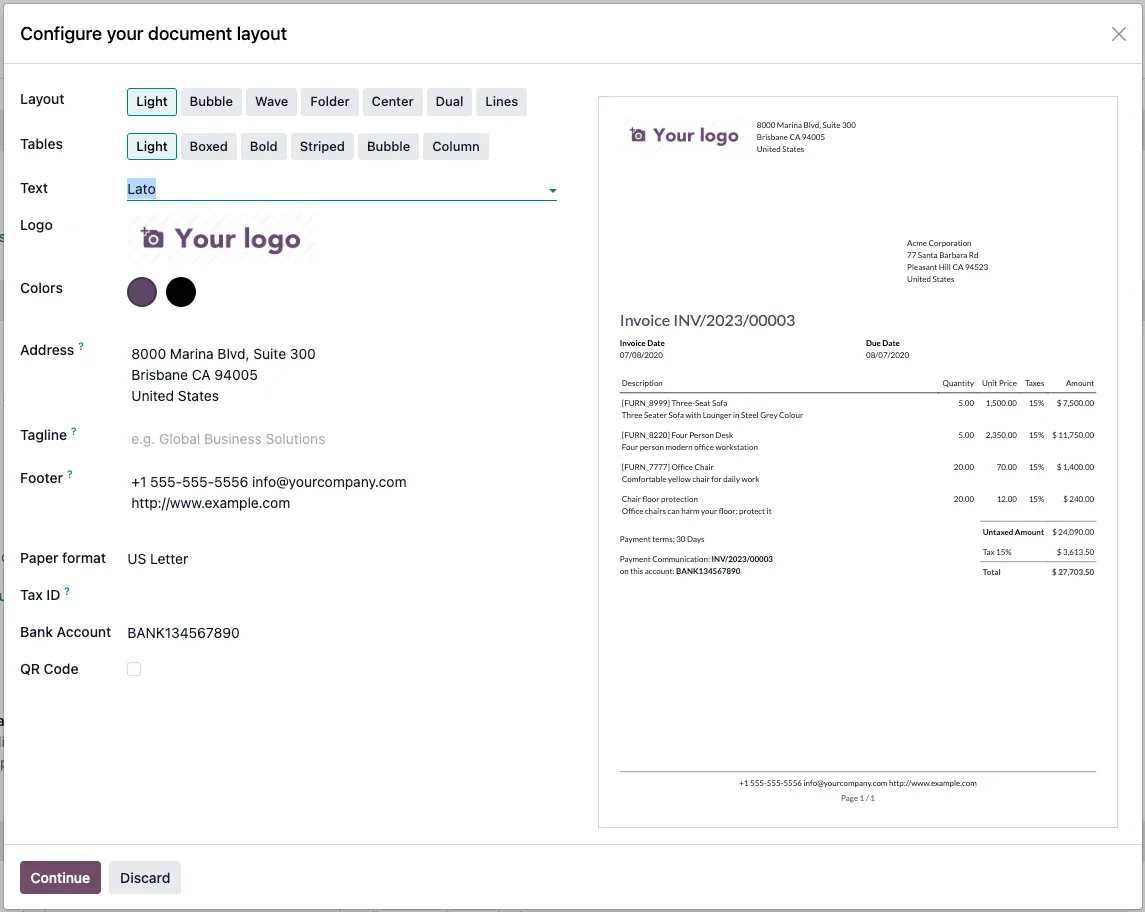
Navigate to Settings › General Settings › Companies › Document Layout and click Configure Document Layout. The modal exposes four layout frameworks, each suited to a different type of business:
| Layout | Visual Signature | Best Fit |
|---|---|---|
| Boxed | Defined cells, hard borders | Manufacturing, construction, audit-heavy environments |
| Bold | Strong typography, high-contrast headers | Modern services, agencies, creative firms |
| Striped | Alternating row backgrounds | Wholesale, distribution, long line-item invoices |
| Light | Minimalist, content-first | Retail, luxury, brand-led B2C |
Step-by-Step: Native Layout Configuration
- Open the dashboard: log into the v19 environment and open the Accounting or Invoicing module.
- Settings › Configuration: scroll to the Companies block.
- Configure Document Layout: pick the framework that matches your brand position.
- Branding: upload a PNG or SVG logo, set primary & secondary colors via hex picker, choose alignment (left / center / right).
- Typography & background: pick a corporate font (v19 expanded the rich-text font registry; no custom CSS required for most cases) and select a background style (Blank, Demo logo, Custom upload).
- Tagline & footer: add the corporate motto, certifications (ISO numbers, B-Corp status, etc.), and the legal footer line.
- Continue: saves the global settings and applies them to every external document including invoices.
The tagline field is the single best place for ISO/SOC 2 references, regulated-industry credentials, or QHSE certifications. It surfaces on every customer document without polluting the main body and eliminates the recurring “can you add the certification number?” ticket from the finance team.
Dynamic Sections, Visibility Controls, and Where Invoice Data Should Actually Live
Odoo 19 promoted invoice section management from a developer-only chore to a functional user capability. You can now reorganize, duplicate, or hide entire sections of a customer-facing invoice from the form view itself: no module update, no XML edits, no QA cycle.
Section & Sub-Section Management
Inside the invoice form, drag-and-drop handles let you split lines into named sections (“Phase 1 Discovery”, “Phase 2 Implementation”) and sub-sections (“Onsite Days”, “Remote Hours”). This pattern is useful for project-based invoicing where customers expect to see how the total was constructed.
Granular Visibility on the Printed PDF
Within any section, three independent toggles control what the customer actually sees on the rendered PDF:
- Hide prices: useful for free-of-charge bonus lines or for “summary” invoices where only totals are disclosed.
- Hide taxes: for export invoices, intra-EU reverse-charge scenarios, or cosmetic clean-up.
- Hide whole section: lets you keep internal notes, cost-center breakdowns, or analytical lines on the invoice record without ever exposing them to the recipient.
Move Repetitive Fields Off the Invoice and Onto the Contact
The Other Info tab is still the central repository for Customer Reference, Payment Reference, and Incoterms. The 2026 best practice, however, is to push that data back to the contact record. Setting fiscal positions, payment terms, preferred bank, and receivable accounts on the contact form (Accounting › Customers › Customers) means every new invoice prefills correctly, eliminating per-invoice rework.
| Invoice Data Point | Best Origin | Why It Matters |
|---|---|---|
| Invoice Date | Auto-filled at confirmation | Drives the official issue date and tax period |
| Recipient Bank | Journal / Other Info tab | Determines the IBAN encoded in the EPC QR code |
| Fiscal Position | Contact record | Maps tax substitutions and account remapping at scale |
| Payment Terms | Contact / Sales Order | Defines installment plans & early-payment discount text |
Odoo Studio: Adding Custom Fields and Editing Reports Without Writing a Module
Studio occupies the middle ground between native settings and full code. It’s the right tool when you need a field that doesn’t exist out of the box, a column on the printed PDF, or a conditional block, without the overhead of shipping a custom module.
Step-by-Step: Add a Custom Field via Studio
- Open an invoice and click the wrench icon (Toggle Studio) in the upper right.
- Pick the Form view; Studio displays a sidebar with field types.
- Drag & drop the field type you need (Monetary, Selection, Many2One, Related, etc.) onto the form.
- Configure properties:
- Label: e.g. “Environmental Fee”
- Technical name: Studio prefixes with
x_studio_ - Visibility: required, invisible, or domain-driven
- For relational fields, set the target model (e.g.
res.usersfor a secondary salesperson)
- Close Studio: you’re back in the standard interface with the field live.
The Studio Report Editor
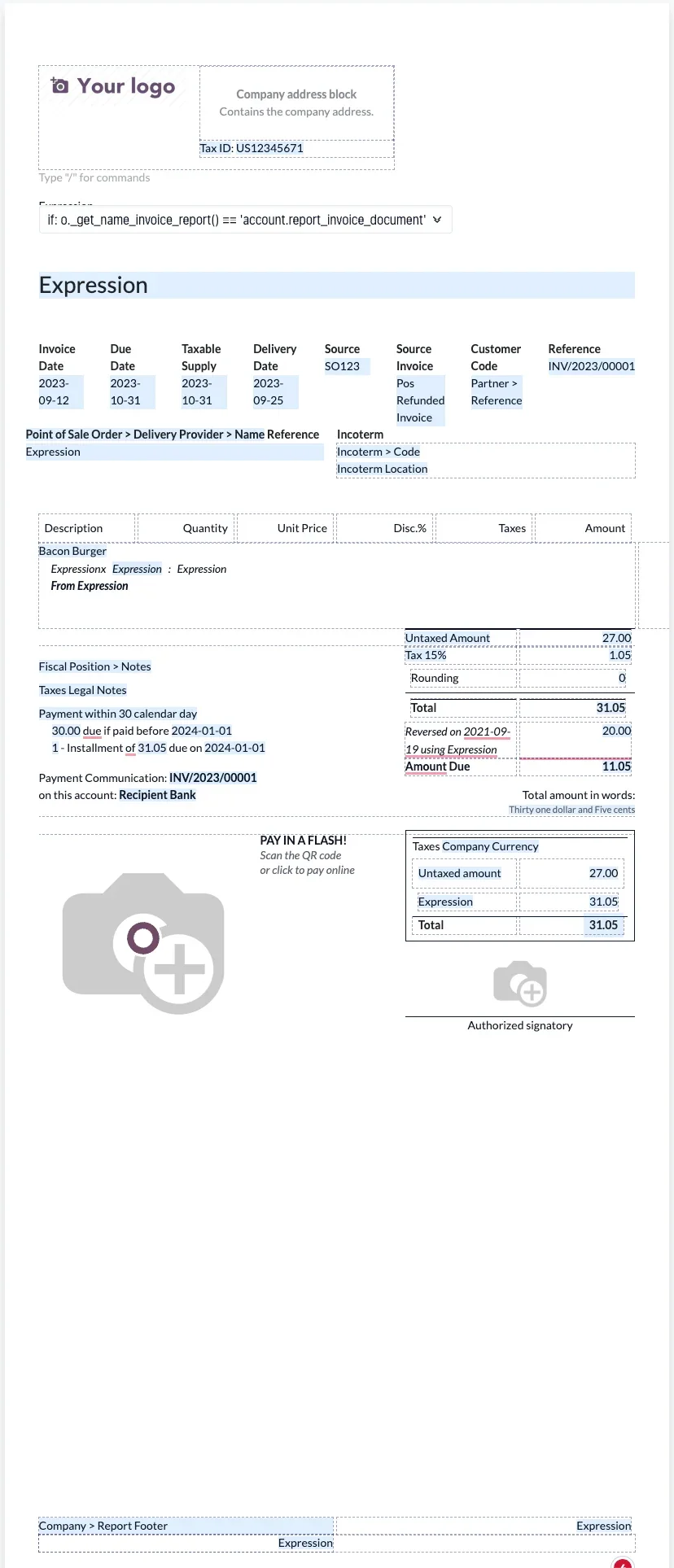
The PDF report editor in v19 deviates from the form editor. Instead of dragging fields, you compose templates with slash commands and conditional blocks:
| Feature | How It Works | Use Case |
|---|---|---|
| External / Internal / Blank report | Starting templates from the new-report wizard | Use External for invoices: keeps company header/footer |
| Slash commands | Type / to insert tables, fields, conditional blocks | Add a “Brand / Manufacturer Part Number” column |
| Conditional blocks | Dashed rectangles bound by a logical expression | Show shipping address only when it differs from billing |
| Visibility groups | Restrict report sections to a user group | Reveal margin breakdown to Accounting / Manager only |
Studio is the right choice up to the point where your changes need to interact with computed fields, multiple inherited reports, or shared CSS across documents. The moment you need to coordinate two modules’ xpaths or override a method on account.move, drop into a custom module. Studio’s generated XML is fine, but it isn’t what you want as the source of truth for upgrade-safe customizations.
QWeb & XPath: Engineering Invoice Customizations That Survive Upgrades
For anything beyond Studio’s ceiling, the right answer is QWeb inheritance from a custom module. The cardinal rule hasn’t changed: inherit, don’t override. Direct edits to account.report_invoice_document are wiped on every upgrade. Inherited templates survive because the ORM applies them as a layer on top of the base.
Anatomy of a Custom Invoice Report
Every report has two pieces: an ir.actions.report record (the metadata) and a QWeb template (the structure). The minimum viable custom invoice report:
For a developer-only deep-dive on QWeb invoice templates (PO numbers, project codes, wire instructions, multi-company layouts, conditional content), see our companion guide Level Up Your Billing: A Step-by-Step Guide to Customizing Odoo Invoices.
<odoo>
  <record id="action_report_custom_invoice"
          model="ir.actions.report">
    <field name="name">Premium Invoice Template</field>
    <field name="model">account.move</field>
    <field name="report_type">qweb-pdf</field>
    <field name="report_name">
      my_module.custom_invoice_template
    </field>
    <field name="binding_model_id"
           ref="account.model_account_move"/>
  </record>

  <template id="custom_invoice_template"
            inherit_id="account.report_invoice_document">
    <xpath expr="//div[@name='reference']"
           position="after">
      <div t-if="o.x_customer_po"
           class="col-auto col-3 mw-100 mb-2">
        <strong>Customer PO:</strong>
        <p class="m-0" t-field="o.x_customer_po"/>
      </div>
    </xpath>
  </template>
</odoo>
XPath Position Cheat Sheet
| Position | Effect | When to Use |
|---|---|---|
replace | Removes the target element entirely | Overhauling the address block for legal compliance |
after / before | Sibling insertion | Adding a Project Manager next to the Salesperson |
inside | Child insertion | Appending a disclaimer inside the T&C div |
attributes | Modifies class / style / data-* | Adding Bootstrap 5 utilities, brand colors |
Avoid positional selectors like //table/tbody/tr[last()]. The moment another module (sale_stock, l10n_*, OCA pack) inherits the same template and adds rows, your “last row” becomes their row. Target named anchors instead: //div[@name='payment_term'], //div[@name='reference'], //div[@name='total']. They’re stable across upgrades and across the OCA ecosystem.
Rendering Binary Images on the PDF
The single most common technical hurdle in v19 invoice work: product photos render in the web preview but disappear from the PDF. The wkhtmltopdf renderer can’t fetch binary image fields the way the browser does. The fix is to embed them as base64 via the image widget:
<span t-esc="line.product_id.image_128"
      t-options="{
        'widget': 'image',
        'max_width': '64',
        'class': 'rounded'
      }"/>
Peppol, EPC QR Codes, and Total in Words: Customizing for Compliance
The 2026 Wave 1 focus on finance is driven by mandatory e-invoicing. Customizing an invoice without integrating Peppol, EPC QR codes, and locale-specific structures is incomplete work. It’ll fail the moment you ship cross-border or onboard a public-sector customer.
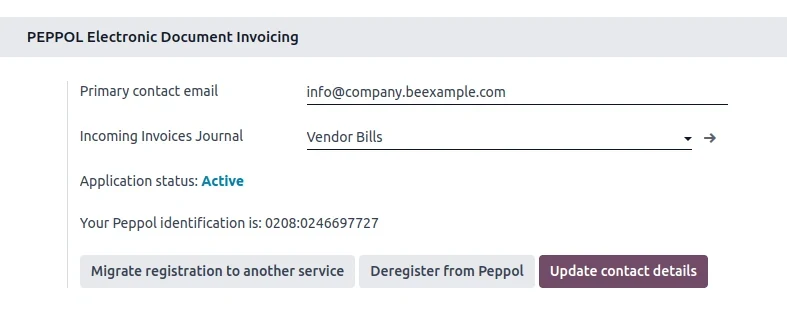
Peppol Activation in Odoo 19
- Open
Accounting › Configuration › Settings › Electronic Invoicingand click Activate Peppol. - Provide the Peppol endpoint identifier (VAT number or GLN).
- For each customer, set the e-invoice format on the contact’s Accounting tab (Factur-X, UBL, CII, etc.).
- When the invoice is sent, v19 attaches the structured XML alongside the PDF automatically.
EPC / SEPA QR Codes
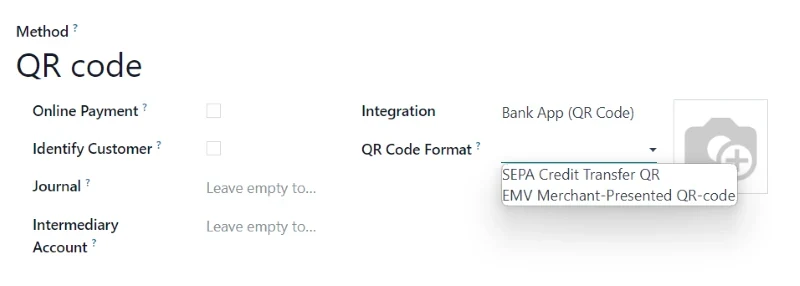
Customer Payments. Activating the right format per region drives the QR rendered at the bottom of the printed invoice.- In
Accounting › Configuration › Settings, enable QR Codes under Customer Payments. - Confirm the bank journal carries both IBAN and BIC.
- Populate the Recipient Bank field on the invoice Other Info tab.
- Odoo auto-renders the EPC QR code at the bottom of the printed document; SEPA-area customers can pay via banking-app scan.


Region-specific equivalents are supported through localization modules: Pix (Brazil), FPS (Hong Kong), VietQR (Vietnam), and the various GCC localizations.
Total Amount in Words
In several jurisdictions the literal spelled-out total is a legal requirement to prevent post-print tampering. Enable it under Accounting › Configuration › Settings › Customer Invoices › Display Total in Letters. For per-journal control (uppercase forcing, language overrides for bilingual invoices), several OCA-grade modules expose journal-level configuration without forking the core.
AI Inside Invoicing: OCR, Ask AI, and Vibe Coding
In Odoo 19, AI is the interaction layer of the ERP, not a sidecar. For invoice work, that translates into three concrete capabilities you should design your customizations around:
- OCR + learning preferences: the engine that digitizes incoming vendor bills also feeds tailored templates per supplier. Manual corrections train a per-vendor profile that improves with use.
- Ask AI agent:
Ctrl + Kor the top-bar button; conversational queries over invoicing data, summarization of dispute history, automatic translation of chatter messages, semantic search (“find the invoice for the sustainability audit last September”). - Vibe coding & image generation (v19.2): describe a portal or document layout in natural language, generate product visuals directly inside the ERP. The same product imagery flows automatically into your custom invoice templates.
When designing custom invoice fields, prefer well-named, well-typed fields over free-text Char dumps. The Ask AI agent and the OCR template engine reason about your data through field labels and types: naming a field x_customer_po_number with help text yields dramatically better automation than x_studio_field_4d2a1.
Three Production Pitfalls That Break Invoice Customization
Missing report.url System Parameter
You upgraded a containerized v19 stack and PDFs come out blank, headerless, or stripped of stylesheets. The renderer can’t resolve internal asset URLs because the report.url system parameter isn’t set.
Set report.url in Settings › Technical › System Parameters to the internal address Odoo can reach itself on (e.g. http://localhost:8069 in single-container deployments, or the internal Docker service URL when the worker isn’t the same container as Nginx). PDFs render instantly afterwards.
Flexbox / CSS Grid in the QWeb Stylesheet
Your invoice looks perfect in Chrome’s print preview, then arrives at the customer with everything stacked, overlapping, or missing. wkhtmltopdf is a WebKit fork from 2020. It speaks CSS 2.1 and a partial CSS3, but not flexbox, not grid, not custom properties.
Use Bootstrap’s row/col-*, table layouts, and display: inline-block. Validate against the actual wkhtmltopdf 0.12.6/0.12.7 binary, not browser preview. PostCSS in v19 already tree-shakes unused styles, so leverage it.
Hardcoded Currencies, Symbols, and Tax Labels
A US-localized template ships fine for domestic clients, then a Quebec or Saudi customer receives invoices with the wrong symbol, decimal separator, or tax description. Hardcoded formatting collapses the moment invoices cross a border.
Always use t-field with t-options='{"widget": "monetary"}' for amounts, {"widget": "date"} for dates, and read tax labels from tax_id.description/tax_id.name. Never hardcode currency symbols or tax names; the company / fiscal position pair already encodes the correct rendering.
What a Properly Customized Invoice Returns
Invoice customization is a working-capital lever and a compliance hedge:
Clear bank details, embedded EPC QR codes, and visible payment terms compress the customer-side AP cycle by several days on average.
PO numbers, project codes, and wire instructions surfaced on the document itself eliminate the back-and-forth tickets your finance team currently absorbs.
Peppol-ready XML, Total-in-Words, region-specific QR codes, and proper localization make every invoice audit-defensible across the jurisdictions you ship to.
For an organization sending 500 invoices per month at a $10K average value, a 5-day DSO improvement frees roughly $833,000 in working capital. That is a CFO-level result delivered by a one-time template project plus a Peppol activation.
The Odoo Academy (e-)Invoicing Curriculum
The 2026 Academy track on e-invoicing is structured as a 2-hour 2-minute progression that walks teams from the database basics through Peppol, regional localizations (Vietnam Form 01/GTGT, GCC/Saudi, etc.), and accountant transmission. It pairs well with this guide as a hands-on companion. The full course is available at Odoo Academy: (e-)Invoicing.
| Module | Topic | Duration |
|---|---|---|
| 1 | Introduction to invoicing | 2 min |
| 2 | Database creation & configuration | 13 min |
| 3 | Sales: from quotes to invoices | 15 min |
| 4 | Purchases & Peppol | 9 min |
| 5 | Recurring billing & contracts | 15 min |
| 6 | Payments & reconciliation | 12 min |
| 7 | Mobile app workflows | 6 min |
| 8 | Reporting & analysis | 8 min |
| 9 | Accountant transmission | 2 min |
Frequently Asked Questions
The questions readers ask us most often on this topic.
Can you customize Odoo invoices without writing code?
Yes. Odoo 19 ships a no-code Document Layout engine (Settings › General Settings › Companies › Document Layout) with four layout frameworks (Boxed, Bold, Striped, Light), logo upload, brand colors, fonts, and a tagline field. For custom fields and report tweaks, Odoo Studio adds 21 field types and a slash-command report editor without requiring a custom module.
What is QWeb and when do I need it for invoice customization?
QWeb is Odoo's XML-based report templating engine. You need it when Studio's ceiling is reached: coordinating multiple inherited reports, sharing CSS across documents, overriding methods on account.move, or shipping upgrade-safe customizations as a custom module. The cardinal rule is to inherit (never override) account.report_invoice_document via XPath, using named anchors like //div[@name='payment_term'] instead of positional selectors.
How do I add a Peppol e-invoicing XML to Odoo invoices?
In Odoo 19, open Accounting › Configuration › Settings › Electronic Invoicing and click Activate Peppol. Provide a Peppol endpoint identifier (VAT number or GLN). For each customer, set the e-invoice format on the Accounting tab of their contact record (Factur-X for France, UBL/CII for international, etc.). When the invoice is sent, Odoo attaches the structured XML alongside the PDF automatically.
Why does my product image show in the web preview but not on the PDF invoice?
The wkhtmltopdf renderer cannot fetch binary image fields the way the browser does. The fix is to embed the image as base64 via the QWeb image widget: <span t-esc="line.product_id.image_128" t-options="{'widget': 'image', 'max_width': '64'}"/>. The image widget converts the binary into an inline data URI that wkhtmltopdf renders correctly.
My PDF invoice renders blank or without styles in production. How do I fix it?
In containerized Odoo deployments the most common cause is a missing report.url system parameter. Set it in Settings › Technical › System Parameters to the internal address Odoo can reach itself on (e.g. http://localhost:8069 in single-container deployments, or the internal Docker service URL when the Odoo worker is in a different container than Nginx). PDFs render correctly afterwards.
Can I use flexbox or CSS Grid in Odoo invoice templates?
No. Odoo invoice PDFs are rendered by wkhtmltopdf 0.12.x, which is a WebKit fork from 2020. It supports CSS 2.1 and partial CSS3 but not flexbox, not CSS Grid, and not CSS custom properties. Use Bootstrap 5's row/col-* grid (which falls back to floats), table layouts, or display:inline-block for side-by-side elements. Always validate against the actual wkhtmltopdf binary, not browser print preview.
How do I add the total amount in words to an Odoo invoice?
Enable it under Accounting › Configuration › Settings › Customer Invoices › Display Total in Letters. Required by law in several jurisdictions to prevent post-print tampering. For per-journal control (uppercase forcing, language overrides for bilingual invoices), several OCA-grade modules expose journal-level configuration without forking the core.
Will my Odoo invoice customizations survive an upgrade to Odoo 20?
They will if you use inheritance. Direct edits to base templates like account.report_invoice_document are wiped on every upgrade. Inherited templates layered via XPath survive upgrades because Odoo applies them on top of the base. Stick to named anchors in your XPath expressions, and avoid positional selectors that break when other modules add elements at the same level.